Answer a quote request
This page is for suppliers. When a customer who buys from you on SKU.io wants prices before they order, they send you a quote request: a list of products and quantities. You answer line by line with your price, how many you can supply, and your lead time. You can answer in the customer's supplier portal, or from the link in their email without an account. Customers, you can forward this page to your suppliers.
Before you begin
- You need the quote request email, or a sign-in to the customer's supplier portal. To set one up, the customer invites you to the portal.
- Have your prices to hand, and your lead times and minimum order quantities if you want to quote them.
Steps
- In the supplier portal, click Quote requests in the menu on the left. (No portal account? Click Submit your quote in the email instead.)
- Click Quote on the request you want to answer.
- Under Your prices, enter a Unit cost for each product, and change Available qty, Lead (d), MOQ and Your SKU as needed.
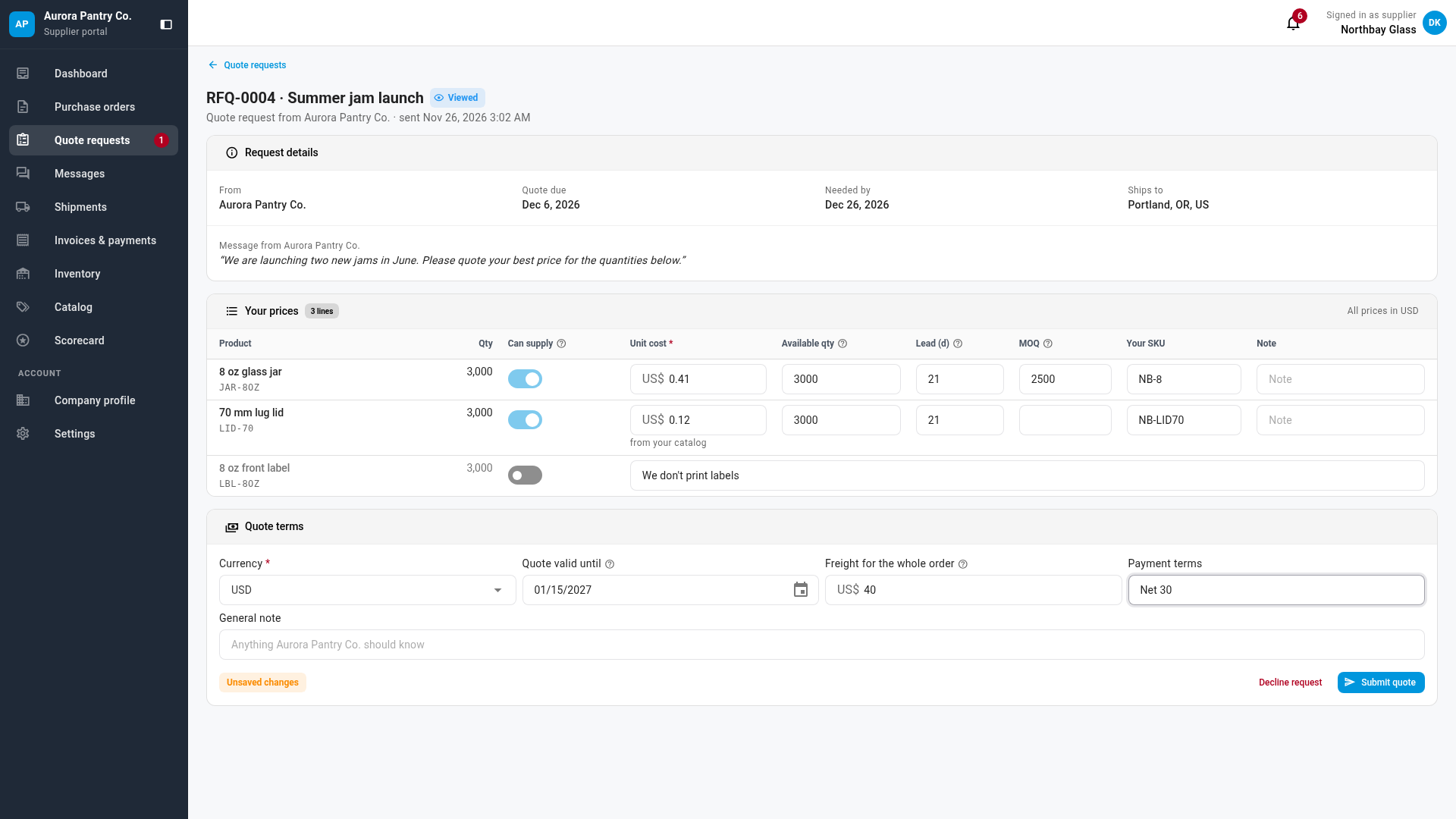
- Turn off Can supply on any product you don't offer, and add a reason.
- Under Quote terms, choose the Currency, and fill in Quote valid until, Freight for the whole order and Payment terms if they apply.
- Click Submit quote. If you can't quote at all, click Decline request instead.
The sections below walk through each step.
Find the request
A new request arrives by email, and in the portal: the Quote requests menu item shows how many are waiting for you, and your dashboard lists them as things to do.
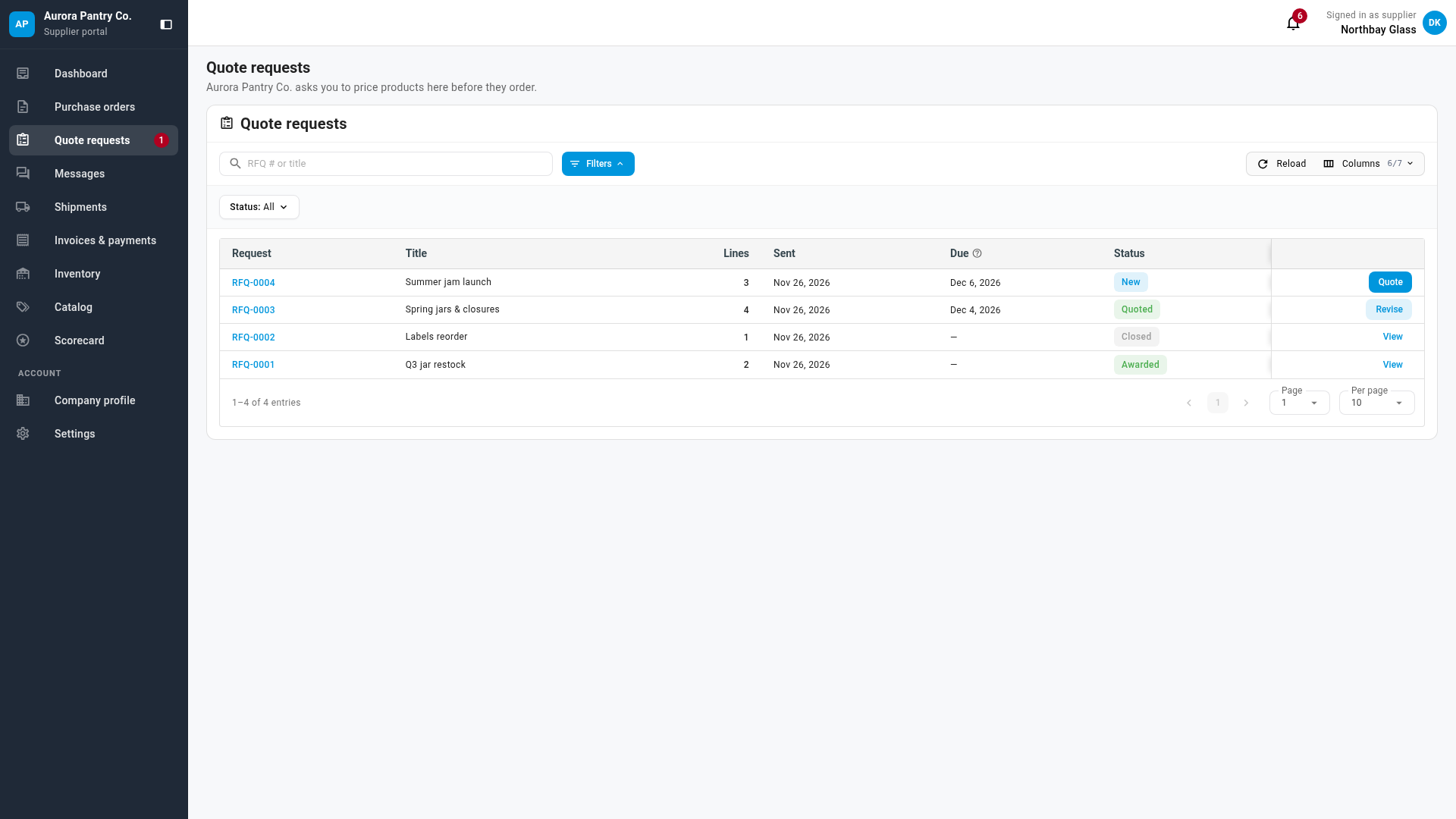
Each request shows its number, title, number of products, the date it was sent, the date your quote is due, and a status:
| Status | Meaning |
|---|---|
| New | You haven't opened it yet. |
| Viewed | You've opened it but not answered. |
| Quoted | You've sent a quote. You can still revise it. |
| Declined | You declined. You can still send a quote while the request is open. |
| Awarded | The customer picked your quote. |
| Not awarded | The customer ordered from another supplier. |
| Closed | The customer cancelled the request. |
| Withdrawn | The customer took you off the request. |
The button on each row shows what you can do next: Quote to answer, Revise to change a quote you've sent, or View once the request has closed.
Read the request
The top of the request shows who it's from, when they need your quote (Quote due), when they need the goods (Needed by), and the city, region and country it Ships to. The customer's message appears below.
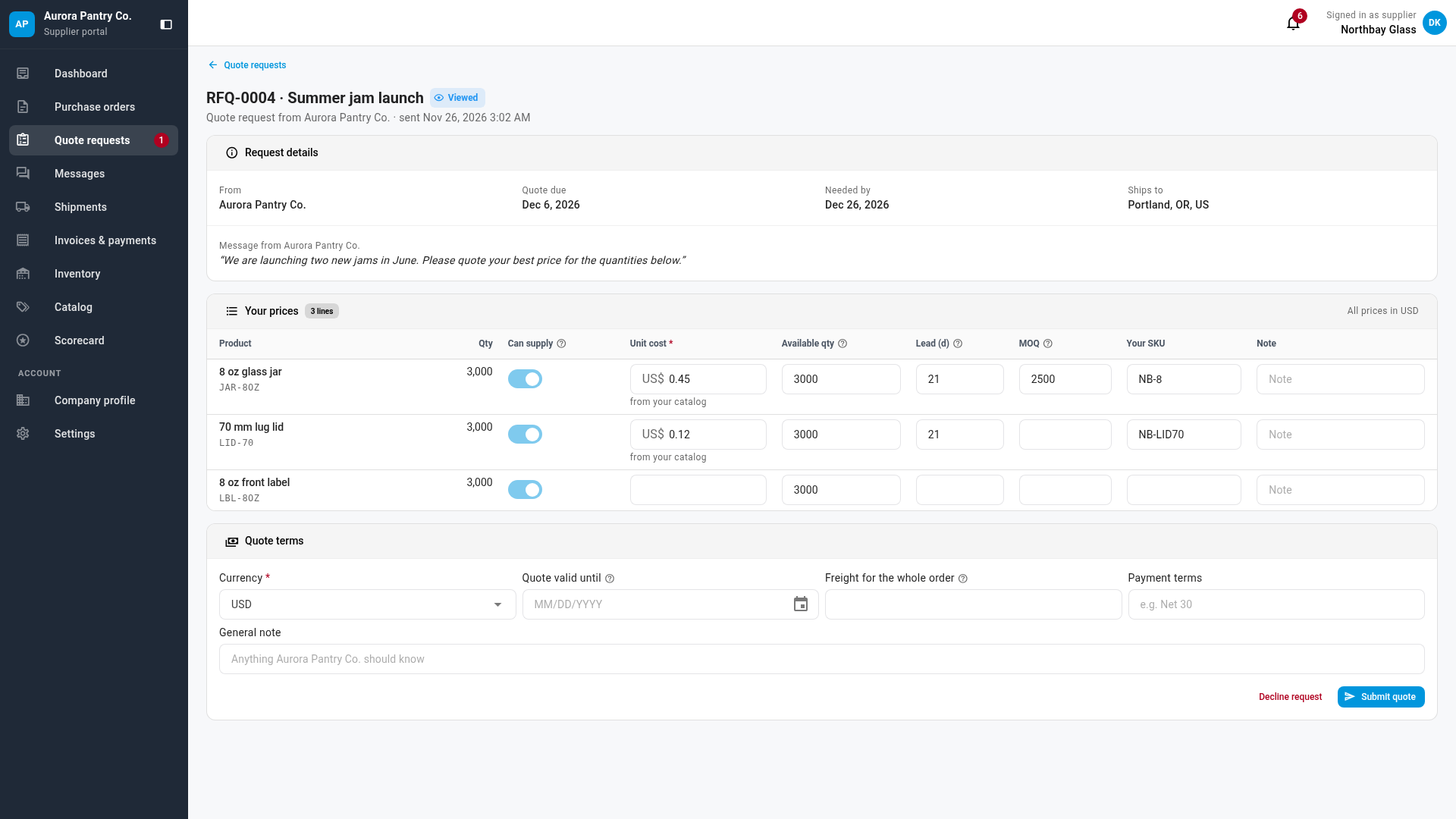
You see only your own request. You never see which other suppliers were asked, or what they quoted.
Enter your prices
Under Your prices, each product has its own line, with the quantity the customer wants.
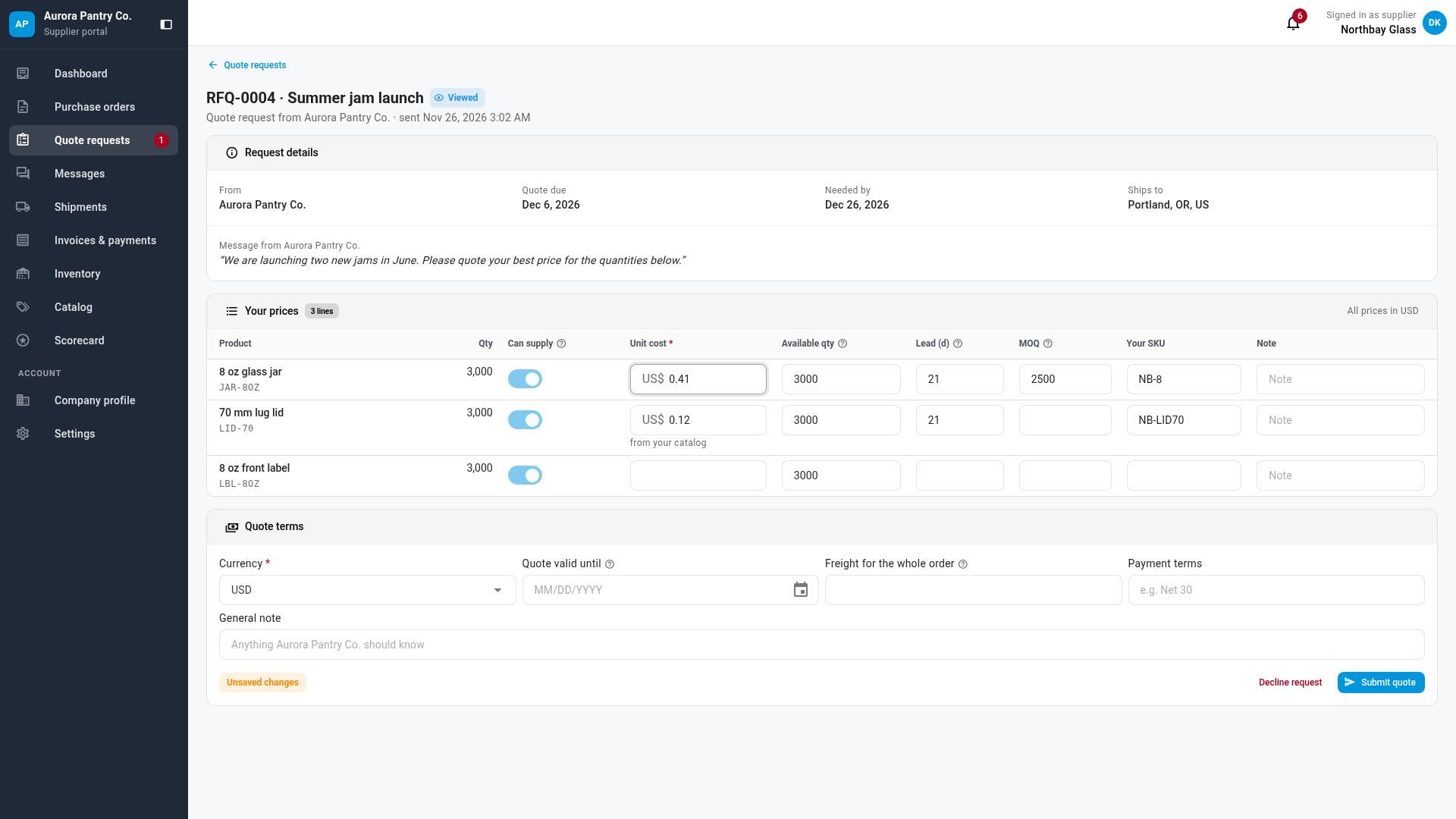
| Field | What to enter |
|---|---|
| Can supply | On by default. Turn it off for a product you don't offer, and add a reason if you like. |
| Unit cost | Your price for one unit, in the currency you choose under Quote terms. Required for every product you can supply. |
| Available qty | How many you can supply. It starts at the quantity asked for; lower it if you can supply only part. |
| Lead (d) | Your lead time, in days. Optional. |
| MOQ | Your minimum order quantity. Optional. |
| Your SKU | Your own code for the product. Optional. |
| Note | Anything about this product. Optional. |
If you already sell a product to this customer, its unit cost, lead time, minimum order and your SKU come filled in from their records, marked from your catalog. Check them before you send.
Set your terms
Under Quote terms:
- Currency: the currency of all your prices.
- Quote valid until: how long your prices hold. Optional.
- Freight for the whole order: one shipping charge for everything you quote. Optional.
- Payment terms: for example, Net 30. Optional.
- General note: anything else the customer should know.
Submit, revise or decline
Click Submit quote. A message confirms the quote went to the customer, and the page shows a summary of what you sent, with the total.
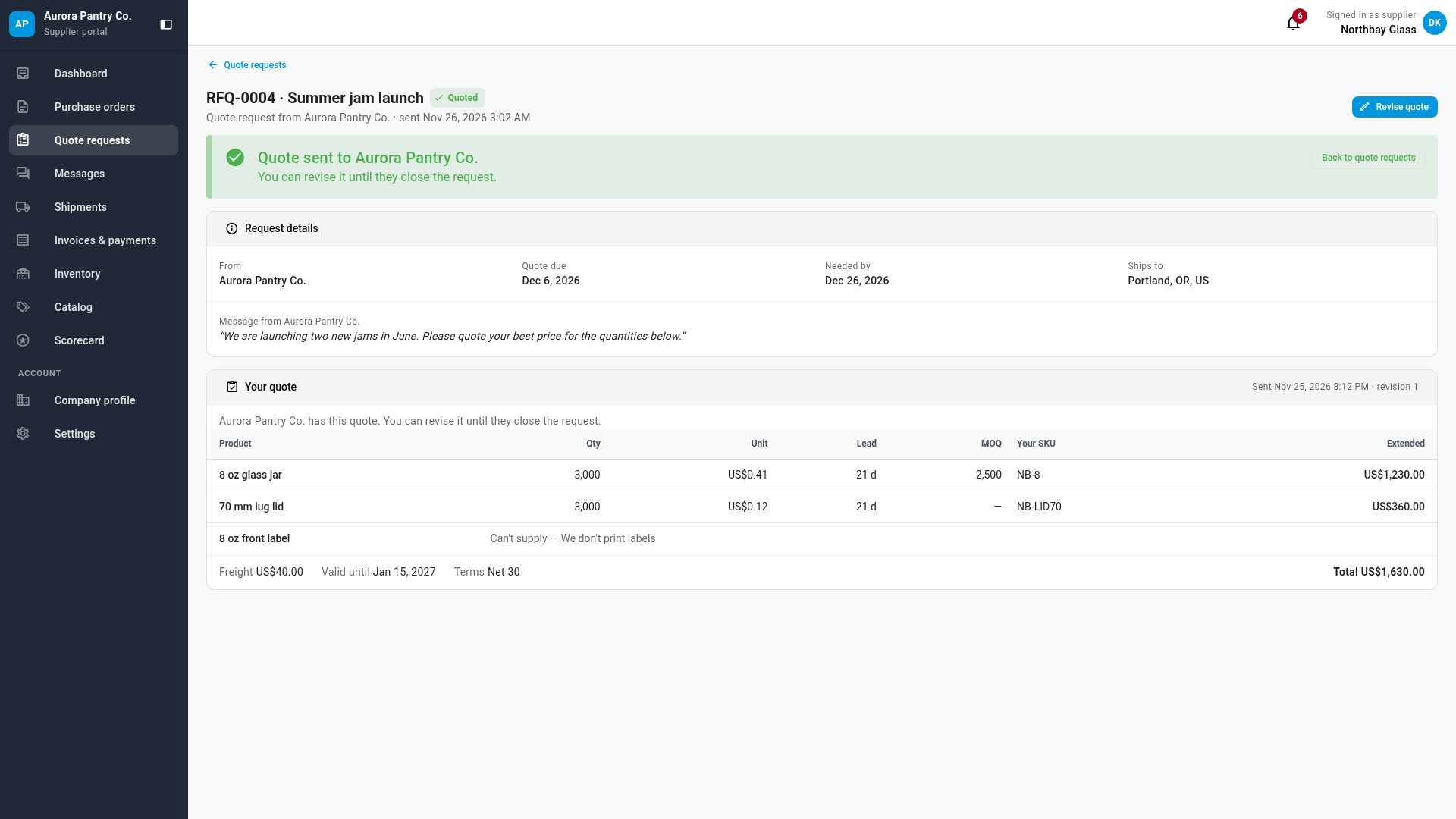
Until the customer closes the request, you can change your answer: click Revise quote, edit, and submit again. The customer sees that you revised it. If the customer edits your quote for you, for example after a phone call, the request shows that it was updated by them.
If you can't quote at all, click Decline request, add an optional reason, and confirm. You can still send a quote later, while the request is open.
When the customer decides
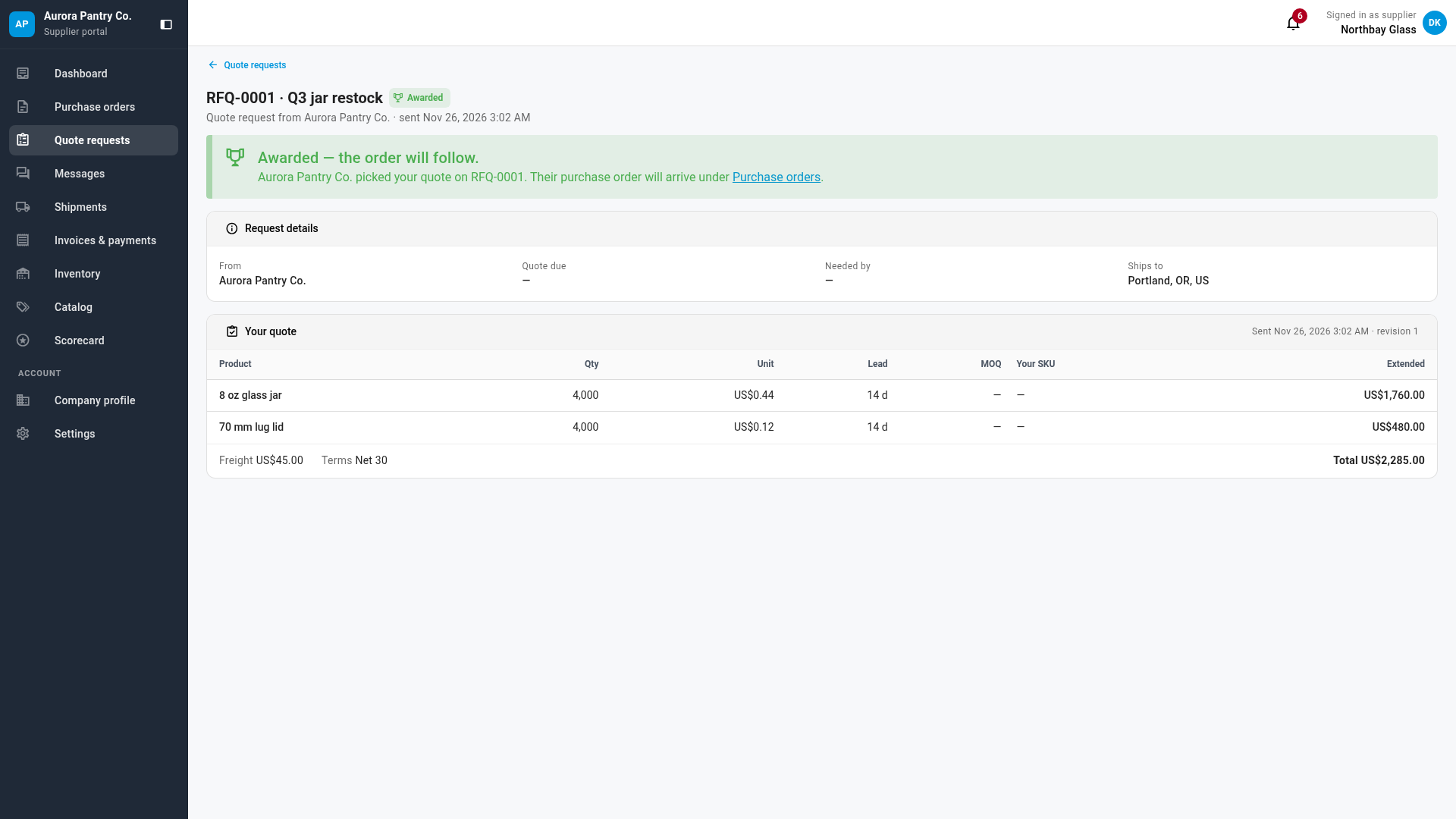
Once the customer has chosen, the request shows how it ended:
- Awarded: they picked your quote, for some or all of the products. Their purchase order arrives separately, under Purchase orders in the portal and by email.
- Not awarded: they ordered from another supplier.
- Closed: they cancelled the request.
Either way, you can still read your quote, but you can't change it. The customer doesn't email you when a request ends without an order.
Answer from the email link, with no account
You don't need a portal account. The quote request email has a Submit your quote button that opens a quote page on the customer's SKU.io address, with no sign-in. The link is yours alone; don't share it.
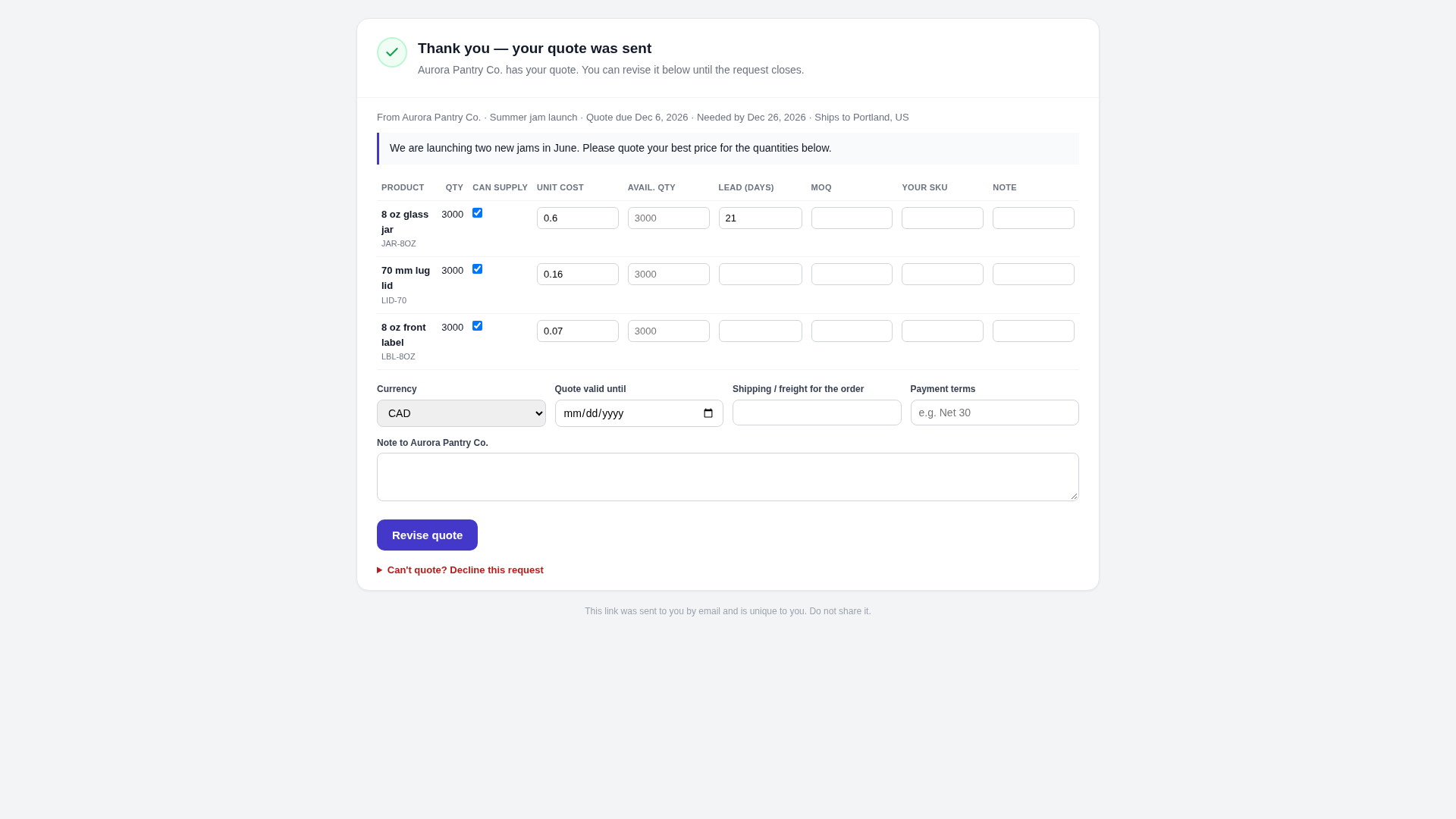
The page has the same fields as the portal: for each product Can supply, Unit cost, Avail. qty, Lead (days), MOQ, Your SKU and Note, then the Currency, Quote valid until, Shipping / freight for the order, Payment terms and a note. Click Submit quote.
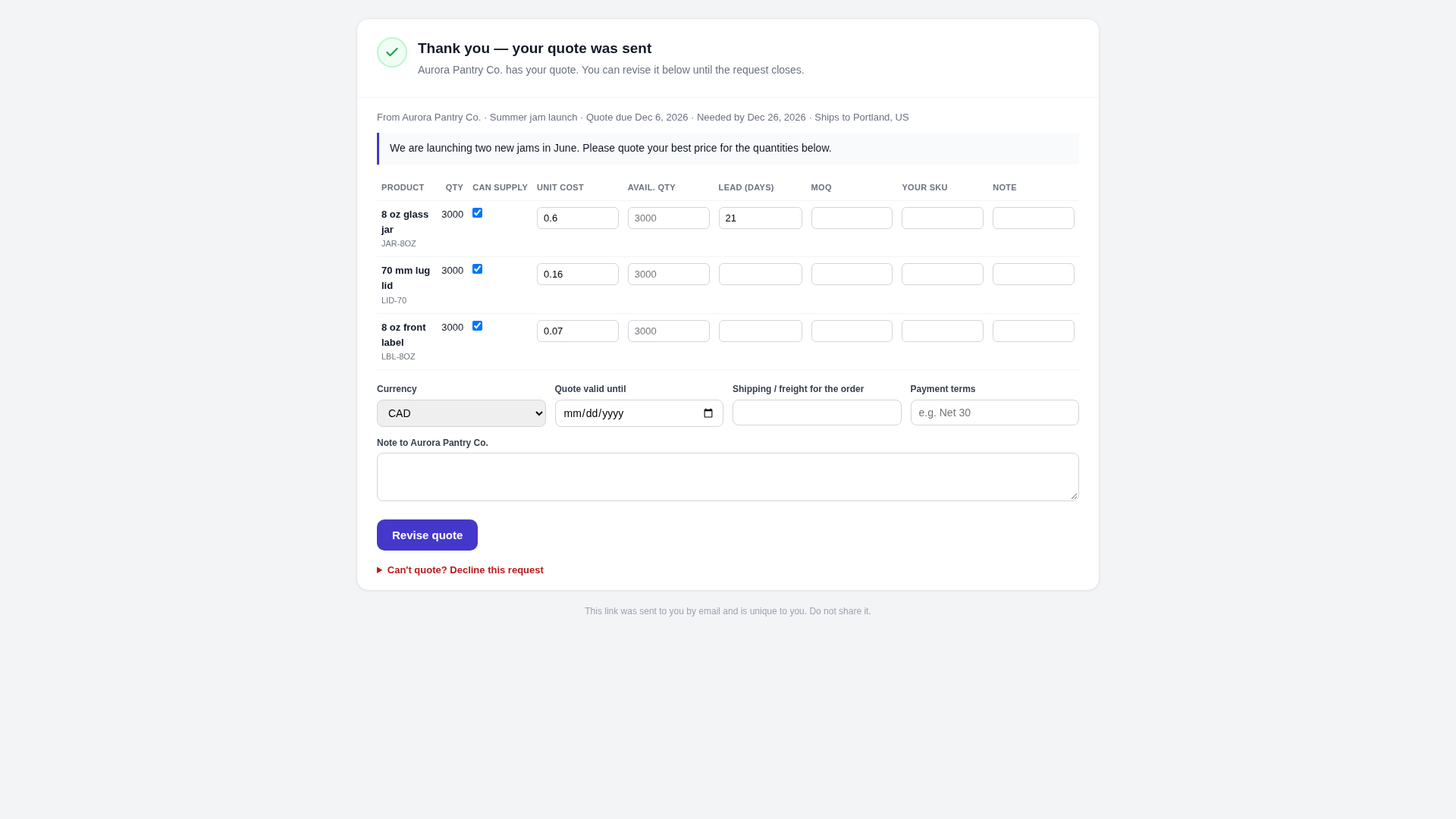
A thank-you message confirms the quote was sent. The same link lets you change your quote with Revise quote, or decline with Can't quote? Decline this request, until the request closes. After that, the link shows that the request is closed. If your company also has a portal sign-in, the page reminds you that you can see all your requests there.
Next steps
- Respond to a purchase order on the supplier portal once the order arrives.
- Customers: see Request quotes from several suppliers (RFQs) for your side.
Video transcript
When a customer wants your prices, their request arrives by email, and in your supplier portal. In the portal, click Quote requests in the menu on the left. New ones are waiting for your answer. Awarded and Closed show the ones that are finished. To answer one, click its Quote button. The top of the page shows the due date, when the goods are needed, and where they ship. Any message from the customer appears below. Under Your prices, enter a unit cost for each product. Items you already sell them are filled in from your catalog, so check those prices. Lower the available quantity if you can supply only part of the order. Lead time, minimum order, and your own SKU are optional. If you can't supply a product, turn off Can supply on its line. Add a reason if you like, so the customer knows why. Under Quote terms, choose your currency, and how long your prices hold. Then add freight for the whole order, and your payment terms. If you can't quote at all, use Decline request instead. Otherwise, click Submit quote. It goes straight to the customer, and you see a summary of what you sent. Until the request closes, you can change your answer with Revise quote. Once the customer decides, each request shows the outcome. Awarded means they picked your quote, and the purchase order will follow under Purchase orders. Closed means they cancelled, and Not awarded means they chose another supplier. You can also answer from the email, with no portal account. The request email has a Submit your quote button that opens this page. Fill in the same details: a unit cost and lead time for each product, then your currency and freight. When it's ready, click Submit quote. A thank-you message confirms your quote was sent. Until the request closes, the same link lets you revise your quote, or decline.