Respond to a purchase order on the supplier portal
This page is for suppliers. You answer each purchase order your customer sends you, one line at a time if you need to. Nothing on the order changes until your customer approves what you proposed.
Before you begin
- You have accepted your portal invitation.
- The order reads Needs response. You answer each revision once.
Steps
-
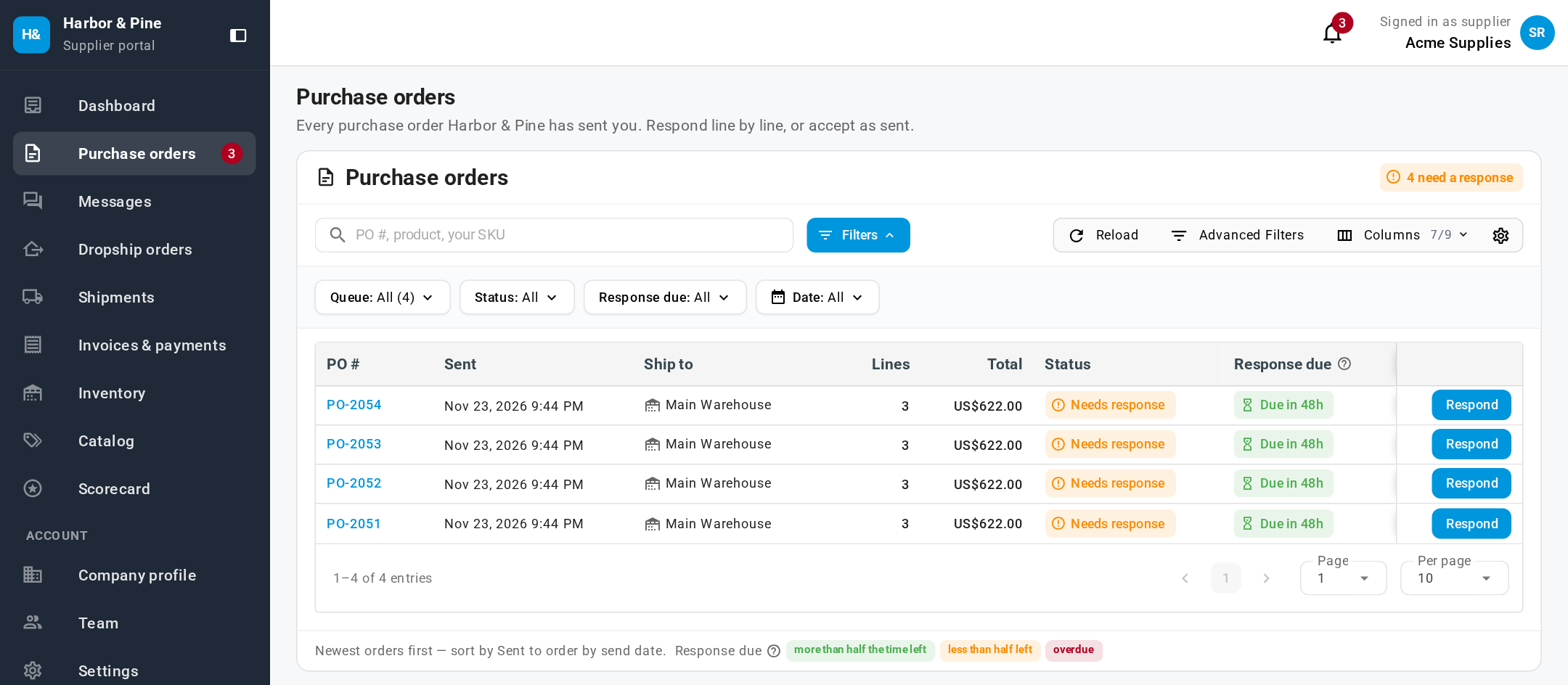
Click Review & respond in the purchase order email, or go to Purchase orders in the portal and click Respond on the order.
-
To accept the order exactly as it is, click Accept all as sent and confirm. You're done.
-
To answer line by line, choose Accept, Propose or Reject on each line.
-
On a line you propose, change at least one of New qty, New unit cost and Can ship by.
-
On every line you propose or reject, pick a Reason. Other also needs a note.
-
Optionally, enter Your order reference and a note.
-
Click Submit response. The button counts your changes.
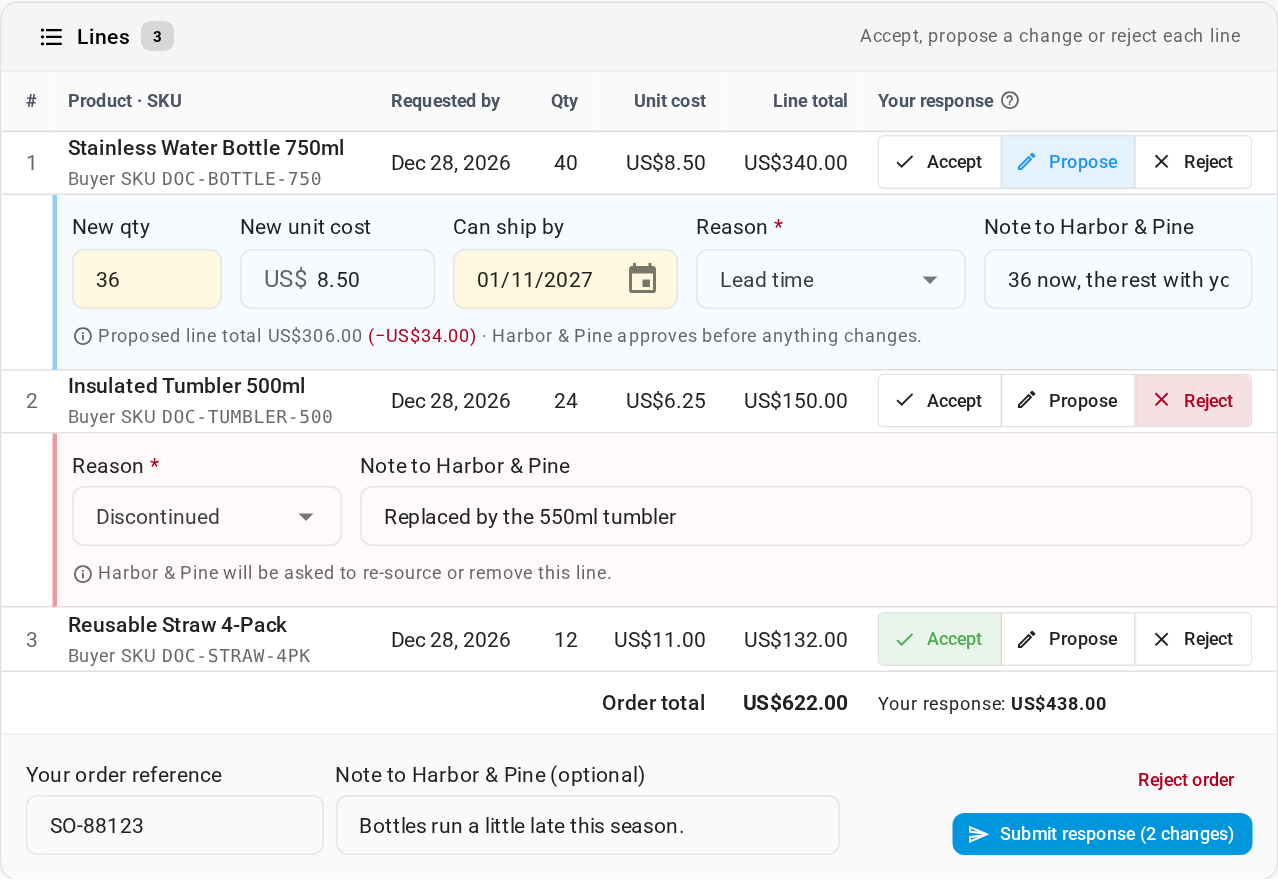
The order reads Changes requested while your customer reviews it, or Accepted · to ship if you accepted everything. Your answer is saved under Your responses.
Reject the whole order
- Click Reject order.
- Pick a Reason: Price changed, Out of stock, Discontinued, Lead time, Minimum order qty or Other.
- Click Reject order. You can't undo this from the portal.
Answer from the email
The purchase order email has three ways to answer:
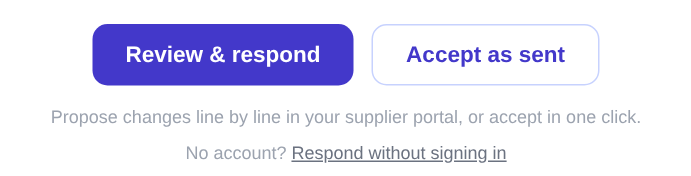
- Review & respond opens the order in the portal.
- Accept as sent opens a page listing the order. Click Confirm accept to accept it without signing in. The link is meant only for you, so don't share it.
- Respond without signing in opens a page where you accept the order, change quantities, or reject it.
When the order is revised
When your customer re-sends the order, it comes back to Needs response with a new revision number. A banner shows which of your proposals they took. Check the lines, then accept or propose again.
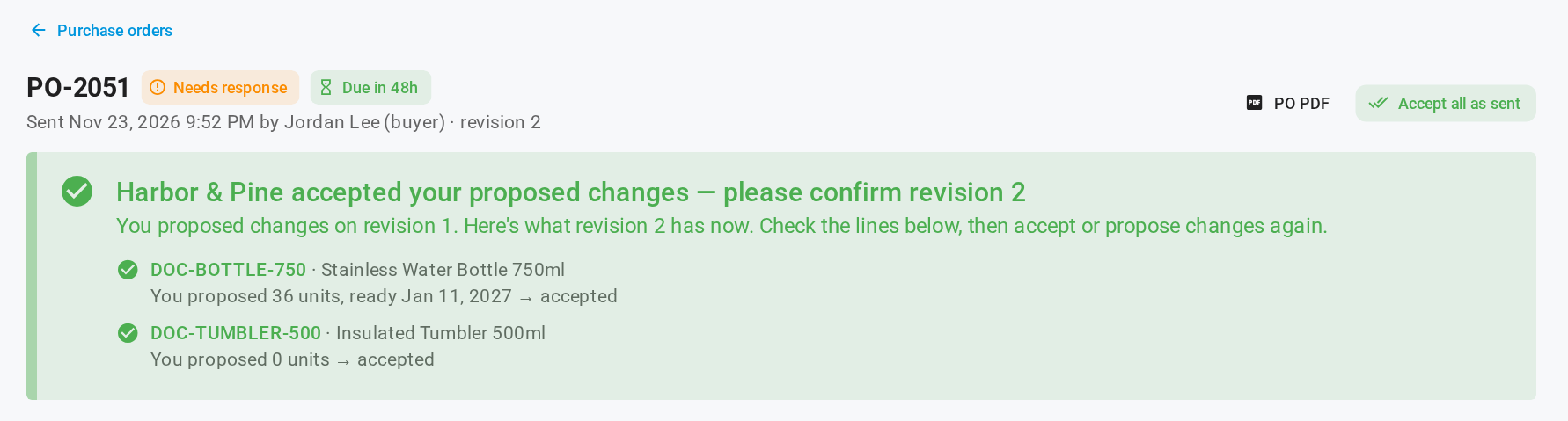
If a newer revision arrives while you are still answering, your response isn't sent. The page shows what changed and keeps your choices on lines that stayed the same, so you can review them and submit again.
Choose your emails
Go to Settings in the portal and use Email me when…. You can turn off emails about new orders, changed orders, reminders and payments, and turn on a daily digest of what's still open.