Request quotes from several suppliers (RFQs)
A request for quote (RFQ) sends one list of products to several suppliers at once and collects their prices in one place. You compare the answers line by line, award each line to the supplier you want, and SKU.io creates a draft purchase order (PO) for each winner. Use it when you're sourcing something new, checking your usual supplier against others, or pricing a big order before you commit.
Before you begin
- Your role needs the purchase order permissions: view (
purchase_orders.index) to see requests, create (purchase_orders.create) to start a request or convert it, and update (purchase_orders.update) to send, enter quotes, and award lines. - The products you want priced must exist in PIM → Products. Bundles and kits can't go on a request, because you don't buy them: add their components instead.
- Each supplier must exist in Purchasing → Suppliers. How a supplier gets the request depends on what you have on file:
- Portal: the supplier has an active user on your supplier portal.
- Email link: the supplier has a purchase order email or an email address. They get a link that needs no account.
- No contact: neither. Nothing is sent, and you key in their quote yourself.
Steps
- Go to Purchasing → Requests for quote, and click New RFQ. You can also start from PIM → Products: tick the products, then choose Bulk actions → Request quotes. The new draft opens with those products on it.
- Under Details, enter an optional Title, and check Ship to. Suppliers see only the city, region and country of the warehouse.
- Set a Needed by date and a Response due date if you have them, and add a Message to suppliers. Internal notes are never shown to suppliers.
- Under Products, set the Quantity for each line. Use Add product to add more. A Target unit cost is optional and stays private; quotes above it are flagged when you compare.
- Under Suppliers, click Add on a suggested supplier, or search for any supplier in Add supplier.
- Click Save & send…, check who gets the request in the send dialog, and click Send.
- Track the answers on the Suppliers tab. Use Remind or Copy quote link to chase a supplier, or Enter quote to type in an answer you got by phone or email.
- On the Compare tab, review the quotes side by side.
- Click Award best price to every line, or pick a winner on each line yourself.
- Click Review & convert, check the purchase orders, and click Create draft POs.
The sections below explain each step.
Start a request
On Purchasing → Requests for quote, every request shows its status, how many suppliers have answered out of how many you asked, and the best total so far. Click New RFQ to start a blank request.
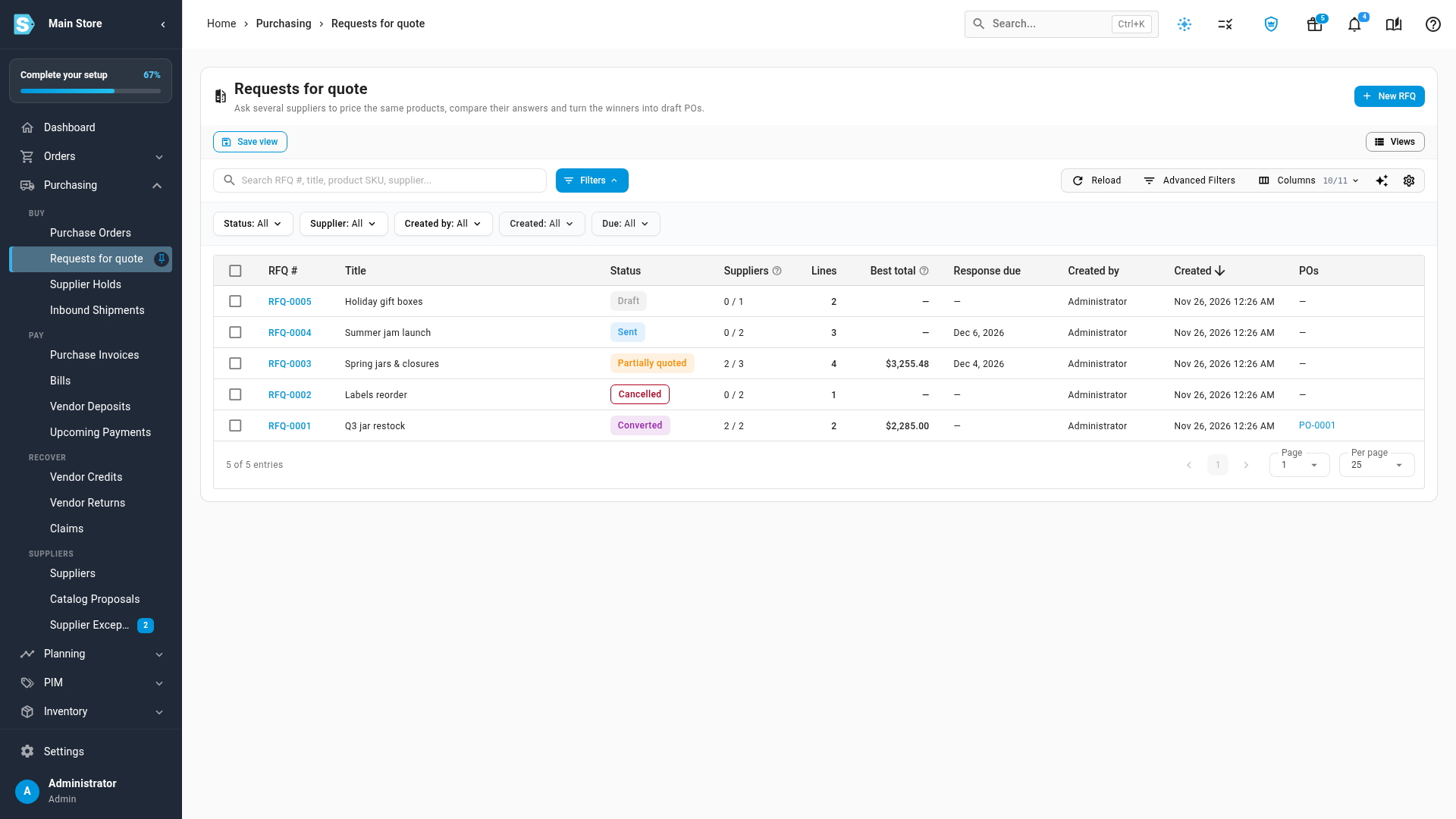
To start from products you already know you need, open PIM → Products, tick them, and choose Bulk actions → Request quotes. The draft opens with those products on it, and says where they came from under its title.
Fill in the request
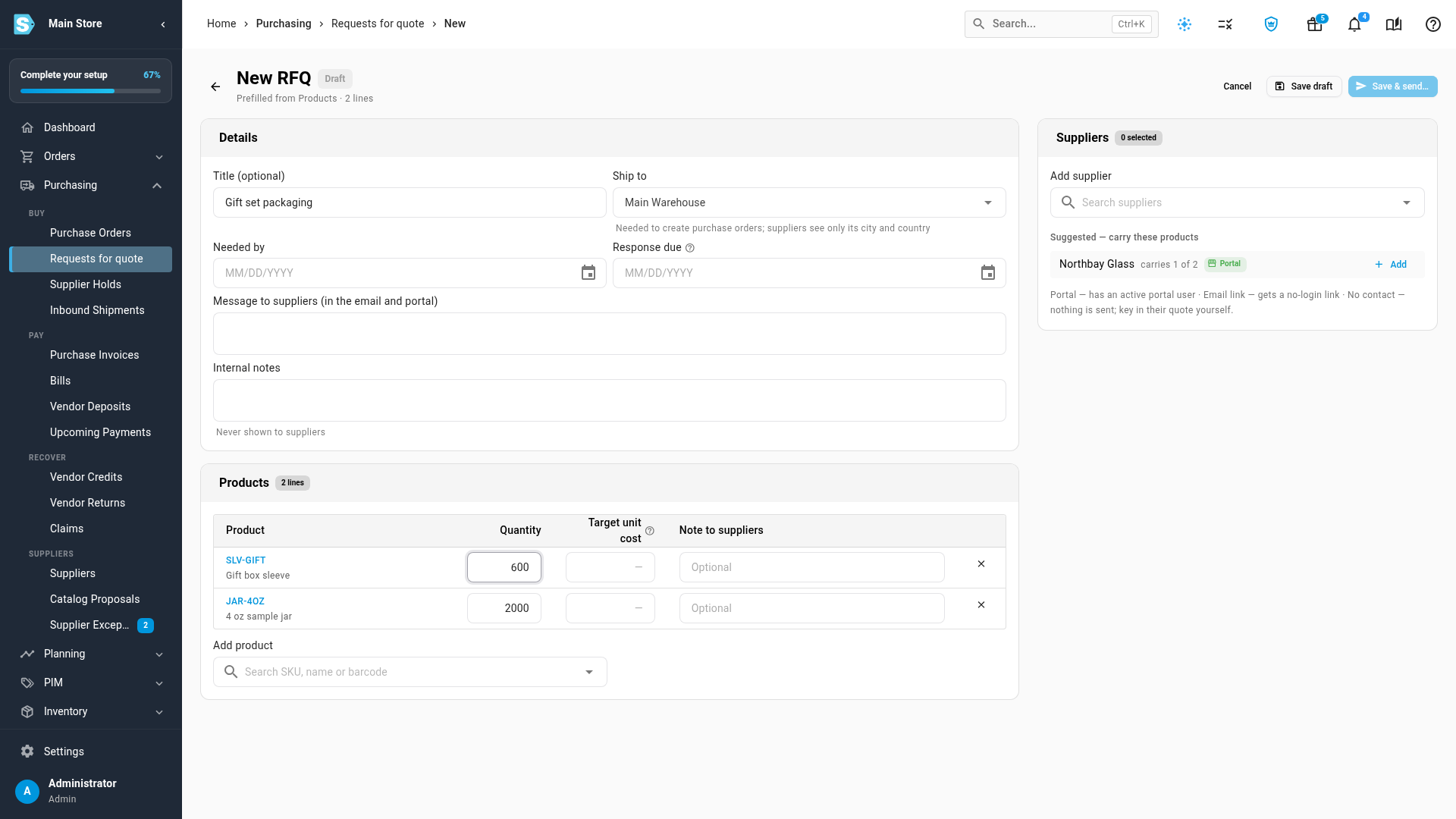
| Field | What it does |
|---|---|
| Title (optional) | A name for the request. Without one, the request is named after its number, such as RFQ-0006. |
| Ship to | The warehouse the goods go to. The purchase orders you create later use it, and suppliers see only its city, region and country. |
| Needed by | When you need the goods. Suppliers see it. |
| Response due | When you'd like answers. Suppliers see it, but it doesn't lock the request: they can still answer after it. |
| Message to suppliers | Goes in the email and on the supplier's quote page. |
| Internal notes | Only your team sees these. |
| Quantity | How many you want priced. |
| Target unit cost | The price you'd like to pay. Suppliers never see it; the comparison flags quotes above it. |
| Note to suppliers | A note for one product line, shown to suppliers. |
Each product can be on a request once. If you add a product that's already there, SKU.io takes you to its line instead.
Choose the suppliers
Suppliers that already carry the products are suggested first, with how many of the products each one carries, for example carries 1 of 3. Click Add on a suggestion, or search Add supplier for anyone else. You can add up to 20 suppliers.
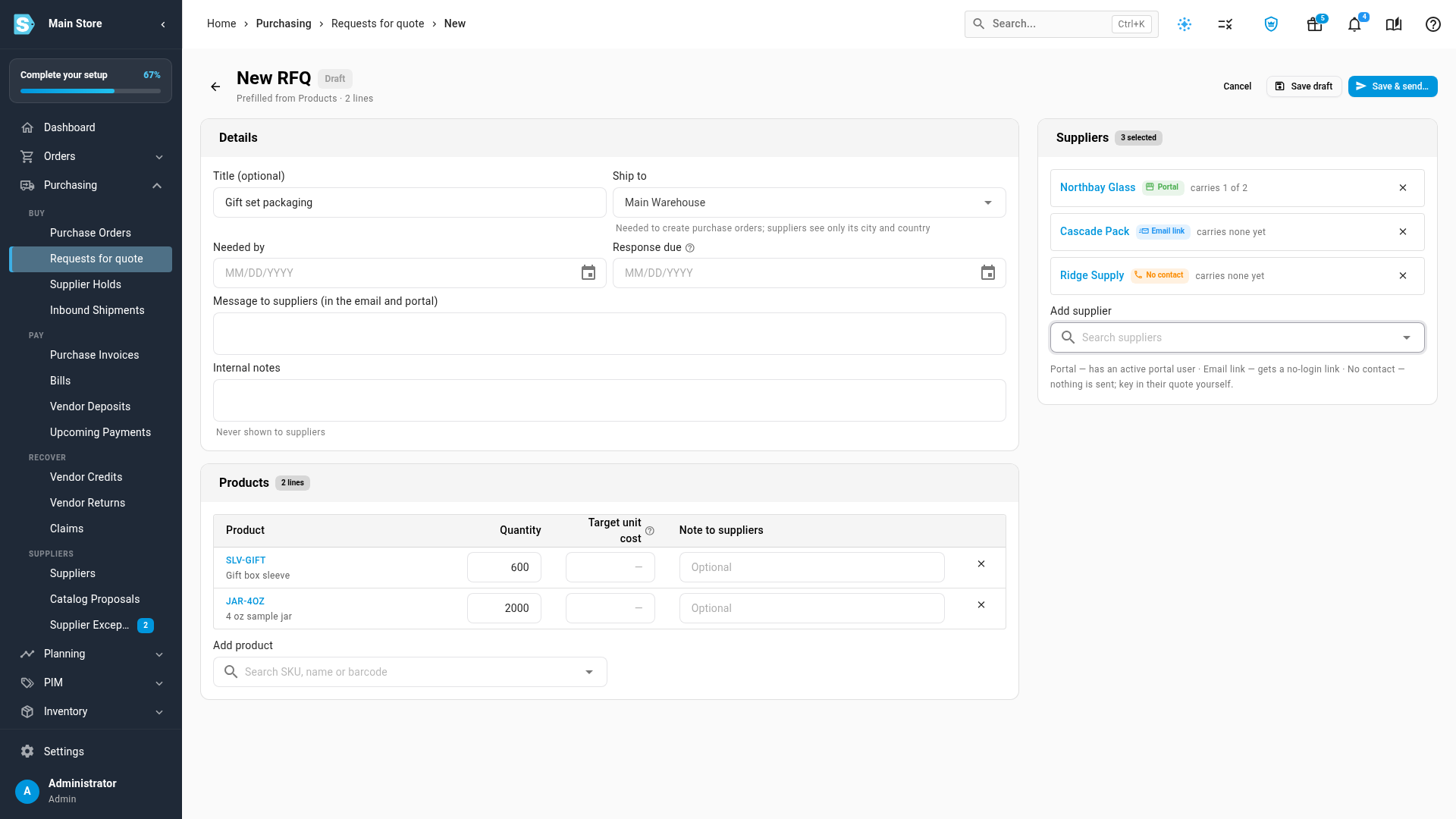
The chip beside each supplier shows how they'll get the request:
| Chip | What happens when you send |
|---|---|
| Portal | An email, and the request appears under Quote requests in your supplier portal. |
| Email link | An email with a Submit your quote button that opens a quote page with no sign-in. |
| No contact | Nothing is sent. Call or email them yourself, and enter their quote when it comes back. |
Click Save draft to finish later, or carry on and send.
Send it
Click Save & send…. The dialog lists each supplier, how they're reached, and the addresses the email goes to. Suppliers never see each other, your target costs or your internal notes.
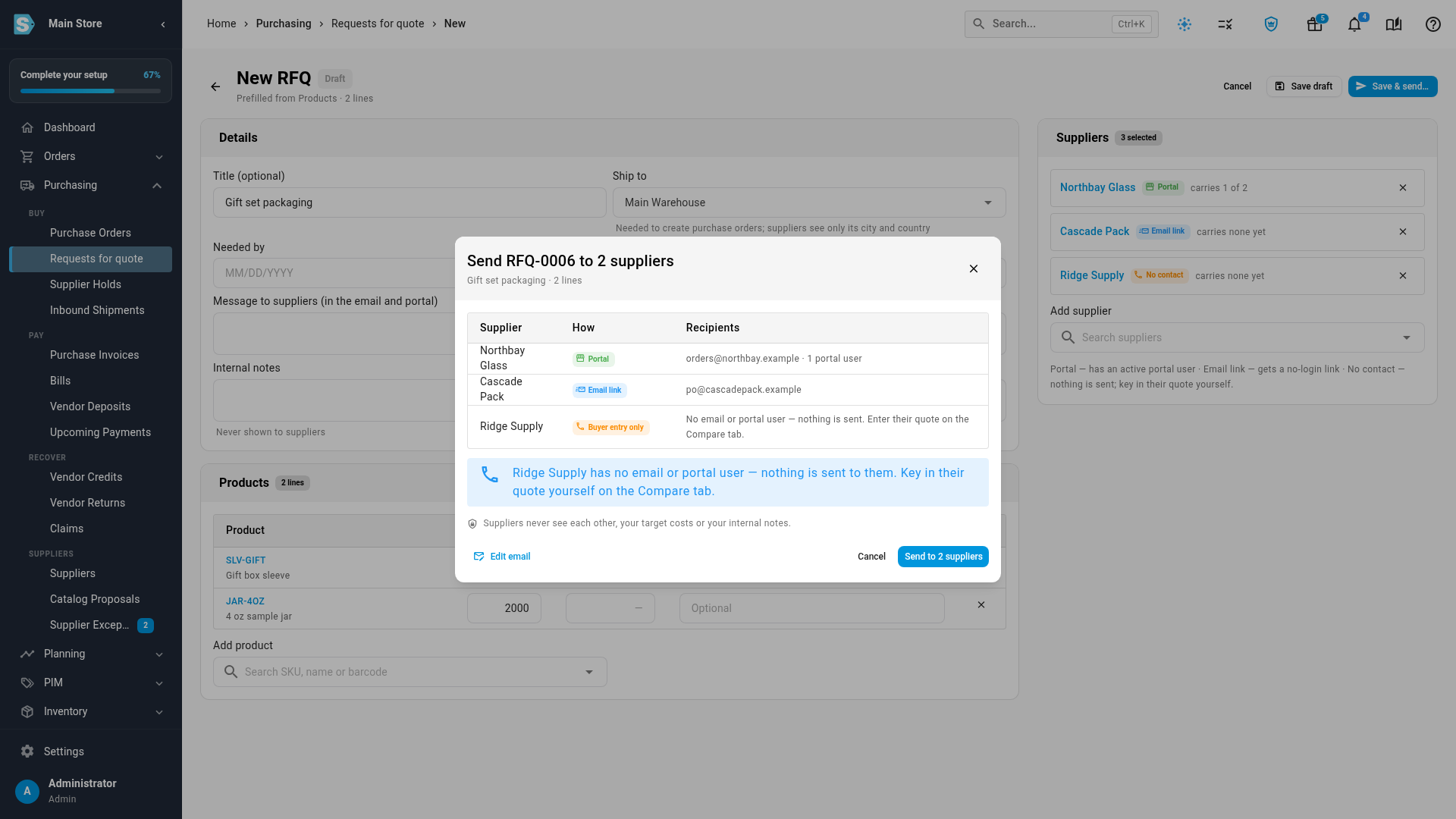
A supplier with no contact gets nothing. The dialog names them in a note, so you remember to key in their quote yourself on the Compare tab.
To change what the email says, click Edit email. It opens the Request for quote template in Settings → Email Templates. If that template is switched off, the dialog warns you: portal suppliers still see the request in the portal, but nobody gets an email.
Click Send to N suppliers. N counts only the suppliers SKU.io can reach; when nobody can be reached, the button reads Mark as sent. The request moves to Sent, and once it's sent, its products are locked: to change them, duplicate the request. You can still add suppliers later with Add supplier, and they get the request when you click Send to new suppliers.
Track the answers
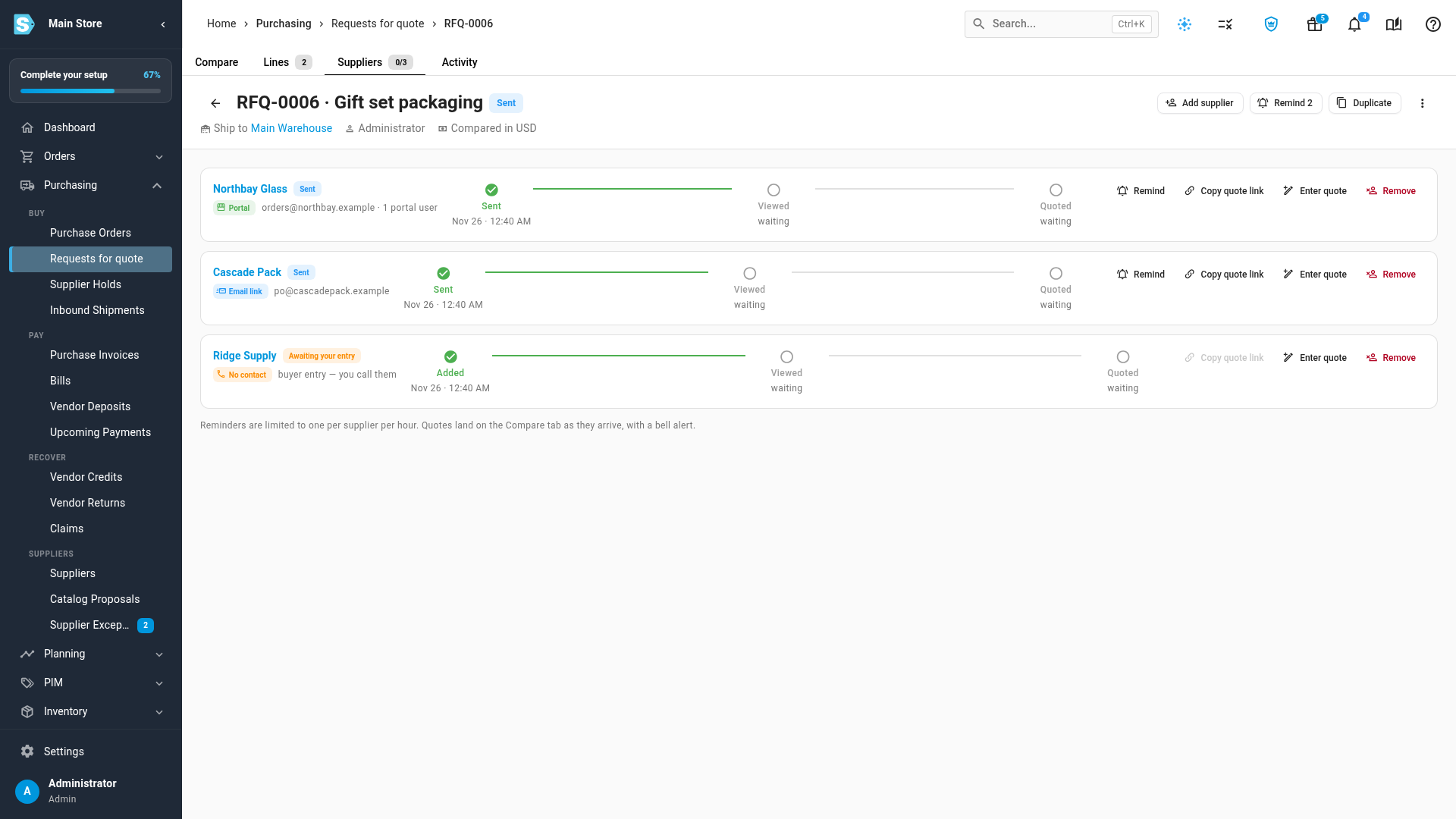
The Suppliers tab follows each supplier from Sent, to Viewed when they open the request, to Quoted or Declined. A supplier with no contact shows Awaiting your entry until you enter their quote.
| Action | Use it to… |
|---|---|
| Remind | Send the email again. You can remind each supplier once an hour. Remind at the top of the page reminds everyone who hasn't answered. |
| Copy quote link | Copy the supplier's no-login quote link, to send it yourself, for example if their email bounced. |
| Enter quote | Type in an answer that came back by phone or email. Edit quote replaces an answer you already have. |
| Remove | Take a supplier off the request. You can only remove a supplier who hasn't answered; their link stops working. |
| Retry | Appears when an email couldn't be sent. |
You get a bell alert each time a supplier submits, revises, or declines a quote. As answers come in, the status moves to Partially quoted, then Quoted once every supplier has answered or declined.
Enter a quote you got by phone or email
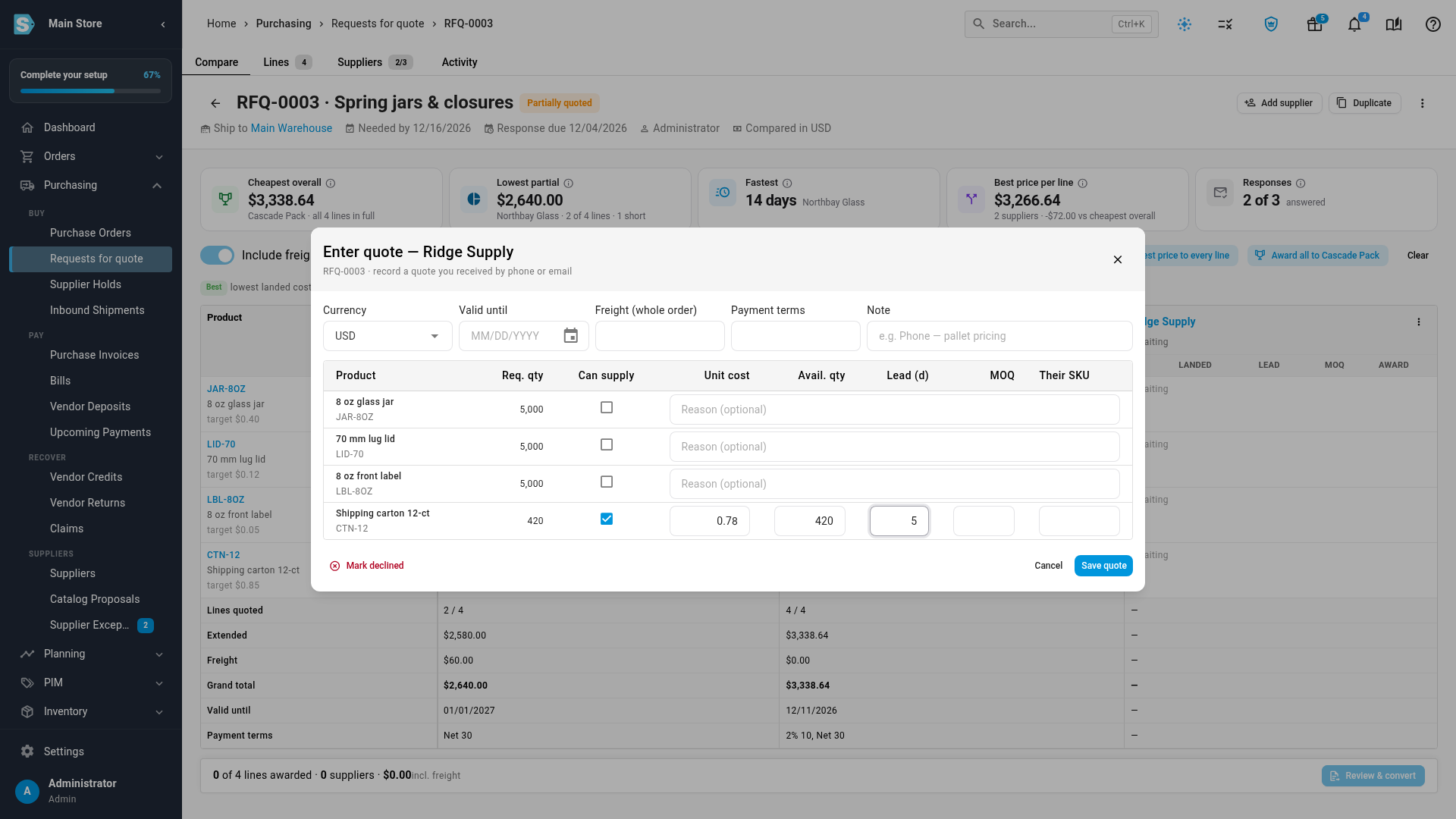
- On the Compare tab, open the menu on the supplier's column and choose Enter quote. (Or click Enter quote on the Suppliers tab.)
- Clear Can supply on any line they don't offer, and add a reason if you like.
- Enter the Unit cost for each line they can supply, plus Avail. qty, Lead (d), MOQ and Their SKU if they gave them.
- Set the Currency, and fill in Valid until, Freight (whole order) and Payment terms if they apply.
- Click Save quote. If they won't quote at all, click Mark declined instead.
The comparison shows that the quote was entered by you, and who entered it.
Compare the quotes
The Compare tab opens once any supplier has answered. Each supplier gets a column, and each product a row.
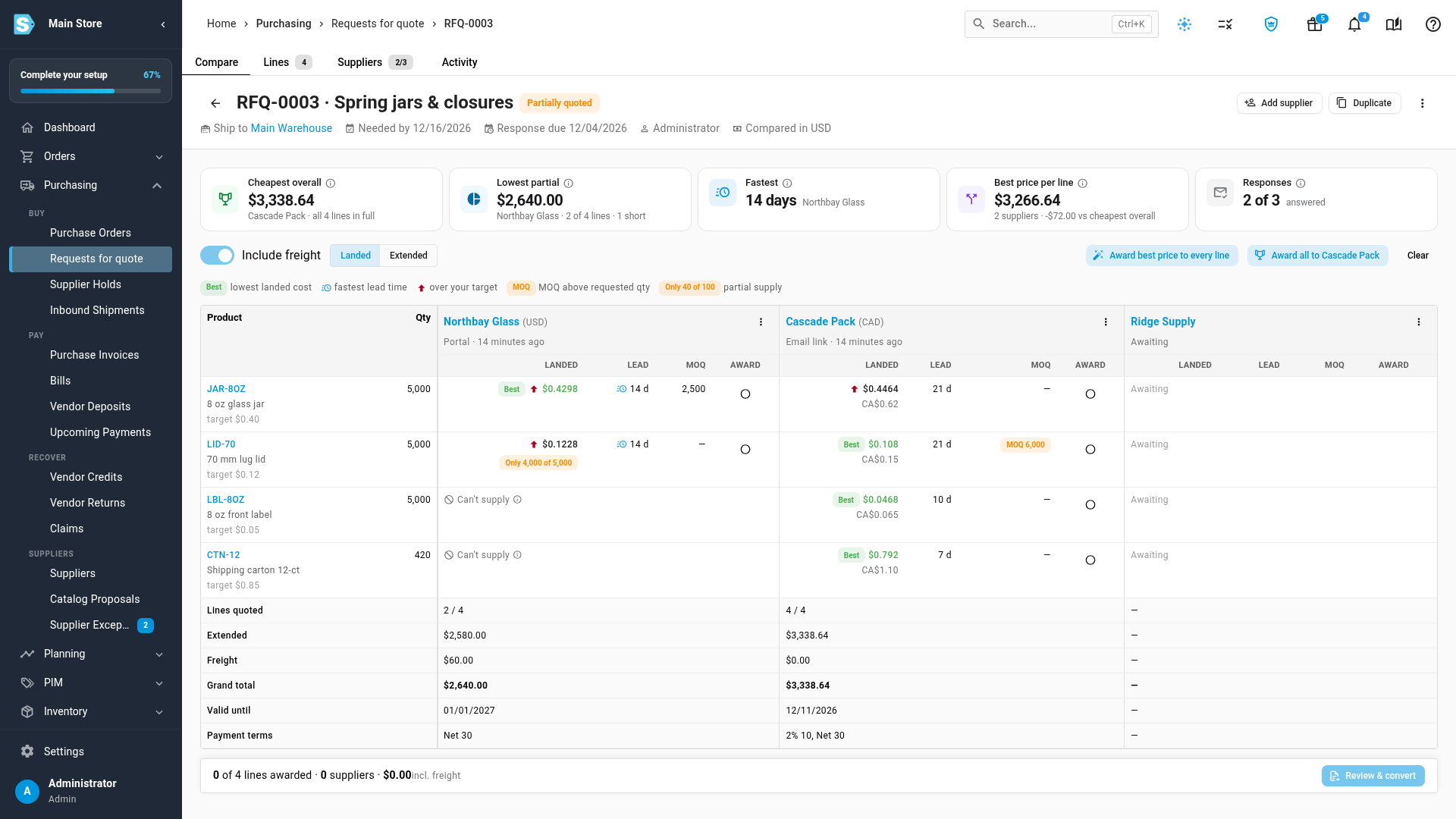
The ribbon at the top sums up the round:
| Card | Shows |
|---|---|
| Cheapest overall | The lowest total from a supplier who can supply every line at the full quantity you asked for. Shows a dash when no supplier can. |
| Lowest partial | The lowest total from a supplier who skipped some lines or can supply less than you asked for on some, and how many lines are short. |
| Fastest | The shortest lead time, and who quoted it. |
| Best price per line | What you'd pay if you took the best price on every line, and how that compares with the cheapest single supplier. |
| Responses | How many suppliers have answered. |
In the grid:
| You see | It means |
|---|---|
| A green Best chip | The lowest price on that line. Tied prices all get it. |
| A clock | The fastest lead time on that line. |
| A red up arrow | The price is above your target unit cost. Hover it to see by how much. |
| An amber MOQ chip | The supplier's minimum order is more than you asked for. |
| An amber Only 4,000 of 5,000 chip | The supplier can supply only part of the quantity. |
| Can't supply | The supplier doesn't offer that product. Hover the icon for their reason. |
| Awaiting / Declined | The supplier hasn't answered yet, or declined the whole request. |
Every price shows in your own currency, with the supplier's own currency beneath it when it's different. Switch Include freight on to spread each supplier's freight across their lines, in proportion to each line's value, so you compare landed costs. Use the Landed (or Unit, with freight off) and Extended buttons to switch between prices per unit and line totals. Below the products, each supplier's column shows lines quoted, extended total, freight, grand total, Valid until (red once it has passed), and payment terms.
A currency with no exchange rate can't be compared. Its prices show in the supplier's currency with a warning, and never get the Best chip. Add the rate in your currency settings.
Award the lines
Pick one winner for each product line:
- Award best price to every line picks the Best supplier on each line.
- Award all to a supplier gives them every line they quoted. The button at the top uses the cheapest supplier overall; for any other supplier, choose Award all to this supplier in the menu on their column.
- The radio button in each supplier's Award column picks that supplier for that one line. Lines a supplier can't supply can't be awarded to them.
- Clear removes every award.
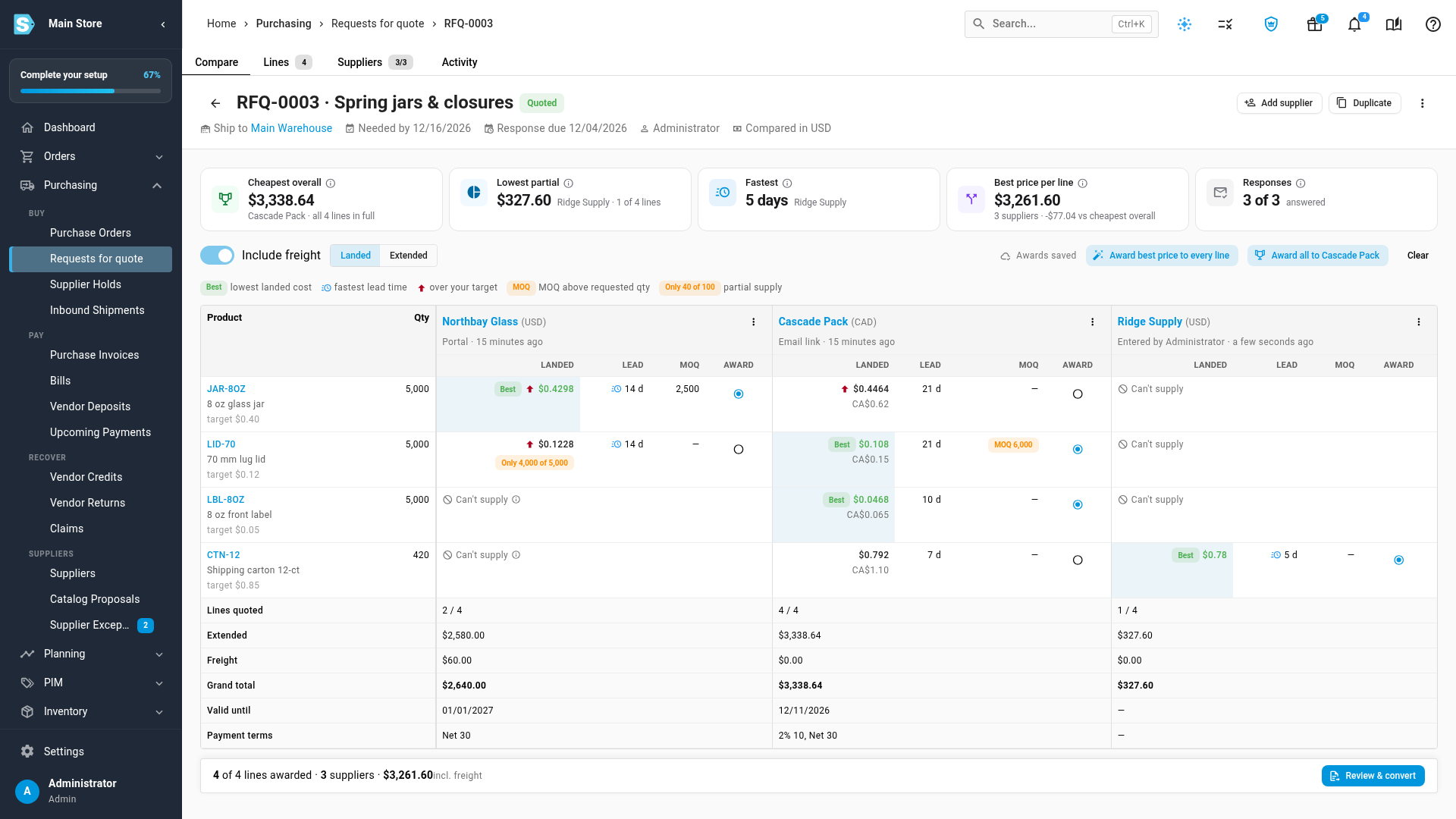
Awards save as you make them. The bar at the bottom shows how many lines are awarded, to how many suppliers, and the total. Each line goes to one supplier; you can't split a line between two. If a supplier revises an awarded price, the award on that line is cleared so you can decide again.
Create the purchase orders
- Click Review & convert. You see one draft PO per winning supplier, in that supplier's currency.
- Check the Qty on each line. A warning shows when it's below the supplier's minimum order or above what they can supply; you can change the quantity here.
- Check the warehouse on each PO. Quoted freight goes on the PO as its shipping cost.
- Leave Update supplier catalog from these quotes ticked to save the quoted unit cost, lead time, minimum order and supplier SKU on each supplier's products. Click Show changes to see exactly what changes, for example cost $0.45 → $0.42, lead time 21 → 14 d.
- Click Create draft POs.
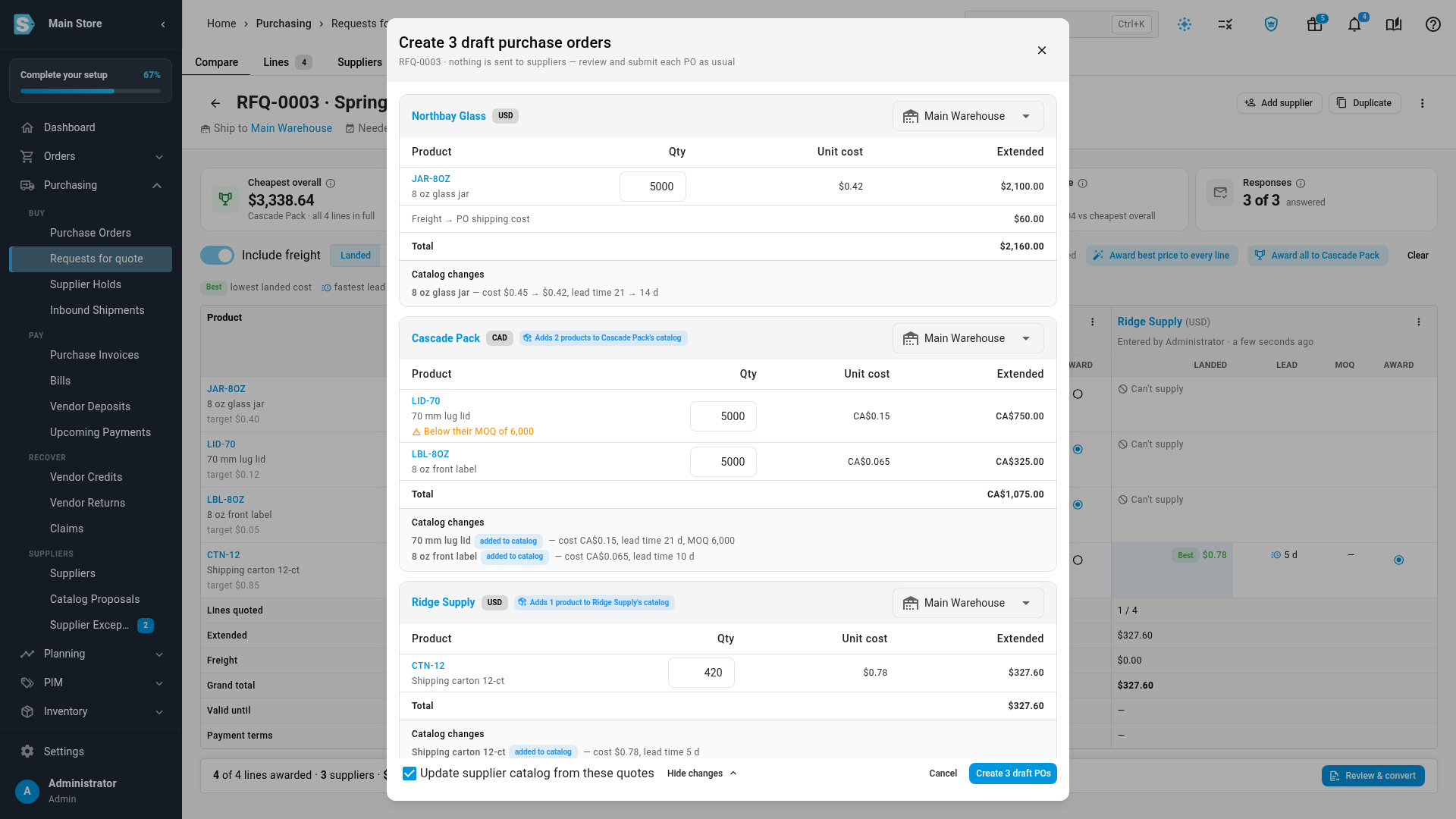
If a supplier doesn't carry a product yet, SKU.io adds it to their catalog, because a PO line needs it. The dialog says so, for example Adds 2 products to Cascade Pack's catalog. This happens even when the catalog box is clear; the box only decides whether prices and lead times are saved. A supplier quoting in a currency they have no price list for gets one in that currency.
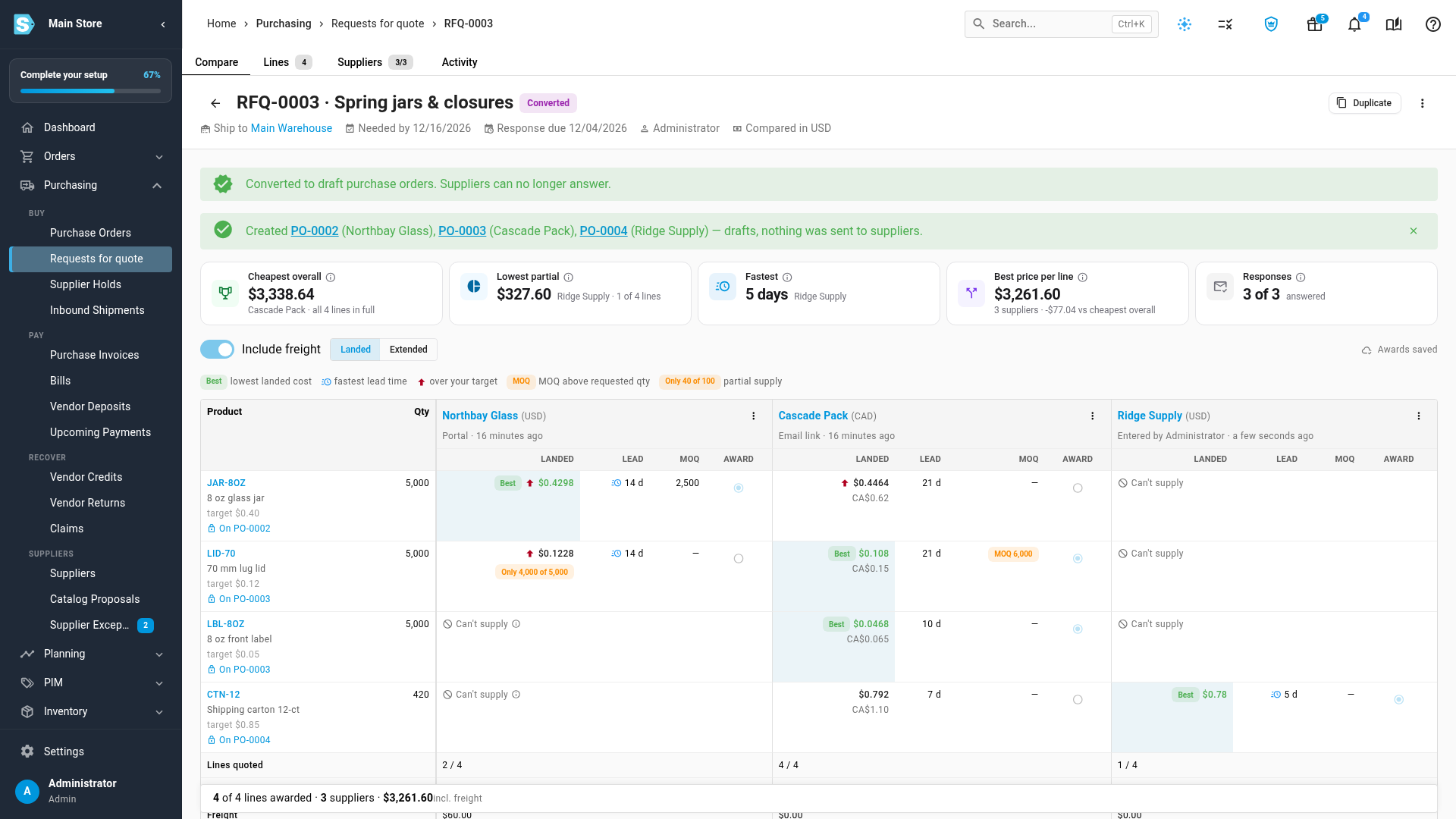
The request moves to Converted, and suppliers can no longer change their answers. The new POs are drafts, and nothing has been sent to anyone: open each one from the links, then review and submit it as usual. Each PO shows which request it came from. Lines already on a PO show On PO-0002 in the comparison and can't be awarded again; if you award more lines later, convert them the same way.
Suppliers who won see Awarded on their side. The others see Closed; SKU.io doesn't email them.
Cancel, duplicate or delete a request
- Duplicate copies the title, products and suppliers into a new draft, for example to ask again next season or to change the products of a sent request.
- Cancel RFQ… in the ⋮ menu closes a request without ordering. Suppliers can no longer answer, and their links stop working. You can't cancel a request that's already converted.
- Delete draft… in the same menu removes a request that was never sent.
Next steps
- Answer a quote request shows what your suppliers see.
- Set up the supplier portal so suppliers can answer from the portal.
- Submit the draft POs from Purchase orders.
Video transcript
A request for quote asks several suppliers to price the same products. Then you compare their prices before you order. In the menu on the left, go to Purchasing, then Requests for quote. Each request shows its status, how many suppliers answered, and the best total so far. To start a blank request, click the blue New button. Or start in PIM, on the Products page. Tick each product you want priced, using the boxes in the first column. Then click Bulk actions, above the list, to show the actions for those products. In that menu, click Request quotes, near the bottom. SKU.io builds a draft for you, which can take a few seconds. It copies those products into the draft, and suggests suppliers who already carry them. The draft has one line for each of those products. Give it a title if you like, and check where the order will ship. Set the quantity you need on each line. A target unit cost is optional, and it's never shown to suppliers. On the right, suppliers who already carry these products are suggested first. Use the Add button on a suggestion, or search for any other supplier. Each chip shows how a supplier will get the request. Portal means they sign in to your supplier portal. Email link means they get a link that needs no account. No contact means nothing is sent, and you key in their quote yourself. When the request is ready, click Save and send. The dialog lists each supplier, how each one is reached, and who gets the email. A supplier with no contact gets nothing, so you key in their quote yourself. To change the wording of that email, use Edit email. Click Send to send the request to every supplier you can reach. The Suppliers tab then tracks each supplier from sent, to viewed, to quoted. A no-contact supplier shows Awaiting your entry, until you key in their quote. Use Remind to send the email again, or Copy quote link to share it yourself. If a supplier answers by phone or email, click Enter quote to record their answer. Here is a request where two of three suppliers have answered. The Compare tab lines up every answer, product by product. At the top, Cheapest overall only counts suppliers who can supply every line in full. Lowest partial shows a supplier who skips lines, or can't supply the full quantity. The ribbon also shows the fastest supplier, and the best price on every line. In the grid, a green Best chip marks the lowest price on each line. A clock marks the fastest lead time. A red arrow shows a price above your target cost. Amber chips flag minimum orders and short quantities, as on the lids. Include freight spreads each supplier's freight across their lines, and converts other currencies into yours. This supplier answered by phone. Open the menu on their column, and choose Enter quote. A dialog opens, with a line for every product on the request. Clear Can supply on the lines they don't offer. Then type the unit cost and lead time from their call. Click Save quote, and the request shows Quoted, because every supplier has answered. Now decide who wins each line. Click Award best price to every line. Or pick a winner yourself with the radio button in each row. To give one supplier everything, use Award all, on the button or their column menu. The bar at the bottom shows the total of every line you've picked. Click Review and convert. You get one draft purchase order for each winning supplier, in that supplier's currency. Check the quantities, and the warning where an order is below a supplier's minimum. Leave Update supplier catalog ticked to save these prices and lead times. Show changes lists exactly what will change. Then click Create draft POs. The request is now Converted, and suppliers can no longer change their answers. The new purchase orders are drafts, and nothing has been sent yet. Open each one from these links, and review and submit it as usual. To ask again later, Duplicate copies this request into a new draft.