Receive a delivery without a purchase order
Sometimes stock arrives before anyone has raised a purchase order (PO): a supplier ships early, a sample turns up, or a delivery comes from someone you buy from only now and then. Receive without PO records that delivery properly. The stock goes on hand at the cost you enter, with its lots, expiry dates and bins, and the receipt appears in your receiving history like any other.
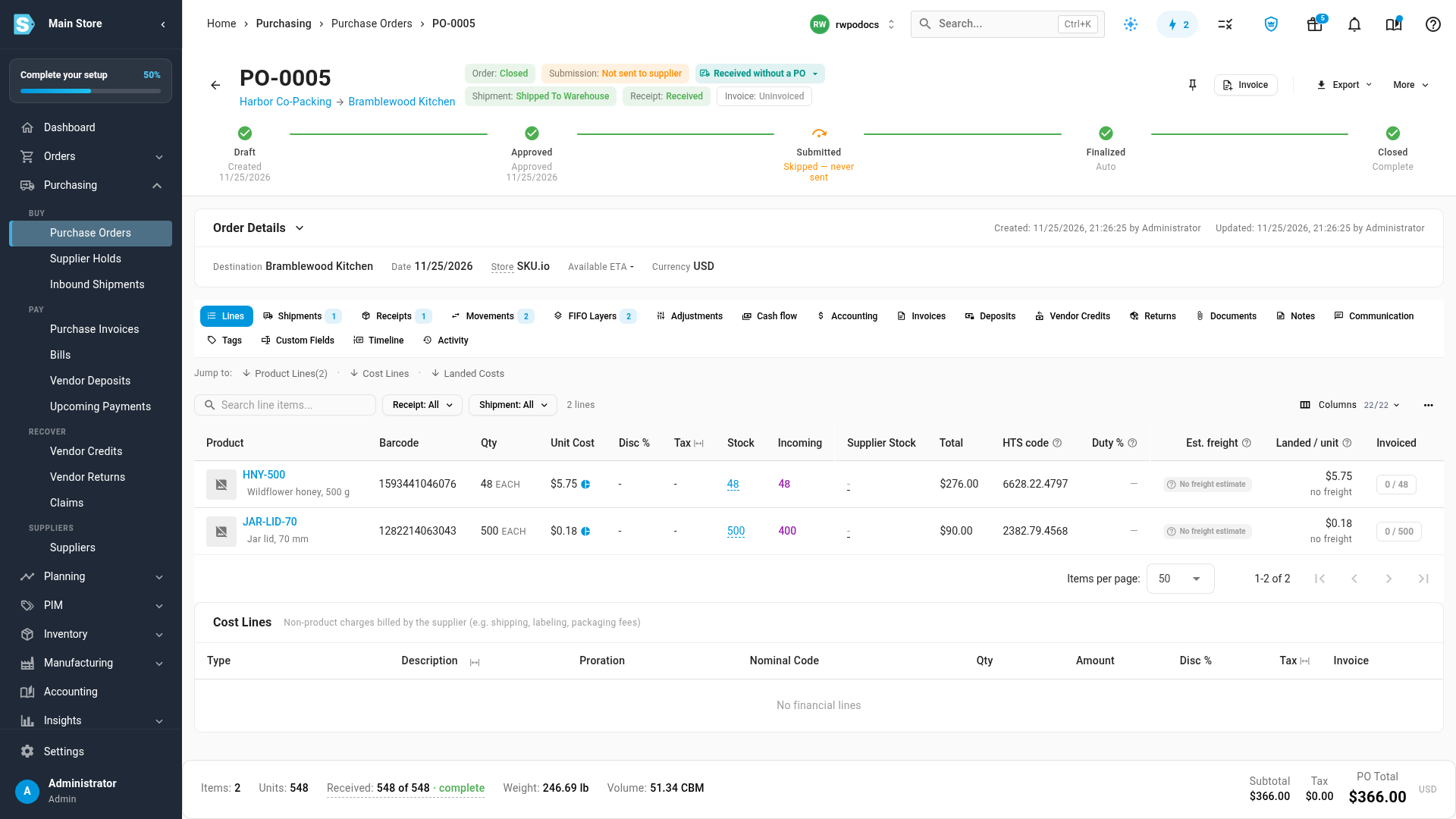
SKU.io keeps the receipt on a purchase order of its own, marked Received without a PO. That order is already received and is never sent to the supplier. When the real purchase order turns up later, you can match the delivery to it, and the stock moves onto that order at the order's prices.
Before you begin
- To receive without a PO, you need the Receive purchase orders permission (
purchase_orders.receive) and the Purchase Orders Create permission (purchase_orders.create), because SKU.io writes a purchase order for the delivery. - To match a delivery to a purchase order later, you need the Receive purchase orders permission.
- The warehouse must be one you receive stock into yourself. Supplier warehouses and marketplace warehouses such as Amazon FBA or Walmart WFS can't be picked.
- A lot-tracked product needs a batch number for every unit, and a serialized product needs one serial number per unit.
Receive the delivery
-
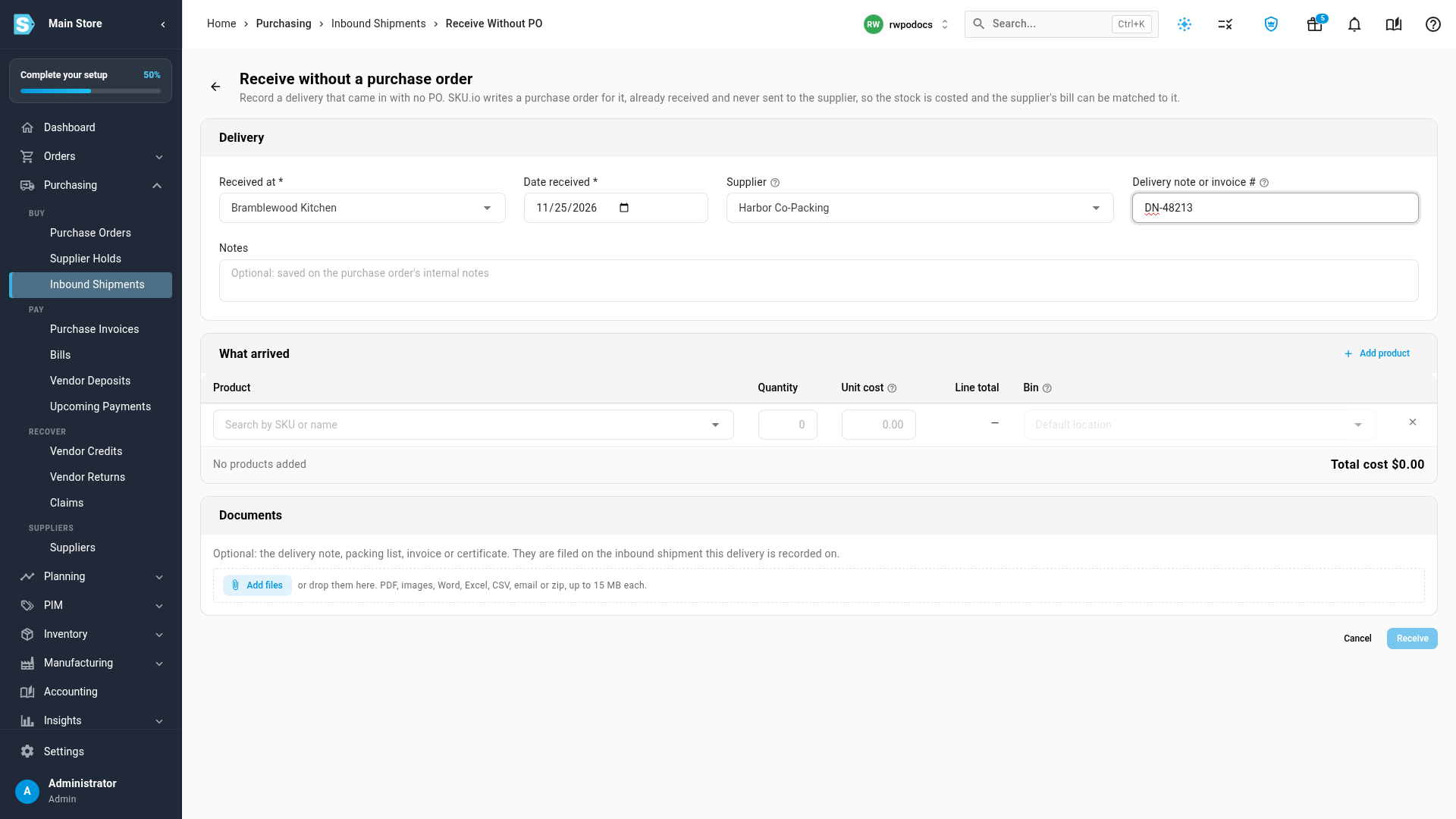
Go to Purchasing → Inbound Shipments and click Receive without PO.
The Receive without a purchase order page opens. If you have only one warehouse that receives stock, Received at is already filled in.
-
Under Delivery, check Received at and Date received.
-
In Supplier, pick the supplier who sent the delivery.
If you don't know who sent it, leave Supplier empty. The page says "No supplier picked: this delivery will be filed under Default Supplier", and the button bar repeats Filed under Default Supplier before you receive.
-
In Delivery note or invoice #, type the number on the supplier's paperwork, so you can find the delivery by it later. Add Notes if you need them.
-
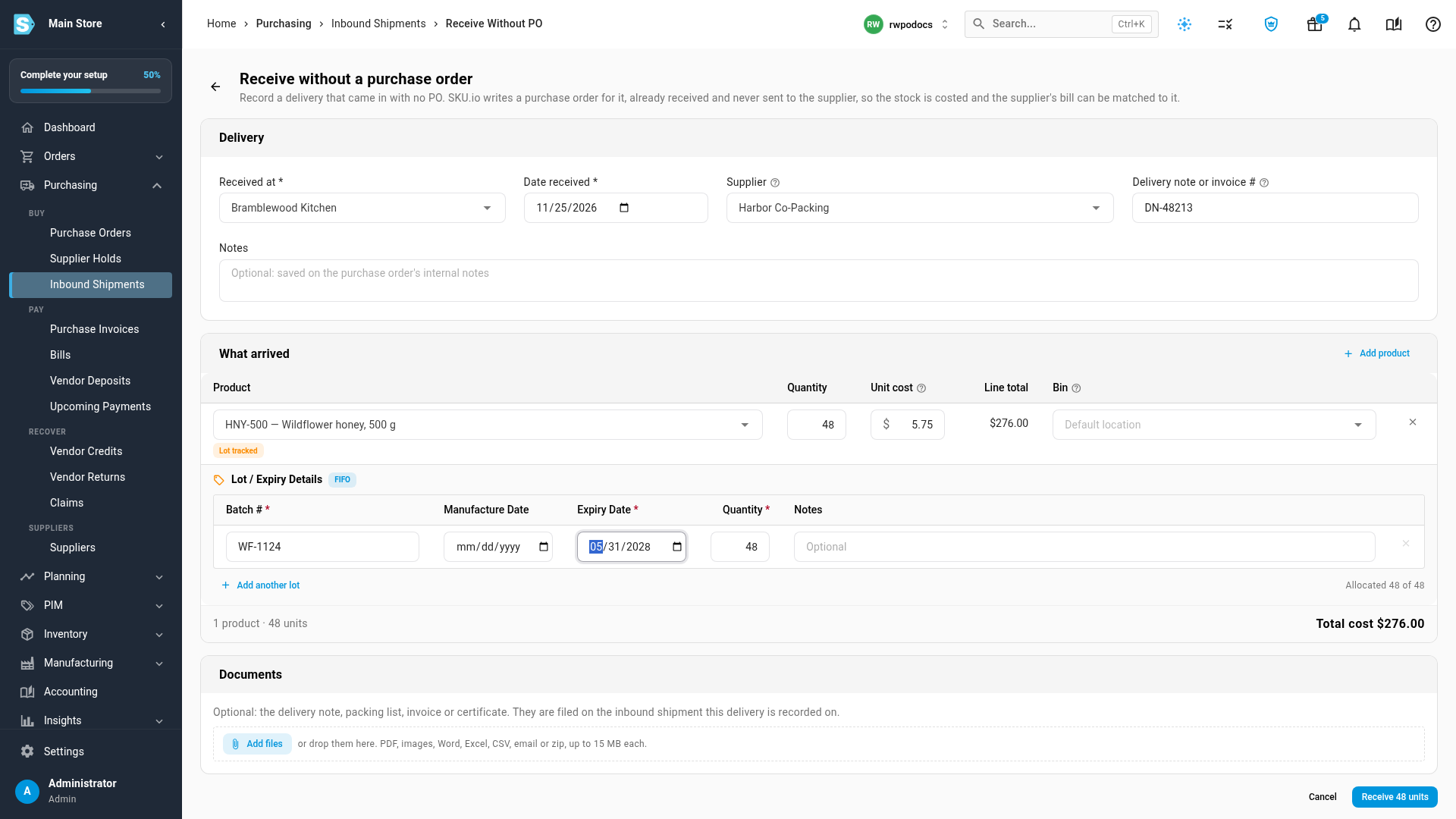
Under the lines, pick the first product that arrived and enter its quantity.
The unit cost starts at the product's default cost. Change it to what this delivery really cost: that cost becomes the stock's FIFO cost, and it is what your cost of goods sold uses when the stock sells.
-
For a lot-tracked product, enter the batch number and its expiry date. You can split a line across several lots. For a serialized product, enter one serial number per unit.
-
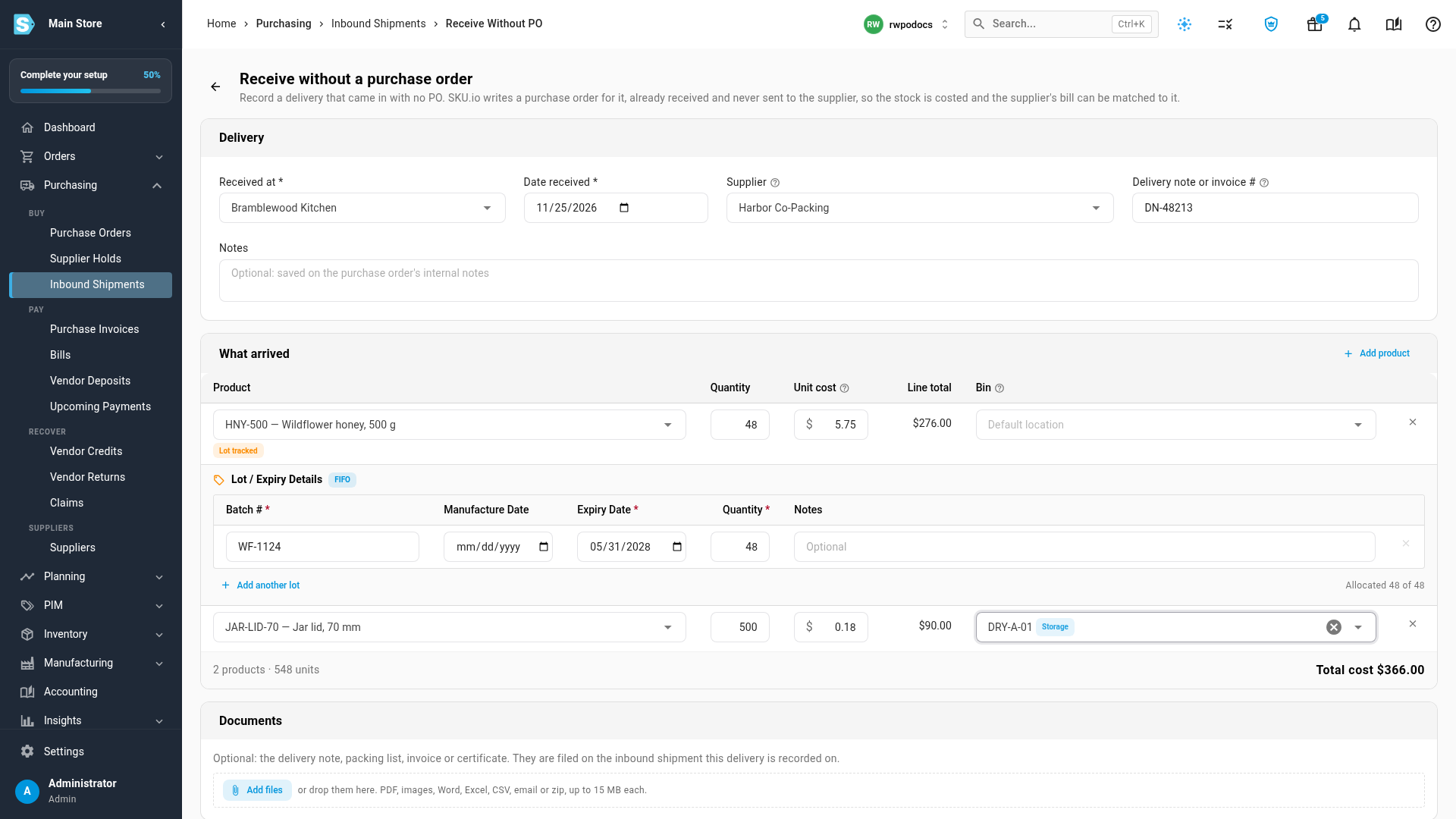
Click Add product for each further product.
-
If the warehouse uses bins, choose the bin each line goes into. You can split a line across bins.
The line totals and the delivery total update as you type.
-
Optional: under Documents, attach the delivery note, packing list, invoice or certificate. They are filed on the inbound shipment for this delivery.
-
Click Receive. The button shows how many units you are receiving, for example Receive 548 units.
The page shows Delivery received, with what was received, where, and from whom. From there you can:
- Open the purchase order SKU.io wrote for the delivery.
- Record supplier invoice, to add the supplier's bill to that order.
- View shipment, to open the inbound shipment for the delivery.
- Receive another delivery.
What SKU.io records
- The stock is on hand at once, in the warehouse and bins you chose, at the cost you entered.
- A purchase order marked Received without a PO. It carries exactly what arrived, it's already received, and it's never sent to the supplier. The label shows on the purchase order itself, in the Purchase Orders list, and on the supplier's Purchase Orders tab.
- An inbound shipment for the delivery, so it appears in your receiving history.
Because nobody ordered it, a delivery received without a PO never counts as open, incoming or overdue, and it stays out of supplier scorecards (on-time delivery, fill rate and lead time). Nothing is sent to the supplier, a 3PL, or a deposit schedule for it.
Match the delivery to its purchase order
When the purchase order the delivery belonged to turns up, match the delivery to it. The stock then counts against that order, and the order's supplier scorecard counts the delivery on the day it actually arrived.
-
Open the purchase order marked Received without a PO.
-
Click the Received without a PO chip next to its number, then Match to a PO…. You can also use More → Match to a PO, or Match to a PO in the bar that stays at the top as you scroll.
The Match order number to a purchase order dialog opens.
-
In Purchase order, pick the order the delivery belonged to.
The list shows only open orders from the same supplier, for the same warehouse, that order at least one of these products. When only one order fits, it is already picked. To find an older order, search by its number or its supplier reference.
-
Check each line. For every product received, the table shows:
Column What it shows Product The product that was received. Received How many units arrived on this delivery. Price now The unit price the delivery was received at. Line on order The line on the order this product goes to. Pick another line when the order has the product more than once. Still open How many units that line still has to receive. Order price The unit price on the order, which the stock takes once it's matched. 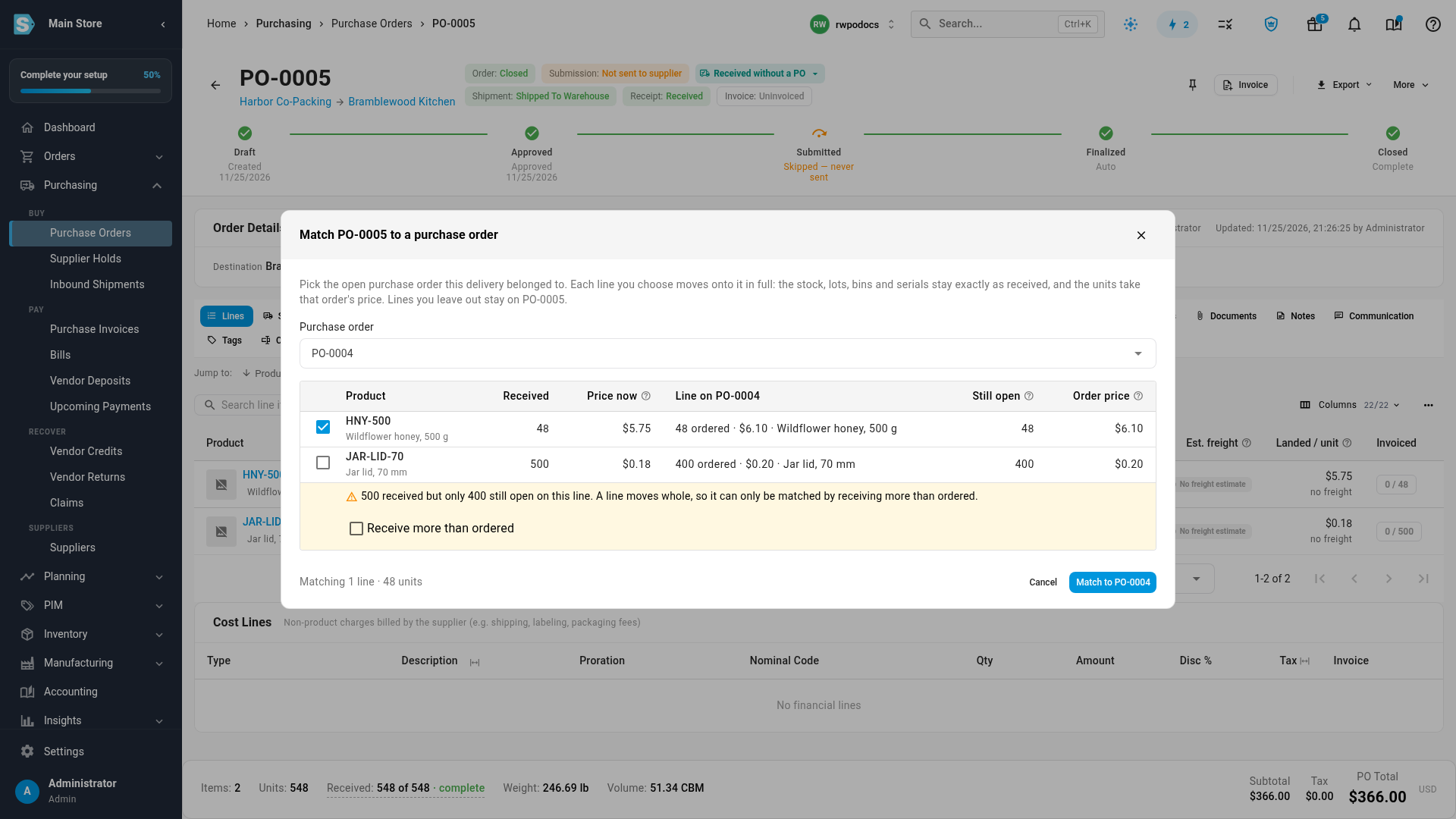
-
Tick the lines to match. A line that fits the order's open quantity is already ticked. Lines you leave unticked stay on the delivery.
-
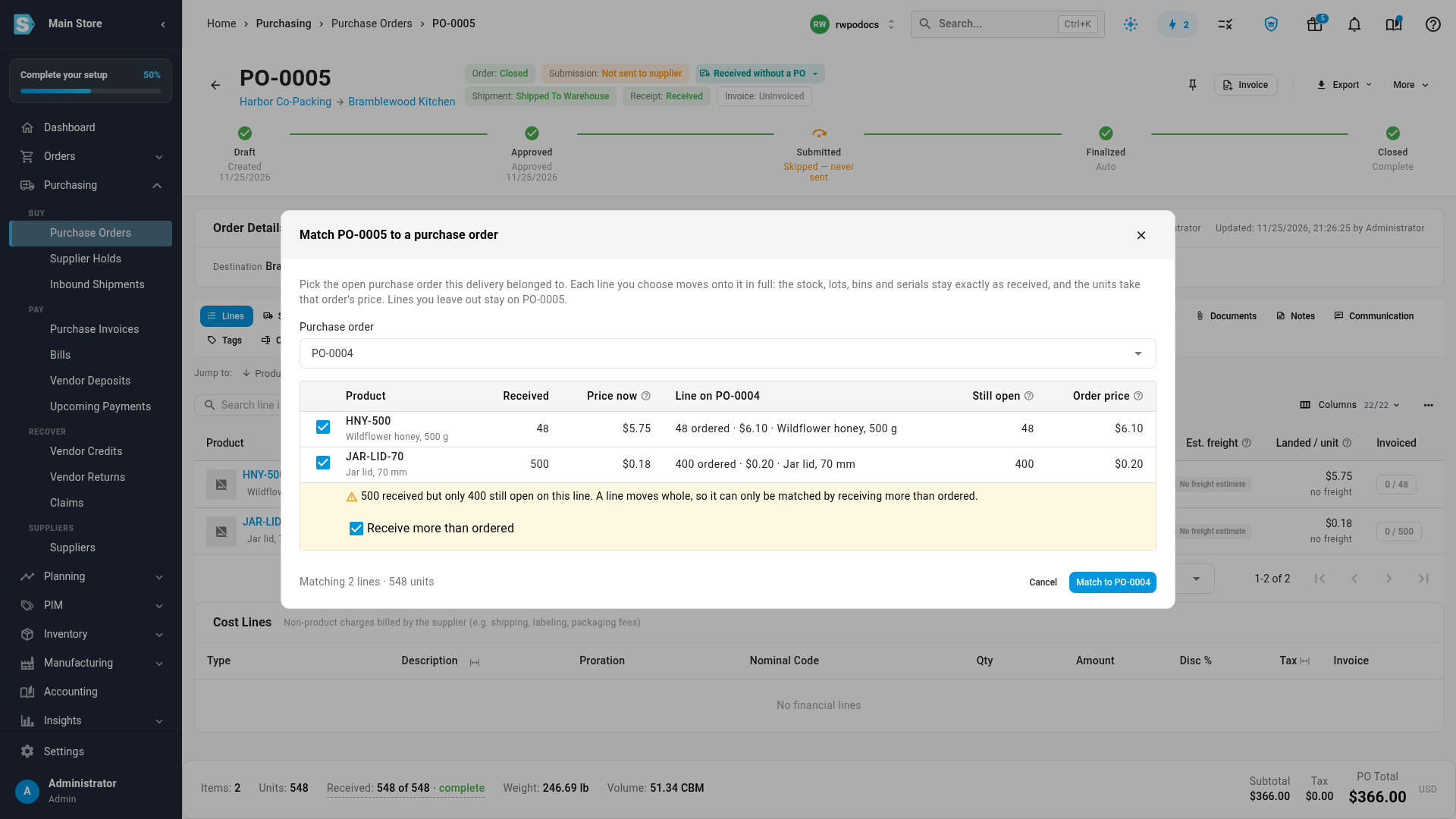
When more arrived than the order still has open, the line says so, for example "500 received but only 400 still open on this line". A line moves to the order whole, so tick Receive more than ordered to include it, or leave the line unticked.
-
Click Match to order number.
The delivery's chip now reads Matched to order number, or Received without a PO · partly matched when some lines stayed behind. Click the chip and choose Open order number to go to the order.
What a match changes
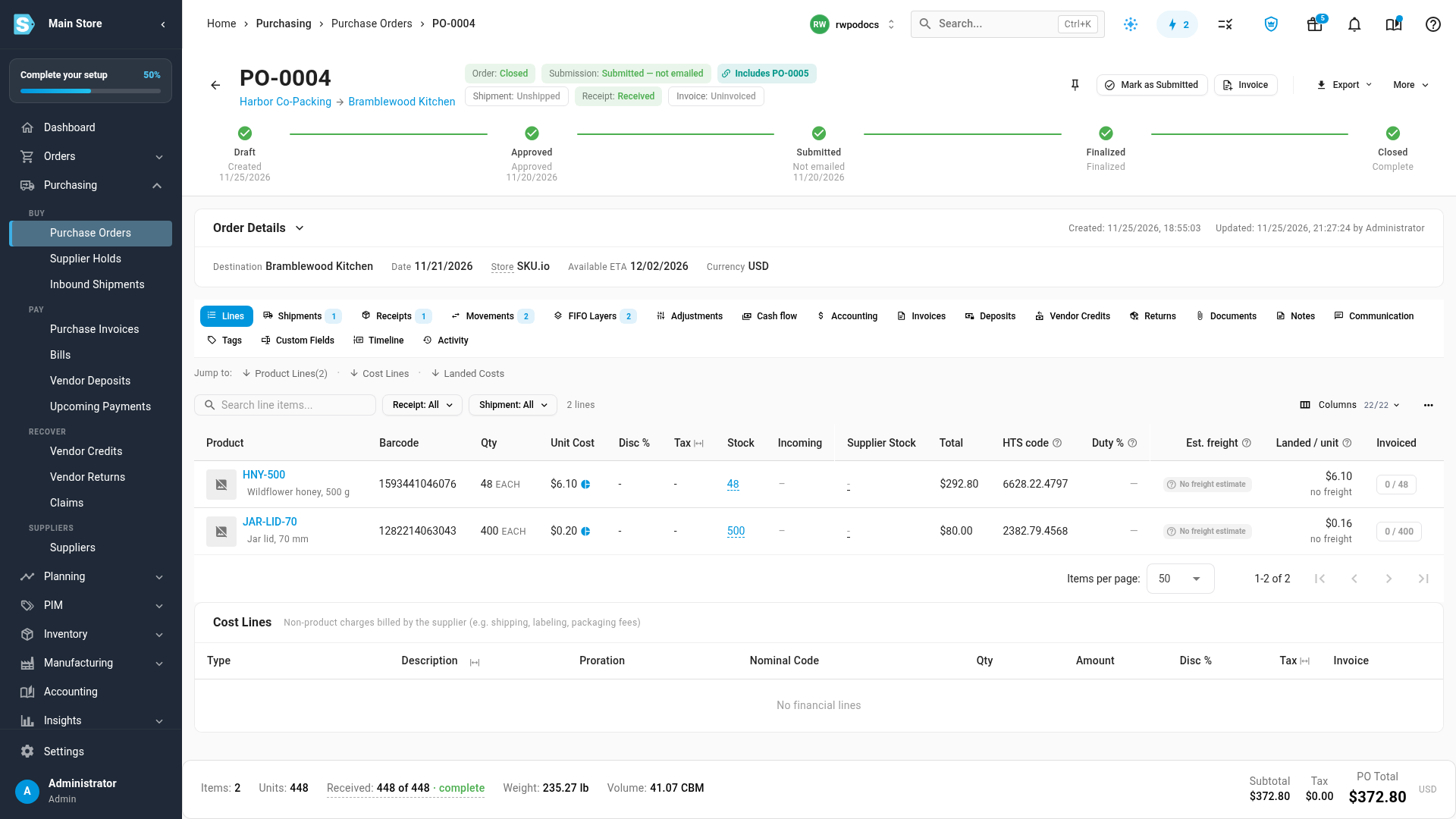
- The order's received quantities include the delivery. Its receipt status, received dates and closing work as if the delivery had been received against it, dated on the day the stock actually arrived. The order shows an Includes chip that links back to the delivery.
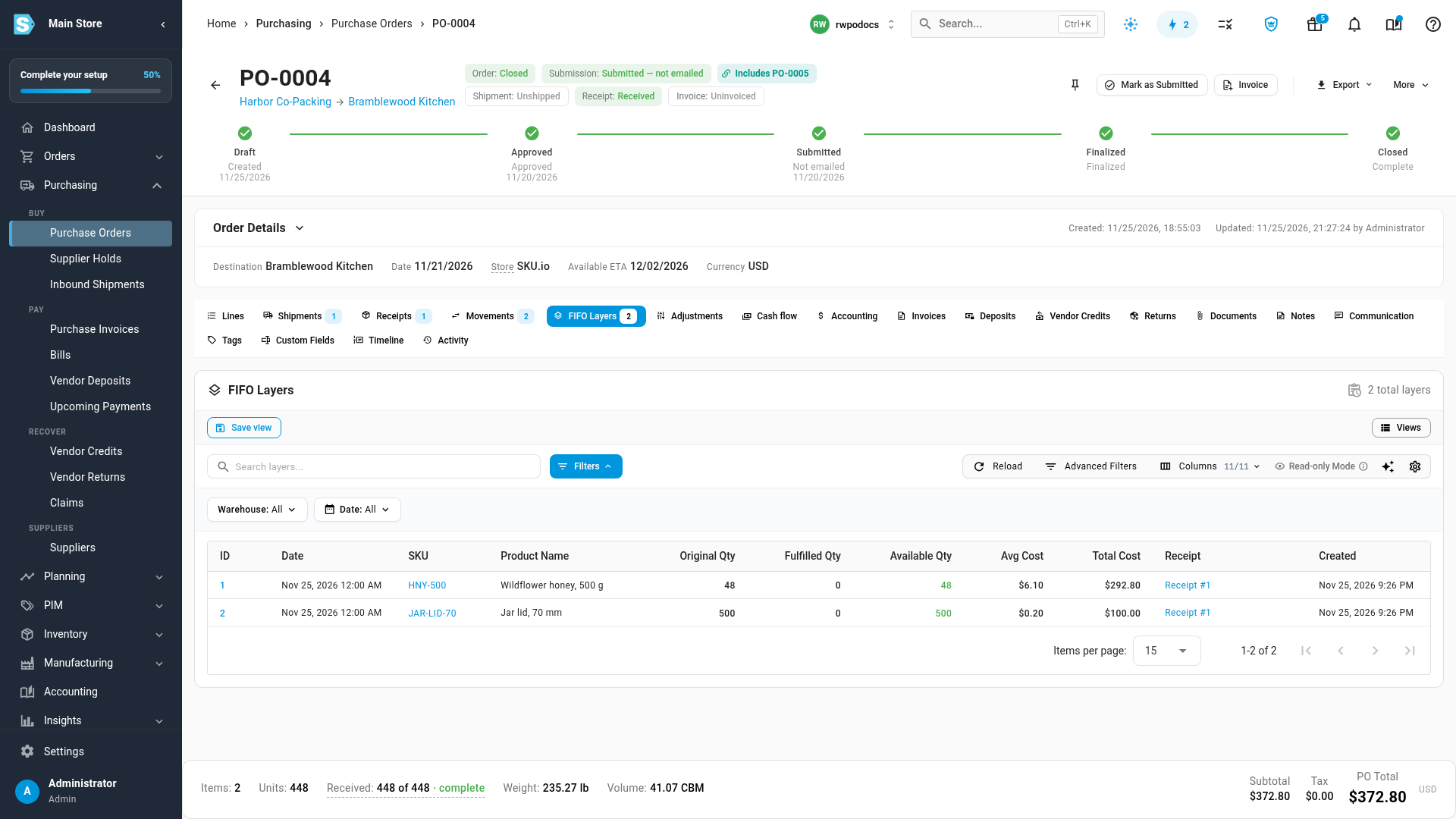
- The stock takes the order's prices. The cost difference is posted as a cost adjustment, the same as editing a price on a purchase order after it's received: the share for units already sold goes to cost of goods sold, and the rest to inventory. If your account reviews cost changes, the adjustment waits in the Cost Change inbox like any other. Landed costs and freight already on the order are shared out again over everything it received.
- Nothing is received twice. The receipt, its lots, expiry dates, bins and serial numbers are not changed, and units already sold stay sold.
- Both purchase orders show the match in their activity.
Deliveries that already have a bill
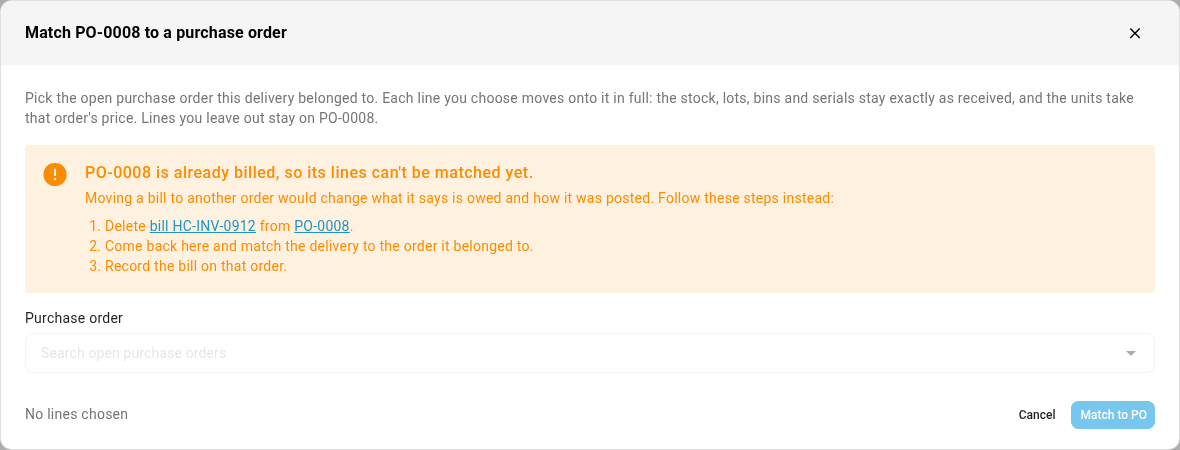
A delivery whose purchase order already has a supplier bill can't be matched. Moving a bill to another order would change what it says is owed and how it was posted. The Match dialog says so as soon as it opens, links the bill, and lists the steps:
- Delete the bill from the delivery's purchase order.
- Match the delivery to the order it belonged to.
- Record the bill on that order.
Committed-spend placeholder bills never block a match: the delivery's own purchase order is never sent, so it never has one, and the order you match to keeps its placeholder for whatever is still unbilled.
When a match is refused
The Match to button stays grayed out, and its tooltip or the dialog says why, when:
- the order is closed, canceled or voided;
- the order is from another supplier, or for another warehouse;
- the order is a consignment or outsourced manufacturing order;
- a stock take is counting one of the products;
- the delivery line has a vendor credit or return, a customs entry, a channel reservation or a landed-cost allocation against it;
- a chosen line holds more than the order has open and Receive more than ordered isn't ticked.
Matching the same delivery twice changes nothing, so it's safe to retry.
Common questions
Can I match only part of a delivery? Yes, line by line. Untick the lines that belong elsewhere; they stay on the delivery, which reads partly matched, and you can match them to another order later. A single line can't be split between two orders.
Can I delete a delivery received without a PO? Yes, like any purchase order. Lines already matched to another order stay on that order.
What if the delivery was from a supplier I haven't set up? Leave Supplier empty and it's filed under Default Supplier. You can't match it to another supplier's order later, so add the supplier first when you know who it is.
Next steps
- Record a supplier invoice for the delivery.
- Receive stock against a purchase order when the delivery has an order.
- How a PO becomes inventory.
Video transcript
Sometimes stock arrives before anyone has raised a purchase order, and you still want it received properly. This is the purchase order list, where every order you place is tracked. To receive a delivery that has no order yet, go to Purchasing, then open Inbound Shipments in the menu. At the top of the list, click the Receive without PO button to open the receiving page. If only one of your warehouses receives stock, the page fills in that warehouse. If you leave the supplier empty, the delivery is filed under Default Supplier, and the page tells you so before you receive anything. Pick the supplier who sent it from the list, so their bill can be matched to this delivery later. Then type their delivery note number as the reference, so the delivery can be found by that number. Now add each product that arrived. Start typing a product name, pick it from the list, and enter the number of units. The unit cost starts at the product's default cost. Change it to what this delivery really cost, because the stock is valued at that cost. This product is lot tracked, so enter the batch number printed on the delivery, and then the date that batch expires. The honey line is complete, so move on to the jar lids. To add the next product, click Add product, and a new line appears below the first line. Pick the product the same way, and type the quantity that arrived. Here, five hundred jar lids came in. When the warehouse uses bins, open the bin list on the line, and choose the bin for this stock. The line totals and the delivery total update as you type. Compare them with the supplier's delivery note. Everything that arrived is now on the page. Click Receive, which shows how many units you are receiving. The stock is on hand at once, at the cost you entered. SKU.io keeps the receipt on its own purchase order, marked Received without a PO. Open that order. That order is never sent to the supplier, and it stays out of your open orders and supplier scorecards. Later, the purchase order this delivery belonged to turns up. Click the Received without a PO chip, then Match to a PO. The list holds only open orders from this supplier and warehouse that include these products. When only one order fits, the dialog picks that order. Each line shows the price it was received at, and the order's price. A line that fits the order's open quantity is ticked. Each line moves to the order in full. When more arrived than the order still has open, the line says so. Tick Receive more than ordered to include it anyway, or leave it on this delivery. Click the Match button, which names the order you picked. The delivery's chip now reads Matched to that order, and nothing is left on this delivery to match. Every line has moved onto the order, with its lots and bins exactly as they were received. To see the order, click the chip again, and open the order from its menu. Its received quantities now include the delivery, dated the day the stock actually arrived. And a chip at the top links back to the delivery it came from, so either order leads to the other. On the FIFO layers tab, the stock now carries the order's prices. The difference is posted as a cost adjustment, the same as editing a price on a received order. Nothing changes on the receipt itself, its lots, or its bins.