Receive one packing slip across many purchase orders
When a supplier sends one delivery with one packing slip that covers several purchase orders (POs), you can receive the whole slip from one CSV or Excel file. SKU.io matches each row of the slip to an open PO line, shows you the result on one review screen, and records one receipt per PO. Rows the POs can't take wait for your decision, and every unit that isn't received is kept as a discrepancy, so nothing on the slip is dropped.
To receive one PO from a 3PL's receiving report, use Import a receipt from a file instead.
Before you begin
- You need the Receive purchase orders permission (
purchase_orders.receive). To add a product to a PO from the review, you also need the Purchase Orders Edit permission (purchase_orders.update). - The POs must be open (approved) and have units still to receive. Rows without a PO number fill the open POs of the supplier you choose that are bound for the receiving warehouse. Draft, closed, blanket and dropship POs, POs bound for an Amazon or other marketplace inbound destination, and POs behind an outsourced manufacturing order are never filled automatically, and a row that names one of them says why.
- The file must be a CSV or Excel file (
.csv,.tsv,.txt,.xlsx, or.xls) with a header row and at most 2,000 rows. SKU.io reads the first sheet only. See File columns. - Serialized products can't be received from a file. Receive them in the Receive Items drawer, which records a serial number per unit.
Steps
-
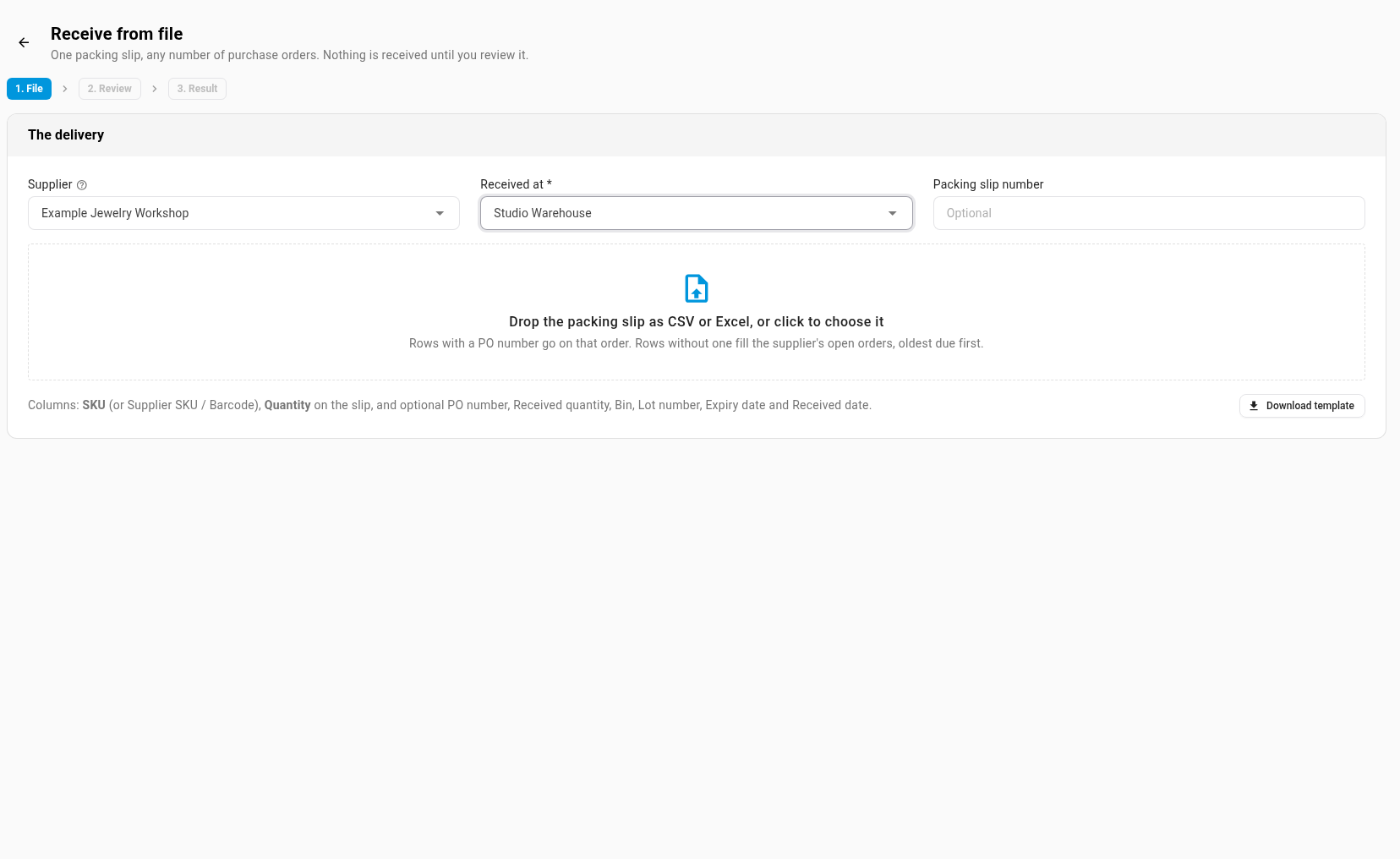
Go to Purchasing → Inbound Shipments and click Receive from file at the top of the list. The Receive from file page opens on step 1. File.
-
Under Supplier, choose the supplier whose POs the slip covers. You can leave it empty when every row of the file has a PO number; otherwise rows without one say This row names no purchase order. Choose the supplier so its open orders can be matched.
-
Under Received at, choose the warehouse the goods arrived at. Optionally, type the Packing slip number.
-
To start from the right columns, click Download template (it needs the supplier and the warehouse). You get an Excel file with a row for each open PO line of that supplier bound for that warehouse, already filled in with the PO number, SKU, supplier SKU, barcode, product name and the units still pending. Enter what the slip says in Quantity, and what you counted in Received quantity when it differs.
-
Drop the packing slip onto the drop zone, or click it and choose the file. Nothing is received yet: SKU.io reads the file and opens step 2. Review.
-
Check the Received date. It comes from the file's Received date column when every row agrees on one date, and is today otherwise. One file is recorded on one date.
-
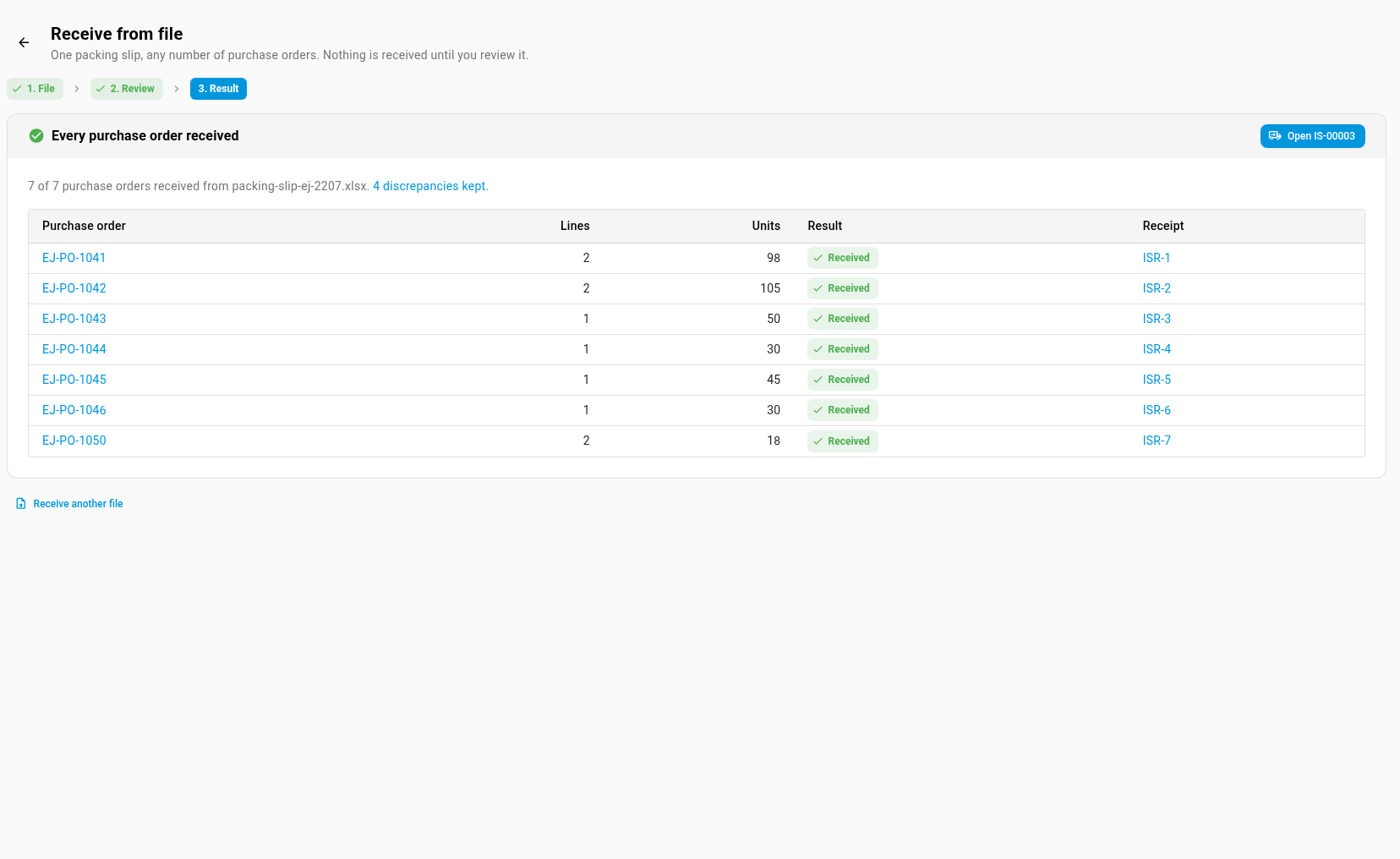
Check Columns read. Each chip names a column of your file and the field it was read as, for example Quantity → Quantity on the slip, so a misread header shows before anything is received.
-
Read the tiles: Receiving (units to receive, of all counted units on the file), Purchase orders (POs that get a receipt), To decide (rows that need you), Matched (rows that complete their PO line, with the partial ones underneath), Short (rows counted below the slip) and Not received (counted units no PO receives).
-
In Rows the purchase orders can't take as they are, choose What to do for every row marked in red. See Decide the rows the POs can't take. Apply to all undecided gives the same answer to every undecided row that allows it.
-
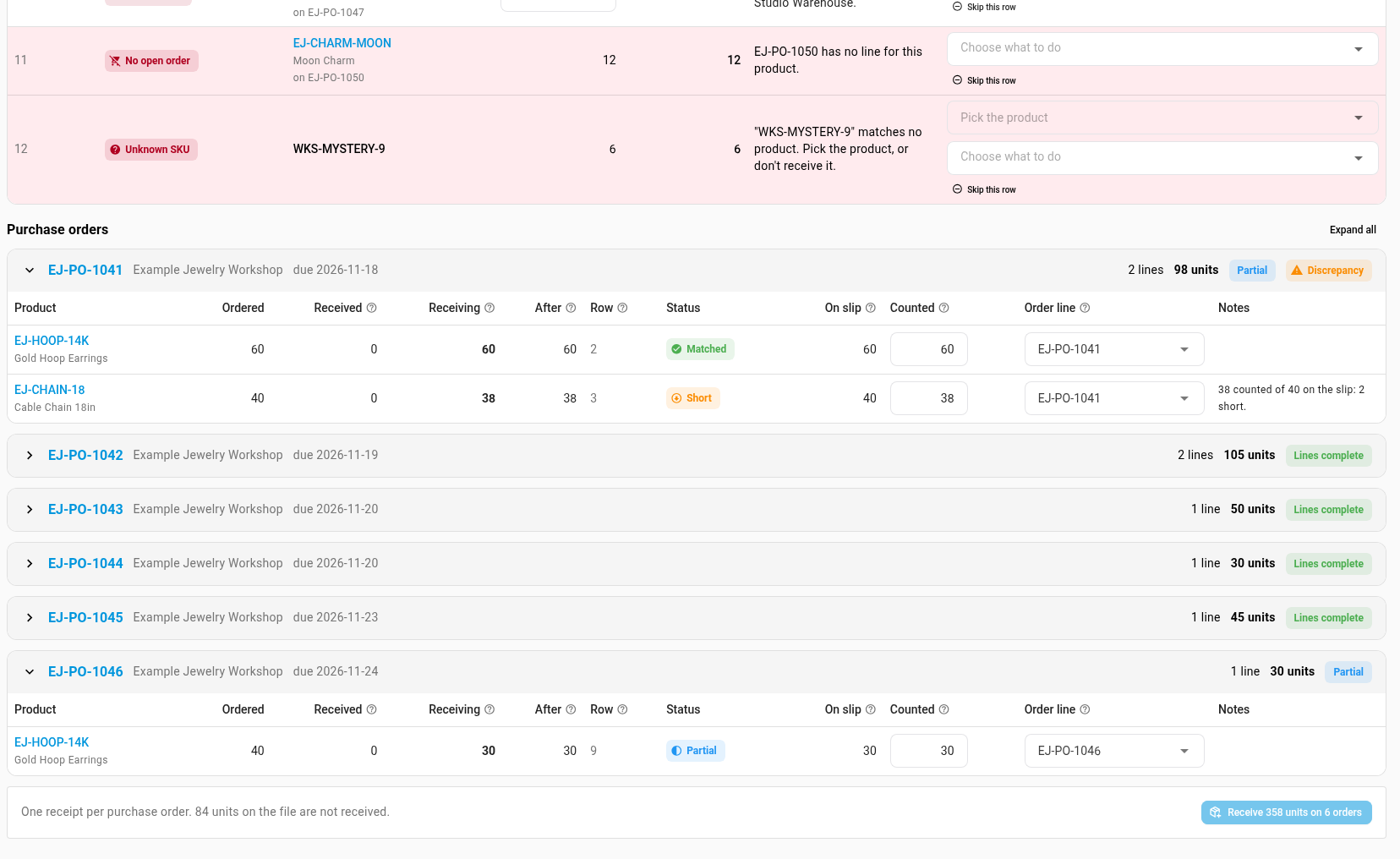
Under Purchase orders, check each PO. Open a PO to see its rows: Ordered, Received (before this file), Receiving, After, the file's Row, Status, On slip, Counted and Order line. Change Counted when your count differs from the slip, or pick another Order line to move a row to another PO.
-
Click Receive N units on N orders. The button stays disabled, with the reason on hover, until every row has a decision.
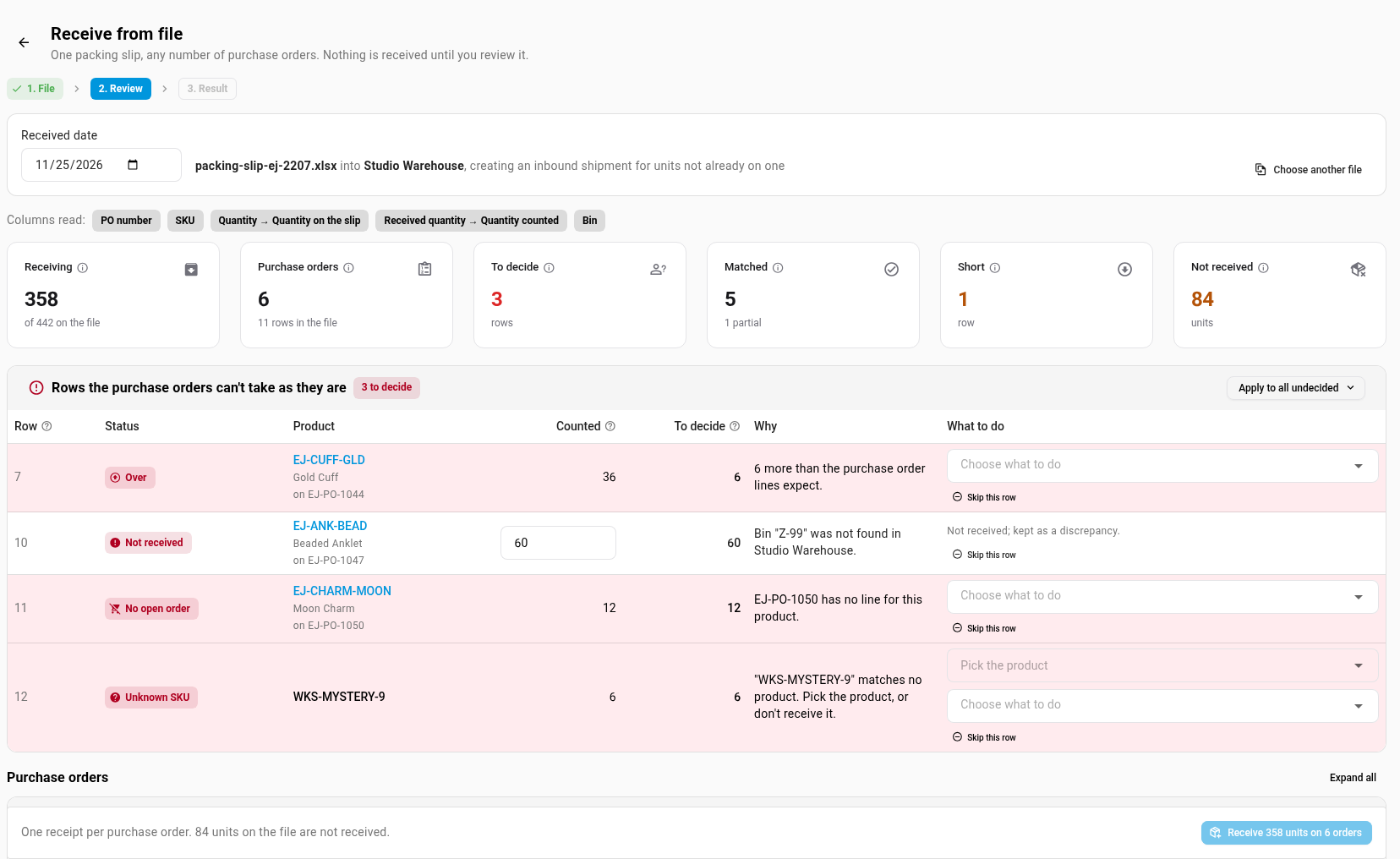
What you'll see: step 3. Result lists every PO with its Lines, Units, Result and Receipt, under Every purchase order received. One receipt is recorded for each PO, and units that weren't already on an inbound shipment go onto a new one. Open followed by the shipment number takes you to it. When units weren't received, the sentence above the table ends with a link such as 4 discrepancies kept, which opens Packing Slip Discrepancies. Click Receive another file to start over.
How each row finds its order
The product. SKU.io matches a row by your SKU, a previous SKU of the product, the supplier's SKU, then the barcode. A value in the SKU column is also tried as a supplier SKU and a barcode, because many slips print the supplier's code there.
The purchase order. In this order:
- An Order line you picked on the review screen.
- The row's PO number. A PO of another supplier, or one bound for another warehouse, is still used when the row names it, with a note saying so.
- Otherwise, the supplier's open PO lines for that product at that warehouse, oldest due first: the line's shipment ETA, then the PO's expected delivery date, then the PO date. A row larger than one line fills that line and continues on the next. Rows that name a PO are placed before rows that don't, so a row without a PO number never takes units a named row needs.
The shipment. Units an open inbound shipment already expects are received on that shipment. The rest go onto the shipment being received: the new one from Receive from file, or the shipment you started from.
What each status means
| Status | Meaning | What happens |
|---|---|---|
| Matched | Fills everything still to receive on its PO line. | Received. |
| Partial | Less than the line has pending. | Received. The rest stays open on the PO. |
| Short | Counted less than the slip says. | The counted units are received. The difference is kept as a Short discrepancy. |
| Over | More units than the PO lines expect. | You decide. |
| No open order | SKU.io knows the product, but no open PO line has it. | You decide. |
| Unknown SKU | Nothing matches the SKU, supplier SKU or barcode. | You decide. |
| Not received | The row can't be received from a file. The reason is in Why. | Not received. Kept as a Could not be received discrepancy. |
| Skipped | The row has no quantity, or you clicked Skip this row. | Nothing is recorded. |
Decide the rows the POs can't take
Rows that need you are highlighted in Rows the purchase orders can't take as they are, with the row number, Status, Product, Counted, To decide (the units no open line takes) and Why.
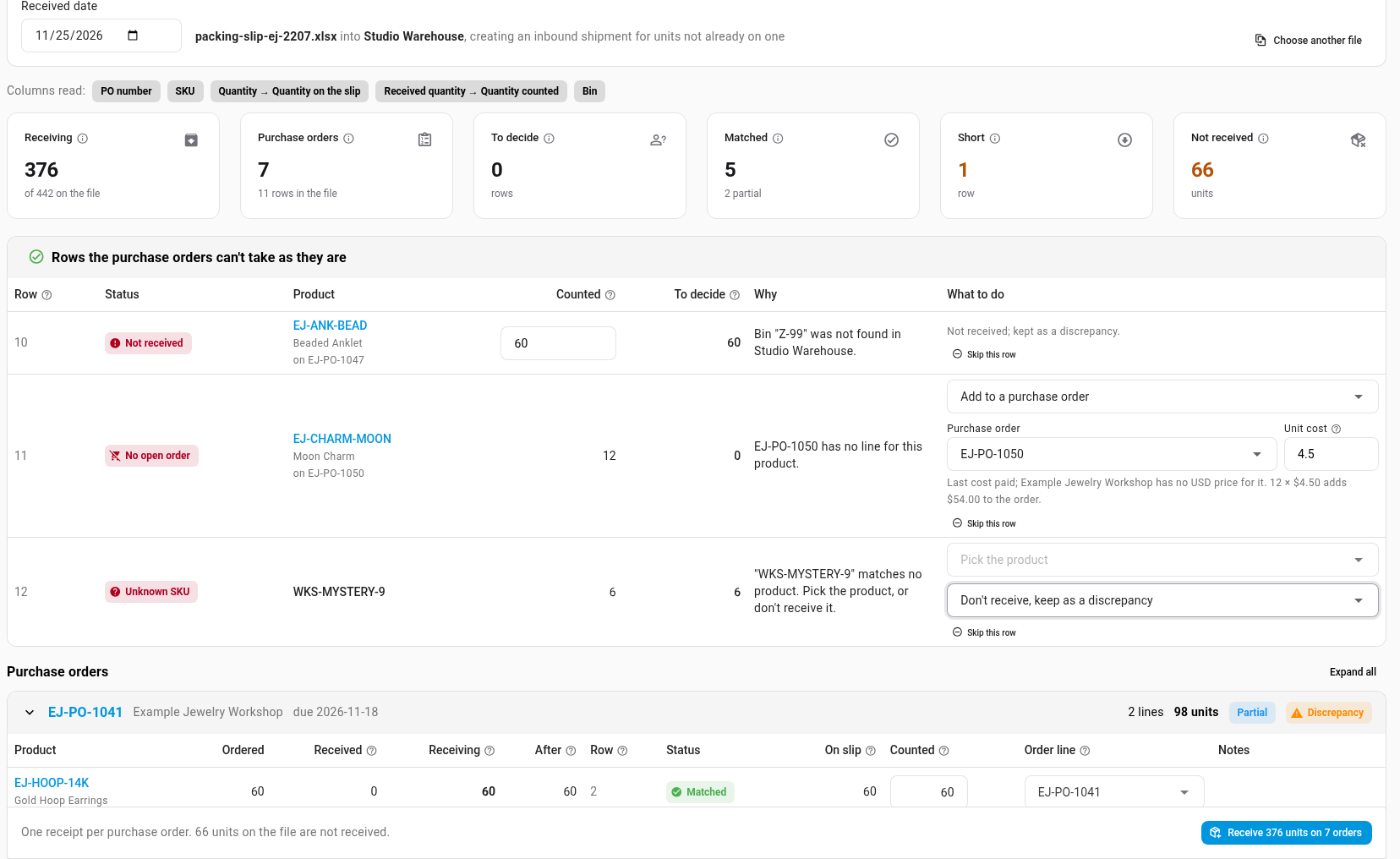
- Over. Choose Receive the extra units on this order, Use other open orders, oldest due first, or Don't receive, keep as a discrepancy. Extra units you receive on the order are kept as an Over discrepancy (Extra units received). Units that other open orders take need nothing more. Units no other open order can take aren't received, the row says so, and they're kept as a discrepancy.
- No open order. Choose Add to a purchase order, Use other open orders, oldest due first, or Don't receive, keep as a discrepancy. With Add to a purchase order, pick the Purchase order; it starts on the PO the row names. The Unit cost fills in by itself, in the PO's currency: the PO supplier's price for the product (the default pricing tier first) at the quantity break all the rows adding it reach together, or, with no supplier price, the last cost paid. The note under it says where the cost came from and what it adds to the order, for example Last cost paid … 12 × $4.50 adds $54.00 to the order. Type over it to change it, and click Use with the suggested price to go back. When there is neither a price nor a last cost, type the cost before you receive. The product is added as a new line on the PO (New line on this order) and received, and the row is kept as a No open order discrepancy (Added to the order and received, with the details Not on the order: added as a new line at 4.5 each and received.) so someone can check the unplanned units. Add to a purchase order needs the Purchase Orders Edit permission.
- Unknown SKU. Use Pick the product to say which product it is, and the row is matched again. Or choose Don't receive, keep as a discrepancy.
- Not received. A row with a serialized product, a bin that doesn't exist or doesn't accept receipts, a lot-tracked product without its lot number or expiry date, a date that isn't a date, or part of a unit can't be received from a file. It's kept as a discrepancy with the reason. To receive it, fix the file and choose Choose another file, or receive it in the Receive Items drawer.
Skip this row leaves a row out completely: nothing is received and no discrepancy is kept. Skipped rows are listed under the POs, where Bring back the ones I skipped undoes it.
Every change you make (a count, an order line, a decision) checks the whole file again, so the tiles and the other rows always reflect it.
File columns
The template and your own files use the same columns. Headers aren't case-sensitive, and spaces and punctuation are ignored, so PO #, PO No. and po number all work. A file needs at least one identifier column (SKU, Supplier SKU, Barcode, or Line) and a quantity column (Quantity or Received quantity). Columns read on the review step shows how your headers were read.
| Column | Required | In the template | What to enter | Also recognized as |
|---|---|---|---|---|
| PO number | No | Filled in | The PO the row belongs to. Leave it empty to let SKU.io fill the supplier's open orders, oldest due first. | PO, PO no, Purchase order, Purchase order number, Order, Order number, Customer PO, Your PO |
| SKU | One identifier column | Filled in | Your SKU, a previous SKU, or the supplier's code. | Item, Item SKU, Item code, Product SKU, Part number, Part |
| Supplier SKU | One identifier column | Filled in | The supplier's code for the product. | Vendor SKU, Supplier code, Vendor code, Supplier part number, Vendor part, MPN |
| Barcode | One identifier column | Filled in | The UPC, EAN or GTIN. Leading zeros are kept. | UPC, EAN, GTIN, UPC/EAN |
| Line | No | Not included | The PO line, as it appears in the Line column of the single-PO receipt template, so a file made from that template works here too. When present, it wins over the PO number. Picking an Order line on the review step does the same. | Line ID, PO line, PO line ID, Purchase order line |
| Product | No | Filled in | The product name, for reference. Not read on upload. | — |
| Pending | No | Filled in | Units still to receive on the line, for reference. Not read on upload. | — |
| Quantity | Yes, or Received quantity | Empty | The units the slip says. A row with no quantity, or 0, is skipped. | Qty, Slip quantity, Slip qty, Shipped, Shipped qty, Qty shipped, Quantity shipped, Packed, Packed qty, Qty packed, Units |
| Received quantity | No | Empty | The units you counted, when they differ from the slip. Empty means the same as Quantity. Fewer is kept as short. | Received, Received qty, Quantity received, Qty received, Counted, Counted qty, Counted quantity, Count |
| Bin | No | Empty | The bin's code, in a warehouse with bins. | Location, Bin location, Warehouse location, Bin code |
| Lot number | For lot-tracked products | Empty | The lot. Required for a lot-tracked product. | Lot, Lot no, Batch, Batch number, Batch no |
| Expiry date | For lot-tracked products | Empty | The lot's expiry date. | Expiry, Expiration, Expiration date, Exp date, Best before, BBD |
| Manufacture date | No | Empty | The lot's manufacture date. | Manufacturing date, Mfg date, Production date, MFD |
| Received date | No | Empty | The date the goods arrived. One file is recorded on one date; pick it on the review step when rows disagree. | Receipt date, Date received, Received on |
Quantities must be whole units of 0 or more; 1,200 is read as 1200. Dates can be Excel dates or text such as 2026-11-14, 11/14/2026, or 14-Nov-2026. A file that has only a Received quantity column uses it as the slip quantity too.
To receive one line into several bins or lots, add a row per bin or lot with the same SKU and split the quantity between them.
Receive a whole inbound shipment from one file
When the delivery is already an inbound shipment, start from the shipment so its expected lines are the starting point:
- Open the shipment from Purchasing → Inbound Shipments.
- Click Import receipt, then The whole shipment, from one file (All N purchase orders at once). To receive one PO only, pick it under Or one purchase order instead; see Import against an inbound shipment.
- Drop in the packing slip and review it as above. Download template here lists the lines still pending on the shipment.
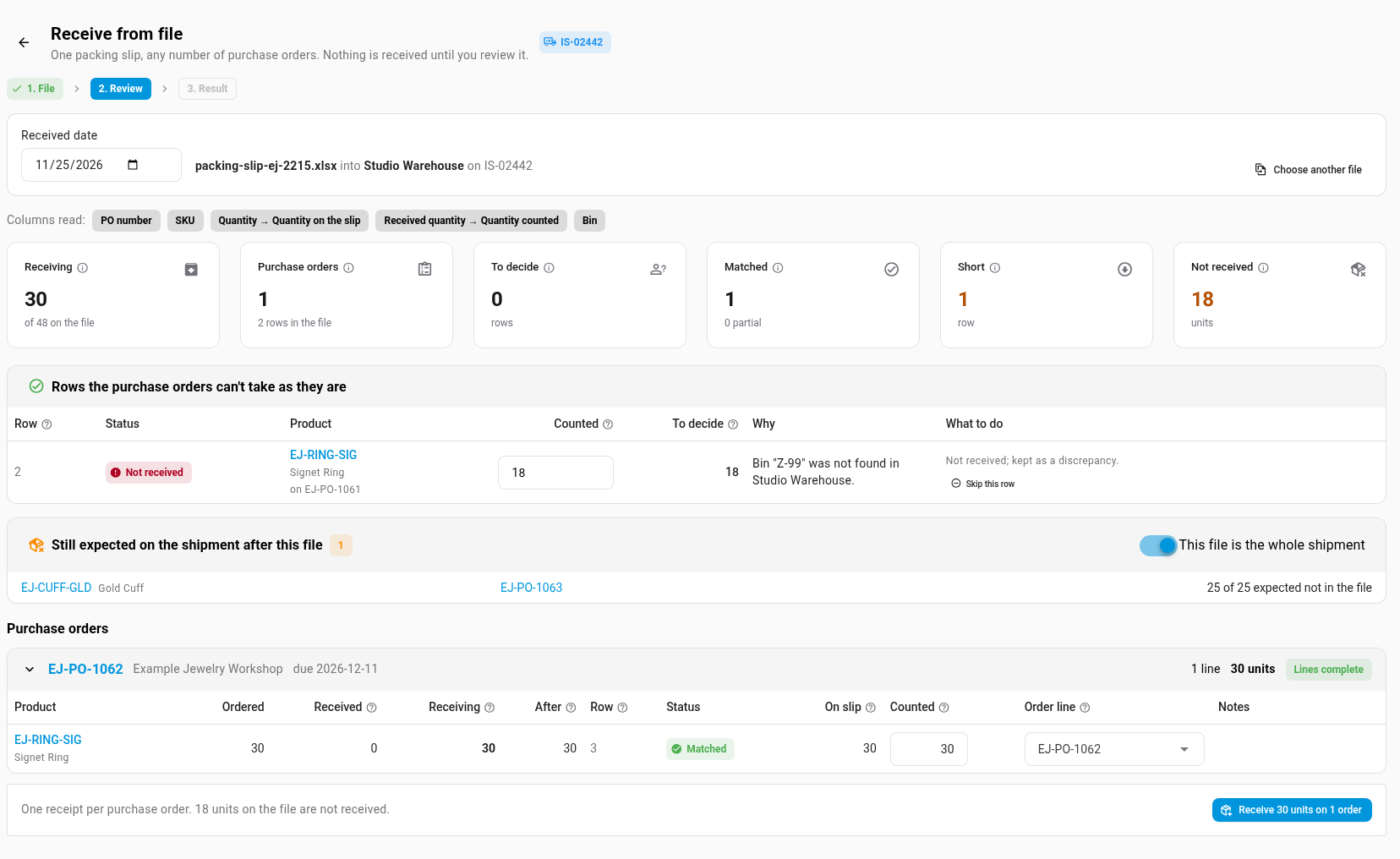
The review adds Still expected on the shipment after this file: the shipment's lines the file doesn't mention, with how many of the expected units are missing. With This file is the whole shipment on (the default), each of them is kept as a Short discrepancy when you receive. Turn it off when more of the shipment is still coming, and the lines stay expected for a later delivery. A draft or planned shipment is marked as shipped when the file is recorded.
Every slip row counts once
Every unit on the slip ends up in exactly one place: received, kept as a discrepancy, or left out because you skipped the row. For each row, the received, refused and short units add up to what the slip says. For example, a row that says 20 and was counted as 18, with a bin that doesn't exist, gives 18 units Could not be received and 2 units Short (18 counted of 20 on the slip: 2 short.), and nothing is received. The review's Short tile counts such a row too.
Settle what wasn't received
Discrepancies are kept on Purchasing → Inbound Shipments → Discrepancies, in the Packing Slip Discrepancies list. Open it with the Discrepancies button on the Inbound Shipments list, or with the discrepancies kept link on the result.
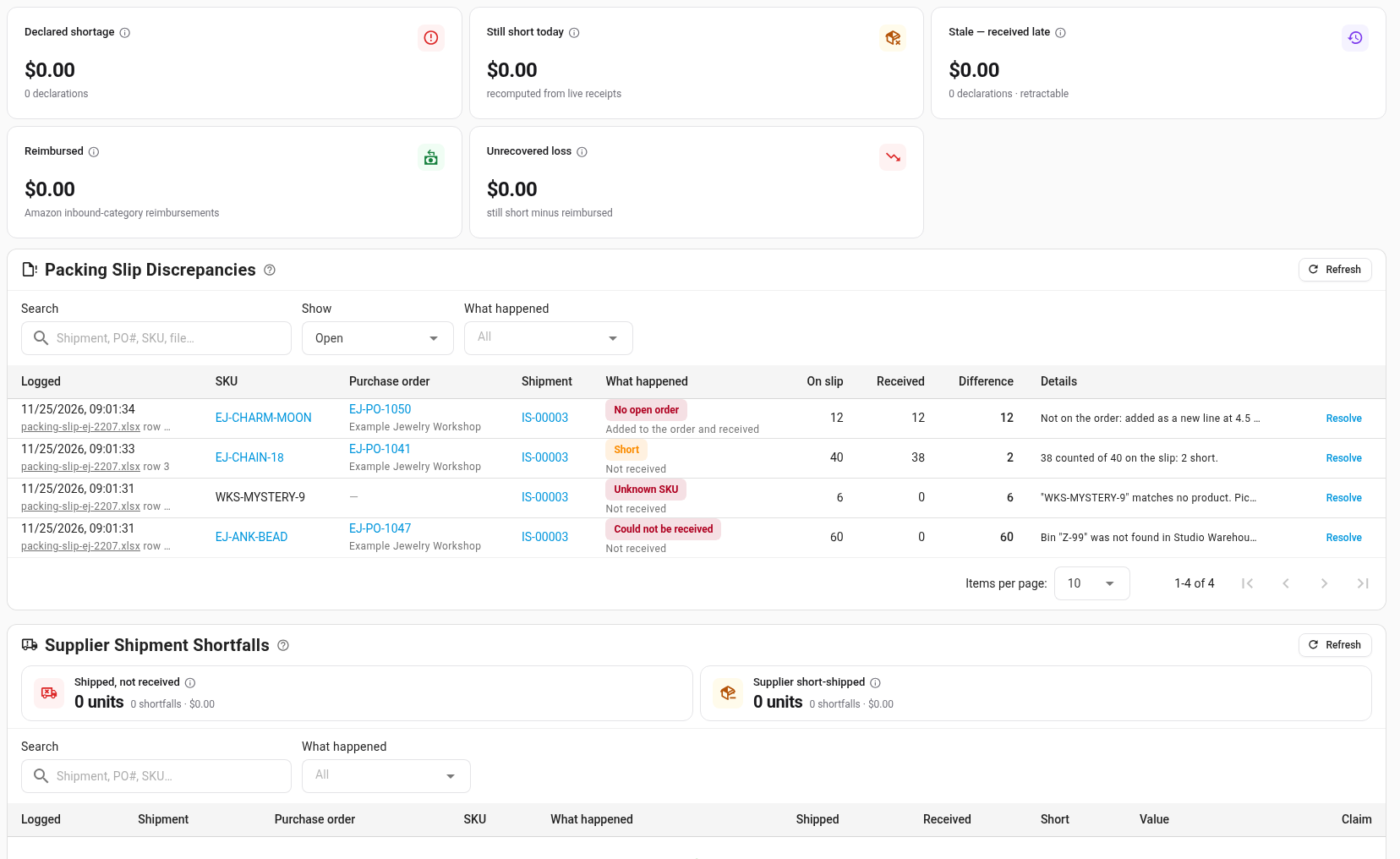
Each row shows when it was Logged and the file and row it came from, the SKU, Purchase order, Shipment, What happened (Short, Over, No open order, Unknown SKU, or Could not be received, with what was done), the On slip, Received and Difference quantities, and Details. Use Search (shipment, PO number, SKU or file name), Show (Open, Resolved, or All) and What happened to narrow the list.
To mark one settled:
- Click Resolve on its row.
- Under What settled it, note what happened, for example Supplier sends the 2 missing pieces next week.
- Click Resolve. The row moves to the Resolved list with your note, and Reopen brings it back.
Resolving a discrepancy changes nothing on the PO. To close the missing units on the PO itself, use the PO's own actions, such as a short-close; see Close, reopen, and short-close a purchase order.
If something goes wrong
- The same file again. If a file with the same rows was already received, the review warns A file with the same rows was already received and links to it with See it. Receive it only if it's another delivery. Clicking Receive twice never records the file twice.
- A PO changed after your review. If someone receives or changes a PO between your review and Receive, nothing is recorded and the review reloads with The purchase orders have changed since you reviewed this file. Check the rows and receive again.
- One PO fails. Each PO is received on its own, so one failure doesn't undo the others. The result shows Some purchase orders were not received with the reason on that PO. Click Retry what was not received once it's fixed.
- A closed stock count. If the Received date is before a stock count that's already closed, a warning asks you to confirm before Receive is enabled.
Next steps
- Import a receipt from a file for one PO at a time
- Track inbound shipments
- Receive stock against a purchase order
- Close, reopen, and short-close a purchase order
Video transcript
When one delivery covers several purchase orders, you can receive its packing slip in one pass. Go to Purchasing, then Inbound Shipments, where incoming deliveries are tracked. Click Receive from file at the top of the list. The page starts on its first step, the file. First, pick the supplier whose purchase orders this slip covers. You can leave the supplier empty when every row names its own order. Then, under Received at, choose the warehouse where the goods arrived. If your supplier sends no file, Download template builds one, with a row for each order line still due. Fill in the Quantity column, and the Received quantity column when your count differs. Now drop in the packing slip, as a CSV or Excel file. Nothing is received yet. First, you review how every row matched. Columns read shows how each column of your file was understood. The tiles count the units to receive, the purchase orders, and the rows to decide. This slip lands on six orders, with three rows still to settle. Below, each purchase order lists the rows it takes. This row counted 38 against 40 on the slip, so two units are kept as short. A row with no purchase order number goes to the earliest due order that still has room. The first table lists every row that the orders can't take as written. This row has six more units than its order expects. You can receive the extra units anyway, spread them over other open orders, or leave them unreceived. Here, choose other open orders, oldest due first. This product isn't on any open order, so it needs a decision. From the What to do list, choose Add to a purchase order for this row. The order the slip names is filled in, and so is the unit cost, from the supplier's price or the last cost paid. If that cost is wrong, type the right one over the suggestion. For an unknown SKU, pick the product it really is, or choose not to receive the row. A row that can't be received, such as one naming a bin that doesn't exist, is kept as a discrepancy instead of being dropped. With nothing left to decide, click Receive. SKU.io records one receipt for each purchase order, on one inbound shipment. The result step lists each order next to its new receipt. Units that weren't received are kept as discrepancies. Click the link below the heading to see them in the Packing Slip Discrepancies list. Each row shows the purchase order, the slip and received quantities, the difference, and the reason. Once a difference is sorted out with the supplier, click Resolve on its row. In the note, say what settled it, so your team can see the outcome later. Then click Resolve again to save the note. A shipment that's already on its way works the same way, from its own page. Go back to Inbound Shipments, and select the shipment. Click Import receipt, and choose The whole shipment, from one file. The same review starts, with the shipment's expected lines as its base. Drop in the slip for that shipment. Expected lines the file doesn't mention are listed under Still expected on the shipment after this file. With This file is the whole shipment turned on, each of those lines is kept as short. Turn it off to keep them expected for a later delivery. Click Receive, and the shipment's purchase orders are recorded together. Every slip row counts once, so its received, refused and short units always add up to what the slip says.