Manage a dropship label on a purchase order
When a supplier gets prepaid labels from you, each of its dropship purchase orders (POs) has a Shipping label card. A supplier with labels switched off has no card, and its vendor ships on its own account. It shows where the label is, and it's where you buy, reschedule, resend, or void it. This page also shows the order page your vendor uses to request its label. To turn labels on for a supplier, see Send dropship vendors a shipping label.
Before you begin
- Send this vendor shipping labels is turned on in the supplier's Dropship settings, with either Send the label with the PO or Vendor requests it from the portal.
- The dropship PO is submitted. A draft PO can't get a label.
- To buy, reschedule, resend or void a label, you need permission to update purchase orders.
Find purchase orders by label status
- Go to Orders → Purchase Orders.
- Click the Label status filter and tick the statuses you want, for example Failed or Label ready.
To see the status in the list itself, open Columns and turn on Label. It shows the label's status and ship date.
| Status | Meaning |
|---|---|
| Awaiting request | No label yet. The vendor can request one, or you can buy one. |
| Scheduled | The label is bought automatically on the morning of the ship date. |
| Buying… | The provider is creating the label. |
| Label ready | The label is bought and emailed to the vendor. The order isn't shipped yet. |
| In transit | The carrier scanned the parcel, or the vendor marked it shipped. The sales order is fulfilled. |
| Shipped | The order was marked shipped before the carrier's first scan. For ShipStation, which doesn't send tracking updates, this is the last step. |
| Delivered | The carrier delivered the parcel. |
| Failed | The label couldn't be bought. The card says why. |
| Voided / Void pending | The label was cancelled and refunded, or the refund is still in progress. |
| Cancelled | A scheduled label was cancelled before it was bought. |
Read the Shipping label card
Open the PO. The Shipping label card sits under Order Details. Beside its title, a chip with the provider's logo names the provider that buys the label, for example Labels via ShipStation. Hover it to see which connected account is used. Next to the chip is how the vendor gets its label, and the chip on the right shows the status.
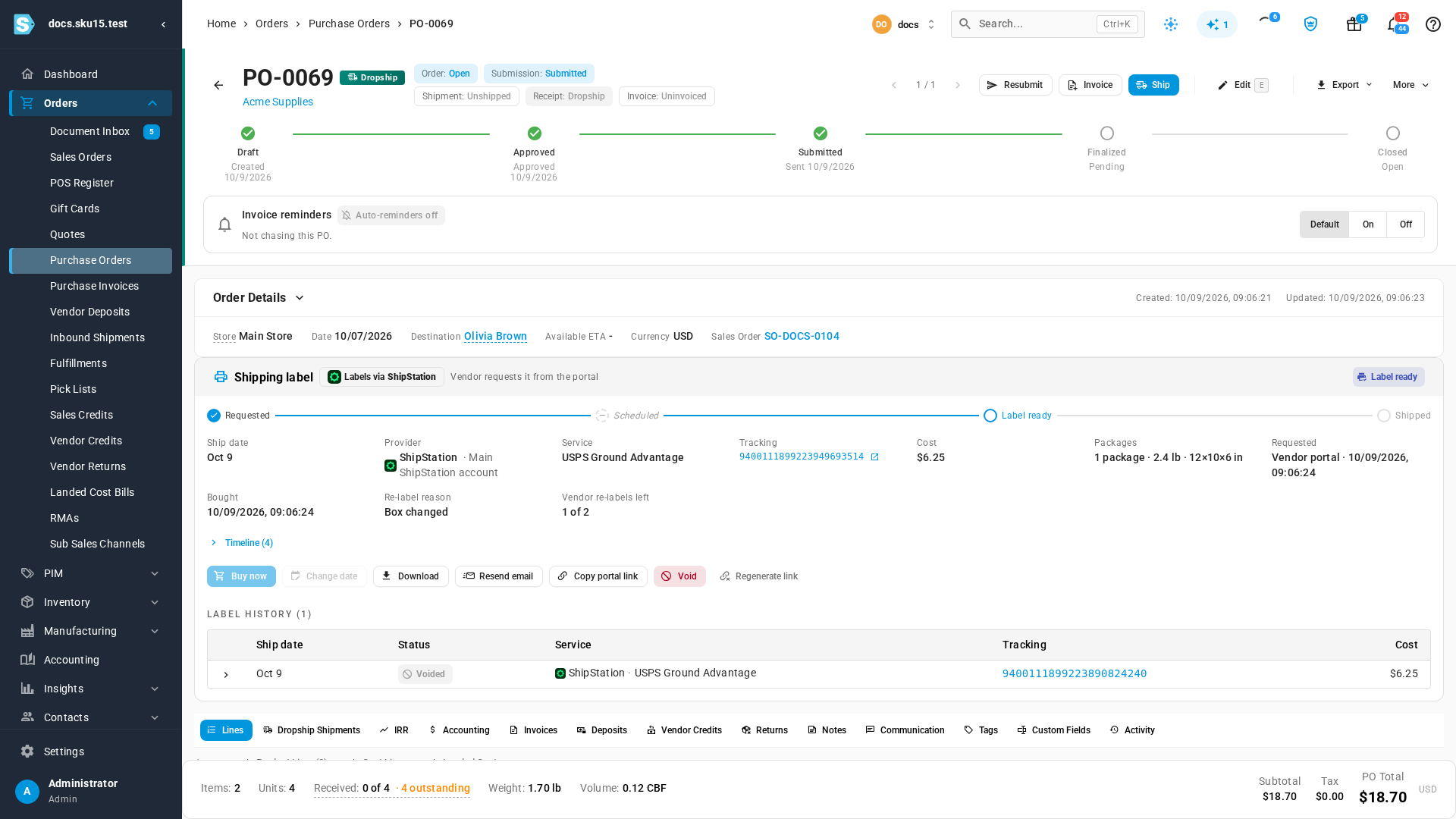
- The strip shows the steps: Requested → Scheduled → Label ready → In transit → Delivered. A label bought straight away skips Scheduled. ShipStation doesn't send tracking updates, so a ShipStation label's strip ends Label ready → Shipped. Shipped is ticked when the vendor confirms it, or at the end of the ship date. Hover Shipped for a reminder. The card's Marked shipped detail shows when, and whether the vendor confirmed it or it was assumed on the ship date. Other providers show First carrier scan there instead.
- The details show the Ship date, the Provider (logo, name and connected account), the Service, the Tracking number (it opens the carrier's tracking page), the Cost, the Packages, and who Requested it. A scheduled label also shows Buys at, the moment it's bought.
- Vendor re-labels left counts the replacement labels the vendor can still get by itself.
- Timeline lists every event for the label, such as requested, bought, emailed and scanned.
Once the label ships, the card links to the sales order's fulfillment.
Download, resend or share the label
- Download opens the label file. A label with several packages has one file per package.
- Resend email sends the label to the vendor again.
- Copy portal link copies the link to the vendor's order page, so you can send it another way.
- Regenerate link creates a new order-page link. Every link you've already sent stops working, so use it if a link went to the wrong person.
Buy a label yourself
You can buy a label on any PO that can have one, for example when the vendor phones in its ship date.
-
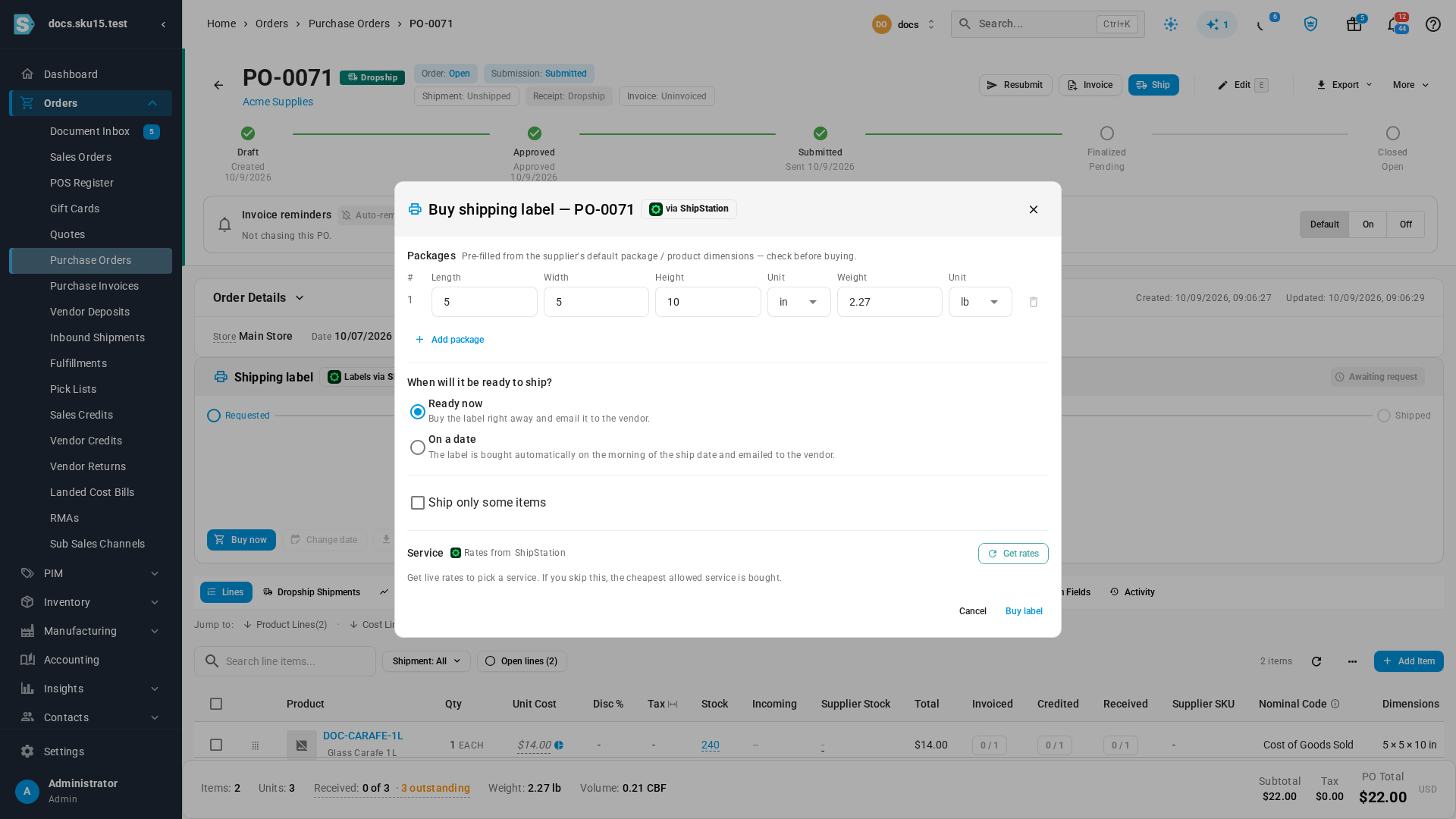
On the Shipping label card, click Buy now.
-
Check the Packages. They're filled in from the supplier's default package or the products' weights and dimensions. Click Add package for each extra box.
-
Under When will it be ready to ship?, choose Ready now, or On a date and pick the ship date.
-
To ship only part of the order, tick Ship only some items and enter how many of each item go in this shipment.
-
Click Get rates. The Service list shows Rates from your provider, with its logo, for example Rates from ShipStation. The cheapest is selected. Pick another one if you like. If you skip this step, the cheapest allowed service is bought.
-
Click Buy label (or Schedule label for a date).
What you'll see: the card moves to Label ready, with the tracking number and cost, and the vendor gets the label by email. A scheduled label shows Scheduled and its ship date.
A PO with a scheduled label also shows Buy now. It buys that label straight away instead of on its ship date.
Change a scheduled ship date
- On the Shipping label card, click Change date.
- Enter the New ship date and click Save date.
The label is now bought on the morning of the new date, in the supplier's time zone. A Saturday or Sunday moves to the next Monday. The new date also becomes the PO's estimated ship date.
Void a label
Void a bought label that won't be used, for example when the order changes.
- On the Shipping label card, click Void.
- Click Void label to confirm.
The label is cancelled with the provider and refunded, and the vendor is told not to use it. Some providers refund after a few days, so the label shows Void pending until they do. You can't void a label the carrier has already scanned. Its Void button is unavailable, and its tooltip says why.
To give the vendor a replacement, click Buy now again. Earlier labels move to Label history at the bottom of the card, each with its provider's logo, service, tracking number and cost. Click a row to see its packages, the reason it was replaced, and its events.
What your vendor sees
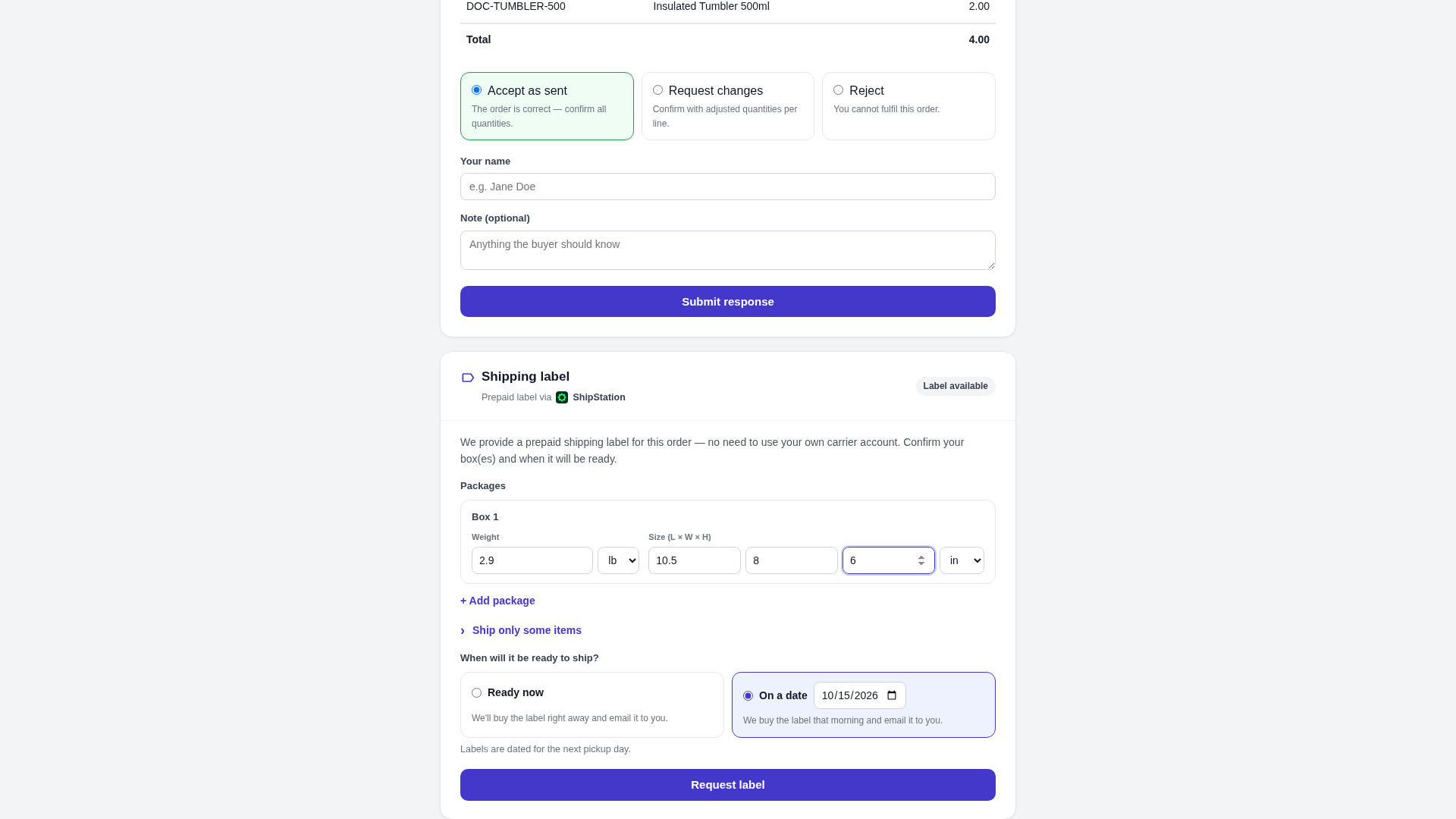
The PO email links to an order page. It doesn't need a login. Under the order, a Shipping label card lets your vendor request and download its label. Its heading names the provider, for example Prepaid label via ShipStation.
-
Your vendor checks the Packages: the weight and the size of each box. It can click Add package for more boxes, or open Ship only some items to ship part of the order now.
-
Under When will it be ready to ship?, your vendor chooses Ready now or On a date, and clicks Request label.
-
For a date, the card says "Your label will be ready on …". Until then, your vendor can click Change date, or It's ready now to get the label straight away.
-
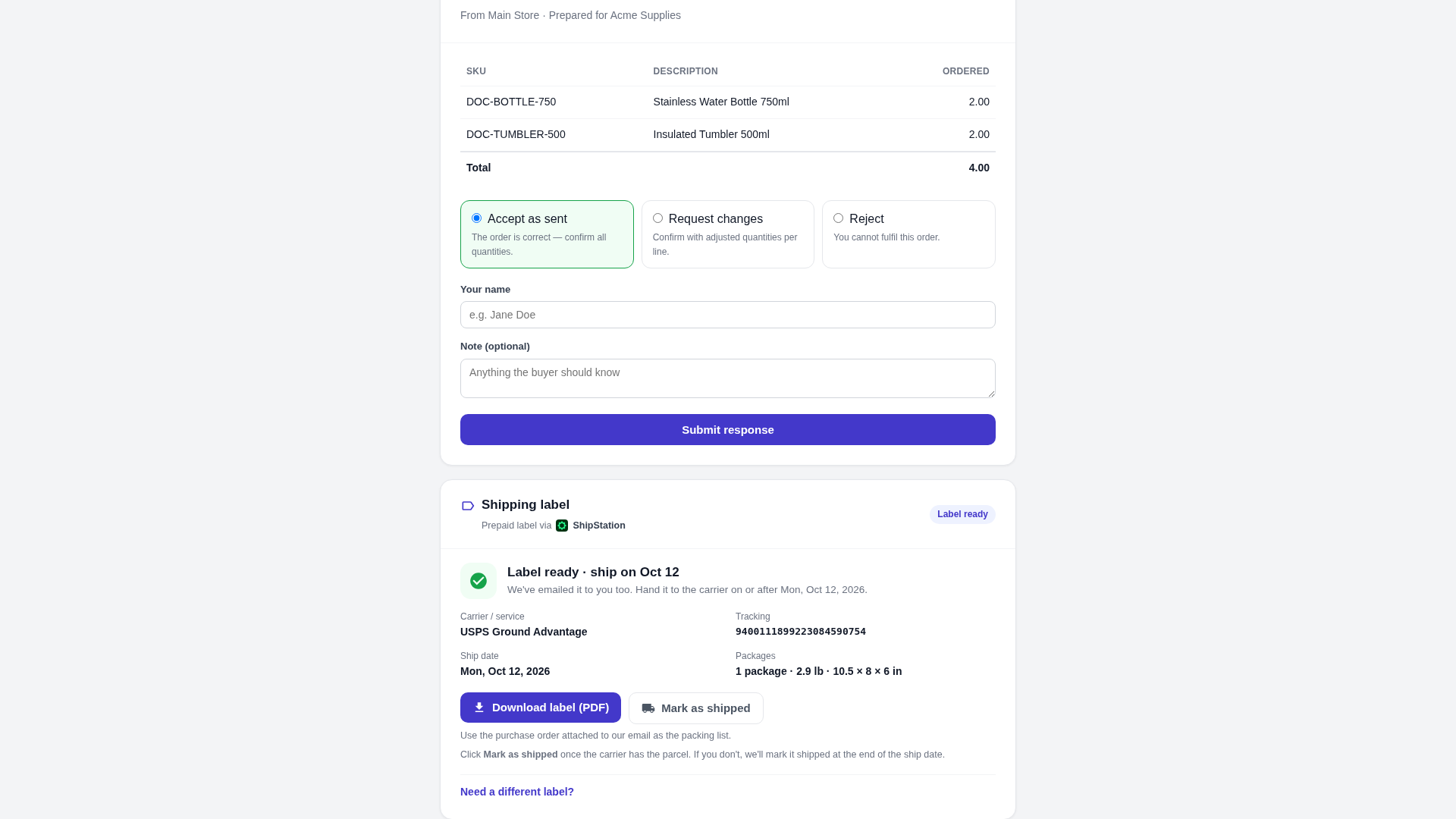
When the label is bought, your vendor gets it by email and on the page, with Download label (PDF) (one button per box).
-
After handing the parcel to the carrier, your vendor can click Mark as shipped. Otherwise the order is marked shipped at the carrier's first scan.
-
If the box changes or the label is damaged, your vendor clicks Need a different label?, picks a reason, enters the new box, and clicks Replace label. Once its replacements run out, the page asks your vendor to contact you.
If you ship the PO yourself with Ship, the tracking number from the label is filled in for you. See Ship dropship POs and mark Amazon POs as shipped.
Next steps
- How dropship shipping labels work: when labels are bought, shipped and voided.
- Send dropship vendors a shipping label: turn labels on or off for a supplier, or change the store defaults.
Video transcript
Every dropship purchase order with a label shows the status of that label. Open Orders in the sidebar, then choose Purchase Orders to see the full list. Above the list, click the Label status filter. Choose Label ready, to see the labels that are bought and waiting for the carrier. The list now shows only those purchase orders. Open the purchase order you want from the filtered list. Below the order details, find its Shipping label card. Beside the title, Labels via ShipStation names the provider that buys the label. The strip shows each step the label goes through. Below it are the ship date, the service, the tracking number and the cost. Download opens the label file for each package. Resend email sends the label to the vendor again. Copy portal link copies your vendor's order page. Void cancels a label that hasn't been scanned, and refunds the cost. Earlier labels for the order are listed under Label history, each with its provider and service. This one was replaced because the box changed. Open a row to see its packages, the reason it was replaced, and everything that happened to that label. You can also buy a label yourself. On an order that's still waiting for a request, scroll to the Shipping label card, and click Buy now. Check the package size and weight, then choose Ready now, or On a date to schedule the label for later. Click Get rates, below the ready date. Rates from ShipStation for this package are listed, with the cheapest marked. Keep the cheapest service or pick another one, then click the Buy label button. The label is bought straight away, and emailed to the vendor. A scheduled label is bought on the morning of its ship date. To move it to another day, click Change date. Enter the new ship date in the dialog. A weekend date moves to the next Monday, when carriers pick up again. Then click Save date, and the card shows the new ship date. Here's what your vendor sees. The order page from the purchase order email has a Shipping label card, with a prepaid label via ShipStation. Your vendor confirms the size and weight of each box, and can add a box when the order needs more room. Then your vendor chooses Ready now, or a date when the order will be ready, and clicks Request label. A dated label is scheduled for that morning. Until then, your vendor can change the date, or click It's ready now. The label is bought, emailed, and ready to download. Your vendor can download it, mark the order as shipped once the carrier has it, or ask for a different label if the box changes.