Use the Inventory Planning report
The Inventory Planning report is your buy plan across every supplier and warehouse in one place. Each row is a product, with its stock, how fast it sells, how long the stock will last, and how many units to order now. Above the table, the reorder summary groups everything that needs ordering by supplier, so you can create purchase orders without building a forecast first. Use it for a quick daily or weekly check. When you want to plan one supplier's order in depth, the report hands you over to Demand Planning.
Before you begin
- Products need a supplier, with a lead time, for the report to suggest an order. Set Target Stock Days and Min Stock Level on the supplier product to control how much it suggests. See Set supplier lead times.
- You need access to the Inventory Planning report.
Open the report
- Go to Insights → Reports.
- Click Inventory Planning.
The status line at the top shows how fresh the numbers are. Sales Data and Velocity Cache are recalculated every night at 2 AM; click Refresh next to either one to recalculate now. Under it, the summary shows the number of SKUs, units available, stock value, inbound units, the average days of stock, and the value of dead stock. Click Show Details for more totals.

Find what needs ordering
- Turn on Actionable only to hide products that have no stock, nothing inbound, and no sales. What's left is everything you can act on.
- Click a shortcut chip to jump to a ready-made view:
- Need Reorder shows products with a suggested quantity, with the most revenue at risk first.
- Dead Stock shows products with stock on hand and no sales in 90 days, the most valuable first.
- Narrow the table with the filters: Supplier, Brand, Tag, Warehouse, ABC, XYZ, Risk, Dead Stock, and Status.
- Scroll right to the planning columns. Days of Stock and Stockout Risk show who runs out first, and Reorder Point and Suggested Qty show what to order.
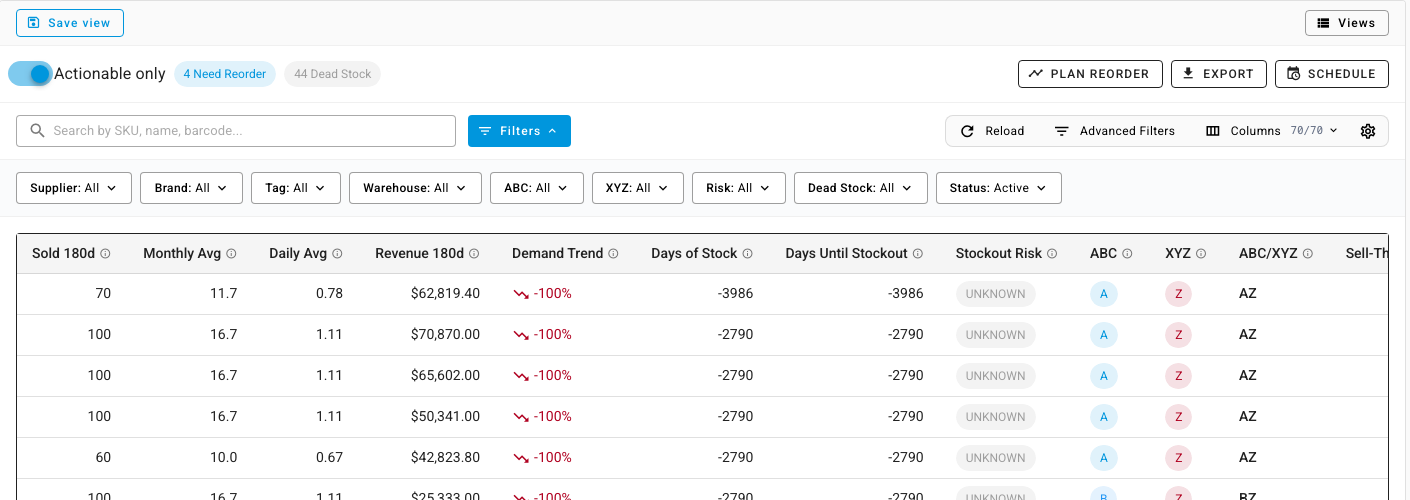
The report has 70 columns. Use Columns to choose the ones you need, then click Save view to keep that layout and filters as a view you can reopen from Views. Hover over the info icon on any column header to see what it measures and how it's calculated. How sales velocity and days of supply work explains the main ones.
Order by supplier
-
Expand Reorder Summary by Supplier. It lists each supplier with products to reorder: the number of Items, the Total Cost, the Landed Cost, the shipment volume in CBM, and how much of a 40-foot Container that volume fills.
-
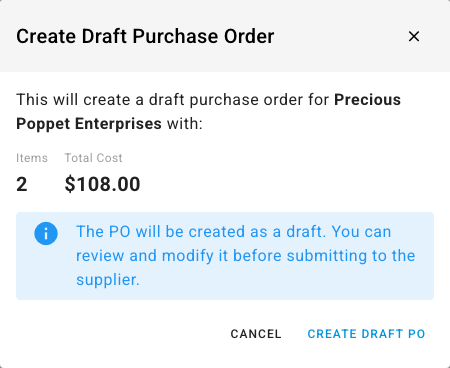
To order from one supplier, click Create PO on its row. Check the items and total cost, then click Create Draft PO. The purchase order is created as a draft, so you can review it before you send it.
-
To plan that supplier's order in more depth, click Plan in detail. Demand Planning opens with the supplier already selected.

Plan Reorder, in the toolbar, opens Demand Planning for every supplier in the reorder summary at once.
Create orders for selected products
- Select the products in the table.
- Click Create POs in the bar that appears above the table.
- In Create Purchase Orders, choose the Destination Warehouse and whether the orders are Draft or Approved. The products are grouped into one purchase order per supplier.
- Adjust any Order Qty. Turn on Include products without reorder suggestions to add selected products the report doesn't suggest ordering, and enter their quantities yourself.
- Click Create Purchase Orders. A summary lists the purchase orders it created, with links to each one.
Products without a supplier can't go on a purchase order. Assign a supplier to them first.
Export or email the report
- Click Export to download the table as it's filtered and sorted now.
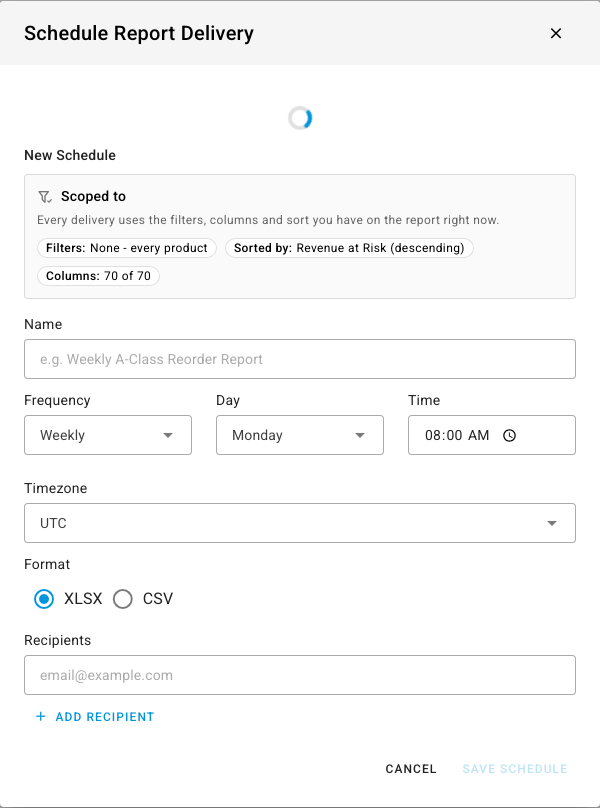
- Click Schedule to email it automatically. Name the schedule, choose the Frequency (Daily, Weekly, or Monthly), the Day, Time, and Timezone, the Format (CSV or XLSX), and the Recipients, then click Save Schedule. Every delivery uses the filters, columns, and sort you have on the report when you create the schedule, listed under Scoped to.
Next steps
- Forecast demand and replenish stock to size one supplier's order with a full forecast.
- Replenish stock on a schedule to have forecasts create purchase orders automatically.