Plan what to make and buy
If you make some of what you sell, a reorder list isn't enough. You also need to know what to build, and the ingredients those builds use. Demand Planning answers both in one plan. Every product gets a row that says whether you Make it, Buy it or Transfer it from another warehouse. The ingredients your builds need are added to the purchases automatically.
Before you begin
The plan works out how each product is supplied from what's already set up:
- Things you make need an active recipe (BOM). A product whose recipe is still a draft can't be planned as a build.
- Things you buy need a supplier on the product. Lead times, minimum order quantities and case packs come from that supplier.
- Things you move need a warehouse that's restocked from another warehouse, set up with a planning policy and a distribution lane.
- Sales history at the warehouses you plan for. The plan forecasts from what you've sold.
A product with demand but no way to supply it shows as Unsourced, and its row says why: for example, a recipe that's still a draft.
Build a plan
- Go to Inventory → Demand Planning.
- In Configuration, select Make, buy & move. The page opens on By supplier (purchase only), the purchase-only forecast described in Forecast demand and replenish stock, unless your account's default says otherwise.
- In Warehouses, choose every warehouse you want to plan for. Each product gets one row per warehouse.
- Set the Horizon: how far ahead the plan looks.
- Leave Plan builds from BOMs on. Turn it off to plan purchases and transfers only.
- Leave Suppliers empty to plan everything, or pick suppliers to narrow the plan. Product filters such as Supplier in stock also decide which supplier a product is bought from.
- Choose a Forecast Type and its settings, the same as for a supplier forecast.
- Click Build plan.
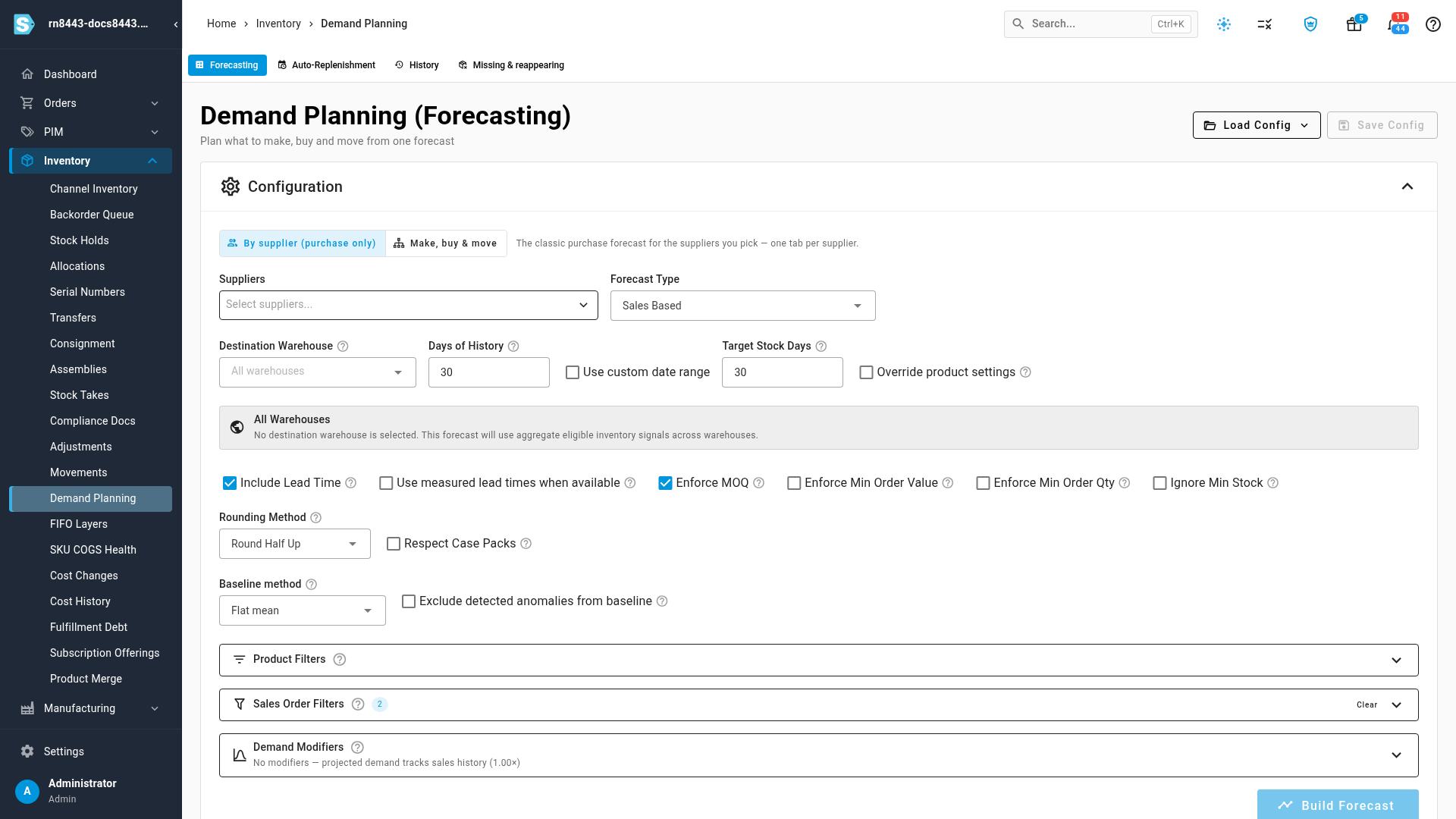
The plan builds in the background. You can leave the page; progress appears in the job tray, and the plan opens when it's ready.
Read the plan
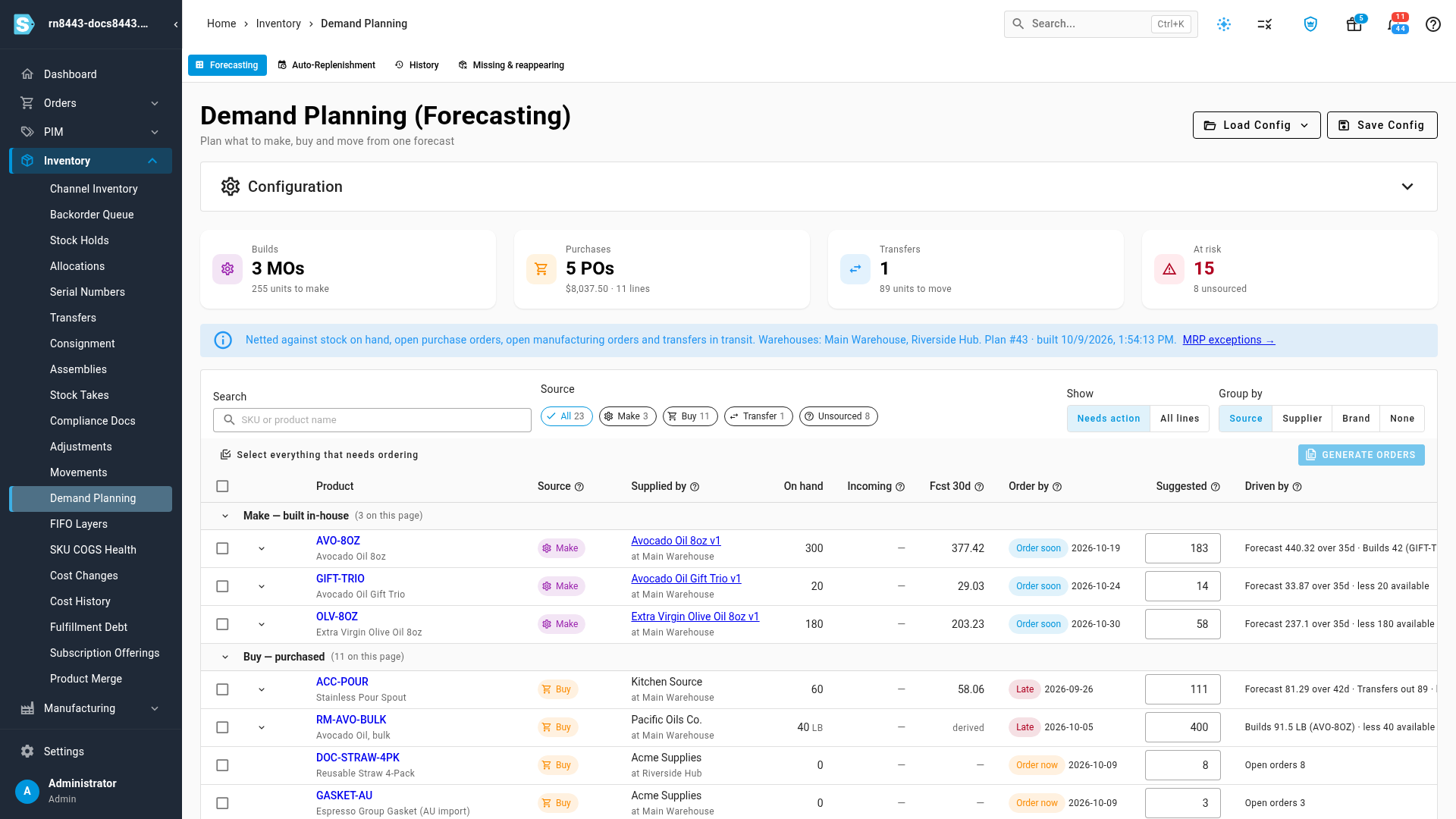
Four cards sum up the plan:
| Card | What it shows |
|---|---|
| Builds | How many manufacturing orders the plan proposes, and the units to make. |
| Purchases | How many purchase orders (one per supplier and warehouse), their value and lines. |
| Transfers | How many units to move between warehouses. |
| At risk | Rows whose order date has passed or is today. |
Below the cards, rows are grouped by Source:
| Source | What the row means |
|---|---|
| Make | Build this product from its recipe. Supplied by names the recipe. |
| Buy | Order this product from the supplier named in Supplied by. Ingredient demand from planned builds is included. |
| Transfer | Move stock in from the warehouse that restocks this one. |
| Unsourced | The plan can't tell how to supply this product. The row says why. |
Each row shows what's On hand and Incoming, the forecast, the Order by date and the Suggested quantity. Order by is marked Late, Order now or Order soon. Driven by explains the quantity: the forecast, the builds that use it as an ingredient, and any stock, lot size or minimum order taken into account.
Use Show to switch between Needs action and All lines, Group by to group rows by supplier or brand instead, and Search to find products by SKU or name.
See what a build needs
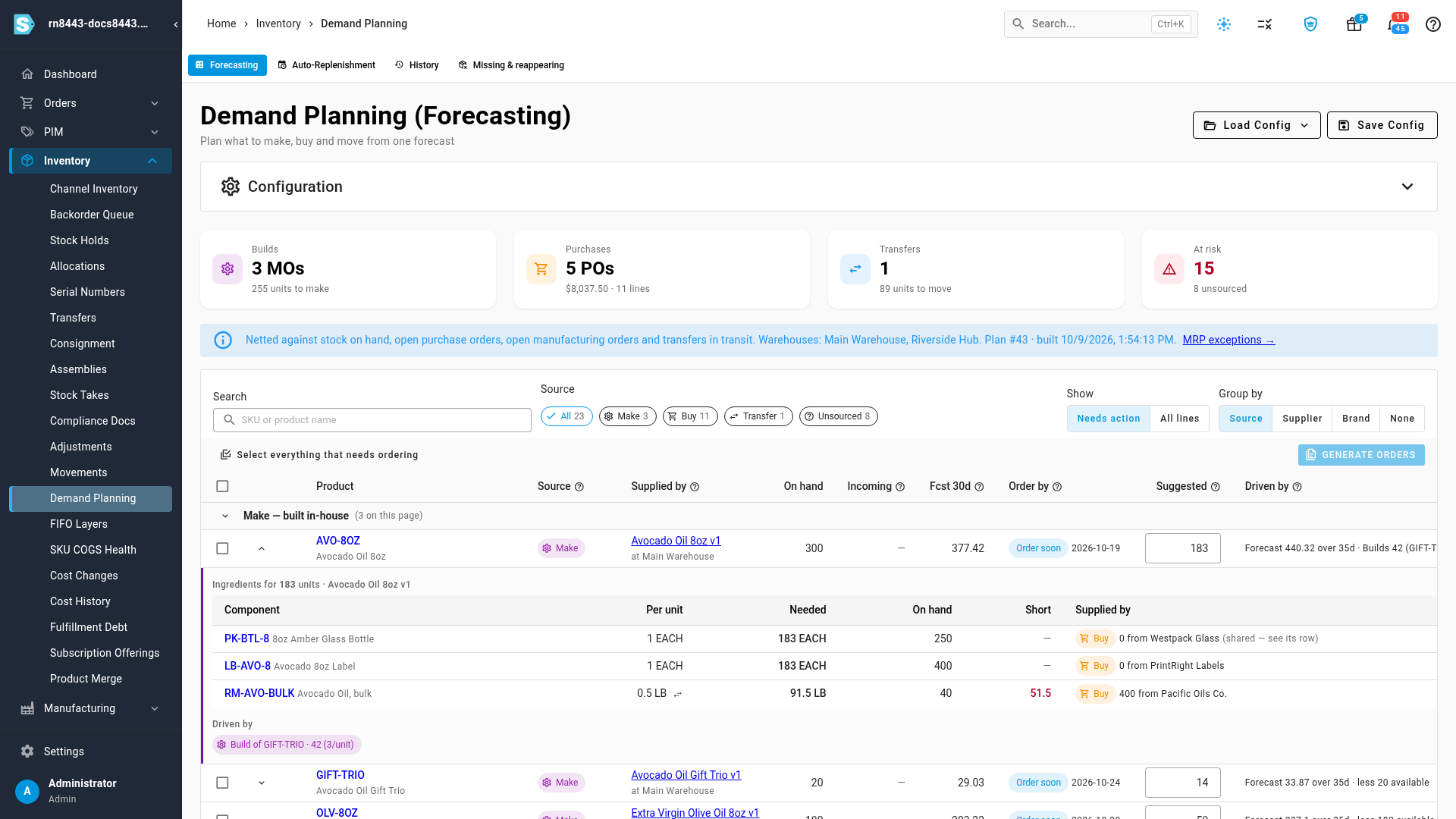
Click the arrow on a Make row to show its breakdown. It lists each Component, how much is needed Per unit and in total (Needed), what's On hand, what's Short and who it's Supplied by. Driven by shows which builds or sales created the demand.
Turn the plan into orders
-
Select the rows to act on, or click Select everything that needs ordering.
-
Untick any build you're not ready to make.
-
Click Generate orders.
-
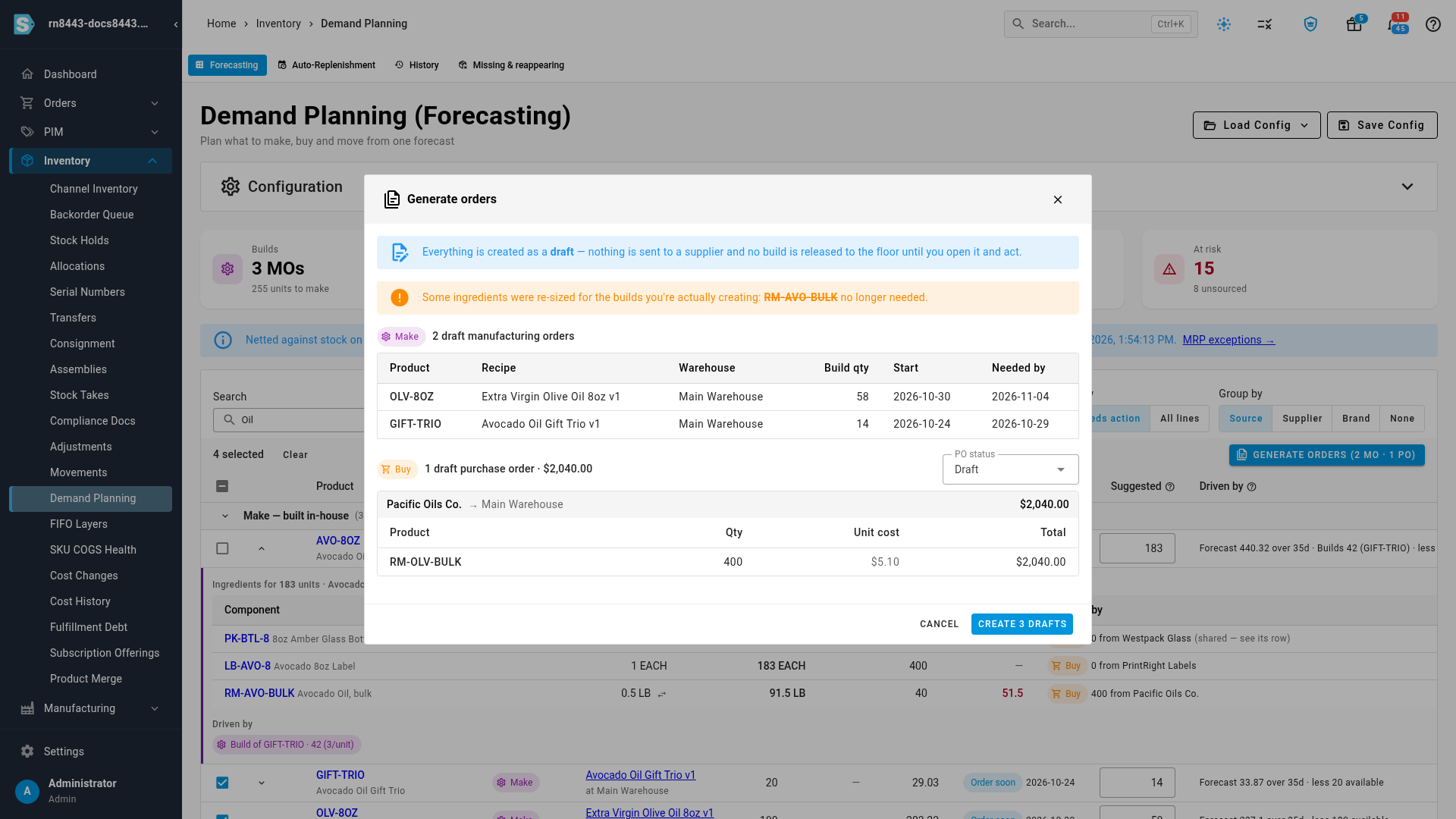
Review the preview. It lists the draft manufacturing orders, one draft purchase order per supplier and warehouse, and any transfers.
-
Check the re-sized ingredients. When you leave a build out, the ingredients it needed are reduced, or marked no longer needed. When you raise a build above its suggestion, ingredients that were covered but now run short appear under Also needed because of your changes, ticked so they're ordered with the rest; untick any you'll source another way.
-
If a purchase order is below a supplier's minimum, review it and tick Create it anyway, or go back and change the selection.
-
Choose the PO status, then click Create.
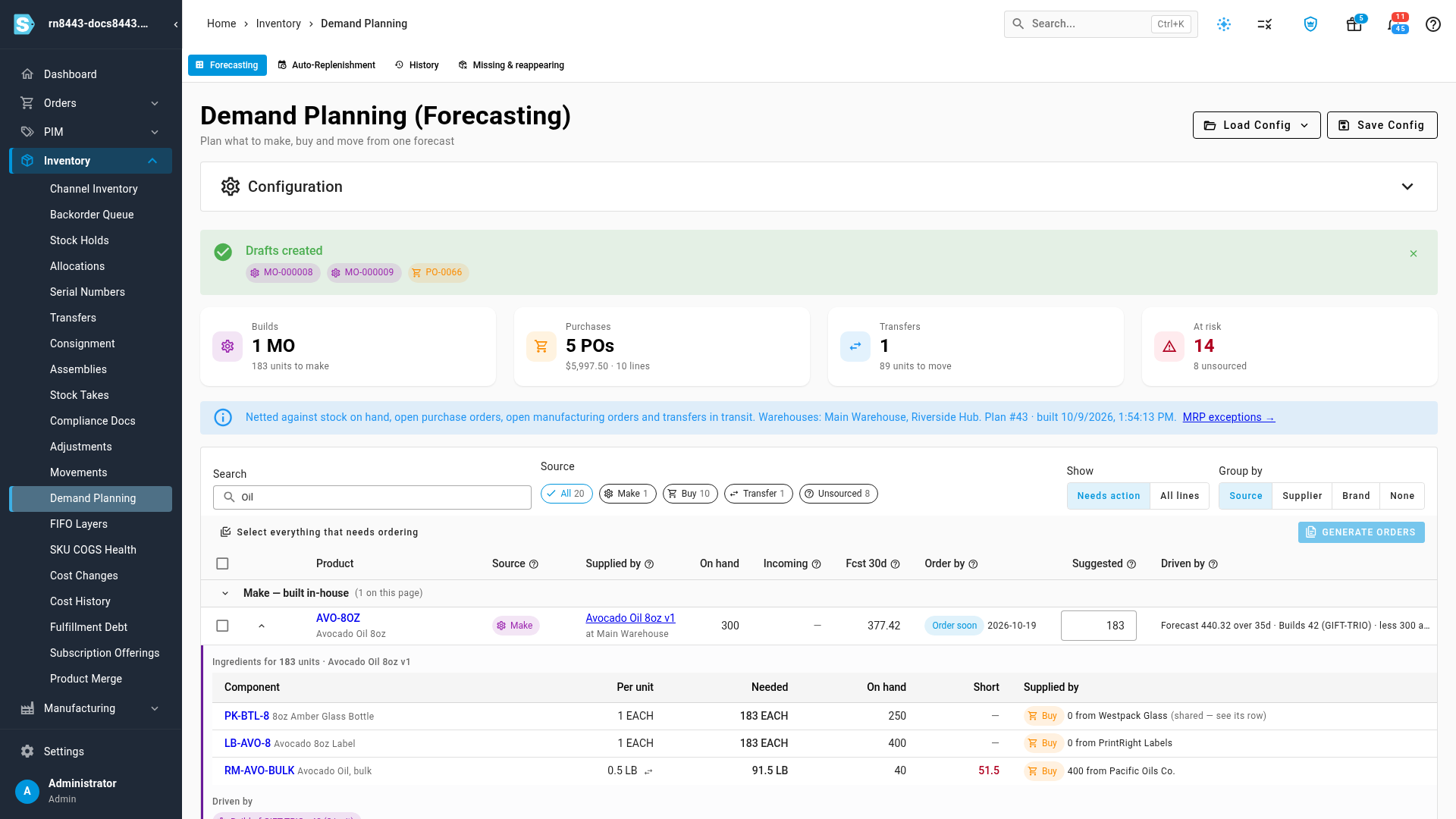
A Drafts created banner lists the new orders by their numbers, and each row you acted on links to its order. Nothing is sent to a supplier or released to production until you open each draft and approve it.
You can change a Suggested quantity before you generate orders. The ingredients of that build are re-sized to match.
A build whose planning policy sets an order maximum becomes several draft manufacturing orders, none larger than the maximum. A product made by a contract manufacturer becomes an outsourced draft, and its ingredients are planned at the contractor's site: the purchase orders deliver straight to the contractor.
Keep the plan current
- Re-open a plan. The latest plan opens when you return to Demand Planning. Older plans are under History.
- Save and schedule it. Save Config keeps the warehouses, horizon and Plan builds from BOMs setting. A scheduled plan rebuilds on its own. When a schedule creates orders automatically, it creates purchase orders only; builds and transfers always wait for you.
- Open on this plan by default. If you manufacture, set Settings → Inventory → Demand Planning → Default planning mode to Make, buy & move. Demand Planning then opens on it for everyone in your account.
- Set a default build time. In Settings → Inventory → Demand Planning, Default build lead time (days) applies when neither the product's planning policy nor its recipe says how long a build takes.
- Run MRP on the same forecast. When you run MRP from Manufacturing, it uses the latest Demand Planning plan as its forecast, so the two never disagree.
Build planning now lives here. Manufacturing → Suggestions shows a notice that links to this page. Pending suggestions there aren't carried over; rebuild them in Demand Planning.
Next steps
- Forecast demand and replenish stock: the purchase-only supplier forecast.
- Forecast with trend-aware baselines: make the forecast follow growth.
- Create a recipe (BOM): what a Make row is built from.
- Run a planning cycle: time-phased planning in MRP.
Video transcript
To plan what to make and what to buy, expand Inventory in the sidebar. Then choose Demand Planning, from the list under Inventory. This one page covers your builds, your purchases, and your transfers. In Configuration, choose Make, buy and move. Then use Warehouses to choose every location you stock. Here, Riverside Hub joins the Main Warehouse, so both get covered. Leave Plan builds switched on, to include the products you make. When the settings look right, click Build plan at the bottom of Configuration. The plan runs in the background, and opens here when it's ready. The cards sum up the whole plan. Builds to make, purchases to place, and stock to move between warehouses. At risk counts the rows that are late, or must be ordered now. Every product gets one row for each location. The Source column says whether each one is made, bought, or moved from another warehouse. Order by is the date to start the build, or place the order. Open a build's breakdown to see its ingredients. Each line shows the quantity needed, the stock on hand, and the Short amount. Supplied by names the supplier or recipe for each component. Driven by explains where the demand came from, like a gift set that needs this oil. Search to narrow the plan to the products you want. Then click Select everything that needs ordering, at the top of the list. Untick any build that should wait. Click Generate orders to preview the drafts. Ingredients for the build you unticked are re-sized automatically. Here, the bulk avocado oil is no longer needed, so it's dropped from the preview. The draft manufacturing orders and the purchase order are listed below. When it looks right, click Create to make all of the drafts at once. Nothing goes to a supplier until you approve each order. The plan now links straight to each new document.