Track expiring certificates and request renewals
When a customer's certificate expires or lapses, their orders to that state start being taxed again. Contacts → Exemption Certificates lists every certificate across all your customers, so you can see what's running out and ask customers for new certificates before that happens.
Before you begin
- To request renewals, you need permission to edit customers.
- The renewal email goes to the customer's billing email, or to their main email if they have no billing email. A customer with neither is skipped.
See every certificate
Go to Contacts → Exemption Certificates.
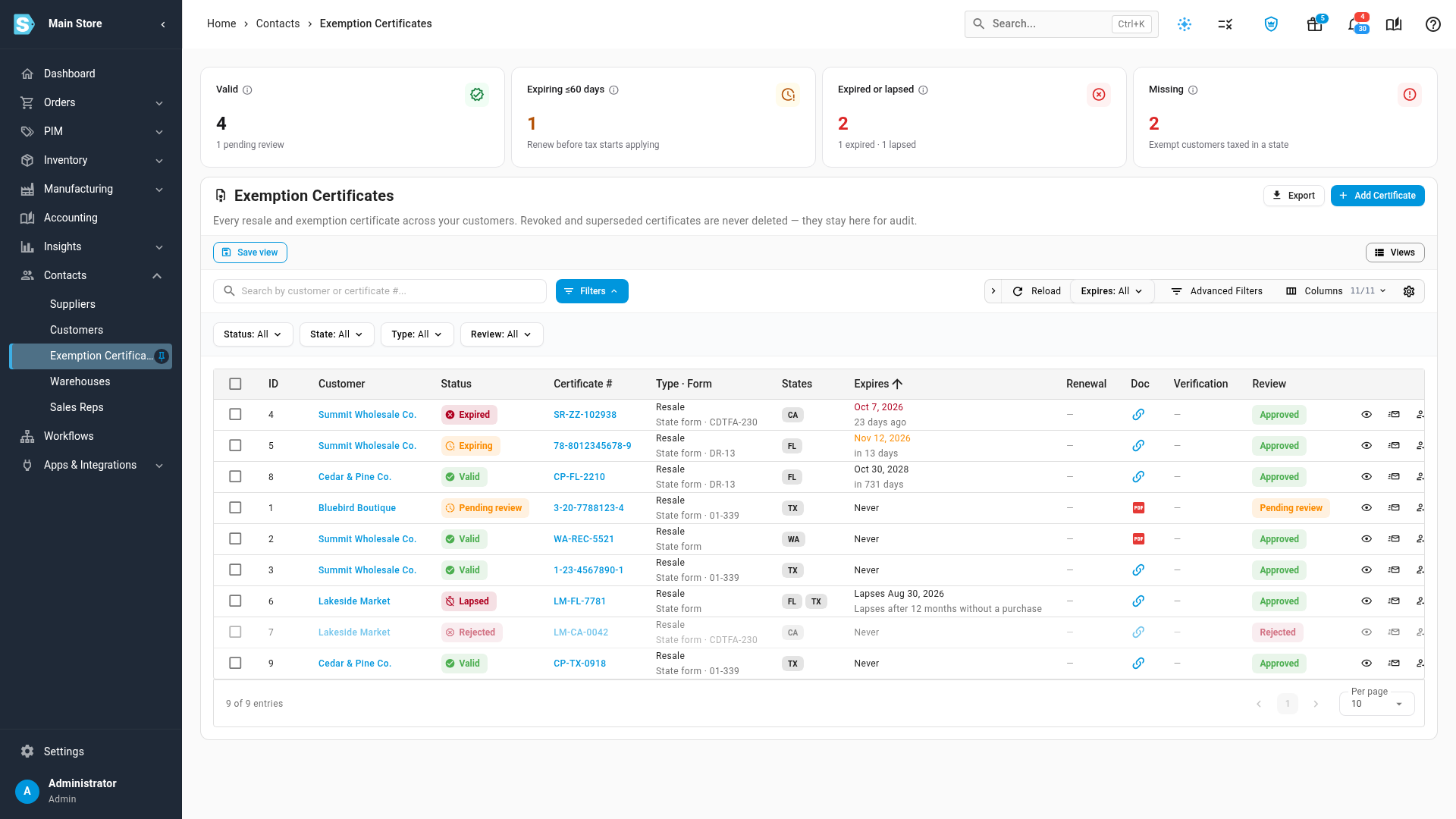
The cards along the top count:
| Card | What it counts |
|---|---|
| Valid | Certificates that currently remove tax, with how many are still pending review |
| Expiring ≤60 days | Valid certificates that expire within 60 days |
| Expired or lapsed | Certificates past their expiry date, or lapsed after 12 months without a purchase |
| Missing | States where a tax-exempt customer has no valid certificate and is being taxed |
The list shows each certificate's customer, Status, Certificate #, type and form, States, Expires (and how long ago or how soon), Renewal (when you last asked for a new one), the document, and its review status. Click a certificate number to open it, or a customer's name to open the customer. Lapsing certificates show the date they lapse, counted from the customer's last order.
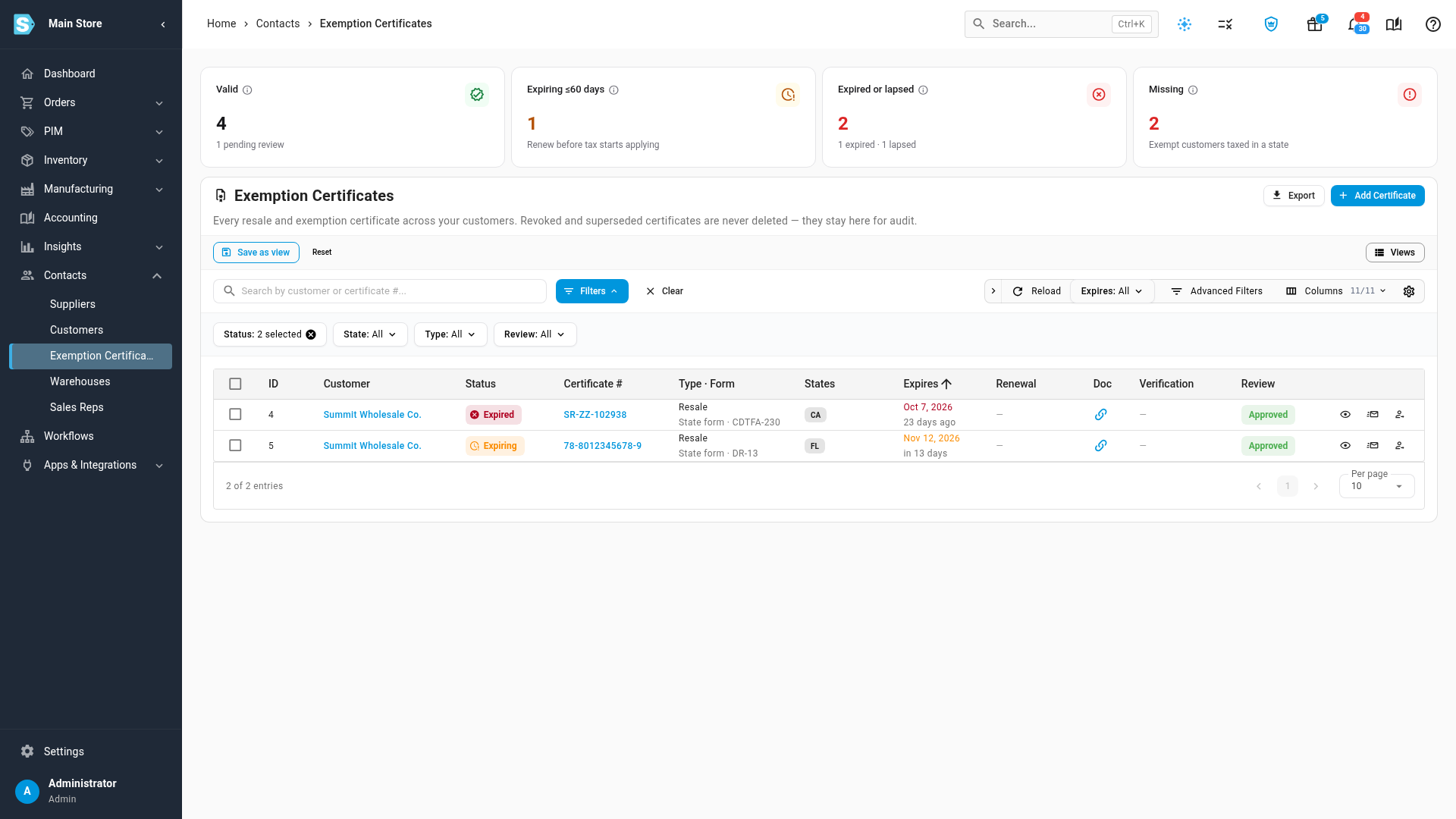
To narrow the list, use Status, State, Type and Review, the Expires quick filter, or search by customer or certificate number. Click Save view to keep a filter you use often.
Request renewals
-
Filter the list to the certificates you want to chase. For example, open Status and tick Expiring and Expired.
-
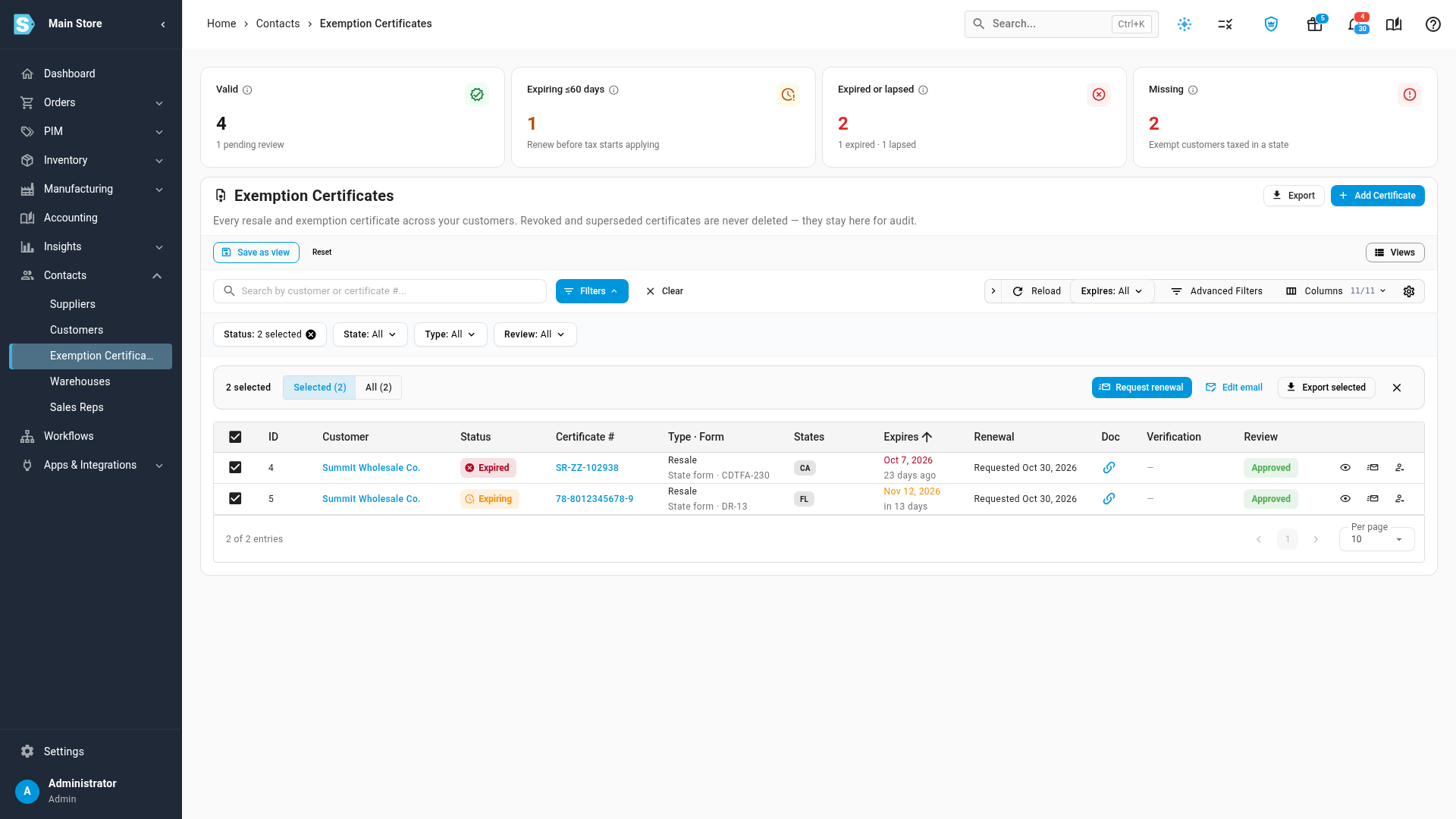
Tick the certificates, or tick the box in the header to select every row on the page. To act on everything the filter matches, choose All in the selection bar.
-
Click Request renewal.
SKU.io emails each customer, names the certificate and its states, and asks them to reply with a new certificate. A message tells you how many requests went out and why any were skipped.
The Renewal column shows when you asked.
You can also request a renewal for one certificate from its row, or for all of one customer's problem certificates with Request renewal in the banner on their Tax Exemption tab.
A certificate is skipped, and the message says why, when:
- you already asked about it in the last 7 days;
- it was rejected, revoked or replaced, so it can't be renewed;
- the customer has no email address;
- the renewal request email template is turned off.
When the customer sends the new certificate, add it as a renewal of the old one. See Renew or revoke a certificate.
Change the renewal email
The renewal email is an email template you can edit. Click Edit email, next to Request renewal, to open it. You can also find it in Settings → Email Templates, listed as Tax Exemption Certificate Renewal Request.
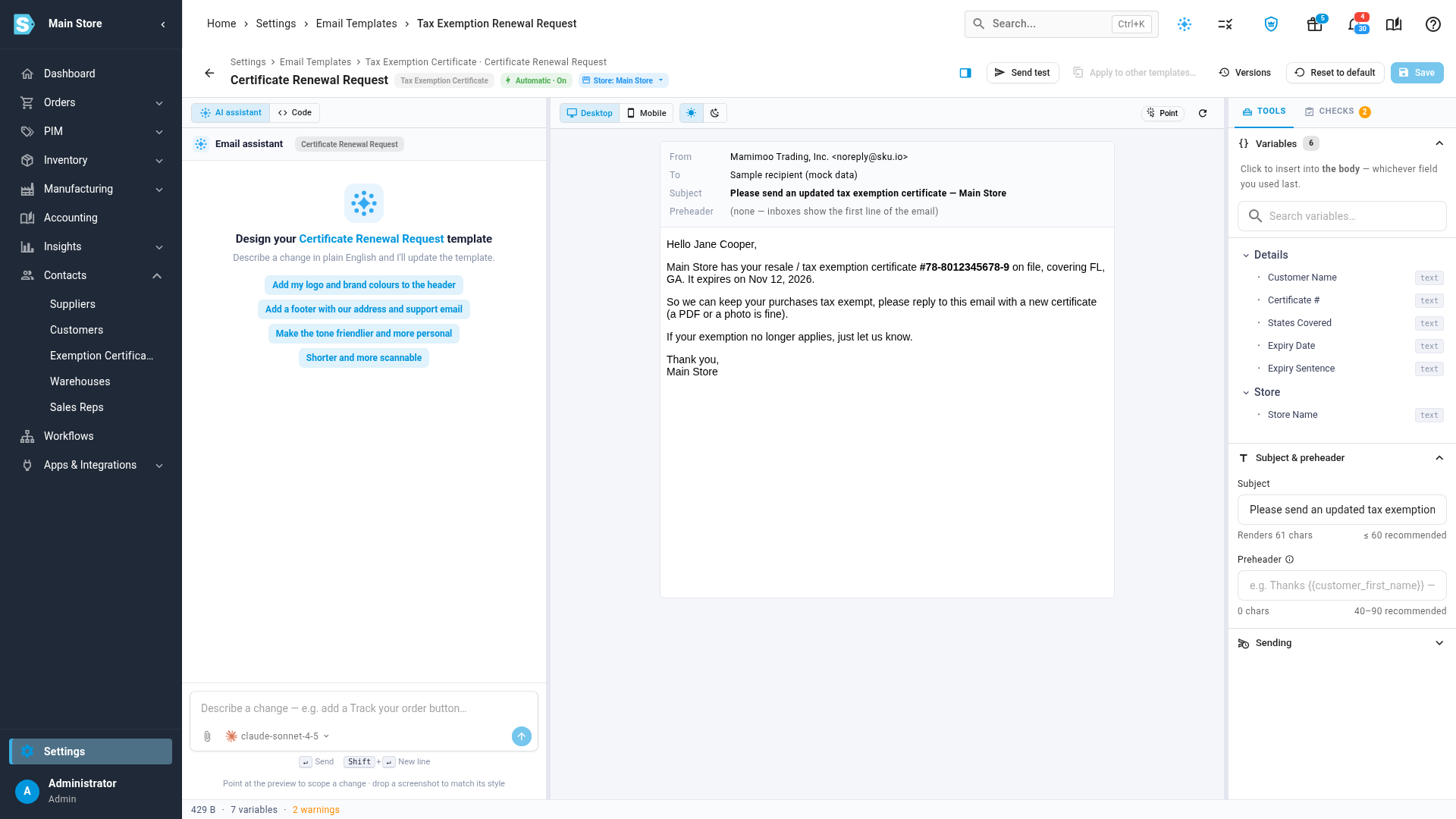
The template can use these variables:
| Variable | What it inserts |
|---|---|
| Customer Name | The customer's name |
| Certificate # | The certificate number |
| States Covered | The certificate's states, or "all states" |
| Expiry Date | The expiry date, or "no expiry date" |
| Expiry Sentence | A sentence saying when it expires, that it expired, or that it lapsed |
| Store Name | The name of the customer's store |
To stop renewal requests altogether, turn the template off.
Daily expiry digest
Once a day, SKU.io emails the users who can edit customers a digest of certificates that have crossed 90, 60, 30 or 15 days before they expire or lapse, plus any that expired or lapsed since the last digest. Its Review exemption certificates button opens this list. The digest appears in your alert settings as Expiring Resale Certificates.
Export certificates
Click Export to download every certificate matching the current filters as a CSV, or use Export selected in the selection bar for just the ones you ticked. In Export certificate register, tick Include documents (ZIP) to add every uploaded certificate file, named by customer and certificate number. The export runs in the background, and the background-jobs tray in the app bar shows when the file is ready to download.
Next steps
Video transcript
To see every customer's certificates in one place, open Contacts, then Exemption Certificates.
The first card counts valid certificates. The next counts those that expire within sixty days. The third card counts certificates that have expired or lapsed. The last card counts the states where tax still applies to an exempt customer.
Some states cancel a certificate after a year with no purchases at all. Those show as lapsed, with the date they lapsed, counted from the customer's last order.
To work through what needs attention, narrow the list. Click the Status filter above the table. Tick Expiring, and then tick Expired, just below it in the list. Click away to close the menu, and the list shows just those certificates.
Tick the box at the top to select every certificate in the list. Then click Request renewal, in the bar above the table. Each customer gets an email asking for a new certificate.
The Renewal column now shows the date of each request. Each certificate can be asked about once a week.
To change what that email says, click Edit email, next to Request renewal.
This is the Certificate Renewal Request template. It can use the customer's name, the certificate number, its states and its expiry date.