Add and approve a resale certificate
A tax-exempt customer's orders stay taxed in a state until an approved certificate covers it. You can review and approve a certificate that's waiting, or add one yourself from the signed file or from a link the customer sent you. When you approve a Customer Portal application that came with a resale certificate, the certificate is added here too: approved if you mark the customer tax exempt, otherwise waiting for review.
Before you begin
- The customer is marked Tax exempt on their Settings tab. A customer who isn't can still have certificates on file, but no order is created without tax.
- You need permission to edit customers.
- The states you collect sales tax in are set up under Sales Tax Registrations. The Tax Exemption tab lists only those states. See How tax exemption certificates work.
Review and approve a certificate
-
Go to Contacts → Customers and open the customer.
-
Click the Tax Exemption tab.
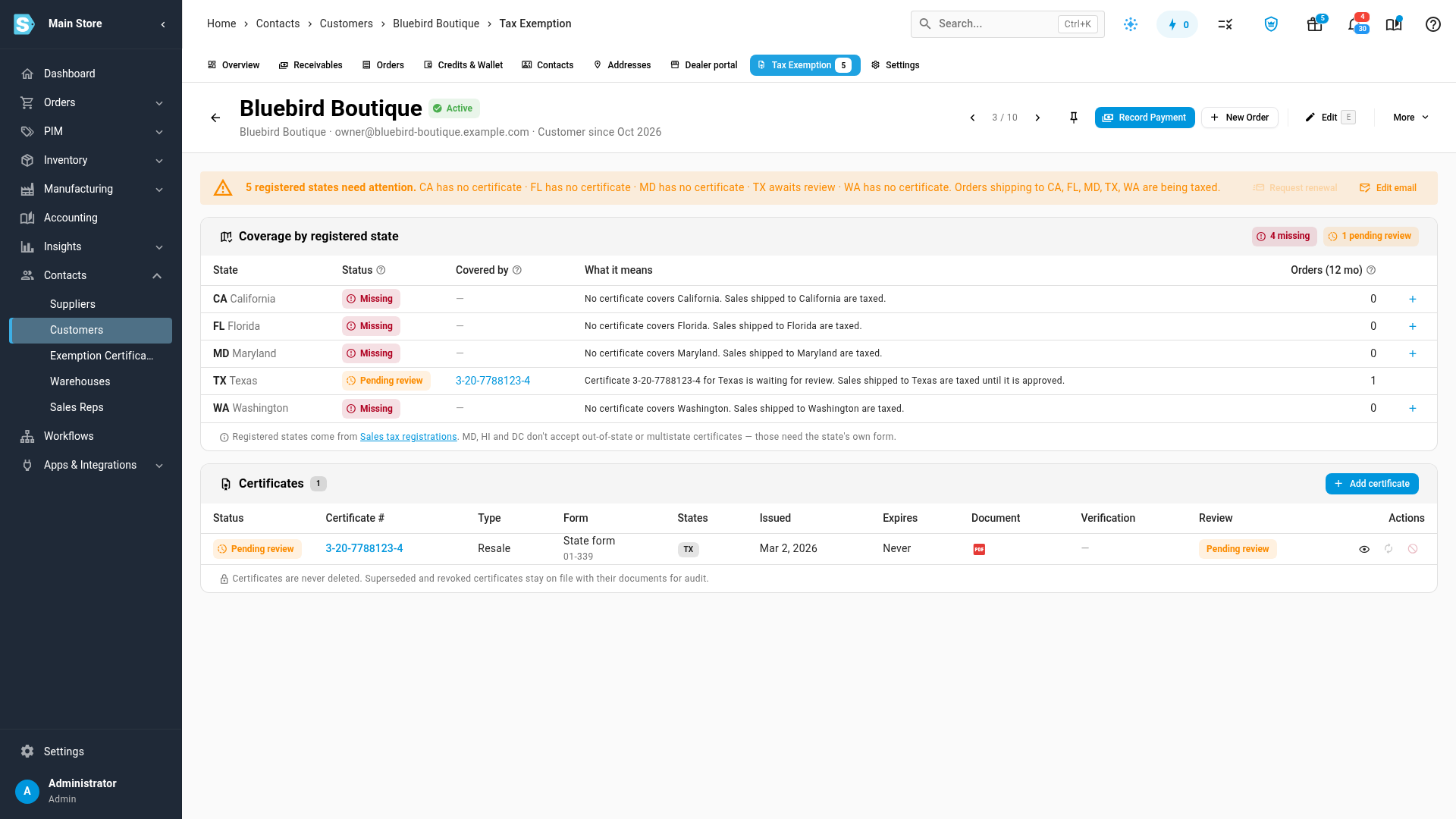
Coverage by registered state shows each of your registered states. A state whose certificate is still waiting shows Pending review, and orders shipping there are taxed until it's approved.
-
In Certificates, click the certificate number to open it.
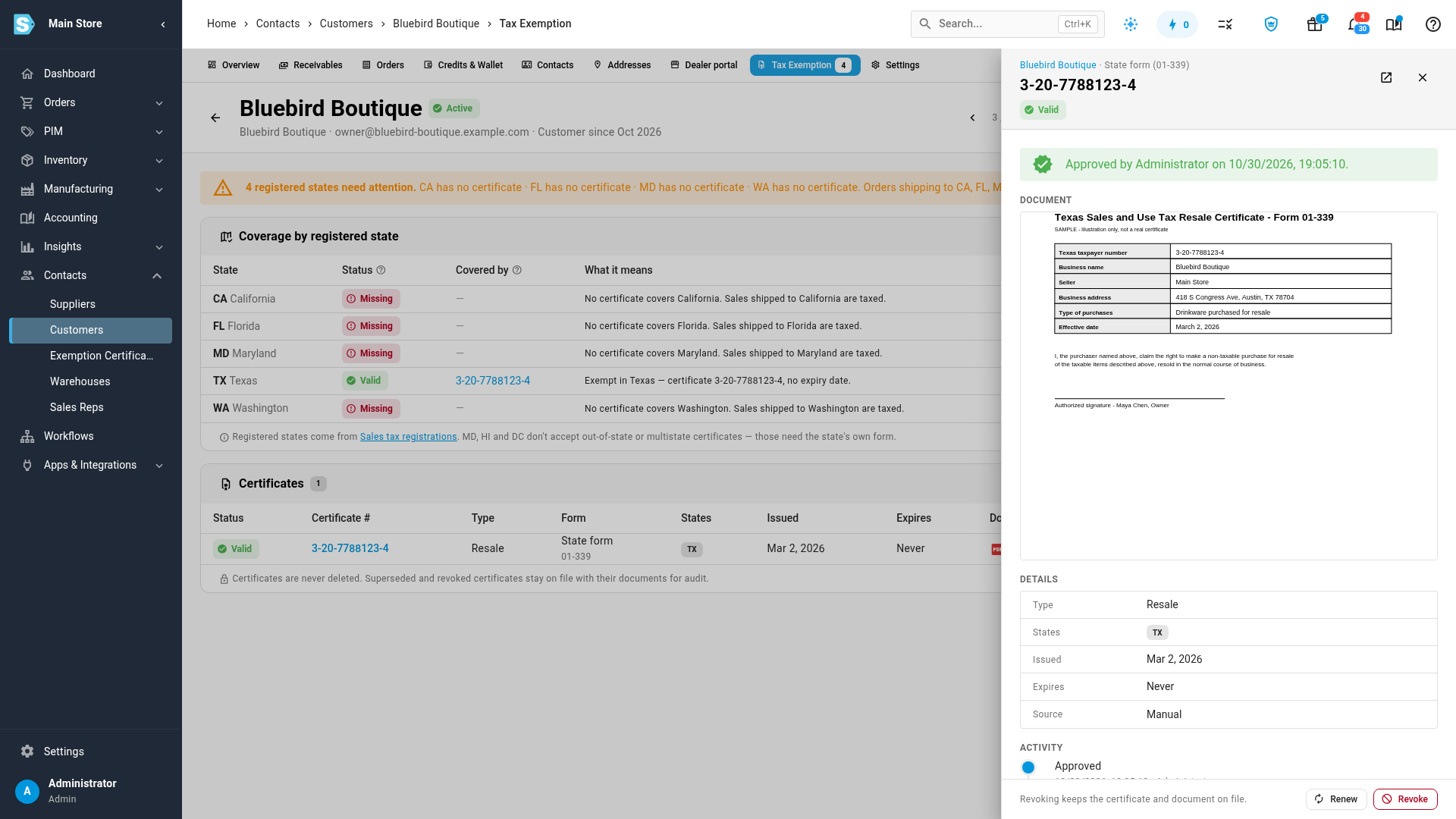
The drawer shows the document next to the Details that were entered for it: type, states, issue date and expiry. When SKU.io has read the document, an Entered vs document table compares the two and flags anything that differs.
-
Check the number, the state and the dates against the document, then click Approve.
The drawer confirms who approved it and when, the state turns Valid, and new orders shipping there are created without tax.
If the certificate is wrong (unsigned, for the wrong business, or for the wrong state), click Reject instead and give a reason. The certificate stays on file as Rejected with your reason, and the state stays taxed.
Add a certificate
-
On the customer's Tax Exemption tab, click + on the row of the state it covers. To add one that covers several states, click Add certificate instead.
-
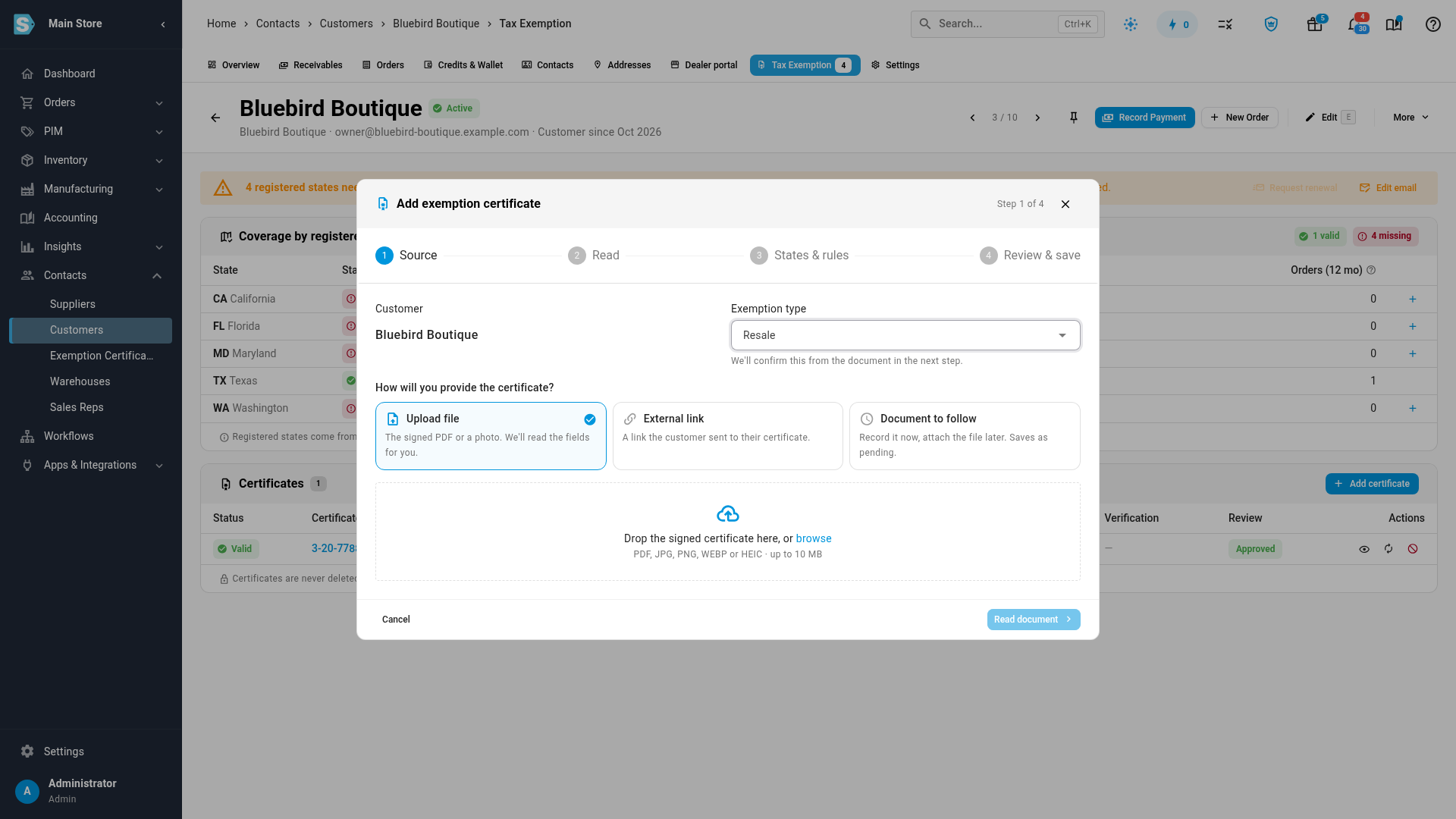
In How will you provide the certificate?, choose one:
- Upload file: drop the signed PDF or a photo (PDF, JPG, PNG, WEBP or HEIC, up to 10 MB). SKU.io reads the certificate number, dates and states from it for you to check.
- External link: paste a link the customer sent to their copy.
- Document to follow: record it now and attach the file later. It saves as pending review.
-
Click Next (or Read document for a file). Check or type the Certificate number, the Issued date, the Certificate form (State form, SST multistate, MTC uniform or Other), and the Form code if the form has one, such as CDTFA-230 or 01-339. Click Next.
-
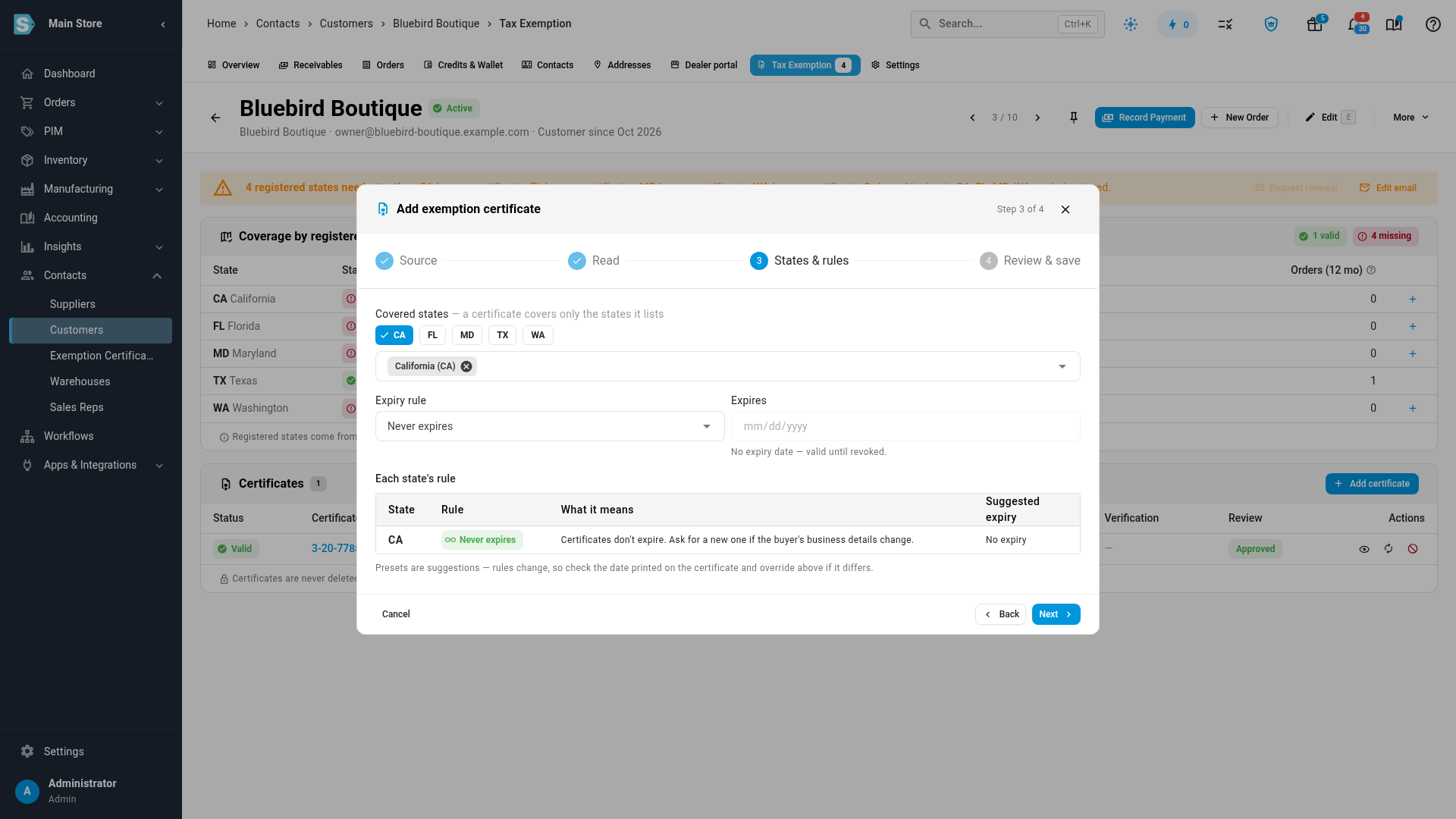
Under Covered states, pick every state the certificate covers. The state you started from is already selected.
Each state's rule shows how long that state's certificates last and suggests an expiry. Set Expiry rule and Expires to match the certificate if they differ.
SKU.io stops you here if a state won't accept the form: Maryland, Hawaii and Washington DC need their own state's form, and an MTC uniform form can only be used for resale.
-
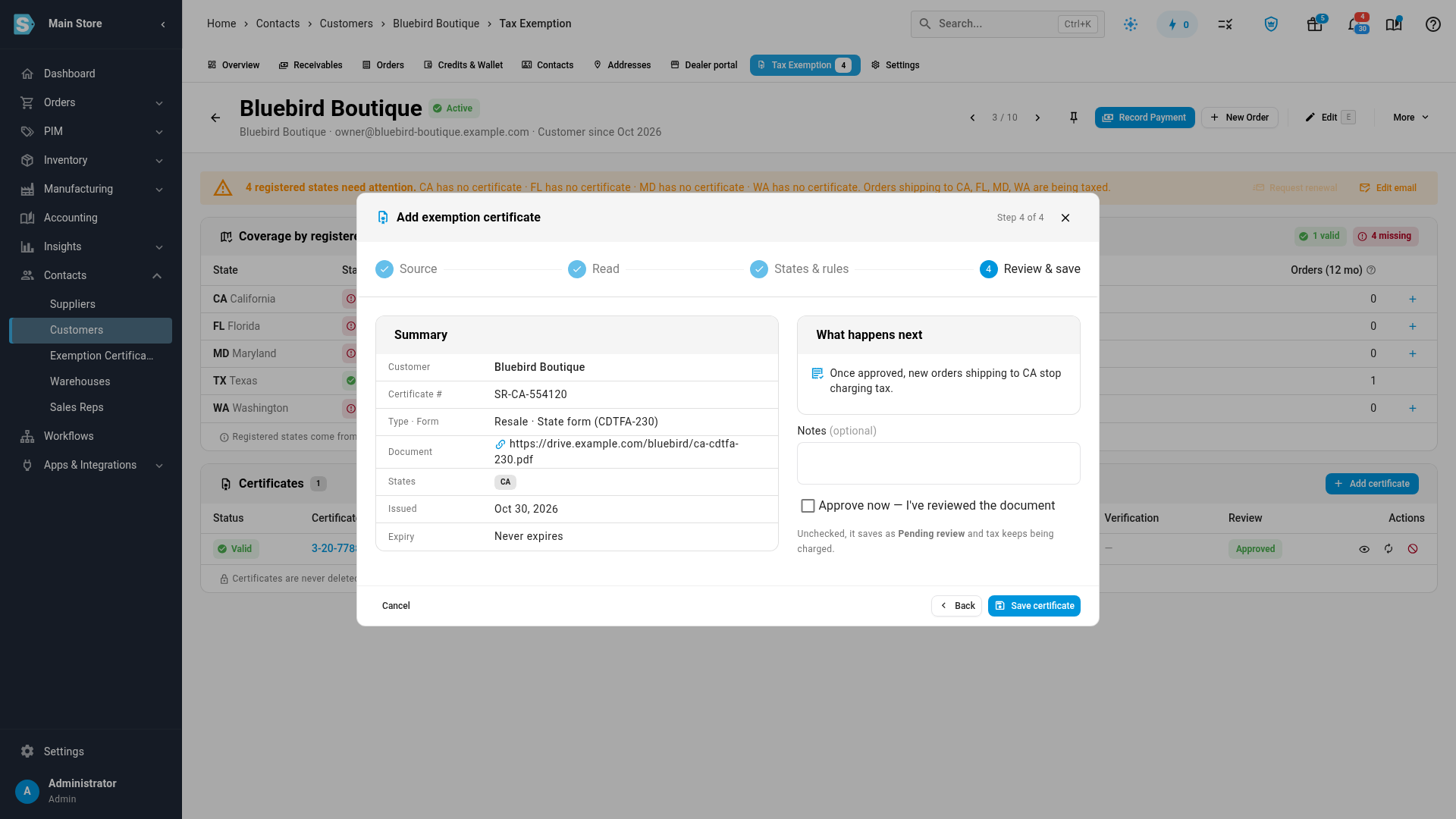
Click Next and check the Summary. What happens next says which states' orders stop being taxed once it's approved.
-
If you've already reviewed the document, tick Approve now — I've reviewed the document. Leave it unticked to save the certificate as Pending review for someone else to approve.
-
Click Save certificate.
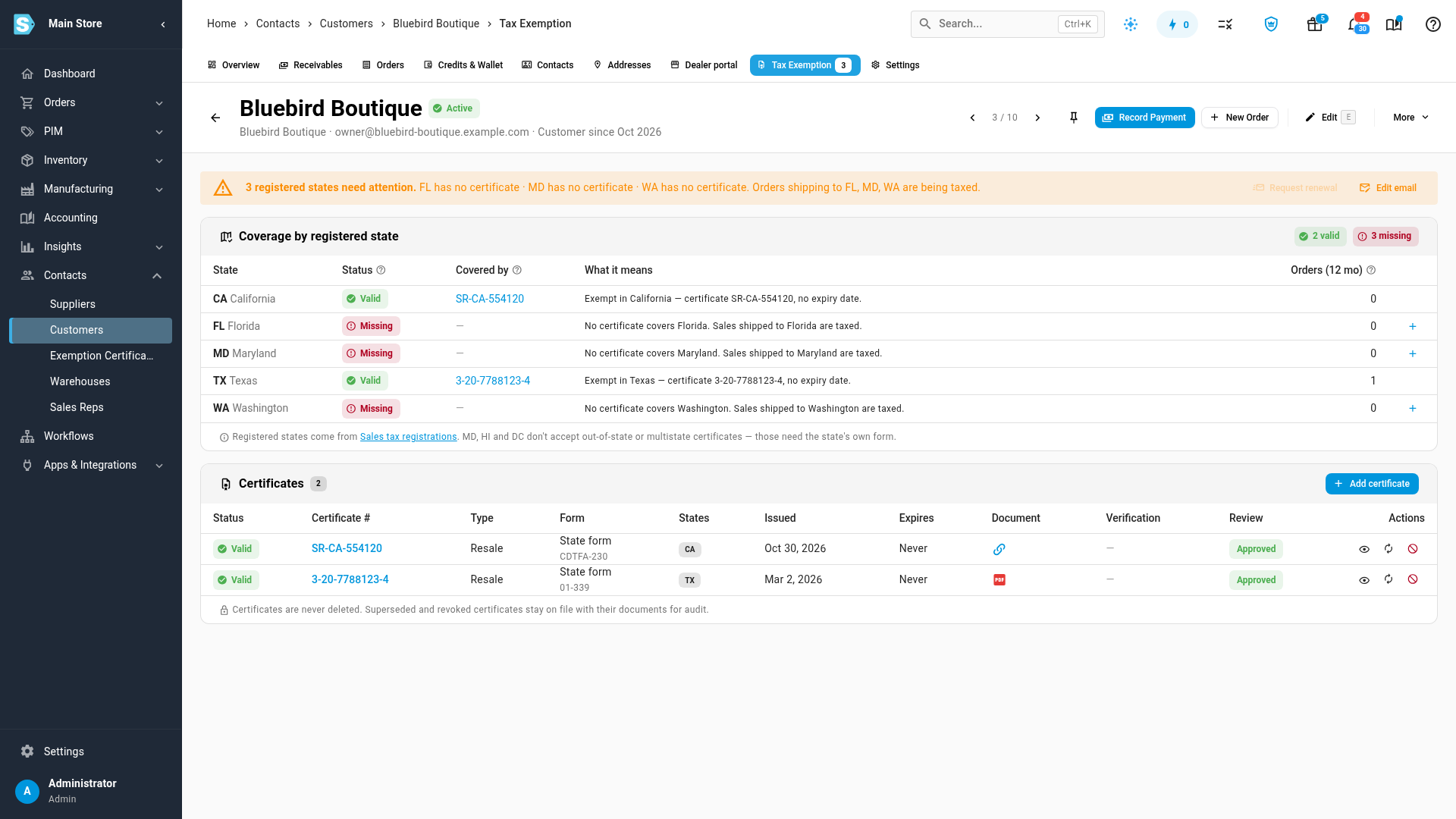
The certificate opens in the drawer. Approved certificates take effect straight away for new orders.
Renew or revoke a certificate
- When a customer sends a new certificate to replace one that's expiring, open the old certificate and click Renew. The renewal starts pending review, and the old certificate keeps covering the state until you approve the renewal. Once you approve it, the old one shows as Superseded.
- To withdraw an approved certificate, open it and click Revoke, and give a reason. Revoking keeps the certificate and its document on file.
Next steps
Video transcript
To record a resale certificate, start from the buyer's account. Open Contacts in the sidebar, then choose Customers from the menu that opens. Open the account you need, then click the Tax Exemption tab along the top of the page.
Coverage by registered state lists every state where you collect sales tax. Here, the Texas certificate is pending review, so Texas orders are still taxed. Click its number to open the certificate.
The drawer shows the signed document, with the entered details below. Check that the number, the state and the dates all match. Then click Approve, at the bottom of the drawer. Your name and the approval time are recorded on the certificate.
Close the drawer. Texas now shows as valid, so new orders shipping to Texas are created without tax.
California has no certificate yet, so orders shipping there are still taxed. To add one, click the plus button at the end of its row.
First, choose how you'll provide the certificate. You can upload the signed file, or paste a link to the buyer's own copy. Here, the buyer emailed a link, so pick External link and enter the address. Then click Next to move on to the details.
Type the certificate number. Add the form code too, if the form has one, such as CDTFA-230 for California. Then click Next to choose the states.
California is already selected, because you started from its row. Its rule says these certificates never expire, so the expiry stays empty. Click Next to review everything before saving.
Check the summary of what you entered. If you have already reviewed the document, tick Approve now. Then click Save certificate, at the bottom right of the window.
Close the drawer. California now shows as valid. Without Approve now, the certificate would wait for review, and tax would keep applying.