Edit values directly in a list
Most lists in SKU.io can be edited in place. Switch the list into Editable Mode and it becomes a spreadsheet: you type into the cells, copy and paste from Excel, and fill values down a column. Your changes wait in the sheet until you review them and save them together, so nothing reaches your records by accident.
Before you begin
- You need permission to edit the records in the list.
Switch the list into Editable Mode
-
Open the list you want to change, for example PIM → Products.
-
To change only some rows, search or filter the list first. Editable Mode shows the rows the list is showing.
-
Next to Columns, click the Read-only Mode chip.
The chip changes to Editable Mode, and the list becomes a sheet with column letters, row numbers and a formula bar.
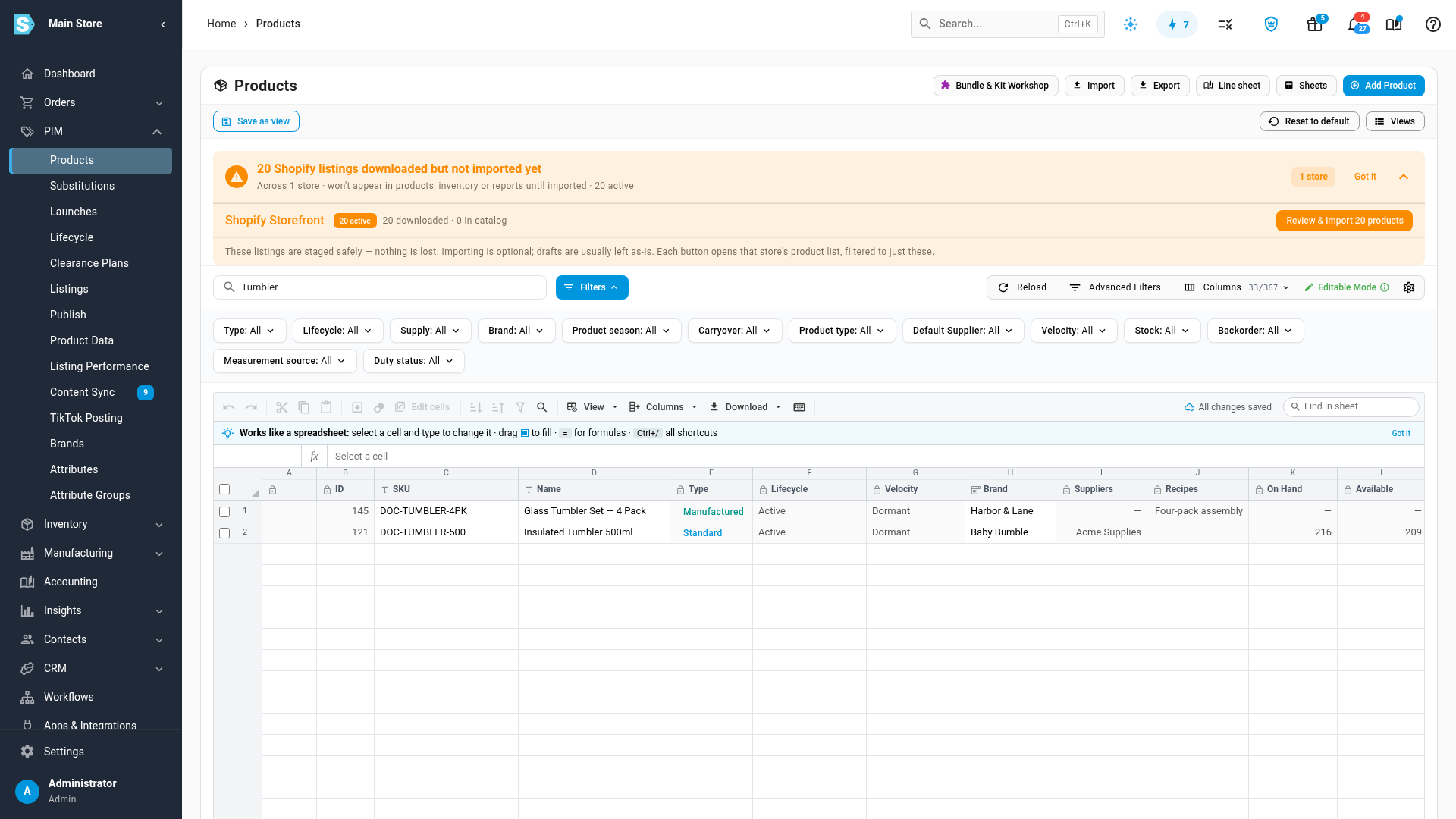
SKU.io remembers the mode for each list, so a list you edit every day opens the way you left it. Click the chip again to go back to Read-only Mode.
Change values
- Click a cell to select it.
- Start typing to replace the value, or press F2 to edit the text that is already there.
- Press Enter to keep the change and move down to the next row. Press Escape to leave the cell as it was.
The changed cell gets an amber corner, and the toolbar shows how many changes are not saved yet.
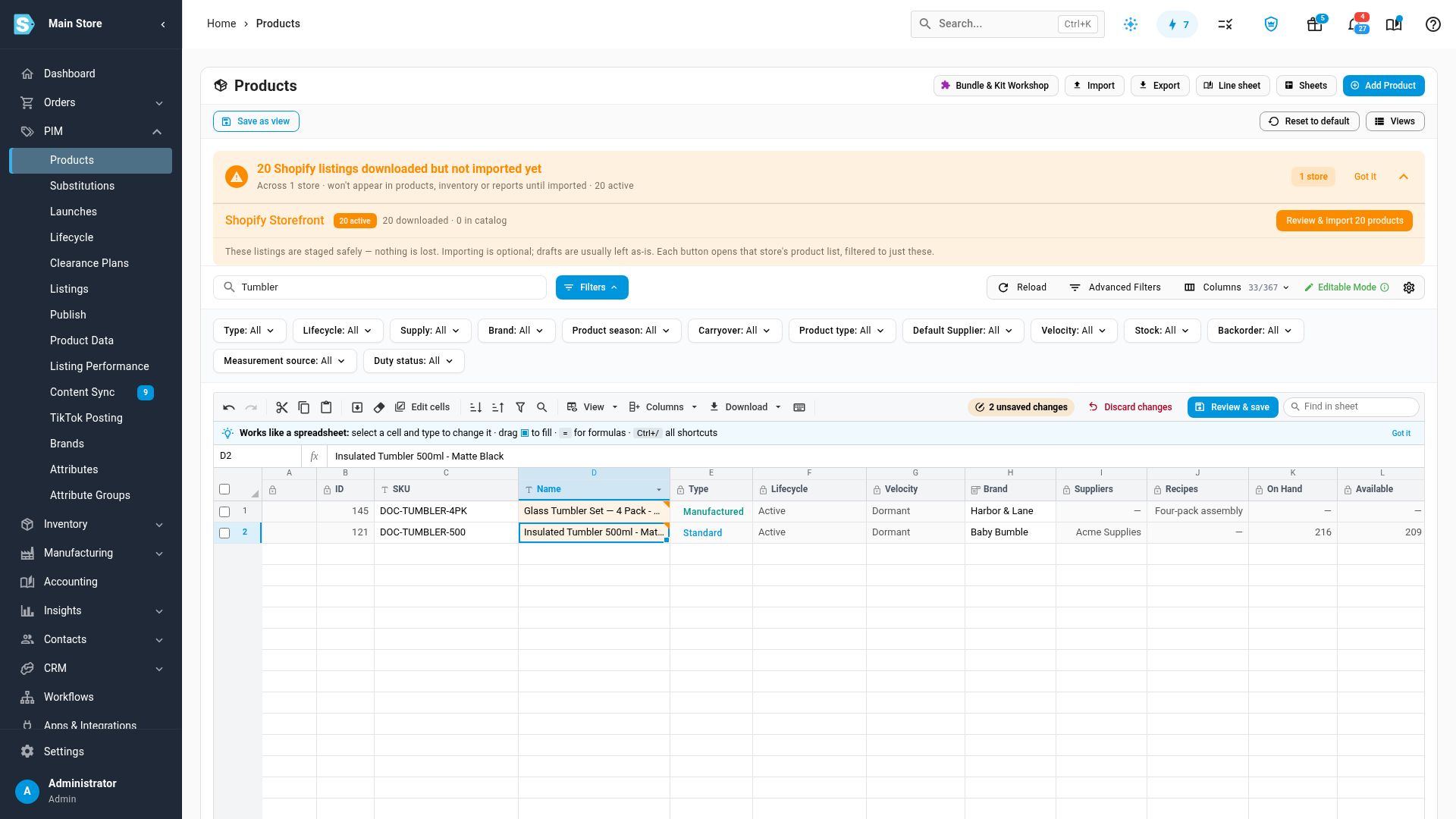
You can keep going for as long as you need: edit more cells, paste a block from Excel or Google Sheets, or drag the small square at the corner of a selection to fill values down. Press Ctrl+Z (⌘Z on a Mac) to undo a change. If you edit a cell back to its original value, it drops out of the unsaved changes.
Review and save your changes
-
In the toolbar, click Review & save. You can also press Ctrl+S (⌘S on a Mac).
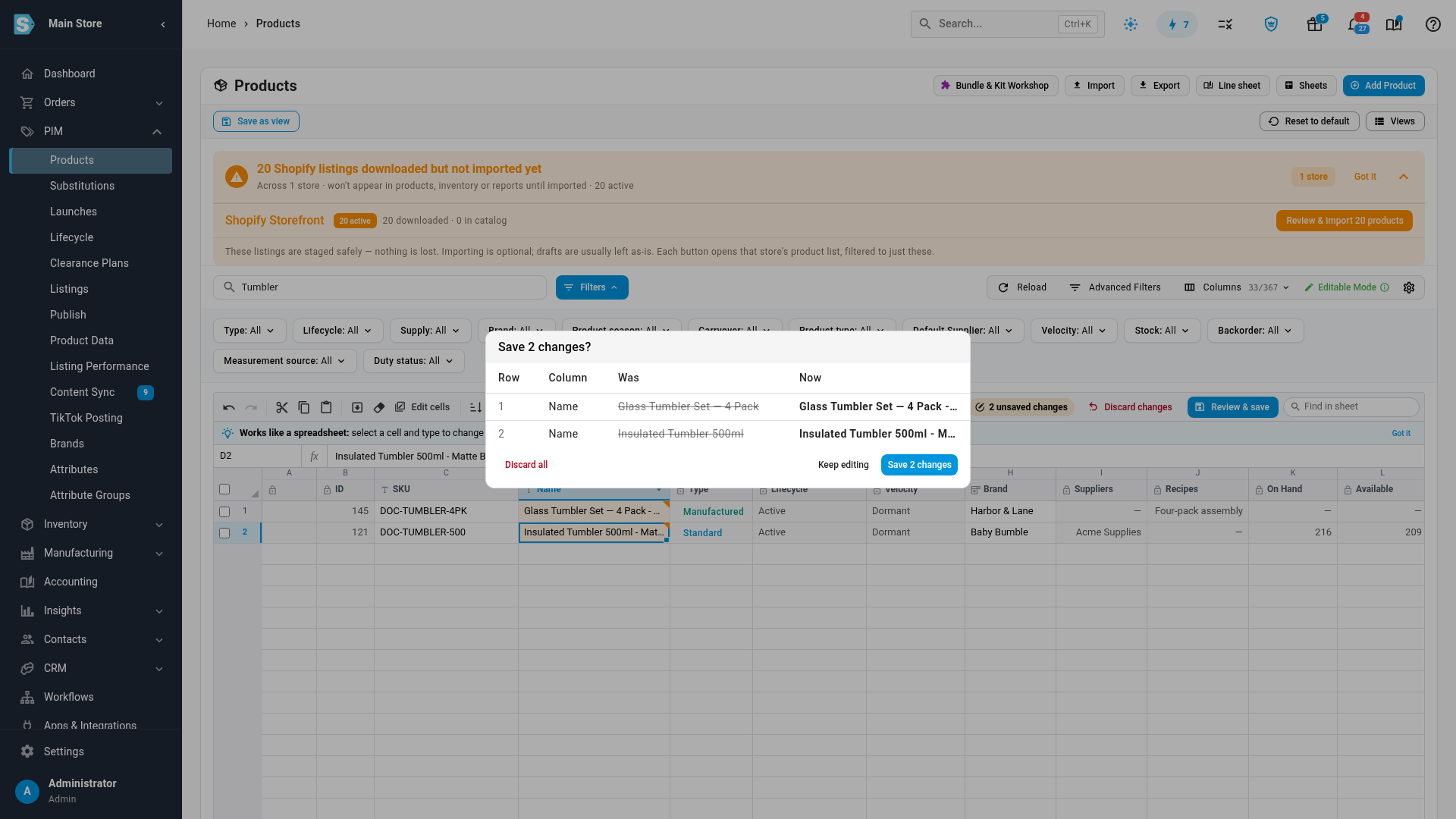
A list opens with every change: the row, the column, the value it had, and the value it will have.
-
Check the changes, then click Save (the button shows how many changes it will save).
The toolbar shows Saved once your changes are stored. To throw every change away instead, click Discard all: each cell goes back to its saved value. Keep editing closes the review and leaves your changes waiting.
If you leave the page with unsaved changes, SKU.io asks before discarding them. If you switch the list back to Read-only Mode, it asks whether to save them or discard them.
Save each change straight away instead
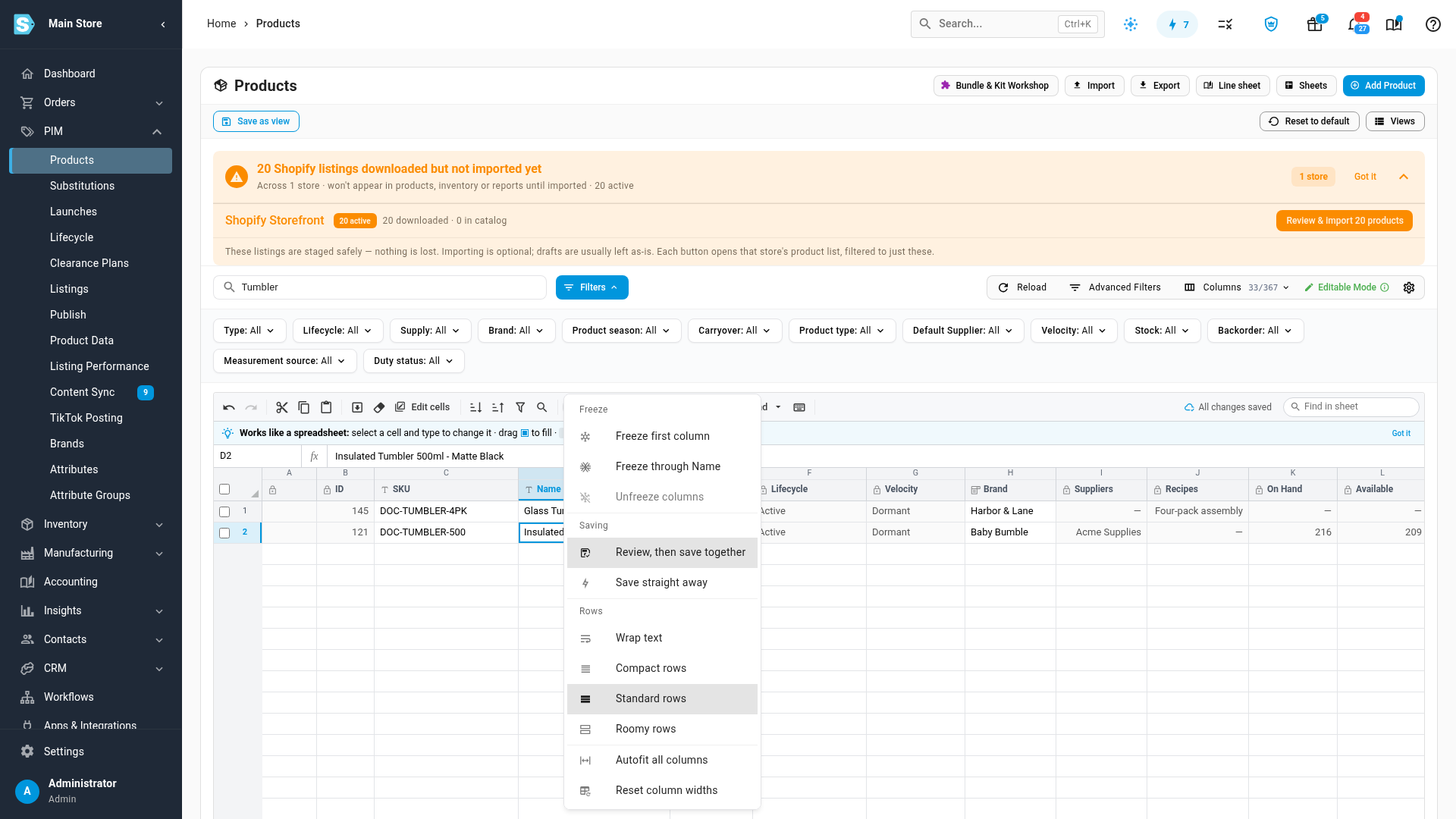
If you prefer every change to save the moment you make it, open View in the sheet's toolbar and, under Saving, choose Save straight away. The choice applies to every list. Choose Review, then save together to go back.
Not every column can be edited
Editable Mode doesn't make the whole table editable, only the columns that are safe to change from a list. Anything calculated, rolled up from somewhere else, or owned by another record stays read-only, and its header shows a padlock.
On the products list, the editable columns include SKU, Name, Brand, Barcode, MPN, HS code, your product attributes, and the price columns. Columns like On Hand, Available and Allocated come from stock movements, so they can't be typed over.
A list shows a fraction of its available columns, and the editable ones are often not among them. Open Columns, turn on the one you want, and scroll across to reach it.
Next steps
- Save and pin table views: keep the columns you edit in one saved view
- Keyboard shortcuts and the command palette