Connect Xero
Connecting Xero lets SKU.io post the entries it generates straight into your Xero organisation as invoices, bills, credit notes, journals and payments, and read changes back. A short setup wizard lines up your chart of accounts, tax rates and payment methods with Xero before anything is sent, so the first sync lands in the right accounts.
Before you begin
- You need a Xero login that can approve app connections for the organisation you're connecting.
- In Xero, set up the bank accounts your payments land in. The wizard maps each payment method to one of them.
- Decide your sync start date. Nothing dated before it is sent to Xero, so pick the first day of the period you're starting fresh in Xero.
Connect your Xero organisation
-
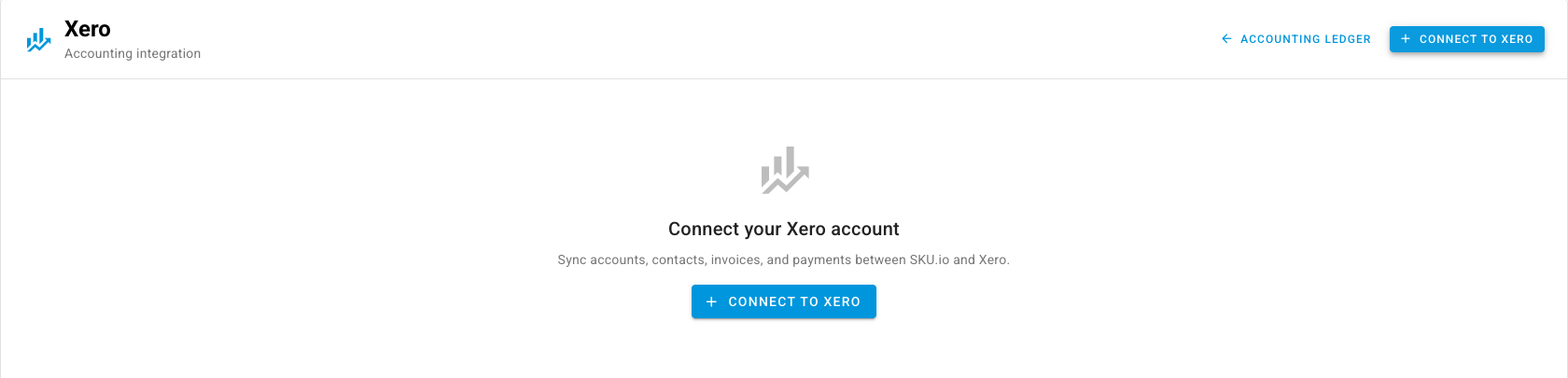
Go to Apps & Integrations → Xero. Until you connect, the page reads Connect your Xero account.
-
Click Connect to Xero. Xero opens in a pop-up window, or in the same tab if your browser blocks pop-ups.
-
Sign in to Xero, choose the organisation to connect, and approve the connection.
-
Xero sends you back to SKU.io, which shows Xero connected successfully!. SKU.io starts downloading your Xero accounts and tax rates in the background, and the setup wizard opens.
Set up your chart with the wizard
The wizard, Set up Xero, walks through seven steps: Import, Strategy, Map accounts, Inventory, Tax rates, Payments and Review. Click Continue to move on, or Back to change an earlier answer. You can reopen it later with Xero setup wizard on the Xero page.
- Import. Click Import from Xero to pull in your Xero chart of accounts. You can run it again any time with Re-import from Xero.
- Strategy. Choose how SKU.io's accounts relate to Xero's:
- Adopt Xero's chart (recommended) replaces SKU.io's accounts with your Xero accounts. SKU.io re-points everything that used the old accounts, including sales orders, settings and product overrides, so both systems share one chart.
- Keep SKU's chart and map keeps SKU.io's accounts and links each one to a Xero account for syncing. Nothing is deleted.
- Map accounts. Check the Xero account picked for each SKU.io account. SKU.io pre-fills suggestions, and a chip turns green once every account is mapped.
- Inventory. SKU.io posts inventory movements as journals, so inventory must post to a Xero asset account, not a Xero Inventory-type account, which Xero locks. Fix any flagged row by picking an asset account. If you don't have one, click Create asset account to make it in Xero without leaving SKU.io.
- Tax rates. Pick the Xero tax code for each SKU.io tax rate. Auto-Map fills in what it can match. A document that uses an unmapped rate can't post.
- Payments. Pick the Xero bank account each payment method posts to. Payments made with an unmapped method aren't sent to Xero.
- Review. Check the summary, which flags anything still unmapped, and set
the Sync start date. Leave both boxes ticked unless you have a reason not
to:
- Repost existing transactions so posted entries use the new accounts (recommended)
- Turn on accounting entry generation when this finishes
- Click Finish setup. Replacing the chart runs in the background, so check the job tray for progress.
Choose what syncs automatically
New entries reach Xero only for the transaction types you switch on.
- Go to Accounting → Settings → Sync.
- Under Automatic Sync by Transaction Type, turn on Auto-sync for each type you want sent on its own, such as Sales Order Invoice, Bill or Sales Order Fulfillment, and give each one an Auto-sync start date if you need one.
- Click Save.
A type that's off reads Off · manual only. Its entries stay in SKU.io until you push one by hand with Sync Now. For what each type becomes in Xero, see What syncs to your accounting provider.
Look after the connection
- Apps & Integrations → Xero → Settings holds Re-authorize Integration, for when Xero's access expires, and the Sync Start Date.
- The other tabs on the Xero page, such as Accounts, Tax Rates, Contacts, Invoices, Bills, Credit Notes, Payments and Bank Transactions, list the records SKU.io has read from Xero. Use them to check what's there without opening Xero.
- Accounting → Connections shows the connection's health: its Lock date, API budget remaining, Last inbound event and Open operations.
- Delete Integration, on the Settings tab, removes the connection and the Xero records SKU.io has stored. It doesn't change anything in Xero.
Next steps
- What syncs to your accounting provider: what each SKU.io entry becomes in Xero, and what comes back.
- Choose who calculates tax: pick a tax treatment, required for BAS, GST and VAT returns.
- Tag entries by channel with tracking categories: report sales and COGS by channel in Xero.