Set up a payment schedule
Many suppliers don't take one payment 30 days after the invoice. They want a deposit when you place the order and the rest when the goods ship or arrive. A payment schedule on a payment term writes that deal down as milestones. SKU.io then works out what's due and when on every purchase order that uses the term: deposits become vendor deposits, the balance is forecast against the supplier's bill, and the whole plan shows on the cash-flow schedule.
Before you begin
- Payment schedules are for purchasing only. Turning one on sets the term's Applies to to Purchasing, and it stops appearing on customers and sales orders.
- You need permission to manage payment terms.
- For plain terms such as Net 30, you don't need a schedule. See Set up payment terms.
Build the schedule
This example sets up 40% deposit on approval, 60% as each shipment leaves.
-
Go to Settings → General → Payment Terms.
-
Click Create Payment Term, or open an existing purchasing term.
-
Enter a Name, such as 40% Deposit, 60% on Shipment, and a Description.
-
Under Invoice Payment Terms, set the Due Date Type and Net Days for the supplier's bill as usual.
-
In the Payment Schedule section, click Add Milestone.
-
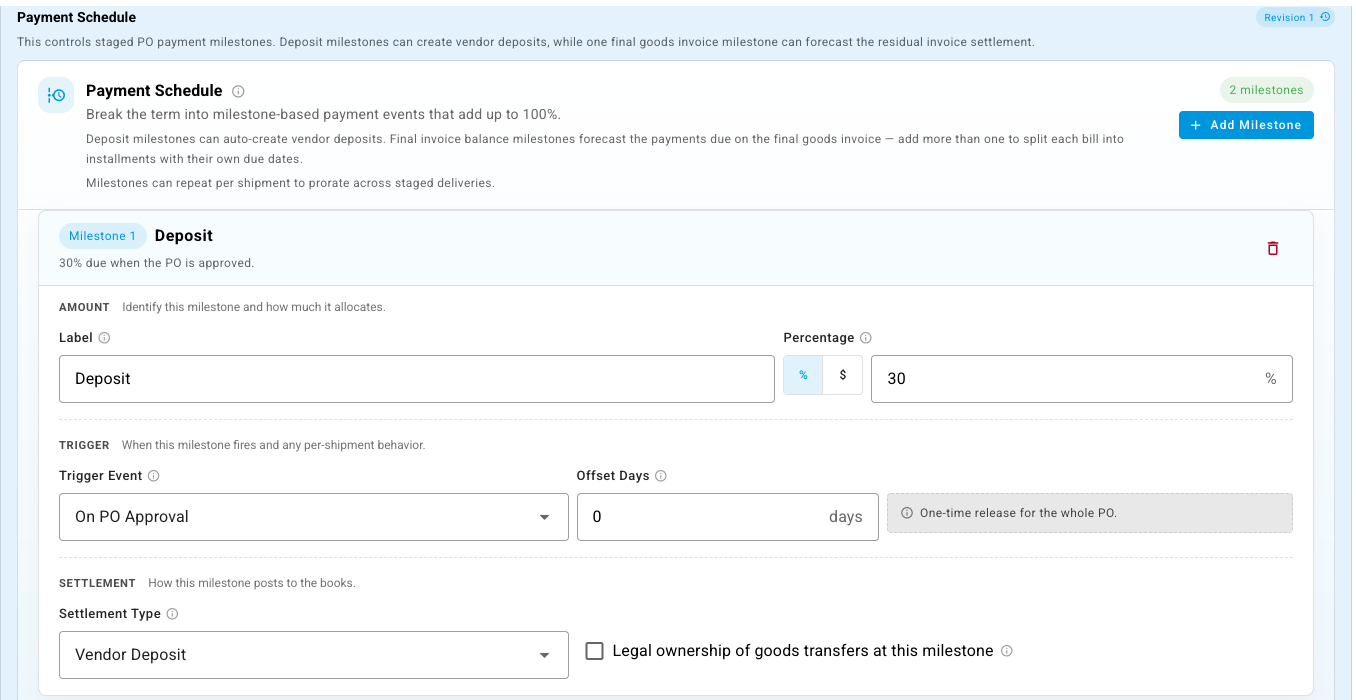
Describe the first milestone:
- Label: Deposit.
- Percentage:
40. Switch the % toggle to $ for a fixed amount instead. - Trigger Event: On PO Approval, with Offset Days
0for payment the same day. - Settlement Type: Vendor Deposit, so this milestone raises a vendor deposit.
-
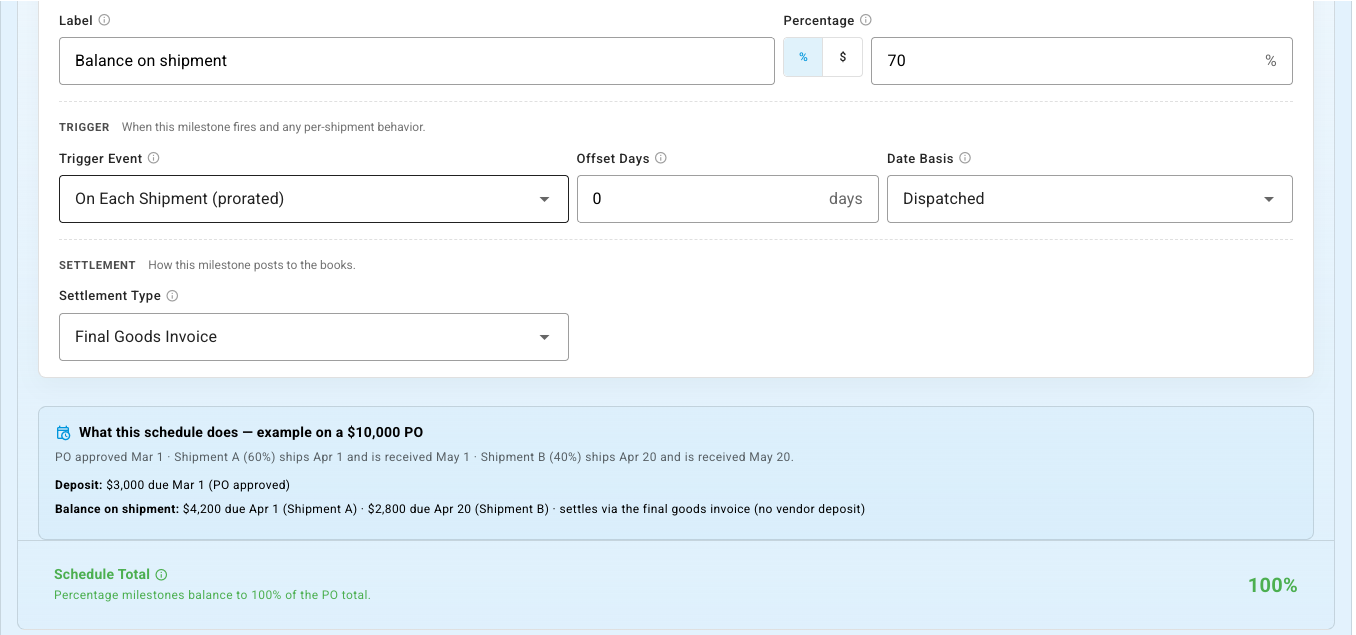
Click Add Milestone again, and describe the balance:
- Label: Balance on shipment.
- Percentage:
60. - Trigger Event: On Each Shipment (prorated), so each shipment releases its share, dated by the Date Basis you choose (here, Dispatched).
- Settlement Type: Final Goods Invoice. This milestone is paid through the supplier's bill, and no vendor deposit is created.
-
Check the panel at the bottom. What this schedule does works the plan through on a sample purchase order, and Schedule Total must reach 100%.
-
Click Save. The Payment Schedule column on the terms list sums the schedule up in one line.
If the save button stays disabled, hover over it: the reason points at the Schedule Total banner, which says what's missing.
Choosing triggers
| Trigger Event | The milestone falls due… |
|---|---|
| On PO Approval | When the purchase order is approved. |
| On First Shipment (once) / On Full Shipment | When the first shipment leaves, or when everything has shipped. |
| On Each Shipment (prorated) | Once per shipment, for that shipment's share. |
| On First Receipt (once) / On Full Receipt / On Each Receipt (prorated) | The same, counted from when goods are received. |
| On Logistics Milestone | When a tracking date you define, such as Customs Cleared, is recorded. |
| Manual | Only when someone marks it due. Offset Days doesn't apply. |
Offset Days pushes the due date back from the trigger, for example 30
days after receipt.
Other options on a milestone
- Legal ownership of goods transfers at this milestone — tick this on the one milestone where the goods become yours. From that point, the paid deposit balance counts as goods you've bought rather than money held by the supplier.
- More than one Final Goods Invoice milestone — the supplier's bill is split into installments, each with its own due date.
Change a schedule later
Every saved change to the schedule creates a new revision. A Revision chip at the top of the Payment Schedule section shows the current number; click it to see the Schedule revision history, with who changed it and when.
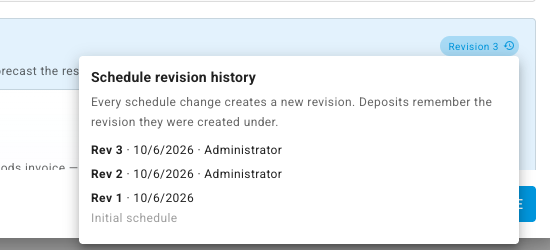
Vendor deposits remember the revision they were created under, so changing a term doesn't rewrite deposits you've already recorded. If purchase orders already have deposits under the old schedule, SKU.io shows you the effect on each one before it saves, and asks for a Reason for change that goes into the revision history.
Next steps
- Manage vendor deposits — the deposit milestones a schedule creates on each purchase order.
- Cash-flow schedule — when the money actually goes out.
- Track and pay purchase invoices — paying the bill the balance settles through.