Test API changes with dry runs and import order history
When a developer, an agency or an AI agent connects to your account through the API, two request settings let them work without putting your live data at risk. A dry run tests a change and saves nothing. A historical import brings in past orders, purchase orders and invoices from your old system without replaying what they triggered at the time. This guide is for the person who hands the API to that developer: what each mode promises, how to see their calls in a token's Usage Log, and what the Imported history chip on a record means.
The screenshots below come from a demonstration account. Its "Agency migration" token made a few normal calls, three dry runs and five historical imports.
Before you begin
- Your developer needs a personal access token with the scopes for the records they work on, for example Sales Orders and Purchase Orders with Read & Write. See Create a personal access token.
- A historical import needs an inventory start date under Settings → Inventory. Orders, shipments and purchase orders must be dated before it.
- Both modes run with the token owner's own permissions. They never let a token do something it couldn't do with a normal call.
What each mode guarantees
| Dry run | Historical import | |
|---|---|---|
| What it's for | Testing a change before it goes live | Loading your past records during onboarding |
| Is anything saved? | No. The change runs in full, then everything is rolled back | Yes. The record is kept, marked as imported history |
| Emails, webhooks, channel and 3PL updates, EDI | None sent | None sent |
| Stock | Unchanged | Never moves |
| Accounting (Xero, QuickBooks) | Nothing posted | Never exported, even with Sync Now |
| Where it shows | Usage Log, mode Dry run | Usage Log, mode Historical, and an Imported history chip on the record |
A dry run answers exactly as the real call would, including a refusal, so a problem shows up before anything is live. It doesn't reserve order numbers: the real call may get a different one.
Some changes act on a service outside SKU.io the moment they run, such as connecting an integration, changing ads, publishing a TikTok post or testing a webhook. A rollback can't undo those, so SKU.io refuses a dry run of them instead of pretending.
Steps
-
Go to Settings → Developer → Personal Access Tokens, and click the name of the token your developer uses.
-
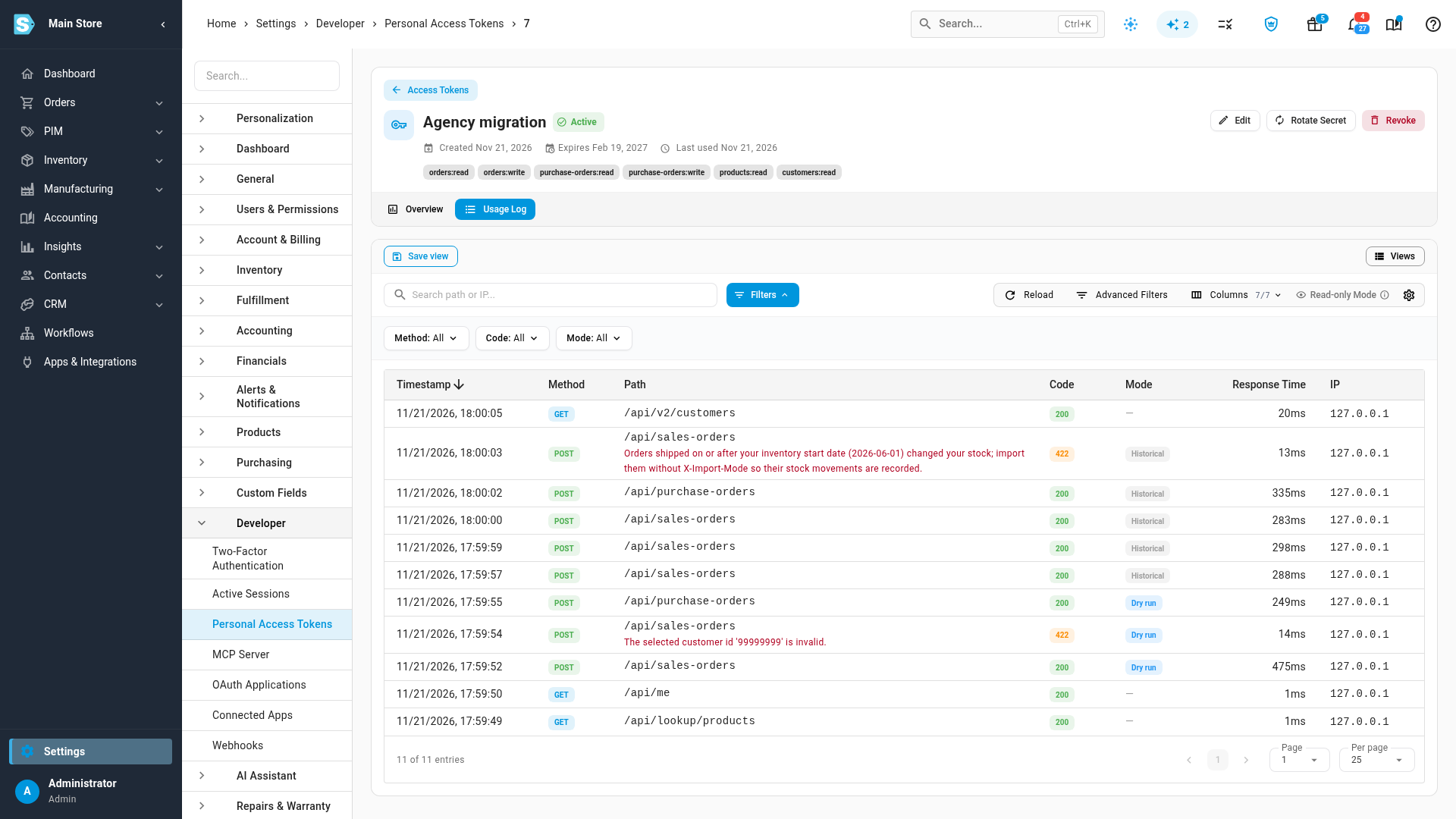
Click the Usage Log tab. The Mode column shows how each call was sent: Dry run for a test, Historical for an imported record, and a dash for a normal call.
-
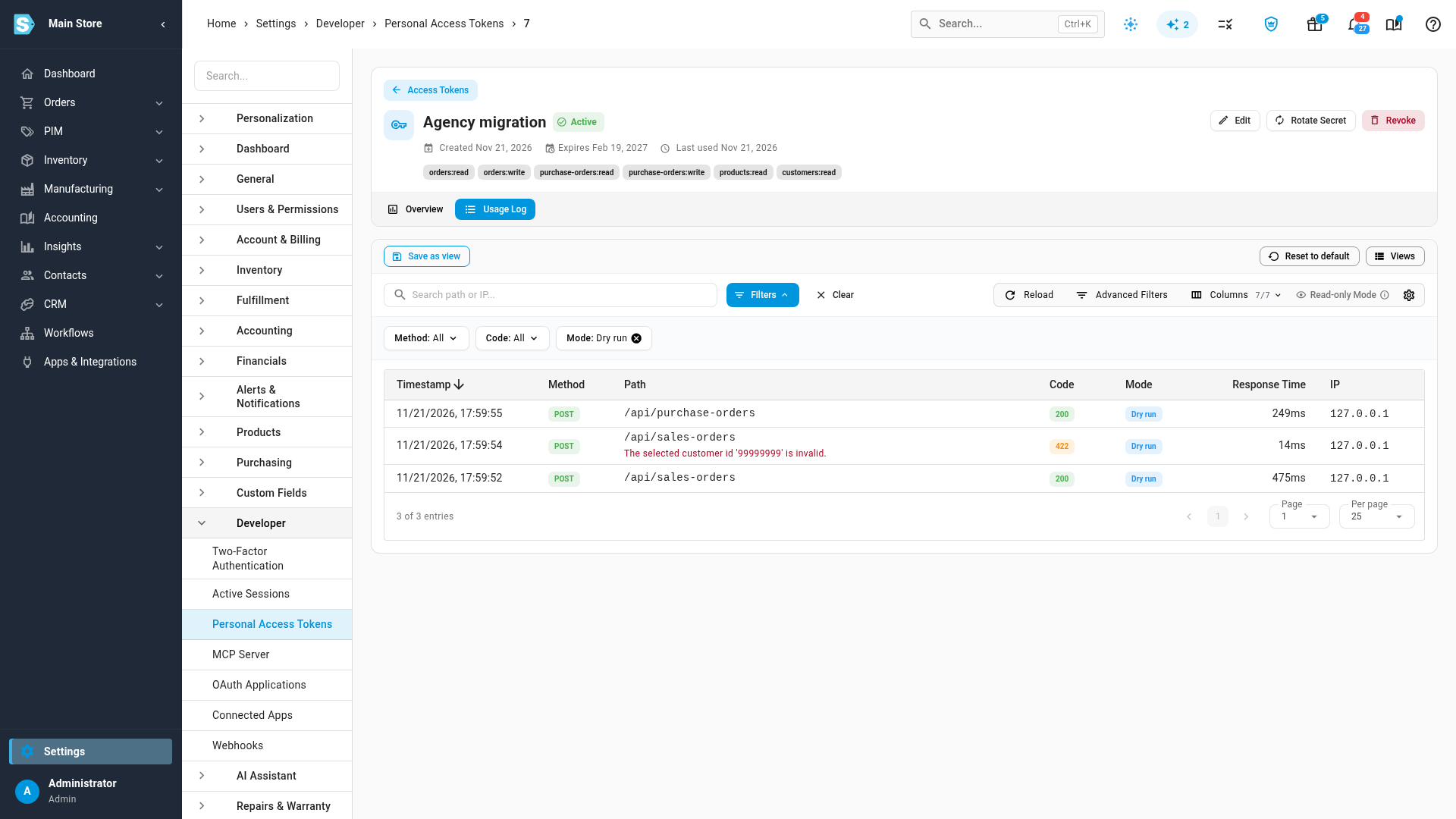
To see only the tests, click Mode: All under Filters and choose Dry run. A dry run that would have failed is listed too, with the reason under its path, so you and your developer can fix it before going live.
-
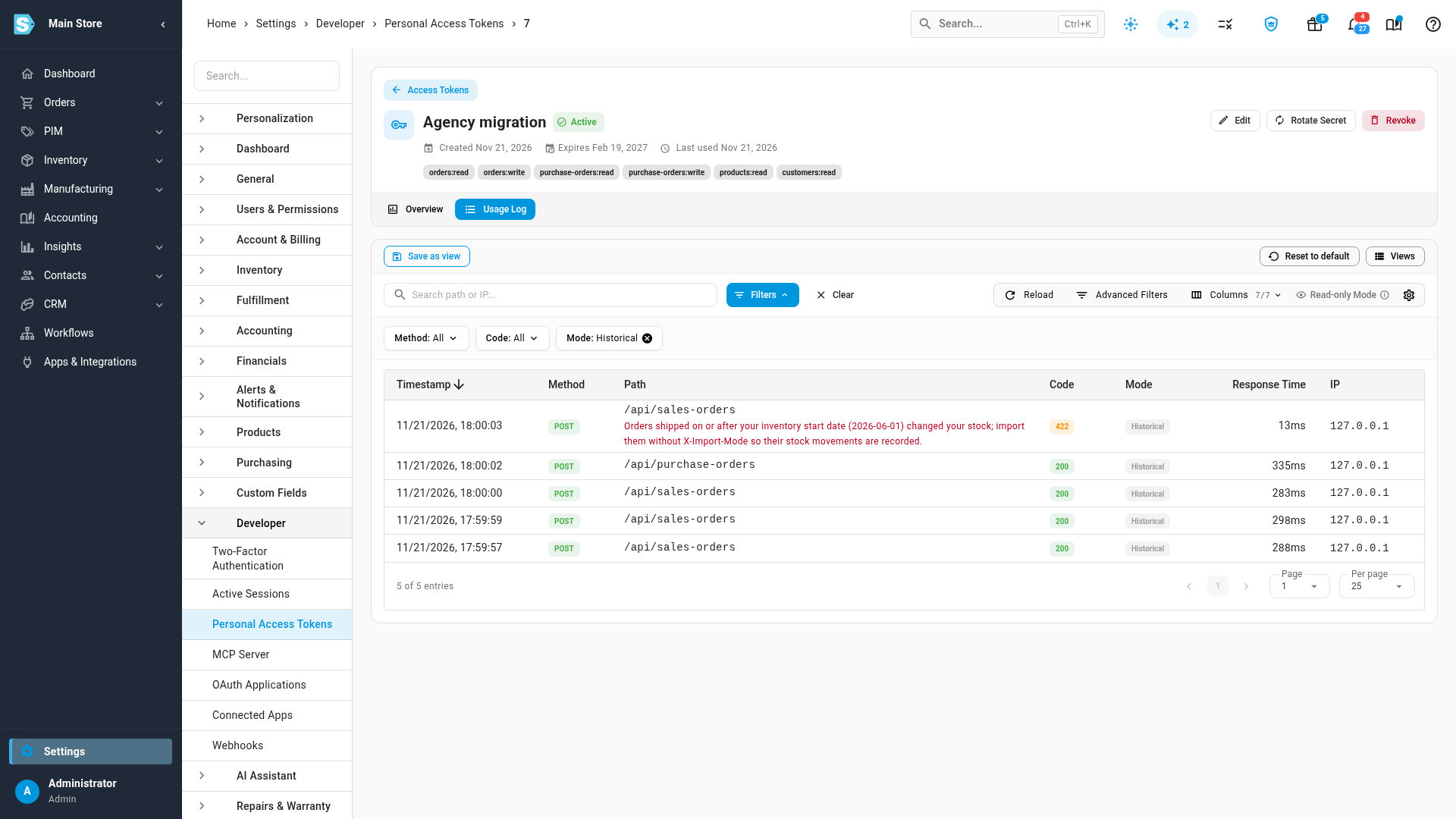
To see the imported history, click the Mode filter again and choose Historical. A record dated on or after your inventory start date is refused, and its row says so with the date: that record changed your stock, so it has to come in as a normal call.
-
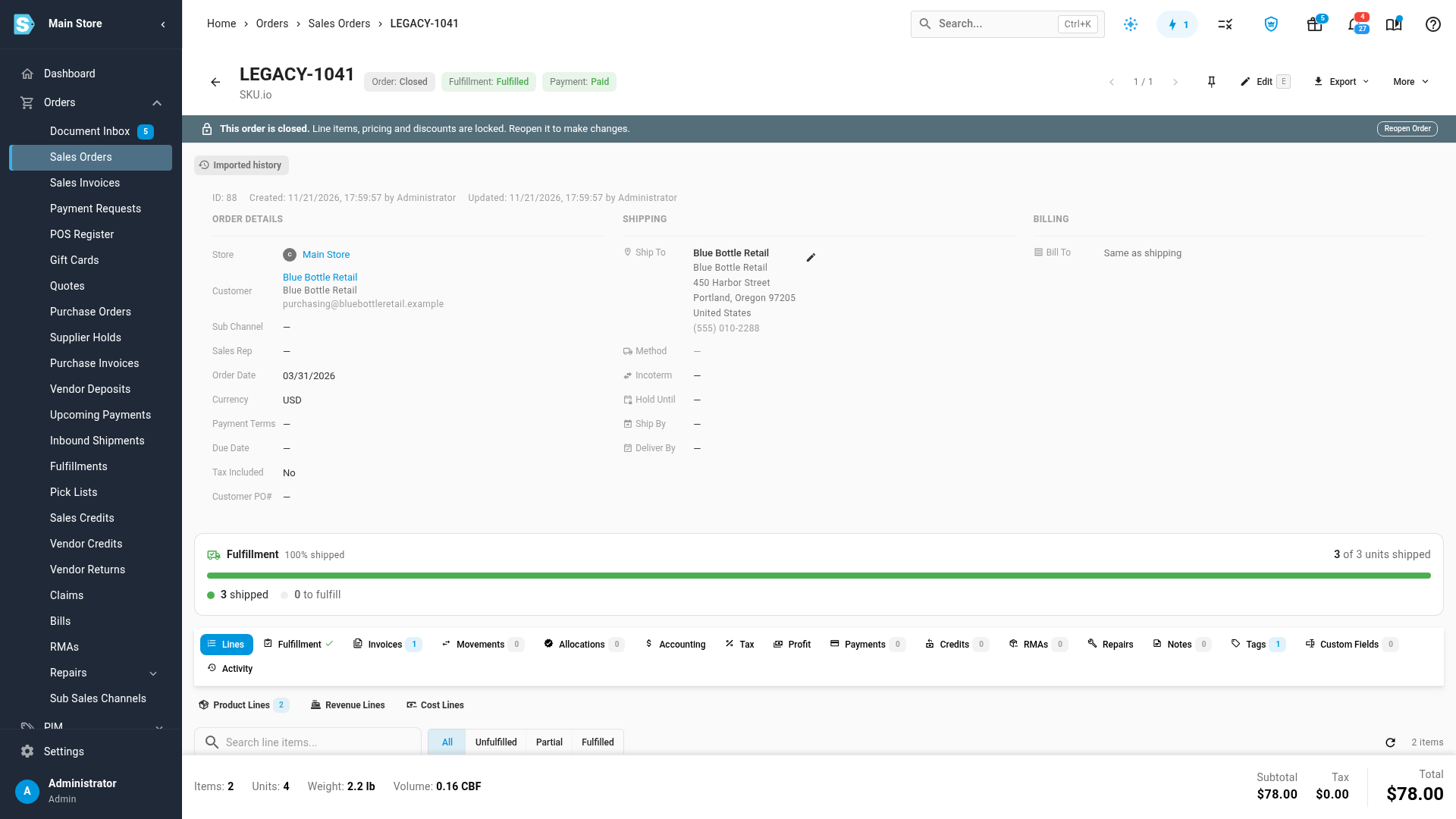
Go to Orders → Sales Orders and open one of the imported orders. Its page carries an Imported history chip above the order's details.
-
Hold the pointer over the Imported history chip. A note lists what was left out for this record: no emails, channel or 3PL pushes, EDI documents, stock movements or accounting exports.
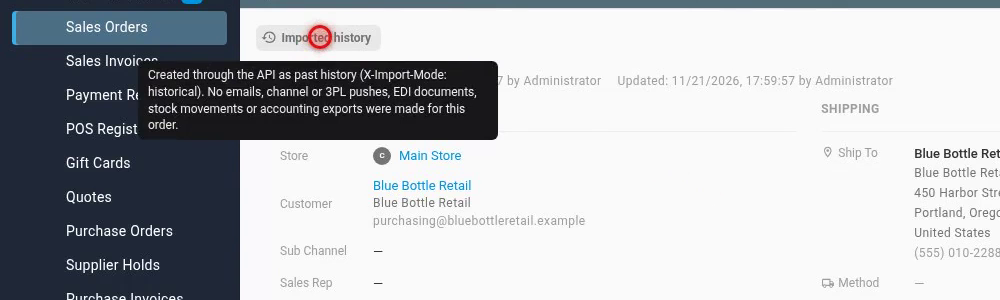
The same chip appears on purchase orders, sales invoices and purchase invoices imported as history.
What a historical import keeps and skips
A historical import keeps everything you need for reporting: the record, its lines and amounts (so sales history and forecasting see them), the customer or supplier, tags, notes, tracking numbers and invoice numbers. It skips anything that would reach a person or another system, or change your stock:
- Sales orders and their shipments: no customer emails, packing slips, allocation or fulfillment orders, 3PL hand-off, tracking push to the sales channel, EDI documents, workflow automations or stock deduction. An order comes in closed and fulfilled unless your developer asks to add its shipments separately.
- Purchase orders: no email to the supplier, no approval request or alerts, no 3PL advance notice, and the received quantity is recorded as an opening balance, not as stock.
- Sales and purchase invoices: no invoice email, no customer portal notice, no EDI invoice. A locked accounting period stays locked.
Invoices are money only, so they're accepted at any date. Their accounting export is still skipped.
For your developer
Send your developer these two request headers, and the full reference on developer.sku.io.
| Header | What it does |
|---|---|
X-Dry-Run: true | On any create, update or delete: runs it, returns the result it would have produced, then rolls it back. The response carries X-Dry-Run: applied and lists what it held back (jobs, webhooks, emails, notifications). Ignored on reads. |
X-Import-Mode: historical | Stores a past record quietly. Works when creating a sales order, fulfilling one, creating, submitting or opening the balance of a purchase order, creating a purchase invoice, and creating or issuing a sales invoice. |
The two can be combined to preview an import before running it. The errors your developer is most likely to meet:
| Error | Meaning |
|---|---|
dry_run_not_supported | That change calls an outside service, so it can't be dry-run. |
dry_run_external_call | The change tried to reach an outside service during the dry run. Nothing was sent. |
import_mode_not_supported | That endpoint doesn't take historical mode. |
inventory_start_date_required | Set an inventory start date first. |
historical_after_inventory_start | The record is dated on or after the inventory start date. Send it as a normal call. |
Next steps
- Manage personal access tokens: the rest of the Usage Log, and rotating or revoking a token when the work is done.
- Fix a 403 from your API token: when a call is refused for a missing scope or permission.
- Connect an AI assistant: assistants use the same dry runs, shown on the MCP Activity tab.
Video transcript
When a developer or an agency connects to your account, two request settings let them work safely. A dry run tests a change and saves nothing. A historical import brings past orders in quietly, without replaying any of their side effects. To see their calls, open the token they use from your list of personal access tokens. Click the Usage Log tab, which lists every request this token has made. The Mode column shows how each call was sent. Dry run means a test that saved nothing. Historical flags a past record that was imported quietly. A dash means a normal call. To see only the tests, open the Mode filter above the log, and choose Dry run from its list. Each of these ran every check and built the whole result, then rolled it all back. No order was saved, and no email, webhook or channel update went out. A dry run that would fail is logged too, with the reason, so problems surface before anything is live. Now open the Mode filter again, and this time, switch it to Historical. These calls brought in past orders and a purchase order from the old system. Nothing emailed a customer, moved stock, or reached your accounting. History must be dated before your inventory start date, so the order dated after it was refused. Imported records are easy to spot on their own pages. Open Orders, then Sales Orders, in the menu on the left side of the screen. Search for one of the imported records by its number, then click the number to open the details. Its page carries an Imported history chip, near the top. Hold the pointer over the chip, and a note lists everything that was skipped. The same chip appears on imported purchase orders and invoices. Your developer finds the request details in the SKU developer guide, linked from this page.