Set default weight and dimension units
Every product records its weight and dimensions in a unit, such as lb and in, or kg and cm. Units of Measurement sets the units new products start with, so you don't have to change them on each product. Set them to whatever your team and your carriers work in.
These are units for a product's shipping weight and size. The units you stock, buy and sell a product in are a separate setting. See Configure a product's units of measure.
Before you begin
- You need permission to change settings.
- Existing products keep the units they already have. To change those, edit each product's Shipping section, or update them in bulk.
Steps
-
Go to Settings, open Products, then click Units of Measurement.

-
In Weight Unit, choose lb, g, kg, or oz. The default is lb.
-
In Dimension Unit, choose in, cm, or mm. The default is in.
-
Click Save Changes.
Where the defaults apply
| Where | What happens |
|---|---|
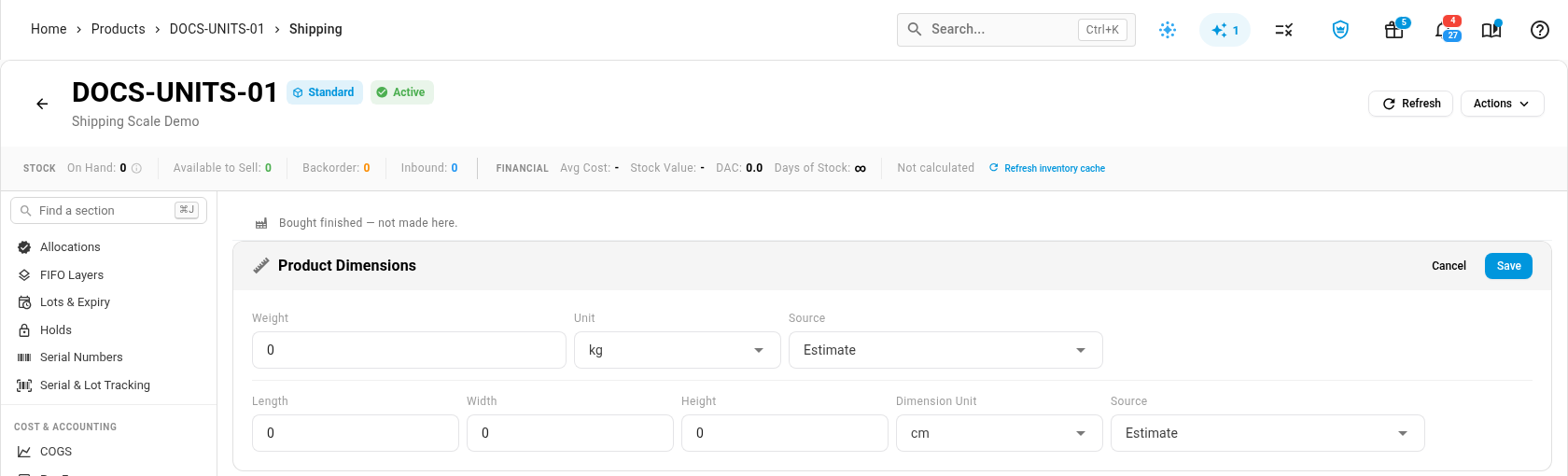
| A product you create with Add Product | Starts with your default units. Change them in its Shipping section, on Product Dimensions. |
| A product import | New products whose unit columns are blank get your default units. A unit in the file always wins. |
| A product brought in from a sales channel | Gets your default units when the channel doesn't send a unit of its own. |
| Weight totals on purchase orders, sales orders and transfers | Shown in your default weight unit, converted from each product's own unit. |
Next steps
- Track where weight and dimensions came from: mark a product's measurements as estimated, from a vendor, or measured.
- Configure a product's units of measure: the units you stock, buy, and sell in.
Video transcript
Every product records its shipping weight and size in a unit. You choose the units new products start with. Open Settings, at the bottom of the sidebar. Click the Products card, and its list of settings opens below the card. Then click Units of Measurement, near the bottom of that list. Click Weight Unit to see the units. Pick the one your team and carriers use. Then click Dimension Unit, and do the same. Click Save Changes, and the confirmation appears. Products you already have keep their units, so try it on a new product. On the Products list, click Add Product, at the top right. Give the product a SKU, then a name. Click Save, and the new product opens. In the list of sections on the left, scroll down and click Shipping. Click Edit on the Product Dimensions card. The weight unit is already set to kilograms. And the dimensions use centimeters, straight from your setting.