Make a wholesale line sheet
A line sheet is the document you send a retail buyer before a season: a cover page with your terms, then every style with its photo, variants, wholesale price and MSRP, grouped into collections. SKU.io builds it from live product data, so you can make a new one in seconds whenever prices change. You can download it as a print-ready PDF line sheet, or as an Excel order form that the buyer fills in and sends back.
Before you begin
- You need the Products Export permission (
products.export). Without it the Line sheet button doesn't appear, and Create line sheet stays disabled with "You don't have permission to export products". - Set wholesale and retail prices on your pricing tiers. The line sheet takes the wholesale price from a tier you choose, and falls back to a tier named "Wholesale", and then to your default tier.
- To price the sheet in another currency, add the exchange rate under Settings → Currencies. See Work in multiple currencies.
- To make a sheet from a saved view or a catalog, create it first: a saved view of the Products list, or a catalog under Listings › Catalogs. See Limit a channel to part of your catalog.
Steps
-
Open the Line sheet dialog from one of these places:
- On the Products list, click Line sheet in the toolbar. The sheet starts from your current filters.
- On the Products list, check the products you want, then choose Line sheet from the bulk actions menu. The sheet starts from your selection.
- Under Listings › Catalogs, open a catalog and click Line sheet. The sheet starts from that catalog.
On a phone, Line sheet is in the Products list toolbar menu and in the bulk actions menu.
-
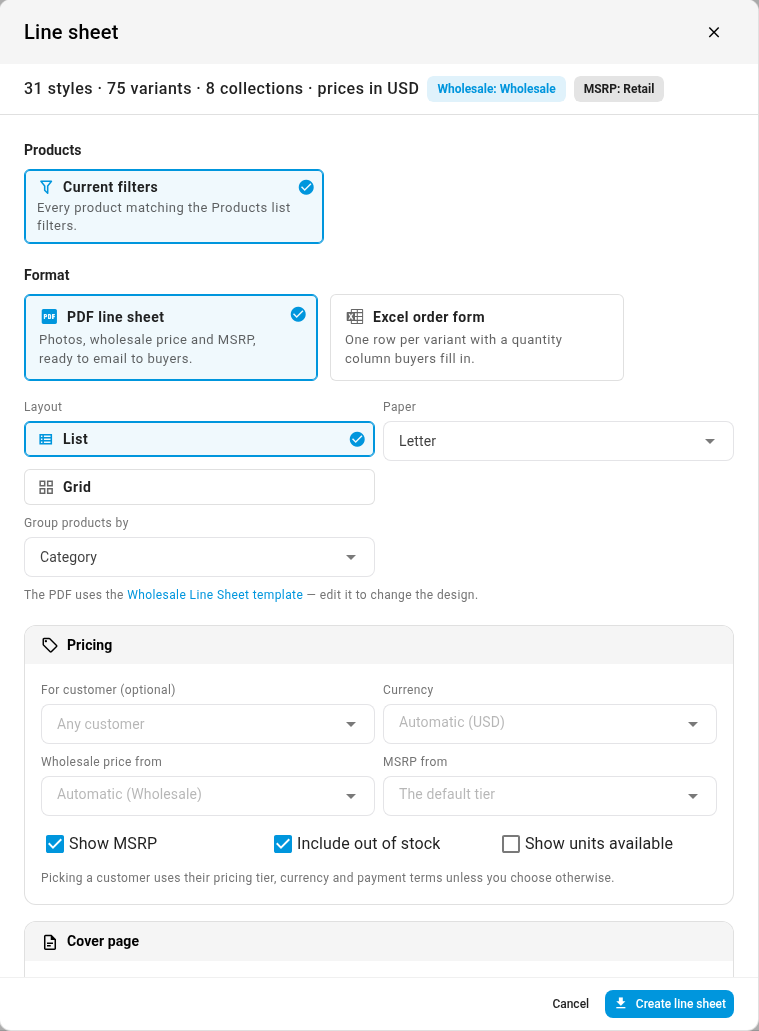
Under Products, choose what goes on the sheet. You see only the sources that apply:
- N selected products: the products you checked on the list.
- Current filters: every product that matches the Products list filters.
- Saved view: the products in one of your Products saved views. Pick it in the Saved view box.
- Catalog: the products a channel catalog includes. Pick it in the Catalog box.
The bar at the top of the dialog counts what you picked, for example "24 styles · 96 variants · 4 collections · prices in USD", and names the tiers it prices from.
-
Under Format, choose PDF line sheet (photos, wholesale price and MSRP, ready to email) or Excel order form (one row per variant with a quantity column buyers fill in).
-
For a PDF, choose the Layout: List (the default) prints one style per row with the photo on the left, and Grid prints three compact cards per row. Then choose the Paper: Letter or A4.
-
In Group products by, choose Category, Brand or No grouping. Each group becomes a collection with its own heading.
-
In the Pricing section, set where prices come from:
- For customer (optional): pick a customer to use their pricing tier, currency and payment terms, and to print "Prepared for" with their name on the cover.
- Currency: leave it on Automatic to use the wholesale tier's currency, or pick another one.
- Wholesale price from: leave it on Automatic, or pick a tier.
- MSRP from: leave it empty to use your default tier, or pick a tier.
- Check or clear Show MSRP, Include out of stock and Show units available.
-
In the Cover page section (Order form header for Excel), fill in what the buyer should see: Title, Season, Payment terms, Order minimum, Ship window, Contact and Terms. The title, contact and payment terms start filled in from your store and the chosen customer. Anything you leave empty is left off.
-
Click Create line sheet. The dialog closes with "Line sheet started — download it from the job tray".
-
Open the job tray and download the file when the Export Line Sheet job finishes.
What the line sheet contains
Styles, not SKUs. A matrix product is one style, with its variants in a grid under it: one column per option (for example Color and Size), then the SKU, wholesale price, MSRP and units available when you show them. A standard product, bundle or kit is a one-variant style. Archived products are never included. If you select a variant without its parent, it still prints under its parent style, with only the variants you selected.
Each style shows its photo (or a No photo box), name, style SKU, a short description cut at 300 characters, the wholesale price and MSRP (as a range such as "$12.00 – $14.00" when variants differ), and its ordering rules, for example "MOQ 6 · Increments of 6 · Case pack 12". The ordering rules come from each product's minimum order quantity, order increment and case quantity, falling back to the parent's. When the variants of a style disagree, the rules print on each variant row instead.
Prices. A variant with no price on the tier uses its parent's price. If there's no exchange rate from a tier's currency to the sheet's currency, those prices print blank and the dialog warns you which tier is affected.
Collections. Styles sort by name inside each collection. With Category, a product goes under its primary category. For a catalog whose rules include categories, those categories become the collections, in the order of the rules. Products that don't fit a group go in a last collection named Other.
The PDF opens with a cover page: your logo, the title, season, "Prepared for" (when you chose a customer), the date, a table with the currency, payment terms, order minimum, availability and style count, then your contact details and terms. Each collection follows under its heading. A style never splits across two pages.
The Excel order form has one sheet, Order form. It opens with a header block (title, season, prepared for, date, currency, payment terms, order minimum, availability, terms and Send orders to) and the line "Enter quantities in the yellow Qty column and send this sheet back." Then it has one row per variant with the columns Collection, Style, Style name, SKU, one column per option, Wholesale, MSRP (when shown), MOQ, Increment, Case pack, Available (when shown), Qty and Line total. Qty is empty and highlighted in yellow, Line total multiplies it by the wholesale price, and a Total row sums both.
Limits and messages
| You see | What it means |
|---|---|
| "This is more than fits on one line sheet, so only the first products are included. Narrow the selection to include the rest." | A sheet holds at most 1,000 styles and 5,000 variants. Filter the list or split the catalog into several sheets. |
| Create line sheet is disabled with "Pick a saved view first" or "Pick a catalog first" | Choose one in the box under Products. |
| Create line sheet is disabled with "No products match — nothing to put on the line sheet" | The source is empty, or Include out of stock is cleared and nothing has stock. |
| The job fails with "No products to put on the line sheet. Include out-of-stock products or choose a different source." | Every product was dropped by the time the job ran. Check Include out of stock or pick another source. |
| "No wholesale line sheet template is configured. Add one under Settings → PDF Templates." | The Wholesale Line Sheet PDF template was deleted. Every account starts with one. |
Change how the PDF looks
The PDF prints through the Wholesale Line Sheet template under Settings → PDF Templates, and the dialog links to it. Edit it like any other template to change fonts, add a "how to order" block, or start each collection on a new page. It uses your default store's version of the template if that store has one, otherwise the global template. See the Wholesale Line Sheet template reference.
Next steps
- Wholesale Line Sheet template reference: every field the PDF can print.
- Manage pricing tiers: set the wholesale and retail prices the sheet reads.
- Export products: download the full product list as a spreadsheet instead.
- Sell off closeout stock: the closeout linesheet, for clearing discontinued stock.
Video transcript
To make a line sheet for your wholesale buyers, open PIM, then Products. Filter the list down to the products you want on the sheet. Then click Line sheet, in the toolbar at the top of the list. The bar at the top counts the styles, variants and collections, and names the price tiers it uses. Under Format, choose a PDF line sheet with photos, or an Excel order form that buyers fill in. For a PDF, pick the layout, the paper size, and how to group the products. To price the sheet for one buyer, pick them under For customer. Start typing their name, and choose them from the list. Their pricing tier, currency and payment terms apply, and the cover names them. Under Cover page, add the season and anything else buyers should see. Anything you leave empty stays off the sheet. Click Create line sheet, at the bottom of the dialog. SKU builds it in the background. To follow the job, open the job tray at the top of the page. When the job finishes, the tray shows a Download button. Click it to save the file. The PDF opens with a cover page for your buyer. Then each collection lists its styles, with photos, variants, wholesale price and MSRP.