Substitute an out-of-stock product on a sales order
When the same physical part exists under two SKUs — an official part number you list for search, and the equivalent you actually stock — orders for the listed SKU stall as backorders while the equivalent sits on the shelf. Product substitutions link those SKUs so you can swap a stalled line to the stocked substitute in one click, or release a whole backlog at once. The customer still sees the SKU they ordered: the packing slip keeps the original, while the pick list tells the warehouse which part to pull.
Before you begin
- Turn the feature on under Settings → Products → Product Substitutions (it ships disabled).
- You need the Product Substitutions permissions to manage rules, and the Sales Orders — Update / Fulfill permissions to swap lines and bulk-release orders.
- The substitute must be a stock-tracked product.
Link a substitute to a product
-
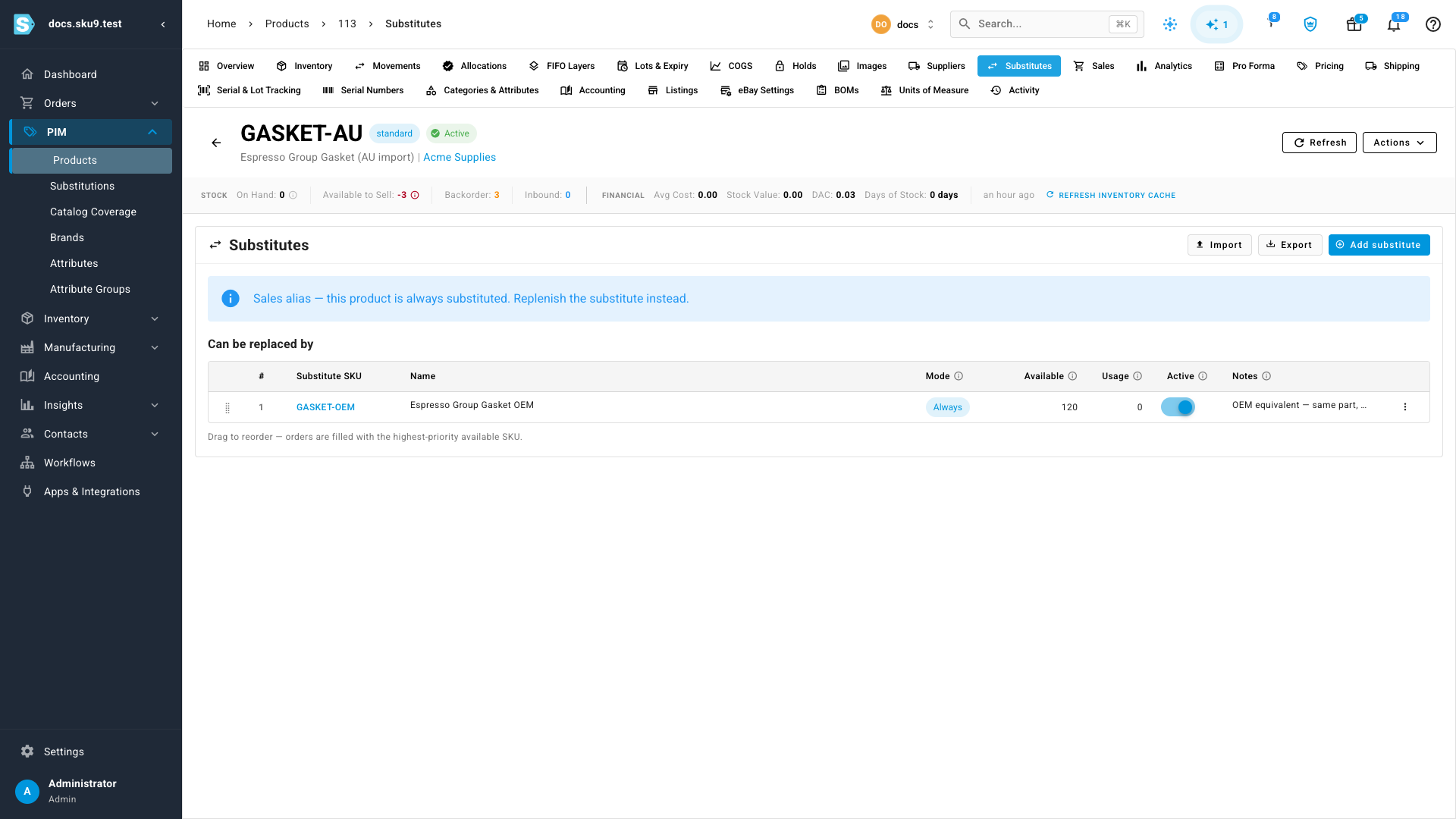
Open the product that customers order (the one that runs out) and go to its Substitutes tab.
-
Click Add substitute.
-
Search for the product you stock — for example, GASKET-OEM for GASKET-AU — and choose when it should swap:
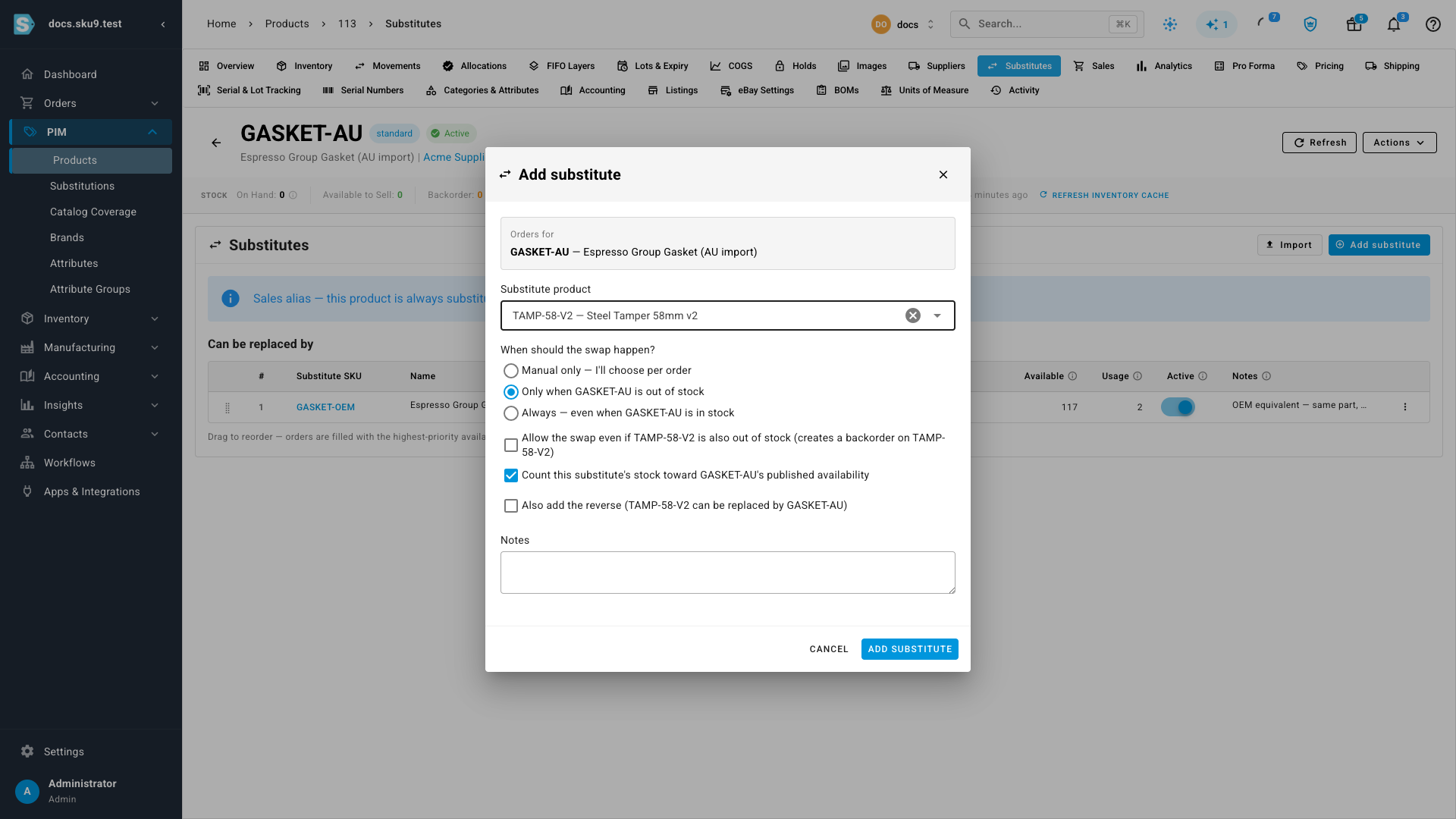
Mode What it does Manual only Never swaps automatically. The rule only appears in the swap menu for a person to apply. Only when out of stock Swaps automatically when the ordered product can't cover the line and the substitute can. Always Swaps every order, even when the ordered product has stock — for SKUs you list but never stock. -
Optionally allow the swap even when the substitute is also out of stock (creates a backorder on the substitute), and choose whether the substitute's stock counts toward the original's published availability on your sales channels.
-
Click Add substitute. Drag rules to reorder them — orders are filled with the highest-priority substitute that has stock.
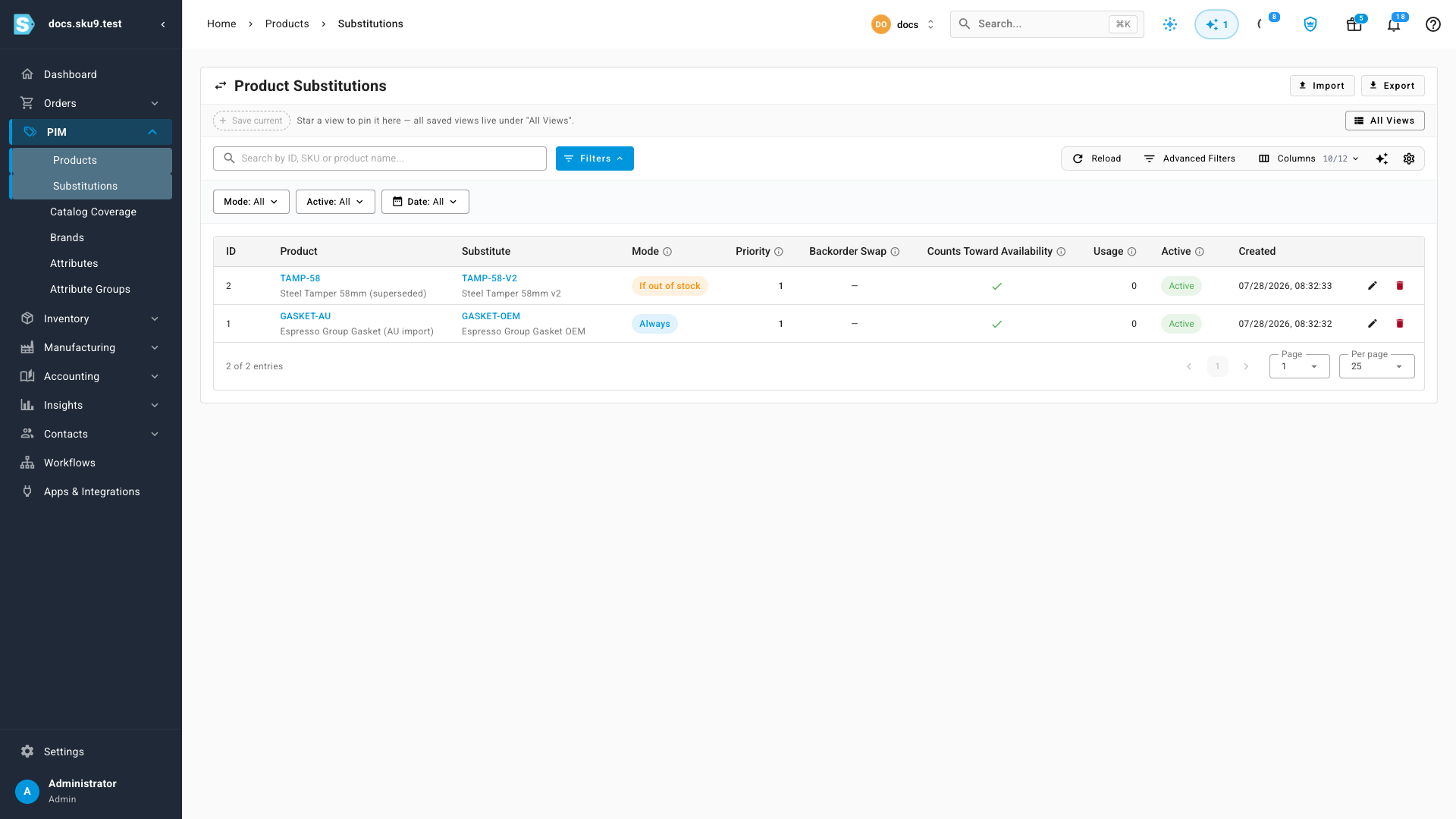
The Substitutions page under PIM lists every rule across all products, with search, filters, and usage counts:
Find orders a swap would release
-
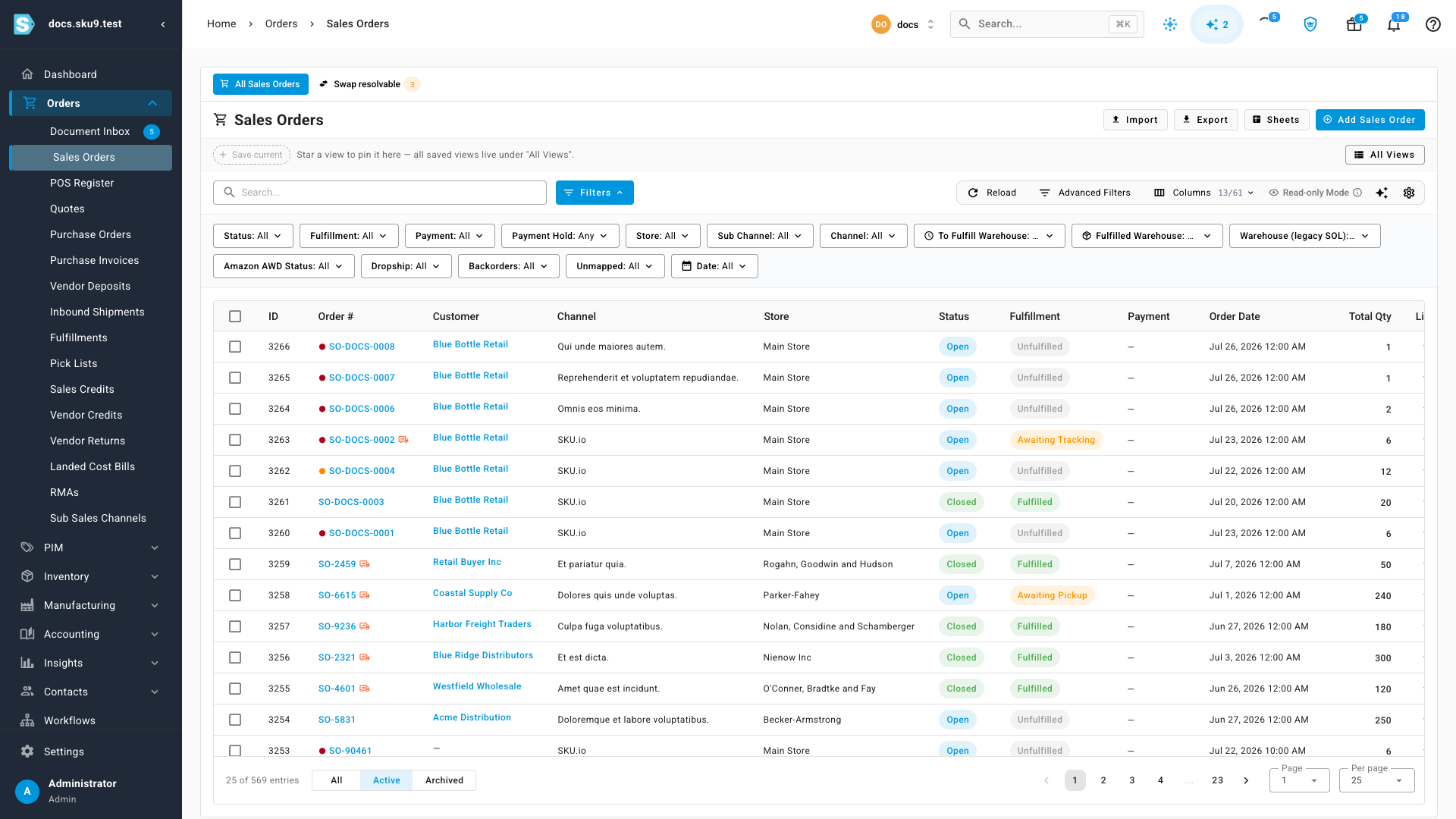
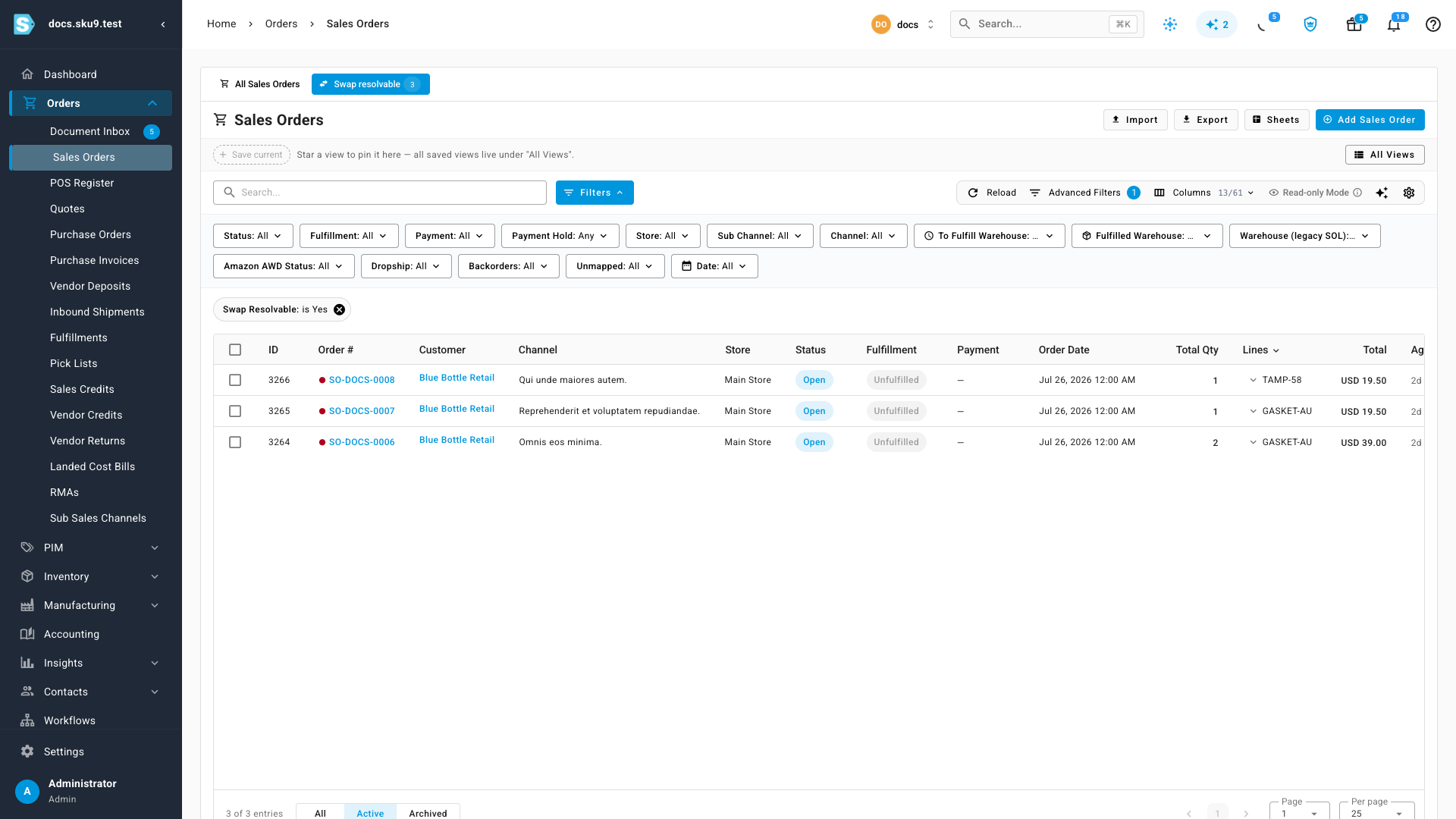
Go to Orders → Sales Orders. The Swap resolvable tab above the list shows how many stalled orders a substitution could release right now.
-
Click the tab to filter the list to just those orders (All Sales Orders switches back).
Swap a single line
-
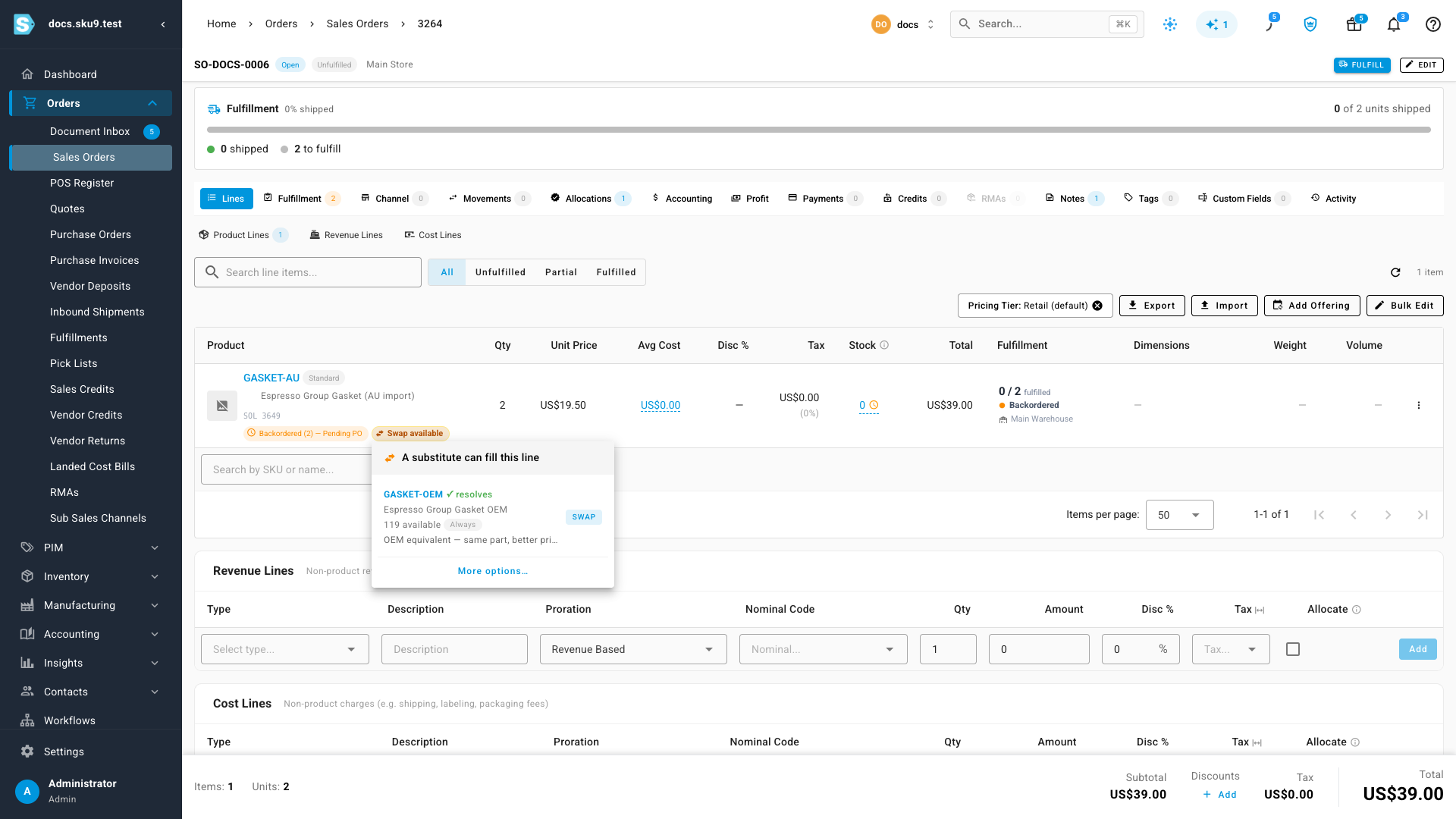
Open a stalled order. Lines with a matching substitution rule show a Swap available chip — amber when a swap would fix the shortage, grey when the line is fine but substitutes exist.
-
Click the chip. The menu lists each substitute with its live availability, the rule's mode and any notes, and marks the ones that fully resolve the shortfall.
-
Click Swap. The line switches to the substitute, stock is allocated from it, and a blue Swapped from … chip records the original. Use More options… to pick a one-off substitute that isn't in the rules.
-
To revert, open the blue chip and click Undo swap — the line returns to the product the customer ordered.
The price, description and channel link of the line never change: the customer is charged for what they ordered, and the packing slip keeps printing the ordered SKU. The pick list shows the substitute annotated with the original — for example GASKET-OEM (GASKET-AU).
Release a backlog in bulk
- On the filtered Sales Orders list, select the stalled orders (the header checkbox selects the page).
- Open More and choose Swap & Release.
- A confirmation dialog previews exactly what will happen before anything runs: each order's planned swaps (
ordered SKU → substitute SKUwith quantity and the rule's mode), plus any orders that would be skipped and why — not open, no matching rule, substitutes out of stock, or lines already swapped. - Confirm. A background job applies the previewed substitutions and sends the orders to fulfillment. Track it in the job tray; the completion summary shows how many orders were swapped and why any were skipped.
Import and export rules
Use Import on the Substitutes tab or the Substitutions page for bulk loading — the importer accepts Excel (.xlsx) and CSV files. Download the Excel template first: it has an Import Here sheet (green headers are required), a Field Guide sheet describing every column with valid values and examples, and a Reference Data sheet listing the accepted mode and yes/no values plus your existing rules. The importer matches on the (product_sku, substitute_sku) pair: an unknown pair creates a rule, an existing pair updates it, so re-uploading a corrected file is safe.
| Column | Required | Format / accepted values | Notes |
|---|---|---|---|
product_sku | Yes | Existing product SKU | The ordered / original product. |
substitute_sku | Yes | Existing, stock-tracked product SKU | The product that ships instead. Cannot equal product_sku. |
mode | Yes | manual only, if out of stock, always (case-insensitive; manual, out of stock, oos also accepted) | When the rule may swap automatically. |
allow_backorder_swap | No | yes / no (also true/false, 1/0, y/n) | Default no. Any other value is a row error. |
include_in_alias_availability | No | yes / no | Default yes — substitute stock counts toward the original's published availability. |
priority | No | Whole number ≥ 1 | Defaults to the end of the product's list. Decimals are rejected. |
notes | No | Text, max 500 characters | |
active | No | yes / no | Default yes. |
Validation happens per row in the preview — rows marked Error (unknown SKU, duplicate pair in the file, invalid mode or boolean, a swap loop between two always rules) are skipped and downloadable as a corrections file; valid rows still import. Files over 500 rows run as a background job with progress in the job tray. After importing you can immediately evaluate open orders so the new rules release any resolvable backlog. Export opens the standard export dialog — pick Excel or CSV; the file uses the same columns as the import, so you can edit it and re-import.
Next steps
Video transcript
When a product sells out, orders stall in the backorder queue. The Swap resolvable tab shows every order a substitution could release. Click it to filter them. This order wants a gasket with no stock. The Swap available chip suggests the OEM equivalent with stock on hand. One click swaps the line, and the packing slip keeps the original SKU. Rules live on the product's Substitutes tab. Always swaps every order. If out of stock covers shortages. Manual only leaves it to you. The substitutions page lists every rule in one place, with search, filters, usage counts, and Excel import and export. For a backlog, select every stalled order and choose Swap and Release. The confirmation shows exactly which lines will swap, and flags anything that cannot. Confirm, and a background job swaps each line and sends the orders to fulfillment. Moments later, the count reads zero.