Set up fulfillment dispatch
Fulfillment dispatch is the step that turns an approved sales order into fulfillment orders and sends each one to whoever ships it: your own team, a shipping app, or a 3PL. Settings → Fulfillment → Fulfillment Dispatch controls when that happens on its own, which orders wait for you, and what SKU.io does when an order changes after it has gone out.
Before you begin
- You need access to Settings.
- To send a warehouse's orders to a shipping app or 3PL, connect it first under Apps & Integrations. A 3PL warehouse takes its provider from its connection.
- Changes on this page apply only after you click Save at the top of the page.
Open Fulfillment Dispatch
- Click Settings at the bottom of the left sidebar.
- Click the Fulfillment card to expand it, then click Fulfillment Dispatch.
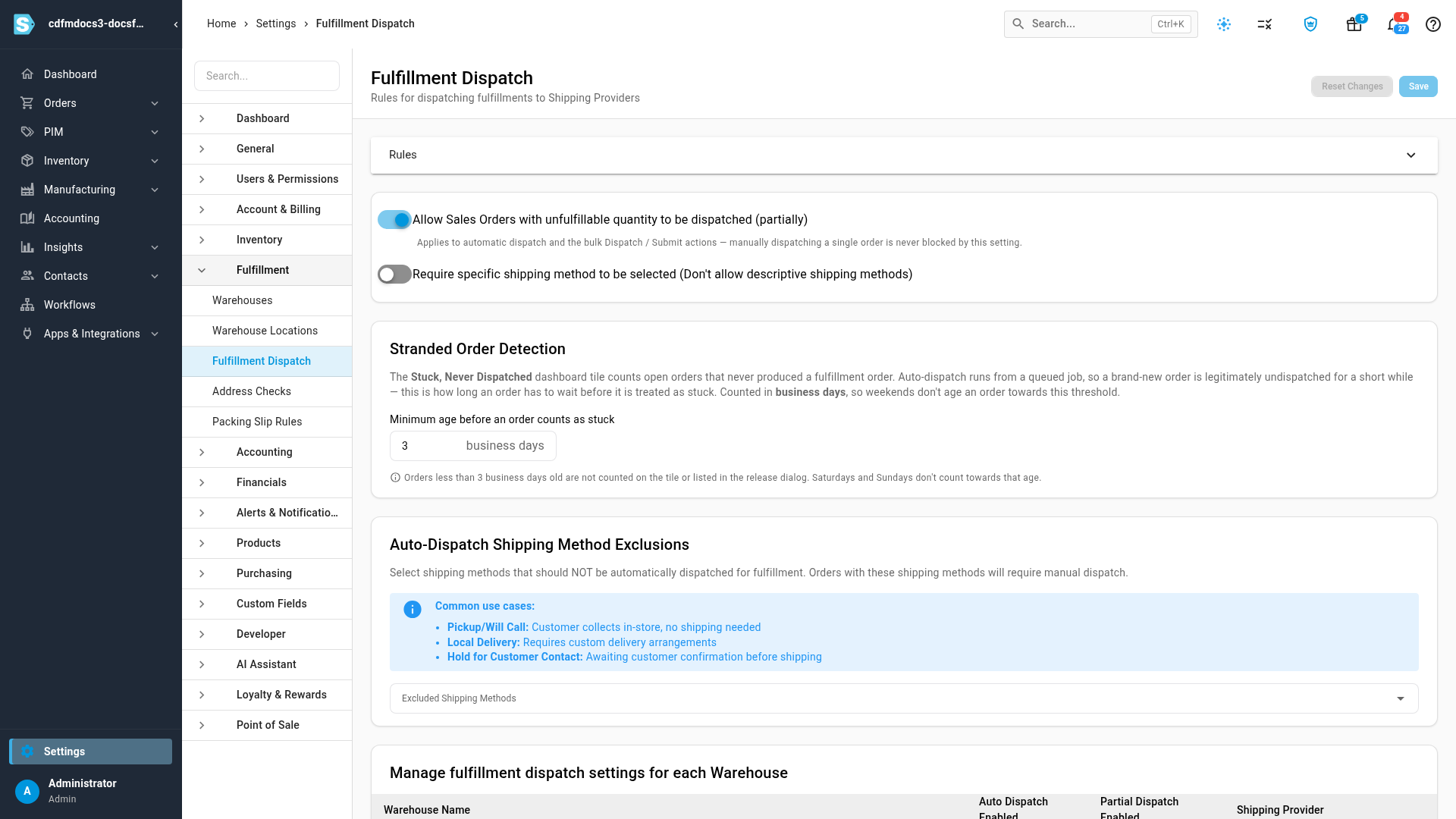
Check when dispatch runs on its own
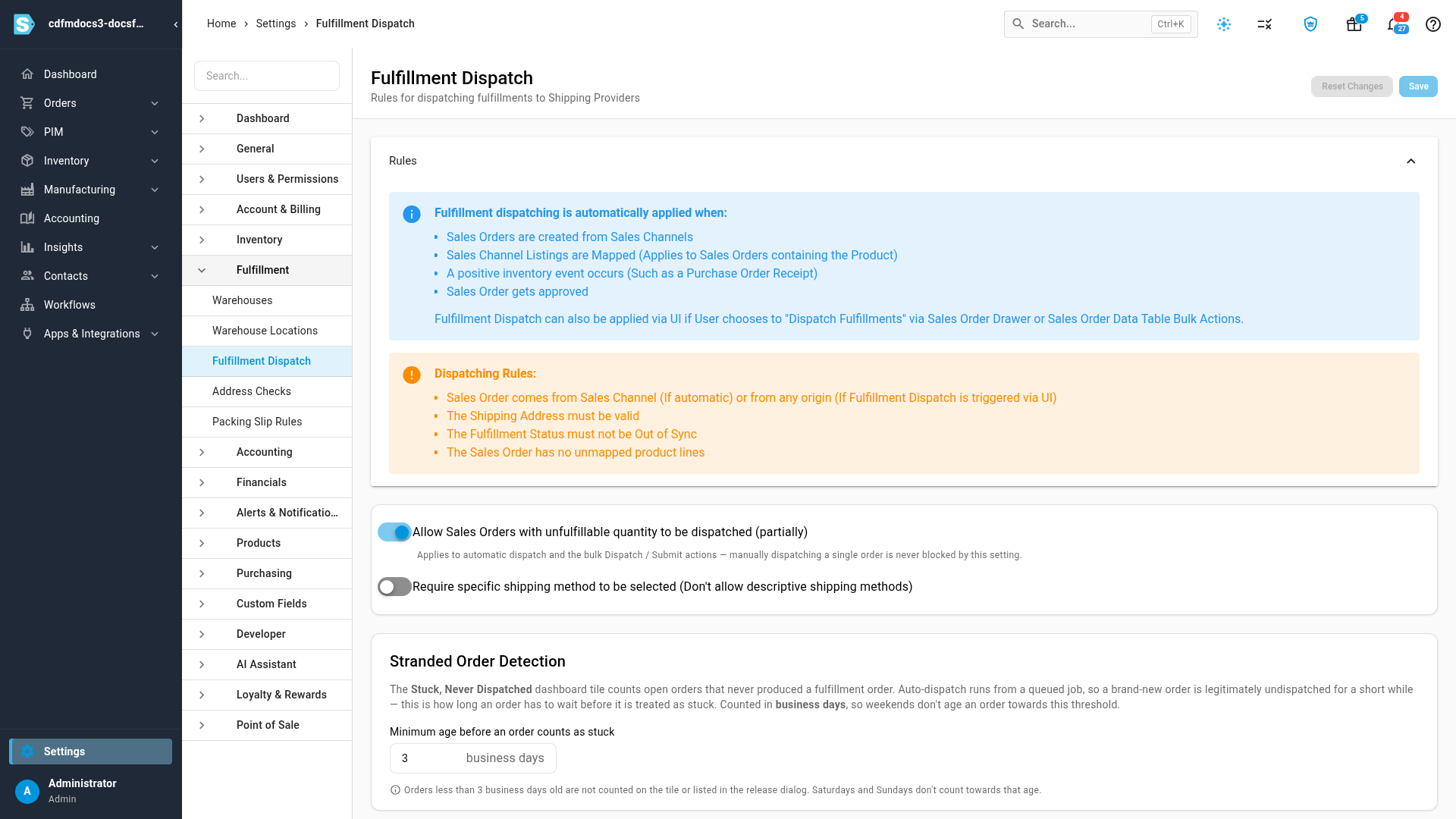
Click Rules to expand the panel. Automatic dispatch runs when:
- sales orders arrive from a sales channel
- a sales channel listing is mapped to a product (for orders that contain it)
- stock comes in, such as a purchase order receipt
- a sales order is approved
You can also dispatch by hand at any time with Dispatch Fulfillments, from a sales order or as a bulk action on the sales orders list.
Either way, an order is dispatched only when:
- it came from a sales channel (for automatic dispatch; dispatching by hand works for any order)
- its shipping address is valid
- its fulfillment status isn't out of sync
- none of its lines is an unmapped product
Set the switches for every warehouse
Two switches under the Rules panel apply to every warehouse:
| Switch | What it does |
|---|---|
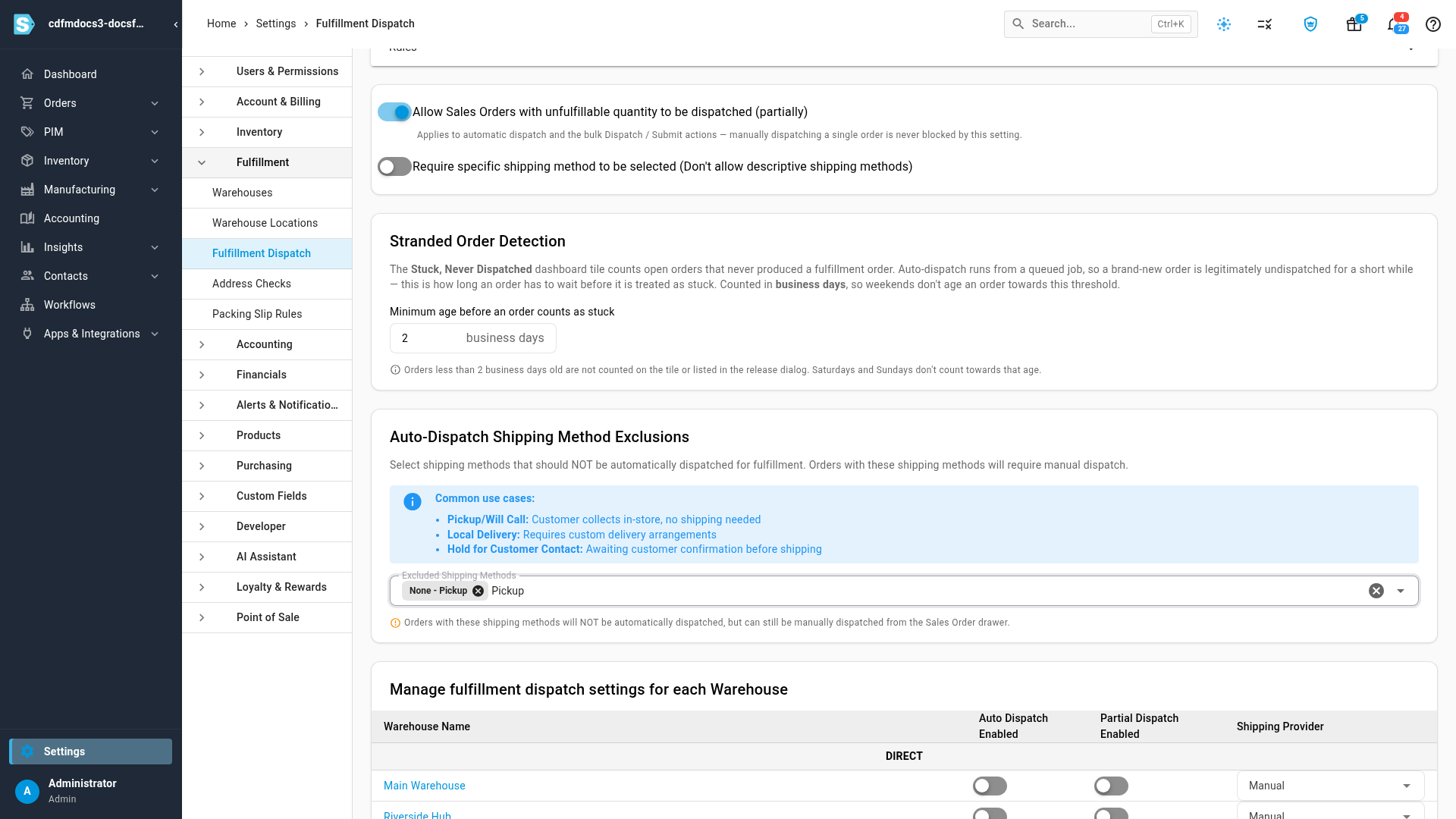
| Allow Sales Orders with unfulfillable quantity to be dispatched (partially) | When on, an order that's short on stock can still go out with the lines that can ship. It applies to automatic dispatch and the bulk Dispatch and Submit actions. Dispatching a single order by hand is never blocked by it. |
| Require specific shipping method to be selected (Don't allow descriptive shipping methods) | When on, an order with no specific shipping method isn't dispatched automatically. SKU.io adds a note to the order and alerts your admins, so someone can choose a method. |
Decide when an order counts as stuck
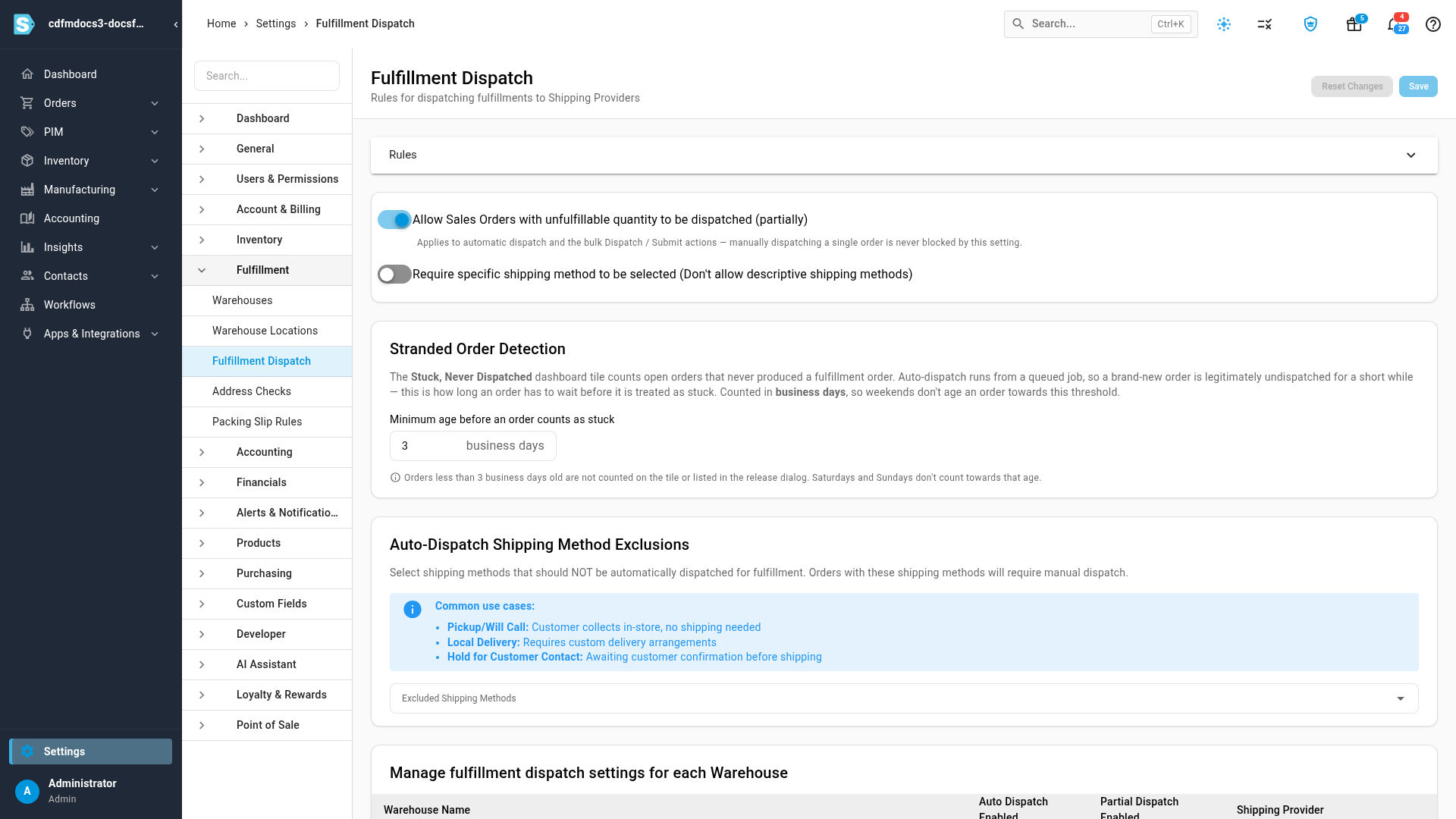
Automatic dispatch runs in the background, so a brand-new order waits a short while before it is dispatched. Stranded Order Detection sets how old an order must be before the dashboard's Stuck, Never Dispatched tile counts it.
- Under Minimum age before an order counts as stuck, type a whole number of business days, from 0 to 90. The default is 3.
- The note under the box confirms what the number means. Saturdays and Sundays don't count towards the age, and 0 counts every open order that hasn't been dispatched, even one placed moments ago.
Keep some shipping methods for manual dispatch
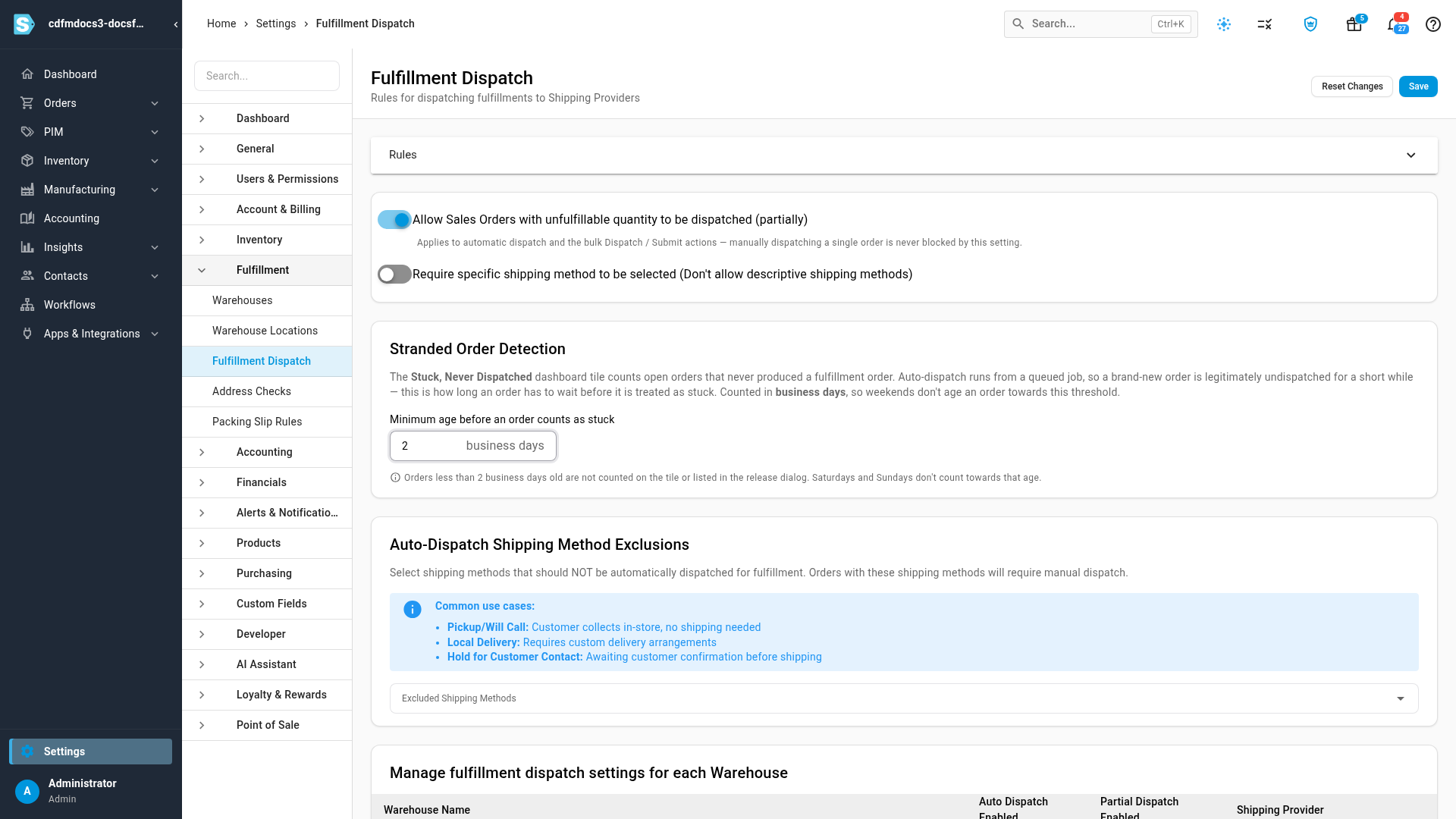
Some orders should never go out on their own, for example in-store pickup, local delivery, or orders you hold until the customer confirms.
- Under Auto-Dispatch Shipping Method Exclusions, click Excluded Shipping Methods.
- Type to search, then pick each method to exclude, for example None - Pickup.
Orders with an excluded method are never dispatched automatically, and SKU.io adds a note to each one saying why. You can still dispatch them by hand from the sales order. To stop excluding a method, click the x on its chip.
Set each warehouse
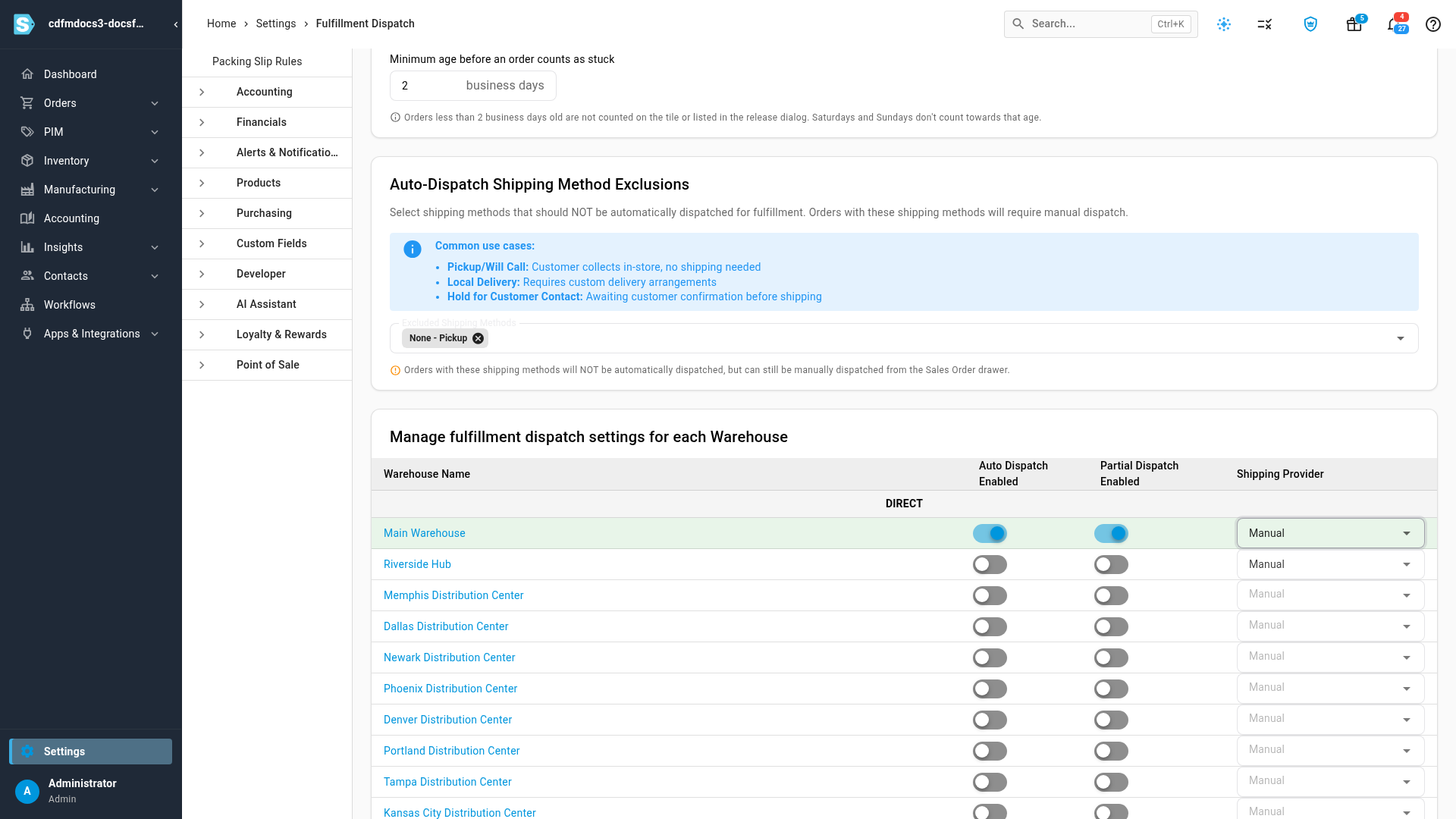
Manage fulfillment dispatch settings for each Warehouse lists your warehouses, grouped by type: Direct (your own warehouses), 3PL, and Amazon FBA. Supplier warehouses aren't listed. Rows with automatic dispatch turned on are shaded green. Click a warehouse's name to open it.
| Column | What it does |
|---|---|
| Auto Dispatch Enabled | Turn on to dispatch this warehouse's orders automatically. When off, its orders wait until someone dispatches them by hand. |
| Partial Dispatch Enabled | Turn on to let this warehouse's share of an order go out even when some of its lines are short. When off, a short order waits for automatic dispatch, but you can still dispatch it by hand. |
| Shipping Provider | Who ships this warehouse's orders. For a Direct warehouse, choose Manual (your team ships and records it) or one of your connected shipping apps. A direct warehouse with nothing chosen ships as Manual. A 3PL warehouse shows its connected 3PL, with a choice when you have more than one. Amazon FBA warehouses always ship with Amazon multi-channel fulfillment. |
You can still change the provider on a single fulfillment order before it's sent. See Dispatch to a fulfillment provider.
Choose what happens when a sent order changes
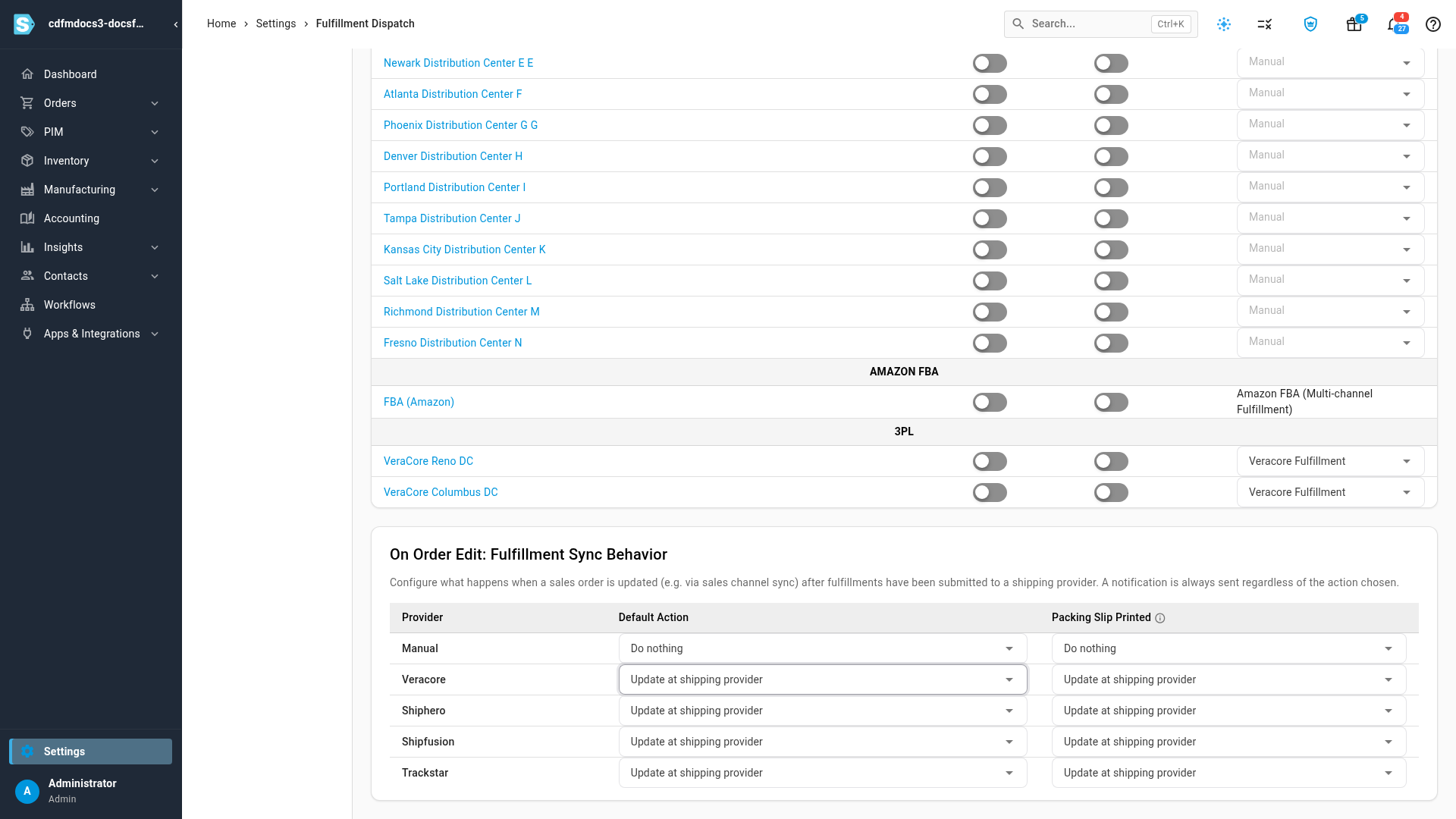
An order can change after its fulfillment has already gone to a provider, for example when a sales channel sync edits it. On Order Edit: Fulfillment Sync Behavior sets what SKU.io does then, one row per provider. Whatever you choose, you get a notification about the change.
| Option | What happens |
|---|---|
| Update at shipping provider | The updated order is sent to the provider in place. |
| Cancel and out of sync | The fulfillment is cancelled and the order is marked out of sync, so someone can review it. |
| Do nothing | The order changes are saved, and the fulfillment stays as it was. |
- Default Action applies to every order of that provider.
- Packing Slip Printed applies instead once the order's packing slip has been printed, for example to leave an order alone once the warehouse has started picking it.
Each provider lists only the options it supports. Manual has no provider to update, so it offers only Cancel and out of sync and Do nothing.
Save your changes
Scroll to the top of the page and click Save. Settings updated successfully confirms it. Reset Changes discards everything you've changed since the last save. The new rules apply to the next orders that are dispatched; orders already sent aren't re-dispatched.
Next steps
- Dispatch to a fulfillment provider: send a single fulfillment order and choose its provider.
- Work the fulfillment board: watch dispatched orders move toward shipped.
- Warehouse routing and the warehouse lock: how each order line picks the warehouse it ships from.
Video transcript
Fulfillment Dispatch decides when your orders are sent out for fulfillment, and which provider ships each one.
To get there, open Settings at the very bottom of the left sidebar.
Click the Fulfillment card to expand it, and when its list opens below, click Fulfillment Dispatch.
The page opens with the dispatch rules at the top.
Open Rules to see when dispatch runs on its own.
It runs when channel orders arrive, when listings are mapped, when stock comes in, and when an order is approved.
Each order also needs a valid address, mapped products, and a fulfillment status that's in sync.
When you've read them, click Rules again to close the panel.
The two switches below it apply to every warehouse.
The first lets orders with short stock go out in part, automatically or in bulk.
This switch never blocks dispatching a single order by hand.
The second holds any order that has no specific shipping method chosen.
Stranded Order Detection sets how long a new order can wait before it counts as stuck.
The dashboard's Stuck, Never Dispatched tile uses this age, in business days.
Click the box, clear the old value, and type the number of business days you want to allow.
Under Auto-Dispatch Shipping Method Exclusions, choose the shipping methods that should always wait for manual dispatch.
Click the box, type to search for a method, and pick it from the list, for example Pickup.
Orders with these methods are never sent automatically, but you can still dispatch them yourself.
Next, set each warehouse.
Turn on Auto Dispatch Enabled to send that warehouse's orders out on their own.
Turn on Partial Dispatch Enabled to let them go even when some lines are short.
Shipping Provider shows who ships each warehouse's orders.
For your own warehouses, you pick the provider here, from your connected shipping apps.
At the bottom, On Order Edit decides what happens when an order changes after it's sent.
For each provider, choose a default action.
Update it at the provider, cancel it and mark it out of sync for review, or do nothing.
Packing Slip Printed sets a different action once the slip is printed.
When you've finished, scroll back to the top of the page.
Then click Save, in the top right corner.
The new rules apply to the next orders that are dispatched.