Ship Amazon pallet delivery orders
Amazon Business buyers can choose pallet delivery at checkout for large, heavy items you ship yourself. Those items have to travel by freight (LTL), not by parcel. A parcel shipment of a pallet item usually fails delivery and can count against your Amazon account. SKU.io flags every order and item that needs a pallet, so they're easy to find and hard to miss when you ship.
Before you begin
| Requirement | Why it's needed |
|---|---|
| An Amazon sales channel connected in SKU.io | Pallet delivery comes from your Amazon orders. See Integration Basics. |
| Pallet delivery turned on in Seller Central | Buyers only see the option once you add Pallet delivery to a shipping template in Seller Central. Until you do, no order is flagged. |
| A freight carrier you can book | SKU.io shows you which orders need freight. You book the pallet shipment with your LTL carrier or freight broker, the same way you would outside SKU.io. |
| Fulfill sales orders permission | You need it to open the fulfill dialog. See Fulfill a sales order. |
Pallet delivery applies to Amazon orders you ship yourself (the MFN sub channel). Amazon ships its own FBA orders, so an FBA order is never flagged for pallet delivery.
Find orders that need pallet delivery
-
Go to Orders → Sales Orders.
-
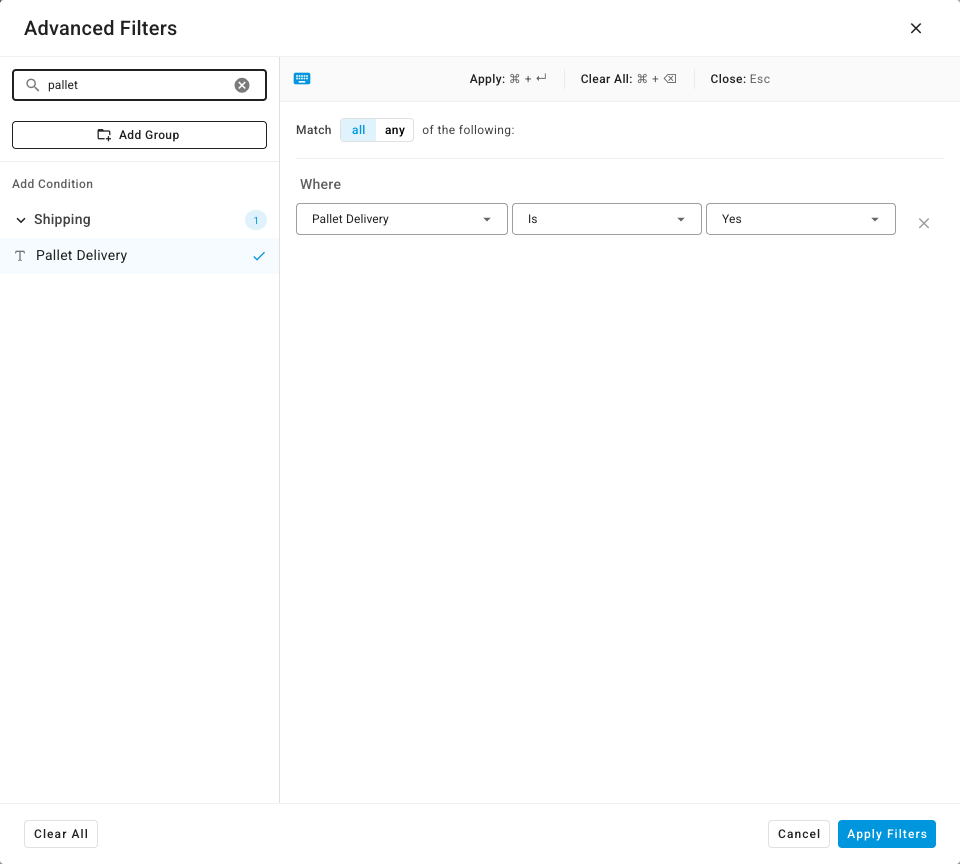
Click Advanced Filters.
-
In the filter search box, type
pallet, then click Pallet Delivery. -
Leave the operator as Is and choose Yes.
-
Click Apply Filters.
What you'll see: the list shows only orders with at least one pallet item, and a Pallet Delivery: is Yes chip appears at the top of the list.
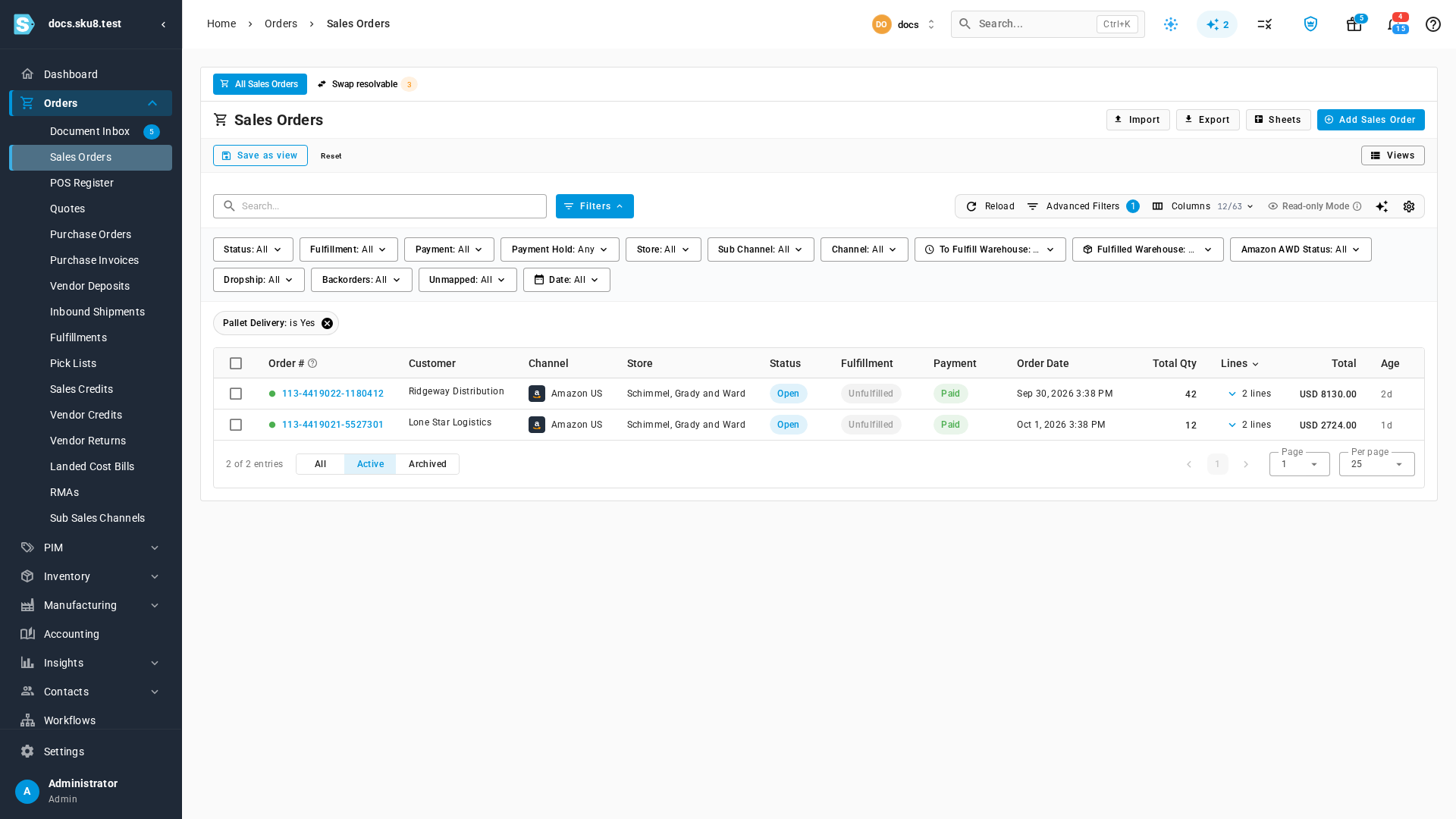
Click Save as view to keep this filter one click away. Choose Is Not instead of Is to see every order that ships by parcel.
See which items need a pallet
-
Open an order from the filtered list.
-
Look for the amber Pallet delivery chip beside the order's status. Hover over it to see how many items need a pallet.

-
In the line items, find the items marked with a Pallet chip. Only those items need a pallet. An item without the chip can still ship by parcel.

The chip also appears in the header that stays at the top as you scroll, and on the order screen on your phone.
Ship a pallet order by freight
-
Book the pallet shipment with your freight carrier and note its PRO number or bill of lading (BOL) number.
-
On the order, open the Fulfillment tab. (Clicking Fulfill at the top of the order opens it too.)
-
On the warehouse's fulfillment card, click Fulfill. The button shows the number of units ready to ship.
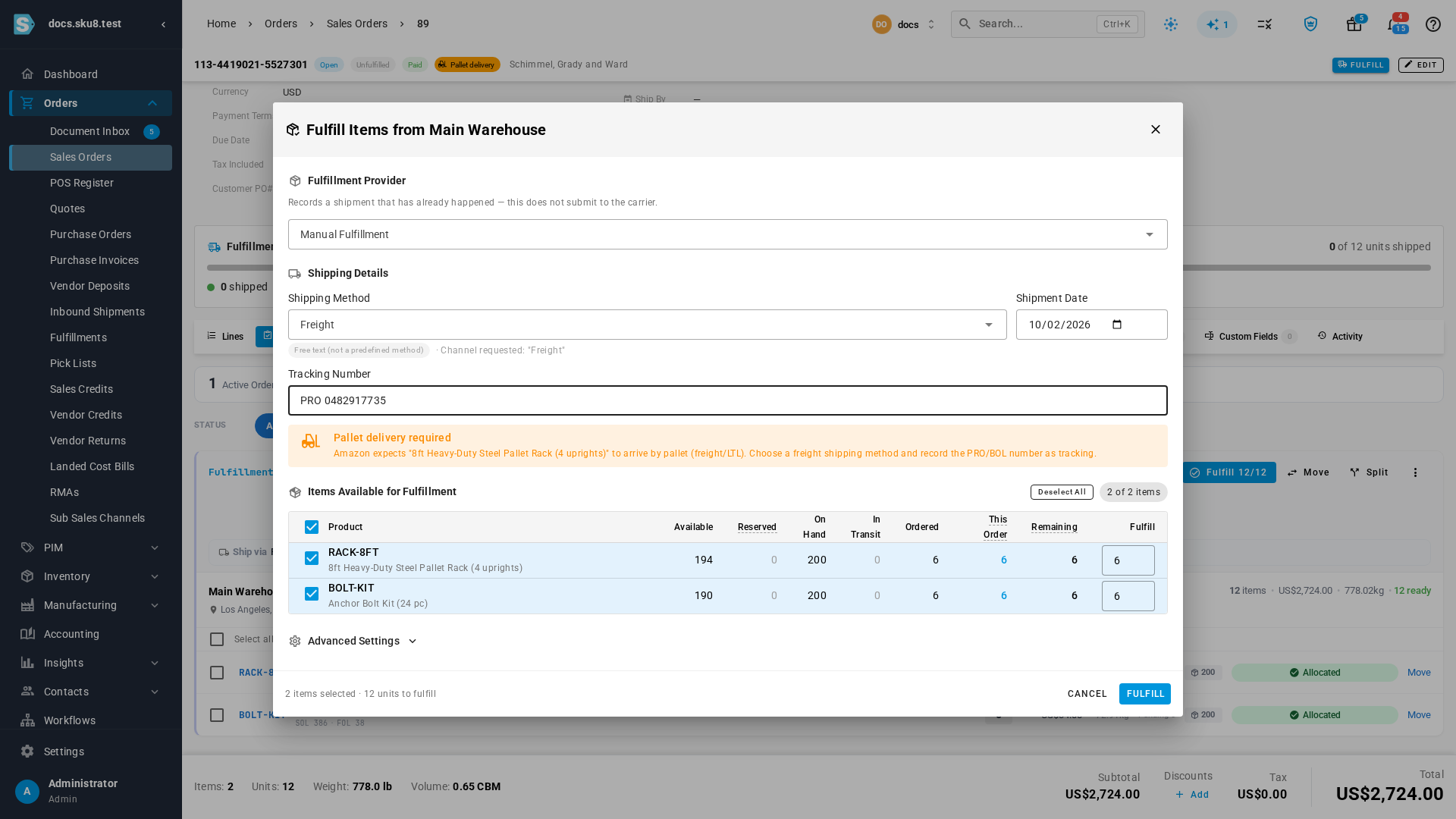
What you'll see: a Pallet delivery required warning names the items that must arrive by pallet.
-
In Shipping Method, choose your freight method.
-
In Tracking Number, enter the PRO or BOL number.
-
Check the items you're shipping now, then click Fulfill.
What you'll see: the shipment is recorded and its tracking is sent to Amazon, the same as any other shipment. For every other option in this dialog, see Fulfill a sales order.
The warning only covers items you're shipping right now. Clear the pallet item's checkbox, and the warning goes away. This is how you ship the parcel items of a mixed order on their own and send the pallet items by freight in their own shipment.
SKU.io can't tell a freight shipping method from a parcel one, so it warns you instead of stopping the shipment. Read the warning before you click Fulfill.
When a fulfillment provider ships the order
If a 3PL or shipping provider ships for you, the same warning appears when you click Submit to send the order to them. It also covers other orders merged into the same shipment. Make sure the provider books freight for the pallet items.
If Amazon flags pallet delivery after you've already sent the order to a provider, SKU.io adds a note to the order. Confirm with the provider that the order goes by freight, not parcel.
Signature and age checks from Amazon
Amazon can also require a signature, an ID check, or an age check on delivery. SKU.io handles these on the same orders:
-
Signature required. The order gets the Signature required chip, and every fulfillment provider that supports signatures receives it.

-
Every requirement on the item. Open the order's Amazon page (Apps & Integrations → Amazon → Orders). The Shipping Constraints column lists each requirement per item, such as Pallet delivery, Signature required, ID verification, and Age verification.

If Amazon changes the order
SKU.io re-reads every Amazon order when Amazon updates it:
- If the buyer's pallet requirement is added before the item ships, the item is flagged.
- If Amazon removes it before the item ships, the flag is cleared.
- Once an item has shipped, its flag stays as it was. If Amazon removes the requirement after shipment, SKU.io adds a note to the order instead.
- SKU.io never turns off Signature required on its own, even if Amazon drops it.
Next steps
- Fulfill a sales order: every option in the fulfill dialog, including partial shipments.
- Split, move, and merge fulfillments: ship the pallet items and the parcel items as separate shipments.
- Amazon FBA, MCF, and externally fulfilled orders: how orders Amazon ships for you differ.
Video transcript
Amazon Business buyers can ask for pallet delivery on large, heavy items. Those orders must ship by freight, not by parcel. They land in Sales Orders, right next to the orders from every other channel.
Click Advanced Filters to build a filter of your own. In the search box, type pallet to find the right condition quickly. Add Pallet Delivery from the Shipping group, which puts a new row into the filter. Then pick Yes from its value list, so that only orders flagged for pallet delivery will match.
Apply the filter. Only orders with at least one pallet item stay in the list, so everything else is out of your way. Save it as a view, and you can check these orders every morning in one click.
Each order in the list is flagged for a reason. The amber Pallet delivery chip sits beside the order status. Hover it to see how many items need a pallet.
In the line items, each item that must arrive on a pallet has its own Pallet chip. Items without the chip can still ship by parcel.
When you are ready to ship, open the Fulfillment tab. Click Fulfill on the warehouse card, and a warning reminds you to choose a freight shipping method. Then click into Tracking Number, and record the PRO or bill of lading number from your freight carrier.