Require a signature on delivery
Some parcels must be signed for, such as high-value orders or customers who chose that option at checkout. When a sales order is flagged Signature required, every fulfillment order made from it carries the flag, and SKU.io passes it to your fulfillment provider when the order is submitted.
Before you begin
- The fulfillment order ships through a provider that accepts a signature instruction: Starshipit, ShipHero, Odoo 3PL, or Amazon MCF. Other providers, such as Shipfusion, ship without one.
- You need permission to fulfill sales orders.
Flag Shopify orders from a tag
Shopify has no signature field of its own. Most stores mark these orders with an order tag, often added by Shopify Flow from the shipping option the customer picked.
-
Go to Apps & Integrations, open your Shopify connection, then Settings and the Shipping tab.
-
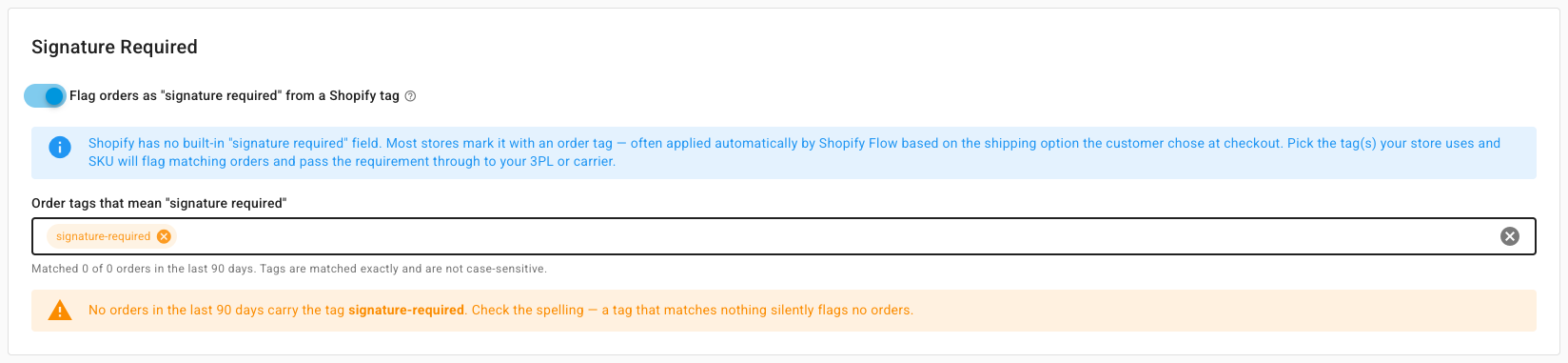
In the Signature Required card, turn on Flag orders as "signature required" from a Shopify tag.

-
In Order tags that mean "signature required", pick the tags your store uses, or type one and press Enter. Tags seen on your orders are listed with how many orders carry them.
-
Check the line below the field. It says how many of your last 90 days of orders match. A tag that matches no orders gets a warning, because it would silently flag nothing.
-
Click Save Settings at the bottom of the Shipping Settings card.
What you'll see: imported orders that carry one of the tags show a Signature required chip. Tags match the whole tag, ignoring case, never part of one.
If the tag is added or removed in Shopify later, SKU.io updates fulfillment orders that haven't been submitted yet, but never one where you set the flag by hand. Turning the setting off stops new orders being flagged and leaves existing flags alone.
Set it on one fulfillment order
- Open the sales order and go to the Fulfillment tab.
- On the fulfillment order, click Edit fulfillment order.
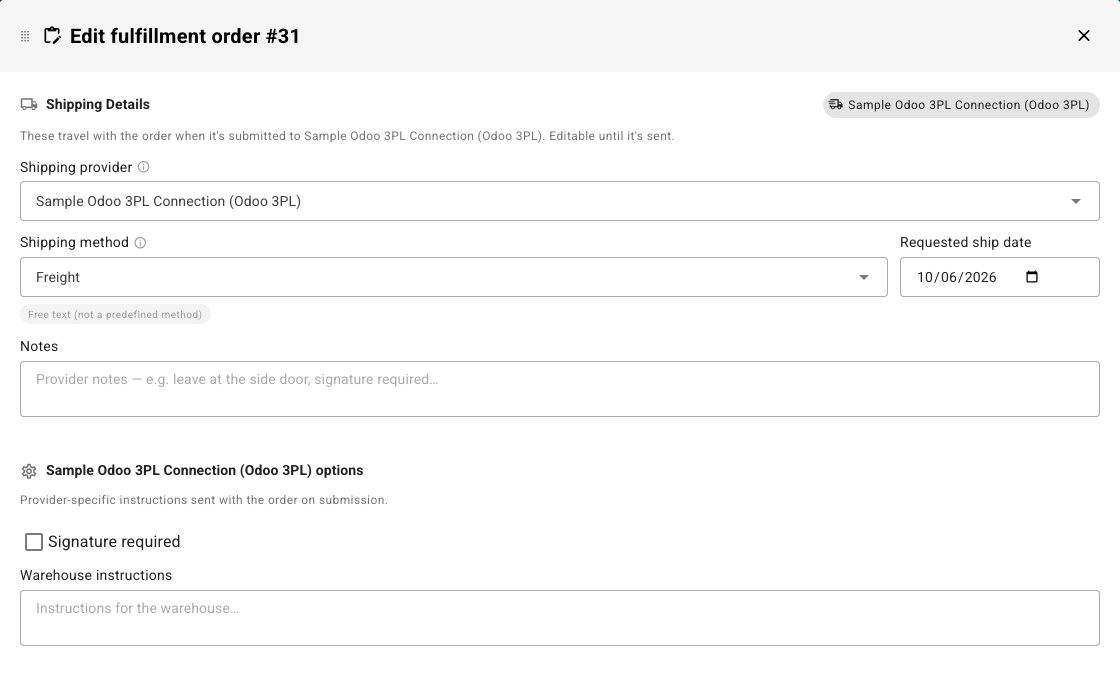
- Pick the Shipping provider. Under the provider's options, tick Signature required.
- For Amazon MCF, the same choice is the Signature confirmation (US only) feature under Amazon MCF options. Amazon charges extra for it, and offers it on the US marketplace only.
- For Odoo 3PL, a Warehouse instructions box sits under the checkbox. Whatever you type there goes to the 3PL as the delivery note.
- Providers that can't take the instruction show no checkbox.
- Click Save changes, then submit the order as usual.
When you submit a signature-required order to a provider that can't take the instruction, the submit dialog warns that it will ship without one. It doesn't stop you.
Add or remove it after submitting (Odoo 3PL)
Odoo 3PL accepts a change after the order has reached it, until it starts picking.
- On the submitted fulfillment order, open the actions menu.
- Choose Require signature, or Remove signature requirement.
- Confirm. SKU.io updates the 3PL straight away.
If the 3PL has already started the order, it refuses the change, and the fulfillment order stays as it was. The choice is yours from then on: a later tag change from Shopify doesn't override it.
For Odoo 3PL, the fulfillment order's Warehouse instructions go with it as the delivery note. Its general Notes stay internal.