Flag problem shipping addresses
Address checks catch shipping addresses that are likely to fail delivery before the parcel leaves: a missing street or postcode, a PO Box your courier can't reach, a postcode that doesn't fit the country. Each order is checked against rules you control, and a match shows up as a badge on the order, a tag you can filter on, and a warning on the packing slip.
Address checks use the order's own address data. They don't look the address up with a postal or courier service, so a well-formed address that doesn't exist still passes.
Before you begin
- You need permission to change settings.
Turn address checks on
- Go to Settings, open Fulfillment, and choose Address Checks.
- Turn on Enable address checks.
- Leave Skip checks for pickup orders on. Pickup orders have no delivery address to check.
- Click Save Changes.
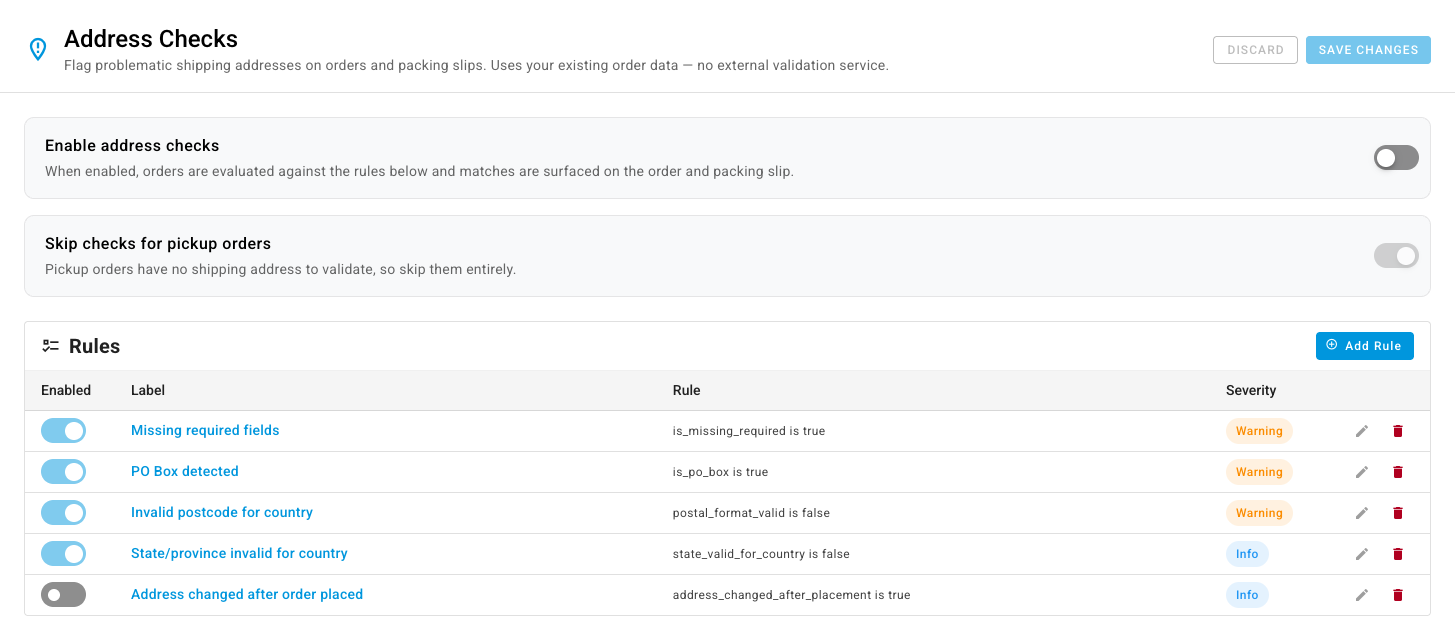
Review the starting rules
The Rules table lists each rule with its Label, the Rule it tests, its Severity, and whether it's Enabled. You start with these:
| Rule | Flags an address when… | Starts as |
|---|---|---|
| Missing required fields | name, street, city, postcode, or country is empty | Warning, on |
| PO Box detected | the address is a PO Box | Warning, on |
| Invalid postcode for country | the postcode doesn't look valid for the country | Warning, on |
| State/province invalid for country | the state or province doesn't look valid for the country | Info, on |
| Address changed after order placed | someone changed the address after the order came in | Info, off |
Untick Enabled on any rule you don't want, and click Save Changes.
Add your own rule
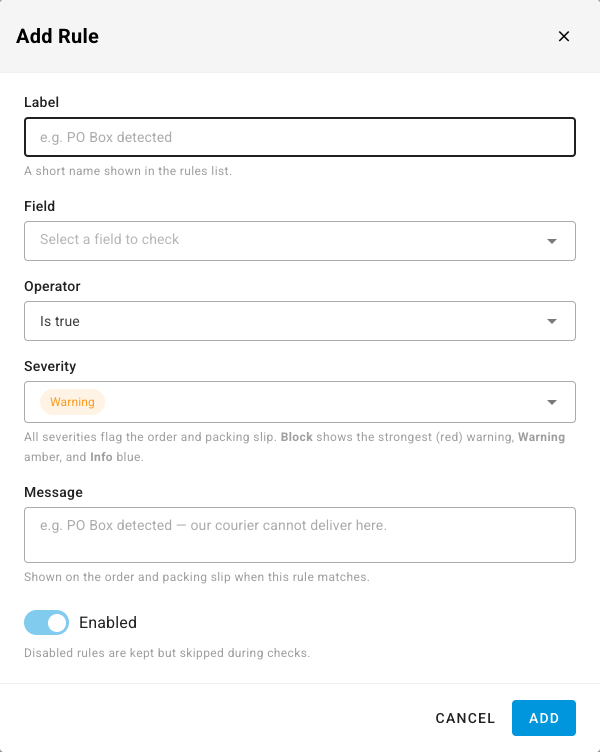
- Click Add Rule.
- Enter a Label, for example
Island postcode. - Pick the Field to check. Address fields test the address text (name, company, address lines, city, state code, postcode, country code, phone). Computed checks test a yes-or-no signal, such as Is PO Box.
- Pick an Operator, such as Contains, Starts with, Matches regex, or Is one of, and enter the value. For Is one of, separate values with commas. Computed checks use Is true or Is false.
- Choose a Severity: Info, Warning, or Block.
- Write the Message your warehouse staff will see, for example
Island delivery — use the freight courier. - Click Add, then click Save Changes on the page.
What you see on an order
When an order's address matches an enabled rule:
- The order header shows an Address warning badge, or Address blocked in red when a Block rule matched. Hover over it to read each rule's message.
- SKU.io tags the order Address Warning, so you can filter the sales orders list to every order that needs a look. The tag is added when the order comes in or its address changes, and it's removed once the address is fixed.
- The packing slip can print the warning. See Print and share documents.
Every severity flags the order and the packing slip; Block shows the strongest, red warning. A Block rule marks the order Address blocked, but it doesn't stop you or your automation from submitting or shipping it. Filter on the Address Warning tag and fix those addresses before you dispatch.
Next steps
- View and edit a sales order — correct the shipping address.
- Work the fulfillment board