Create a stock take & add items
A stock take is a physical count you record against a warehouse so SKU.io can reconcile what's on the shelf with what the system thinks you hold. Creating one is the first step: you open a draft, choose the warehouse and how the count should behave, then fill it with the products you're going to count. Nothing moves stock yet — a stock take is fully editable in Draft until you initiate the count and finalize it.
This guide covers starting a stock take from scratch, bulk-creating one from a set of products, adding items by search or scan, importing count lines from a spreadsheet, and the rules that govern an initial (opening-balance) count.
- Draft — a newly created stock take. Editable, holding no inventory effect, until you initiate it.
- Full count — you record the counted quantity for each item; SKU.io compares it to a snapshot and calculates the variance.
- Adjustment — you record a +/- delta directly, without snapshotting inventory.
- Initial count — a one-time opening-balance count that establishes a warehouse's starting stock as of your inventory start date.
- Blind count — a full count that hides system on-hand quantities from the counter so the count isn't anchored to expectations.
Before you begin
| Requirement | Why it's needed |
|---|---|
Count inventory permission (inventory.count) | Every create, import, and item action on this page is gated by it. |
| A standard warehouse — a Direct or 3PL type | Stock takes run only against warehouses you physically hold and count. Amazon-managed and other channel-managed warehouses are rejected (see Warehouse must be countable). |
| Products of type Standard or Kit, not archived | Only these can be counted. Service, bundle-component, and archived products are excluded from search and skipped on import. |
| (Initial counts only) An inventory start date | An opening balance is dated as of the day inventory tracking begins. Without a start date there's nothing to anchor it to, so SKU.io refuses the count. Set it in product inventory settings. |
Create a stock take
The New Stock Take dialog captures the count's scope. You add products afterward on the stock take's own page.
-
Go to Inventory → Stock Takes.
-
Click New Stock Take. The dialog opens.
-
In Warehouse, select the warehouse you're counting. This is required, and the list shows only countable (Direct and 3PL) warehouses.
-
Choose a Mode:
- Full Count — you'll enter the quantity you counted for each item. SKU.io freezes a snapshot when you initiate and calculates each variance for you.
- Adjustment — you'll enter a +/- quantity change directly. No snapshot is taken; the delta posts as-is. Set the Adjustment Date, the date the adjustment occurred.
A date inside a month you've closed shows "March 2026 is closed. Saving this will restate it and ask for re-sign-off." under the field. You can still save. The month is restated and shows Closed – restated. The same warning appears under Retroactive Count Date when you initiate a full count. A date on or before your hard close date is refused.
-
(Full counts only) To run a Blind count, select Blind count — hide system quantities from the counter. The counter enters what they see without the system's on-hand number visible.
-
(Optional) Add Notes to describe the purpose of the count.
-
Click the create button.
What you'll see: SKU.io creates the stock take in Draft and opens it. It holds no inventory effect yet — you can add, remove, and re-scope items freely until you initiate the count.
Adjustment-mode takes never snapshot inventory, so there's nothing to hide — the Blind count option appears only for a non-initial full count.
To learn what happens after Draft — snapshotting, variances, and reconciliation — see How stock takes work. To move a draft forward, see Count stock.
Warehouse must be countable
A stock take represents a physical count you perform, so it only accepts a warehouse you physically stock and count — a Direct or 3PL warehouse. If you pick a channel-managed warehouse (an Amazon FBA, AWD, or WFS location, where Amazon owns the physical count), SKU.io rejects it with a message naming the warehouse and its type. Reconcile channel-managed stock through the channel's own inventory feed, not a manual stock take.
Start an initial (opening-balance) count
An initial count establishes a warehouse's starting inventory — the opening balance SKU.io builds all future movement on top of. It behaves differently from an everyday count in three ways, all enforced for you:
- It's always a full count — the Mode selector is hidden.
- Its Count Date is pinned server-side to your inventory start date and shown read-only. You can't backdate or forward-date an opening balance.
- It's unique per warehouse and condition — see One initial count per warehouse.
To start one:
- In the New Stock Take dialog, select the Warehouse.
- Select Initial Count. The Mode selector disappears, and the Count Date fills in from your inventory start date.
- (Optional) Enter a Condition — a label such as
SELLABLEorDEFECTIVE— to record a separate opening balance for stock in that condition. Leave it blank for a single, condition-less opening balance. - Add the products (see Add items below), then create the count.
Selecting Initial Count fetches your inventory start date. If none is set, SKU.io can't anchor the opening balance and refuses to create the count. Set the start date in product inventory settings first.
One initial count per warehouse and condition
Each (warehouse, condition) pair can have exactly one initial count — you can't establish two opening balances for the same stock. The dialog checks this as soon as you pick a warehouse (and condition): if one already exists, the Initial Count option is disabled and a message names the existing stock take. If a duplicate slips past the pre-check, the server rejects it too, naming the conflicting stock take number.
| Scenario | Result |
|---|---|
| First initial count for a warehouse | Created; date pinned to the inventory start date. |
| First initial count for a new condition on the same warehouse | Allowed — condition makes the pair unique (for example, one SELLABLE and one DEFECTIVE). |
| Second initial count, same warehouse and condition | Rejected, naming the existing stock take. |
| Initial count with no inventory start date set | Rejected — set the inventory start date first. |
The full status and field lookup lives in the stock take reference.
Bulk-create a stock take from products
When you already know the products to count, start the stock take straight from the product list instead of adding items one by one.
- Go to PIM → Products (or the product inventory list).
- Select the products to count — tick individual rows, or filter the list and select all matches.
- From the bulk-actions menu, choose Stock Take.
- In the dialog, pick the Warehouse, the Mode (Full Count or Adjustment), and, if this is an opening balance, Initial Count.
- Confirm. SKU.io creates a draft stock take pre-loaded with one item per selected product and opens it.
Duplicate products are collapsed — selecting the same product twice (or via overlapping filters) yields a single item.
Seeded unit cost
For an adjustment-mode bulk create, SKU.io pre-fills each item's Unit Cost with the product's best-available cost at that warehouse — walking FIFO layers, the weighted-average cache, and the product's unit cost in that order — so the count opens with a cost basis instead of a blank column. Two cases don't seed:
- Full counts capture cost when you initiate the count and freeze inventory, not at creation — so their Unit Cost opens blank by design.
- Negative adjustments (removing stock) ignore any seeded cost; their cost is realized from the FIFO layers actually consumed at finalization.
For how those layers and costs work, see FIFO layers and how COGS is realized.
Add items to a stock take
On a draft stock take, use Quick Add Product to add items by search or scan.
- On the stock take page, open Quick Add Product.
- In Search Product, type a SKU, name, or barcode. Results are limited to Standard and Kit products that aren't archived. Exact SKU and barcode matches rank first.
- (Optional) Turn on In stock only to limit results to products holding stock at this warehouse.
- Select the product. Its available, allocated, on-hold, and on-hand quantities show for reference.
- Enter the quantity — Qty Counted for a full count, or Adjustment Qty (+/-) for an adjustment — and adjust Unit Cost if needed. When the product's Default Cost was entered in another currency, the cost offered here is converted at the rate on the stock take's date, not today's. Barcode Scan fills in costs the same way.
- Add the item. The search clears and refocuses so you can scan or type the next product without touching the mouse.
Because search matches on barcode and refocuses after each add, a handheld scanner works as a rapid add loop: scan, enter quantity, add, scan the next.
The quantities shown on each result — Available, Allocated, On Hold, and on-hand — are the live stock states. (SKU.io has no separate "reserved" state; committed stock shows as Allocated.)
Import count lines from a spreadsheet
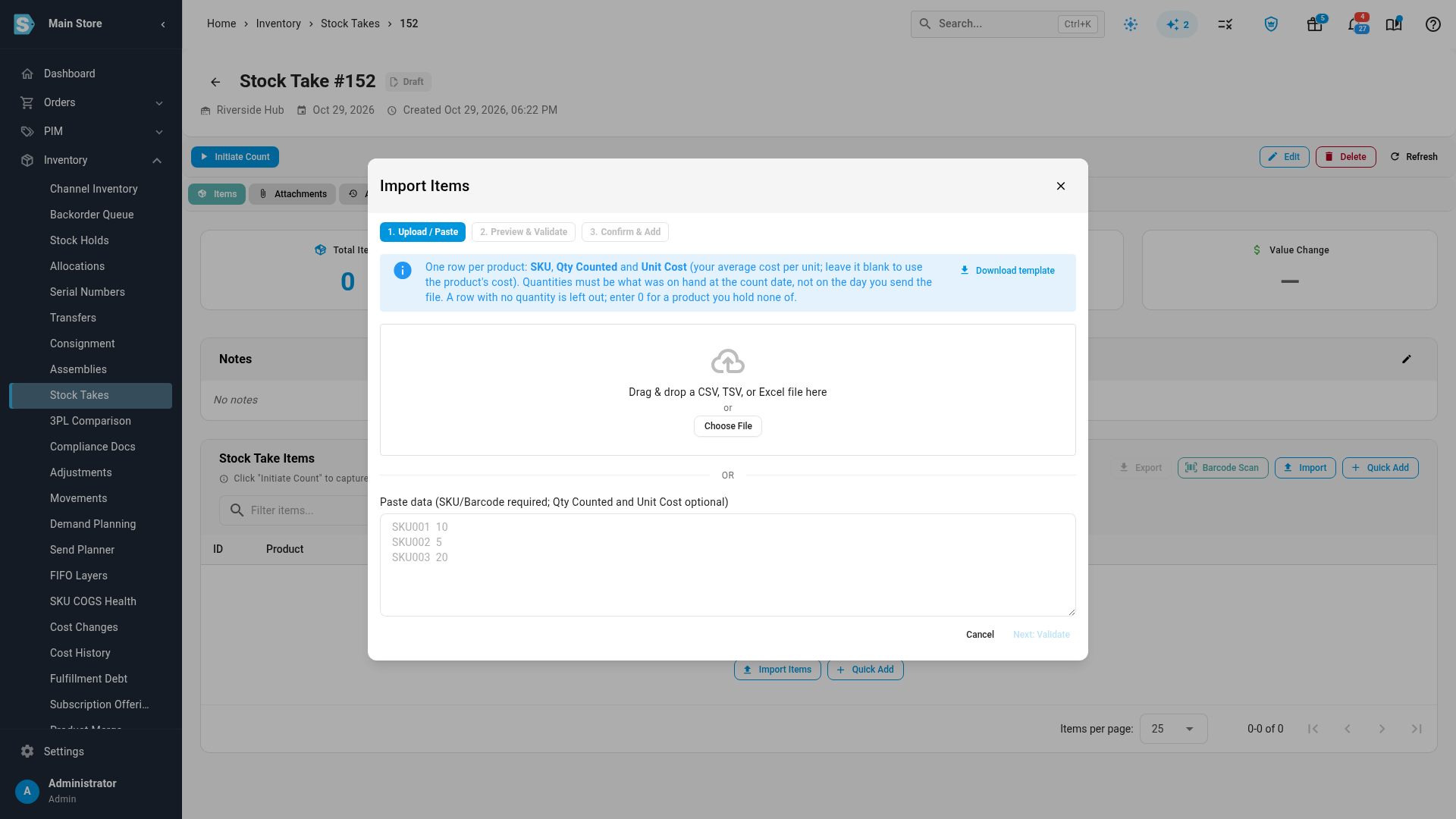
For a large count, import the lines instead of adding them one at a time. Import Items on a draft stock take reads a CSV, TSV or Excel file, or rows pasted from a spreadsheet, in three steps: Upload / Paste, Preview & Validate, and Confirm & Add.
Start from the template
Click Download template in the blue hint at the top of the dialog. You get a CSV with one row for every product you can count, ready to fill in:
| Column | Fill it in? | Notes |
|---|---|---|
| SKU | Already filled | The product's SKU. A barcode also works here if you build your own file. |
| Name | Already filled | For whoever does the count. The import ignores it. |
| Warehouse | Already filled | The stock take's warehouse, so nobody counts the wrong building. The import ignores it. |
| Qty Counted | Yes | How many you counted. On an Adjustment stock take this column is Adjustment instead, and takes a plus or minus amount. |
| Unit Cost | Optional | Your average cost per unit. Leave it blank to use the product's own cost. |
| Count As Of | Already filled | The moment the quantities must reflect. The import ignores it. |
The template lists every active Standard and Kit product, sorted by SKU. If the stock take already has items, it lists only those items.
Count As Of is the stock take's count date, or for an opening count, the end of the day before your inventory start date (for example, "End of day 2026-10-31 (start of 2026-11-01)"). Quantities must be what was on the shelf at that moment, even when you send the file days later. Stock that shipped or arrived after that moment belongs on its own orders and receipts, not in the count.
Leave a quantity blank to skip that product. A row with no quantity isn't imported, and the dialog tells you how many rows it left out. Enter 0 for a product you hold none of: 0 is a count, and finalizing the stock take sets that product's stock to zero.
Import the file
- On the stock take page, click Import Items (or Import in the Stock Take Items toolbar).
- Drag the file onto the dialog, click Choose File, or paste the rows into Paste data. Excel files are read from their first sheet.
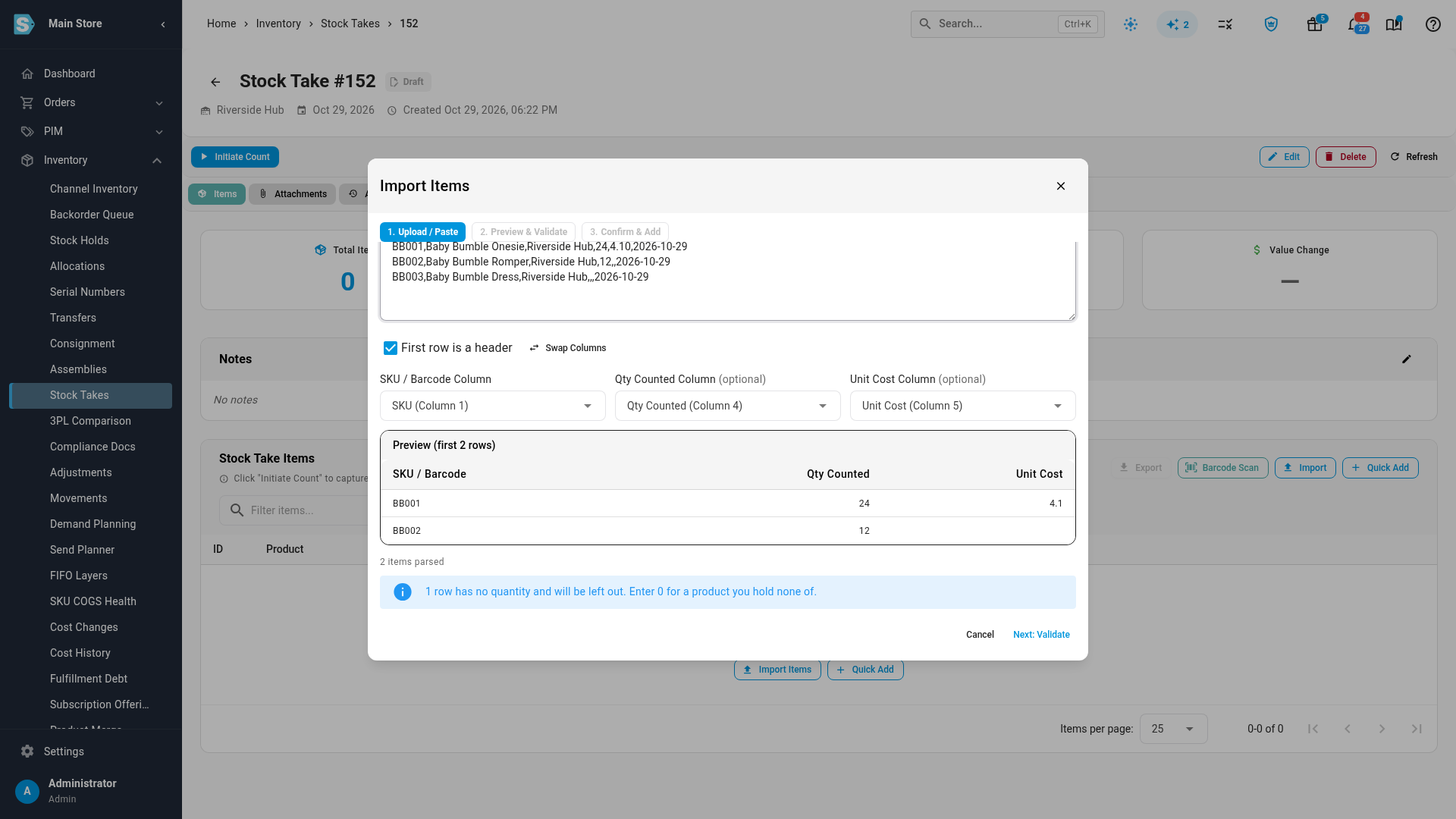
- Check the column mapping. SKU.io matches the template's SKU, Qty Counted and Unit Cost headers on its own. For your own file, pick the SKU / Barcode Column, and optionally the Qty Counted Column and Unit Cost Column. Clear First row is a header if your data has no header row.
- Review the Preview, which shows the first rows as SKU.io read them, and the count of items parsed.
- Click Next: Validate. SKU.io looks up every SKU and barcode and sorts them into products it found, products it couldn't find, and products it skipped.
- Click Next: Confirm, check the list, then click Add N Items.
What the import checks
| Situation | Result |
|---|---|
| The same SKU on more than one row | Combined into one line, with the quantities added together. |
| A row with no quantity | Left out of the import. The dialog says how many. |
| A SKU or barcode matches no product | Listed as not found. The rest of the file still imports, and you can copy the unmatched SKUs to fix them. |
| A SKU belongs to a bundle or another product that holds no stock | Skipped, with the reason. Only Standard and Kit products can be counted. |
| No row matches a product | Nothing can be added. Next: Confirm stays unavailable. |
One import can look up as many as 5,000 SKUs or barcodes.
Next steps
- Count stock — initiate the count, enter or re-baseline quantities, and snapshot inventory.
- Finalize a stock take — reconcile the count and post the adjustments.
- Amend a stock take — re-date, reverse, or delete a count after the fact.
- How stock takes work — the model behind draft, snapshot, variance, and reconciliation.
- Stock take reference — every status, field, and list column.
Video transcript
To count a warehouse, open Inventory in the sidebar, then Stock Takes. Each row here is a stock take, with its status, its warehouse and the date it covers. To start a new one, click New Stock Take, the blue button at the top right of the page. First, pick the warehouse from the Warehouse list, typing part of its name to narrow the choices. Leave the mode on Full Count, which records exactly what's on the shelf. For a warehouse's very first stock take, you would also tick Initial Count, so it sets the opening balance. When the details look right, click Create Stock Take. The new stock take opens as a draft, still empty. Click Import Items to bring in all your quantities at once. The blue note at the top explains each column. Download template gives you a file listing every product you can count, with its warehouse already filled in. Its Count As Of column gives the moment your quantities must reflect. Fill in Qty Counted for each product you counted, then drop the file here, or paste its rows. The template's columns are matched for you. A row with no quantity is left out, so for a product with no stock, enter zero. Click Next: Validate to look up every product in the file. Then click Next: Confirm, check the products it found, and click Add Items to put them on the stock take. They now appear in the list, and when you're ready, you can initiate the count from the top of the page.