Sign in on a shared scanner
On a shared warehouse scanner, you sign in by scanning your badge. Nobody types a password, the scanner shows only the warehouse tasks you're allowed to do, and it signs you out when it's left idle. The next person signs in with one scan of their own badge.
Before you begin
- An admin has enrolled the scanner as a kiosk device. See Add a shared scanner.
- You have a badge. See Issue badges.
- Your role includes Use Floor mode (
floor.use).
Steps
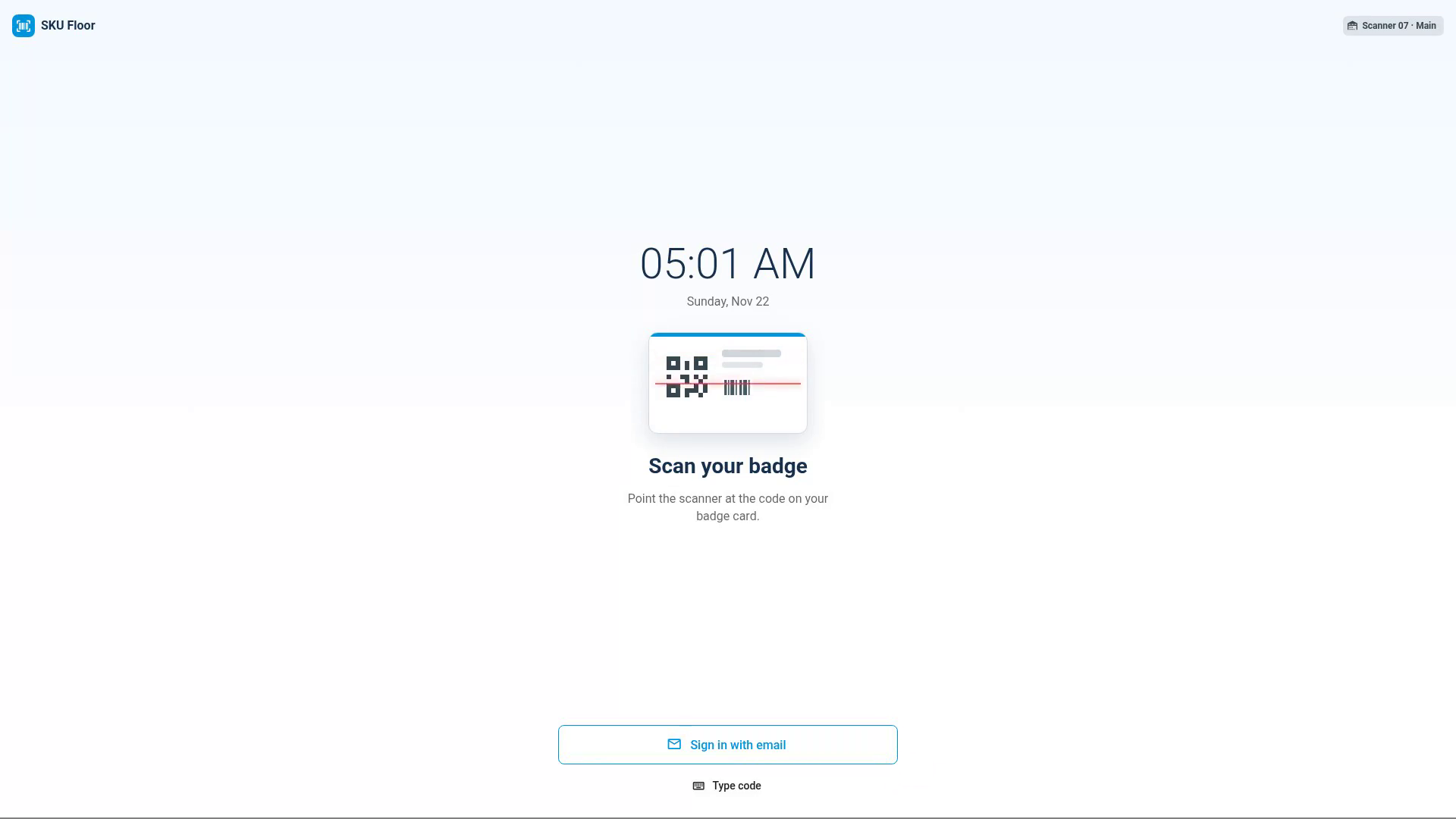
- Pick up the scanner. It shows the badge screen, with Scan your badge, the scanner's name and its warehouse.
- Scan the code on your badge card. You land on the Floor mode home, signed in as you.
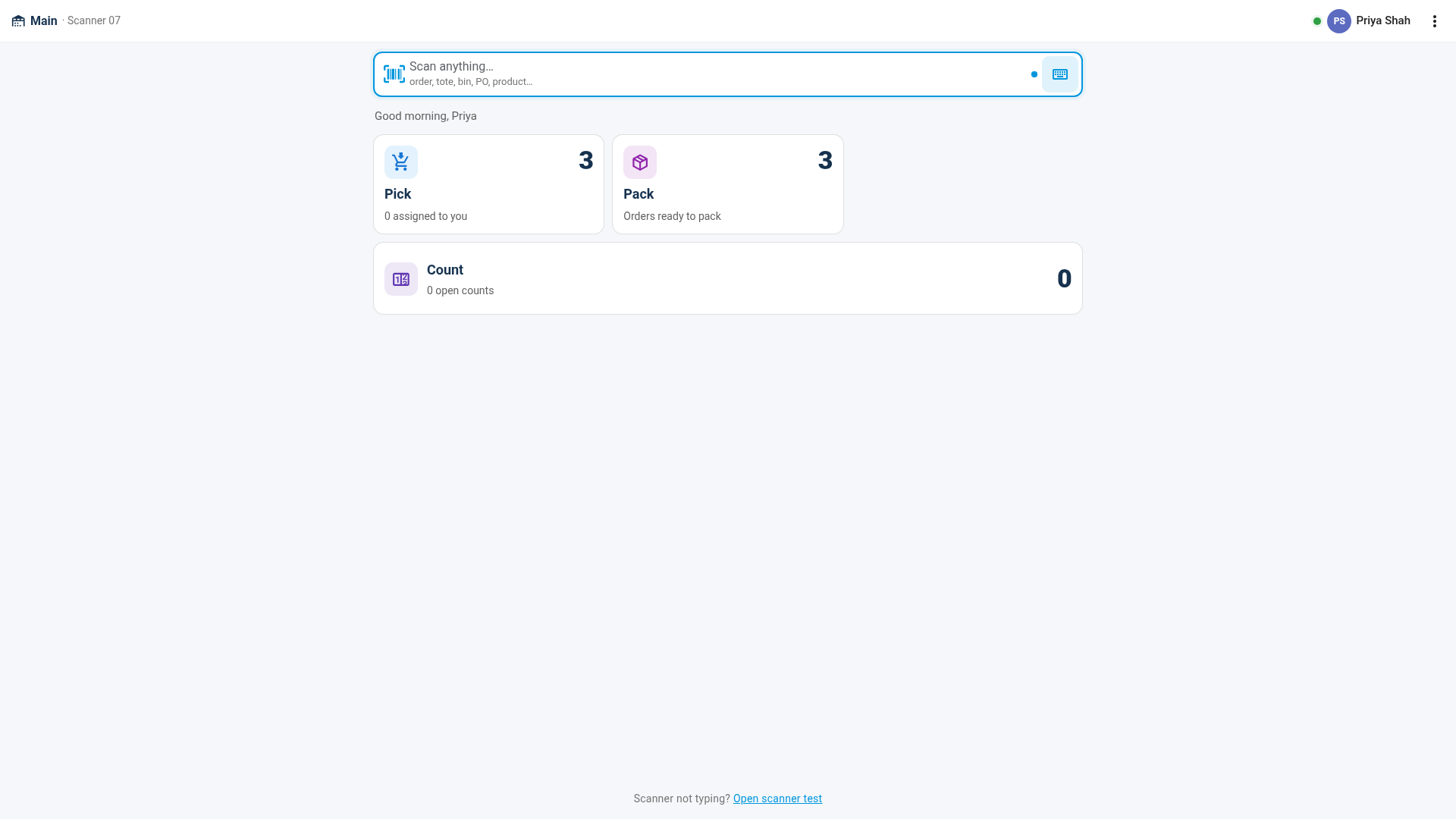
- Tap a tile, such as Pick or Pack, or scan anything on the home screen to jump straight to it.
- To hand the scanner over, the next person scans their badge.
- When you're done, open the menu at the top right and choose Sign out.
The Floor mode home
The top bar shows the warehouse, the scanner's name, a dot that's green while you're online, and your name. Each tile is a task with a count of the work waiting:
| Tile | Opens |
|---|---|
| Pick | The pick lists to work in this warehouse. Scan a pick list's number, or tap one. See Report an empty bin with Not here. |
| Pack | The pack station, with the orders ready to pack. See Pack orders at the pack station. |
| Put away | The products waiting for a bin. |
| Receive | Open purchase orders, inbound shipments and transfers. Scan a PO, ASN or transfer number to receive it. |
| Count | Open bin counts, with the bins reported empty first. |
You only see the tiles that both your role and this scanner allow. Scan anything at the top takes whatever you scan to the right place: a pick list opens the pick, an order or tote opens it at the pack station, a PO or transfer opens receiving, a bin opens its count, and a product shows how many are in each bin. If nothing matches, the scanner beeps and tells you.
Hand the scanner to someone else
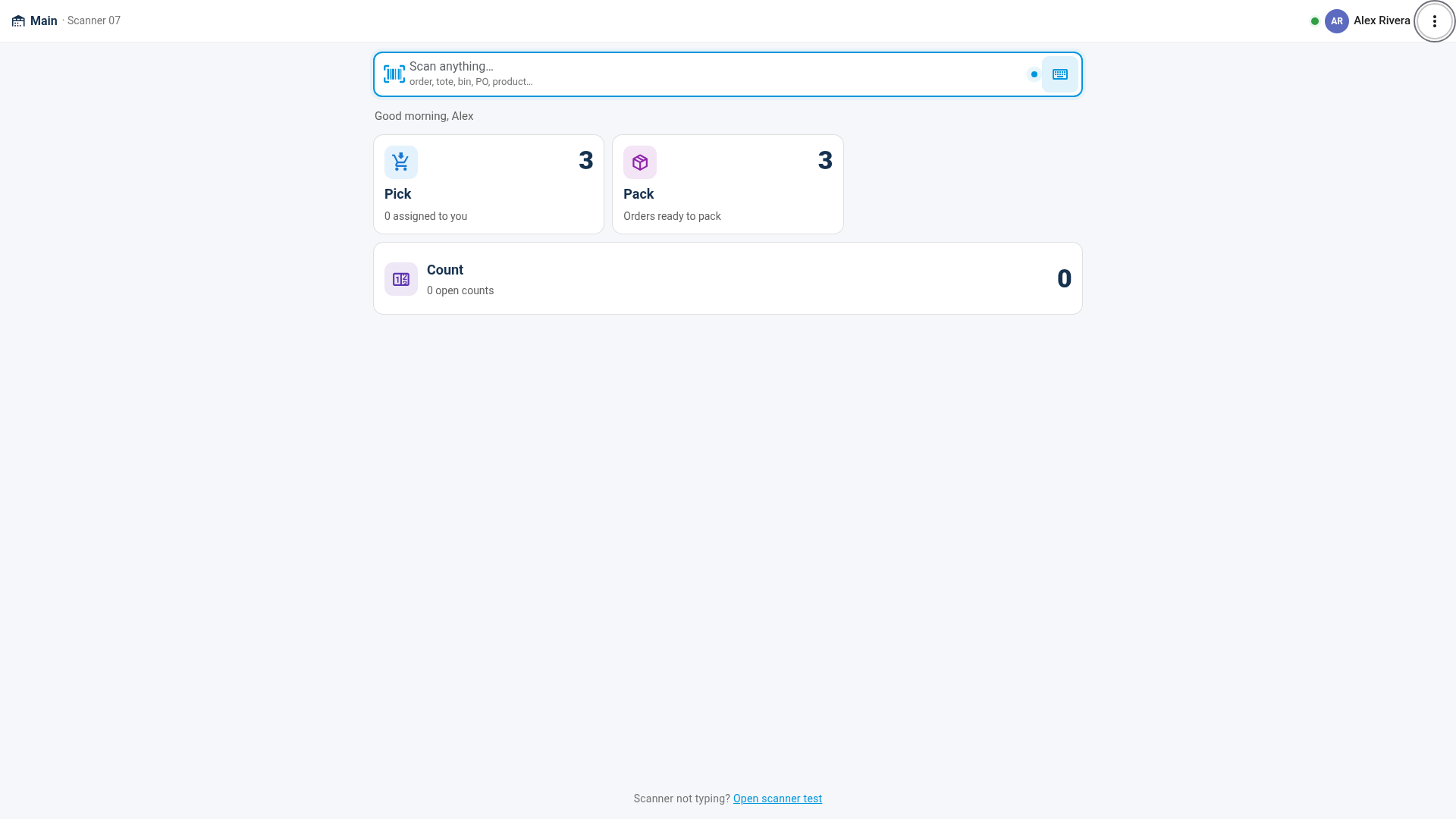
The next person just scans their badge, on any Floor mode screen. You're signed out, they're signed in, and their name shows in the top bar.
If you're partway through a pick or a pack, the scanner first asks Hand over to name? Your progress is saved, so choose Hand over, or Stay as you to keep working. Scans that haven't saved yet (for example, while the scanner is offline) are discarded when you hand over, and the dialog says so.
You can also open the menu at the top right and choose Switch user, which returns to the badge screen.
When the scanner signs you out
Each scanner has an idle time, 5 minutes unless an admin changed it. Every scan or tap restarts it. Thirty seconds before it runs out, a full-screen Still there? counts down; tap I'm here to stay signed in. Otherwise you're signed out and the scanner goes back to the badge screen, so the next person never lands on your work. A scanner that was asleep through the countdown is signed out the next time it's used. A session also ends after 12 hours.
Signing out never loses work: picks, packs and counts save as you scan.
Sign in without a badge
If the scanner allows it, tap Sign in with email on the badge screen and sign in with your email and password. If your account uses two-factor, you're asked for your code. Your session is still limited to Floor mode.
If your badge doesn't work
The badge screen beeps and shows the reason in red:
| Message | What to do |
|---|---|
| Badge not recognised. Ask a manager for a new one. | The badge was replaced or revoked. Ask for a new badge. |
| … doesn't have access to Floor mode. | Ask an admin to add Use Floor mode to your role. |
| This badge's user can't sign in here. | Your user is inactive, or isn't part of this account. |
| Too many attempts. Wait a minute. | Too many failed scans in a row. Wait a minute and try again. |
| This scanner was removed by an admin | The scanner was revoked. An admin has to enroll it again. |
Install the SKU Floor app
On Android, install Floor mode as its own app, SKU Floor. It opens full-screen, straight to Floor mode, with its own icon.
- Open SKU.io in Chrome on the scanner.
- Tap Install app after enrolling, Install SKU Floor on the Floor mode home, or Install SKU Floor in the Floor mode menu.
- Confirm in Chrome's prompt.
If you don't see an Install button, open Chrome's menu (⋮) and choose Add to Home screen or Install app. Once the app is installed, the Install buttons disappear. Desktop Chrome and Edge on a pack bench can install SKU Floor the same way.
Use a hardware scanner or the camera
Floor mode reads a built-in or Bluetooth scanner as a keyboard. Each scan types the code and presses Enter, and you don't need to tap a field first, so the on-screen keyboard stays out of the way. Most scanners do this out of the box; it's often called keyboard wedge or keystroke output.
To check a new scanner, open the menu at the top right and choose Scanner test, or tap Open scanner test at the bottom of the home screen. Each scan shows the characters it typed and whether it ended with Enter. The test page also has setup notes for Zebra (DataWedge), Honeywell, Urovo and Bluetooth scanners.
Without a hardware scanner, use the camera button next to a scan field, which reads barcodes with the phone's camera in Chrome on Android. The camera button disappears once the scanner has read a hardware scan. Wherever you can scan, you can also tap Type code and type it.
Next steps
- Report an empty bin with Not here
- Pack orders at the pack station
- Create & work a pick list: how the pick screen works.
Video transcript
A shared scanner that an admin has enrolled opens on this badge screen. It shows the scanner's name and its warehouse. To sign in, just scan the code on your badge card with the scanner. Nobody types a password, and nothing needs tapping first. You land on the Floor mode home, signed in as you. Each tile is a task, with a count of the work waiting. You only see the tasks your role and this scanner allow. Scan anything here, like an order or a bin, to jump straight to it. To hand the scanner to someone else, they just scan their own badge, on any Floor mode screen. You're signed out, and they're signed in, in one step. If you're partway through a pick or a pack, it asks before handing over, and your work is saved. The menu at the top right has Switch user, the scan sound, a scanner test, and Sign out. If nobody scans or taps for the scanner's idle time, it warns you, then signs you out. The next person starts from the badge screen.