Pack orders at the pack station
The pack station checks each order before it ships. You scan the order, scan every item to prove the right things are in the box, choose the cartons, and ship it: buy and print a Shippo label, mark it packed for the shipping provider that makes its label, or ship it manually. The packing slip prints as you go. It works on a handheld scanner, and on a desktop pack bench with a scanner, where the queue and the order sit side by side.
Before you begin
- Turn on Pack before shipping in the Floor mode settings. Then a completed pick list's Send to pack puts its orders in the pack queue instead of shipping them.
- Your role includes Pack & ship at the pack station (
packing.pack). - To choose a box with a tap, add your boxes. Without them you type each carton's dimensions.
- To buy labels at the pack station, connect a Shippo account. Orders that ship through another provider, such as a 3PL or shipping app, are marked packed here and get their label there.
Steps
- Open Inventory → Floor mode, and tap Pack.
- Scan the order's packing slip, or its order number, pick list or tote.
- Scan each item until every line is verified, then click Next: Cartons.
- Tap or scan the box for each carton, then click Next: Ship.
- Click Buy & print label, Mark packed, or Mark packed & shipped.
Send orders to the pack queue
With Pack before shipping on, picking works as usual. When a pick list is complete, tap Send to pack instead of fulfilling it, and confirm. The pick list closes, and its orders appear in the pack queue for the warehouse.
Open the pack station
Open Inventory → Floor mode. On your own computer, choose the warehouse you're in the first time; you can switch from the top bar later. Tap Pack.
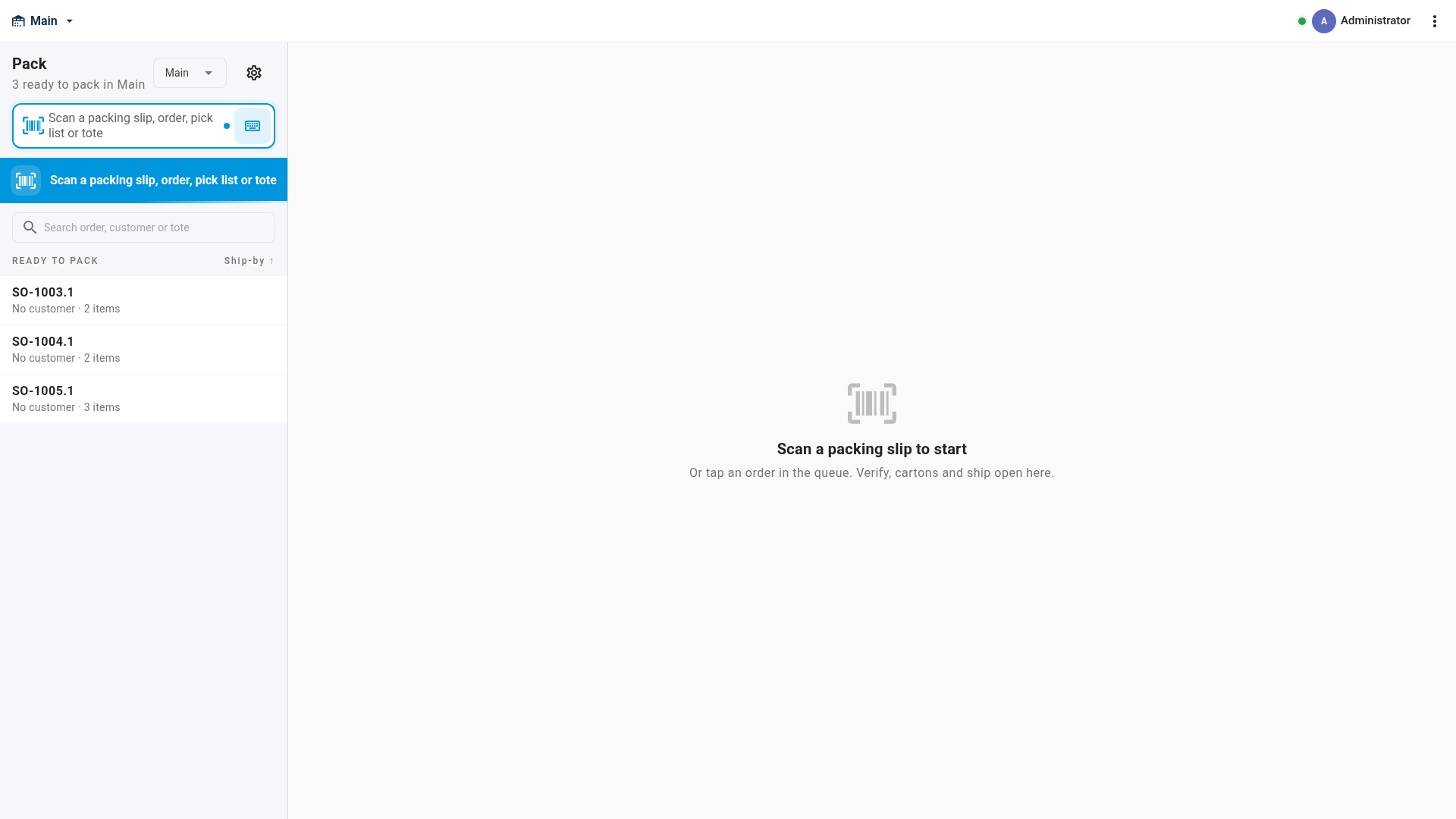
The Ready to pack queue lists every order in the warehouse that's been picked and sent to pack, earliest ship-by date first. Search it by order, customer or tote. An order someone else is packing shows Being packed.
Verify the items
- Scan the order's packing slip. You can also scan the order number, a pick list (and choose its order), or the tote the order was picked into. Or tap the order in the queue.
- The order opens on Verify, with each item and a counter such as 0 / 2. Scan each item. Every scan adds one, with a beep, and a line turns green when it's complete. To enter a large quantity, press and hold the line and type it.
- When every line is verified, click Next: Cartons. It stays unavailable until then, with a hint saying how many items are left.
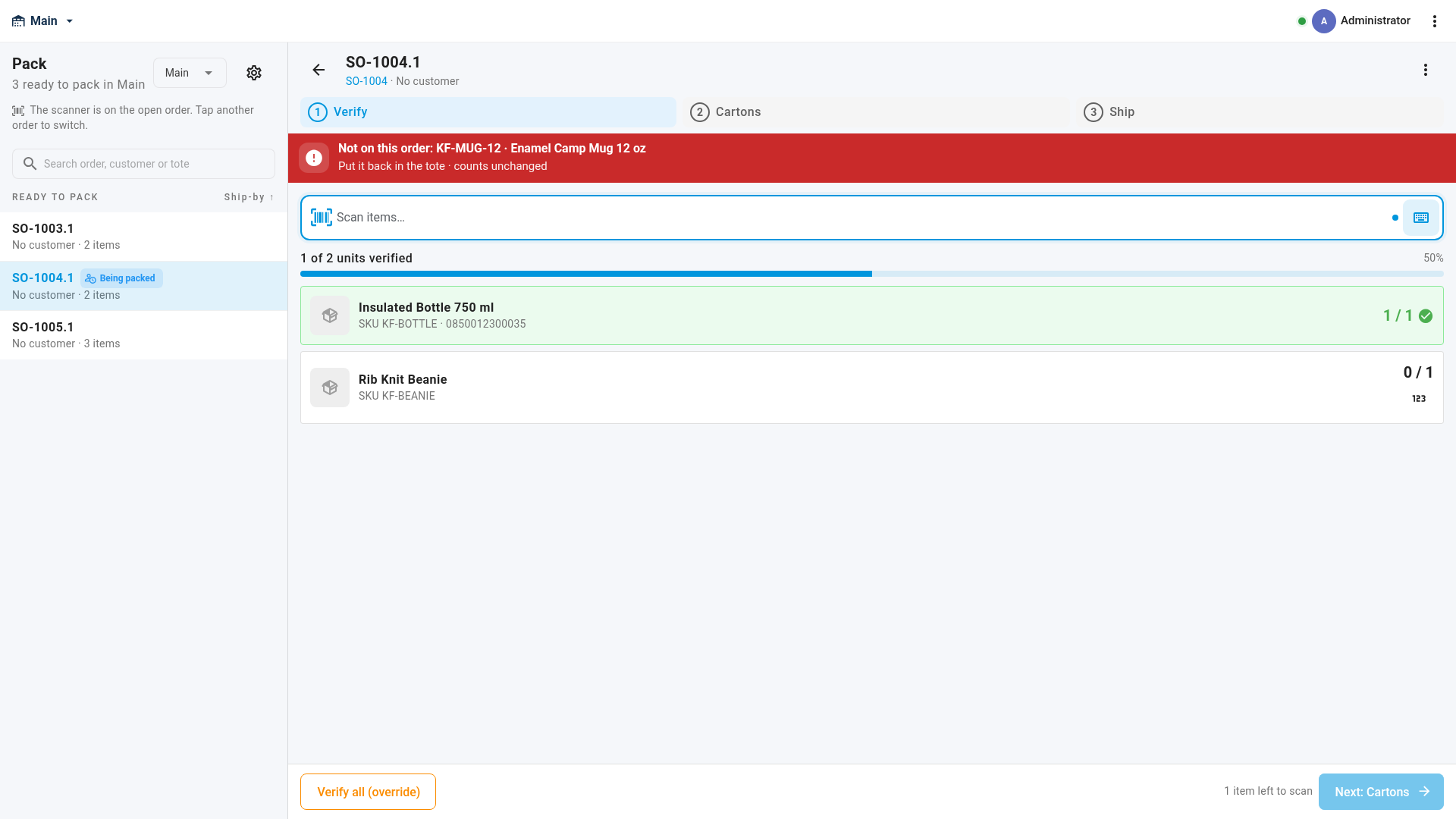
A wrong scan changes nothing, and the scanner sounds an error:
| You scan | You see |
|---|---|
| An item that isn't on the order | Not on this order: SKU and name. Put it back. |
| One more of an item than the order needs | Only 1 of SKU on this order. Take the extra one out. |
Products with serial numbers ask for a serial scan for each unit. Your counts save as you scan, so you can switch devices or come back later.
People with Skip item verification when packing (packing.override) can click Verify all (override) instead, and give a reason. The reason is saved with the pack.
Choose the cartons
Everything goes in one carton to start with.
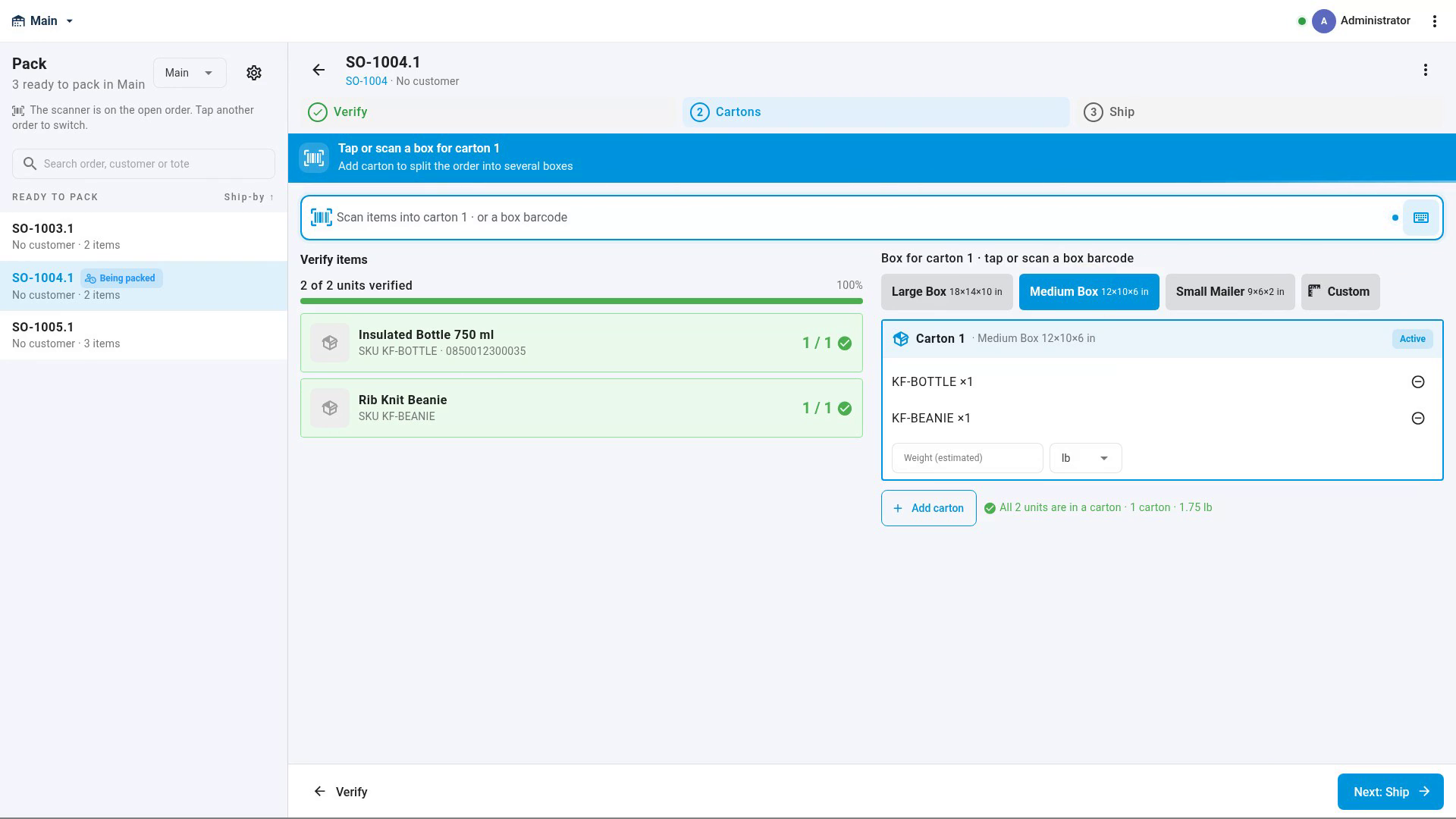
- Tap the box you're packing into, or scan the barcode on the box. Choose Custom to type the dimensions.
- SKU.io estimates the weight from the products and the box's empty weight. Type the real weight if you weigh it.
- To split the order across boxes, click Add carton, choose its box, and scan the items that go in it. Each scan moves one unit into the active carton. You can have up to 20 cartons.
- When every unit is in a carton, click Next: Ship.
Ship the order
The Ship step offers what fits the order:
| Button | Shown when | What it does |
|---|---|---|
| Buy & print label | Shippo is connected and the order can ship through it | Lists Shippo's rates for your cartons, with the order's requested service or the cheapest chosen. Click it to buy the label. The label prints, or downloads as ZPL for a thermal printer, and the order is shipped with its tracking number. |
| Mark packed | The order ships through another provider | Records that the order is packed, with its cartons. The provider makes the label, as before. |
| Mark packed & shipped | The order has no shipping provider | Ships the order manually, from the bins it was picked from, and records its cartons. |
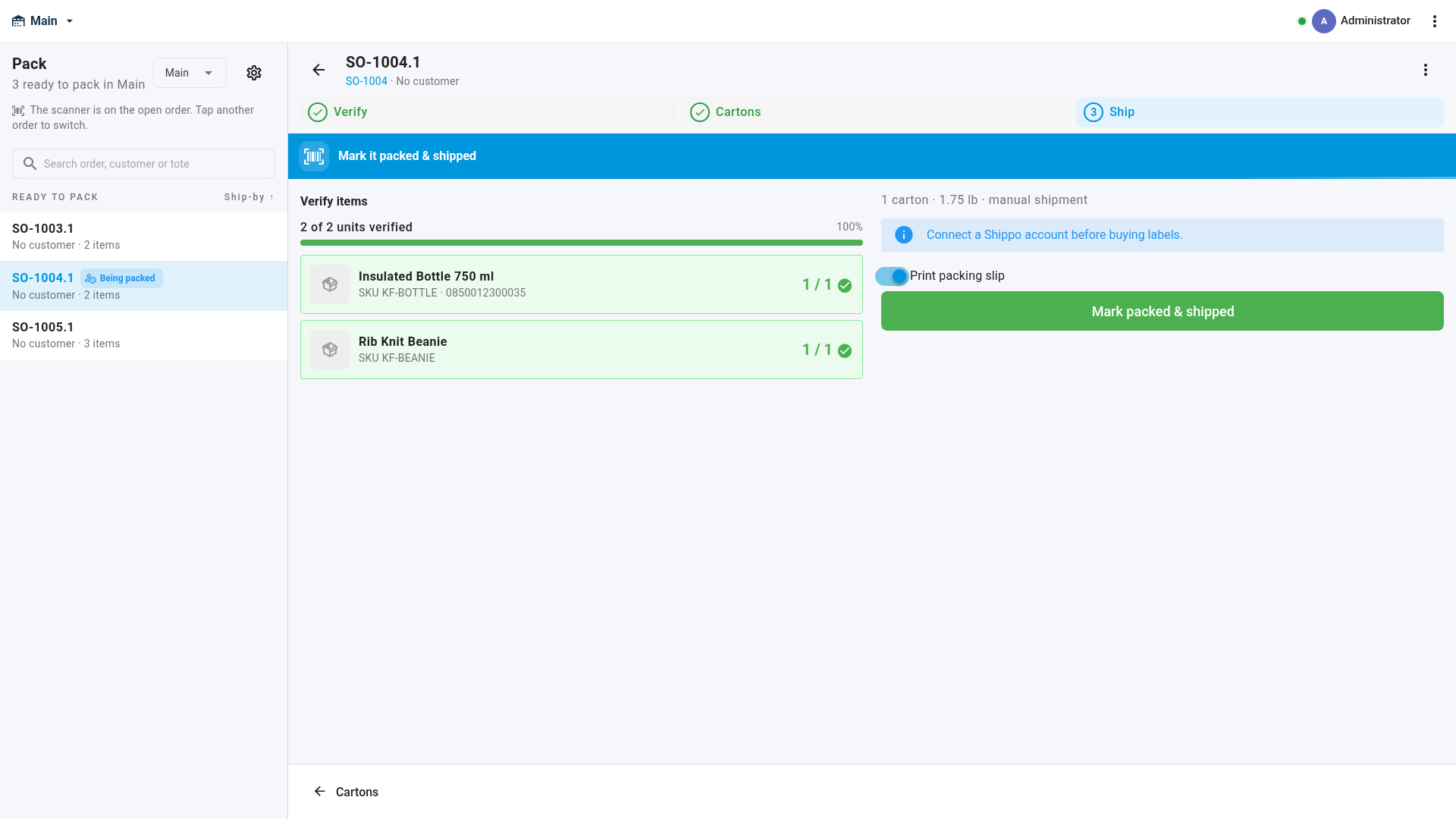
With Print packing slip on, the packing slip prints too. After the order is done, it leaves the queue and the scanner is ready for the next order.
If Shippo can't buy the label, its message is shown as it is, your cartons are kept, and nothing is bought. Choose Try again, or Change rate.
To change how your station prints, click the settings (cog) icon next to the warehouse in the queue: Print the packing slip with the label, Back to the queue after each order, and Label format (PDF or ZPL (Zebra)). These are saved on this device, for you only.
To give up on an order part-way, open the ⋮ menu at the top right of the order and choose Abandon this pack. Its counts and cartons are discarded, and it goes back to the queue unchanged.
Ship a short-picked order
When an order was picked short, for example after a Not here with no other bin to pick from, the pack station only asks for the units that were picked.
- Buy & print label and Mark packed ship the whole order, so they need every unit verified. If units are missing, the message says so.
- For an order with no shipping provider, Mark packed & shipped ships what was picked. The rest stays on the order.
- For the rest, create a new pick list for the order. It picks only the missing units, then send it to pack and finish the order.
New pick lists always pick each line's remaining quantity: what was ordered, less what has already shipped.
Next steps
Video transcript
The pack station checks every order before it ships. It works on a handheld, and on a desktop pack bench with a scanner. In the sidebar, open Inventory, and then choose Floor mode. The first time on your own computer, choose the warehouse you're in. Then tap the Pack tile to open the pack station. The queue lists every order that's picked and ready to pack. To start, scan the barcode on the order's packing slip. Its order number, pick list or tote also opens the order. The order opens on the Verify step, where every item has its own counter. Now scan each item as you put it in the box. Every scan adds one, and a line turns green when it's complete. An item that isn't on the order is refused with an error tone, and nothing is counted. Scan the last item, and when every line is green, click Next: Cartons. Next, tap the box you're packing into, or scan the barcode on the box. SKU.io estimates the weight from the products and the box. To split the order, click Add carton, and scan items into the new one. When every unit is in a carton, click Next: Ship. What you see now depends on how the order ships. When you buy labels in SKU.io, the order lists its rates, with a Buy and print label button. An order that ships through another provider shows Mark packed, and that provider makes the label. This order has no shipping provider, so it ships manually. Print packing slip prints the slip as the order ships. We'll switch it off for this demo. Click Mark packed and shipped, and the order leaves the queue. The scanner is ready for the next order.