Report an empty bin with Not here
Sometimes the bin a pick sends you to is empty, even though SKU.io thinks it holds stock. Tap Not here. In one tap, SKU.io records the empty bin, sends you to another bin that has the item, stops sending pickers to the empty bin, and files a bin check so someone counts it. You count it from Floor → Count, and a manager applies the count.
Before you begin
- You're working a pick list, in Floor mode or on the pick screen. See Create & work a pick list.
- The warehouse uses warehouse locations, so each pick names a bin.
- To apply a count to stock, a manager needs the Count inventory permission (
inventory.count).
Steps
- In Floor mode, tap Pick, and choose a pick list.
- Go to the bin the card shows, and scan the bin, then each unit.
- When the item isn't in the bin, tap Not here.
- Go to the bin SKU.io suggests, and pick from it as usual.
- When every pick is done, tap Complete pick list.
- On the Floor mode home, tap Count, and open the bin check.
- Scan the bin's label, then scan each item you find, or tap Bin is empty.
- Tap Submit count.
What Not here does
Not here sits next to Skip on the pick card. There's nothing to confirm: you're standing at an empty bin. Choosing Not in bin as the reason in Skip does the same thing.
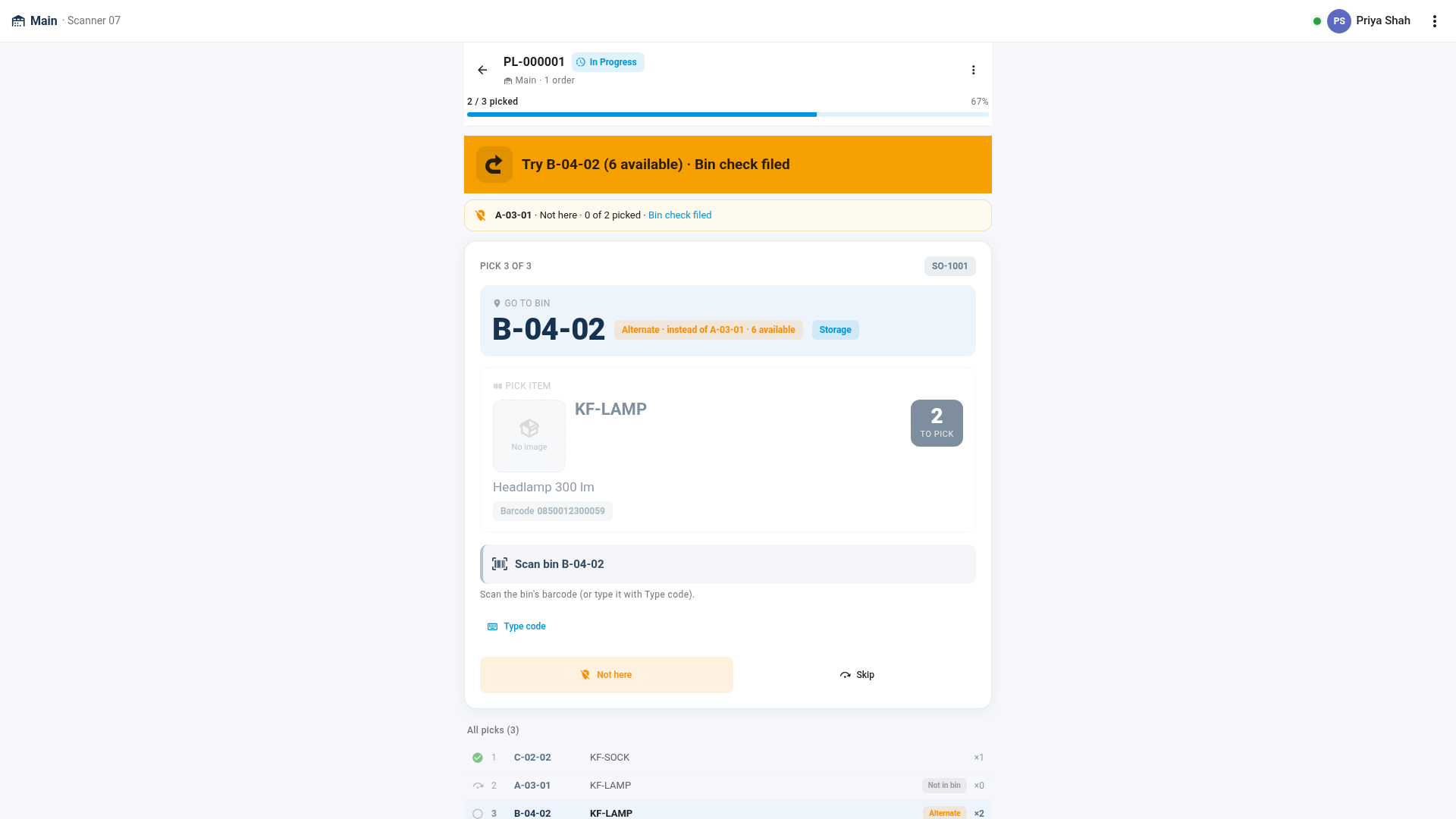
- The pick is recorded short. If you'd already scanned some units from this bin, they stay picked and the rest is recorded as not found. With none scanned, the pick is skipped with the reason Not in bin.
- You're sent to another bin. If another bin in the warehouse has the item, a new pick for the rest appears straight after this one, and the banner says, for example, Try B-04-02 (6 available) · Bin check filed. The new pick is labelled Alternate · instead of the empty bin. If no other bin has the item, the banner says No other bin has this item. Line closed short. The order keeps the missing units, so they can be picked later.
- The empty bin is held. New pick lists don't send anyone to that bin for that product until it's counted. A hold never stops a manual pick, a transfer or a count.
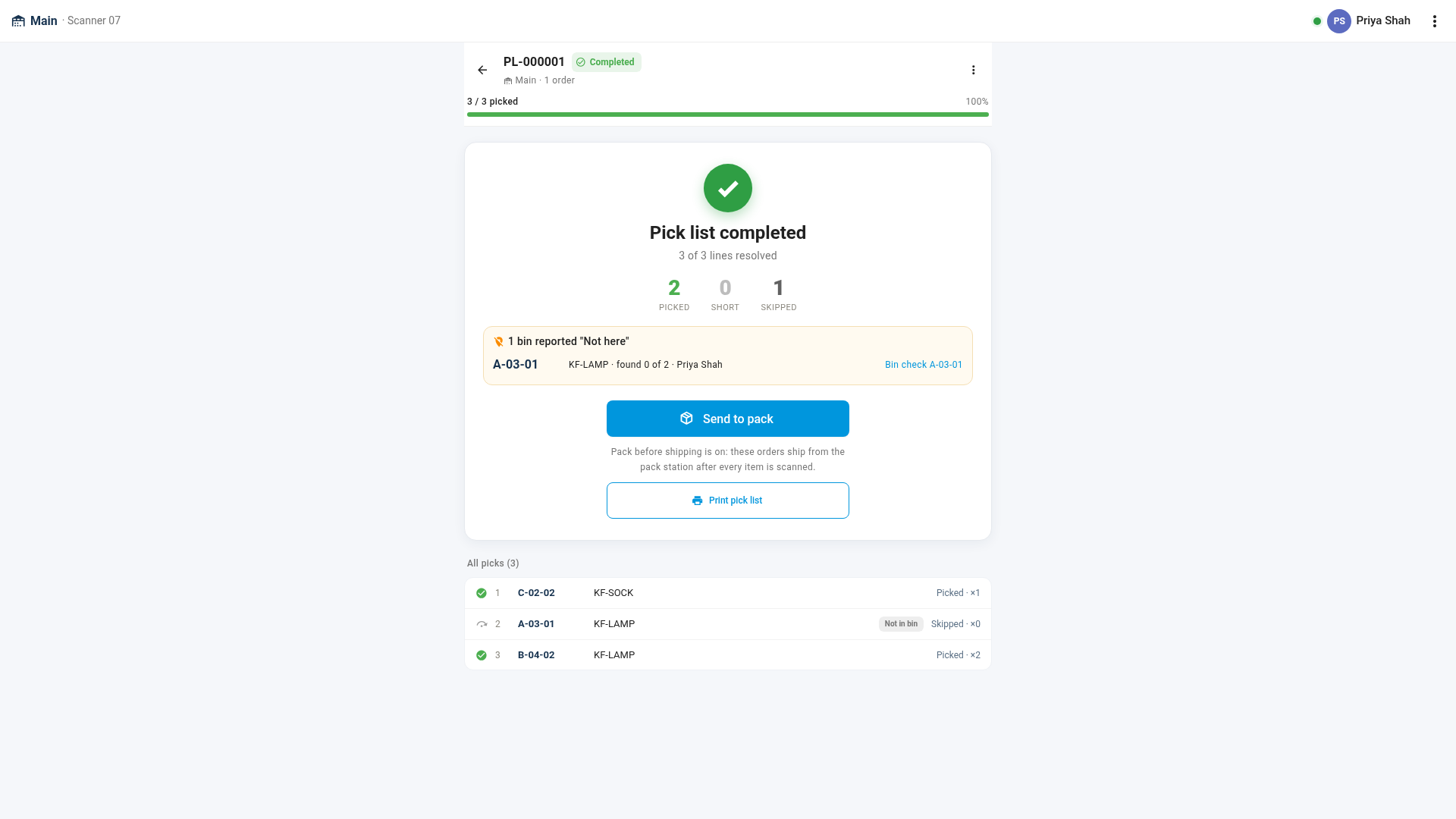
- A bin check is filed. SKU.io adds a count named Bin check and the bin's code, with a note of who reported it, on which pick list and order, and when. If someone reports the same bin again before it's counted, the product is added to the same bin check rather than a second one.
If the next bin is empty too, tap Not here again. Each tap holds that bin and tries the next one, until no bin is left.
When you complete the pick list, its summary lists each bin reported Not here, what was found, who reported it, and a link to the bin check.
Count the empty bin
- On the Floor mode home, tap Count. Bins reported empty are listed first, oldest first, under Reported empty.
- Tap the bin check, or scan the bin's label to open it.
- Scan the bin's label to start the count. If it has no label, tap I'm at bin.
- Scan each item you find in the bin. Each scan adds one. To type a quantity instead, press and hold the item.
- If the bin really is empty, tap Bin is empty. Every item is set to 0. Items you don't scan are counted as 0 anyway.
- Tap Submit count.
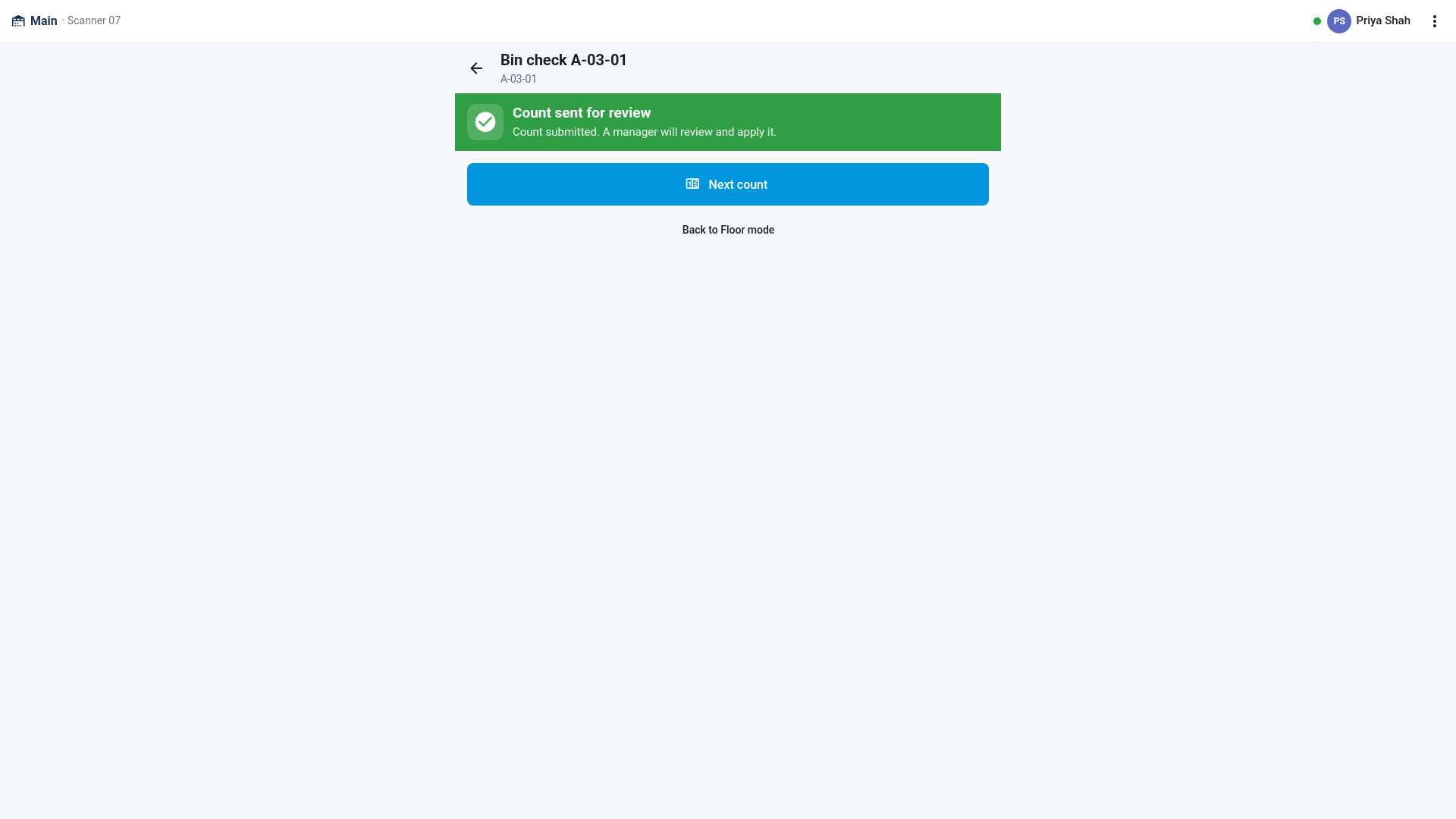
The count moves to Counted, and the scanner says Count sent for review. If your admin set Apply floor counts automatically within in the Floor mode settings, and the difference is within it, the scanner says Count applied: stock is updated and the hold released straight away.
Review bin checks (managers)
- Inventory → Stock Takes lists every bin check. Filter Origin by Pick exception to see only these.
- Open a bin check to see Bin check from picking: who tapped Not here, on which pick list, what they found, and the bins held. Finalize it as you would any stock take to adjust stock. Finalizing releases the hold.
- To let pickers use a bin again before it's counted, click Release hold on the bin check.
- While bin checks are waiting, the warehouse gets an inventory alert, such as 3 bins reported empty need a count, which links to the list.
Next steps
- Pack orders at the pack station: ship what was picked, and ship an order that was picked short.
- Finalize & reconcile a stock take
- Create & work a pick list
Video transcript
To pick in Floor mode, tap the Pick tile on the home screen. Then choose a pick list from the list, or scan its number. The card shows the bin to go to, and the item and quantity to pick. At the bin, scan the bin's label first, and then scan each unit as you pick it. At the next bin, the item isn't there. Tap the Not here button. There's nothing to confirm. You're sent straight to another bin that has the item. It also files a bin check for the empty bin, and holds that bin. New pick lists stop sending pickers there until it's counted. Go to the new bin, and pick from it as usual: scan the bin, then each unit. When every pick is done, tap Complete pick list to close it. The summary lists the bins reported empty, with a link to each bin check. Now someone counts the empty bin. On the Floor mode home, tap the Count tile. Bins reported empty are listed first. Tap the bin check to open it. At the bin, scan the bin's label, and then scan each item you find. If there's nothing there at all, tap Bin is empty. Then tap Submit count. A manager reviews the count, and applies it to your stock.