Move stock to a non-sellable bin
When units arrive damaged, or have to wait for a check, move them to a bin that isn't sellable. They stay in On Hand, they leave Available and Available to Sell, and the sales channels whose stock SKU.io sets are sent the lower quantity, including for bundles that use the product. Move them back to a sellable bin and the quantity returns.
Before you begin
- Warehouse Locations (Bins) is on, and the warehouse uses bins. See Manage warehouse locations.
- Your role has the Transfer inventory permission.
- The warehouse has a bin whose Sellable box is cleared. Bins of type Quarantine and Damaged start that way.
Steps
-
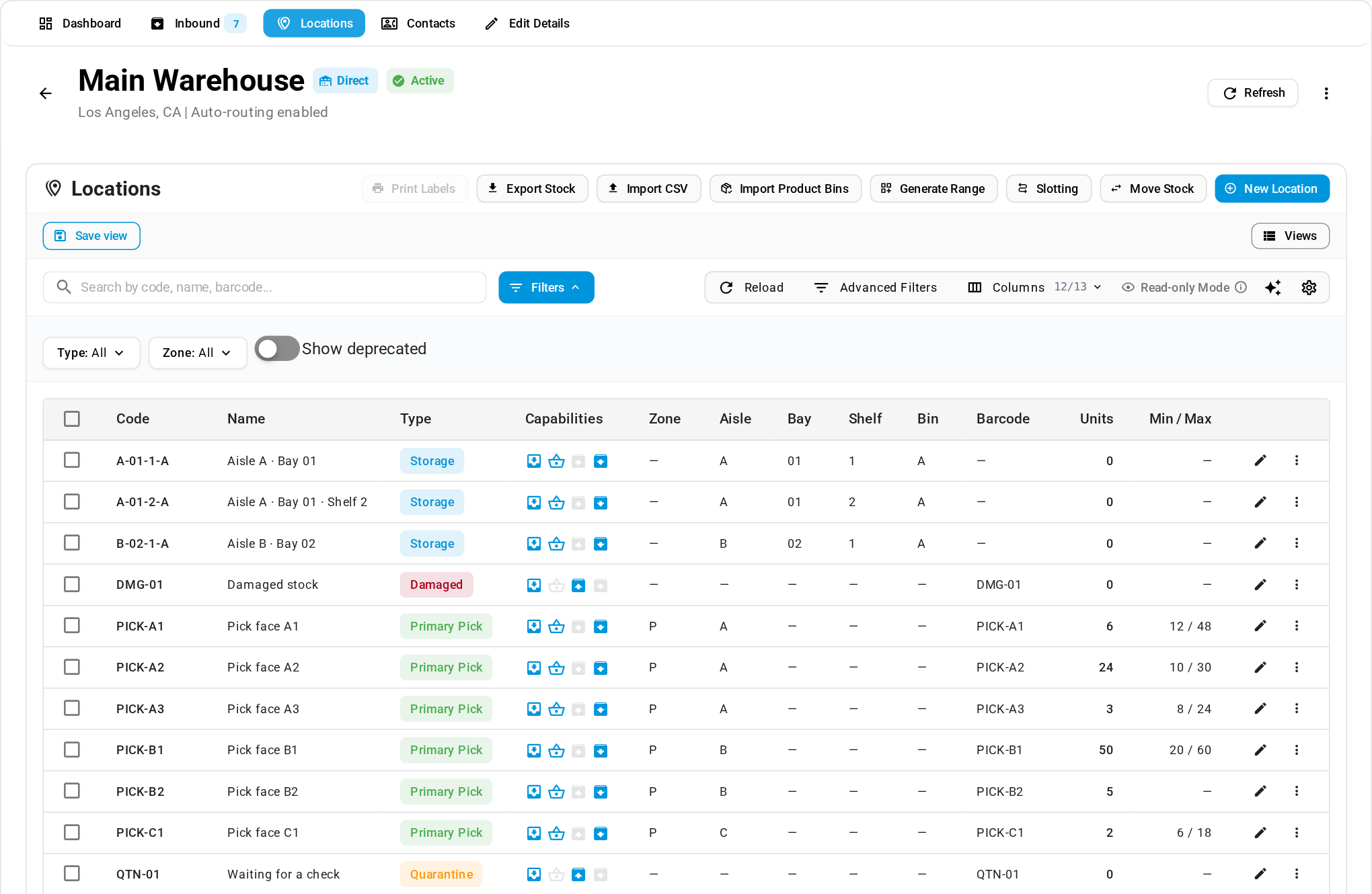
Go to Inventory → Warehouse Locations. The page lists your warehouse's bins.
-
If more than one warehouse uses bins, choose yours under Warehouse.
-
Click Move Stock.
-
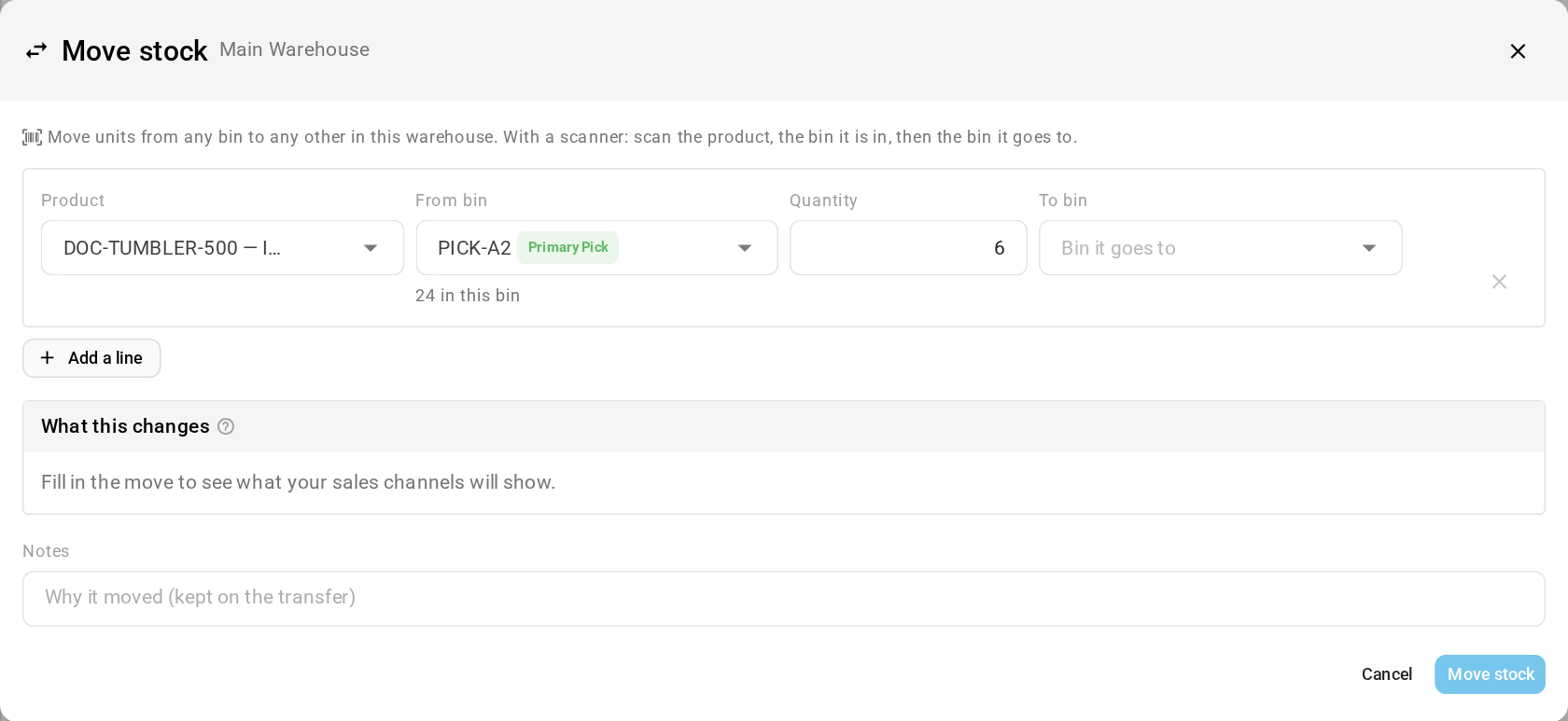
Choose the Product.
-
Under From bin, choose the bin the units are in. The line below it shows how many that bin holds.
-
Enter the Quantity.
-
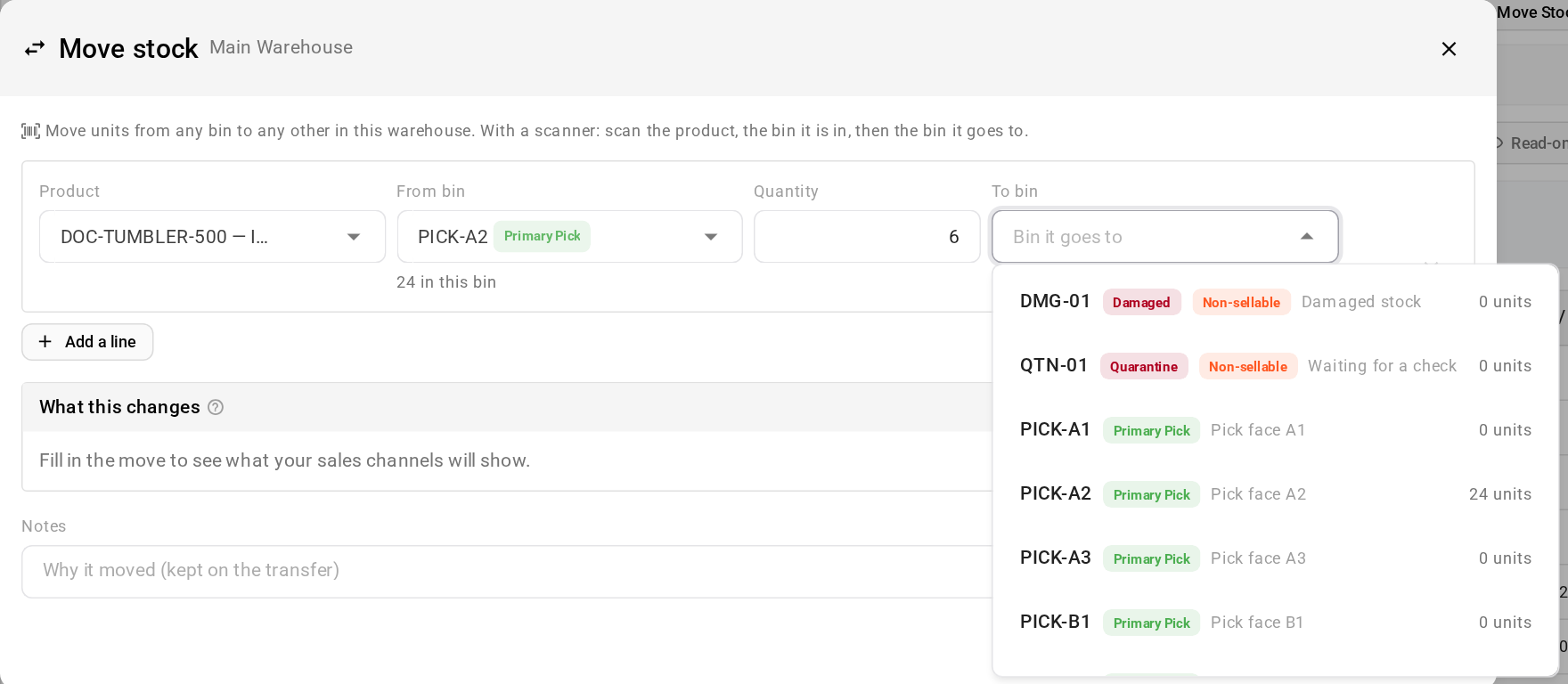
Under To bin, choose the bin they go to. A bin that can't be sold from is marked Non-sellable.
-
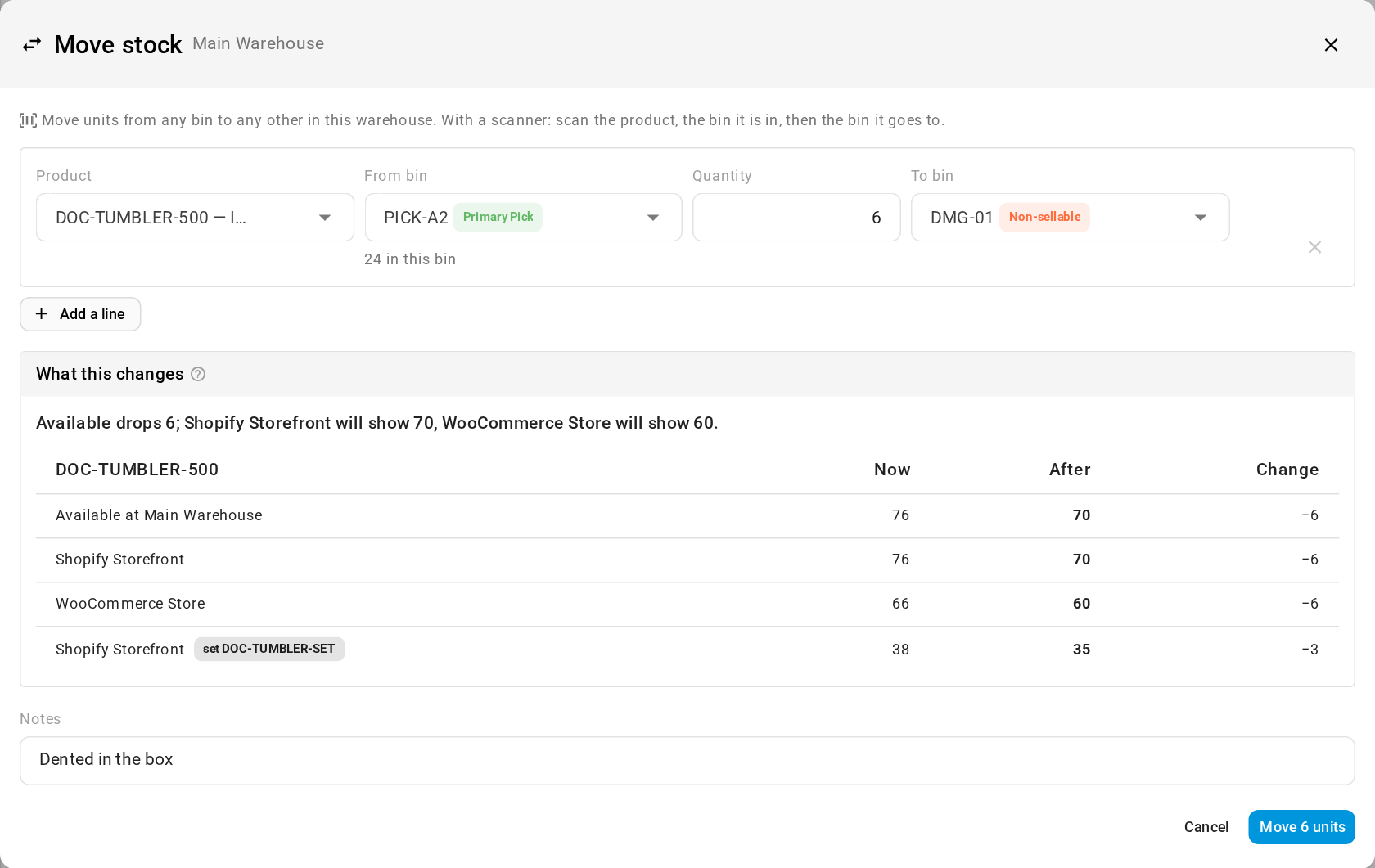
Read What this changes. It shows Available at the warehouse and the quantity on the sales channels that sell the product from it, Now and After.
-
Optional: enter Notes to say why the stock moved.
-
Click the Move button. It names how many units you are moving, for example Move 6 units.
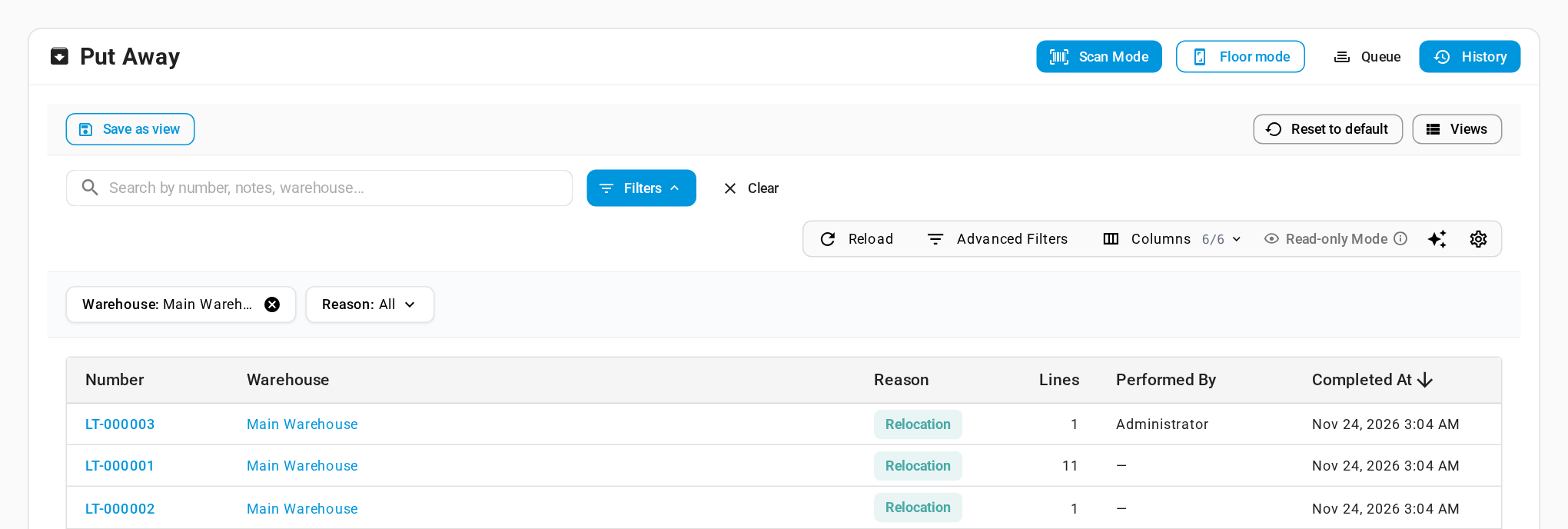
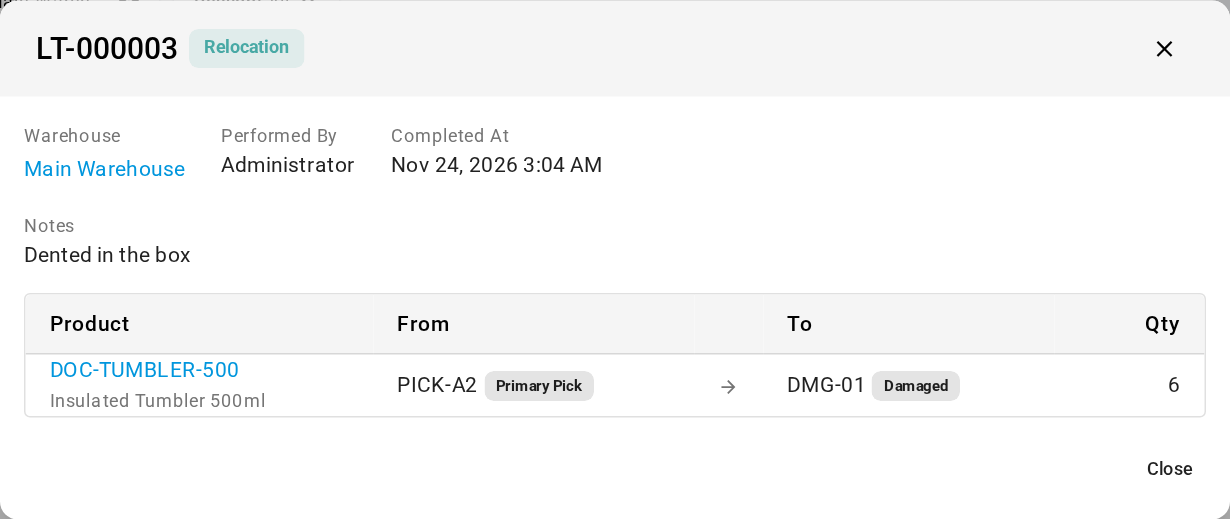
SKU.io records the move as a location transfer with the reason Relocation, and updates Available right away. It appears under Inventory → Put Away, on the History tab. Click its number to see the product, both bins, and your notes.
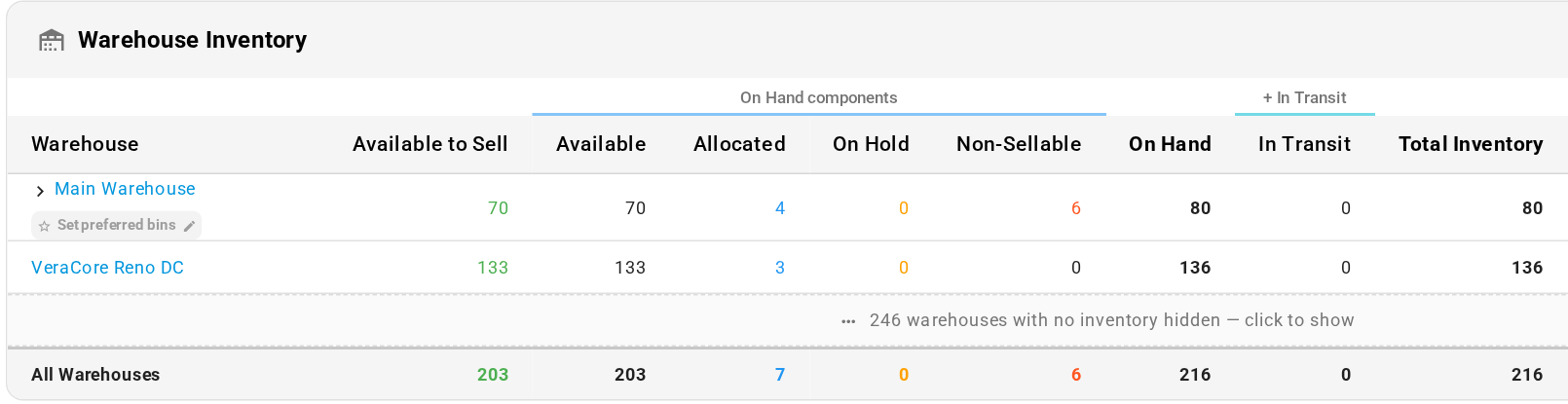
In the product's Inventory section, Available is lower by the units you moved, Non-Sellable is higher, and On Hand is the same.
To move more than one product, click Add a line before you confirm.
Start from a product or a bin
- In a product's Inventory section, expand a warehouse's row and click Move on the bin's row.
- On a warehouse's Locations tab, open the ⋮ menu on a bin's row and click Move stock out.
Use a barcode scanner
With the Move stock dialog open, scan the product, then the bin it's in, then the bin it goes to.
Read what the move changes
| You see | It means |
|---|---|
| What you can sell does not change | Both bins are sellable, or neither is. |
| set and a SKU | A bundle listed on that channel uses this product, so its quantity changes too. |
| Sync off | Outbound inventory sync is off for that channel, so it keeps its current quantity. |
| Not worked out here | The channel's figure isn't worked out in this dialog. It updates after the move. |
| A warning about allocated units | Open orders need units you are moving away, so the sellable bins are left short by that many. |
Channel figures include the channel's buffer, minimum, and maximum rules. Handling time limits and Amazon backup-listing rules aren't included.
When you move more than the bin holds, a warning appears under the line. If the warehouse blocks negative bins, SKU.io refuses the move. See the negative-bin guard.
Change a whole bin
When you clear or tick Sellable on a bin that already holds stock, SKU.io recalculates Available for every product in it and updates your channels. Edit the bin on the warehouse's Locations tab.
Next steps
- Stock states: how Non-Sellable, Available and Available to Sell fit together.
- How channel stock is calculated: from Available to Sell to what a channel shows.
- Move stock between bins (location transfers): put away, history and the checks a transfer must pass.
Video transcript
Damaged units shouldn't reach a customer, but you still own those units. In the sidebar, open Inventory, then click Warehouse Locations, a little further down. This page lists every bin, with the units each one holds. Bins of type Damaged and Quarantine start out not sellable. Move units to one of them, and your sales channels get the lower quantity. Click Move Stock, just above the list, and a window comes up for the move. Search for the Product by typing part of its name, or part of its code. Then pick it from the matches below the field. Next, click From bin to see what each bin holds of this product. Choose the bin the units are in now, from the ones shown. The line below the field shows how many are in this bin. Then enter the Quantity, which is the number of units you want to move. Now click To bin to see every bin in the warehouse. The bins you can't sell from are marked Non-sellable. Choose the one where you keep your damaged stock. SKU.io works out the effect before anything moves. Before you confirm, read What this changes. The Now column is today's quantity, and After is the quantity once the units move. The first row is what's Available at this warehouse. Below it, the sales channels that sell it here have a row each. Buffers and other rules are already counted in those figures. Bundles that use this product have their own row, marked set. Use Notes to record why the units moved, so your team can check later. At the bottom, click Move, with the quantity on the button. A message at the top gives the number of the transfer. In the list, the non-sellable bin now holds the units. In the sidebar, open Inventory again and click Put Away, to find the move later. Click the History tab, at the top right of this page. Your move is the first row, with the reason Relocation. Click its number to see the product, both bins, and your notes. Click the product's code in this window to go to the product's own page. Then click Inventory in the list of sections. In the warehouse's row, Available is lower by the number you moved. Those units are counted under Non-Sellable instead. The On Hand figure is unchanged, because the stock is still in your warehouse. To put it back on sale, move it to a sellable bin.