Let orders follow Shopify location changes
When a Shopify order arrives, SKU.io routes each line to the warehouse the order's Shopify location maps to. Shopify can change that location later — you reassign the order, or a routing app moves it. By default SKU.io keeps each line in the warehouse it first chose. Turn on Follow Shopify location changes to have lines move to the new location's warehouse instead.
Before you begin
- Your Shopify store is connected to SKU.io.
- Your Shopify locations are mapped to SKU.io warehouses under Settings → Warehouse Mappings.
- Under New Orders on the same tab, Use Shopify's assigned location is selected. With Let SKU decide, SKU.io routes orders itself and ignores Shopify's location, so the switch below is unavailable.
Turn it on
- In the sidebar, open Apps & Integrations and choose your Shopify store.
- Open its Settings tab, then Warehouse Mappings.
- At the bottom of the New Orders card, turn on Follow Shopify location changes.
- Click Save.
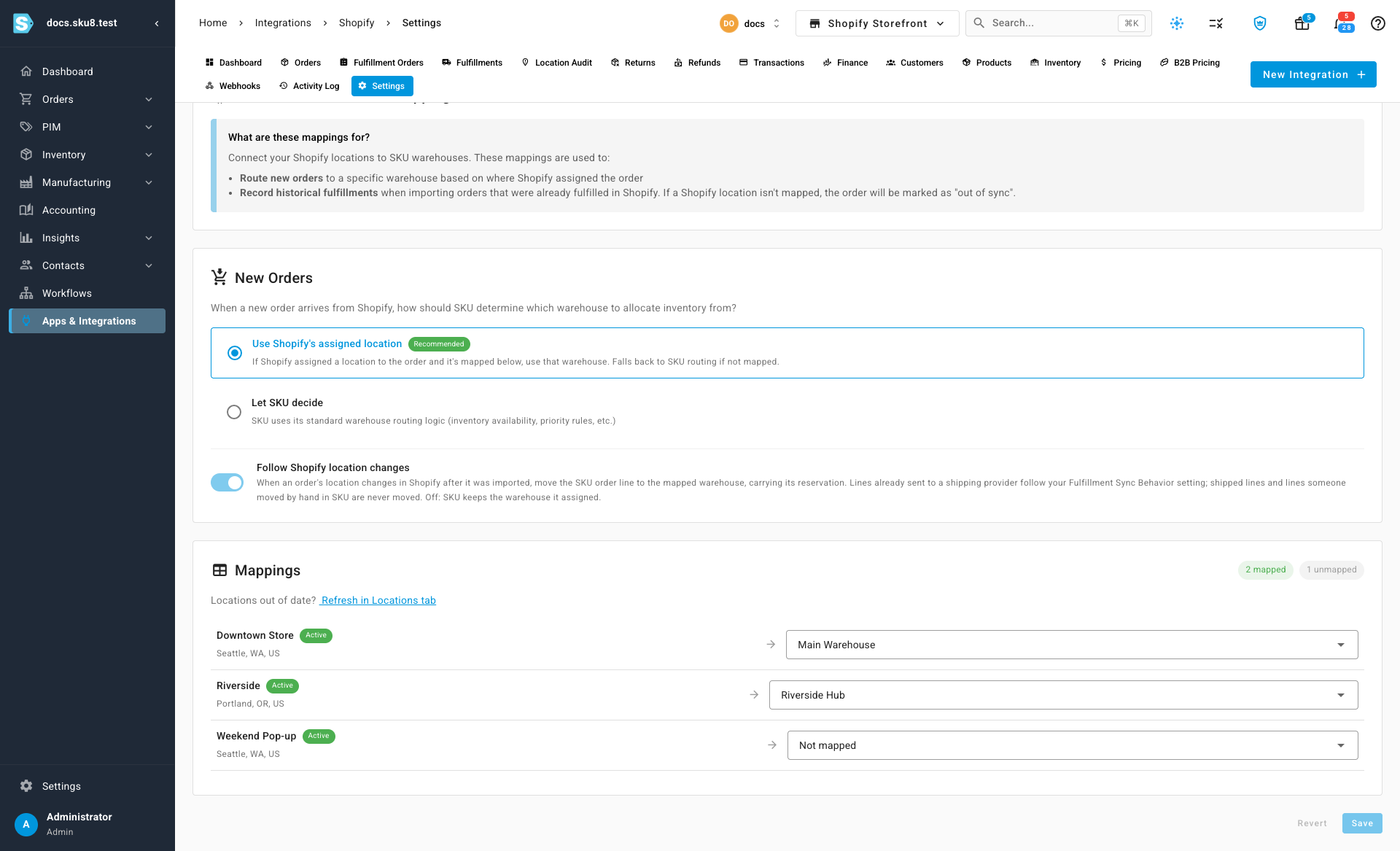
The setting applies to this store only. Turning it on doesn't move anything by itself — lines move the next time Shopify sends an update for their order.
What moves, and what doesn't
With the switch on, whenever Shopify updates an order, SKU.io compares each line's warehouse with the warehouse its Shopify location maps to. When they differ, the line moves:
- Its reservation moves with it. Stock is reserved at the new warehouse if it has any; the rest waits there as a backorder.
- A line already sent to a shipping provider follows that provider's On Order Edit: Fulfillment Sync Behavior setting. Depending on the setting, the provider order is recalled and the line moves, the line moves and the order is marked out of sync for review, or the line stays where it is. You're notified either way.
Some lines never move:
- Shipped lines stay where they shipped from.
- Lines placed by hand — moved or split to another warehouse, moved with their fulfillment order, or given a warehouse in an order edit. These are locked.
- Lines placed by a routing workflow.
- Lines whose Shopify location isn't mapped to a warehouse.
With the switch off, a location change in Shopify only moves a line that has no stock reserved and hasn't been sent to a shipping provider.
To find lines that are already in the wrong warehouse — including ones placed before you turned this on — use the Location Audit.
Locked lines
When the switch is on, a locked line shows a lock next to its warehouse on the order's Lines tab, and on backordered rows of its Fulfillment tab. Hover over the lock to see why.
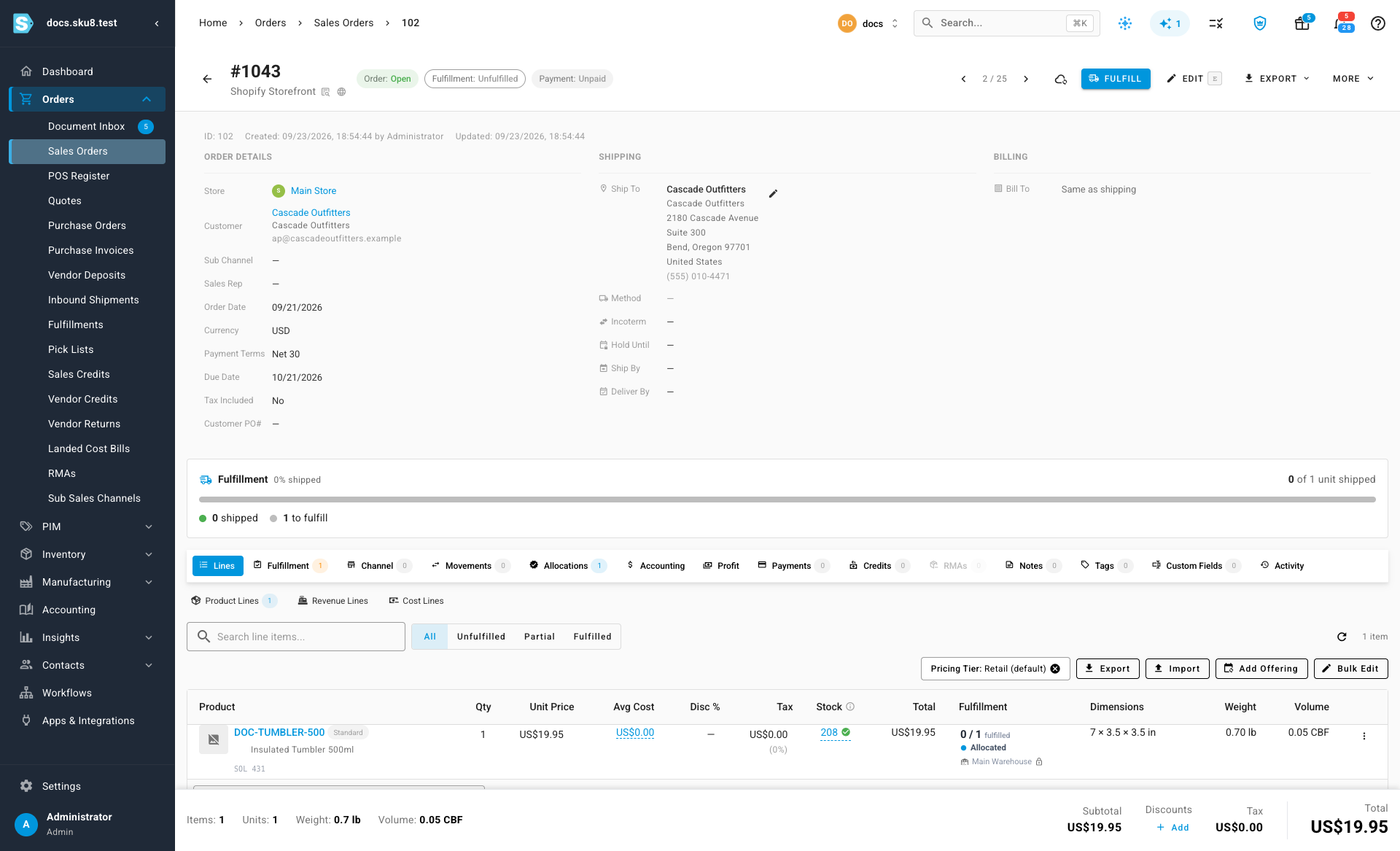
Unlock a line
- Click the lock next to the line's warehouse.
- Click Unlock.
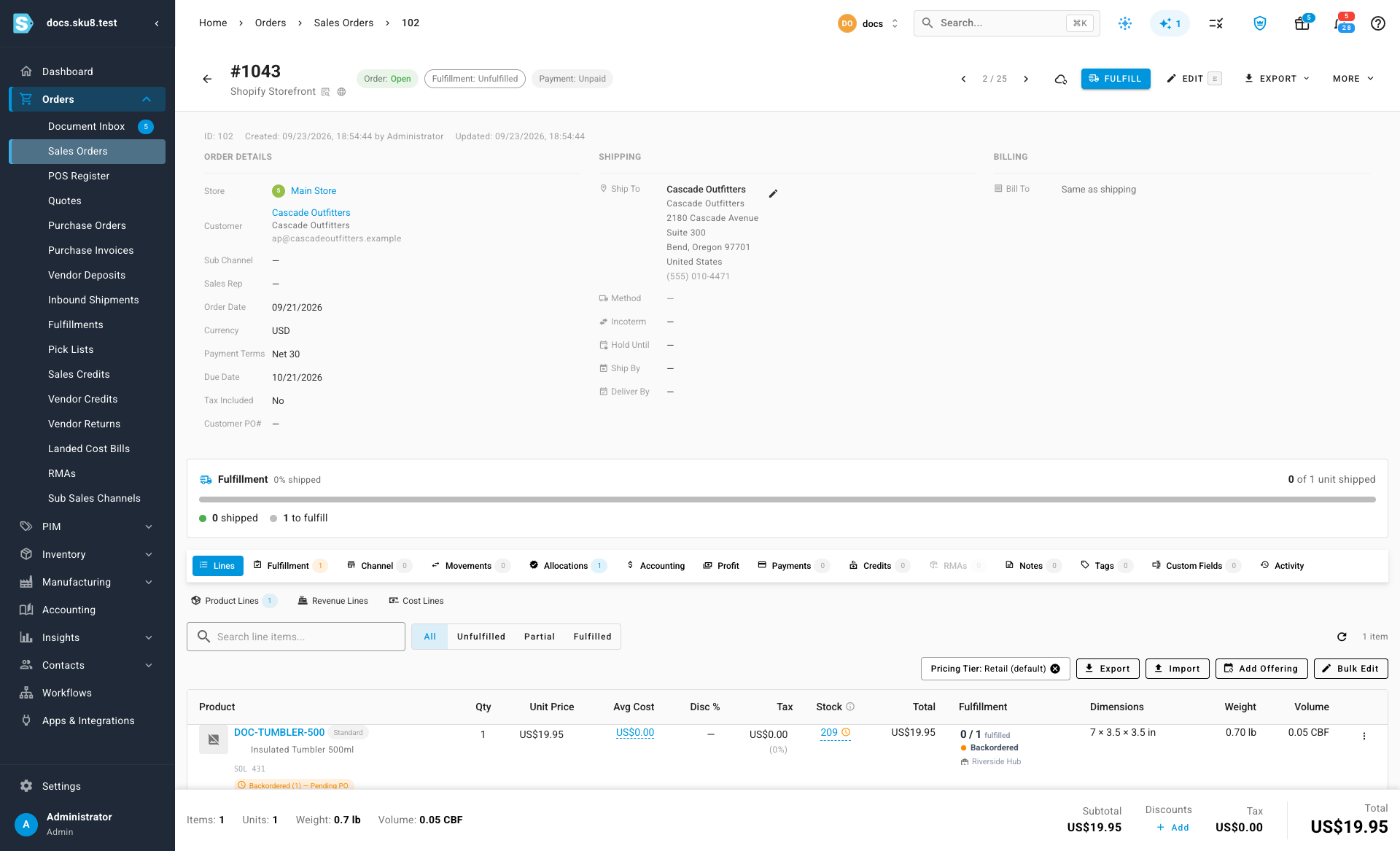
The line follows its Shopify location again. If that location maps to a different warehouse, the line moves there right away, with its reservation.
Re-check a single order
To apply the current Shopify location to one order without waiting for Shopify to send an update, open the order and click Sync with Shopify (the cloud icon next to Fulfill). With the switch on, SKU.io fetches the order's locations from Shopify and moves any line whose warehouse no longer matches.
Next steps
- Find orders in the wrong warehouse with the Location Audit
- Connect a Shopify store
- Route orders to the right warehouse automatically
Video transcript
Shopify can move an order to another location after it arrives. By default, each order line stays in the warehouse it was first given. One setting makes each line follow the order to its new warehouse. To turn that on, open Apps and Integrations in the sidebar, choose your store, and then open the Settings tab along the top of the store. Inside the settings, open the Warehouse Mappings section. At the bottom of the New Orders card, turn on the switch called Follow Shopify location changes, then scroll down and click Save. It needs Use Shopify's assigned location to be selected above it. From now on, when Shopify moves an order to another location, the line moves to the mapped warehouse, and its reservation moves with it. A line already sent to a shipping provider follows your fulfillment sync setting for that provider. Some lines never move. A shipped line stays in its original warehouse. So does a line that someone placed in a warehouse by hand, which counts as a locked line. Now open an order that has a line someone placed by hand, from the Sales Orders list under Orders in the sidebar. A locked line shows a lock next to its warehouse. Hover over it to see why. To let a locked line follow Shopify again, click the lock, then Unlock. If its Shopify location maps to a different warehouse, the line moves there right away.