Price Amazon MFN listings differently
Amazon sells your products two ways: Fulfilled by Amazon (FBA, which Amazon calls AFN) and merchant-fulfilled (MFN), where you ship the order yourself. The two often need different prices — you carry the shipping on an MFN order, and the Buy Box behaves differently. The Amazon channel's price push lets your MFN listings follow a pricing lane of their own: a sequence of price levels checked before the channel's FBA levels, falling through to those levels whenever a product has no MFN price. Set it once, and every MFN listing on the channel follows it — except a listing you have pinned to a level of its own.
Before you begin
- The Amazon channel is connected, with SKU.io as its Master of Price and a channel sequence under Which price to send. If that's new to you, read Sync prices with your sales channels first — the lane is an extension of that sequence, not a replacement for it.
- A price level that holds your MFN prices (for example, a level named Amazon MFN). Every level in the lane must use the same currency as the channel sequence.
- Permission to change the channel's settings.
Set the MFN lane
-
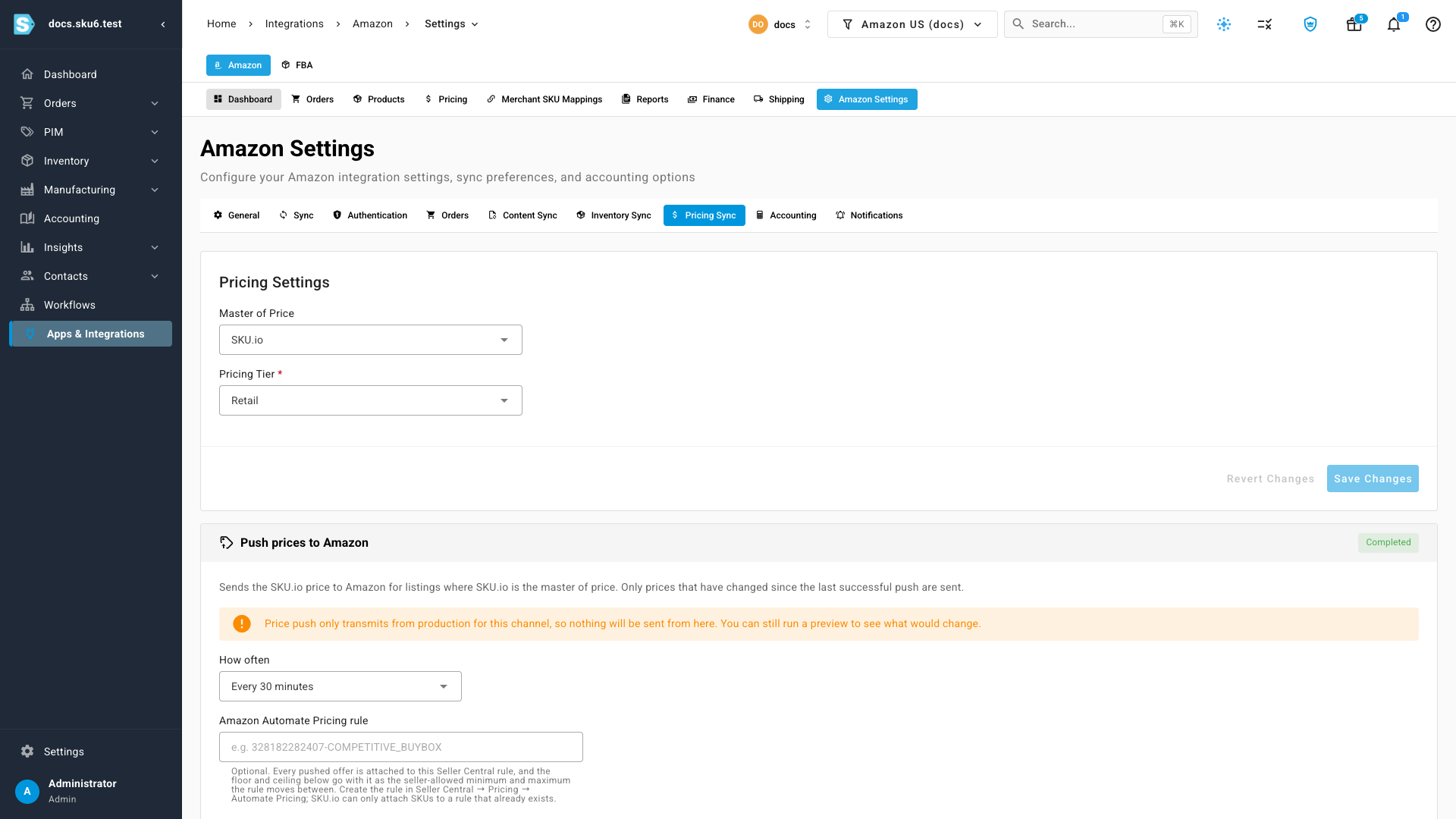
Go to Apps & Integrations, open your Amazon channel, then open Amazon Settings and the Pricing Sync tab.
-
Scroll to Which price to send. The Who gets which price legend at the top of the fence spells out the rule:
- A pinned listing keeps its own level; the lanes below are not consulted.
- An MFN listing checks the MFN levels, then the FBA (AFN) levels.
- An FBA (AFN) listing uses the FBA (AFN) levels only.

-
Find the Merchant-fulfilled (MFN) listings row under the FBA lane. Until you set a lane it reads Priced by the FBA (AFN) levels above, with the number of MFN listings on the channel beside it.
-
Click Price MFN listings differently. The lane opens with a First choice already filled in — SKU.io picks a level that isn't in the FBA sequence yet. Change it from the drop-down if you want a different level.

-
Read the coverage bar under the level — 4 of 6 MFN products priced means two MFN products have no price at that level. The dimmed then the FBA (AFN) levels above step is where those two go, and the totals under the lane say so in words.
-
To check another MFN level before falling through, click Add a fallback and pick it. A lane holds up to five levels.
-
Click Save Changes on the Push prices to Amazon card.
SKU.io re-prices the channel's MFN listings in the background. FBA listings, and any listing pinned to its own level, are not touched — the note under the fence says exactly that.
Put your specific MFN level first and a broad one after it. A level that prices every product placed first in the lane means no MFN listing ever reaches the FBA levels — SKU.io warns you when a lane is built that way, but still lets you save.
See which lane priced each listing
-
Open the channel's Pricing page (the Pricing tab at the top of the channel, or Pricing Settings → Preview changes if you'd rather see what a push would do).
-
The Fulfillment column marks each listing FBA or MFN.
-
Priced from names the level that priced the row and the lane it came from:
Chip Meaning Amazon MFN · MFN default The MFN lane priced this listing. Retail · fell through The product had no price at any MFN level, so the FBA levels did. Retail · pinned The listing is pinned to a level of its own and ignores both lanes. Retail (no suffix) An FBA listing, priced by the FBA levels. 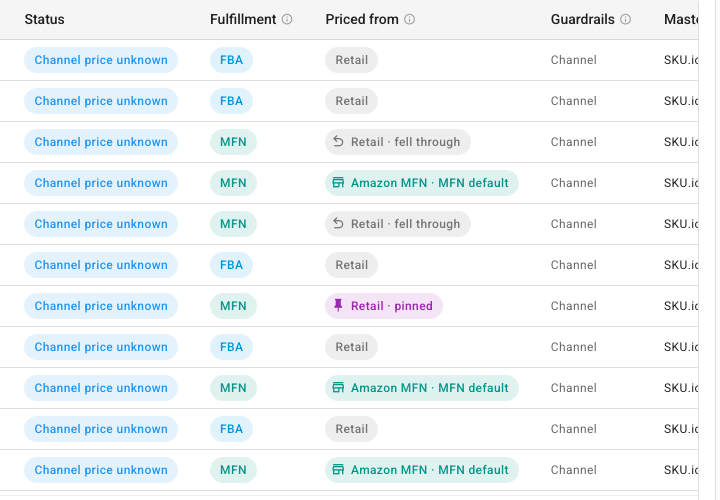
-
Use the Fulfillment and Priced from scope filters to narrow the table to one lane — for example Priced from scope: MFN default lists exactly the listings the MFN levels reach.
Go back to one sequence
Click Remove on the Merchant-fulfilled (MFN) listings row and save. The row returns to Priced by the FBA (AFN) levels above, and the MFN listings are re-priced from the FBA levels on the next background pass. Listings you pinned individually keep their pins.
Next steps
- Sync prices with your sales channels — the channel sequence, guardrails, preview and push that the lane sits inside.
- Set pricing on multiple listings at once — pin a whole selection of listings to a level, or clear their pins so the lane applies again.
Video transcript
On your Amazon channel's settings page, open the Pricing Sync tab. Amazon sells your products two ways. Fulfilled by Amazon, or merchant-fulfilled, where you ship the order yourself. Those listings often need a different price, so SKU.io lets them follow pricing levels of their own.
Scroll down to Which price to send, and look at the legend at the top. It explains who gets which price. A pinned listing keeps its own level. An FBA listing uses the FBA levels. An MFN listing checks the MFN levels first, then falls through to the FBA levels.
Until you set a lane, the MFN row reads priced by the FBA levels above. Click Price MFN listings differently. SKU.io opens the lane with a first choice that is not already in the FBA sequence. Change it if you want a different level.
The bar under the level shows how many MFN products it prices. The dimmed step after it is the fall-through. A product with no price at this level uses the FBA levels above, and the totals count those products. Add a fallback to check another MFN level before that happens.
When the lane looks right, scroll down to the push card and click Save Changes. SKU.io re-prices the MFN listings in the background. FBA listings are not touched, and neither is any listing with a pinned level.
To check the result, open the channel's Pricing page. The Fulfillment column marks each listing FBA or MFN. Priced from names both the level and the lane behind the price. MFN default means the price came from the MFN levels. Fell through means the product had no MFN price, so the price came from the FBA levels. Pinned means the listing keeps a level of its own.
The Fulfillment and Priced from scope filters narrow the table to one lane, so you can see exactly which listings the MFN levels reach.