Find orders in the wrong warehouse with the Location Audit
When Shopify assigns an order to one of its locations, SKU.io should fulfill that order from the warehouse the location is mapped to. Orders can still end up somewhere else — a line was routed before the order's location changed in Shopify, someone moved it by hand, or the location isn't mapped to any warehouse at all. The Location Audit lists every order line where that happened, explains the likely reason, and lets you move open lines to the right warehouse.
Before you begin
- Your Shopify store is connected to SKU.io.
- Your Shopify locations are mapped to SKU.io warehouses under Settings → Warehouse Mappings for the store. A location with no warehouse behind it shows up in the audit, but its lines can't be moved until you map it.
- Moving lines requires permission to update sales orders.
Open the Location Audit
- In the sidebar, open Apps & Integrations.
- Choose your Shopify store.
- Open its Location Audit tab.
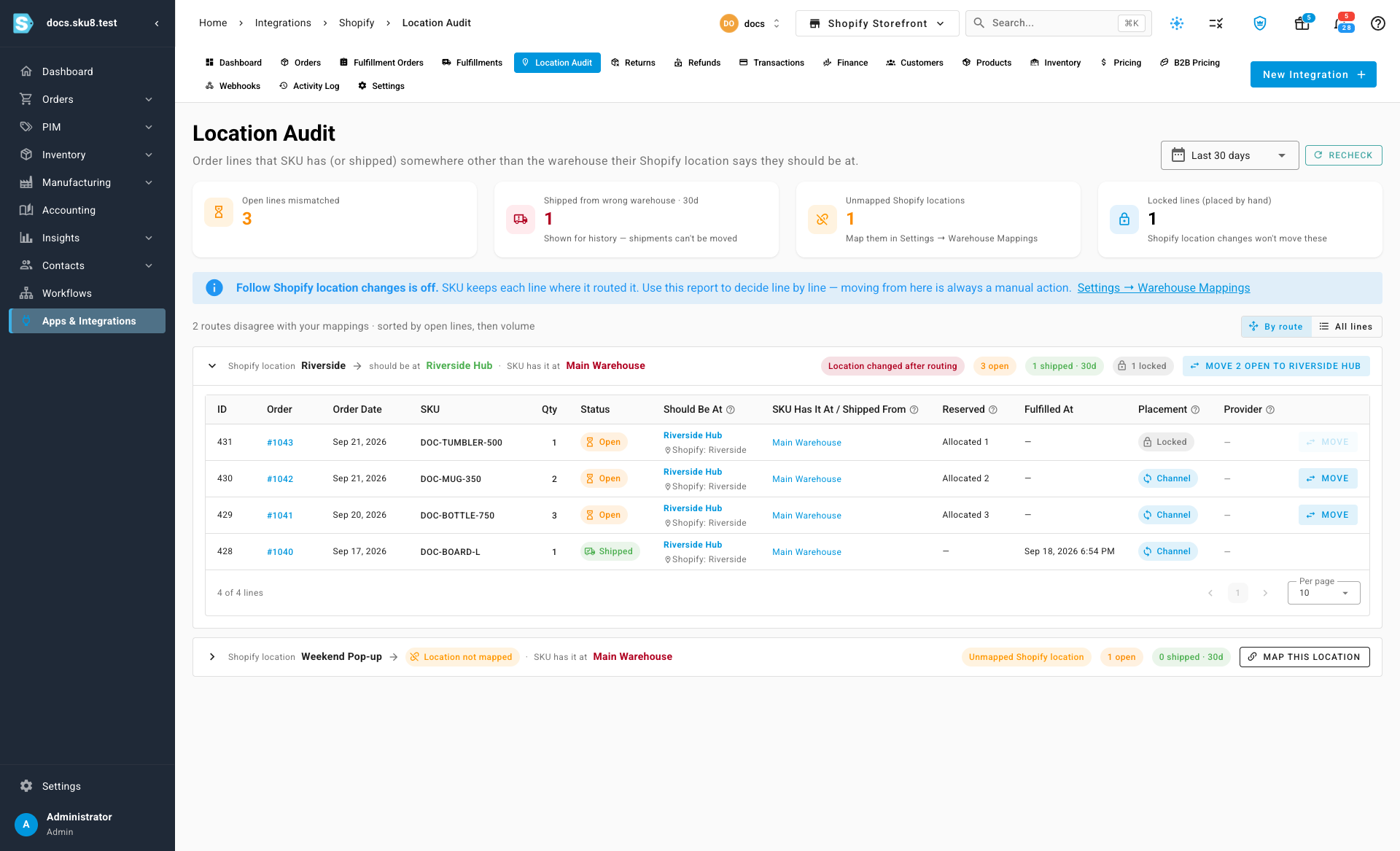
The audit always includes every open order line. Lines that have already shipped are included only if they shipped within the window shown at the top right — Last 30 days by default. Choose a different window there, or click Recheck to recalculate right away.
Read the summary
Four cards sum up what the audit found:
| Card | What it counts |
|---|---|
| Open lines mismatched | Open lines whose warehouse differs from the one their Shopify location maps to. These are the ones you can still fix. |
| Shipped from wrong warehouse | Lines that already shipped from a different warehouse within the window. Shown as history — a shipment can't be moved. |
| Unmapped Shopify locations | Shopify locations with open lines but no SKU.io warehouse mapped to them. |
| Locked lines (placed by hand) | Open lines someone placed in a warehouse by hand. The audit won't move them. |
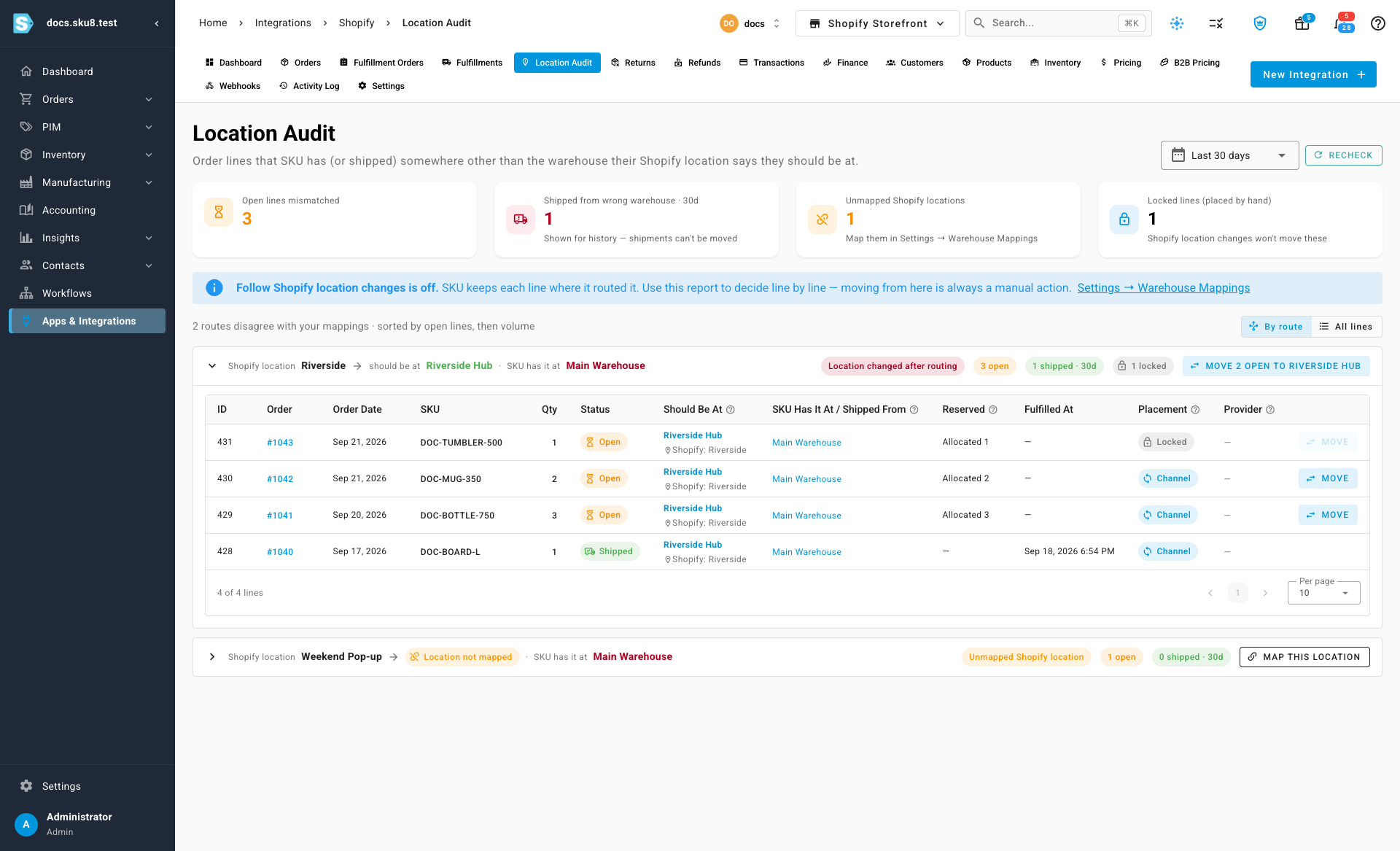
The banner underneath tells you whether the store has Follow Shopify location changes turned on. While it's off, SKU.io leaves each line where it was routed, and every move you make from the audit is a manual one. See Let orders follow Shopify location changes to have SKU.io move lines for you.
Read a route
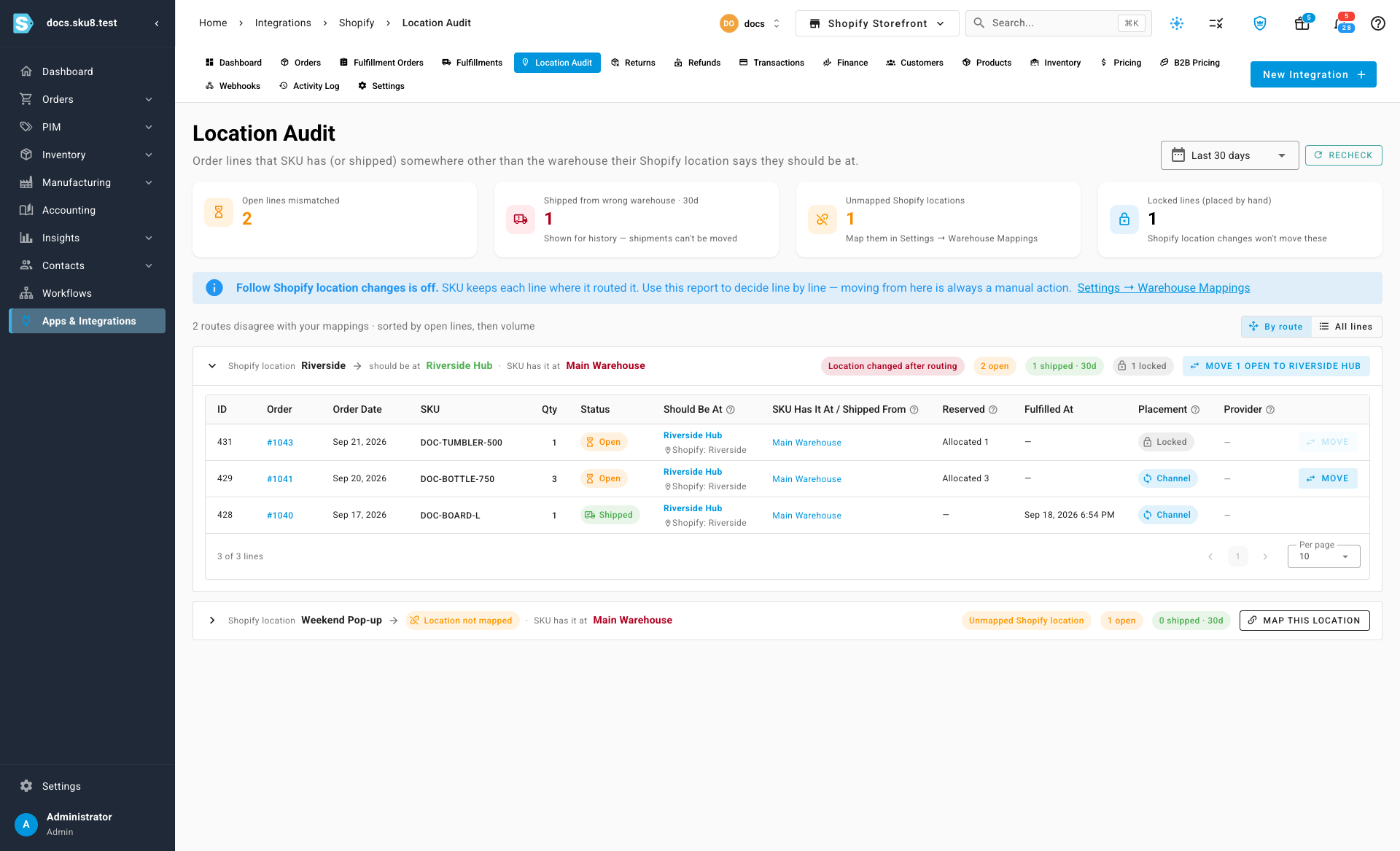
Lines are grouped into routes — one card for each combination of Shopify location, the warehouse it should be at, and the warehouse SKU.io actually has the line at. Each card reads as a sentence: Shopify location Riverside → should be at Riverside Hub · SKU has it at Main Warehouse. A route with many lines usually points at one cause, such as a mapping that changed.
The chip on the card gives the most likely reason for the difference:
| Reason | What it means |
|---|---|
| Location changed after routing | The line was placed in a warehouse, and Shopify's location for the order changed afterwards. |
| Placed by hand | Someone chose the line's warehouse themselves. |
| Routing workflow | A routing workflow chose the warehouse. |
| Rerouted to Amazon MCF | The line was sent to Amazon for multi-channel fulfillment. |
| Unmapped Shopify location | The Shopify location has no warehouse mapped to it. |
| Fulfilled elsewhere | The line shipped from a different warehouse. |
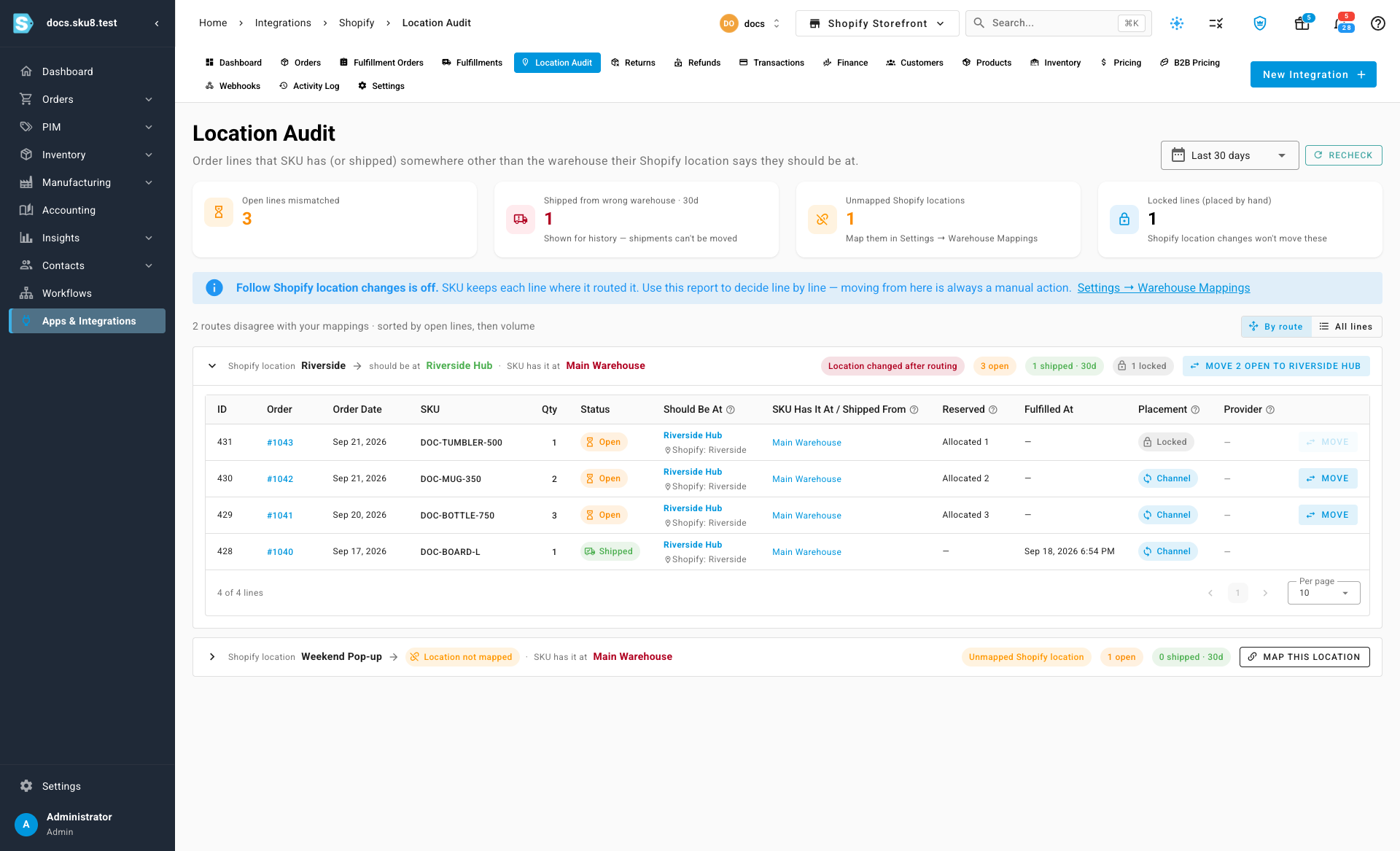
Expand a card to see its lines. Each row is one order line:
| Column | Shows |
|---|---|
| Order | The sales order. Click it to open the order. |
| Should Be At | The warehouse the line's Shopify location maps to, with the Shopify location underneath. |
| SKU Has It At / Shipped From | For an open line, the warehouse the line is at now. For a shipped line, the warehouse it shipped from. |
| Reserved | Stock held for the open line. A warehouse is named only when the reservation is somewhere other than the line itself. |
| Placement | Channel if the warehouse came from the Shopify order, Locked if someone placed the line by hand. |
| Provider | Whether the line has already been sent to a shipping provider. |
Move lines to the mapped warehouse
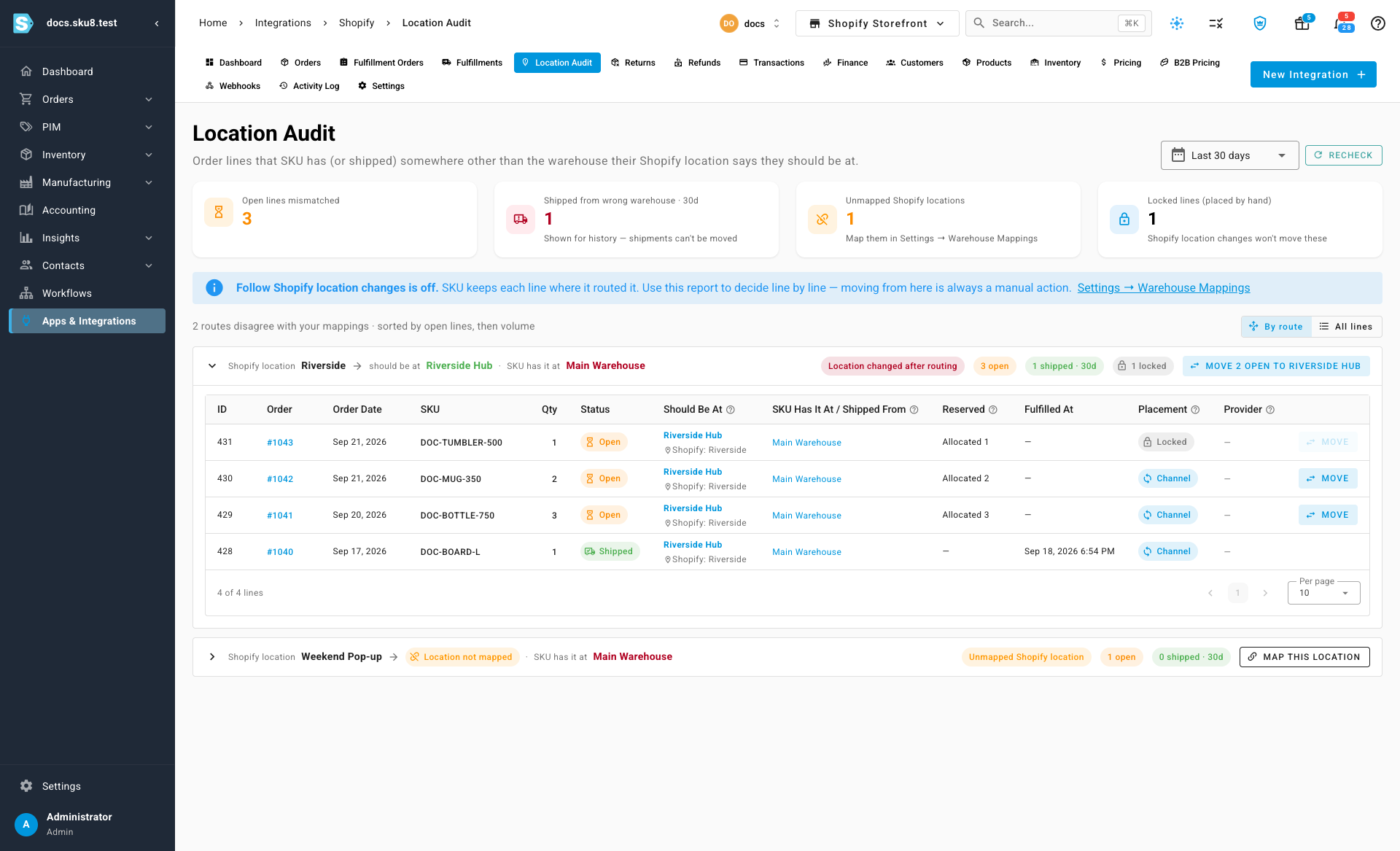
- On the line's row, click Move.
- Confirm with Move.
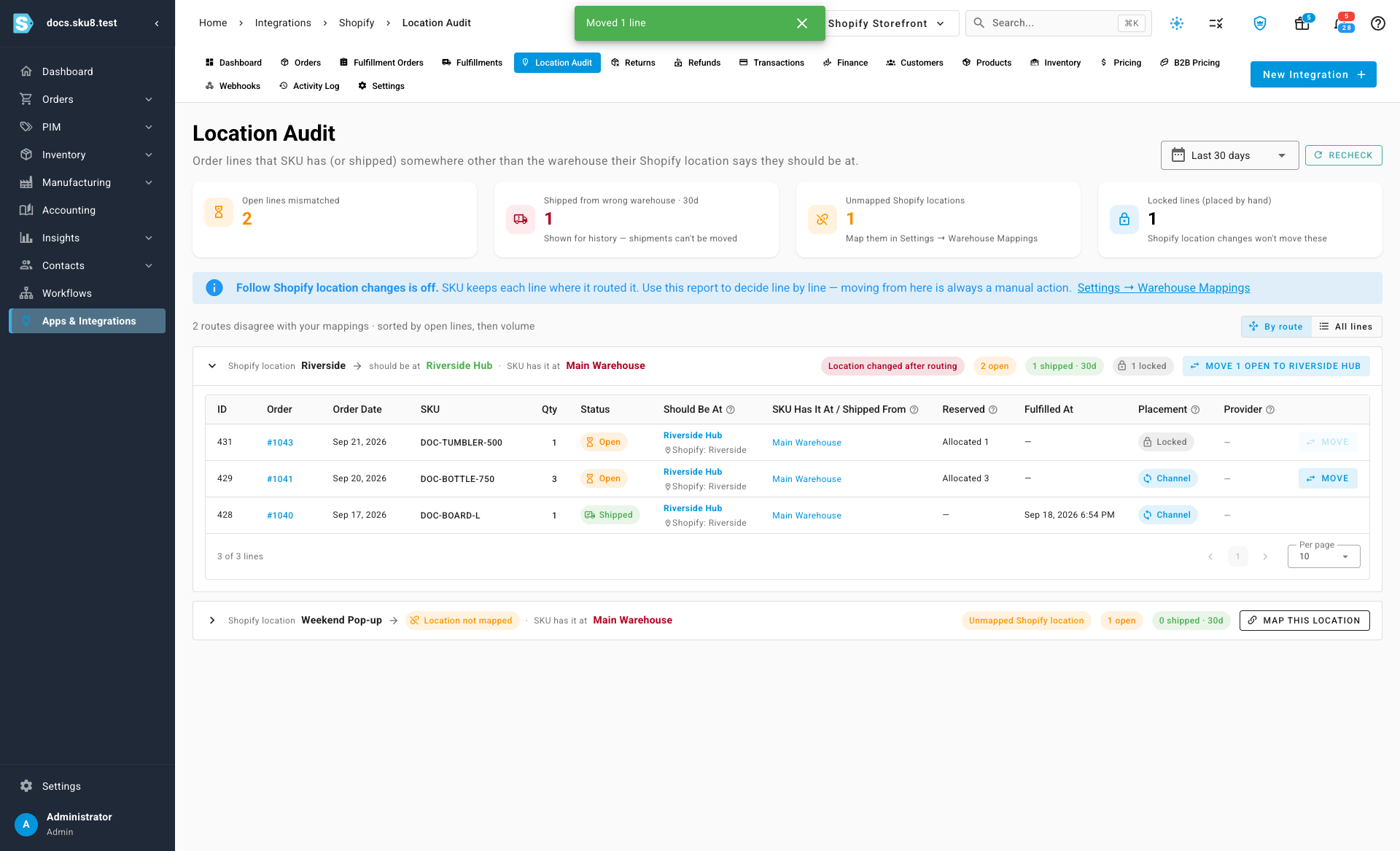
The line moves to the warehouse its Shopify location maps to, and its reservation moves with it: stock is reserved at the new warehouse if it has any, and the rest waits there as a backorder.
To move every open line on a route at once, click Move … open to warehouse on the route's card. Lines that can't move are skipped and counted in the result:
- Shipped lines — they're history.
- Locked lines — someone placed them by hand. Unlock the line on its order first; see Let orders follow Shopify location changes.
- Lines placed by a routing workflow.
A line that has already been sent to a shipping provider follows the provider's On Order Edit: Fulfillment Sync Behavior setting when it moves — depending on that setting, the order may be recalled from the provider and sent from the new warehouse instead. The confirmation warns you when that applies.
You can move up to 200 lines at a time.
Map an unmapped location
A route whose Shopify location isn't mapped shows Location not mapped instead of a warehouse, and its lines have nowhere to move. Click Map this location to open the store's warehouse mappings, connect the location to a warehouse, and save. Then click Recheck.
See every line in one list
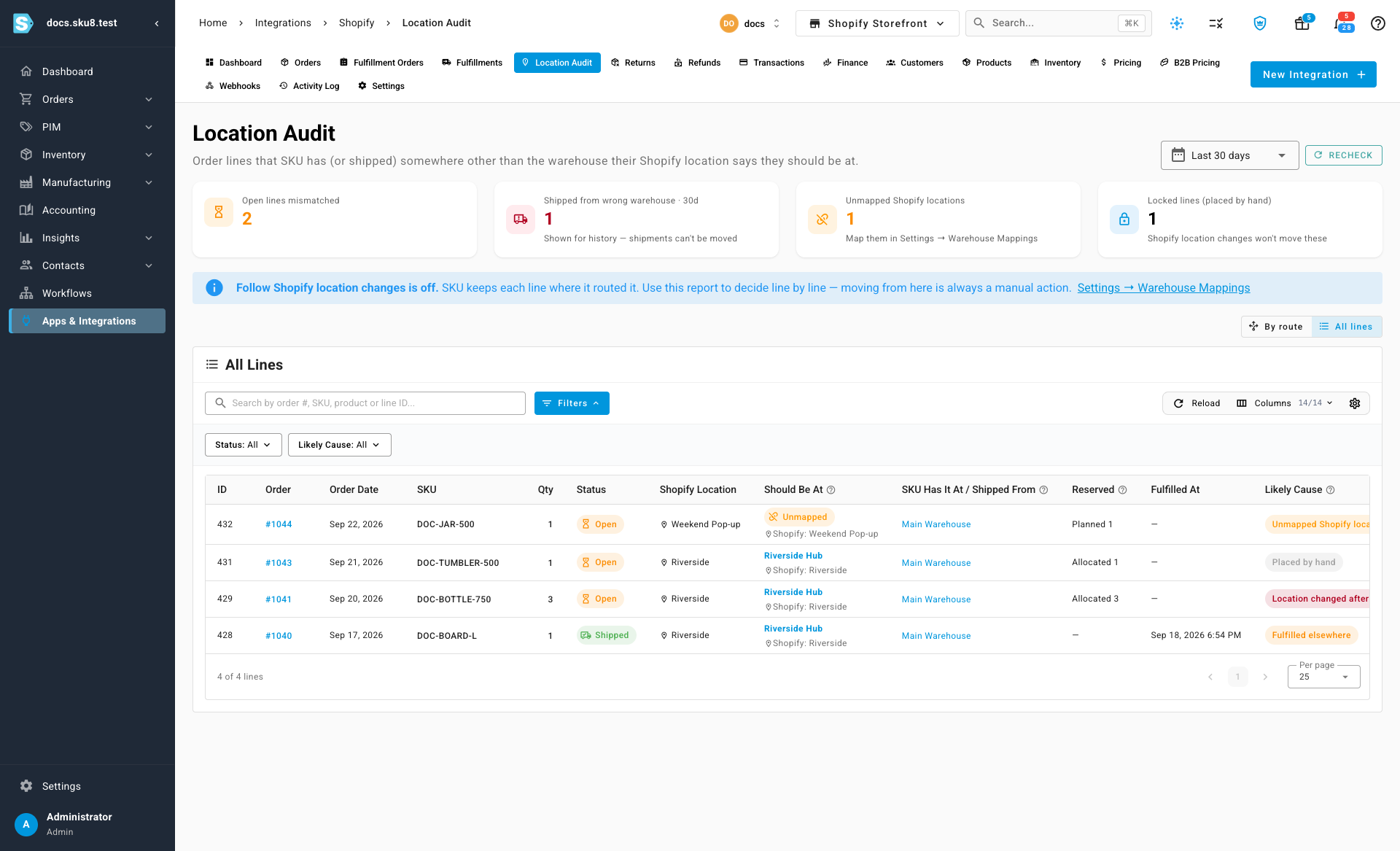
Switch from By route to All lines for a single list across every route, with a search and filters for status and reason. Each row has the same columns and the same Move action.
Next steps
- Let orders follow Shopify location changes
- Connect a Shopify store
- Route orders to the right warehouse automatically
Video transcript
Every order from your store is assigned a location, and that location decides which warehouse should ship it. One page lists every order line that ended up somewhere else. To get there, open Apps and Integrations in the sidebar. Then choose the store you want to check. Its Location Audit tab is in the row of tabs along the top of the store. Four cards sum up what the audit found. Open lines are the ones you can still fix. Shipments from the wrong warehouse are shown for the last thirty days, as history. Unmapped locations and locked lines explain why some lines can't be moved. The banner says if lines follow location changes on their own, and while that's off, every move you make here is a manual one. Lines are grouped by route. Each card reads as a sentence: the Shopify location, the warehouse it should be at, and the warehouse the line is in now. The chip gives the likely reason for the difference. Each row is one order line. Should Be At shows the warehouse its Shopify location maps to. SKU Has It At shows where the line is now, and Reserved shows the stock held for it. A line that someone placed in a warehouse by hand is locked. The audit leaves a locked line where it is. To fix a single line, click Move on its row. Confirm, and the line moves to the mapped warehouse, along with its reservation. To fix a whole route at once, use the move button on its card. Shipped and locked lines are skipped. A Shopify location with no warehouse behind it has nowhere to move to. Map this location opens your warehouse mappings, so you can connect it. Switch to All lines for one list across every route, with its own search and filters.