Set your success goals
Your goals answer one question: what would you like to be able to say about your business in six months? Pick two or three. SKU.io measures the ones it can see in your data and checks in with you on the rest.
Before you begin
- You need administrator access, or the Success Plan → Manage permission.
- You can keep up to three goals at a time.
Steps
-
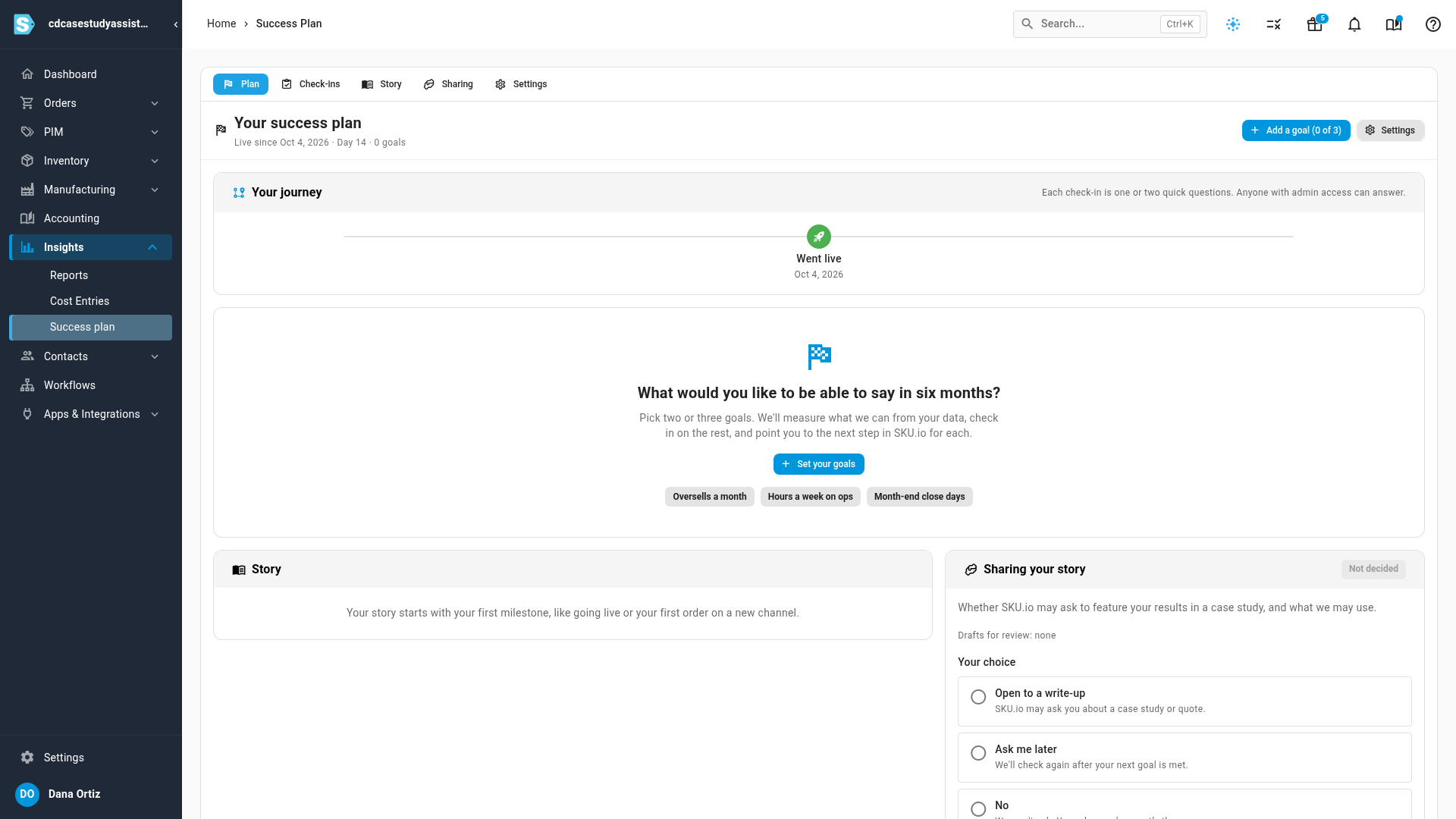
Go to Insights → Success plan. A new plan opens on What would you like to be able to say in six months?
-
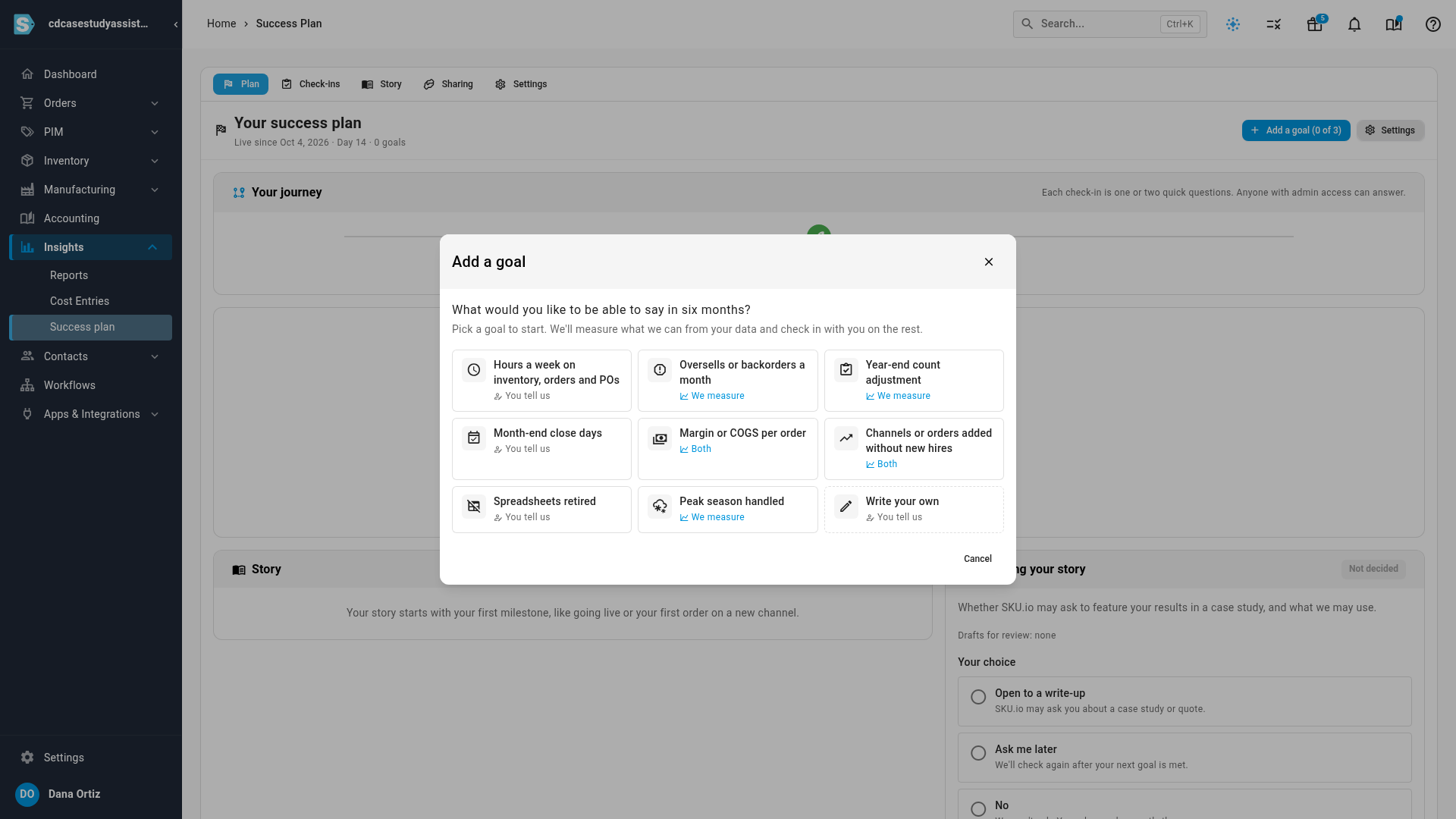
Click Set your goals. Each goal says who measures it:
- We measure: SKU.io counts it from your orders and stock, for example Oversells or backorders a month.
- You tell us: you enter the figure and SKU.io asks you about it at each check-in, for example Month-end close days or Hours a week on inventory, orders and POs.
- Both: SKU.io measures part of it and asks you for the rest.
-
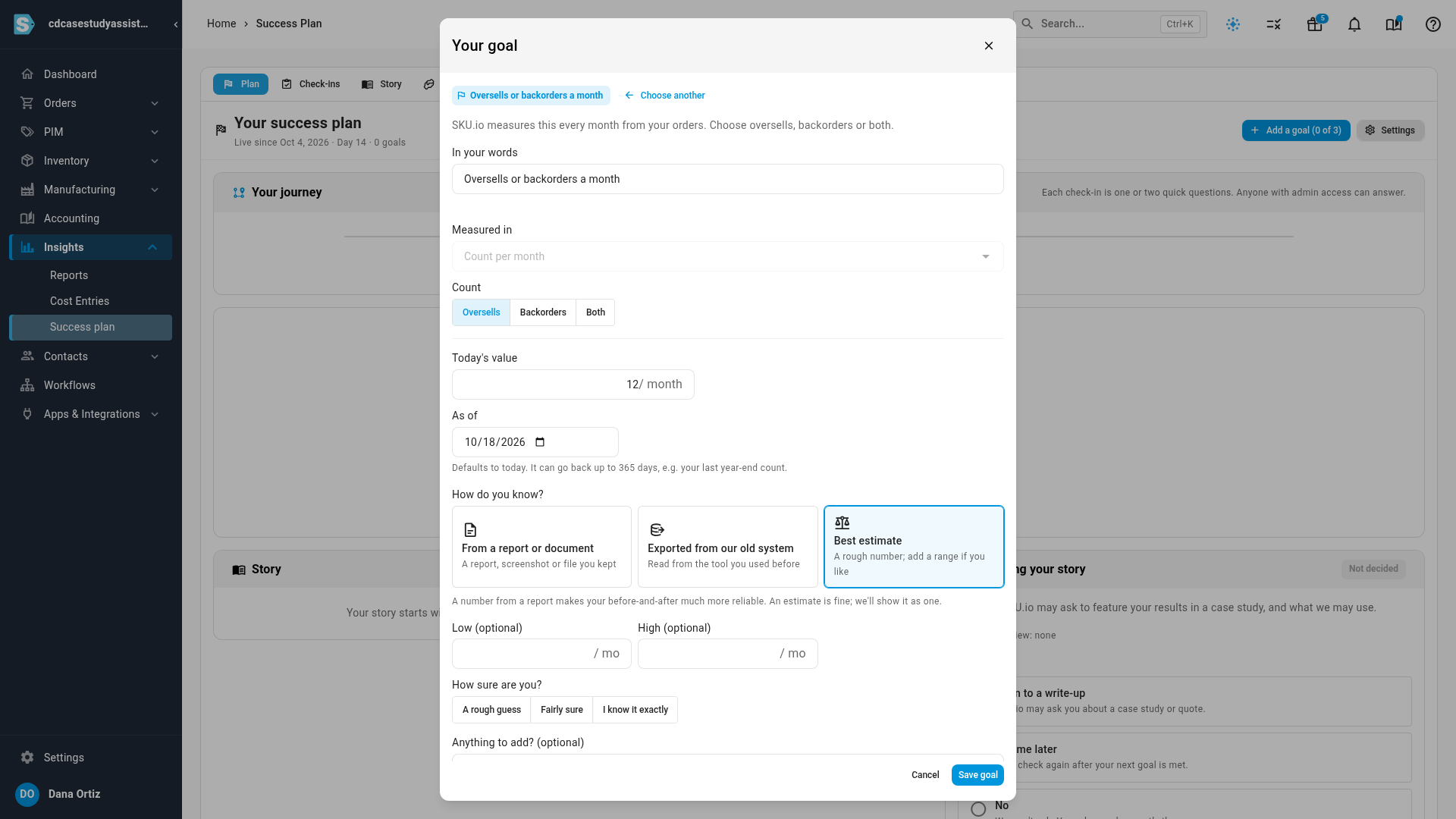
Choose a goal. For Oversells or backorders a month, pick what to count under Count: Oversells, Backorders or Both.
-
Set your starting point:
- Once SKU.io has measured a full month, it offers that figure: SKU.io measured … last month. Use this as your starting point? Click Use this to start from it.
- Otherwise, enter your own figure under Today's value, and choose how you know it under How do you know?. Best estimate is fine; add the lowest and highest it could be.
-
Under In your words, describe the goal the way your team would. This is the name on your plan.
-
Optionally, enter a Target and the date to reach it under By. Leave the target blank to watch the trend instead.
-
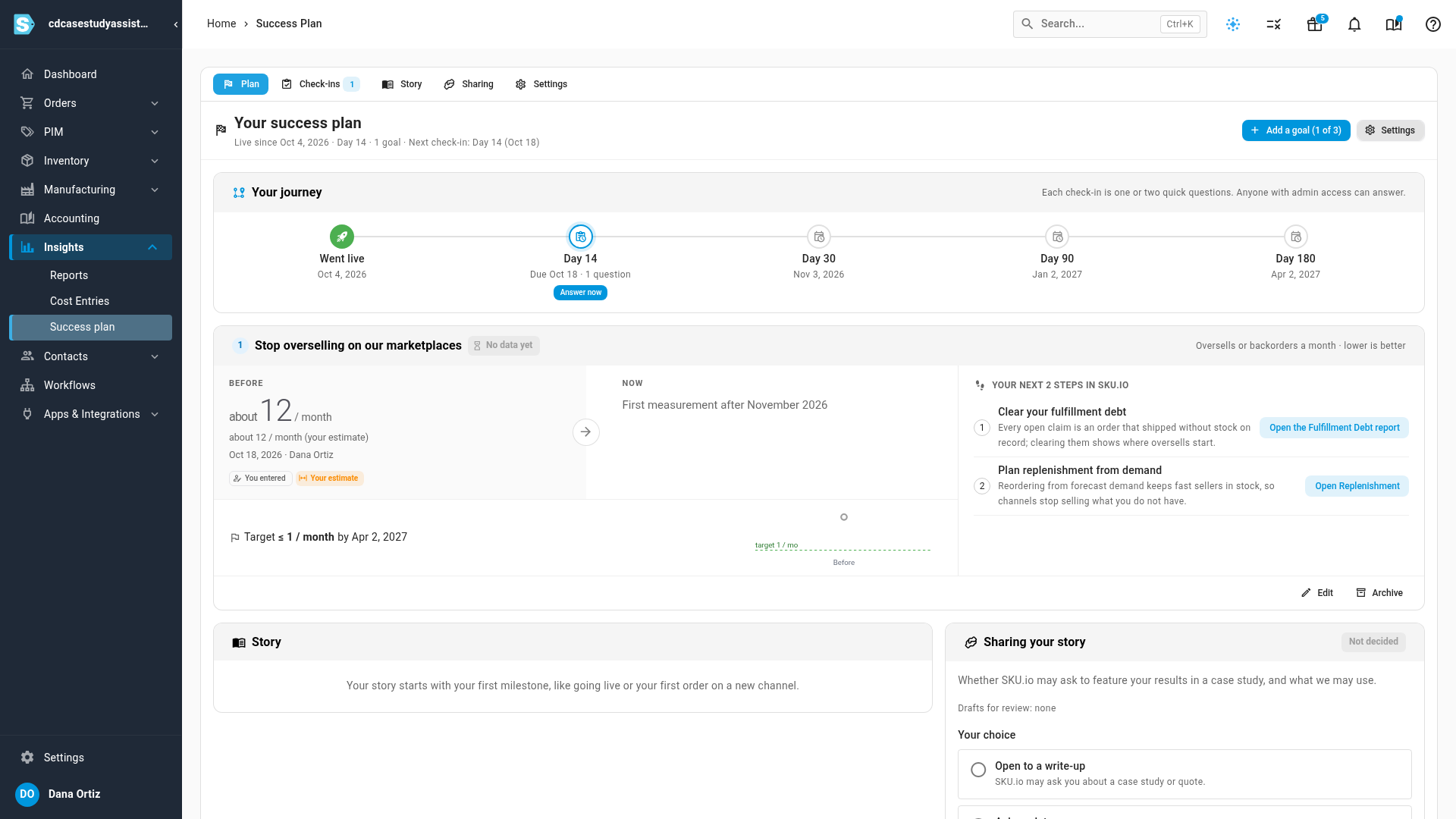
Click Save goal. The goal appears on your plan with your starting point under Before.
-
To add another goal, click Add a goal.
-
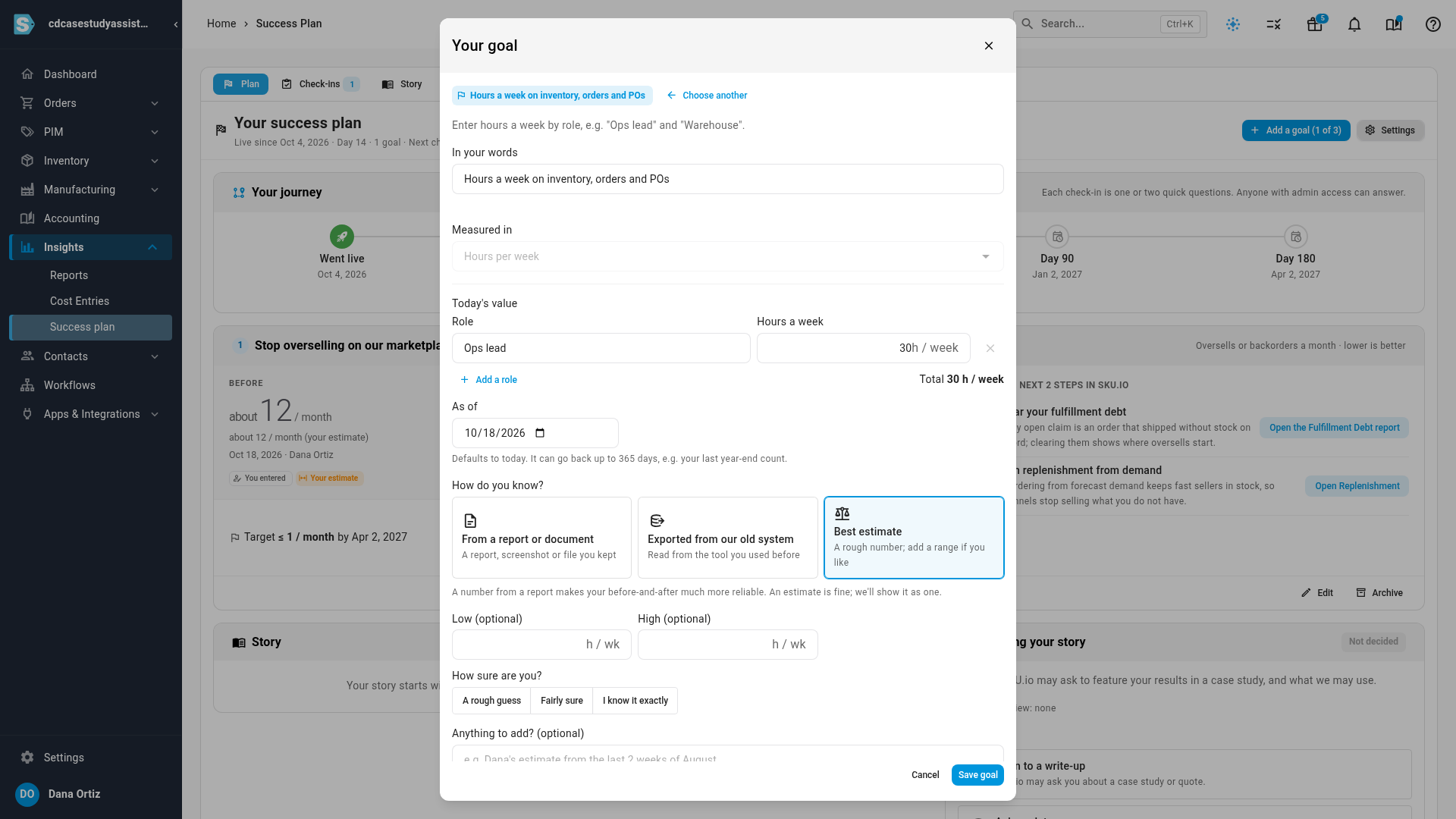
For a goal you track yourself, enter Today's value and its As of date. For Hours a week on inventory, orders and POs, enter each role and its hours a week instead; click Add a role for more. Then choose How do you know?:
- From a report or document: a report, screenshot or file you kept. Attach it if you like.
- Exported from our old system: read from the tool you used before.
- Best estimate: a rough number. Add the lowest and highest it could be.
A number from a report makes your before-and-after much more reliable. An estimate is fine, and it's always shown as one.
-
Click Save goal.
To change a goal later, click Edit at the bottom of its card. You can change its name and target, or correct the starting point with a reason. Click Archive to retire a goal and free its slot.
If you were already live on SKU.io
If you start your plan after you went live, it looks back first. Click Set your goals (or Add a goal), pick a goal and describe it, then answer for the month before you went live:
- whether you have a record of it or are answering from memory,
- your best guess, with the lowest and highest it could have been,
- and how sure you are.
Click Save answer. SKU.io hides today's figure until you answer, so it doesn't pull your guess, and keeps the range you gave alongside your answer.
Next steps
Video transcript
To set your goals, open the Insights menu in the sidebar, then click Success plan. A new plan starts with one question. What would you like to be able to say in six months? Click Set your goals to see the goals you can pick. We measure means the figure comes from your own orders and stock. You tell us means you enter the figure, and we check in on how it's going. Choose Oversells or backorders a month, a goal SKU.io measures from your orders. Then pick which you want to track: oversells, backorders or both. Once SKU.io has measured a full month, it offers that figure as your starting point. Until then, enter your own under Today's value, and choose Best estimate. Under In your words, describe the goal in your team's own words. Then set a target and a date. Leave the target blank if you'd rather just watch the trend. When everything looks right, click Save goal. The goal joins your plan, with where you started on the left. Each month, SKU.io measures the goal again and shows where you are now. Next, click Add a goal and choose Hours a week on inventory, orders and POs. This is a goal you measure yourself. Enter each role and the hours it spends each week, then say how you know the number. A figure from a report makes your before-and-after more reliable. Click Save goal to add the second goal to your plan. You can keep up to three goals at a time. Edit or archive any of them from the bottom of its card.