Read your success plan
Your success plan compares where you started with where you are now, for up to three goals. This page explains what you see on it, so you can trust each number and know where it came from.
Before you begin
- You need administrator access. An administrator can give other roles the Success Plan permissions under Settings → Users & Permissions: View to see the plan, Manage to edit goals, answer check-ins and change sharing.
- If your plan has no goals yet, start with Set your success goals.
The page at a glance
Go to Insights → Success plan. The tabs across the top are Plan, Check-ins, Story, Sharing and Settings. On the Plan tab:
- Your journey runs along the top, from the day you went live through the check-ins at day 30, 90 and 180. A check-in that's due shows Answer now.
- This week's focus appears when a goal is off track. It names the goal and the one change in SKU.io that would help it most.
- Below that is one card per goal.
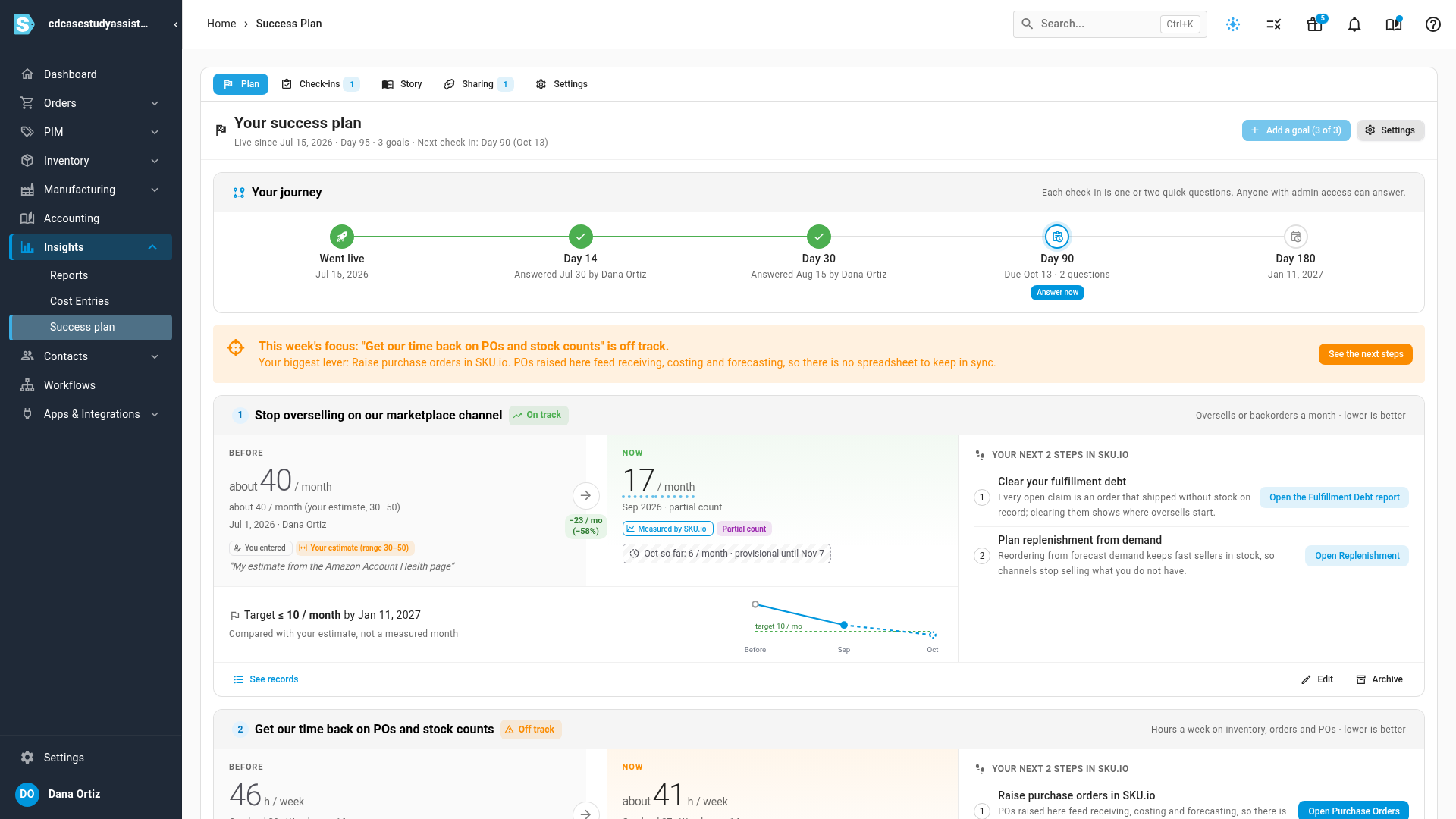
A goal card
Each goal card has three parts:
- Before: your starting point, with the date it describes and who recorded it.
- Now: the latest month SKU.io measured, or your latest answer for a goal you track yourself. The change between the two appears beside the arrow.
- Your next steps in SKU.io: two things you can do in SKU.io to move the goal, with a button that opens the right screen. Steps you've already done are ticked off.
Under the figures you'll see your Target, if you set one, and a small trend chart. The status next to the goal's name is On track, Off track or Met. A goal with no reading yet shows No data yet.
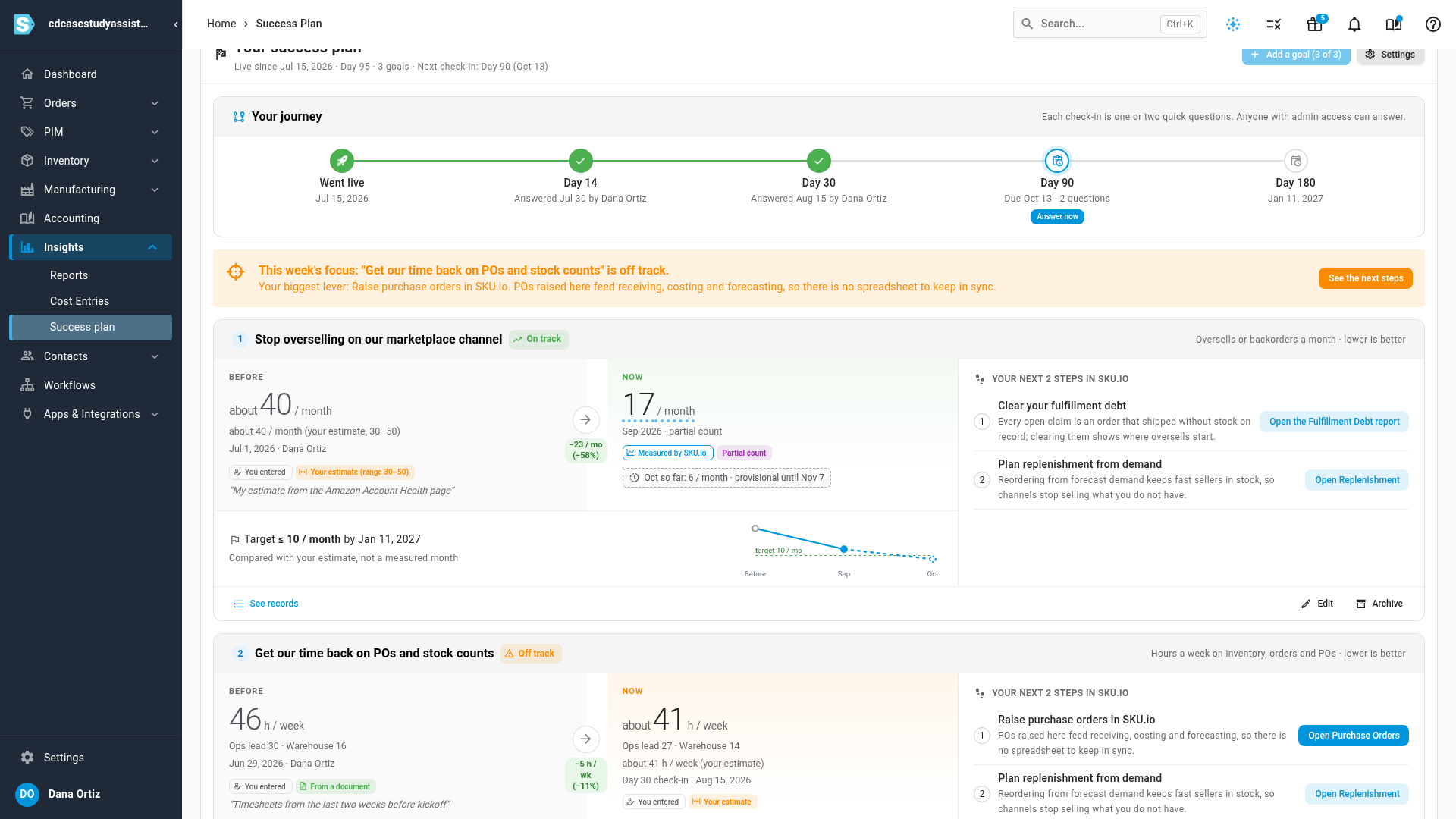
Where each figure comes from
A label under every figure tells you its source:
| Label | Meaning |
|---|---|
| Measured by SKU.io | Counted from your own orders, stock and purchase orders. See records shows every record behind it. |
| You entered | A figure you gave, with how you know it: from a report or document, exported from your old system, or your best estimate. An estimate shows its range, for example Your estimate (range 30–50). |
| From SKU.io | Shown on the Settings tab for details SKU.io filled in for you, such as your sales channels and order volume. You can correct them. |
A before-and-after that mixes the two, such as an estimate before and a measured figure now, says so under the target: Compared with your estimate, not a measured month.
Provisional and partial figures
- The current month's measured figure is provisional until it settles on the 7th of the next month, for example Oct so far: 6 / month · provisional until Nov 7. Late changes, like an order cancelled after the month ended, are counted before it settles.
- Partial count means SKU.io didn't have the whole month, usually because your data in SKU.io starts partway through it. A partial month is shown, but it never marks a goal as met.
Check a figure record by record
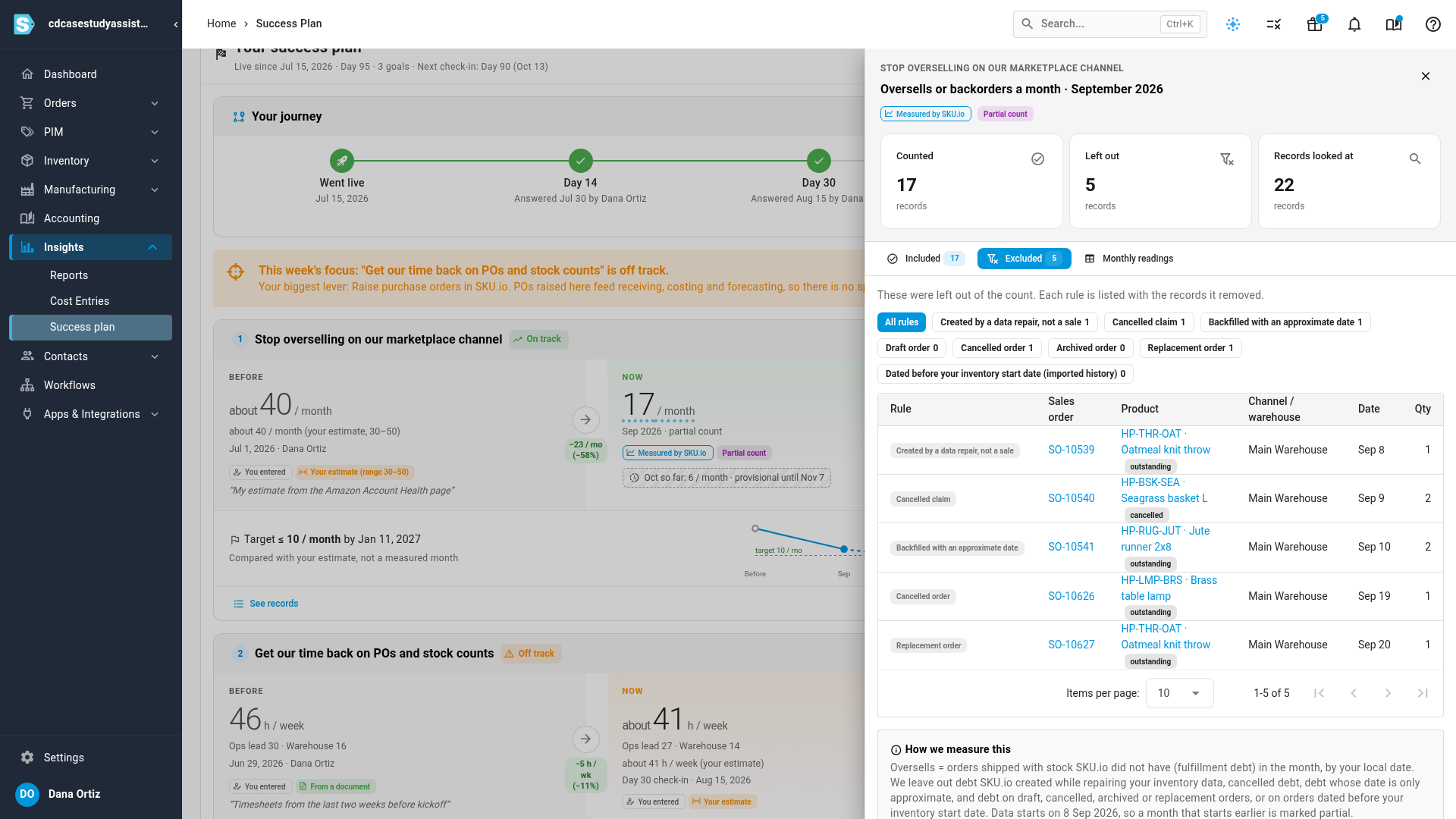
- On a goal measured by SKU.io, click See records.
- The panel shows how many records were Counted, Left out and Looked at for that month. The Included tab lists every record that counted, each linked to its order or product.
- Click Excluded to see every record that was left out.
- Click Monthly readings to see the figure month by month.
- Read How we measure this at the bottom for exactly what counts and what doesn't.
Leave products out of your figures
On the Settings tab, Packaging and consumables lists the products whose stock adjustments and count variances are left out of your measured figures. Writing off boxes, mailers or tape doesn't count against your goals.
Next steps
Video transcript
To see your plan, open the Insights menu in the sidebar, then click Success plan. The page holds your goals, your check-ins and your story. Your journey runs along the top, from go-live to day 180. When a goal is off track, this week's focus names the goal. It also points to the one change that would help most. Each goal compares where you started with where you are now. Before is your starting point. Now is the latest month SKU.io has measured. A label under every figure says where it came from. Measured by SKU.io means it was counted from your own data. You entered means the figure is yours, with how you know the number. This month's figure is provisional until it settles, a week into the next month. Partial count means SKU.io didn't have the whole month yet. To check a measured figure, click See records. You see every record that was counted. The Excluded tab lists every record left out, with the reason. At the bottom of the panel, read How we measure this. It explains what counts and what's left out of the figure. Close the panel when you're done. Each goal shows its status, like On track. Beside the status, two next steps in SKU.io show how to move the goal. Steps you've already done are ticked off.