Set up supplier pricing tiers and price breaks
A supplier pricing tier is a named price list for what you pay suppliers — for example Wholesale for everyday orders and Wholesale Bulk for the lower price you get on large orders. Each tier carries one currency, and each product can have a price on each tier for each supplier. Purchase orders fill unit costs from a tier, and you can switch a whole order to another tier when it qualifies for a better price.
This page covers creating tiers, giving them to a supplier, and setting quantity breaks on a supplier product's costs. Entering a product's price on each tier happens on the product — see Manage a product's suppliers.
Before you begin
- You need access to Settings → Purchasing to create tiers, and permission to edit suppliers to assign them.
- Decide which currency each tier is in. A tier's currency is the supplier's currency on any purchase order priced from it.
Create a tier
-
Go to Settings → Purchasing → Supplier Pricing Tiers. The list shows each tier's Type, Base Tier, Formula, Currency, and which one is the Default.

-
Click Create Supplier Pricing Tier.
-
Enter a Name.
-
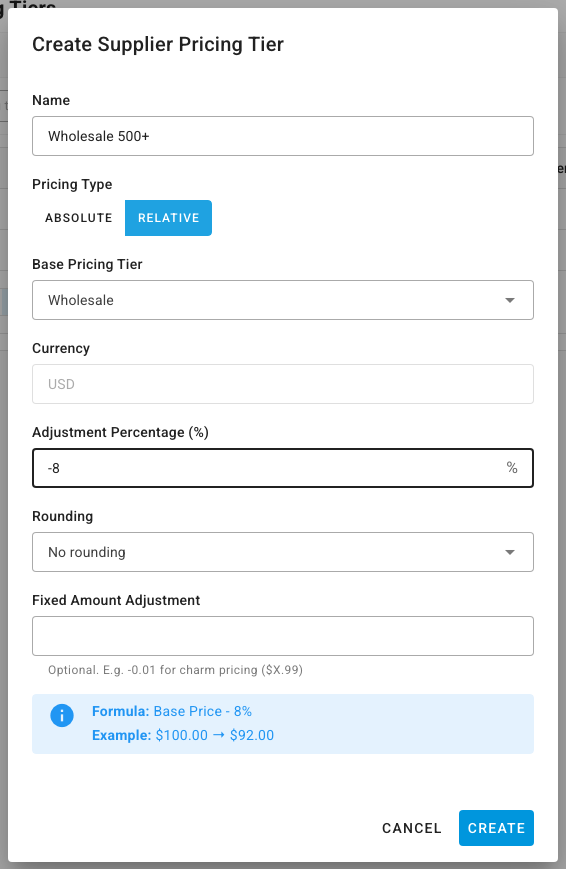
Choose the Pricing Type:
- Absolute — you enter every product's price on this tier yourself. Pick the tier's Currency.
- Relative — prices are worked out from another tier. Pick the Base Pricing Tier; the currency follows the base tier. Then set the Adjustment Percentage (%) (for example,
-8for 8% off), an optional Rounding, and an optional Fixed Amount Adjustment (for example,-0.01to end prices in .99). The Formula and Example under the fields show the result before you save.
-
Click Create.
A relative tier fills in a price for every product that has a price on its base tier, in the background. When a base price changes later, the relative tier's price follows.
To make a tier the account default — the tier a supplier uses when it has no default of its own — open the tier, tick Set as default pricing tier, and save. Only an absolute tier can be the default.
Give a supplier its tiers
- Go to Purchasing → Suppliers, open the supplier, and open the Settings tab.
- Click Edit.
- Under Purchasing Defaults, add the supplier's tiers in Pricing Tiers.
- If you added more than one, choose the supplier's Default Pricing Tier — the tier its products are priced from by default. Leave it empty to fall back to your account's default tier.
- Click Save.

The default tier also sets the supplier's currency. To change many suppliers at once, see Export suppliers.
To compare a supplier's prices across tiers, open the supplier's Products tab, click Price List, and switch Cost tier.
Set quantity breaks on a supplier's costs
A quantity break lowers a supplier's unit cost from a quantity up, on one tier. For example, Wholesale costs $4.00 at 1+, $3.80 at 24+, and $3.50 at 100+. When a purchase order line reaches a break's quantity, every unit on the line costs that break's price, and purchase order lines pick it up automatically. You set breaks on the supplier product, the product as you buy it from that supplier.
To open a supplier product, go to Products, open the product, and open its Suppliers tab. On the supplier's row, click the arrow (View supplier product details). Then open the Pricing tab.
The Cost Tiers & Quantity Breaks card is a grid. Each row is one of the supplier's tiers. The 1+ column is the tier's unit cost, and each column to its right is a quantity break. A blank cell keeps the cost to its left. Under each break's cost, vs base shows its change from the tier's 1+ cost.

To change the costs and breaks:
- On the Cost Tiers & Quantity Breaks card, click Edit. If the tier has no breaks yet, the grid starts with 10+, 25+, and 50+ columns. Blank columns save nothing.
- To change a break's quantity, type it in the column header. To add a column, click + Break. Each tier can have up to 9 breaks. To remove a break from every tier, click the × beside its quantity.
- Under Type costs as, choose what you type in a cell:
- Cost: the unit cost itself.
- % off tier: a discount from the tier's 1+ cost.
- Margin %: the margin you want against the product's sell price. SKU.io works out the cost.
- Type a cost in each tier's 1+ cell, then in the break cells. With more than one tier, type in the All tiers row to fill a column in every tier at once.
- To price another of the supplier's tiers on this product, click Add tier and pick it. To remove a tier, click the × beside its name.
- Click Save, or Cancel to discard your changes.
The card checks the grid as you type. A tier with no 1+ cost, a quantity used twice, a break below 2, or a negative cost blocks Save. A break that costs more than a smaller quantity shows a warning but still saves.
Check the margin
The toolbar measures each cost against one of the product's sell prices. Under Margin vs, pick the sell tier to compare with, or Custom (what-if) to try a sell price of your own. Set Warn below to the margin you want to stay above: margins below it are marked, and a loss shows in red. Hover a cell to see the totals for that quantity, for example what you pay the supplier and the margin you keep.
Margins show only for tiers in the same currency as the sell price. When the product has no sell price, the card says "No sell price on this product, so margins can't be shown." and links to the product's Pricing tab.
What you can't change here
- Calculated tiers, marked ƒ, are read-only. Their costs and breaks follow their base tier. You can't remove a calculated tier here, or a tier that one is calculated from.
- You can't remove the supplier's default tier, marked Default.
- Add tier offers only the tiers already given to the supplier. To add one, see Give a supplier its tiers.
- When the supplier has no pricing tiers at all, the card reads "This supplier has no pricing tiers, so there is nothing to price yet.", with links to the supplier and to Settings › Supplier Pricing Tiers.
- To edit costs, you need the Suppliers Edit permission (
suppliers.update). Without it, the card is read-only.
Switch a whole order to another tier
SKU.io doesn't move a purchase order to another tier on its own. When an order qualifies for a different tier's costs, select its lines, pick the tier in Pricing Tier, and click Reprice, while the order is a draft or open. See Apply pricing, tax, or a discount to many lines at once.
Keep the supplier's original price list file with the supplier, so anyone can check where a tier's prices came from — see Keep a supplier's price lists and documents.
Next steps
- Manage a product's suppliers — enter a product's price on each tier.
- Edit a purchase order and its line items — how a new line's unit cost is chosen from the tiers.
- Bulk edit products — change a tier's prices across many products at once.