Merge duplicate customers
When the same buyer exists twice, for example once from a sales channel and once typed in by hand, merge the duplicate into the customer you want to keep. Everything attached to the duplicate moves to that customer, and the duplicate is archived.
Before you begin
- You need the
customers.mergepermission. Admins have it. - Decide which customer survives. The one you open, or right-click, is the duplicate that gets archived. The one you pick in the dialog is the one you keep.
- The duplicate must be active. To merge an archived customer, unarchive it first.
What moves
| Moves to the surviving customer | Notes |
|---|---|
| Sales orders, quotes, sales credits and scanned purchase orders | |
| Store credit, loyalty points, on-account charges and payments, and gift cards | Balances are combined. |
| Saved cards | The surviving customer keeps a single default card. |
| Contacts and addresses | The surviving customer keeps a single primary contact. An address both customers already hold is kept once. |
| Customer prices, customer SKU mappings, B2B price group and tags | Where both customers already hold the same one, the surviving customer's copy is kept. |
| Portal buyers, saved lists, carts, order approvals, feed keys and account applications | |
| Sales channel customer links, Shopify B2B locations and Magento customer links | |
| QuickBooks and Xero customer links, and statements and payment requests already sent |
Merge from the customer page
-
Go to Contacts → Customers and open the duplicate customer.
-
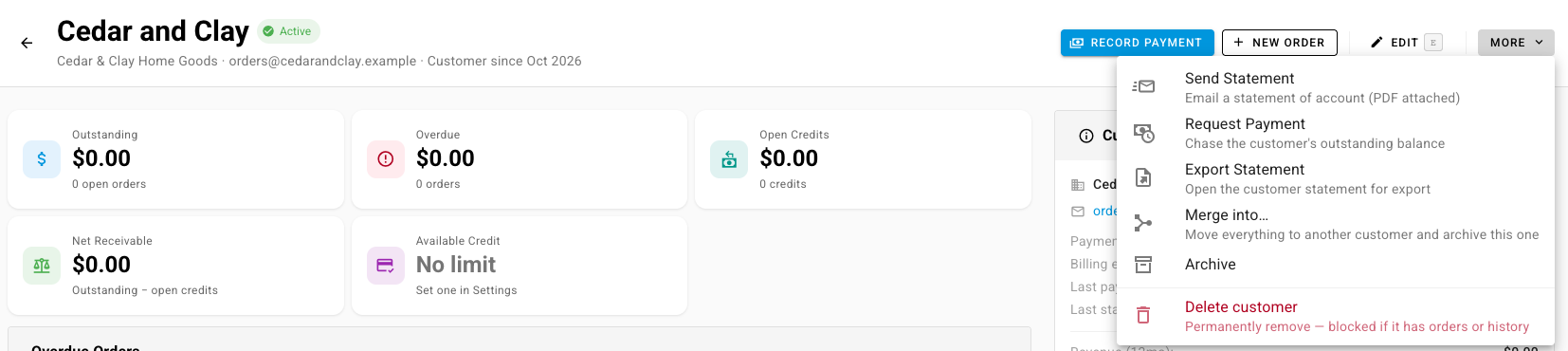
Click More → Merge into….
-
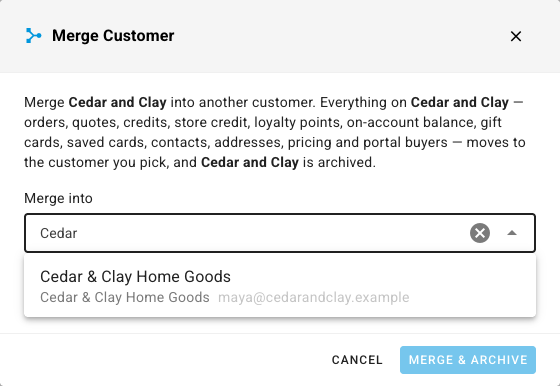
In Merge into, search for the customer you're keeping and select it. The list only offers active customers, and never the duplicate itself.
-
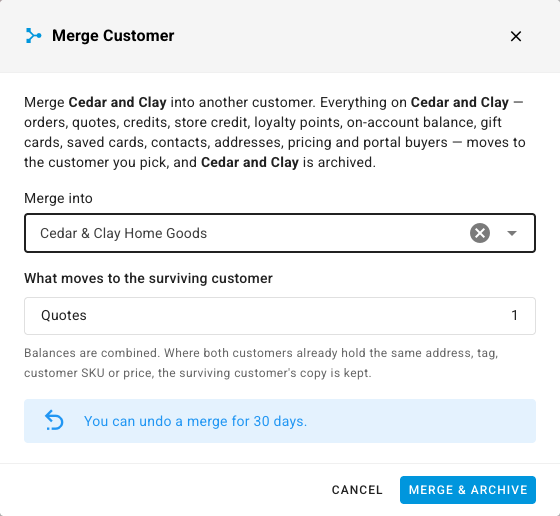
Check What moves to the surviving customer. It counts each kind of record that will move. If the duplicate has nothing attached, the table says so.
-
Click Merge & Archive. SKU.io confirms the merge and opens the surviving customer, which now holds everything from the duplicate. The duplicate shows as Archived and appears under Archived in the customers list.
Merge from the customers list
-
Go to Contacts → Customers.
-
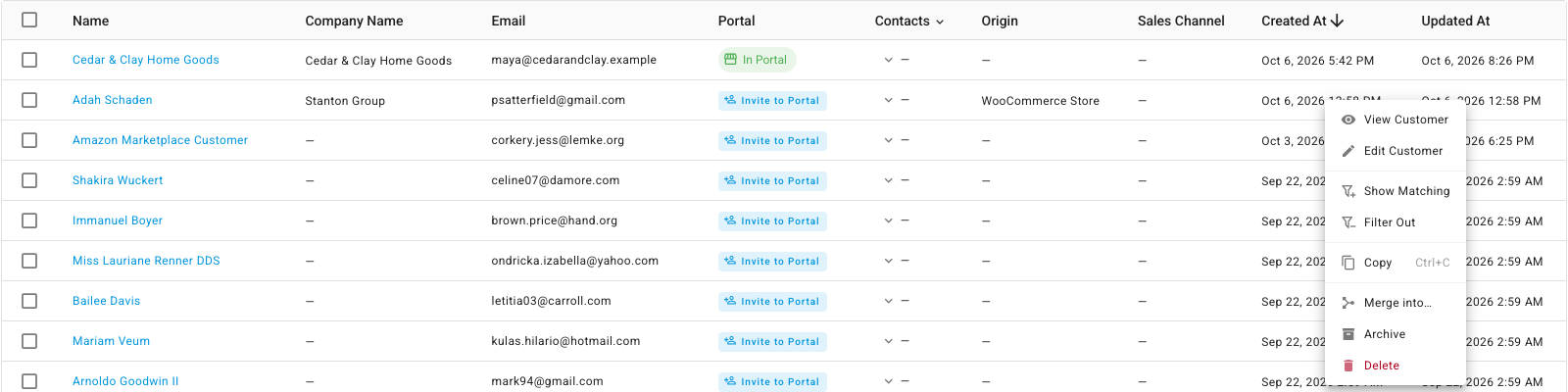
Right-click the duplicate's row and choose Merge into….
-
Follow steps 3 to 5 in the previous section.
Find duplicates with QuickBooks
If you use QuickBooks Online, SKU.io can look for customers that are likely to be duplicates.
-
Go to Apps & Integrations → QuickBooks and open the Customers tab.
-
Click Find duplicates → Find SKU duplicates.

-
Wait for the scan to finish. Review SKU Customer Duplicates lists likely pairs side by side, with a match score and the signals that matched.
-
For each pair, click Keep A · Merge B or Keep B · Merge A, then confirm. The merge works the same as Merge into…. Click Not a duplicate to stop SKU.io from offering that pair again.
Find QBO duplicates looks for duplicates inside QuickBooks instead. Merging those deletes the duplicate in QuickBooks Online, which can't be undone in QuickBooks.
Undo a merge
A merge is recorded so it can be reversed for 30 days. Reversing it restores the duplicate and moves back everything that came from it.
Next steps
- Create & edit a customer: tidy up the surviving customer's details.
- Keep a contact book for customers, suppliers, and warehouses: pick the primary contact after a merge.