Use different accounts for each sales channel
If you split your books by channel — say Cost of Goods Sold - Wholesale for wholesale orders and Cost of Goods Sold - DTC for your online store — you can point each sales channel at its own accounts. Orders from that channel then generate entries against the channel's accounts instead of the company defaults, in SKU.io and in your accounting software.
Before you begin
- Create the accounts you want to split into (for example 5010 - Cost of Goods Sold - DTC and 5020 - Cost of Goods Sold - Wholesale) under Accounting → Settings → Nominal Codes. If you sync to QuickBooks or Xero, make sure each is linked to a provider account — see Map your accounts to QuickBooks Online.
Read the Channel Accounting matrix
-
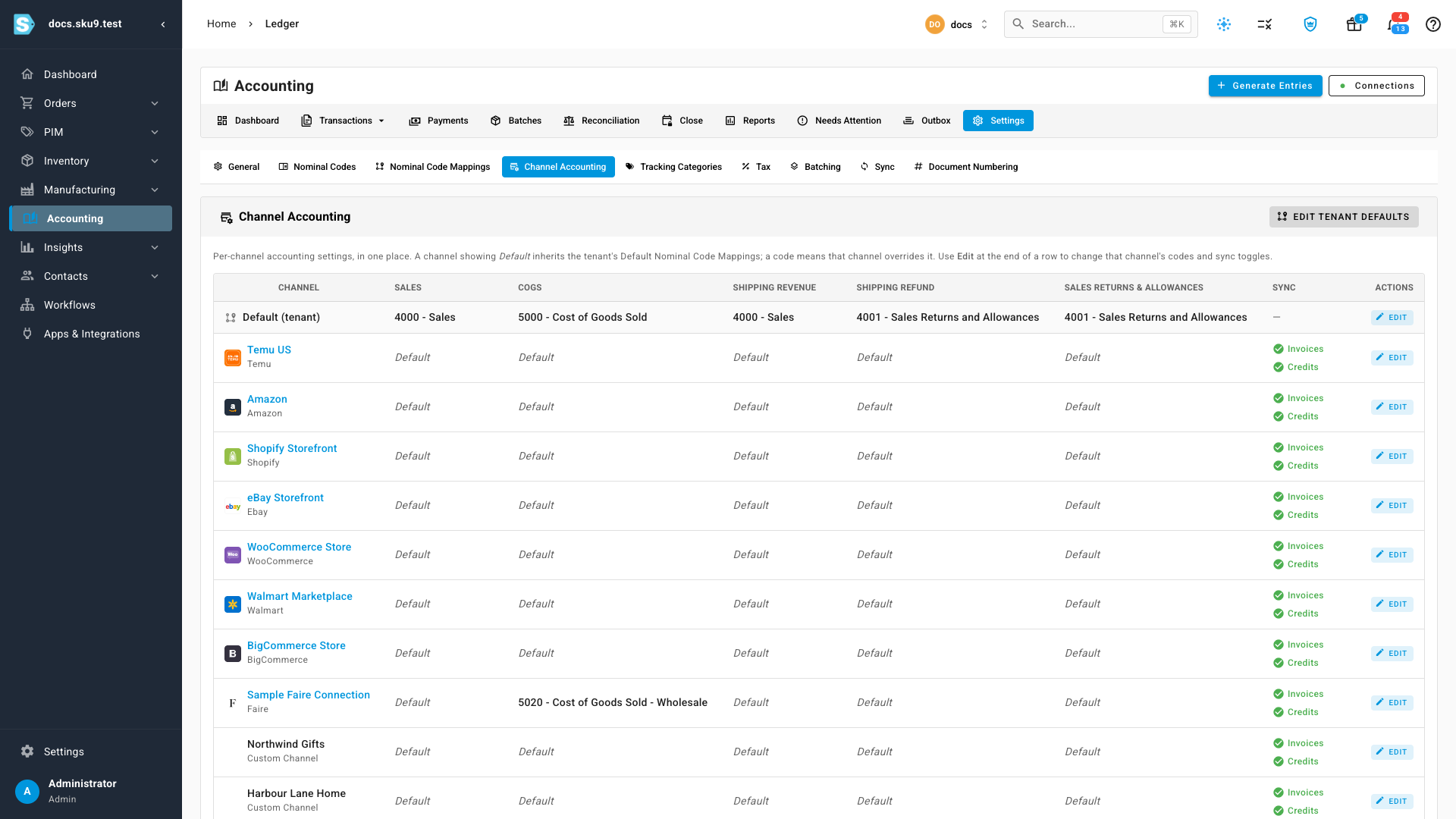
Go to Accounting → Settings → Channel Accounting. Every sales channel is a row; the columns are Sales, COGS, Shipping Revenue, Shipping Refund, and Sales Returns & Allowances.
-
The first row, Default (tenant), shows your company defaults. In a channel's row, Default means the channel inherits that default; an account code means the channel overrides it.
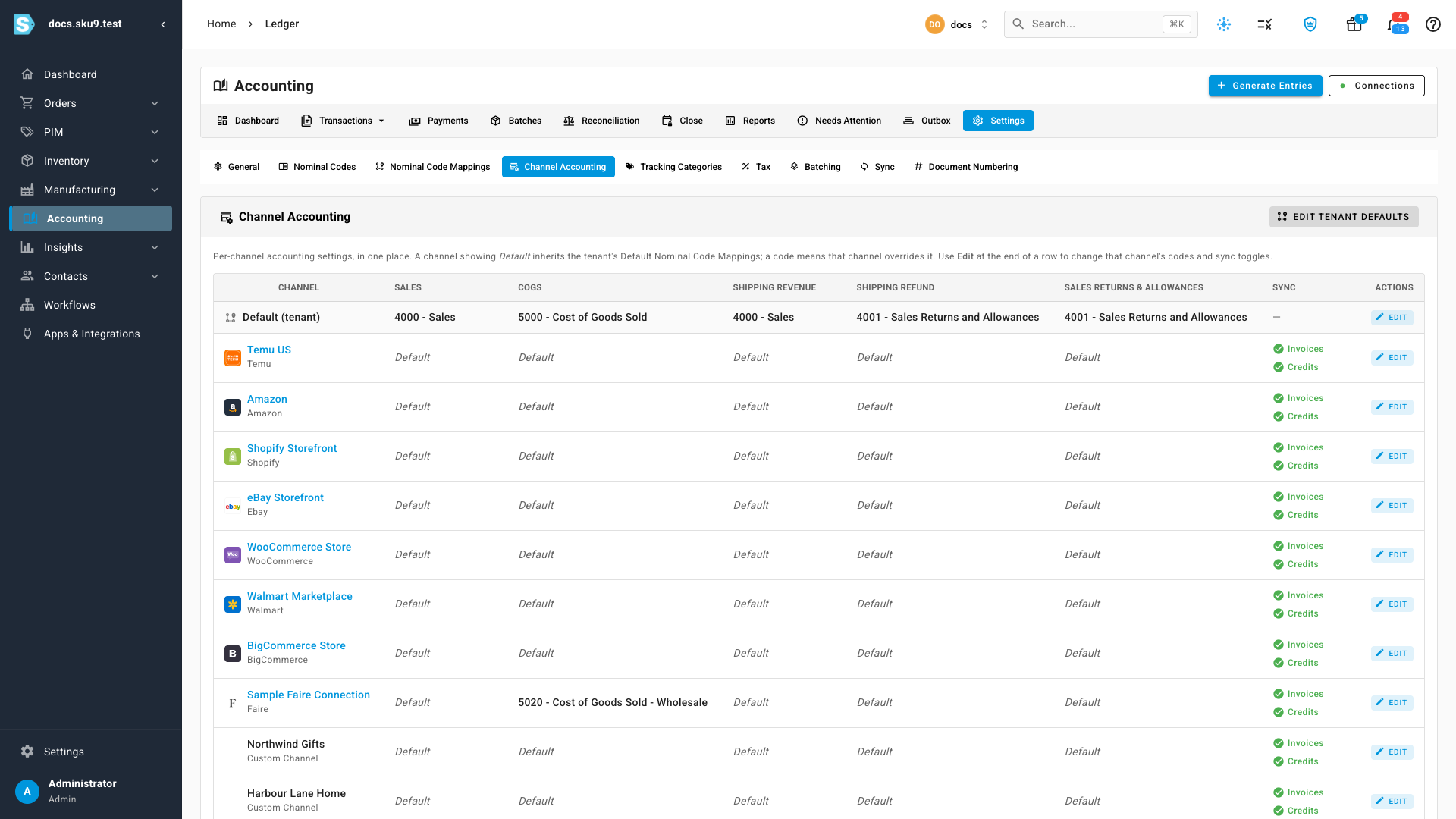
Set a channel's accounts
-
Click Edit at the end of the channel's row.
-
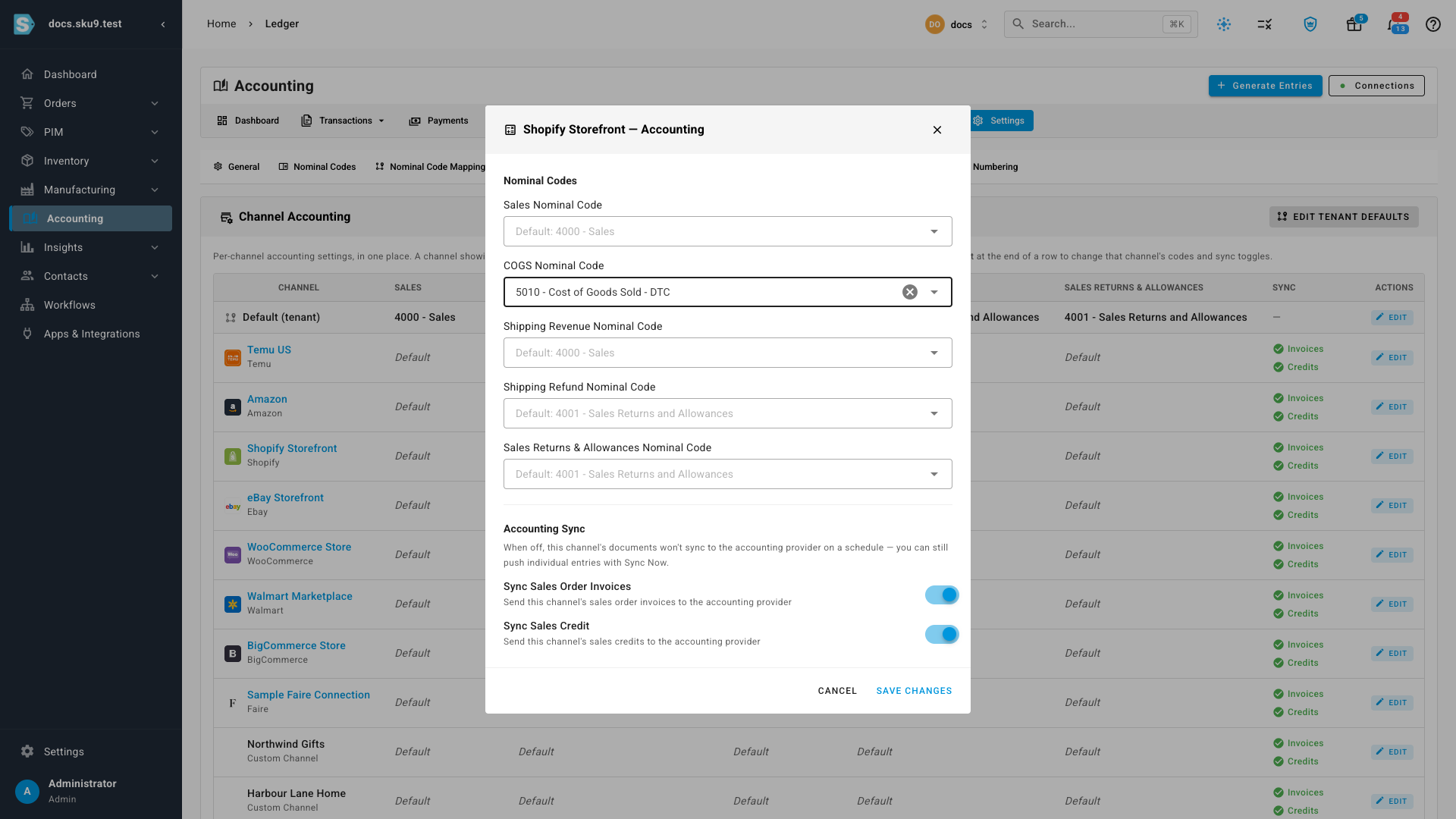
In the dialog, pick the channel's account for each posting — for a wholesale channel, set COGS Nominal Code to your wholesale COGS account. Leave a field empty to keep using the default shown in its placeholder.
-
Click Save Changes. New entries for this channel's orders post to the accounts you chose.
The dialog's Accounting Sync switches control whether this channel's invoices and credits are sent to your accounting provider at all.
Which setting wins
For each entry line, the most specific setting wins:
- A product override (the product's Accounting tab), if set.
- Otherwise the channel override from this matrix, if set.
- Otherwise the company default from Nominal Code Mappings.
Orders created in SKU.io
Orders you create manually — and any order that doesn't belong to a connected channel — fall under the built-in SKU.io (internal) channel, the matrix's last row. It reads and edits exactly like the rows above it: the codes in its row are the ones its orders post to, Default means it inherits the company default, and Edit sets them.
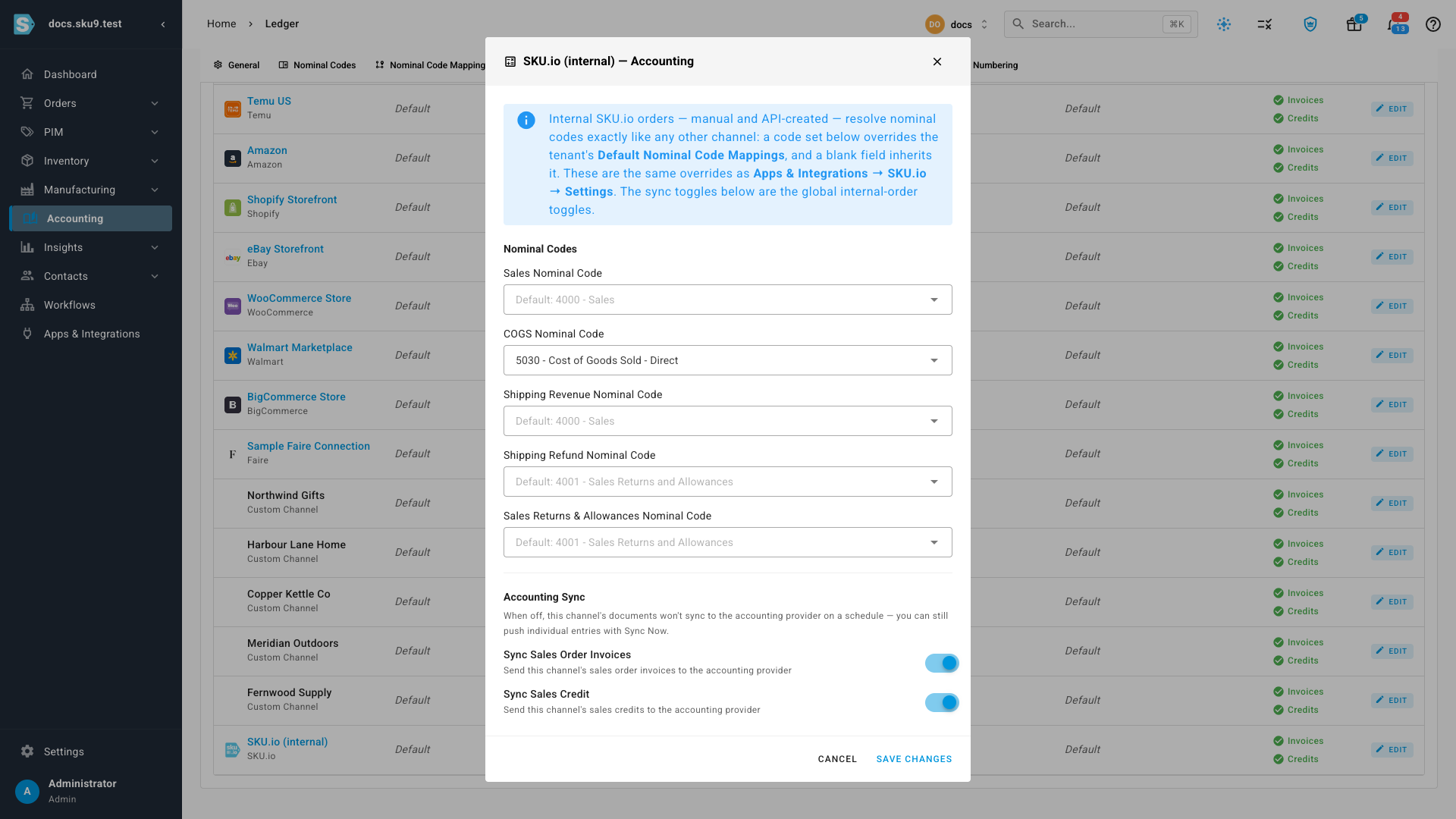
The same accounts also appear on the channel's own settings page (Apps & Integrations → SKU.io → Settings) — it's the same setting shown in two places, so changing it in either updates both.
The Accounting Sync switches in the internal channel's dialog are the company-wide switches for orders without a sales channel, shared with Accounting → Settings → General. Its account fields are its own.
Next steps
- How entries are grouped by sales channel — why each channel gets its own summary entries.
- Fix entries posting to the wrong account — when a posting lands somewhere unexpected.
Video transcript
Splitting your books by channel starts in the Accounting area. Open the Settings tab there, then pick Channel Accounting from the row of sub-tabs that appears under the tab bar. Every sales channel gets a row of its own. The top row holds your company defaults, and a row reading Default simply inherits those defaults. An account code in a row is an override. This wholesale channel already posts its cost of goods sold somewhere separate, so its margin stays on its own line in your books. To set one yourself, find the channel you want and click the Edit button at the end of its row. The dialog lists every account you can override, each showing the company default it would otherwise inherit. Give the storefront its own cost of goods sold code — here, Cost of Goods Sold DTC. Save your changes. The matrix shows the new code right away, and from this point on everything that storefront fulfills posts there rather than to the company default. Orders your team creates directly — and any order without a connected channel — fall under the internal channel at the bottom of the matrix. It reads and edits exactly like the rows above: the codes shown are the ones it posts to, and Edit opens them for changes.