Turn features on and off
SKU.io covers manufacturing, wholesale, repairs, retail stores and a lot more. If your company doesn't use some of it, an admin can turn it off on the Features page. The pages leave the sidebar, search and settings for everyone at your company, so the app shows what you work with. Turning a feature off only hides it. Nothing is deleted, and you can turn it back on at any time.
Before you begin
- You need the Features Manage permission (
features.manage) to change anything. Admins have it by default. Without it, you can open the page and see what is on, and the page names the people who can change it. - A switch on this page changes what everyone at your company sees. To try a feature yourself first, use Preview for me.
- Each switch saves as you flip it. This page has no Save button.
- The screenshots come from a demonstration account.
Where to find it
Go to Settings → Features, or click Manage features at the bottom of the sidebar.
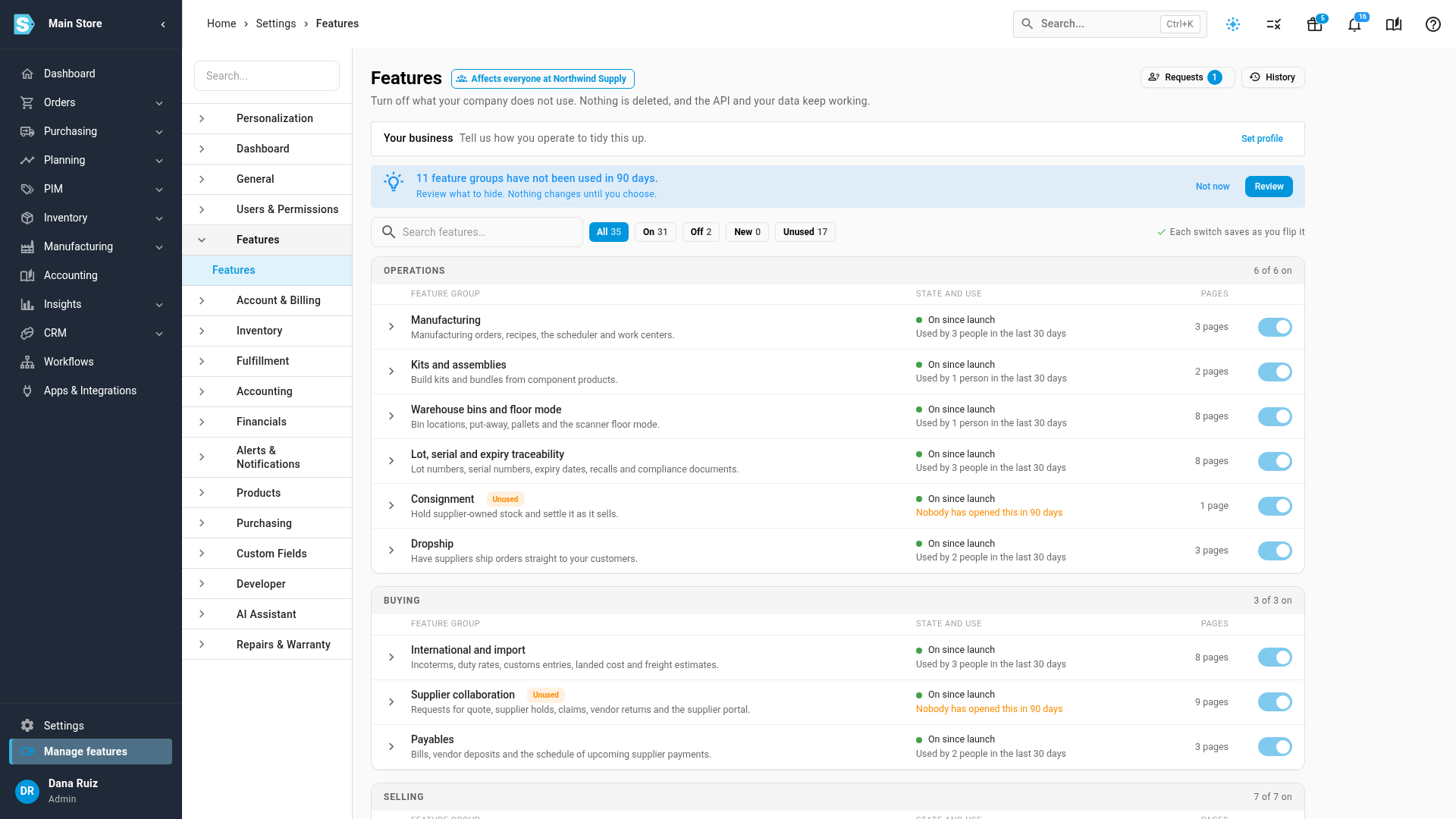
Features are listed in groups, such as Manufacturing or Wholesale, under sections such as Operations, Buying and Selling. Each row shows:
- Feature group: the group's name and what it covers.
- State and use: whether the group is on or off, since when, and who changed it. Below that, how many people used it in the last 30 days. A group nobody has opened in 90 days carries an Unused tag.
- Pages: how many pages the group adds.
- A switch that turns the group on or off.
To find a group, type in Search features…, or use the filters beside it: All, On, Off, New and Unused.
Groups in the Connections section, such as Amazon FBA and Walmart WFS, follow your integrations. A group whose app isn't connected has no switch. Its row reads Appears when you connect with the app's name, and a Connect link takes you to Apps & Integrations.
Turn off a feature group
- Go to Settings → Features.
- Find the group (type in Search features… to narrow the list), and click its switch.
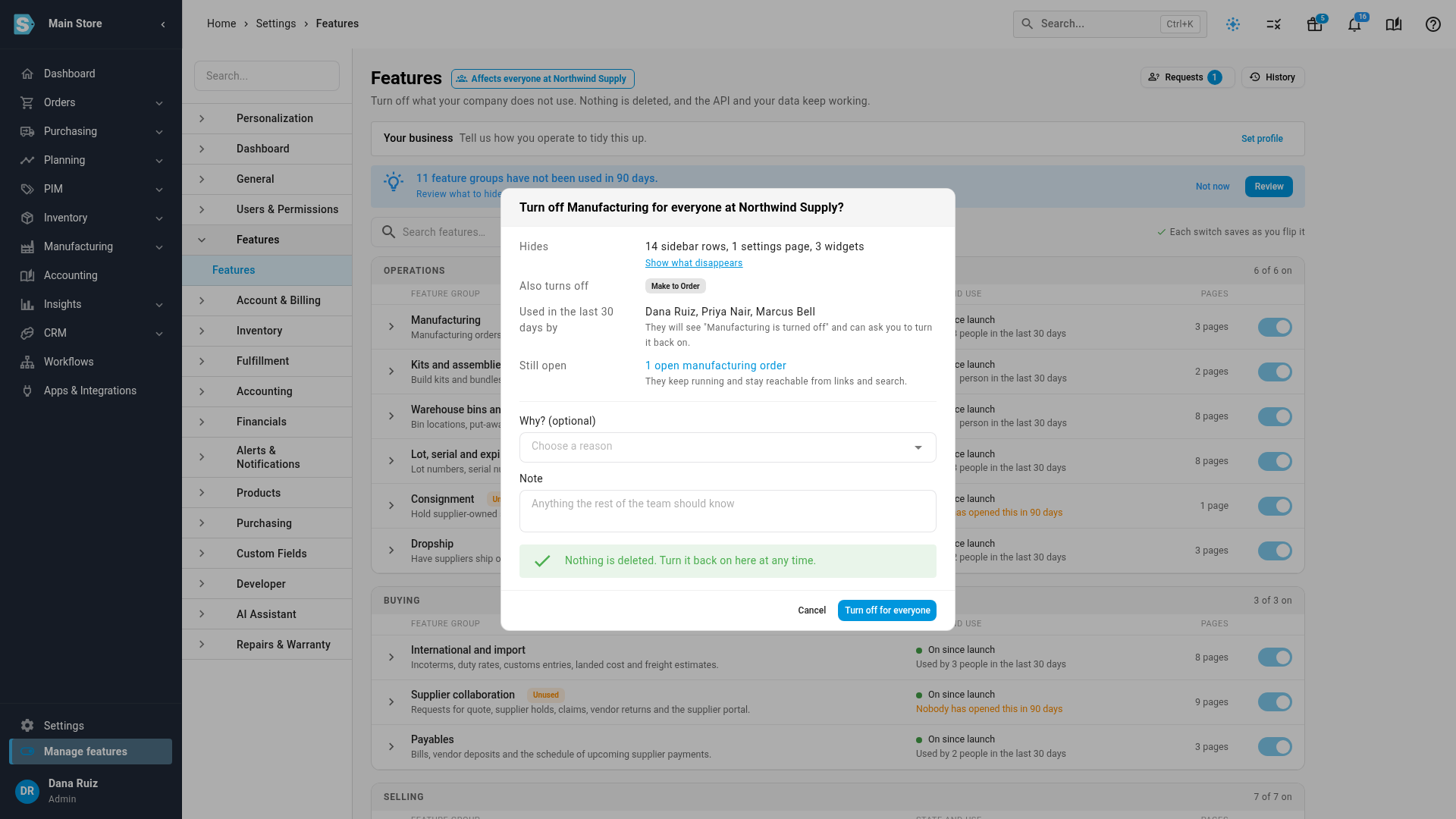
Nothing changes yet. A dialog shows what turning the group off does:
- Hides: how many sidebar rows, settings pages and dashboard widgets disappear. Click Show what disappears to see each one by name.
- Also turns off: anything that depends on this group and goes off with it.
- Used in the last 30 days by: the people who used the group lately. They can ask you to turn it back on.
- Still open: records in the group that are still in progress, such as open manufacturing orders. They keep running, and you can still reach them from links and search.
- Under Why? (optional), choose a reason if you want your team to know why: We don't need it, We use another tool, Maybe later or Tried it, didn't work for us. You can add a Note as well.
- Click Turn off for everyone.
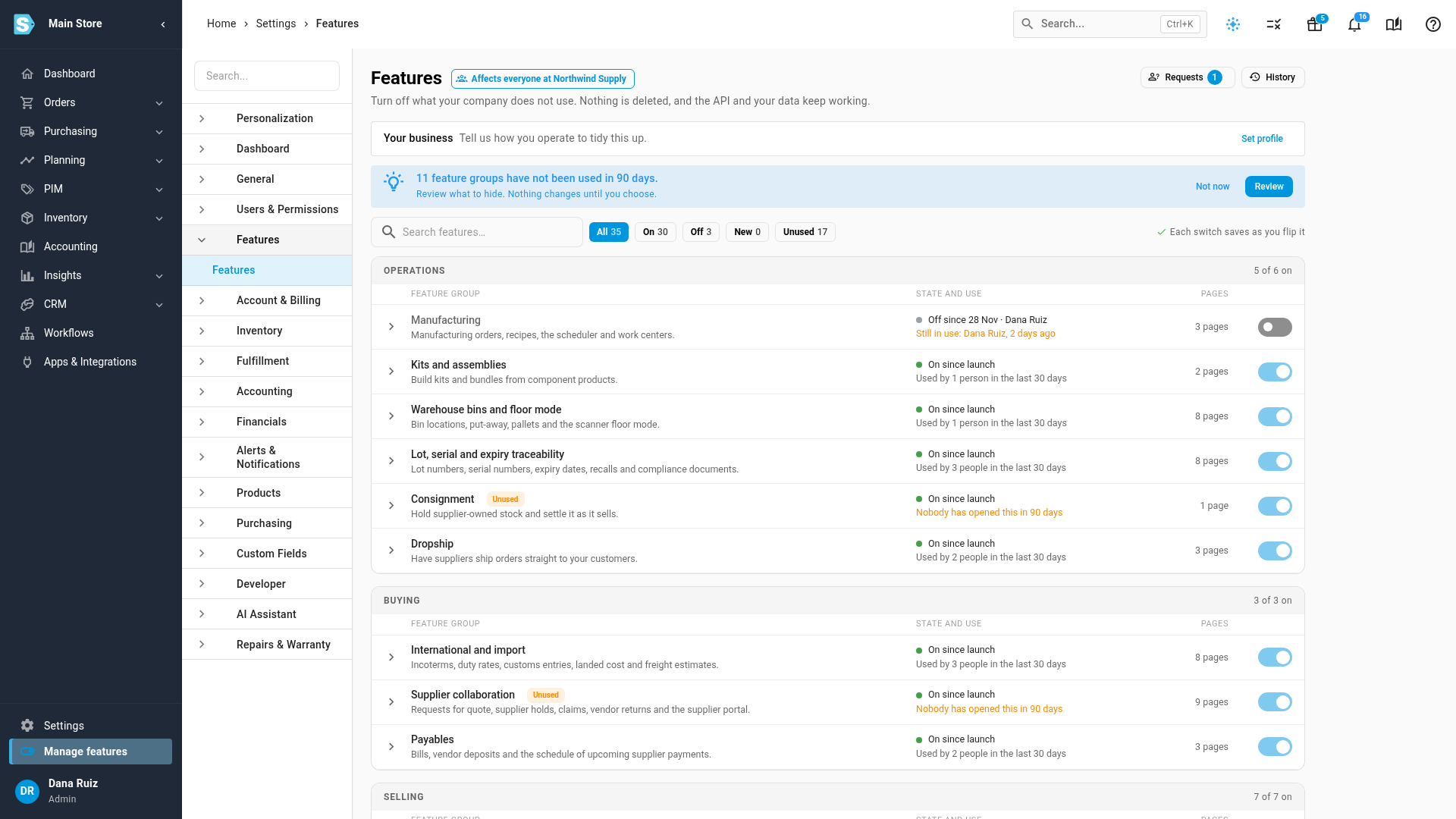
The group's pages leave the sidebar straight away, for everyone, with no reload. The row now reads Off since with the date and your name.
What turning a feature off does
Off means hidden, and nothing more.
| Hidden for everyone | Keeps working |
|---|---|
| The group's rows in the sidebar | Every record you already have. Nothing is deleted. |
| Its settings pages and dashboard widgets | Records that are still in progress, such as open orders |
| Its pages in search. They move to a section called Turned off for your company. | Your integrations, imports and the API |
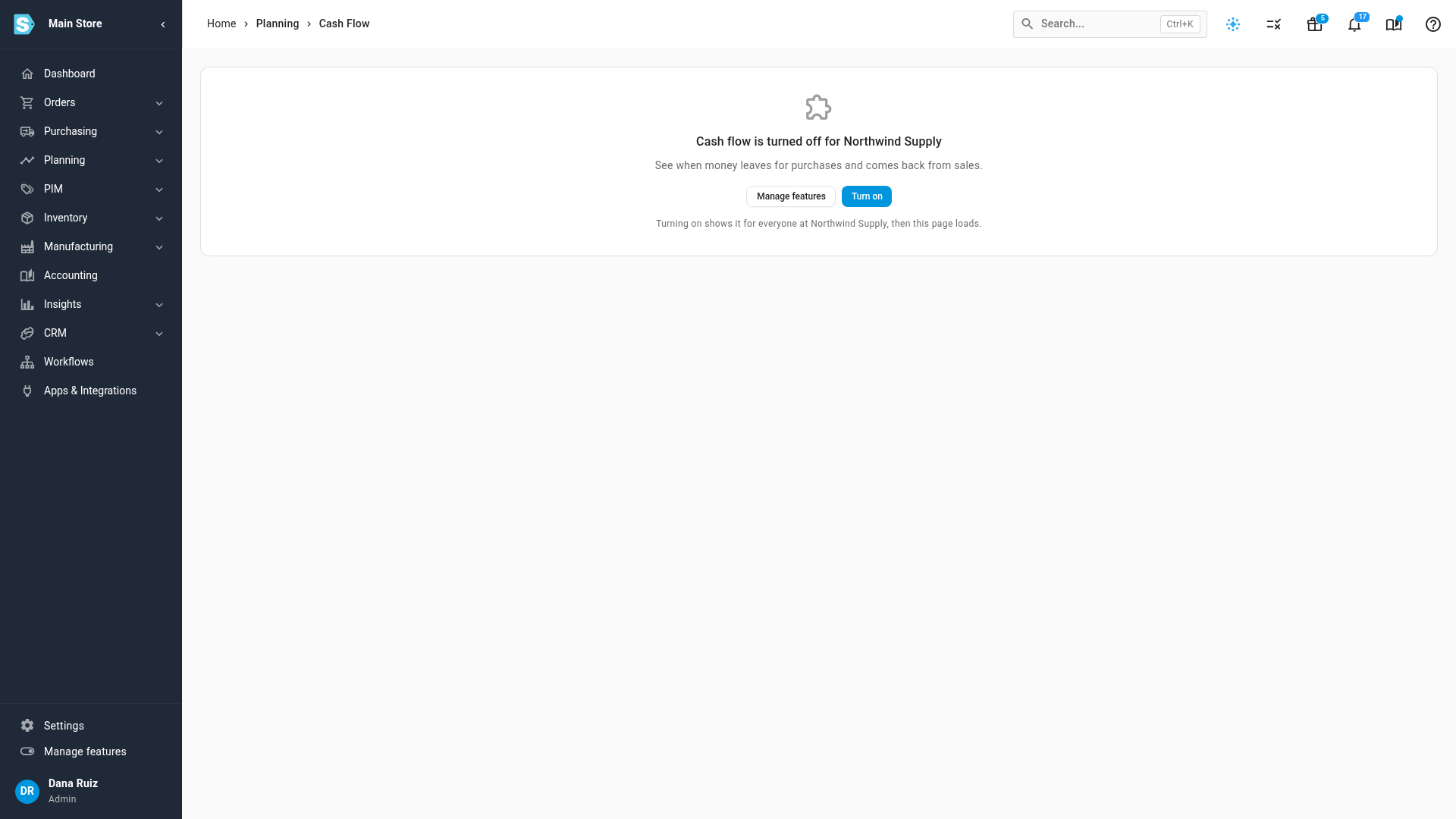
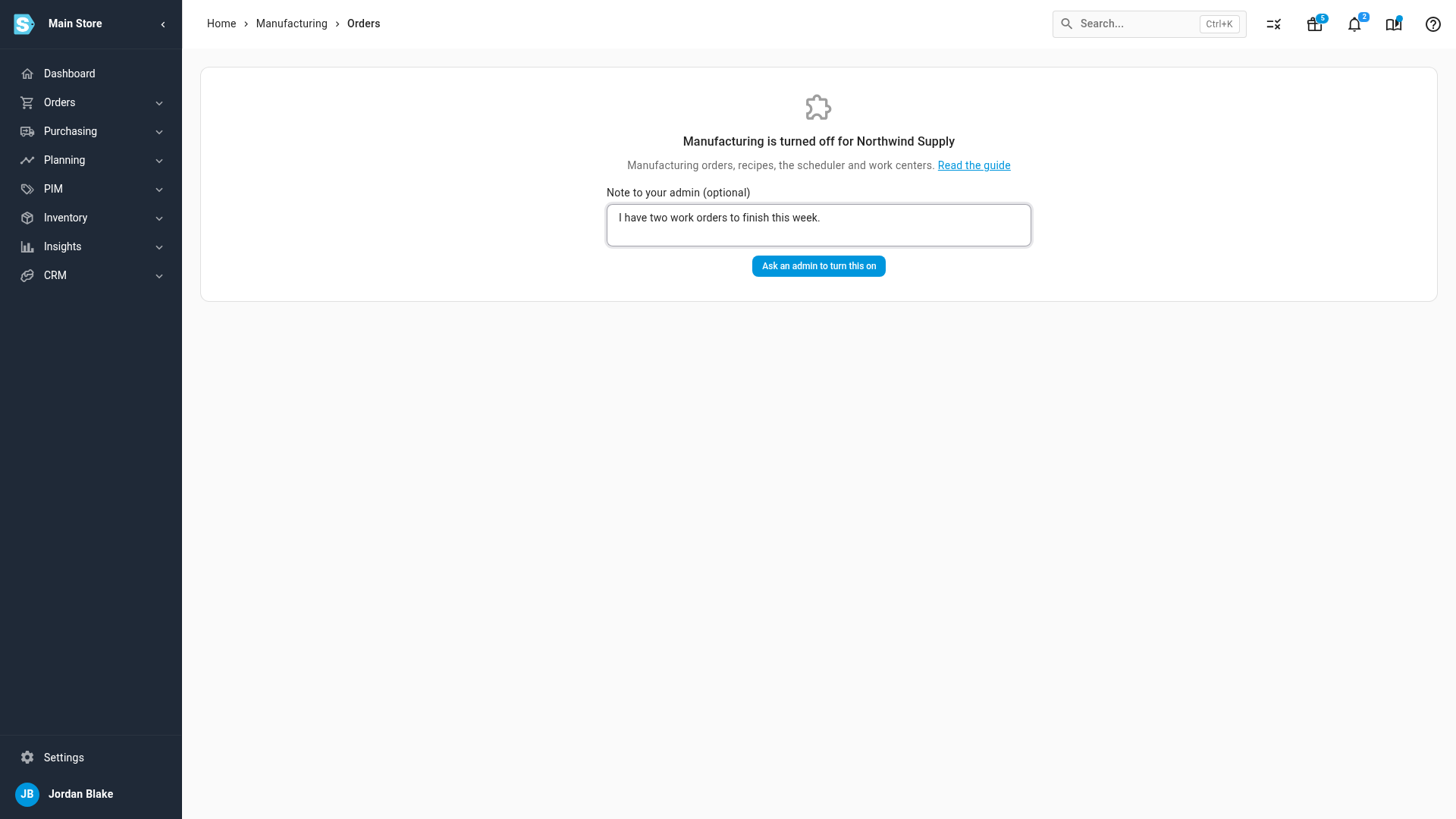
Someone who opens one of the group's pages, from a bookmark or from search, sees a page that says the feature is turned off for your company, with a line on what the feature does.
- With the Features Manage permission, that page has a Turn on button and a Manage features button.
- Without it, the page has Ask an admin to turn this on. See Ask for a feature that is turned off.
A record from the group still opens from a link, for example a manufacturing order linked from a sales order. A banner at the top says the feature is turned off for your company and that the record is still here.
Turn a feature group back on
Do one of these:
- On the Features page, click the group's switch. It turns on at once, with no dialog. Any open request for that group is marked as approved.
- On a page that says the feature is turned off, click Turn on. The feature turns on for everyone, and then the page loads.
Turn off one feature inside a group
A group can stay on while one part of it is off.
- On the Features page, click a group's row to expand it.
- Under Features, turn off the switch beside the feature you don't use.
It takes effect at once, and only that feature's pages are hidden. Turn the same switch on to bring it back. While a group is off, the switches inside it are locked: turn the group on first.
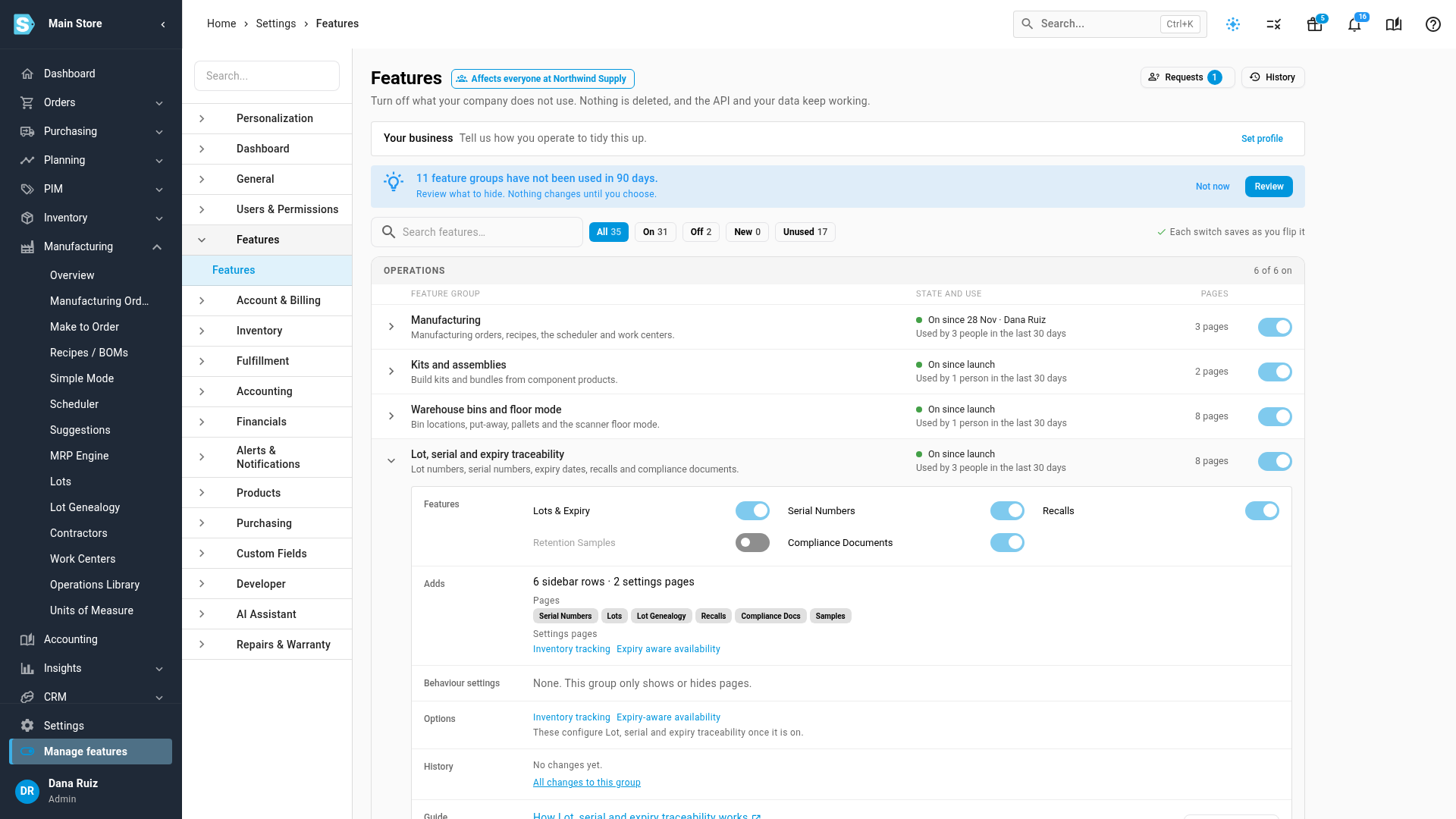
The expanded row also shows what the group Adds (its sidebar rows and settings pages), links to the settings that configure it under Options, its recent History, and its guide.
Some rows carry a Changes how SKU behaves tag, and some expanded rows list Behaviour settings. Those switches do more than hide pages. Each one says what it changes, and asks you to confirm with Change setting before it saves. It is the same setting as on its own settings page, so changing it in either place changes both.
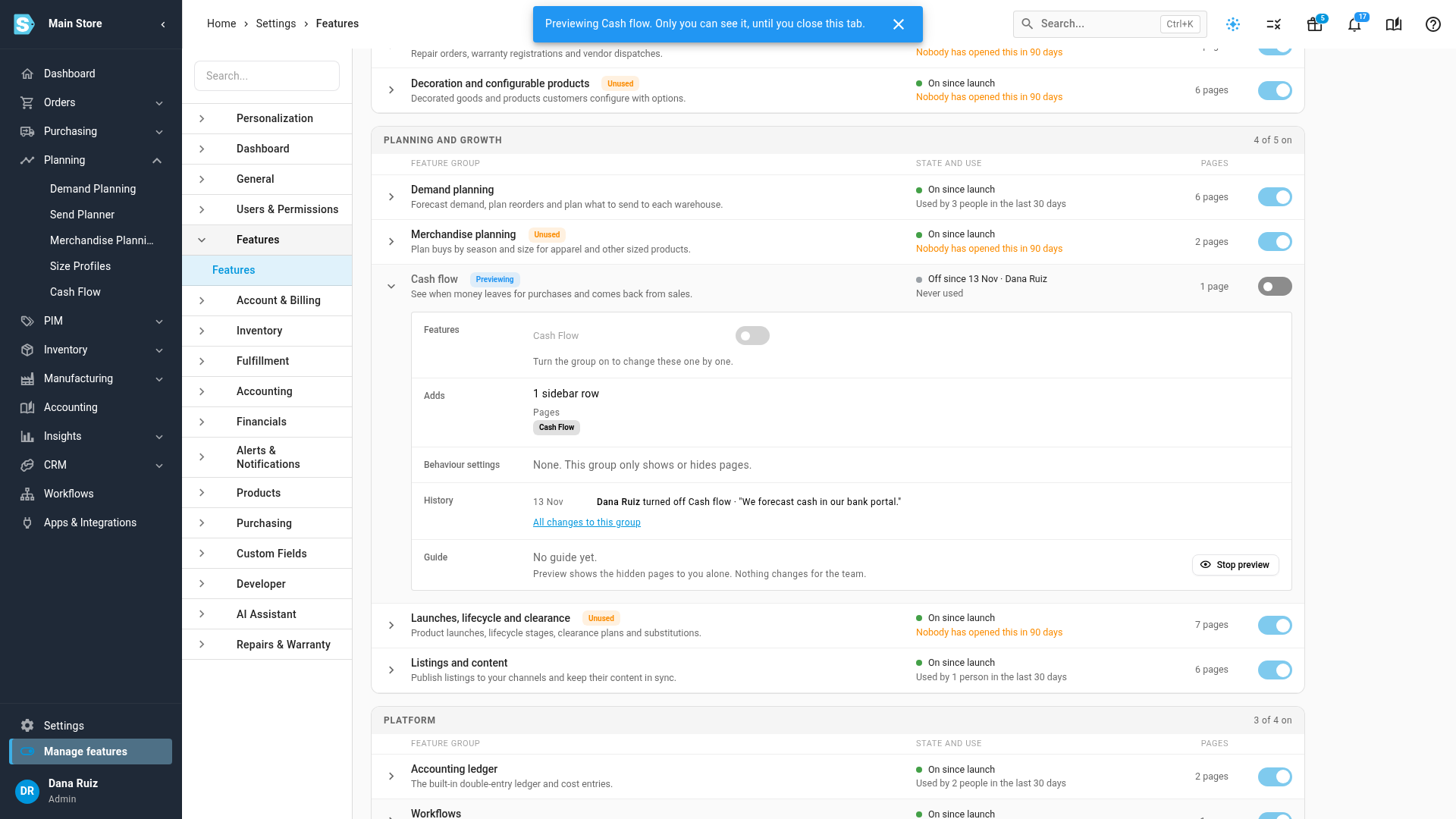
Look at a turned-off feature without turning it on
To see what a group looks like before you turn it on for the team:
- On the Features page, expand a group that is off.
- Click Preview for me.
The group's pages appear in your sidebar, for you alone. The row carries a Previewing tag, and a bar at the top of the app says what you are previewing. Nothing changes for anyone else. The preview ends when you click Stop preview or close the browser tab.
Ask for a feature that is turned off
If you can't change features yourself:
- Open the page you need. It says the feature is turned off for your company.
- Under Note to your admin (optional), say why you need it.
- Click Ask an admin to turn this on.
The page then reads Requested with how long ago, and you get an alert when an admin answers.
Answer a request
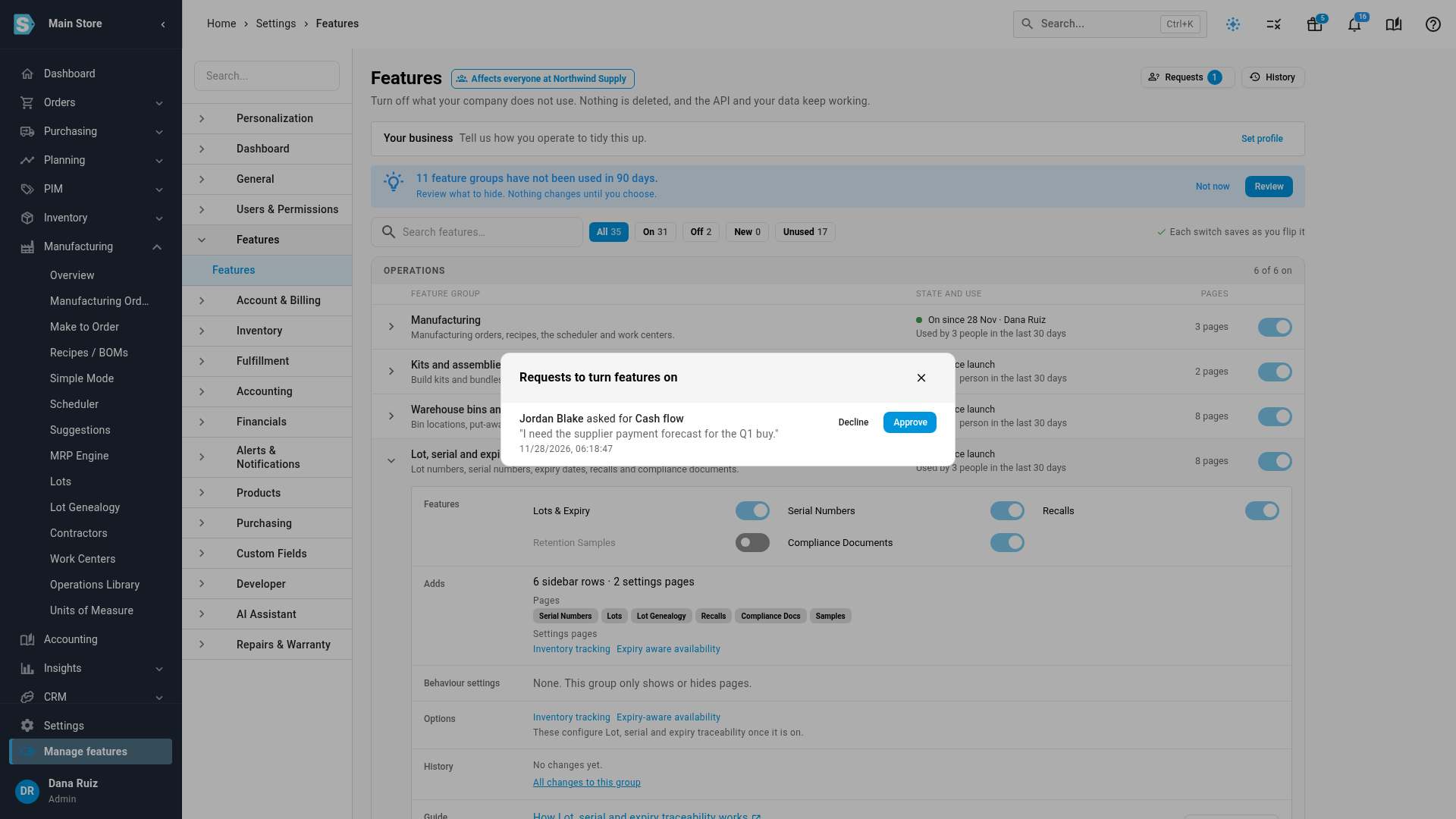
When someone asks, Requests at the top of the Features page shows a count.
- Click Requests.
- Read who asked, for which feature, and their note.
- Click Approve to turn the feature on for everyone, or Decline. When you decline, you can add a note for the person who asked, and then click Decline request.
The person who asked gets an alert with your answer.
Let SKU.io suggest what to hide
You don't have to go through the list one switch at a time.
Describe your business
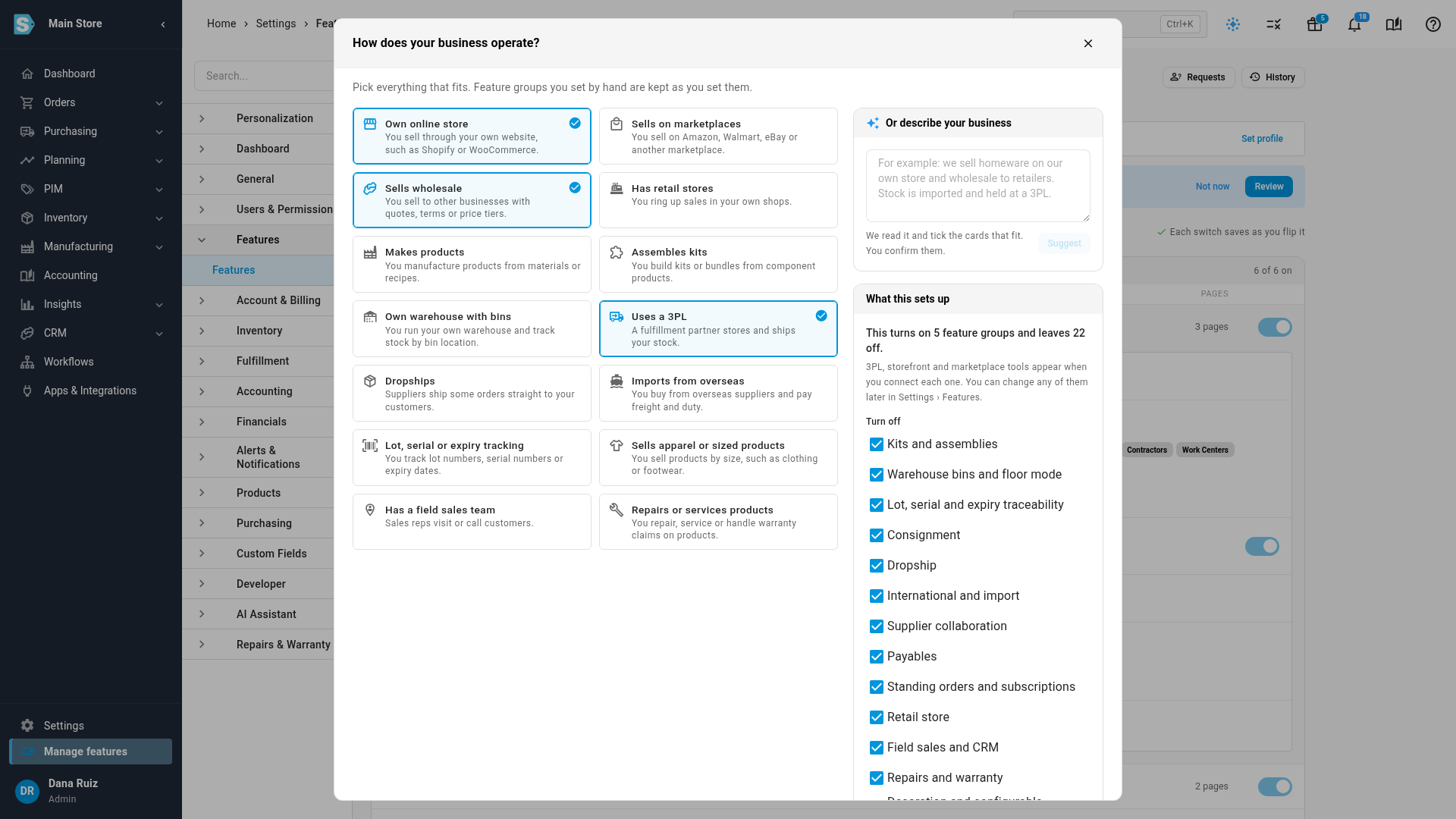
- Beside Your business, click Set profile. Once you have a profile, the button reads Edit profile.
- Pick every card that describes how you operate, such as Sells wholesale or Uses a 3PL. What this sets up lists the groups this would turn off, each with a checkbox. Untick any group you want to keep. Groups you set by hand are kept as you set them.
- Click the Apply button, which shows how many changes it makes. Nothing changes until you do.
Your choices then show beside Your business, and each group the profile turned off reads Off · from your business profile.
Review groups nobody uses
When several groups haven't been used in 90 days, a banner on the Features page offers to review them.
- Click Review.
- Untick any group you want to keep.
- Click Hide selected.
Not now closes the banner, and Don't suggest again stops the suggestion.
When a new feature arrives
A feature group that is new to your account can arrive on trial: switched on for everyone, with a New tag on its row and beside its pages in the sidebar. The row reads On trial for everyone. Keep it or turn it off. and offers two buttons:
- Keep leaves it on for everyone.
- Not for us opens the same dialog as turning a group off.
Click a New tag in the sidebar for a line on what the feature does. Dismiss removes the tag for you alone. Nothing hides itself. A group on trial stays on until an admin decides.
See who changed what
- Click History at the top of the Features page. It lists every change, newest first: who made it, when, and the reason they gave.
- To see one group's changes, expand its row and click All changes to this group.
A change to a single feature inside a group is listed in the main History.
Next steps
- Use the Feature Adoption report to see which features your team uses before you decide what to hide
- Create a role to give someone the Features Manage permission
- Roles and permissions reference
Video transcript
Most companies use only some of the features in this app. An admin can turn off the rest, for everyone at the same time. Look for Manage features, at the bottom of the sidebar. Click that link, and the Features page opens. It lists every feature group, each with a switch on the right. Each row is one feature group, with a line on what it covers. State and use shows whether it is on, and how many people used it lately. An orange tag marks a group that nobody has used in ninety days. To turn a group off, click the switch on its row. Nothing changes yet, because a summary appears first. Hides counts the pages and settings that disappear. You also see who used the group lately, and which records are still in progress. Those records keep running, and nothing is deleted. If you want your team to know the reason, click the Why list. Pick the reason from the list that fits your company best. Then click the Turn off for everyone button, at the bottom of the dialog. The group leaves the sidebar straight away, for your whole company. Its row now shows who turned it off, and the date. Those pages now say that the feature is turned off. As an admin, you get a Turn on button on the same page. Everyone else gets a button that asks an admin to turn it on instead. Click Turn on, and the page loads again for the whole team. You can also keep a group on, and turn off one feature inside. Go back to the Features page, with Manage features at the bottom of the sidebar. Click a group's row, and it expands to show the features inside. Each feature inside the group has a switch of its own. Turn one off, and only that feature's pages leave the sidebar. The other features in that group are untouched. To see who changed what, click History, at the top of the page. It lists every change, with who made it, and the reason they gave. Close the list when you have finished reading. Requests, beside it, shows teammates who asked for a feature that is turned off. Each request shows the note your teammate added. Approve turns the feature on for everyone, and Decline leaves it off.