Approve a batch of purchase orders
An approval tier normally looks at one purchase order's amount. When a single forecast creates eight $6,000 orders, each one stays under a $10,000 tier, even though together they commit $48,000. A batch threshold closes that gap: purchase orders created together by one action are a batch, and when the batch total is over a tier's threshold, every order in the batch needs that tier. You then approve or reject the batch in one action.
Batch thresholds are optional and blank by default, so every purchase order keeps being approved on its own amount until you add one.
Before you begin
- You need a purchase order approval policy. See Set up purchase order approvals.
- To add a threshold, you need the Approval Policies → Edit rules permission. To approve, you need to be an approver on the tier.
What counts as a batch
A batch is two or more purchase orders created by one action:
- one Create POs in Demand Planning;
- one Generate orders within your cash;
- one Auto-Replenishment schedule run;
- one purchase order import.
Orders created as drafts count. Purchase orders you create by hand, backorder reorders, dropship orders and duplicated orders are created one at a time, so they never form a batch.
Add a batch threshold to a tier
- Go to Settings → Purchasing → Approval Policies and open the Purchase orders tab.
- Under the tier that should approve large batches, enter an amount in Also applies to batches over, for example 25000. It's in your base currency.
- Click Save.
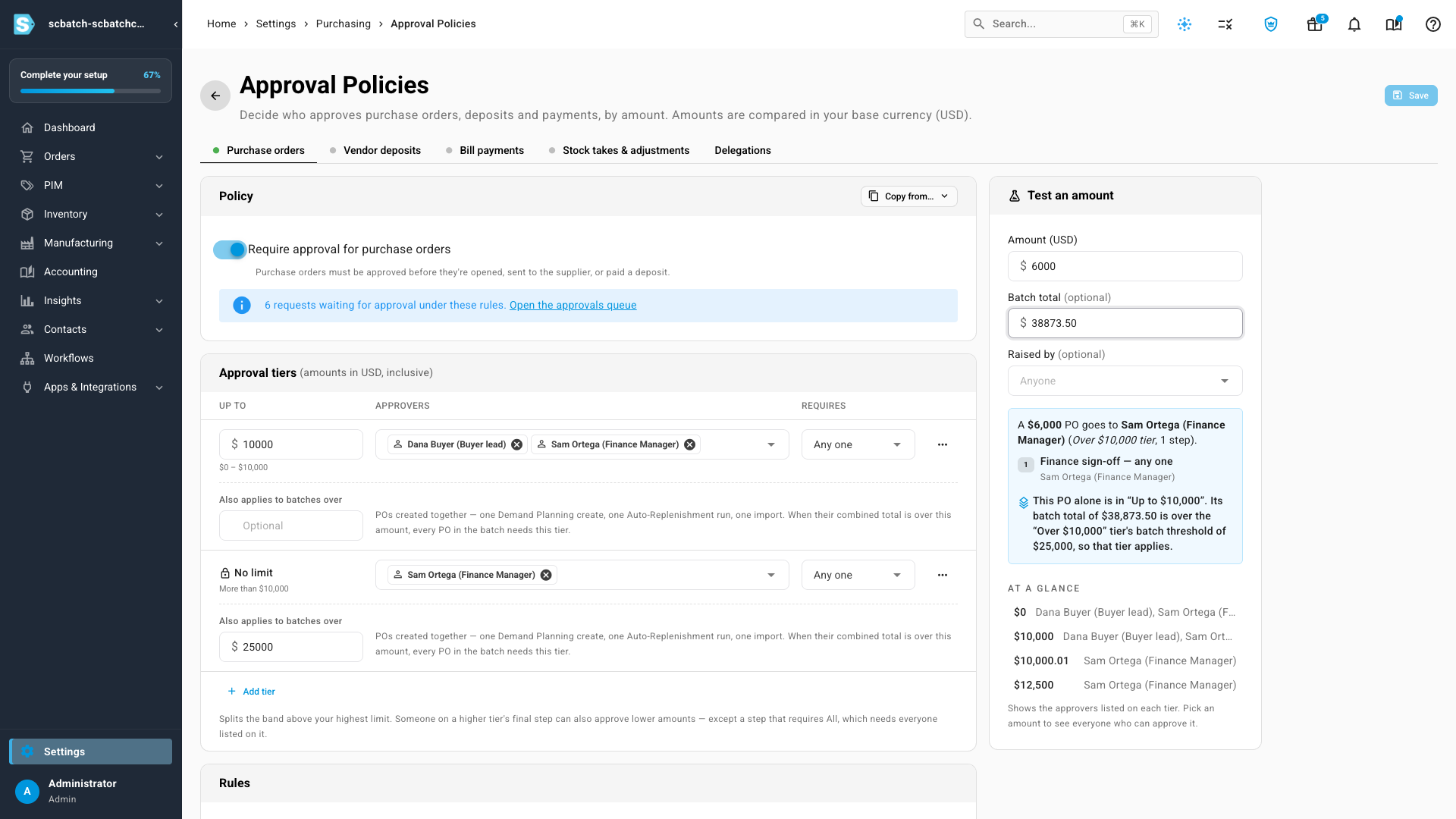
The field appears on every tier that requires approval, not on an Auto-approve tier. Thresholds must go up with each tier. The Rules card then shows a Batches row, for example Over $10,000 → Finance Manager, or any batch over $25,000.
To check a threshold before you save, enter a PO's Amount and a Batch total under Test an amount. The result says which rule set the tier, for example This PO alone is in "Up to $10,000". Its batch total of $38,873.50 is over the "Over $10,000" tier's batch threshold of $25,000, so that tier applies.
How the tier is chosen
Each purchase order in a batch gets the higher of two tiers:
- the tier its own amount falls in;
- the highest tier whose batch threshold the batch total is over.
"Over" is strict: a batch of exactly $25,000.00 doesn't trigger a $25,000 threshold. The total is in your base currency, with each order converted at its own exchange rate.
While a batch is still being created, for example during an Auto-Replenishment run, none of its orders can be requested or approved. If you try, the message says the order is part of a batch that is still being created, so try again in a moment. Nothing opens or goes to a supplier before every order in the batch exists.
Approve or reject the batch
You can act on a batch from three places, each with the same Batch panel:
- Orders → Purchase Orders → Approvals: rows in a batch carry a Batch · 6 POs chip. Click a row, and the review drawer has a Batch section.
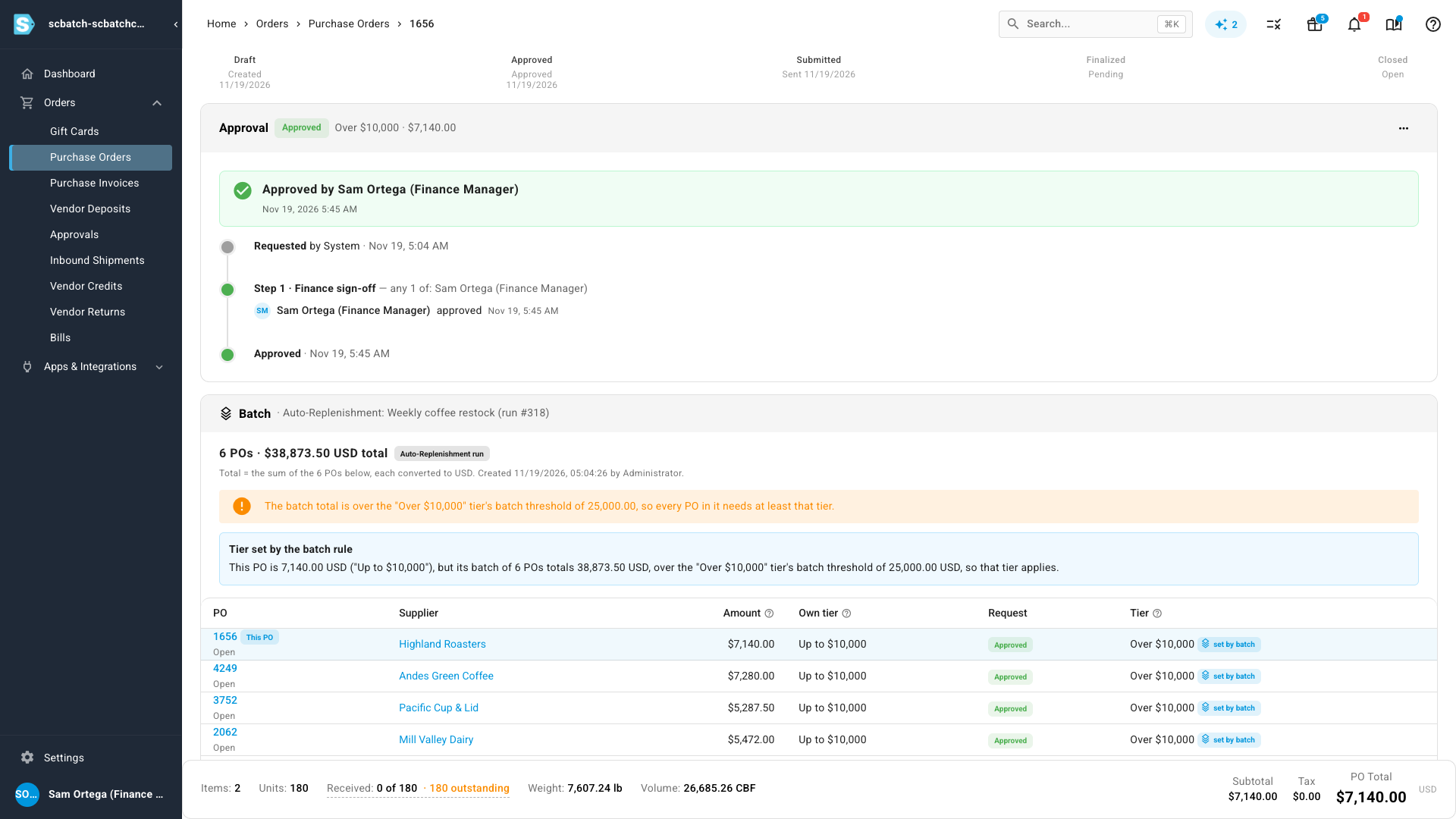
- The purchase order page, under the Approval card.
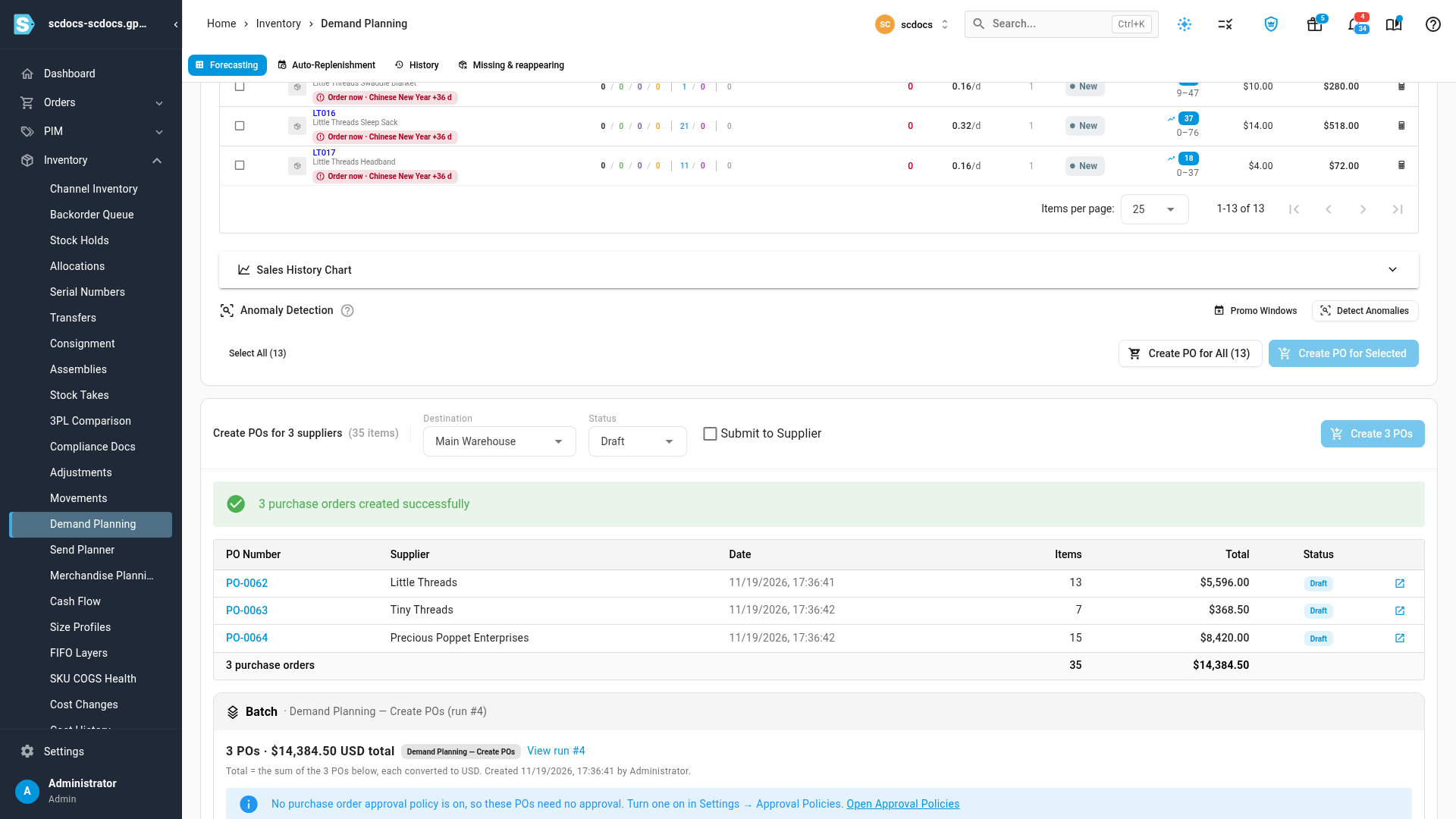
- The Demand Planning results, right after Create POs.
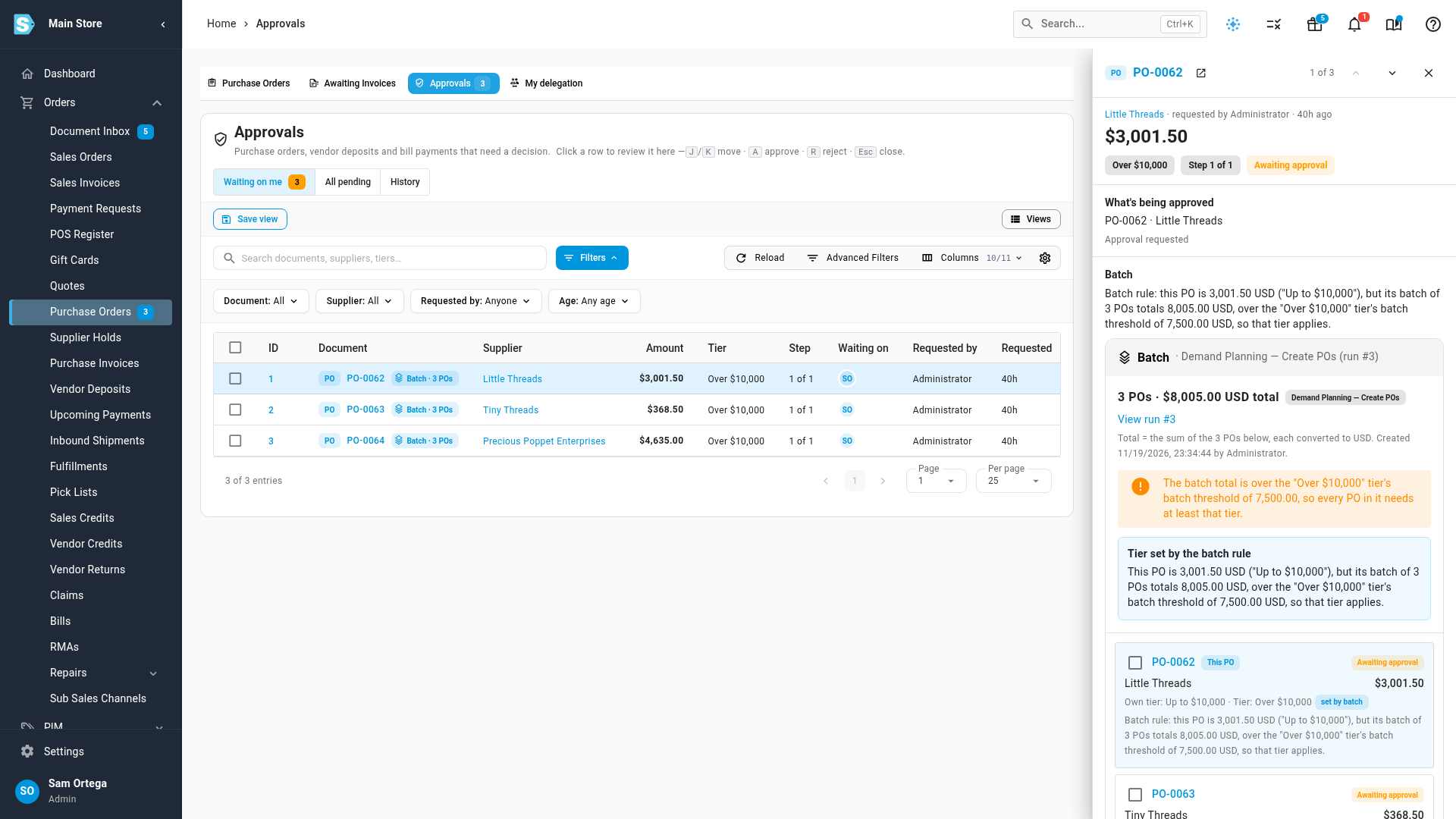
- Read the panel header: the number of orders, the batch total, where the batch came from (with View run for a forecast run), and how the total is worked out.
- Check the threshold notice. It says whether the batch total is over a tier's batch threshold, or that each PO is approved on its own amount.
- Review the members table: PO, Supplier, Amount, Own tier, Request and Tier. A set by batch chip marks the orders whose tier the batch raised. This PO marks the order you opened.
- Approve:
- Click Approve batch to approve every order in the batch that's waiting on you.
- Or tick some orders and click Approve selected.
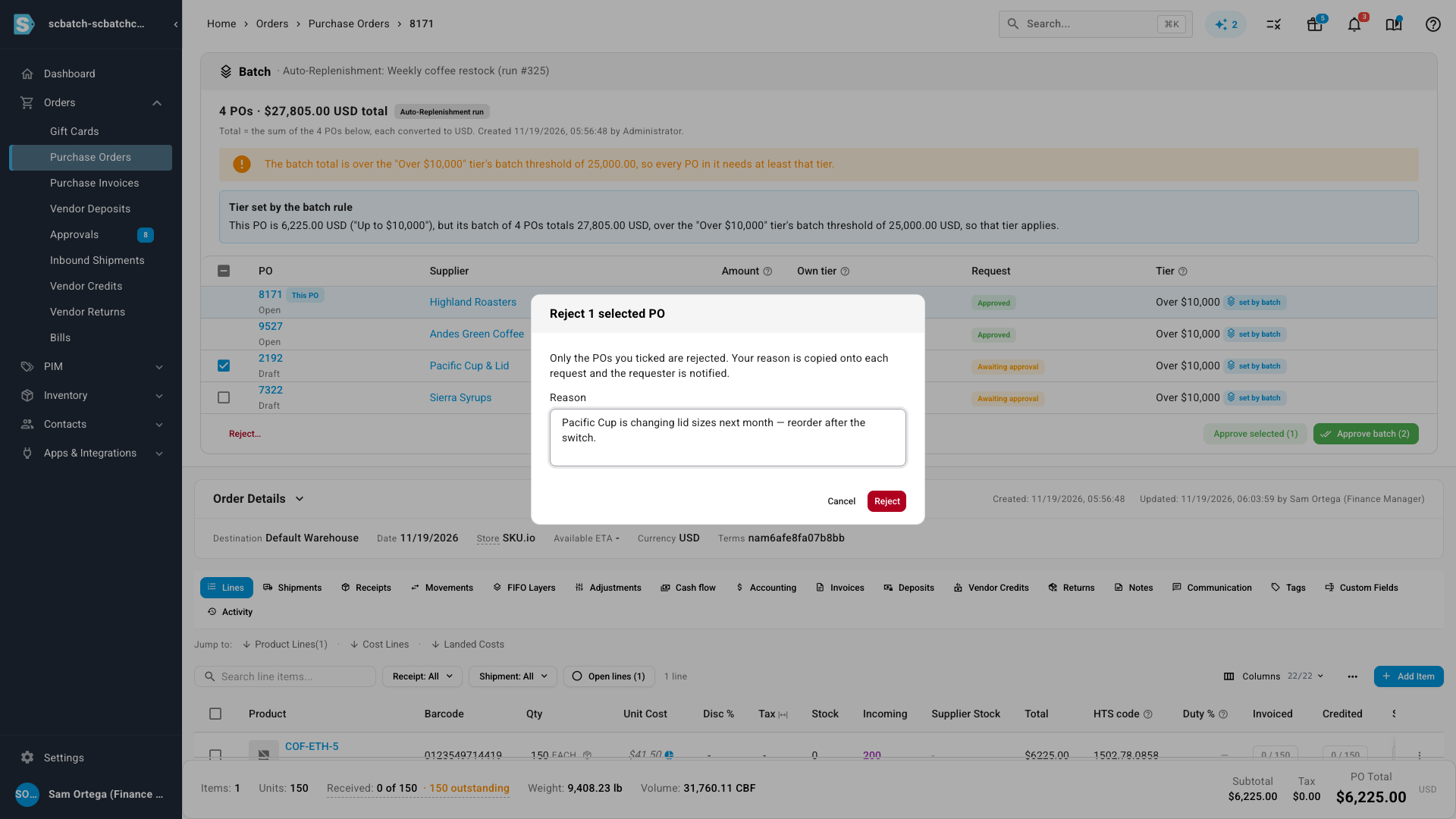
- To reject, tick the orders, click Reject…, enter a Reason and click Reject. The reason is copied onto each request, and the requester is notified.
Every decision still follows the policy: an order you can't approve, for example one you raised yourself, is left for someone else. A batch of more than 25 orders is approved or rejected in the background, and you can follow it in the job tray.
When a batch changes
- Some orders are rejected or deleted. The others keep the tier the batch gave them. The tier never drops because the batch shrank.
- A draft in the batch is sent for approval later. It's checked against the batch total at that moment.
- An approved order is edited. Only that order goes back for approval, and its new request uses the batch total recalculated with the edit. See How re-approval works.
- You can't see every order. People who can't open some of the orders see them counted in the total but not listed.
Batches from a schedule
When an Auto-Replenishment schedule creates orders as Approved & Sent to Supplier under a policy, orders that need approval wait as drafts. Once the batch is approved, each order opens and goes to its supplier, and Auto-receive PO runs only for orders that opened. The run's summary says, for example, 6 POs are waiting on approval — batch total $38,873.50 is over the "Over $10,000" tier's batch threshold of $25,000. See Replenish stock on a schedule.
Batches from Demand Planning
After Create POs, the results list the orders and show the Batch panel. Each order shows its real status: Waiting on approval, Draft or Open. If an order was created but couldn't be sent for approval, the results say so, for example PO … was created as a draft but couldn't be sent for approval. Open the purchase order and request approval from there.
Next steps
- Approve or reject a request for a single order.
- Policy settings reference for every setting on a tier.
- Forecast demand and replenish stock to create a batch from a forecast.
Video transcript
One forecast just created three purchase orders. Each is small, but together they total eight thousand dollars. Go to Orders, then Purchase Orders, and open the Approvals tab above the list. In the queue, each of these orders carries a Batch chip, with the number of orders in it. Click the first row to review it in the side panel. The Batch section explains the rule: this order alone is under ten thousand, but its batch is over the tier's batch threshold, so that tier applies. Below it, the batch panel lists every order, with its own tier, and the tier the batch set. To approve them all at once, click Approve batch, and confirm with Approve. Every order you can approve is approved, and the queue is clear.