Rotate cycle counts with Count Due
Counting every product at once is slow, so most teams count a few at a time and rotate through everything they stock. Count Due keeps that rotation honest: you set how often products should be counted, and SKU.io tells you which products in which warehouse are due, reminds you once a day, and starts the stock take for you.
- Count schedule: how many days can pass after a product's last count in a warehouse before it's due again.
- Last counted: the count date of the most recent finished full count that included the product in that warehouse.
- Due: never counted in that warehouse, or last counted longer ago than its schedule allows.
Before you begin
- You need the Stock Takes Count permission (
inventory.count) to see Count Due and start stock takes, and the Inventory List permission (inventory.index) to open the Stock Takes pages. - To change the count schedule, you need access to Settings.
- Count Due lists products that have stock in one of your own warehouses. Stock held by Amazon, Walmart, TikTok or a 3PL is counted by them, so it doesn't appear.
Set how often products are counted
- Go to Settings → Inventory → Count Schedule.
- In Count every product every, enter the number of days between counts, for example
60. - Click Save Changes.
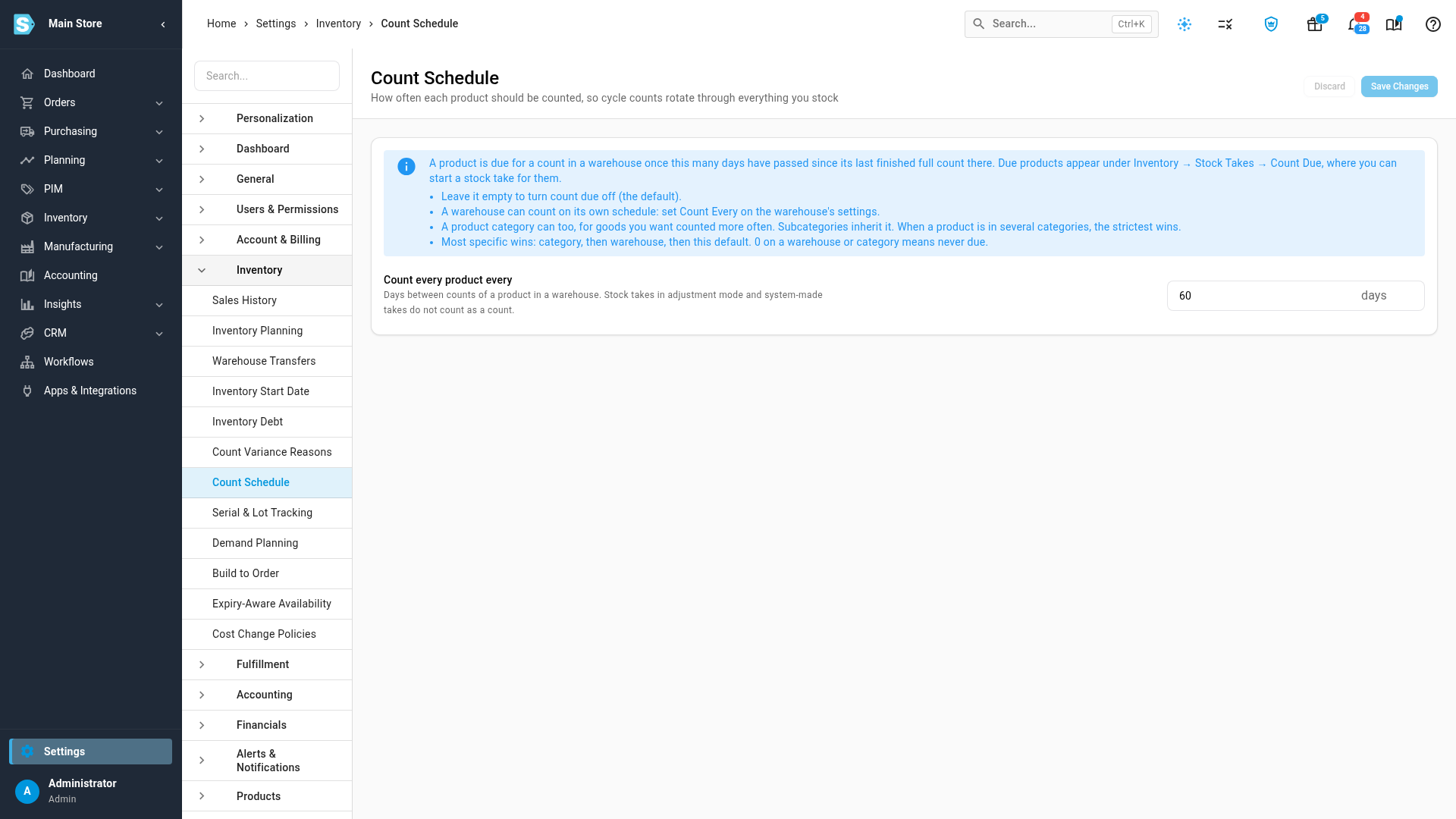
Leave the field empty to turn Count Due off. Nothing is ever flagged as due until a schedule is set.
Count some warehouses or categories more often
Some stock needs counting more often than the rest, like a cold room with fresh goods or a category of high-value items. You can give a warehouse or a product category its own schedule:
- A warehouse: go to Inventory → Warehouses, open the warehouse, click Edit Details, and set Count Every.
- A product category: go to Settings → Products → Categories, edit the category, and set Count Every. Its subcategories use the same schedule unless they set their own.
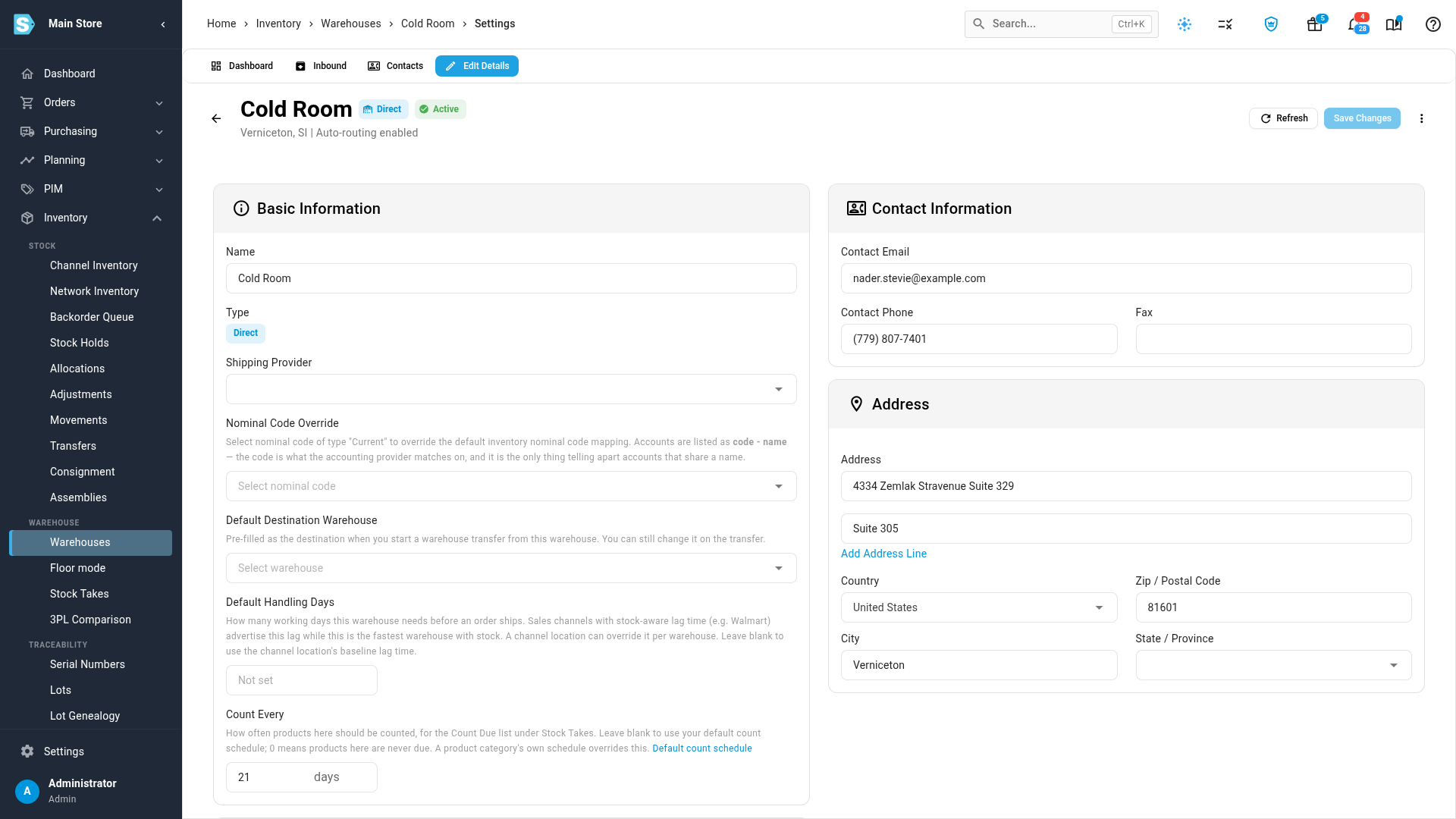
When more than one schedule applies, the most specific one wins: the product's category first, then the warehouse, then your default. If a product is in several categories, the shortest schedule wins. Enter 0 to mark a warehouse or category as never due, for example for packaging you don't count.
See what's due
- Go to Inventory → Stock Takes.
- Click the Count Due tab. Its badge shows how many products are due right now.
The list opens on Due: products never counted in that warehouse come first, then the most overdue. Each row shows the warehouse, the quantity on hand, when it was last counted, its schedule, and when it falls due.
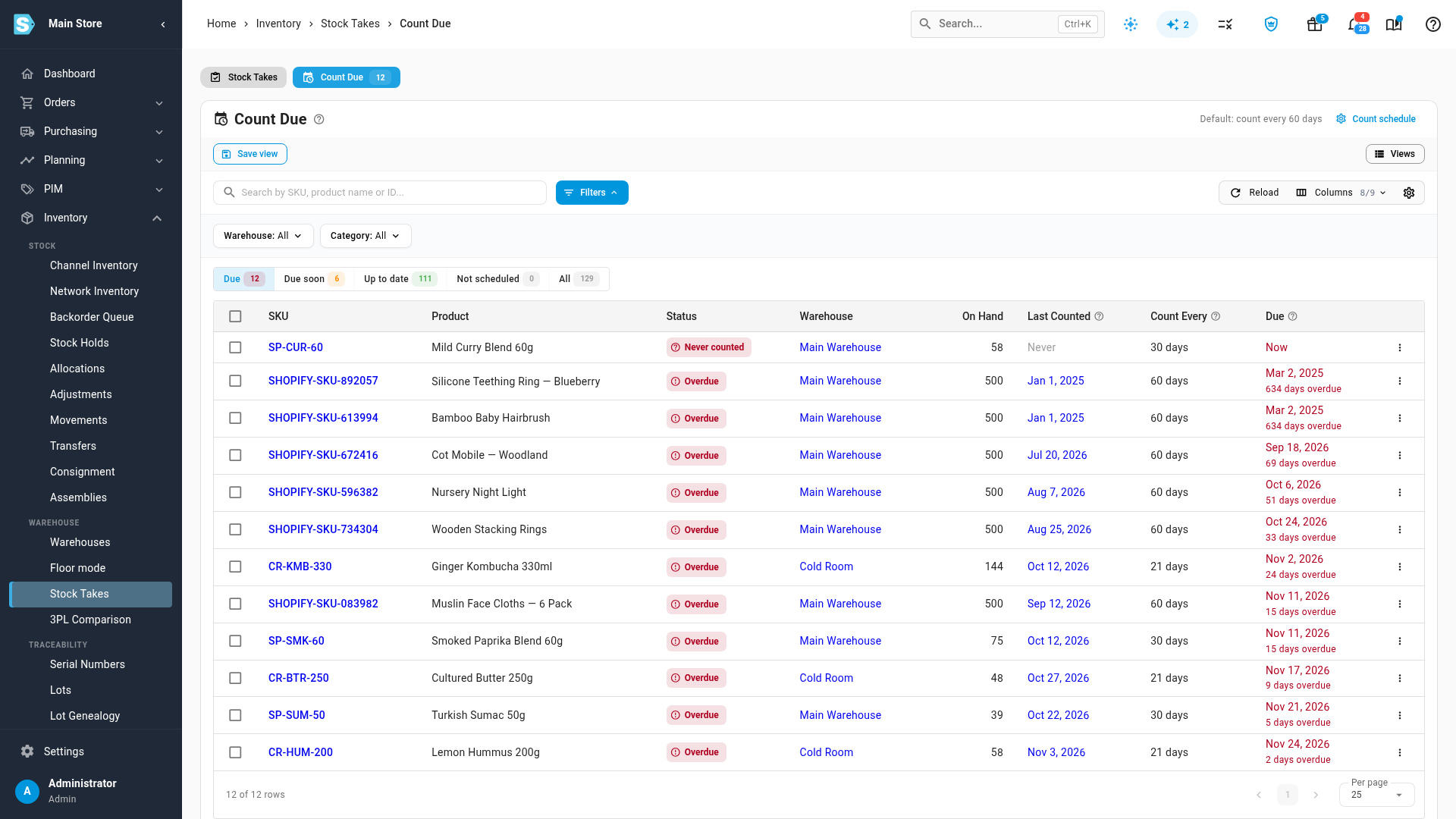
- Use the toggle above the table to switch between Due, Due soon (due within a week), Up to date, Not scheduled, and All. Each one shows how many products it holds.
- Use Warehouse and Category to narrow the list. Choosing a category includes its subcategories.
- Hover Count Every on a row to see where its schedule comes from.
- Click a Last Counted date to open that stock take.
Start a stock take for due products
- On the Count Due tab, select the products you want to count.
- Click Start stock take.
SKU.io creates a draft full-count stock take with those products and opens it. If you picked products from more than one warehouse, it creates one stock take per warehouse and lists them so you can open each.
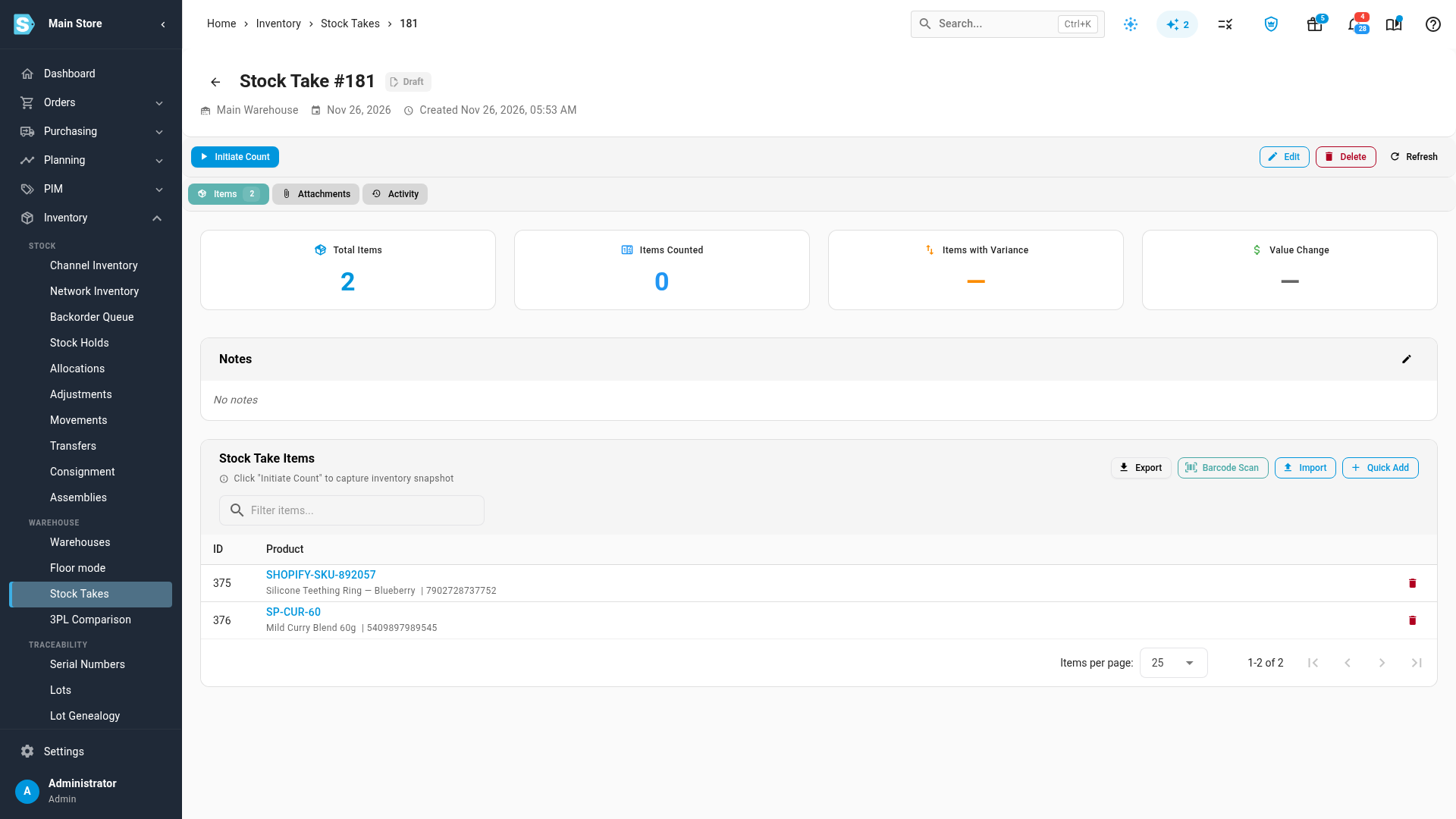
To count everything the list currently shows, switch the selection scope from Selected Only to All matching before you click Start stock take.
From here, count the products the usual way: count stock, then finalize the stock take. Once it's finalized, those products drop off the due list until their next turn.
Only finished full counts update Last counted. Adjustment-mode stock takes, a quick bin check after a "Not here" pick, and counts SKU.io makes on its own (for example to match a 3PL's numbers) don't count.
Get a daily reminder
Each morning, SKU.io sends one Products due for a count alert that lists how many products became due in each warehouse, with a link to the Count Due list. It never sends one alert per product, it isn't sent while no schedule is set, and a product it has already reported isn't repeated until it's counted.
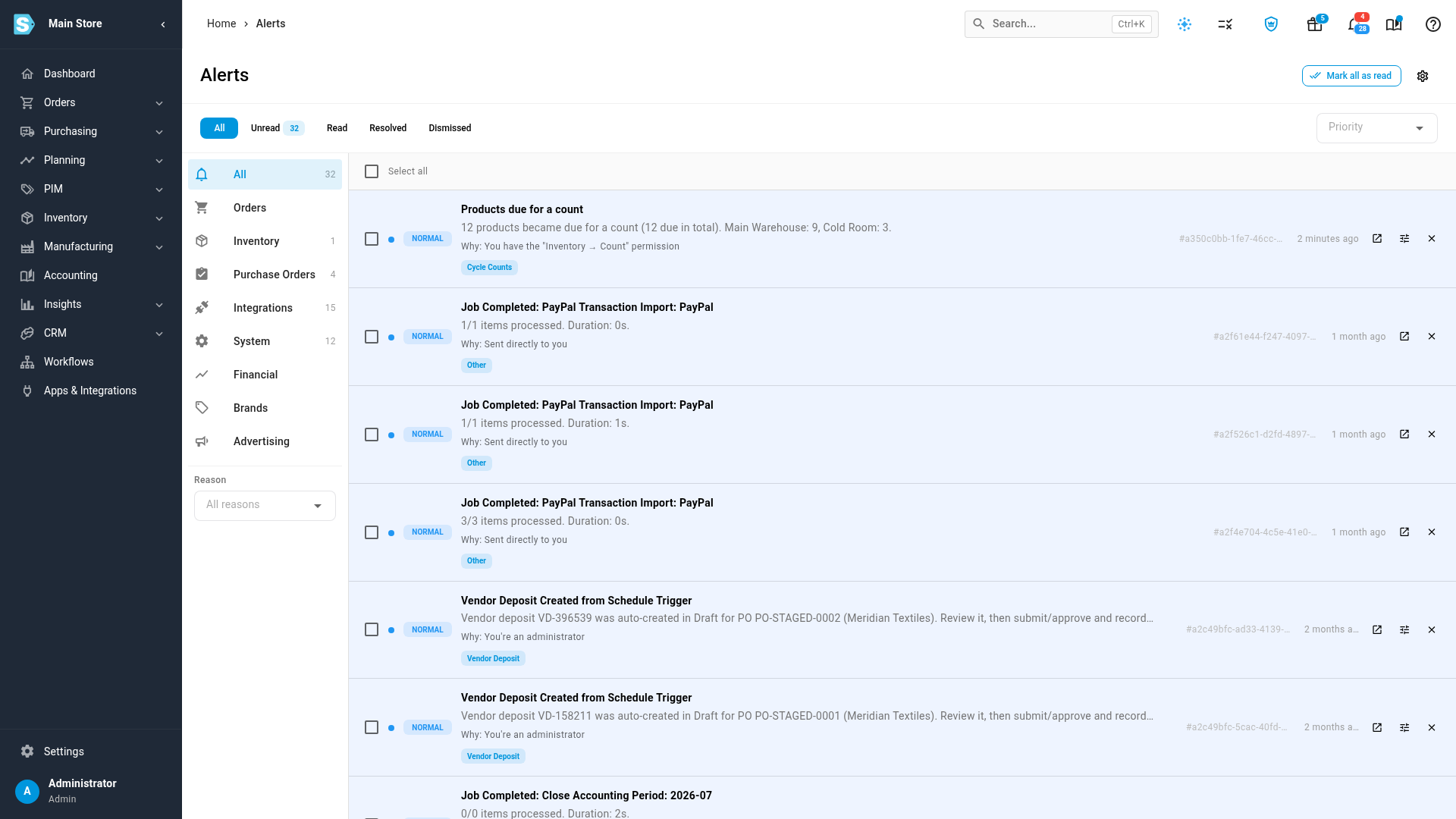
The alert goes to people with the Stock Takes Count permission and to admins. To change who gets it, or to get it by email or Slack, go to Settings → Alerts & Notifications and find Products Due for a Count.
Add Count Due to your dashboard
- On the Dashboard, click Customize, then Add widget.
- Search for Count due and add it, then click Save.
The widget shows how many products are due now and how many fall due this week, the warehouses with the most due, and the oldest last count. Click a figure or a warehouse to open the Count Due list filtered to it, or Start stock take to go straight there.
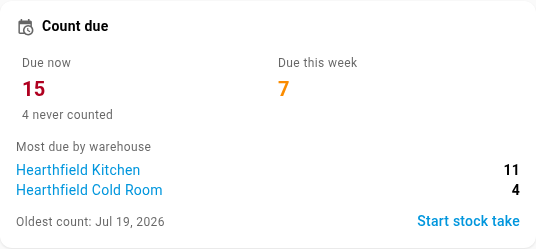
If no count schedule is set, the widget says so and links to Count Schedule.