Switch between the new and classic views
Demand Planning has two views of the same forecast. The New view sets a plan up in five steps, then reviews and adjusts every order on one screen. The Classic view is the original page, with every setting in one Configuration panel. Both build the same numbers from the same settings, so you can move between them whenever you like.
SKU.io remembers the view each person chose. An account setting decides what everyone else sees first.
Before you begin
- You need access to Planning → Demand Planning.
- To change the account's default view, you need permission to change settings.
Steps
-
Go to Planning → Demand Planning.
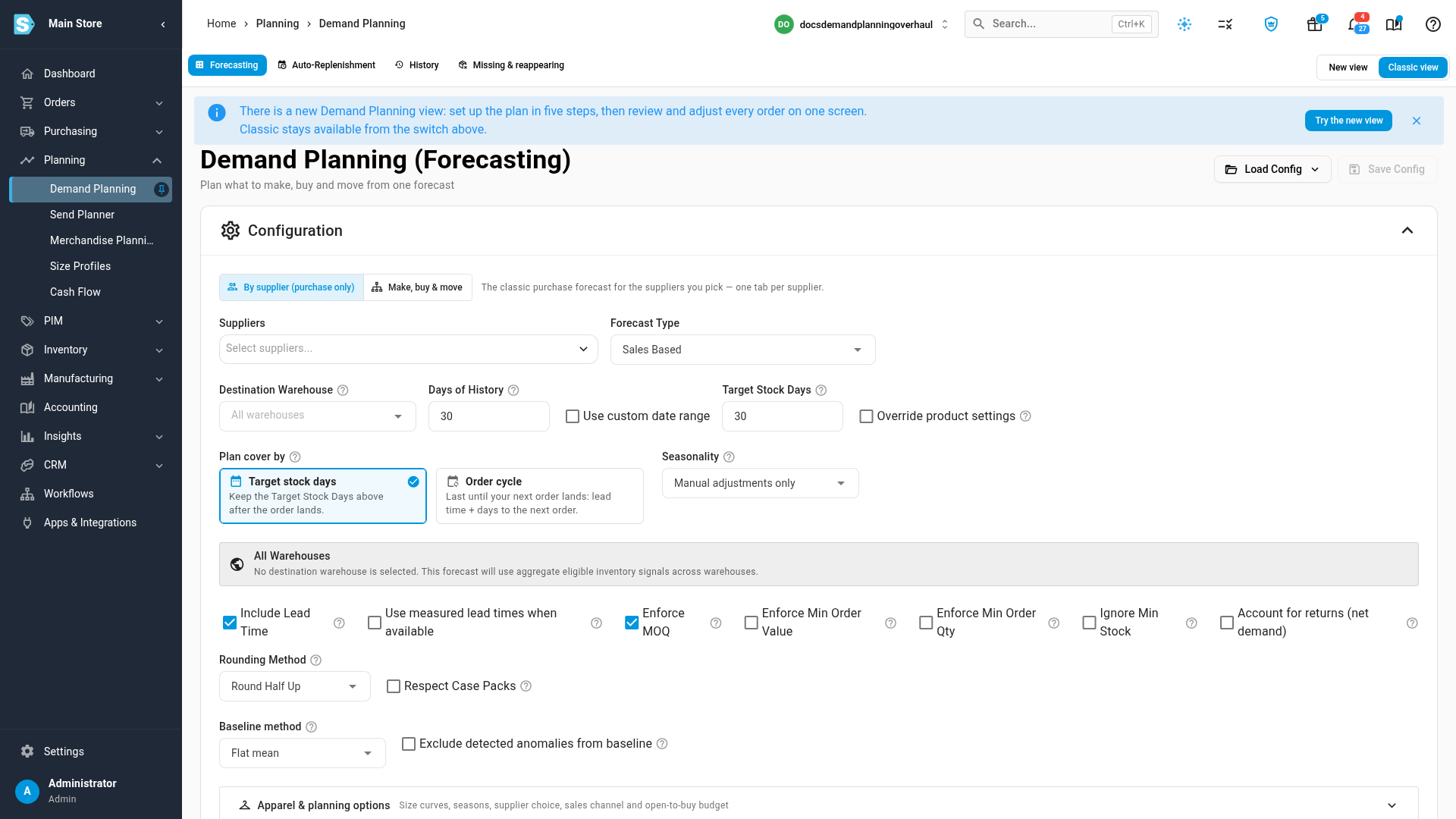
If your account opens on the classic view, a message at the top of the page introduces the new one.
-
Click Try the new view. The new view opens on 1 · Set up.
-
To go back, click Classic view in the switch at the top right of the page. Click New view to return.
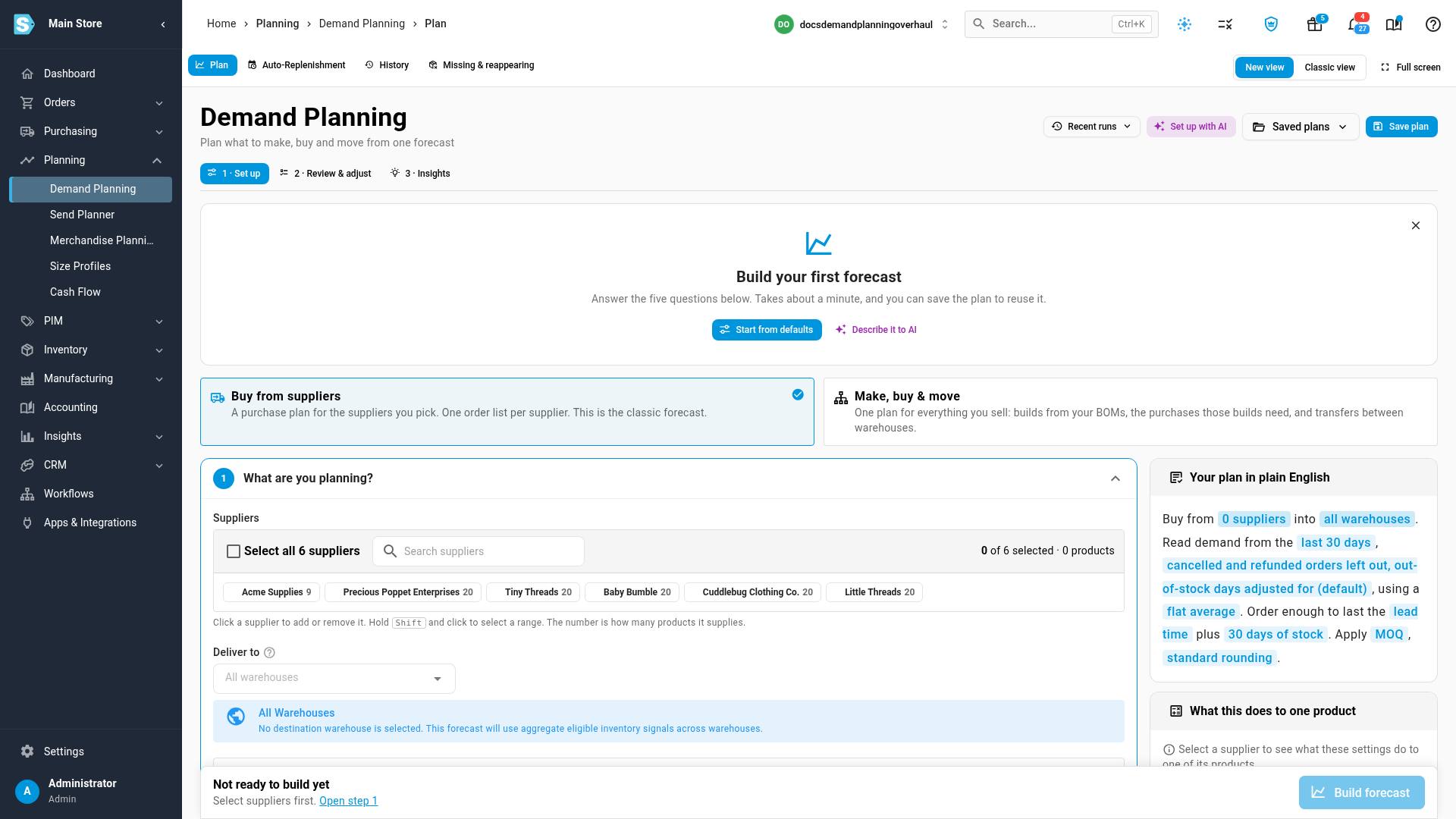
The switch is on every Demand Planning tab, in both views. The view you click is the one SKU.io opens for you from then on, on any device. Other people in your account keep their own choice.
To hide the message on the classic view without switching, click the X at its right. It stays hidden for you.
Choose the view your account opens by default
People who have never clicked the switch get the account's default view.
-
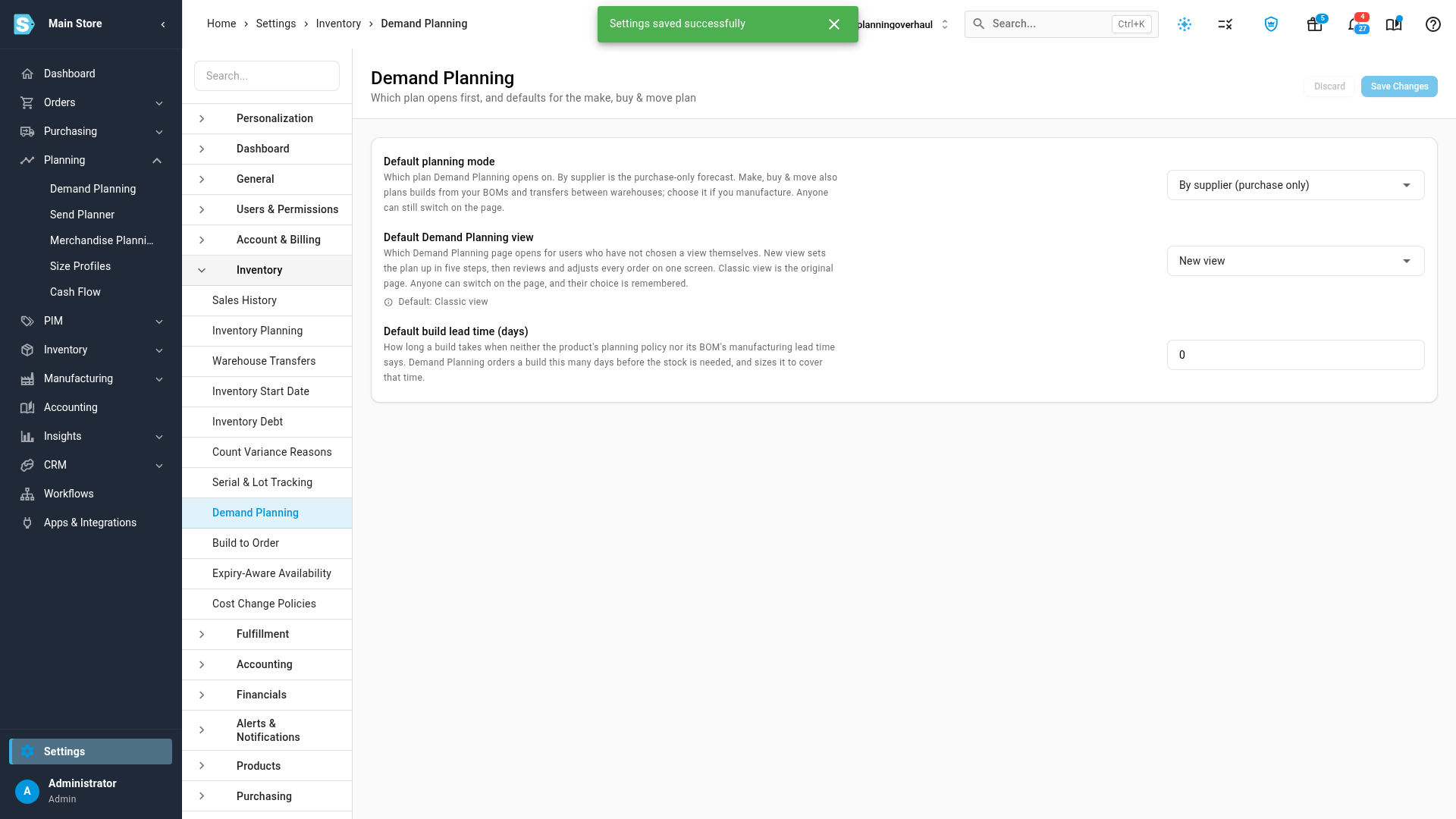
Go to Settings, open Inventory, then click Demand Planning.
-
Open Default Demand Planning view and choose New view or Classic view.
-
Click Save Changes.
The default only applies to people who haven't chosen a view themselves. Anyone can still switch on the page, and their choice is remembered.
What carries over between the views
- Saved plans, schedules and history are shared. A plan you save in one view loads in the other.
- Forecast numbers are the same in both views for the same settings.
- Links from elsewhere in SKU.io to Demand Planning open in the view you last chose.
Next steps
- Plan and order in the new Demand Planning view: set up a plan, build it and create purchase orders.
- Forecast demand and replenish stock: the same job in the classic view.
Video transcript
Demand Planning has two views of the same forecast. Open Planning in the menu on the left, and then choose Demand Planning from the list that opens under it. If your account opens on the classic view, a message at the top introduces the new view. Click Try the new view, the button on the right of that message. The new view opens on Set up, where a plan is built in five steps. To go back, click Classic view, in the switch at the top right. To return, click New view, the other half of the switch. Your choice is remembered, so Demand Planning opens the same way next time. Your account also has a default, for people who have not chosen a view. Open Settings, at the bottom of the menu. Click the Inventory card, and it expands into a list of inventory settings. Demand Planning is near the bottom of that list, and that is the one to click. This page holds the planning defaults for the whole account. Look for Default Demand Planning view, and click the list beside its name. Choose New view or Classic view from that list. Then click Save Changes, and the new default takes effect.