Set up a plan with AI
Instead of answering the five set-up questions yourself, you can describe the plan the way you'd say it to a colleague: "restock my main supplier for the next container, sales are growing, ignore one-off spikes". Set up with AI turns that into plan settings and shows you each change before anything is applied.
It only changes settings on the set-up page. It never creates purchase orders and never edits sales history.
Before you begin
- Set up with AI is in the new view of Demand Planning. See Switch between the new and classic views.
- The AI assistant must be switched on for your account, and you need permission to use AI features. An administrator switches it on in Settings → AI Assistant: see AI Assistant settings. If AI isn't available, the dialog says why.
Steps
-
Go to Planning → Demand Planning. In the new view, click Set up with AI at the top right.
-
Describe the forecast in the box. Mention what matters: which suppliers, how far back to look, whether sales are growing, how much stock to keep.
-
Click Set up plan.
-
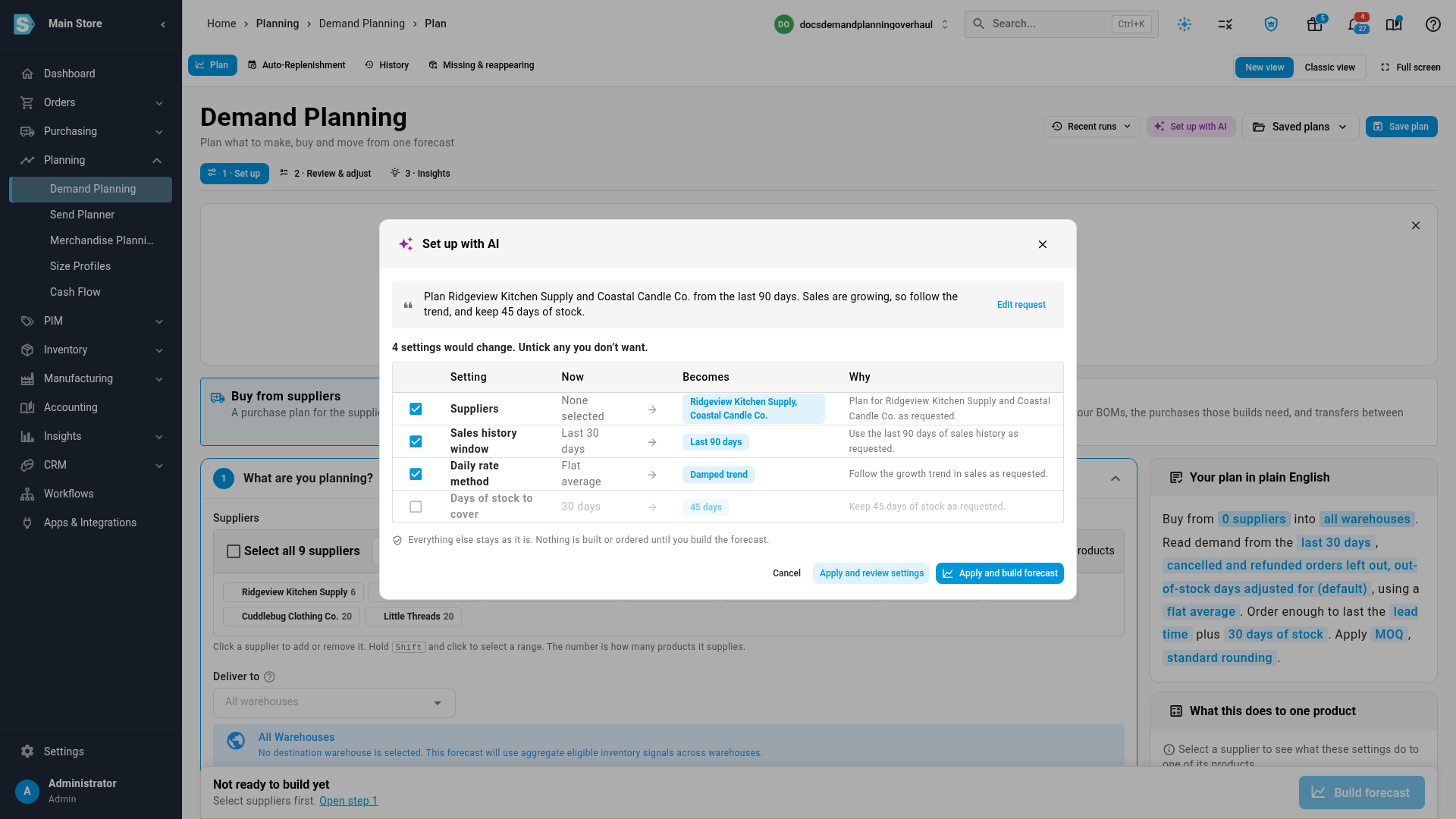
Read the table of proposed changes. Each row has the Setting, what it is Now, what it Becomes, and Why.
-
Untick any change you don't want.
-
Click Apply and review settings to put the ticked changes into the five steps and check them yourself. Or click Apply and build forecast to apply them and build straight away.
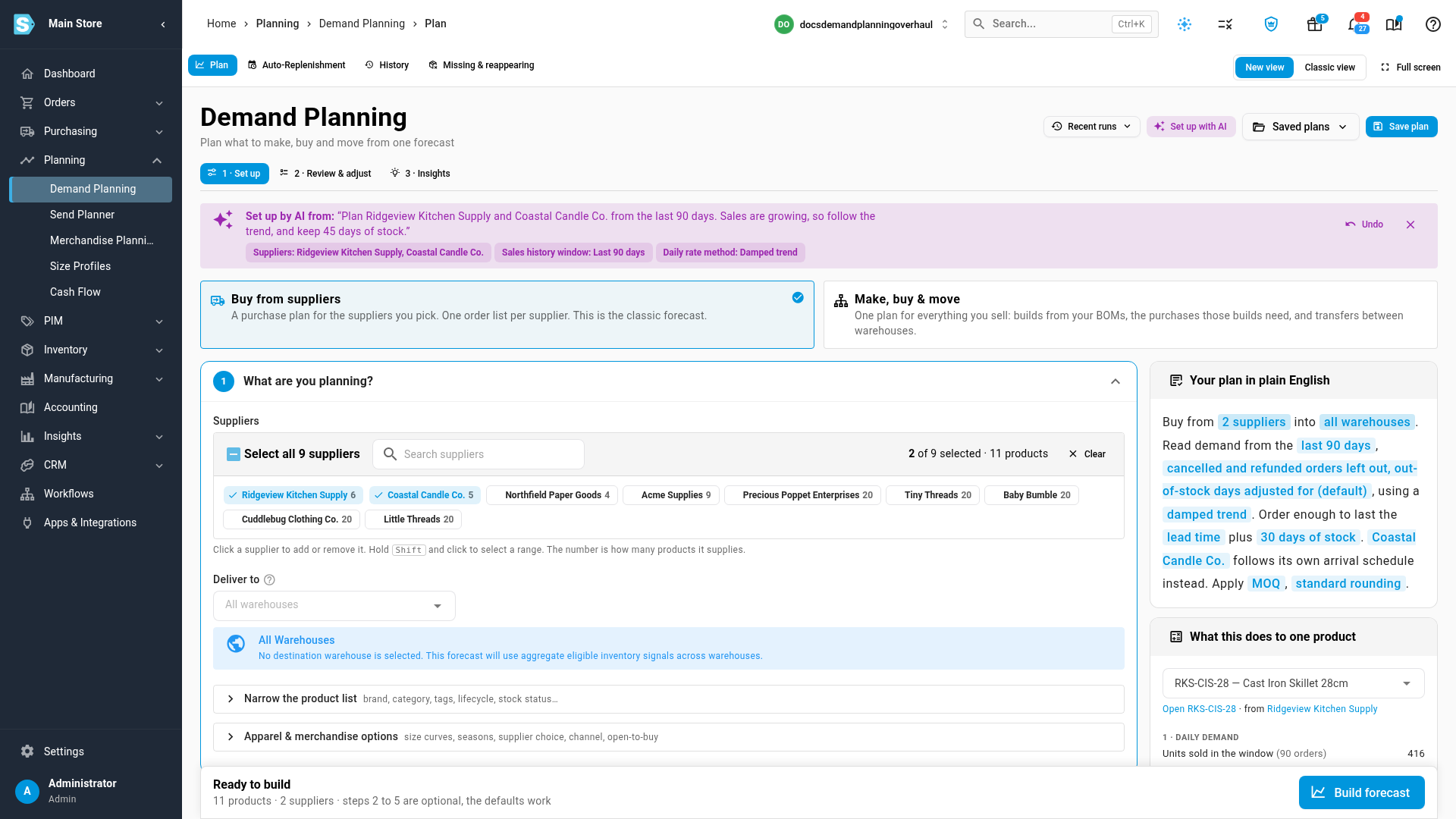
A banner at the top of the page repeats your request and lists what was set. The plan sentence on the right reads with the new settings.
Undo the set-up
Click Undo on the banner. The settings go back to what they were before the AI set-up. To keep the settings and hide the banner, click the X beside it.
Get better results
- Try one in the dialog lists example requests. Click one to start from it.
- What it can set lists the settings it understands: what you're planning, how demand is read, cover and supplier rules.
- If part of your request can't be turned into a setting, a note under the table names what to mention. Click Edit request to change the wording and run it again.
- Your Last request is kept in the dialog. Click Reuse to start from it.
- A buying budget isn't set here. Set it in Buying capacity, described in Set your buying capacity.
You can also open the same dialog later with Ask AI on the plan bar of 2 · Review & adjust.
Next steps
- Plan and order in the new Demand Planning view: what each of the five steps sets.
- Review and adjust a plan: check the orders after the build.
Video transcript
You can describe a plan in plain English, and let AI fill in the settings. In the new view of Demand Planning, click Set up with AI. Click in the box, and describe the plan the way you would say it to a colleague. Name the suppliers, how far back to look, and how much stock to keep. Then click Set up plan, at the bottom of the dialog. Nothing has changed yet. A table lists each setting that would change, what it is now, and what it becomes. Every row gives its reason. Untick any change you don't want, and it is left out. Apply and review settings puts the ticked changes into the five steps, for you to check. Apply and build forecast does the same, then builds the forecast straight away. Here, click Apply and review settings, and the dialog closes. A banner at the top repeats your request, and lists what was set. The plan sentence on the right now reads with the new settings. If the result is not what you meant, click Undo on the banner. The settings go back to what they were before.