Plan purchases on each supplier's order cycle
Most suppliers are ordered on a rhythm: one by sea every 8 weeks, another by air every 4 weeks. An order cycle tells SKU.io that rhythm. Demand planning then sizes each order to last until the next order from that supplier arrives, shows when each supplier is next due, and a schedule can run on each supplier's order dates instead of every week.
Before you begin
- The supplier needs a Lead Time. A cycle order covers the lead time plus the cycle, plus any safety days.
- Forecasts need sales history for the products. See Forecast demand and replenish stock.
- You need permission to edit suppliers.
Set a supplier's order cycle
- Go to Contacts → Suppliers, open the supplier and go to its Settings.
- Go to Purchasing Defaults and click Edit.
- Under Order cycle, enter how often you order in Order every, and choose weeks or days.
- Enter the Next order date: the day you'll next raise a purchase order with this supplier.
- Optionally, enter Safety days: extra days of cover on top of the lead time and the cycle.
- Check the preview under the fields. It lists the next three order dates and how many days of sales a cycle order covers, for example A cycle order covers lead time 45 + cycle 56 + safety 7 = 108 days of sales.
- Click Save.
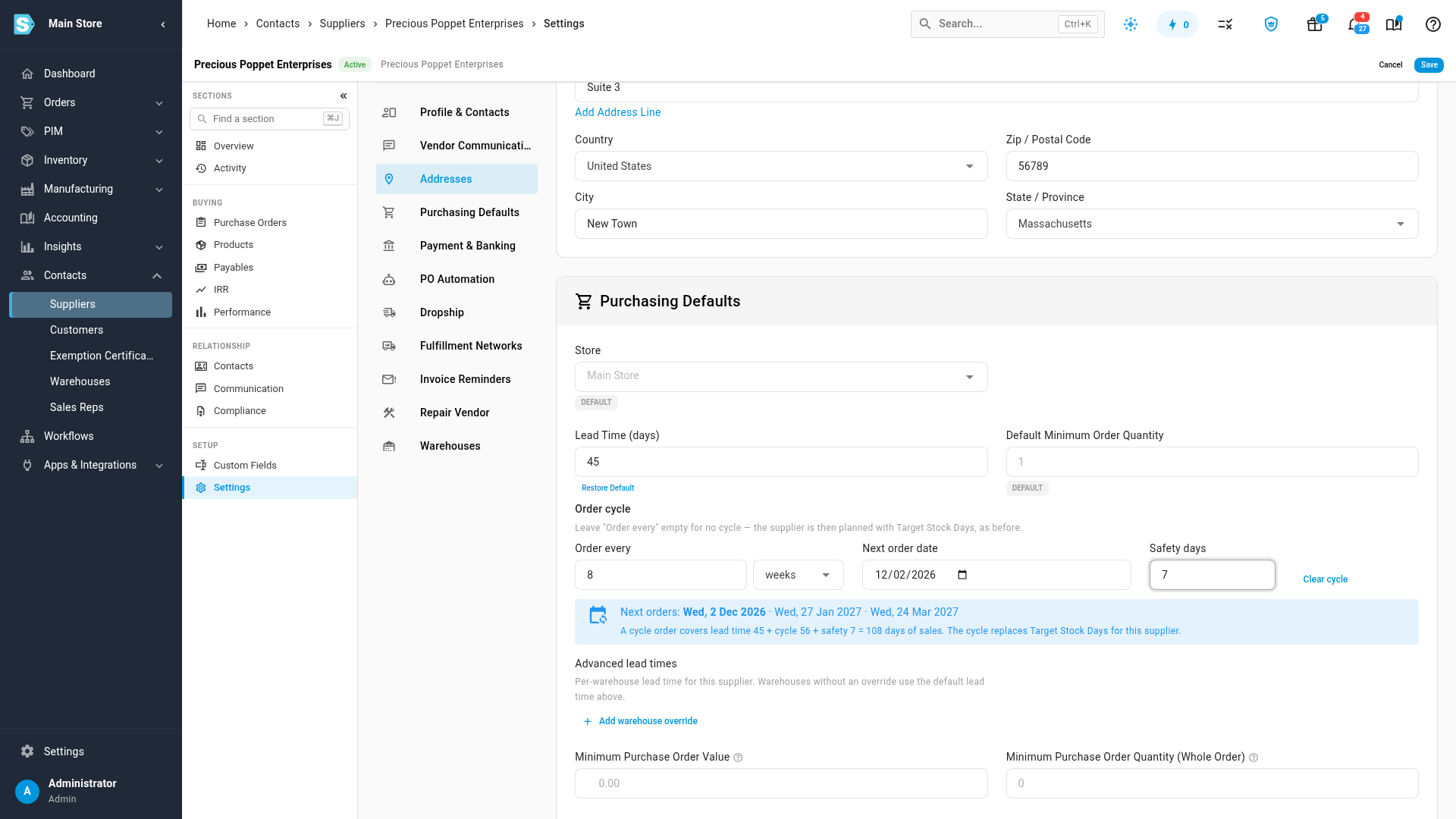
Order every, Next order date and weeks or days go together: fill in all three, or leave Order every empty for no cycle. To remove a cycle, click Clear cycle. A supplier without a cycle is planned with Target Stock Days, exactly as before.
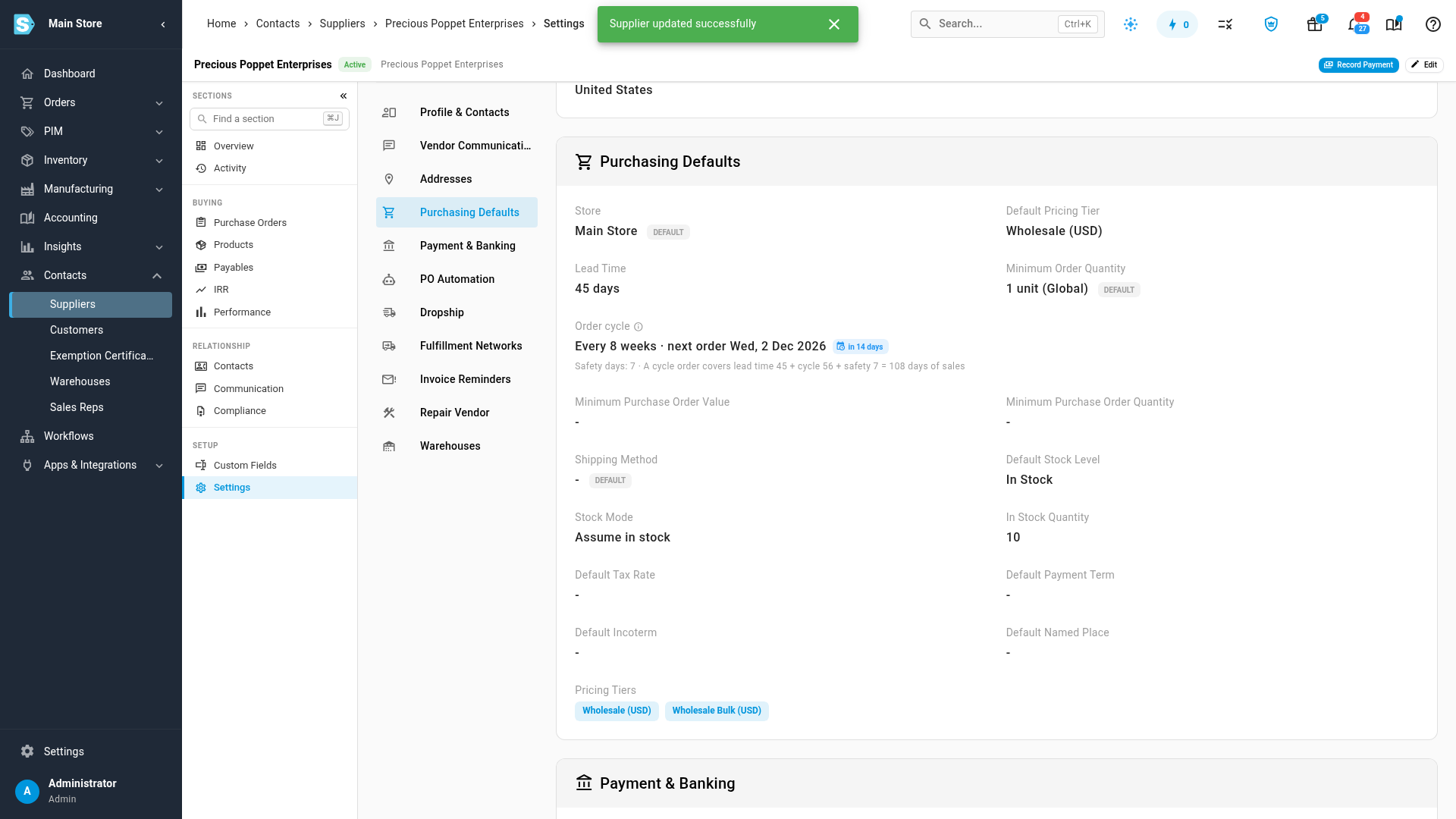
After saving, Purchasing Defaults shows the cycle, for example Every 8 weeks · next order Wed, 2 Dec 2026 with an in 14 days chip.
See the cycle in a forecast
Build a forecast on Inventory → Demand Planning with the supplier selected. Each supplier with a cycle has an icon on its tab and a banner above its results:
- Order day (green) — the next order date is today. Suggestions cover the lead time plus the full cycle, plus safety days.
- Order overdue N days (red) — the next order date has passed. Suggestions still cover the full cycle.
- Next order … · in N days (blue) — you're ordering before the next order date. Suggestions only top up stock until the next cycle order arrives: the lead time plus the days until the next order date, plus safety days. The banner says what the next cycle order will cover.
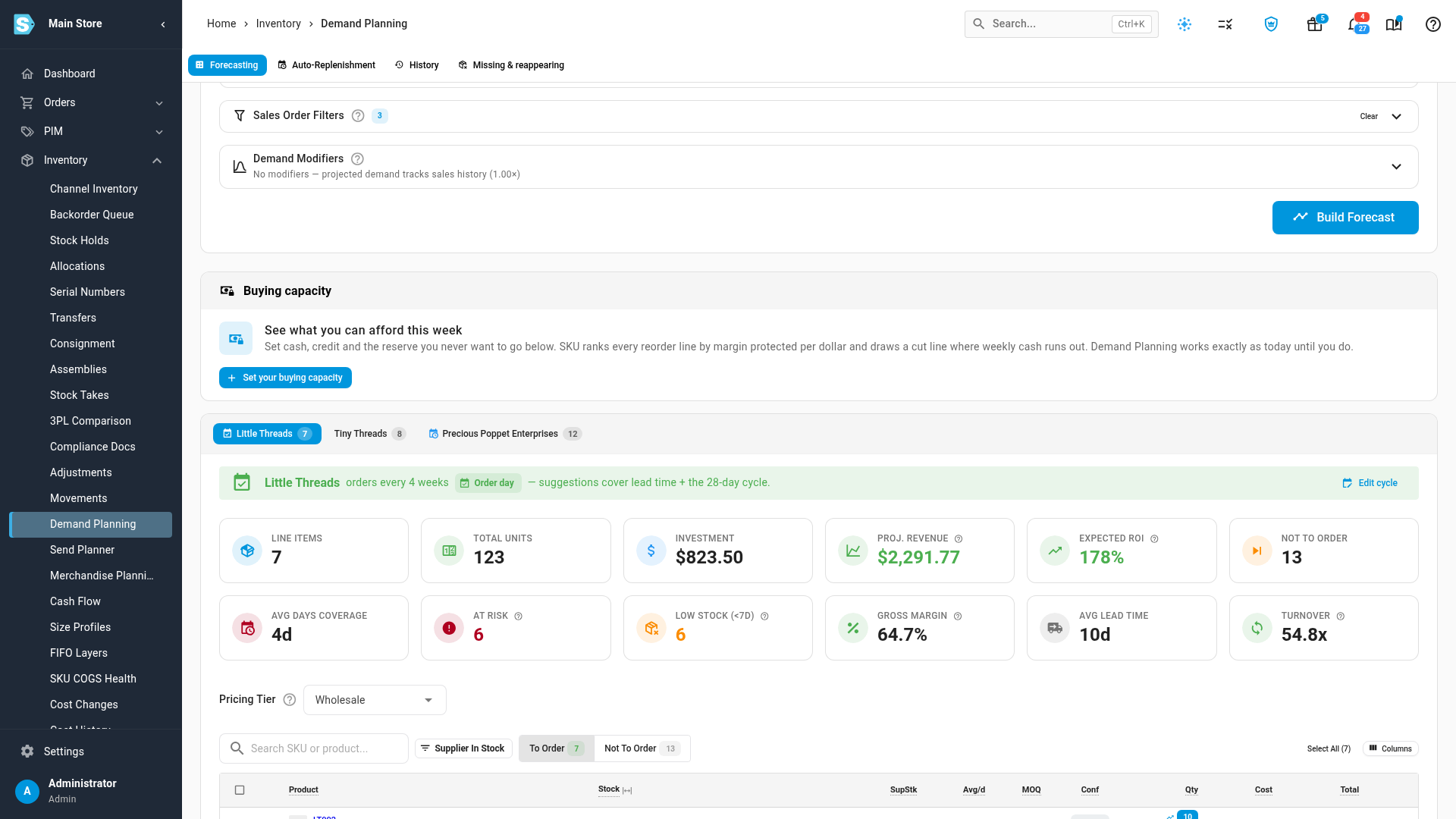
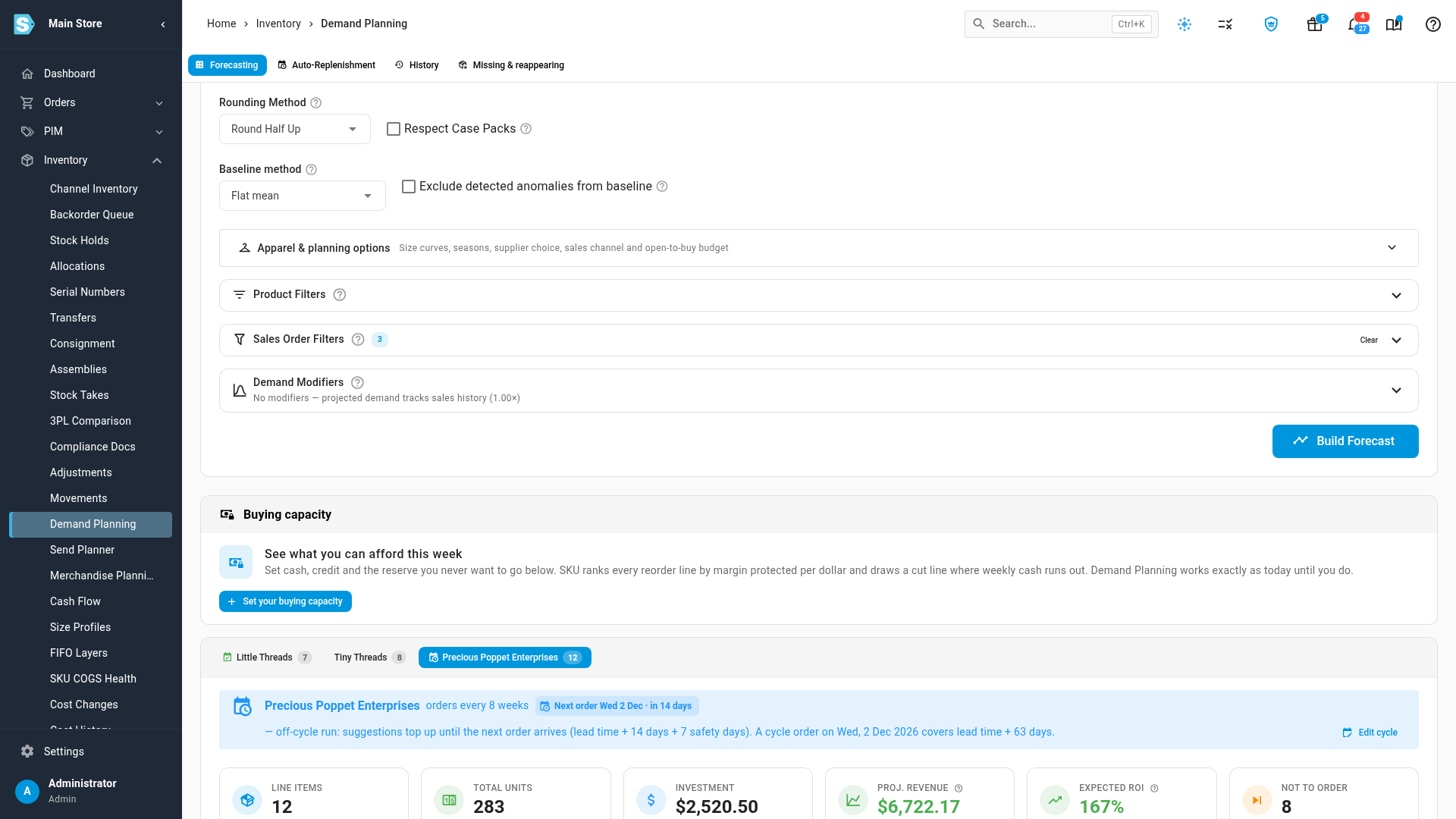
Click Edit cycle on the banner to go straight to the supplier's Purchasing Defaults.
To see the rule behind a line, open its calculation details. Under Calculation Inputs, Target Days carries an Order cycle chip, and Order Cycle spells out the sum, for example 28 = order cycle 28 (every 4 weeks, order due).
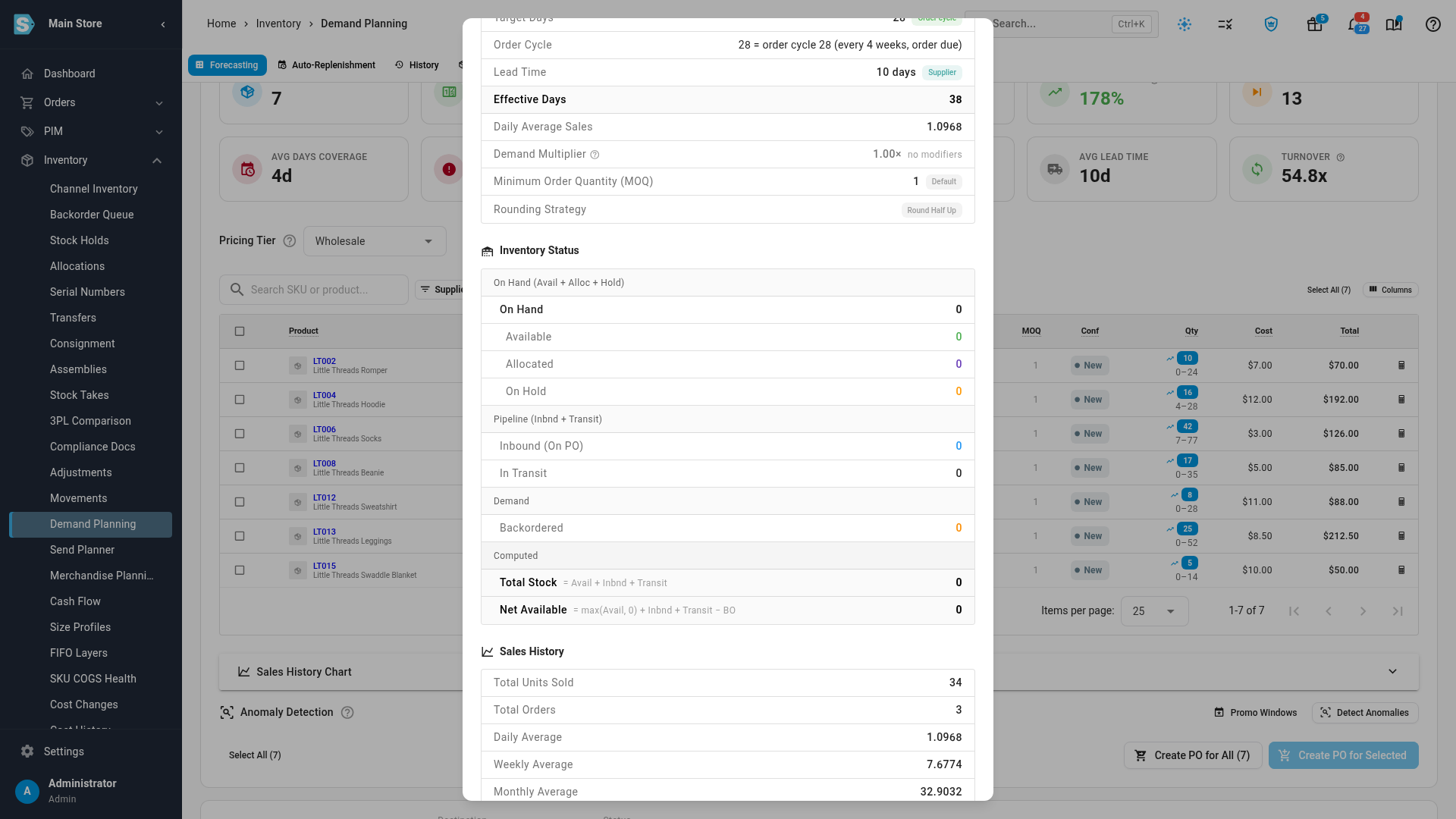
For a supplier with a cycle, the cycle decides the days of cover, not the supplier's or product's Target Stock Days: you can't reorder until the next cycle, however few days a product setting asks for. Put any extra cover in Safety days. The forecast's own Override product settings still wins when you turn it on. Target Stock Level and Fill Backorders Only forecasts don't use days of cover, so the cycle doesn't change their quantities, but the banner still shows.
When the next order date moves
When you create purchase orders from Demand Planning for a supplier that's due, by hand or from a schedule, its next order date moves to the next cycle date after today, keeping the rhythm. If you were more than a whole cycle late, the missed dates are skipped. An order you raise before the next order date, or a purchase order created outside Demand Planning, leaves the date alone. You can change the date at any time in Purchasing Defaults.
Run a schedule on each supplier's order dates
- Save the forecast as a configuration with the suppliers you want, as in Replenish stock on a schedule.
- Open the Auto-Replenishment tab and click New Schedule.
- Choose On each supplier's order cycle instead of On selected weekdays.
- Set the Time, choose the configuration, and finish the schedule as usual.
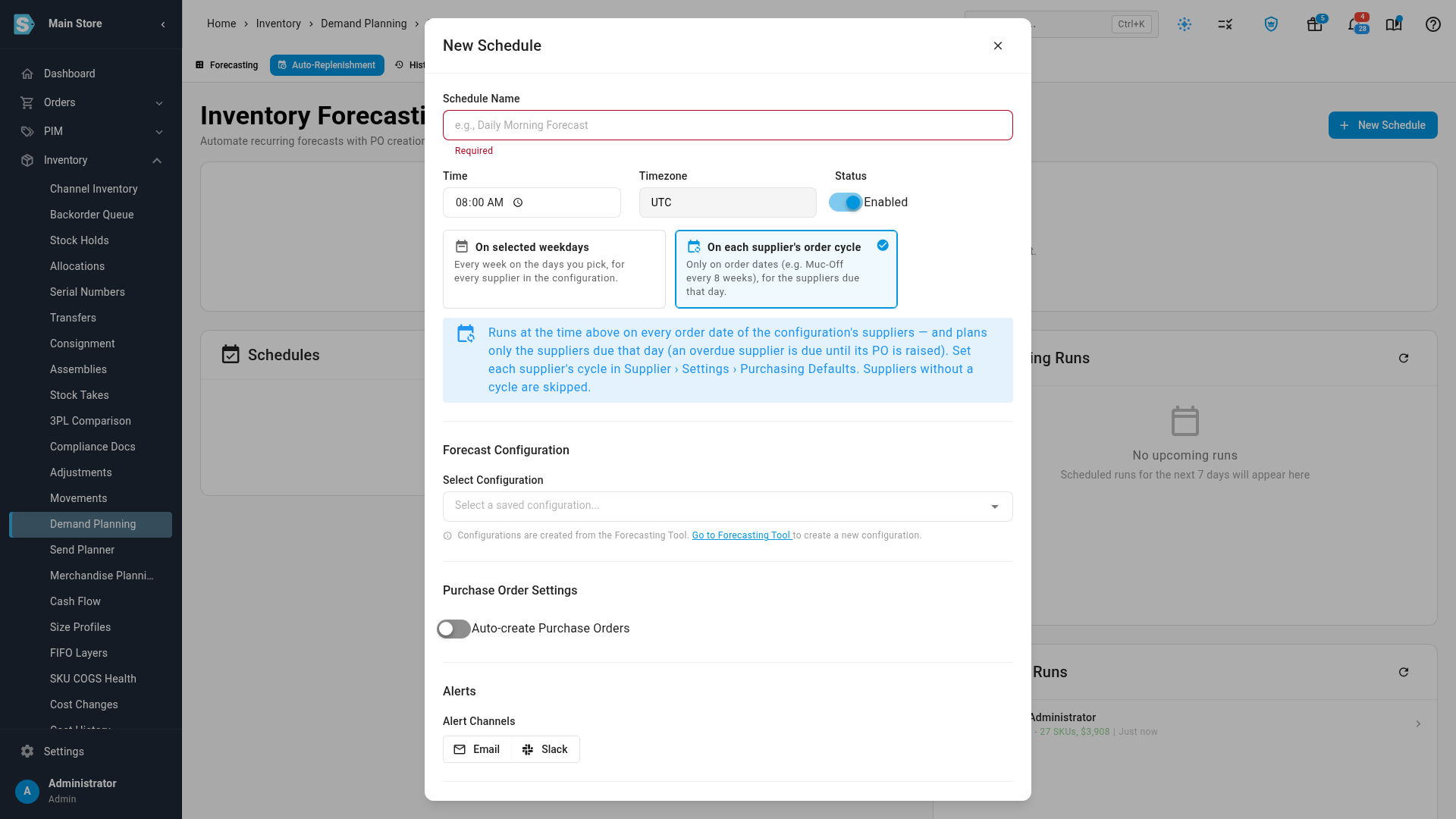
The schedule runs at that time on every order date of the configuration's suppliers, and each run plans only the suppliers due that day. Suppliers without a cycle are skipped, and an overdue supplier counts as due until its purchase order is raised. In the schedule list it shows Supplier order cycles instead of weekdays. Cycle schedules need a configuration made with By supplier (purchase only), not Make, buy & move.
Next steps
- Forecast demand and replenish stock — build a forecast and turn it into purchase orders.
- Replenish stock on a schedule — the rest of the schedule settings.
- How velocity and days of supply work — the formula the cycle feeds.