Plan only the products that sold
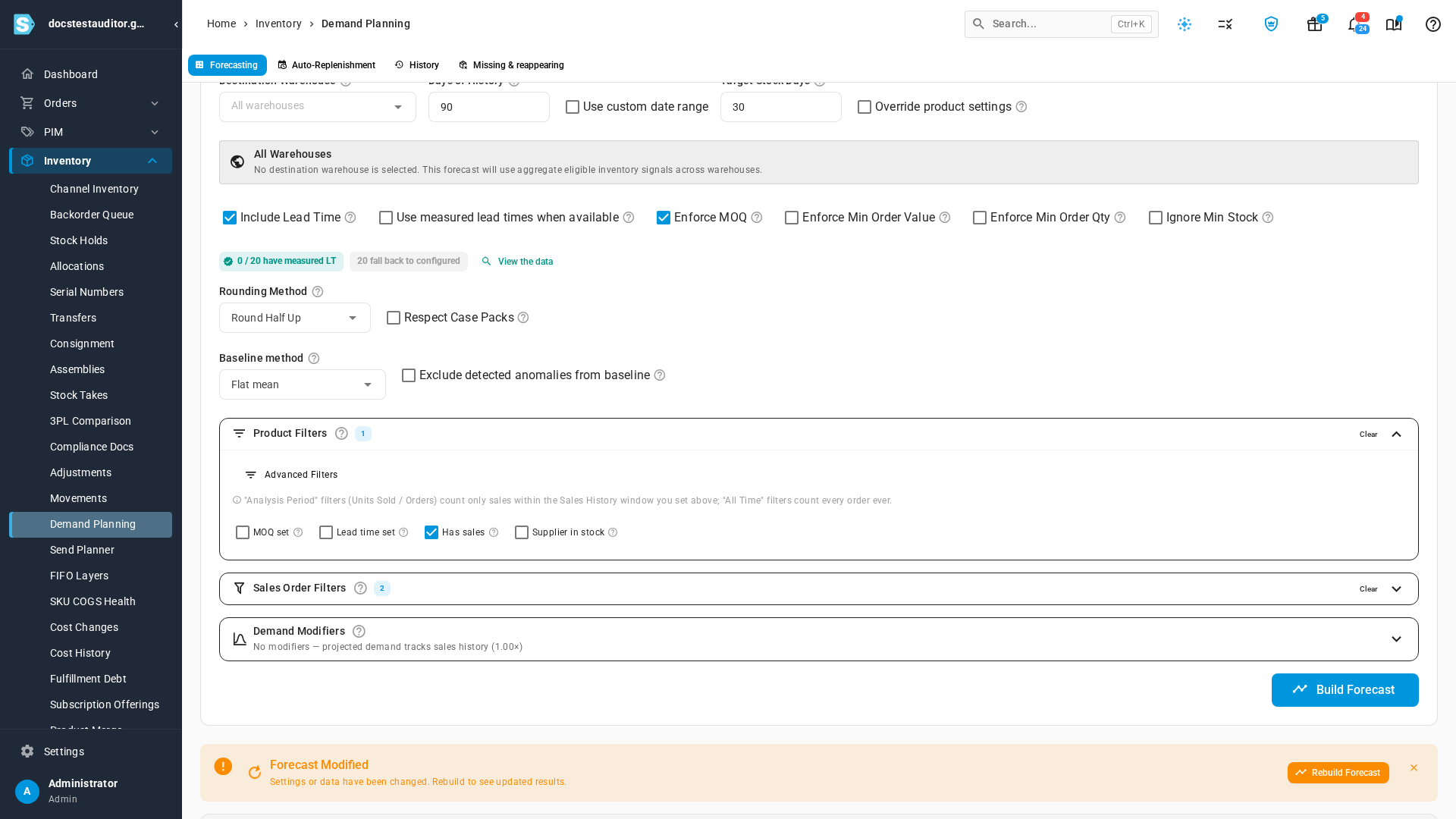
A forecast normally plans every product a supplier sells you, including products that haven't sold. The Has sales product filter leaves out every product with no sales in the forecast's sales window, so the plan only holds what's moving.
Before you begin
- The supplier's products are linked to the supplier under Contacts → Suppliers.
- You've decided how many days of sales history the forecast reads. Has sales uses the same window.
Turn on Has sales
-
Go to Inventory → Demand Planning.
-
In Suppliers, pick one or more suppliers.
-
Set Days of History, or tick Use custom date range and pick the dates.
-
Open Product Filters and tick Has sales.
-
Click Build Forecast.
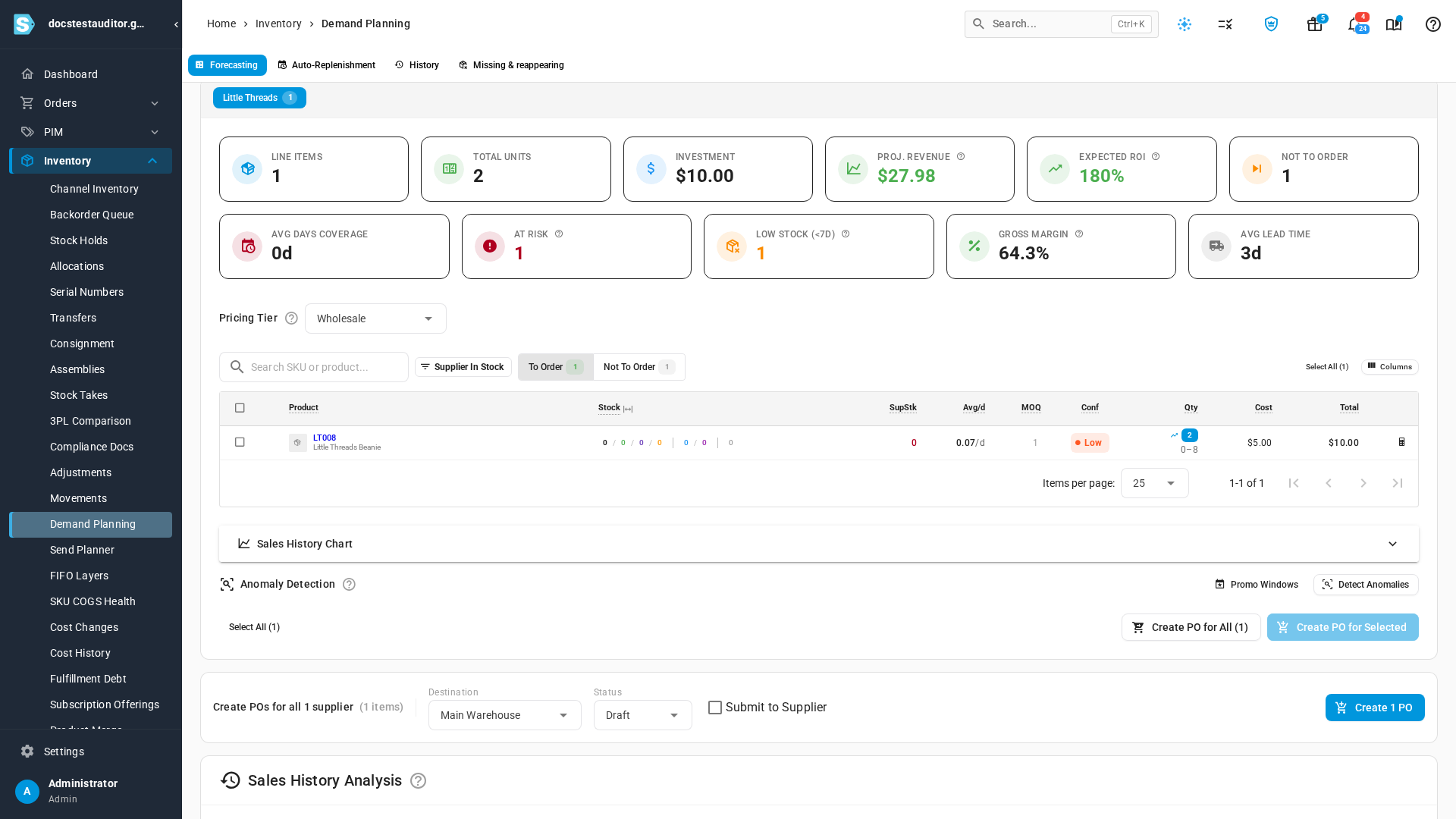
Products that sold nothing in the window are left out of both To Order and Not To Order.
What counts as a sale
- Units sold inside kits count for their components. A component that only ever sells as part of a kit stays in the plan.
- Only sales inside the window count. The window is Days of History, or your custom date range.
- Your Sales Order Filters apply. Orders the forecast's Sales Order Filters leave out don't count as sales for Has sales either.
- In Make, buy & move, ingredients stay in. An ingredient that a planned build needs is still planned, even if it never sold on its own.
The supplier tab counts
While a forecast builds, each supplier's tab shows how many products it will plan. With Has sales on, that count only includes products that sold in the window, over the same filters and warehouse as the forecast. Once a supplier's forecast is built, its tab shows the number of items to order.
Next steps
- Forecast and replenish stock: read the forecast and create purchase orders from it.
- How velocity and days of supply work: how the forecast turns sales into daily demand.
Video transcript
A forecast normally plans every product a supplier sells you, including the ones that haven't sold. To open the forecast, go to the Inventory menu in the sidebar, then choose Demand Planning. Pick a supplier from the list. This example uses Little Threads. Then set how many days of sales history to look at, and click Build Forecast. All twenty of its products are planned, even though only two of them sold in that window. To leave out products that sold nothing, open Product Filters, and tick Has sales. A product stays in if it sold during the sales history window. Units sold inside kits count for their components. Scroll back up to Build Forecast, and click it again. Now only the two products that sold are planned: one to order, and one not to order. The products that sold nothing are left out, so the list holds only what moves.