Plan cover by order cycle
By default, a Sales Based forecast orders enough to keep Target Stock Days of stock after the order lands. If you order on a rhythm, for example every six weeks, the question you're really asking is different: will this order last until the next one arrives? Plan cover by → Order cycle sizes every line to cover the lead time plus the days until your next order, and the results tell you the date the order covers through.
This setting applies to one forecast or one saved configuration. To give a supplier its own standing cycle, which every forecast and schedule then uses, see Plan purchases on each supplier's order cycle.
Target stock days stays the default, so existing forecasts, configurations and schedules don't change.
Before you begin
- Use the Sales Based forecast type with By supplier (purchase only). Make, buy & move plans size from their own horizon and don't show this setting.
- The products need sales history, and the suppliers need a Lead Time. See Set supplier lead times.
Plan to a repeating cycle
Use this when you order on a regular rhythm and want to save the forecast or put it on a schedule.
- Go to Inventory → Demand Planning.
- In Configuration, pick the Suppliers and set Forecast Type to Sales Based.
- Under Plan cover by, choose Order cycle.
- Leave Next order on Repeats every…, and enter the number of days between orders in Order every (days), for example 42 for six weeks. It accepts 1 to 365 days.
- Click Build Forecast.
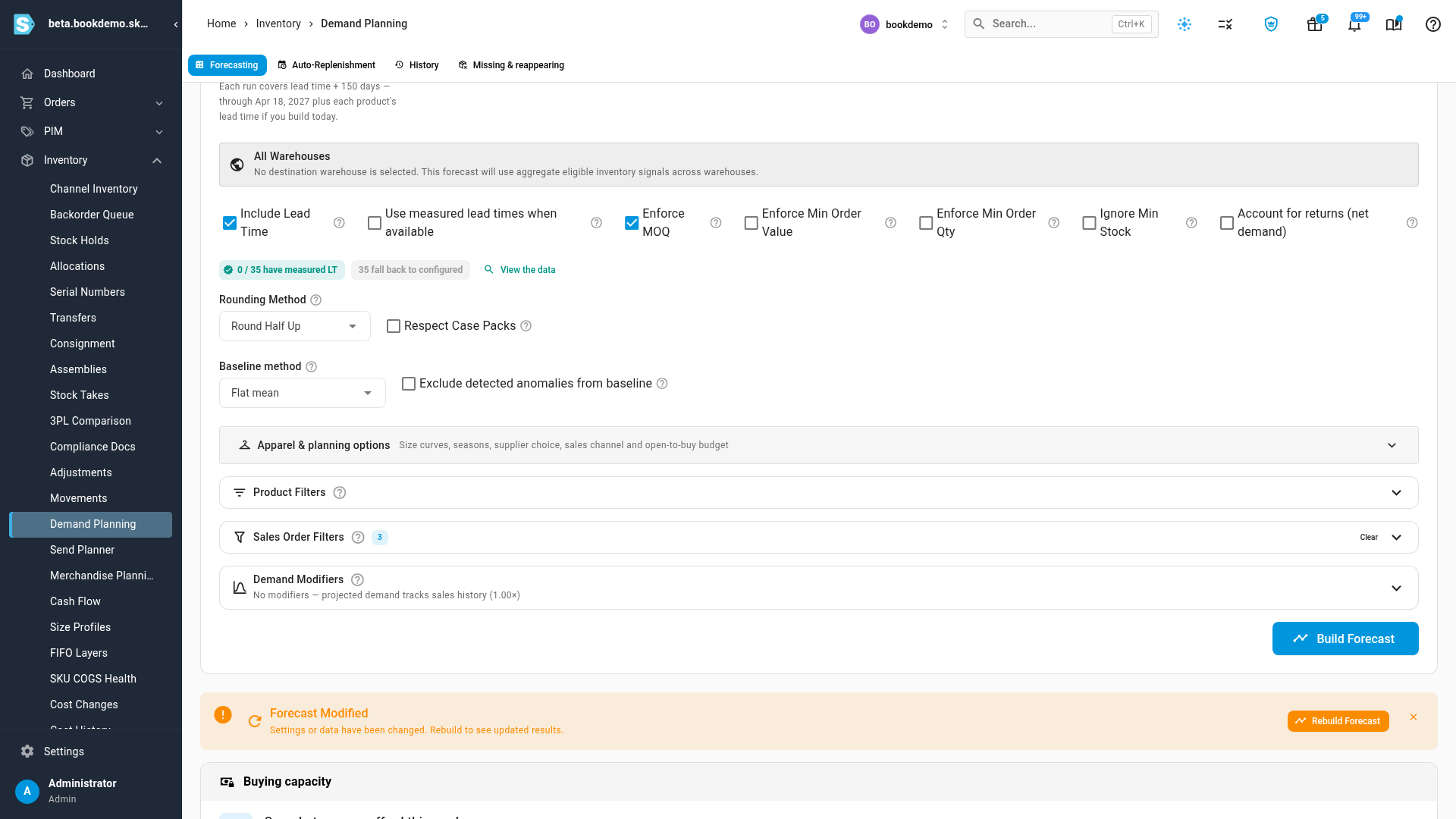
With a repeating cycle, the forecast treats today as the order day: each line covers its lead time plus one full cycle.
Plan to a next order date
Use this for a one-off order, for example when you know the next container ships on a set date.
- Under Plan cover by, choose Order cycle.
- Set Next order to On a date.
- Enter the Next order date. It must be after today. The hint beside it confirms the cover, for example Covers lead time + the days until Jan 15, 2027.
- Click Build Forecast.
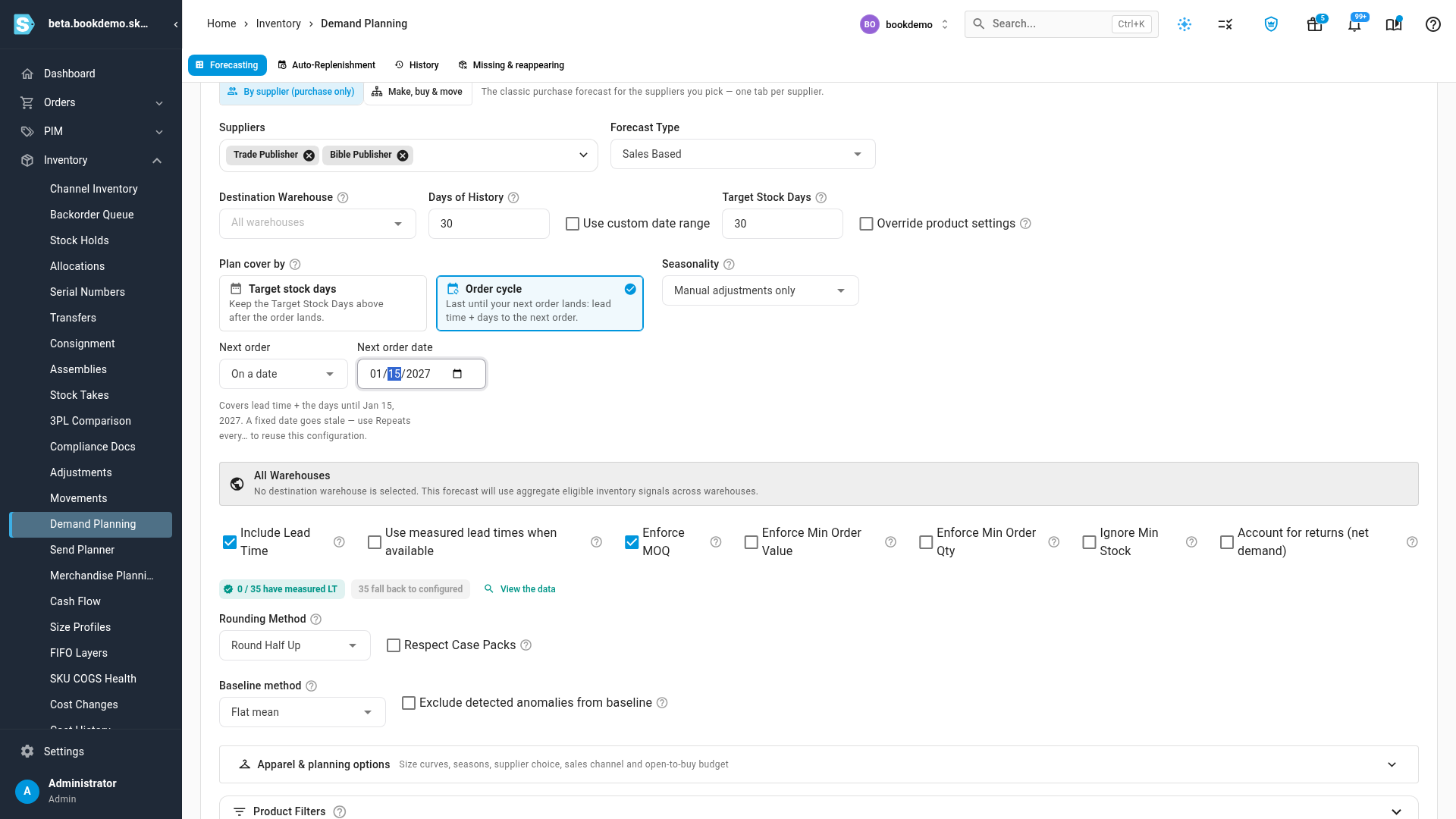
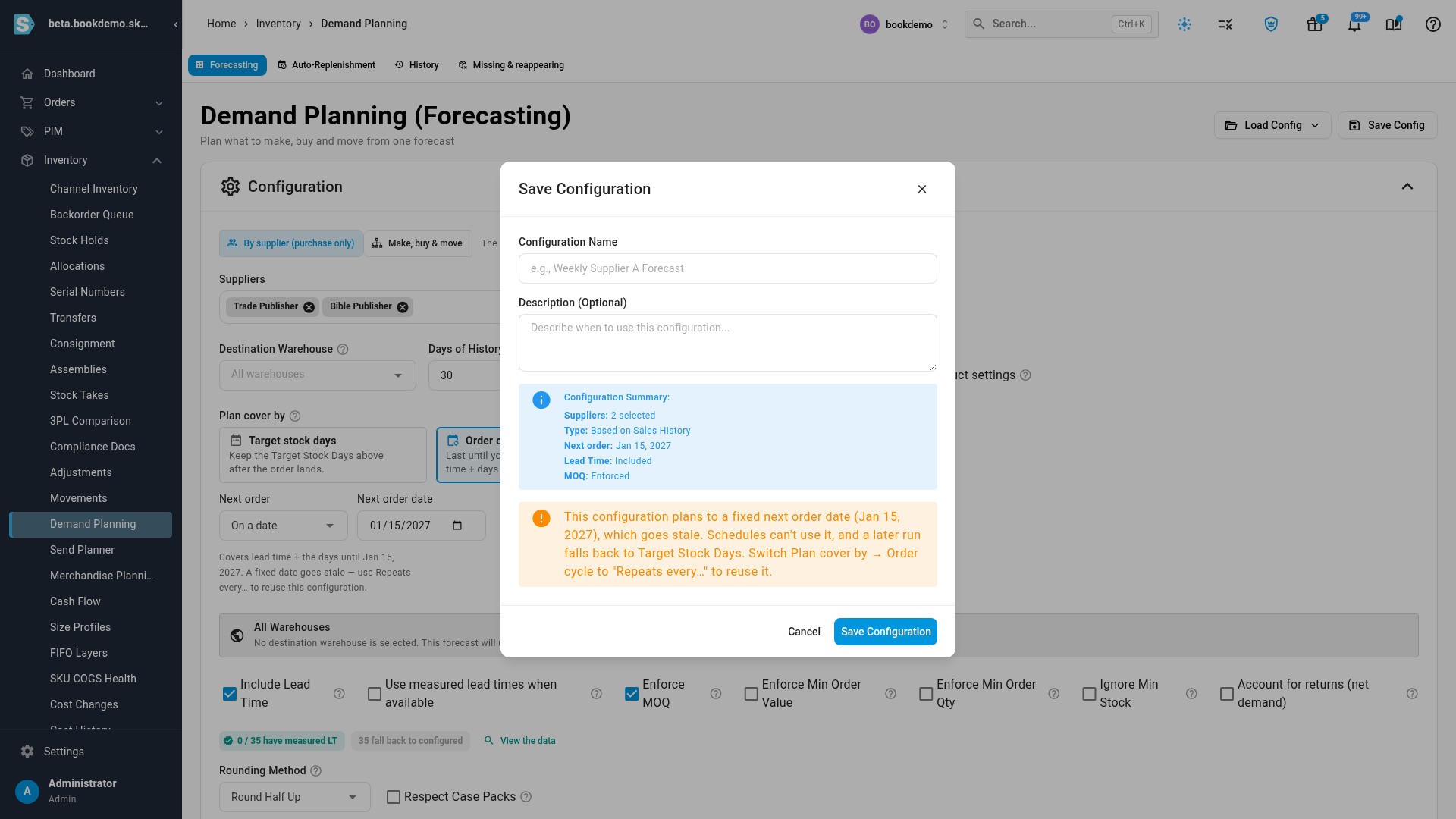
A fixed date goes stale, so it's meant for this order only:
- When you click Save Config with a fixed date, the dialog warns that the configuration plans to a fixed next order date, which goes stale. Schedules can't use it, and a later run falls back to Target Stock Days. Switch to Repeats every… to make a configuration you can reuse.
- If you reload a saved configuration after its date has passed, or the date is today, the run uses the usual cover instead: Target Stock Days, or the supplier's own order cycle. The results say why, for example Next order date Nov 1, 2026 has passed, so this run used the usual cover (Target Stock Days, or the supplier's own order cycle).
- An Auto-Replenishment schedule can't run a configuration with a fixed date. See Use an order cycle on a schedule.
Read the results
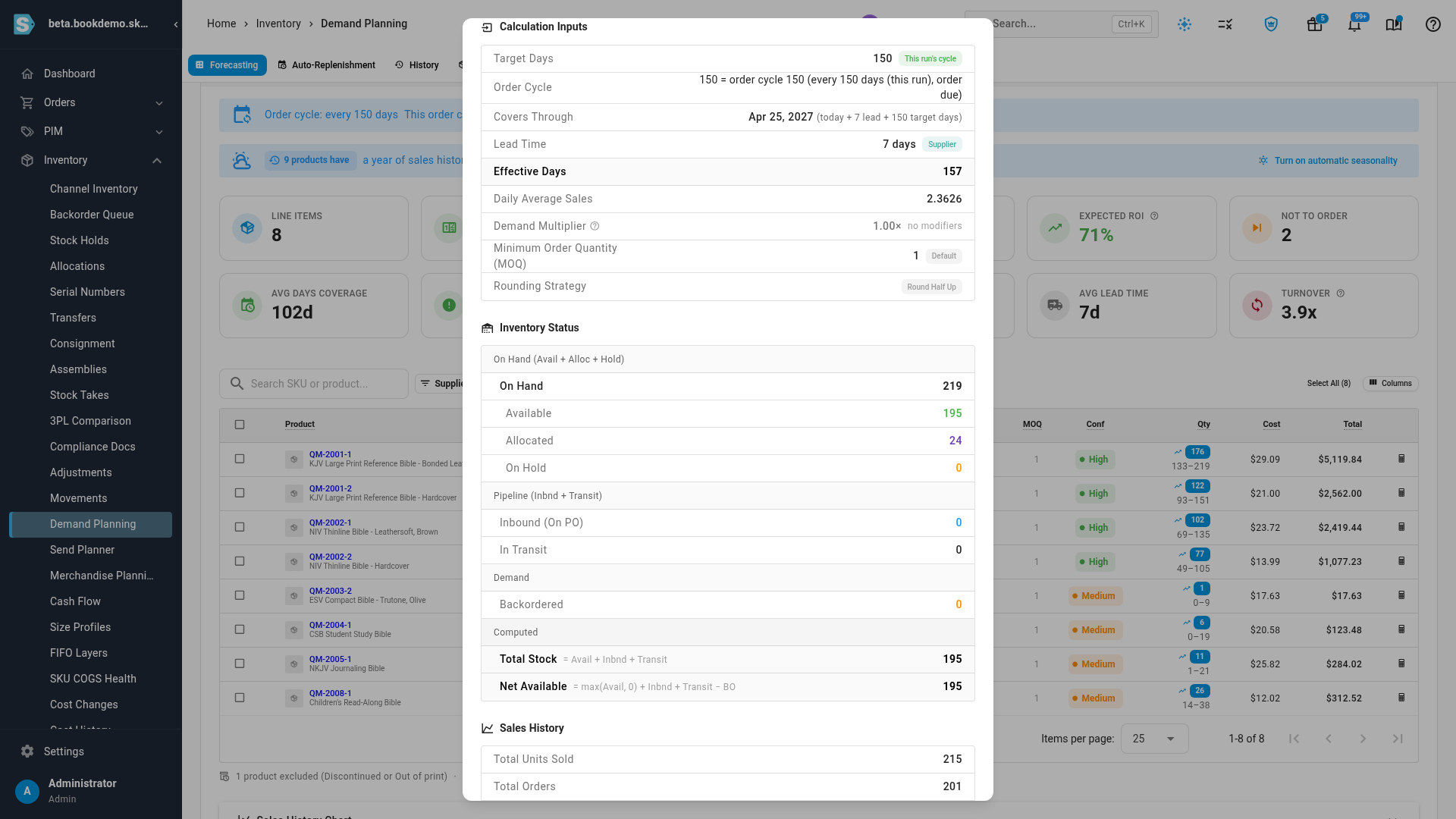
Above each supplier's results, a banner names the cycle and the date the order lasts until, for example Order cycle: every 150 days. This order covers through Apr 25, 2027: 7-day lead time + 150 days to your next order (every 150 days). When products have different lead times, the banner gives a range of dates instead.
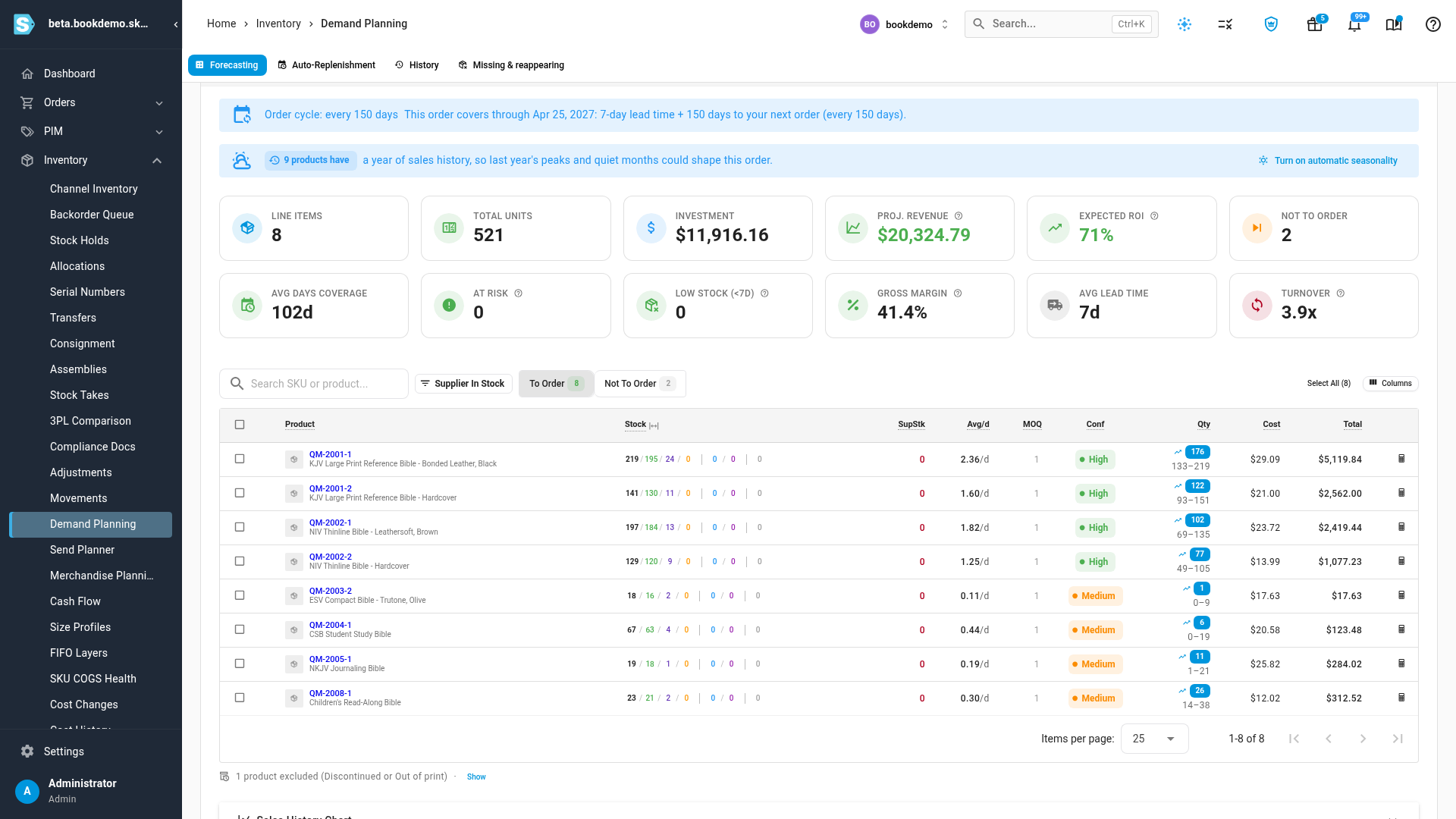
To see the rule behind one line, click the calculator icon at the end of the line to open Calculation Details. Under Calculation Inputs:
- Target Days carries a This run's cycle chip.
- Order Cycle spells it out, for example 150 = order cycle 150 (every 150 days (this run), order due).
- Covers Through gives the date, for example Apr 25, 2027 (today + 7 lead + 150 target days). Every Sales Based line shows this row, in either mode.
What the order cycle replaces
For every line in the forecast, this run's cycle decides the days of cover. It replaces:
- the forecast's Target Stock Days;
- the target stock days set on each supplier or product;
- a supplier's own order cycle or planned arrivals. Where it replaces one, Calculation Details shows both, for example Supplier cycle: every 8 weeks, next order Dec 1. Replaced by this run's every 42 days.
The product's Min Stock Level still applies: the order never leaves stock below it. With Include Lead Time off, the cover is the days until the next order alone.
Switch Plan cover by back to Target stock days to return to the usual cover exactly.
Use an order cycle on a schedule
- Build the forecast with Plan cover by → Order cycle and Repeats every….
- Click Save Config and save the configuration.
- On the Auto-Replenishment tab, create a schedule that runs it. See Replenish stock on a schedule.
Each run then sizes the orders to last one cycle past the lead time. Match the schedule to the cycle: a configuration that orders every 14 days belongs on a schedule that runs every other week.
If you choose a configuration with a fixed next order date, the schedule dialog warns that it plans to a fixed next order date, which goes stale on a schedule, and the schedule can't be saved until you change the configuration to Repeats every…. A configuration a schedule already uses can't be switched to a fixed date.
Next steps
- Plan purchases on each supplier's order cycle to store each supplier's rhythm and run schedules on its order dates.
- Read the stock run-down grid to check the order lasts, month by month.
- Forecast with automatic seasonality from last year so the cover reflects the months it runs through.
Video transcript
If you order on a rhythm, size each order to last until the next one lands. Open Inventory, then Demand Planning, from the menu on the left. Click the Suppliers list at the top, and pick the suppliers you buy from together. Here, the Bible Publisher and the Trade Publisher. Close the list once you have chosen them. Under Plan cover by, choose Order cycle. Leave Next order on Repeats every, and enter the days between your purchases. Here we use a hundred and fifty days. Click Build Forecast. The results take a few seconds, and give each supplier its own tab. Above them, a banner says the date this purchase covers through: the lead time, plus the days until the next one. Open a line's calculation details. Target Days come from this run's cycle, and the Covers Through row gives the date.