Read the sales tax liability report
Before you file a sales tax return you need to know, for each state or province, what you sold, what was taxable, and how much tax you collected. The Sales Tax Liability report gives you that across every sales channel at once. It also separates the tax you must remit yourself from the tax that marketplaces such as Amazon and eBay collect and remit on your behalf.
Before you begin
- You need permission to view Reports.
- Orders need a shipping address with a state or province. Orders without one are grouped under Unknown / No region.
Open the report
-
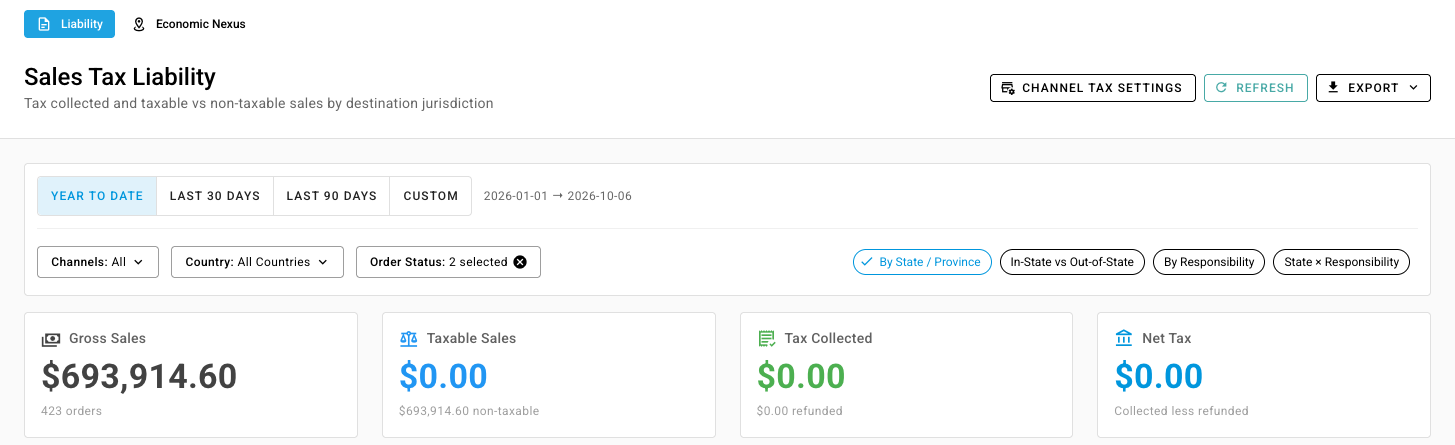
Go to Insights → Reports and choose Sales Tax. The report opens on the Liability tab.
-
Pick a period: Year to Date, Last 30 Days, Last 90 Days or Custom. The dates in use show next to the buttons.
-
Narrow the report with Channels, Country and Order Status if you need to.
Tell SKU.io who remits each channel's tax
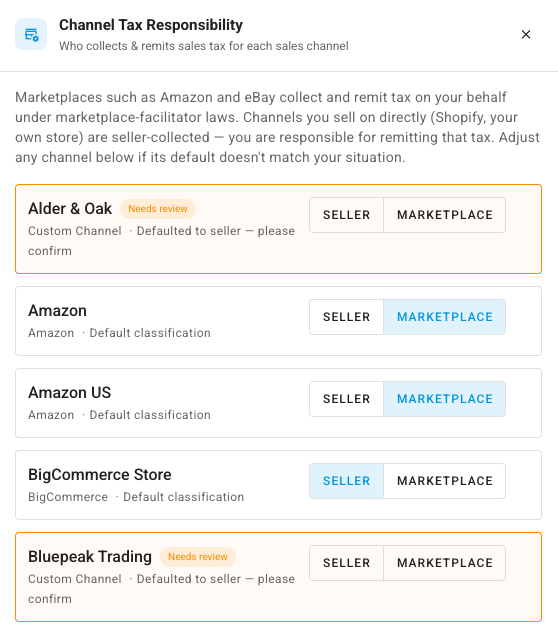
Under marketplace-facilitator laws, marketplaces collect and remit tax on the sales they handle. Sales through your own store are seller-collected, so the tax is yours to remit. Check each channel once, before you rely on the report.
-
Click Channel Tax Settings. The Channel Tax Responsibility panel lists every sales channel.
-
For each channel, click Seller or Marketplace. Amazon and similar marketplaces start as Marketplace, and your own stores as Seller. Channels SKU.io can't classify start as Seller and show Needs review.
-
Close the panel. The report updates.
While any channel still needs review, a banner on the report says those channels were treated as seller-collected.
Read the figures
The cards at the top total the period:
| Card | What it shows |
|---|---|
| Gross Sales | Everything you sold, with the order count |
| Taxable Sales | The taxable part, with the non-taxable amount underneath |
| Tax Collected | Tax charged on orders, with the tax refunded underneath |
| Net Tax | Tax collected less tax refunded |
The table has one row per jurisdiction, with Orders, Gross Sales, Taxable, Non-Taxable, Tax Collected, Refunded Tax and Net Tax. Your home state carries a Home State chip. SKU.io takes it from your default warehouse's address.

Tax follows the destination, so each sale counts in the state or province it shipped to. Returns reduce the tax in the state the original order shipped to.
Group the report another way
Use the buttons on the right of the filters:
- By State / Province: one row per destination. This is the default.
- In-State vs Out-of-State: your home state against everywhere else.
- By Responsibility: what you remit against what marketplaces remit. The cards change to Estimated Tax You Owe and Remitted by Marketplaces.
- State × Responsibility: each state, split by who remits.
Check the orders behind a figure
- Click a jurisdiction's name. Transaction Drill-Down lists every order and credit behind the row, with its Document, Number, Date, Channel, Customer, Region, Taxable Amount and Tax.
- Click a number to open the order or credit.
Orders add tax and credits subtract it, so the drill-down adds up to the row.
Export for your return
Click Export and choose CSV, XLSX or PDF. The export follows the period, filters and grouping on screen. It's a summary to prepare your return from. It isn't a state's return form, so check the figures against each state's filing rules.
Click Refresh to rebuild the report after you've changed orders or channel settings.
Next steps
- Track economic nexus: see where you're close to having to register.
- Choose who calculates tax: how tax reaches your accounting provider.