Set up supplier pricing tiers and price breaks
A supplier pricing tier is a named price list for what you pay suppliers — for example Wholesale for everyday orders and Wholesale Bulk for the lower price you get on large orders. Each tier carries one currency, and each product can have a price on each tier for each supplier. Purchase orders fill unit costs from a tier, and you can switch a whole order to another tier when it qualifies for a better price.
This page covers creating tiers, giving them to a supplier, and using them for quantity price breaks. Entering a product's price on each tier happens on the product — see Manage a product's suppliers.
Before you begin
- You need access to Settings → Purchasing to create tiers, and permission to edit suppliers to assign them.
- Decide which currency each tier is in. A tier's currency is the supplier's currency on any purchase order priced from it.
Create a tier
-
Go to Settings → Purchasing → Supplier Pricing Tiers. The list shows each tier's Type, Base Tier, Formula, Currency, and which one is the Default.

-
Click Create Supplier Pricing Tier.
-
Enter a Name.
-
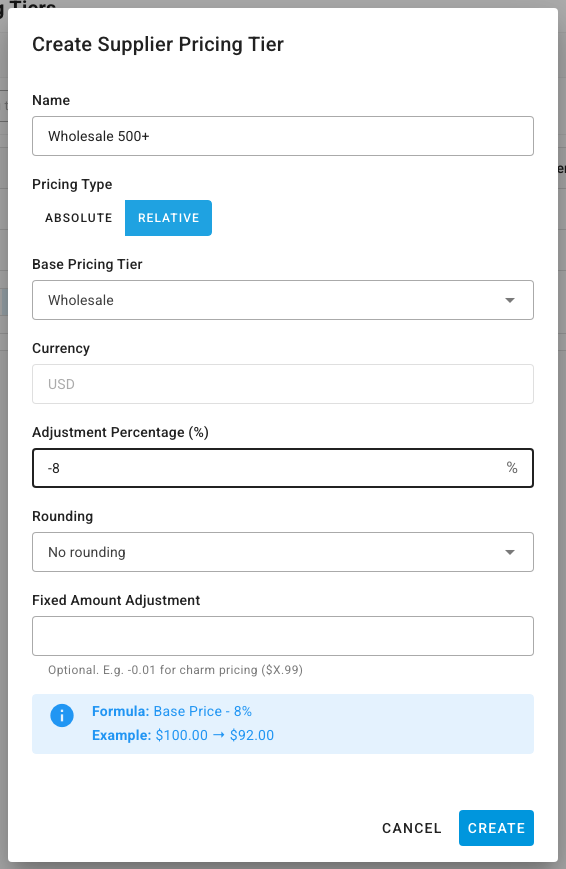
Choose the Pricing Type:
- Absolute — you enter every product's price on this tier yourself. Pick the tier's Currency.
- Relative — prices are worked out from another tier. Pick the Base Pricing Tier; the currency follows the base tier. Then set the Adjustment Percentage (%) (for example,
-8for 8% off), an optional Rounding, and an optional Fixed Amount Adjustment (for example,-0.01to end prices in .99). The Formula and Example under the fields show the result before you save.
-
Click Create.
A relative tier fills in a price for every product that has a price on its base tier, in the background. When a base price changes later, the relative tier's price follows.
To make a tier the account default — the tier a supplier uses when it has no default of its own — open the tier, tick Set as default pricing tier, and save. Only an absolute tier can be the default.
Give a supplier its tiers
- Go to Contacts → Suppliers, open the supplier, and open the Settings tab.
- Click Edit.
- Under Purchasing Defaults, add the supplier's tiers in Pricing Tiers.
- If you added more than one, choose the supplier's Default Pricing Tier — the tier its products are priced from by default. Leave it empty to fall back to your account's default tier.
- Click Save.

The default tier also sets the supplier's currency. To change many suppliers at once, see Export suppliers.
To compare a supplier's prices across tiers, open the supplier's Products tab, click Price List, and switch Cost tier.
Use tiers for quantity price breaks
SKU.io doesn't switch tiers on its own when a line crosses a quantity. Model each break as its own tier, and move a purchase order onto the right tier when it qualifies:
- Create one tier per break — for example Wholesale for standard orders and Wholesale Bulk for 500 units and up. A relative tier works well when the break is a fixed percentage off.
- Give both tiers to the supplier, with the standard tier as its Default Pricing Tier.
- Enter each product's price on each tier on the product's Suppliers tab (absolute tiers only — relative tiers fill themselves in).
- When a purchase order reaches the break, open it, select the lines, pick the bulk tier in Pricing Tier, and click Reprice. See Apply pricing, tax, or a discount to many lines at once.
You can reprice while the purchase order is a draft or open, before receiving locks in its costs.
Keep the supplier's original price list file with the supplier, so anyone can check where a tier's prices came from — see Keep a supplier's price lists and documents.
Next steps
- Manage a product's suppliers — enter a product's price on each tier.
- Edit a purchase order and its line items — how a new line's unit cost is chosen from the tiers.
- Bulk edit products — change a tier's prices across many products at once.