Set your invoice numbering
Every sales invoice SKU.io sends to your accounting system carries a number. Document Numbering decides where that number comes from — the sales order number your customer already has, SKU.io's own sequence, or a number your accounting system picks for itself.
The choice applies to new sales invoices only. Nothing that has already been issued is ever renumbered.
Before you begin
- You need an accounting connection. The setting belongs to a specific connection, so if you have more than one, set it on each. See how automatic accounting works.
- Only sales invoices are configurable. Bills, credit notes, journals and every other document type always use SKU.io's own sequence.
Open the setting
- Go to Accounting, open the Settings tab, then the Document Numbering sub-tab.
- Check the connection named next to the card title — for example Connected to QuickBooks Online. That is the connection you are about to change.
Choose where the number comes from
Under Sales invoice number, pick one of three:
| Option | What SKU.io sends | Use it when |
|---|---|---|
| Sales order number | The order number itself, optionally with a prefix | You want one number to match across SKU.io, your store, and your accounting system — so support can quote a single reference |
| SKU document number | SKU.io's own INV- sequence | You want a number guaranteed never to clash, and don't mind that it has nothing to do with the order |
| Provider assigned | No number at all — your accounting system assigns one | Your accounting system already owns invoice numbering and you don't want SKU.io interfering |
The Preview panel underneath updates as you choose, showing exactly what the next invoice would be called.
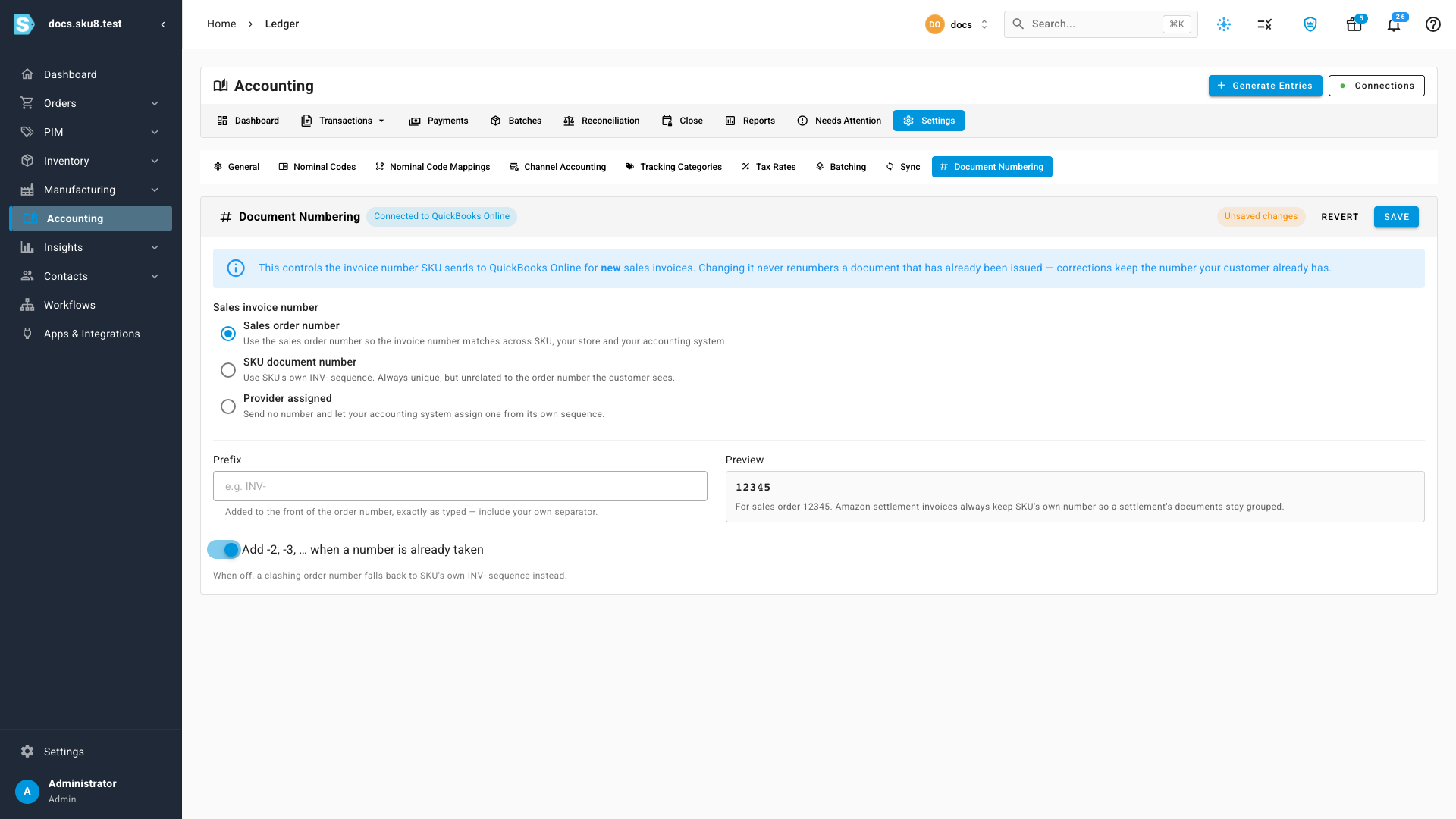
If nothing has been saved yet, the panel opens on SKU document number.
Add a prefix
A prefix applies only to Sales order number — the field is disabled for the other two options.
- Type the prefix into Prefix exactly as you want it to appear, including
your own separator.
INV-producesINV-12345;INVon its own producesINV12345. - Watch the Preview to confirm it reads the way you expect.
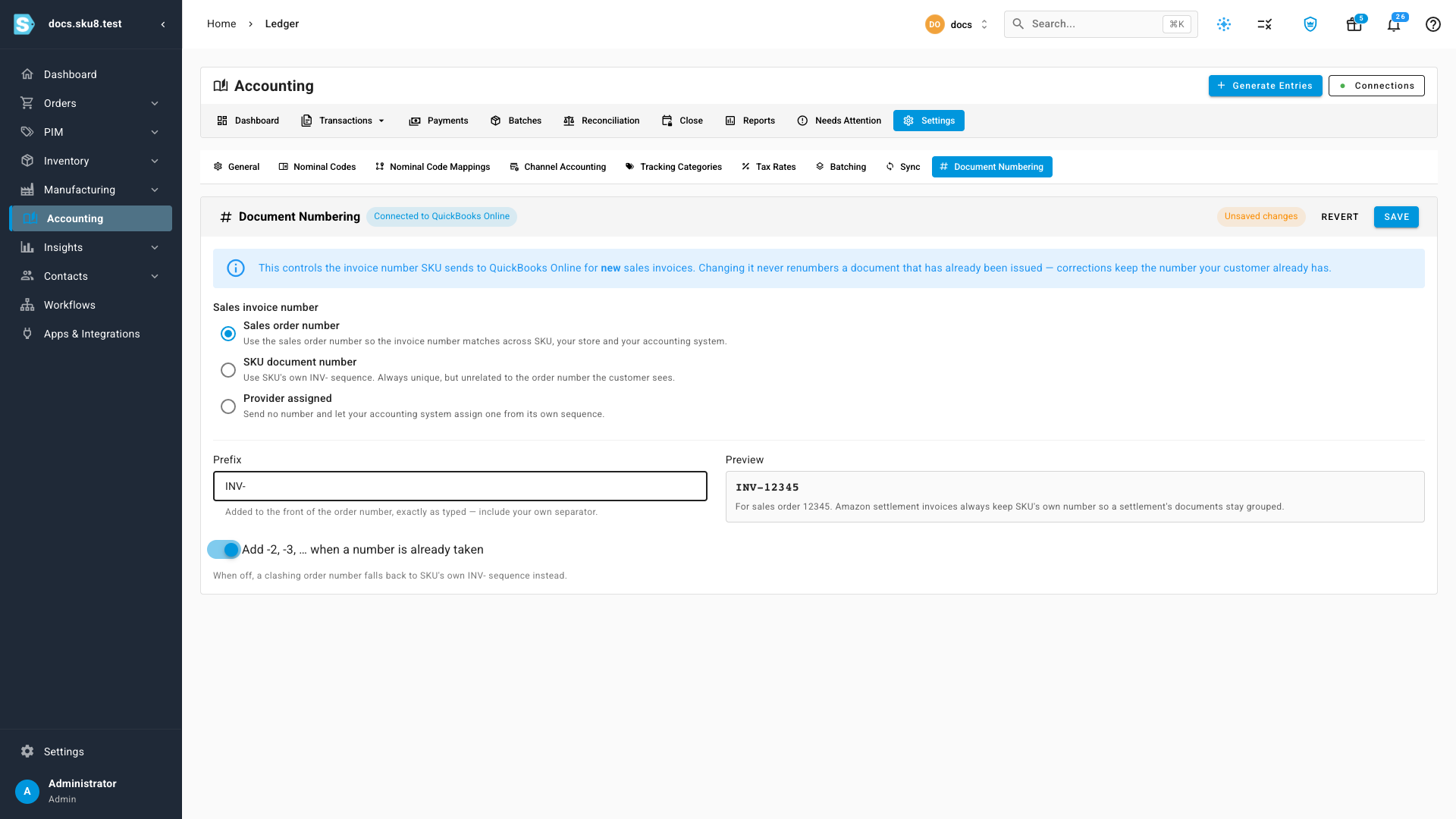
Keep the prefix short. QuickBooks Online accepts a maximum of 21 characters in an invoice number, and if a prefix and an order number together run over that, SKU.io quietly numbers that one invoice from its own sequence instead rather than sending something QuickBooks will reject.
Decide what happens when a number is already taken
Sales order numbers are not guaranteed to be unique in your accounting system — you may have invoiced the same reference by hand, or imported history that already uses it.
- Add -2, -3, … when a number is already taken — leave this on and SKU.io
tries
12345-2,12345-3, and so on until it finds one that is free. If nine variations are all taken, it falls back to SKU.io's own sequence for that invoice. - Turn it off and a clashing number goes straight to SKU.io's own sequence instead — no suffixes.
The switch is only available with Sales order number selected; the other two options can't clash.
Save
Click Save. An Unsaved changes badge appears as soon as you touch anything, and Revert puts the panel back the way you found it.
From that point on, new sales invoices are numbered the way you chose. Documents already issued keep the numbers they have.
Why a corrected invoice keeps its number
When you correct an invoice that has already been posted, SKU.io doesn't rewrite it. It reverses the original and issues a replacement — marked /R1, /R2 and so on — and that replacement inherits the number the original was issued with. The correction shows up in your books; the number on your customer's copy does not move.
To see it:
- Go to Accounting → Transactions and click View all to open the full entries table.
- Click Columns and switch on Document #. The column is hidden by default.
- Find an entry whose Reference ends in /R1. Its Document # is the same number the original carried.
- Hover the padlock beside that number. The tooltip confirms it was fixed when the document was first created and left alone by every correction since.
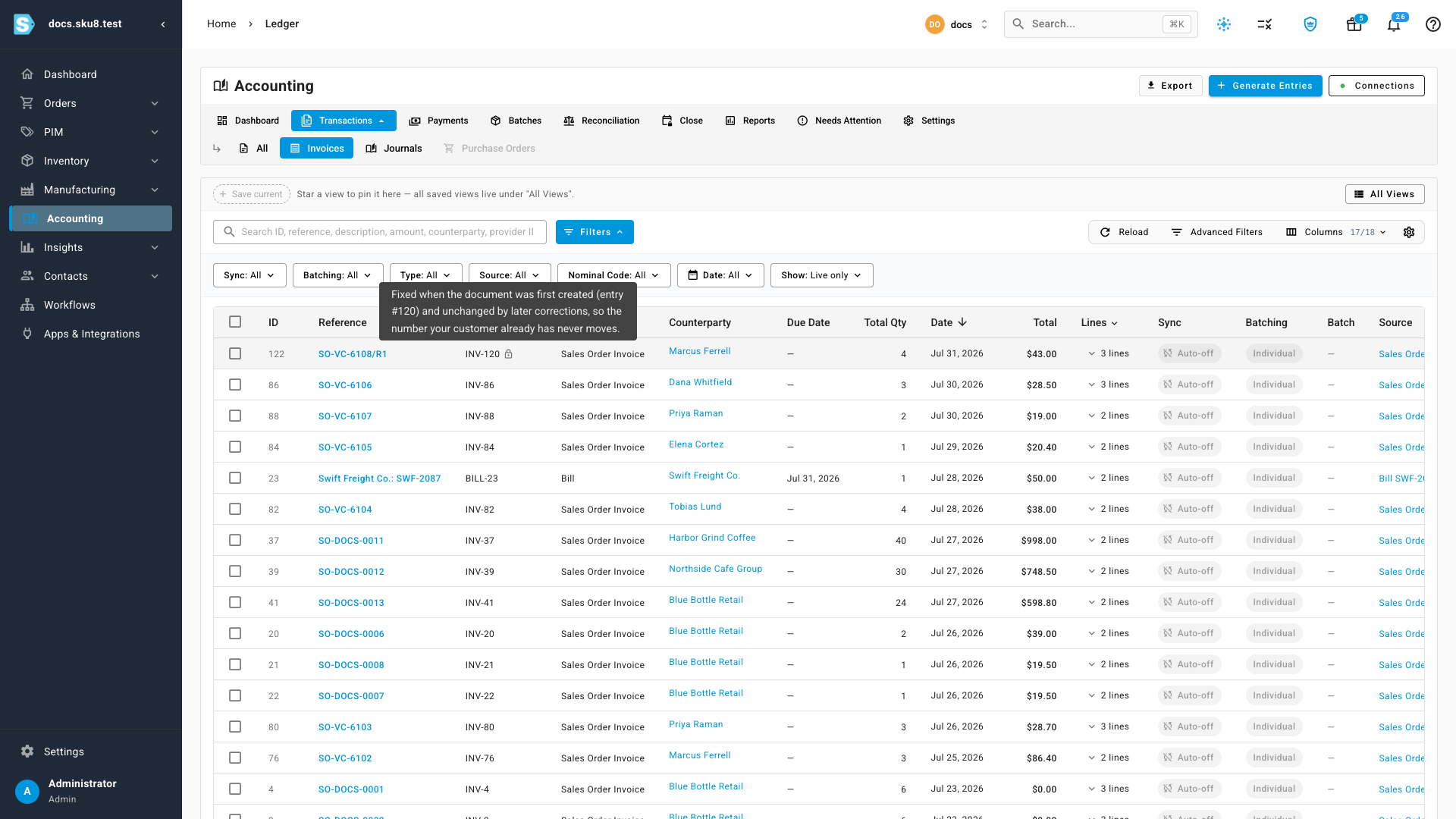
The same holds for the numbering choice itself: switching schemes changes what the next invoice is called and nothing else. A document that has been issued keeps its number for good, however many corrections follow.
Two things sit outside the choice by design:
- Reversals get their own number. A reversal is a separate document in your books, so it is numbered separately rather than reusing the number it reverses.
- Amazon settlement invoices always use SKU.io's own sequence, whichever scheme you pick, so that every document belonging to one settlement stays grouped together.
Next steps
- Review the ledger — find an entry and read the debits and credits behind it.
- How automatic accounting works — what SKU.io generates, and when it sends it.
Video transcript
Every sales invoice SKU sends to your accounting system carries a number. You decide where that number comes from. Open Accounting, go to Settings, then Document Numbering. The setting belongs to the accounting connection named at the top of the card. There are three ways to number a new sales invoice. Provider assigned sends no number at all, so your accounting system uses its own next number. SKU document number uses SKU's own sequence, which is always unique but unrelated to the order. Sales order number reuses the number your customer already has. The preview underneath shows exactly what the next invoice would be called. A prefix applies only to the sales order scheme. Type it exactly as you want it to appear, including your own separator. Keep it short. If a prefix and an order number together get too long for your accounting system, SKU quietly uses its own sequence for that invoice instead. Order numbers are not guaranteed to be unique in your accounting system. Leave this on and SKU adds -2, -3, and so on until it finds a free number. Turn it off and a clashing invoice falls back to SKU's own sequence instead. Hit Save. From here on, new sales invoices are numbered the way you chose. Nothing that has already been issued changes. Now open Transactions and choose Invoices. Every number in the Document # column was fixed when that document was first created. This invoice was corrected after it had already been issued, which is what the R1 marks, and the number is unchanged. The lock icon says so. Your customer's copy and your accounting system stay in agreement, however many corrections follow.