Fix entries posting to the wrong account
Sometimes an entry lands somewhere surprising — a fulfillment's Cost of Goods Sold shows up in QuickBooks under a bank or credit-card account, or revenue posts to the wrong income account. The account on each entry line is resolved through a short chain of settings, so the fix is to walk that chain: the most specific setting wins.
This is especially common after importing your chart from QuickBooks: every QuickBooks account becomes a selectable SKU.io account — including bank and credit-card accounts — so one mis-picked dropdown can send COGS to a credit card.
Before you begin
- Know which entry type is affected (for example, Sales Order Fulfillment) and which account it should post to.
- Find an affected entry under Accounting → Transactions and note its channel and product, so you can check the override that applies to it.
Check the company default
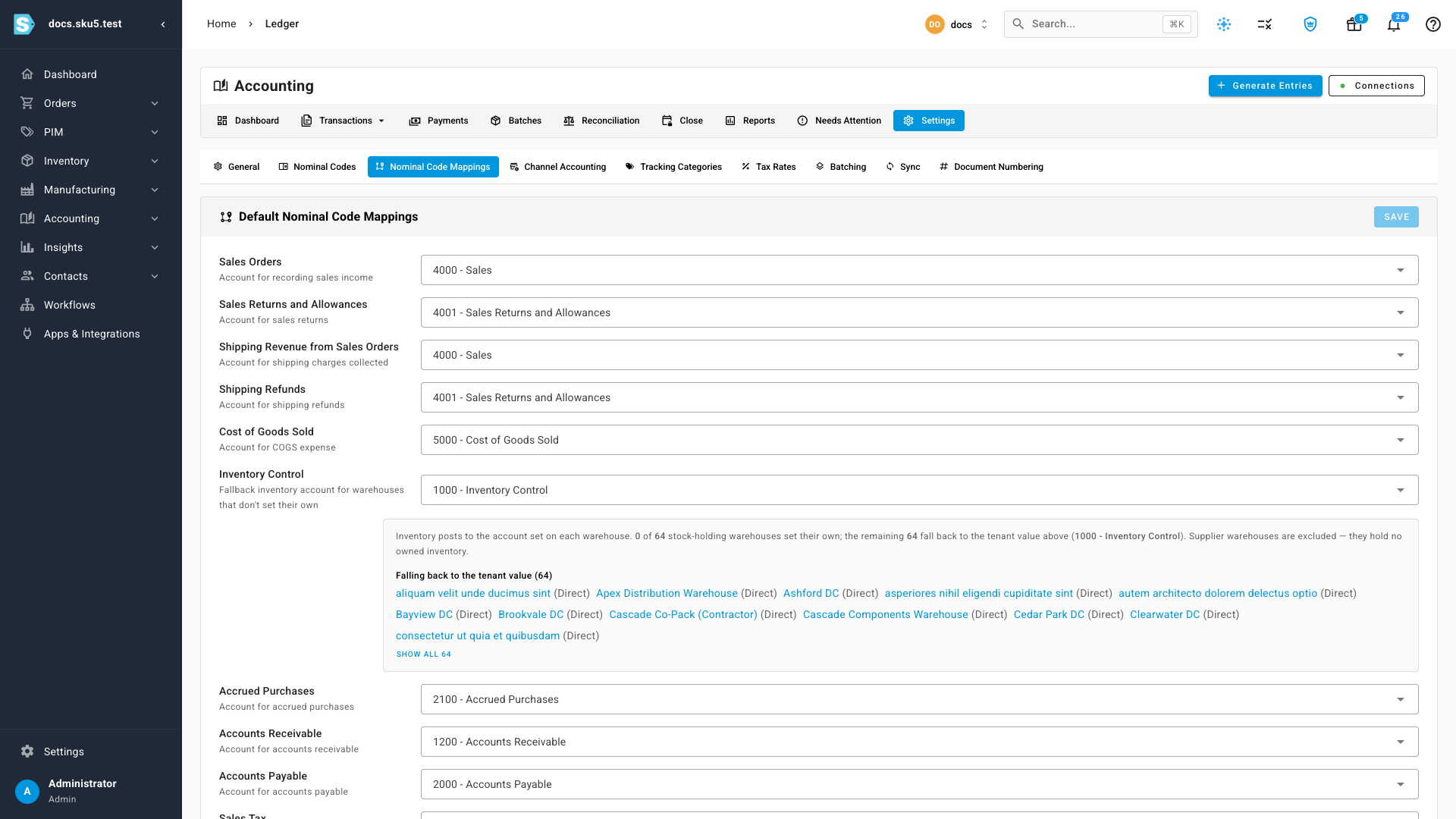
- Go to Accounting → Settings → Nominal Code Mappings.
- Find the posting the entry belongs to — for a fulfillment's cost, the Cost of Goods Sold row.
- If the selected account is wrong — say, a card account instead of your COGS account — pick the right account and click Save. New entries use the corrected account immediately.
Check for a channel override
A sales channel can override the default. An override beats the company default for every order on that channel.
-
Go to Accounting → Settings → Channel Accounting.
-
Scan the affected channel's row. Default in a column means it inherits the company default; an account code means that channel overrides it.

-
To change or clear an override, click Edit at the end of the row, adjust the account, and save.
Check for a product override
An individual product can override both the channel and the company default.
-
Open the product and go to its Accounting tab.
-
The Nominal Code Overrides card lists the product's own Sales, COGS, and Inventory accounts. A dash means no override. Click Edit to change or clear one.

Check the account's QuickBooks link
If the SKU.io account is right but the entry still lands in the wrong place in QuickBooks, the account may be linked to the wrong QuickBooks account.
- Go to Accounting → Settings → Nominal Codes and open the account.
- The QuickBooks Online Account card names the linked QuickBooks account. If it's wrong, click Change, pick the correct QuickBooks account, and save — future syncs post there. Entries already synced are not moved.
- If you pick an account of a different class — a bank or credit-card account for an expense account, say — SKU.io warns you before saving. That mismatch is exactly what this guide is about, so only confirm it deliberately.
- If an entry failed to sync because its account isn't mapped at all, the entry's sync error offers Map account, which opens this same editor directly. See Map your accounts to QuickBooks Online for how links work.
Correct entries that already posted
Fixing the settings steers new entries. For entries that already posted to the wrong account:
-
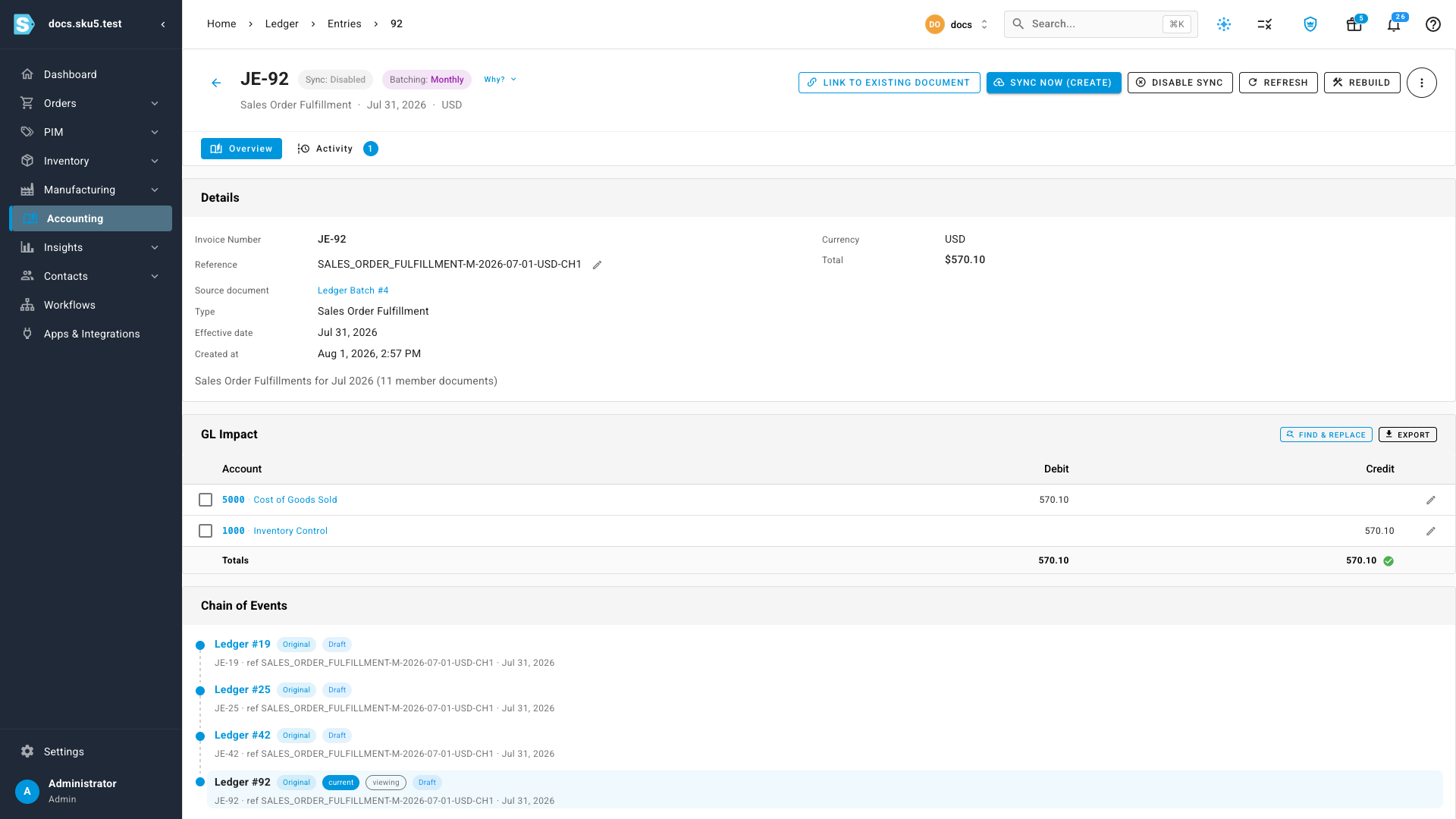
Open the entry from Accounting → Transactions.
-
In the GL Impact card, select the lines on the wrong account and choose Reassign, or use Find & Replace to remap one account to another across the whole entry.
-
The change is durable — it survives rebuilds — and only the account changes; amounts and dates keep tracking the source document. On an entry that already posted, the correction is applied by reversing and re-posting, so your history stays auditable.
Next steps
- Map your accounts to QuickBooks Online — how the account links work.
- Use different accounts for each sales channel — set channel overrides on purpose.
- Review the ledger — find and read any entry.
Video transcript
Say a fulfillment entry is landing in the wrong account — cost of goods sold showing up under a credit card. The account on each line comes from a short chain of settings, and the most specific one wins. Walk the chain. First, the company default, under Accounting, Settings, Nominal Code Mappings. After a chart import from QuickBooks, every QuickBooks account is selectable here — including cards and bank accounts — so check what Cost of Goods Sold actually points at, and fix it if it's wrong. Next, Channel Accounting. A code in a channel's row overrides the default for every order on that channel — this wholesale channel posts its cost to a separate wholesale account. Edit, at the end of the row, changes or clears it. A single product can override both, on its Accounting tab. A dash means no override — anything set here wins over the channel and the default, for that product's lines. Fixing the settings steers new entries. For ones that already posted, open the entry — select lines and reassign them, or use Find and Replace to remap one account to another. On a posted entry, the change reverses and re-posts a correction, so your history stays auditable.