Choose who calculates tax
Every invoice and credit note SKU.io pushes to your accounting system carries tax one of two ways. Tax Treatment decides which: SKU.io posts the tax as its own ledger line, or your accounting system calculates the tax itself from a tax rate declared on every line.
If your organisation files a tax return prepared from your accounting system — BAS in Australia, GST in New Zealand or Canada, VAT in the United Kingdom — this setting matters a lot: documents pushed without tax rates never reach the tax report, so your return under-reports. US organisations normally keep the default and never need to touch this page.
The choice applies to future pushes only. Changing it never re-sends documents that have already synced.
Before you begin
- You need an accounting connection (Xero or QuickBooks Online). The setting belongs to the connection — see how automatic accounting works.
- Your tax rates should already exist. SKU.io creates them as your sales channels and orders bring them in — you'll see them listed on this page.
Open the setting
- Go to Accounting, open the Settings tab, then the Tax sub-tab.
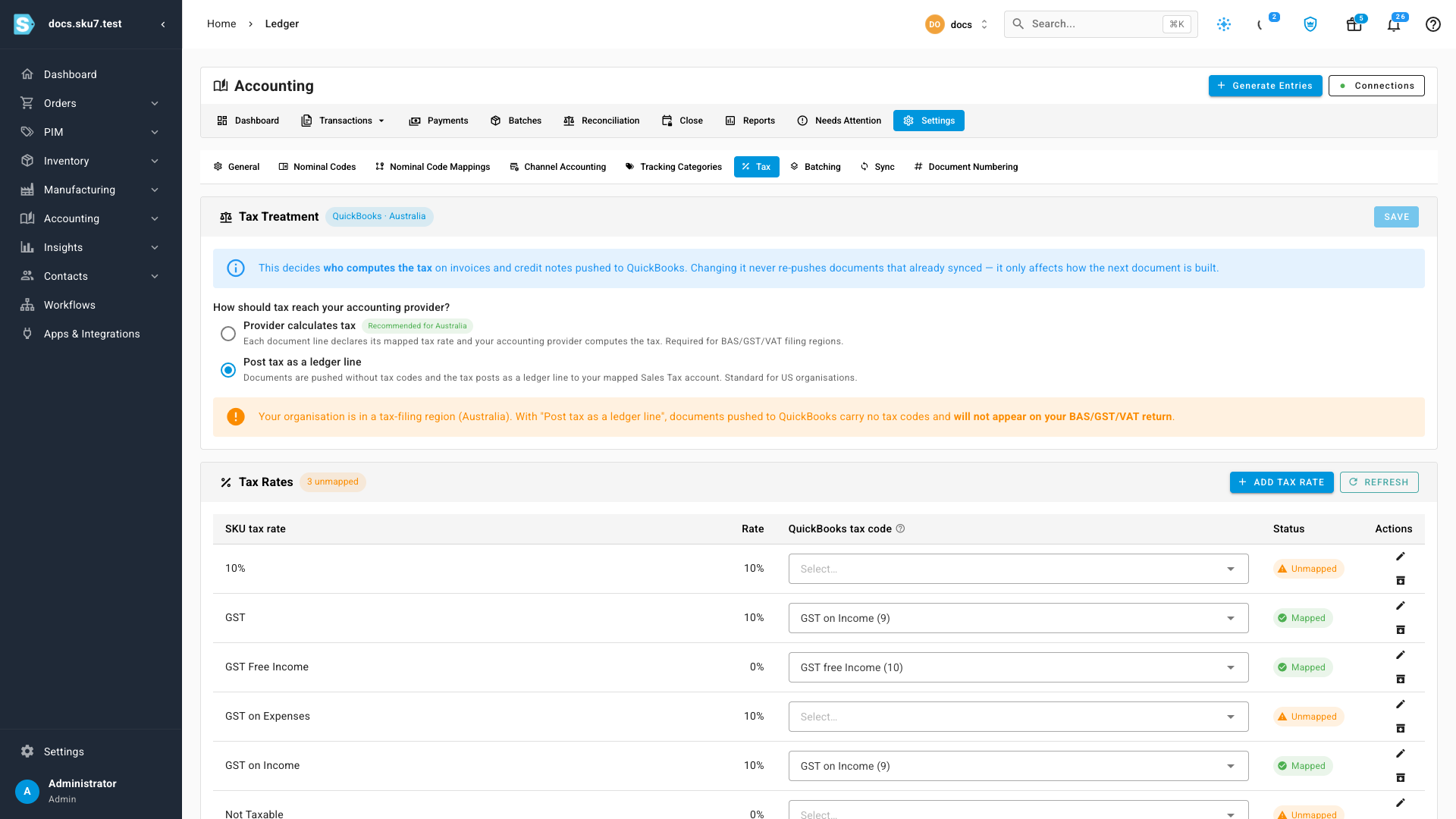
- Check the chip next to the card title — for example QuickBooks · Australia. It names the connected system and the country of your organisation there, which drives the recommendation below.
Choose the mode
Under How should tax reach your accounting provider?, pick one of two:
| Option | What happens on every push | Use it when |
|---|---|---|
| Provider calculates tax | Each document line declares its mapped tax rate, and your accounting system computes the tax from those rates | Your tax return is prepared from your accounting system — required for BAS, GST and VAT filing |
| Post tax as a ledger line | Documents are pushed without tax rates, and the tax posts as an ordinary line to your mapped Sales Tax account | Standard for US organisations, where the balance sheet carries the tax and no rate-based return is filed from the provider |
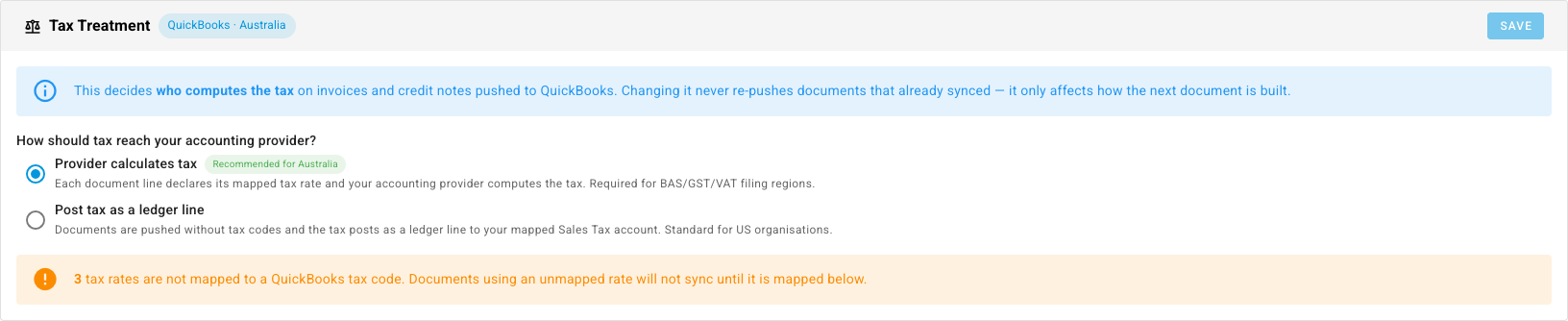
A Recommended chip marks the right choice for your organisation's country. If you are in a tax-filing country and leave Post tax as a ledger line selected, the panel warns you that pushed documents will not appear on your return — you can still save, but the warning stays until you switch.

- Select a mode and click Save. If you change your mind before saving, Revert puts the selection back.
Map your tax rates
With Provider calculates tax selected, every tax rate needs a matching tax code from your accounting system — that code is what each document line declares.
The Tax Rates table lists every tax rate with its current mapping. The chip in the title tells you at a glance how many are still unmapped.
- Find an Unmapped row and open its dropdown under the tax code column.
- Pick the matching code — for example, map the GST on Expenses rate to your GST on Expenses code. The mapping saves the moment you pick it; no separate save step.
- Repeat until the title chip reads All mapped.
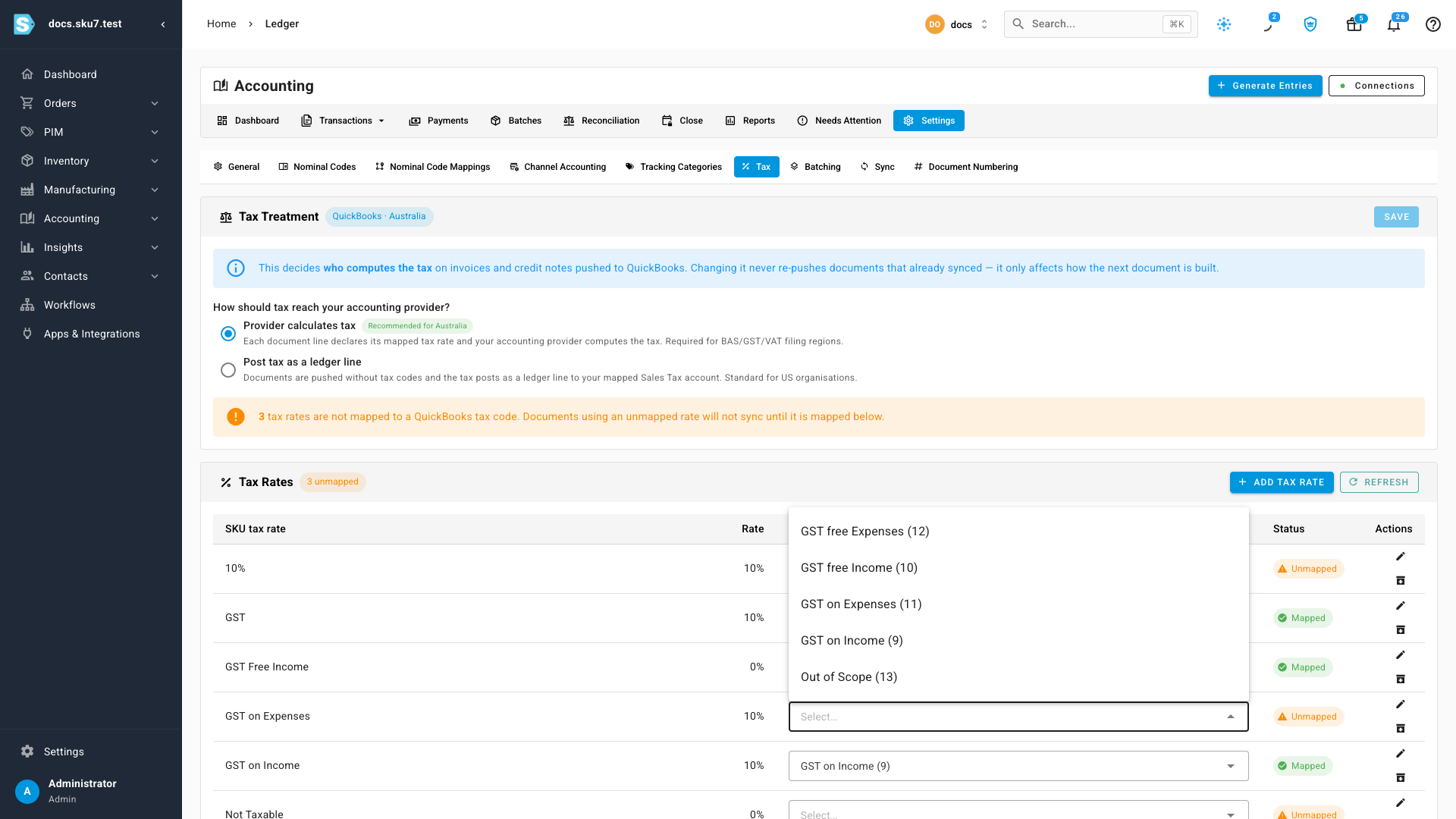
Map your zero-rate and exempt rates to their real exempt codes — for example GST Free Income to its GST free Income code. On a tax return, exempt sales are reported; untaxed lines simply never appear.
If a code you expect is missing from the dropdown, click Refresh to re-pull the list from your accounting system. If the refresh can't reach it, the panel says so and keeps the last-known codes — nothing you've mapped is lost.
What happens when a rate isn't mapped
With Provider calculates tax on, a document that uses an unmapped tax rate does not sync silently without tax. The push stops, and the document appears under the Needs Attention tab with a message naming the rate that needs mapping. Map the rate here, then retry the document from there.
Next steps
Video transcript
Every invoice you push carries tax one of two ways. Open Accounting, then Settings, then Tax. The chip shows your connection — QuickBooks, Australia.
Post tax as a ledger line is the default. Australia files a BAS, so the panel warns that documents pushed this way skip your return.
Provider calculates tax is recommended for Australia. Select it, then click Save. From now on, every line declares its tax rate.
Now map each tax rate to its matching QuickBooks code. Open the dropdown on an unmapped row and pick the code. It saves instantly.
Map the rest the same way — including zero rates, which map to real exempt codes. When the chip reads all mapped, every push declares its tax and your return stays right.