Run a script or AI agent on your own machine
Some jobs can only happen on a machine you control: a script that logs in to your accounting system, an AI agent such as Claude Code driving a website, or a file on the office PC. An Agent Runner lets a workflow hand that job over. It's a small program on your computer or server that picks up jobs from SKU.io, runs a command you chose, and sends the result back. The workflow waits for it, then carries on.
The runner asks SKU.io for work over an ordinary secure connection, the same way a browser does. So you don't need a public address, an open port, or a tunnel, and a laptop that was asleep picks the job up when it wakes. SKU.io only ever sends the name of a job and the record's data. The commands, prompts and passwords stay on your machine.
Before you begin
- You can create and edit workflows.
- The machine has Node.js 20 or newer.
- You have the command you want to run, such as a script or an AI agent you call from the command line.
Steps
-
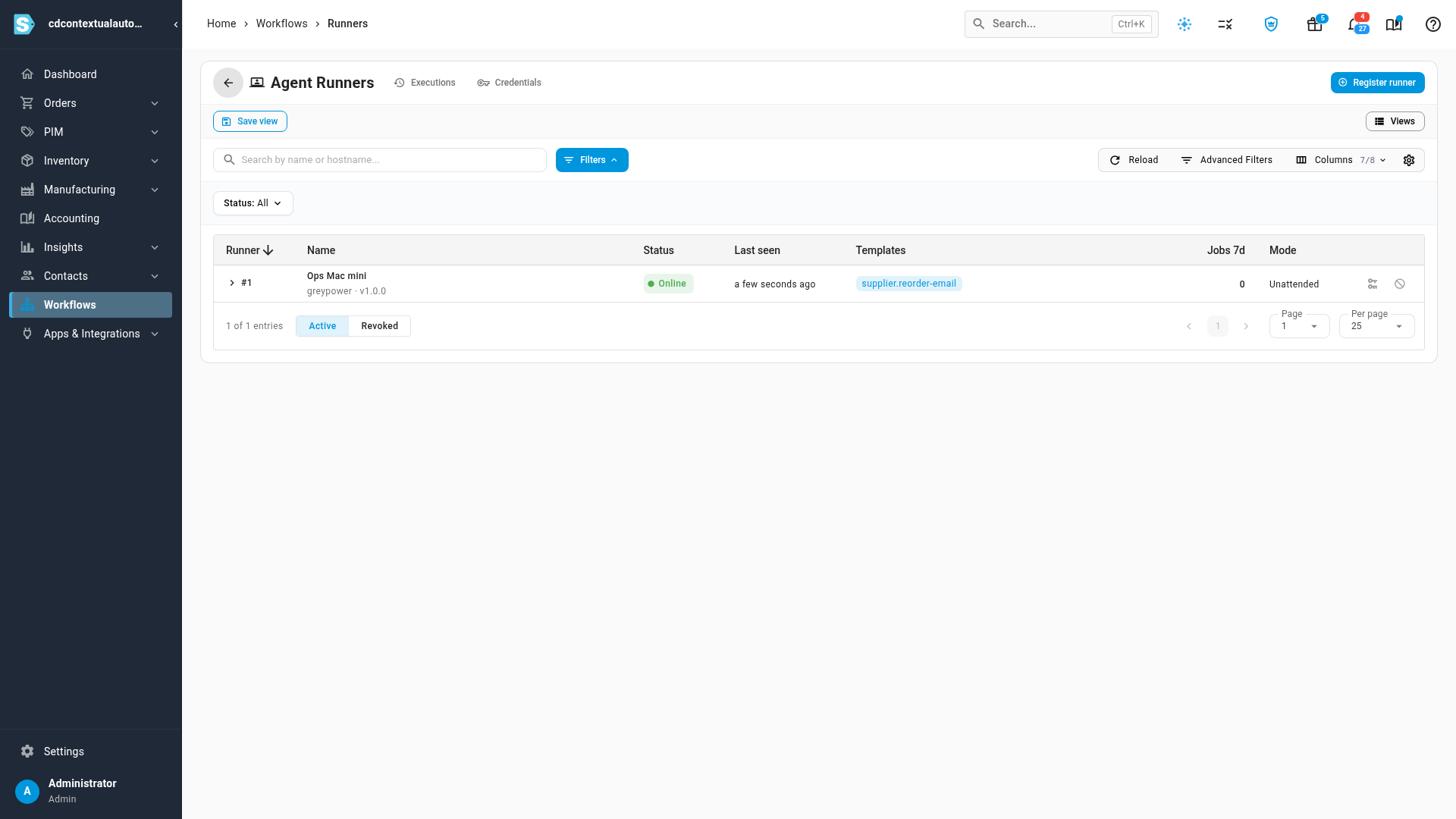
Go to Workflows and click Runners. The page lists your runners, whether each is online, and the job templates it offers.
-
Click Register runner and enter a Name you'll recognize, such as the machine's name.
-
Choose a Mode:
- Attended shows a notification on the machine, and waits for someone to confirm each job.
- Unattended runs each job as soon as it's picked up. Use it for an always-on machine or server.
-
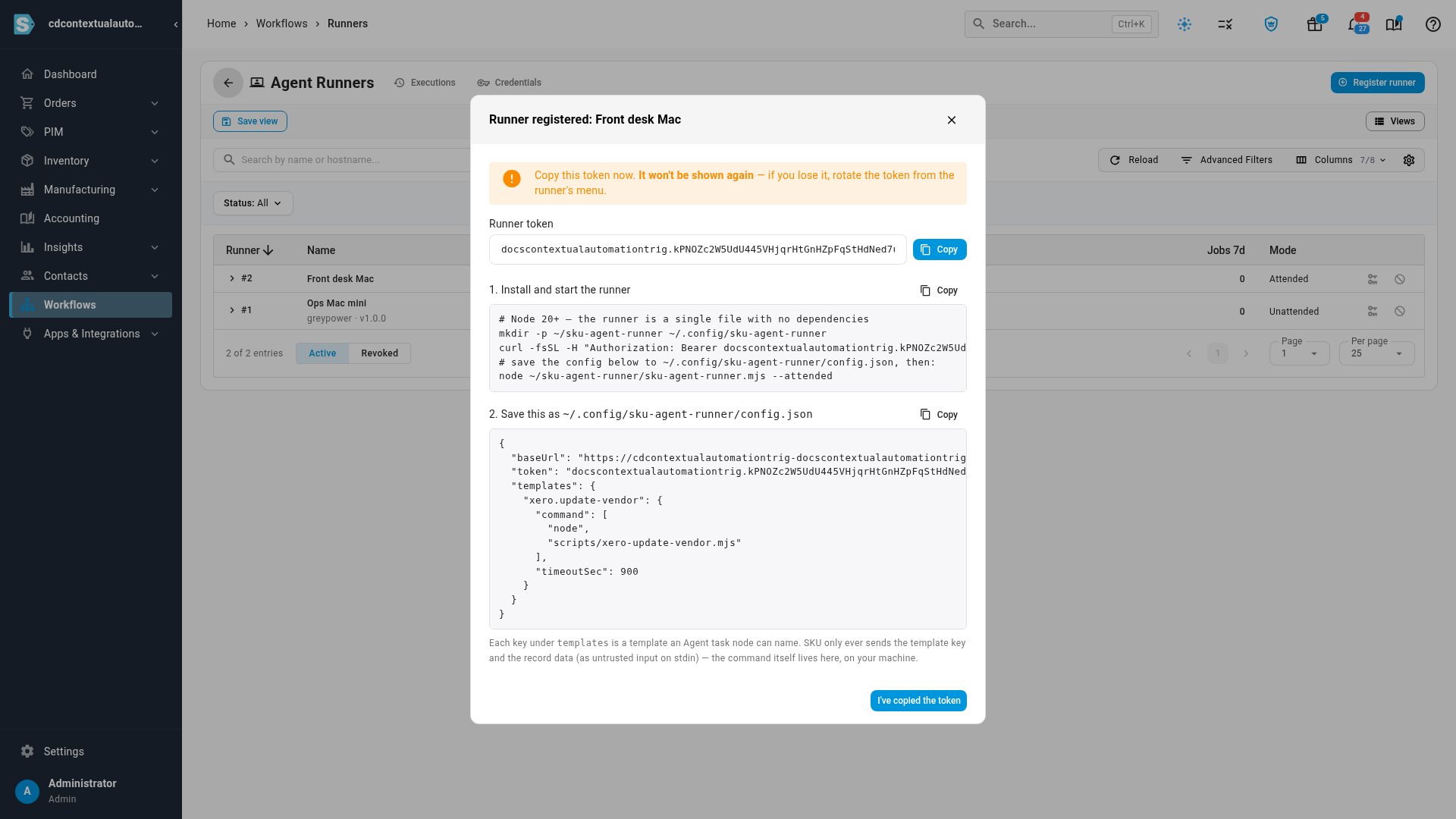
Click Register runner. The dialog shows the runner's token, the commands that download and start the runner, and its config file.
-
Copy the token now. It isn't shown again.
-
On the machine, run the commands under Install and start the runner to download the runner.
-
Save the config file the dialog shows, and list the jobs the runner offers under
templates. See Set up the config file. -
Start the runner with the last command. Back on Runners, it shows Online and lists the templates it offers.
-
Click I've copied the token to close the dialog.
Set up the config file
The dialog shows the config file with your SKU.io address and the runner's token already filled
in. Copy it and save it to the path the dialog names. Then edit its templates section, which is
the list of jobs the runner offers:
- Each entry is named after a template, such as
supplier.reorder-email. That's the name an Agent task step asks for. - Its
commandis the program to run and its arguments, such as the path to your script. The runner only ever runs the commands listed in this file. timeoutSecstops the command when it runs too long (15 minutes by default) and fails the job.- Add
cwdto run the command in a particular folder, andenvto give it settings, such as which account to use.
Set attended to true to have the runner ask before each job, the same as registering it as
Attended.
What your command receives and returns
The runner passes the job to your command on its standard input: the template name, and the
record's data under untrusted_data. Treat that data as untrusted. It comes from your records, so
a prompt to an AI agent should only read values from it, and never follow instructions found in
it.
When it's done, the command prints one line of JSON and exits:
summaryis the line people see on the record, such as Reorder email drafted for Acme Supplies.urlis an optional link to what it produced, such as the draft in your mail app.resultholds anything the workflow's next step needs.
To fail the job, exit with an error. The last lines the command wrote as errors become the message
on the record. To show progress while it works, write lines that start with SKU_PROGRESS, such as
SKU_PROGRESS Logged in. They appear on the record while the run is in progress.
Hand a job to the runner from a workflow
-
In the workflow, add an Agent task step where the job should happen.
-
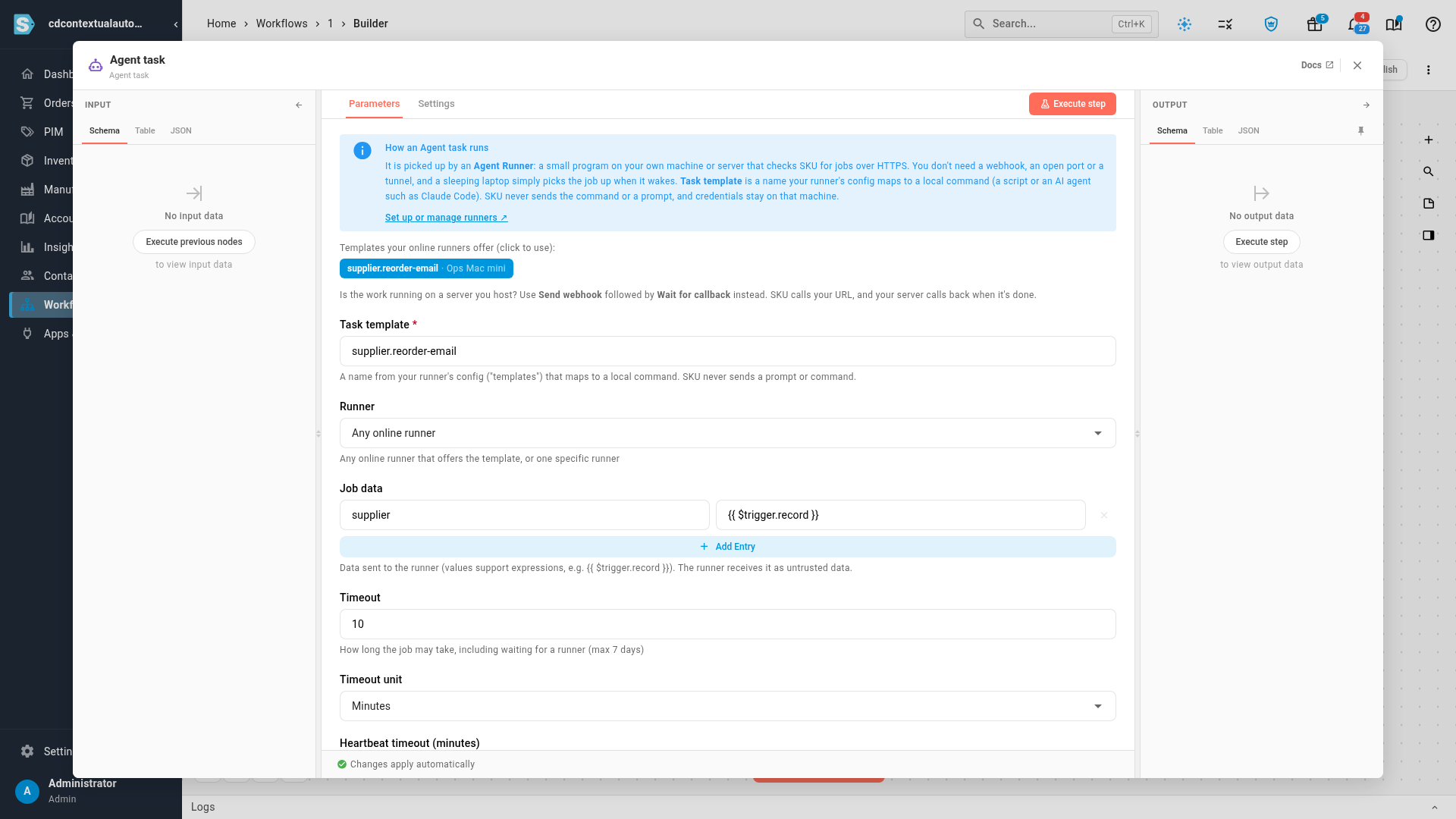
Double-click it. The panel explains how the job reaches your machine and lists the templates your online runners offer. Click one to fill in Task template.
-
Leave Runner on Any online runner, or choose one runner to send every job to.
-
Under Job data, add what the command needs, such as
{{ $trigger.record }}for the whole record the automation runs on. -
Set a Timeout. It counts the time waiting for a runner as well, up to 7 days.
-
Use the step's three outputs: Done carries on with the command's result, Timed out runs when no runner finished in time, and Failed runs when the command reported an error.
-
To show the command's summary on the record, end with a Set Run Result step whose Summary is
{{ $json.summary }}and whose Link is{{ $json.url }}.
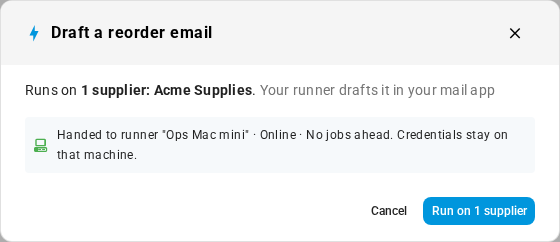
When someone runs the automation, the run dialog says which runner will take the job, and the run shows Waiting until the runner reports back.

Manage runners
- Click the arrow on a runner's row to see its recent jobs: status, template, how long each took and how many attempts it needed.
- Rotate token issues a new token. The old one stops working at once, so update the runner's config file with the new one.
- Revoke runner stops the runner for good. Any job it had picked up goes back in the queue for another runner.
- A runner shows Online while it has checked in within the last 90 seconds. Jobs for a runner that's offline wait until it comes back, or until the step's timeout.
A runner or a webhook?
Workflows can also call a server of yours with a Send webhook step, then pause on a Wait for callback step until your server calls back. Pick the one that fits where the work happens:
| Agent Runner | Send webhook + Wait for callback | |
|---|---|---|
| Where the work runs | Any machine you control, including a laptop behind a home or office router | A server with a public address that SKU.io can reach |
| What you need to set up | Install the runner and its config file | A web address on your server that receives the call, checks SKU.io's signature, and calls back when done |
| A machine that's off or asleep | The job waits, and runs when the machine is back | The call fails if your server can't be reached at that moment |
| Where passwords and prompts live | Only on your machine | On your server |
| Best for | Desktop tools, AI agents, logged-in websites, local files | Your own back-end services |
For most teams, a runner is the simpler choice: nothing to host, and nothing exposed to the internet. Use a webhook when the work already lives in a service you run.
Next steps
- Add an automation to a record: make the workflow that uses the runner one click away on the record.
- Run an automation on a record: follow runs while they wait for a runner.
- Store credentials for workflows: credentials for steps that run inside SKU.io.
Video transcript
To start, open Workflows from the menu on the left, then click Runners at the top. This page lists the runners in your account. A runner is a small program on your own computer or server. It picks up jobs from your workflows, and runs a command you choose. This runner is online. Templates are the jobs it offers, and each one maps to a command on that machine. To add a machine, click Register runner. Give it a name you will recognize. With Attended, someone at the machine confirms each job first. Unattended runs jobs straight away, for an always-on server. Then click Register runner. The runner's token appears next. The token is shown once, so copy it now. Below it are the commands that download and start the runner. Last comes the config file, where each template maps to a command on that machine. Click I've copied the token to close the dialog. Then go back to Workflows, using the menu on the left. Open the workflow that uses a runner, with its edit button. The builder shows its steps. Its Agent task step hands the job to a runner. Double-click the step to open its settings. Task template names the command the runner should run. The panel explains how the job reaches your machine. It also lists the templates your online runners offer. Clicking a template fills in the task template field. Close the panel, then open Contacts, then Suppliers. This workflow runs on suppliers, so pick a supplier. Click Draft a reorder email, in the header. The dialog shows which runner will take the job. Click Run on 1 supplier. A message confirms that the run has started. Now scroll down the supplier page to its Automation runs section. The new run stays open there while the runner works on your machine. When the runner reports back, the run completes, and its status turns green. The result from your command appears on the supplier.