Run an automation on a record
Record automations are workflows your team set up to run by hand on a supplier, product, sales order, purchase order or customer. You run them from the record you're on, or from a list of records you select, and each run is tracked on the record.
Before you begin
- Your role needs permission to run workflows. An automation can also be limited to certain roles. When you can't run one, its Run button is greyed out and its tooltip says why.
- Someone has to have set the automation up. See Add an automation to a record.
Steps
-
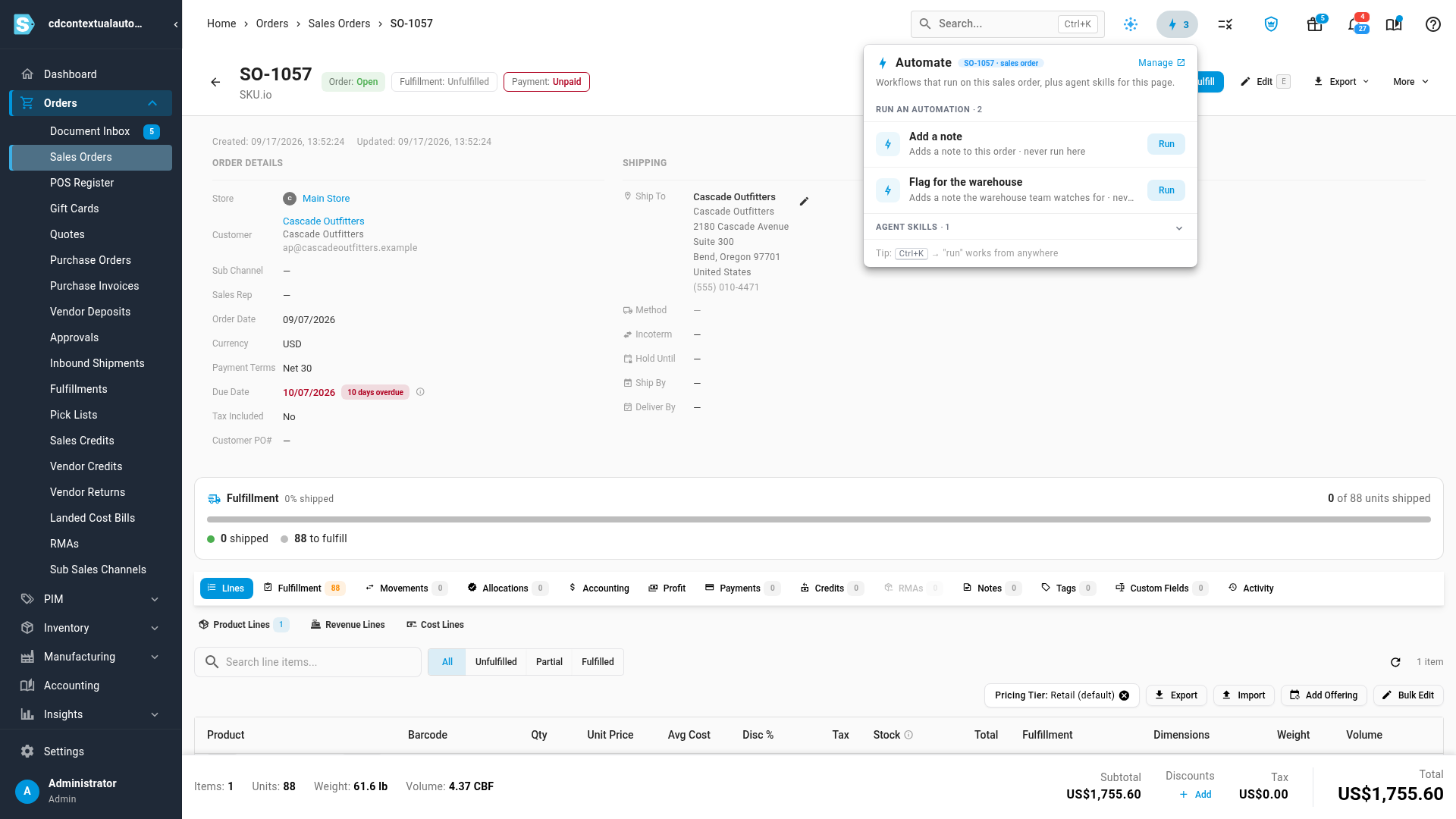
Open the record you want to work on, and click the lightning bolt at the top of the page to open Automate. It lists the automations you can run on this record, and when each one last ran here.
-
Click Run next to the automation you want.
-
If the automation asks questions, answer them. The dialog also says which record it runs on.
-
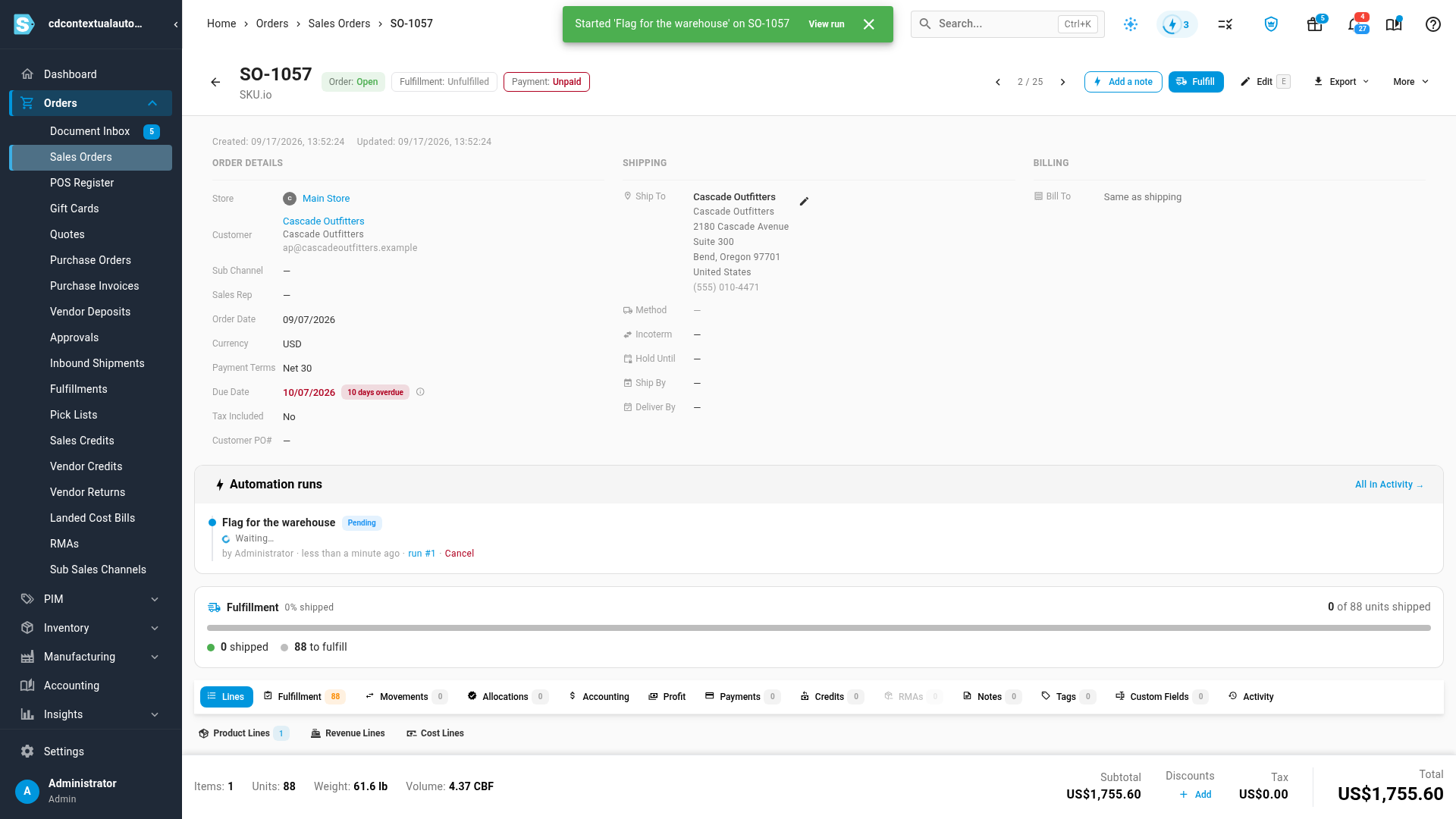
Click Run on 1 sales order. The button names the record type. A message confirms the run started, with View run to open it, and the run appears under Automation runs.
Header buttons
An automation your admin pinned also gets its own button at the top of the record, next to the record's other actions. Clicking it is the same as clicking Run in the menu. A record shows at most two.
Run from the search box
Press Ctrl+K (⌘K on a Mac) on a record and type run. The Run on… section lists the automations for the record you're on. Pick one to open its run dialog.
Follow each run
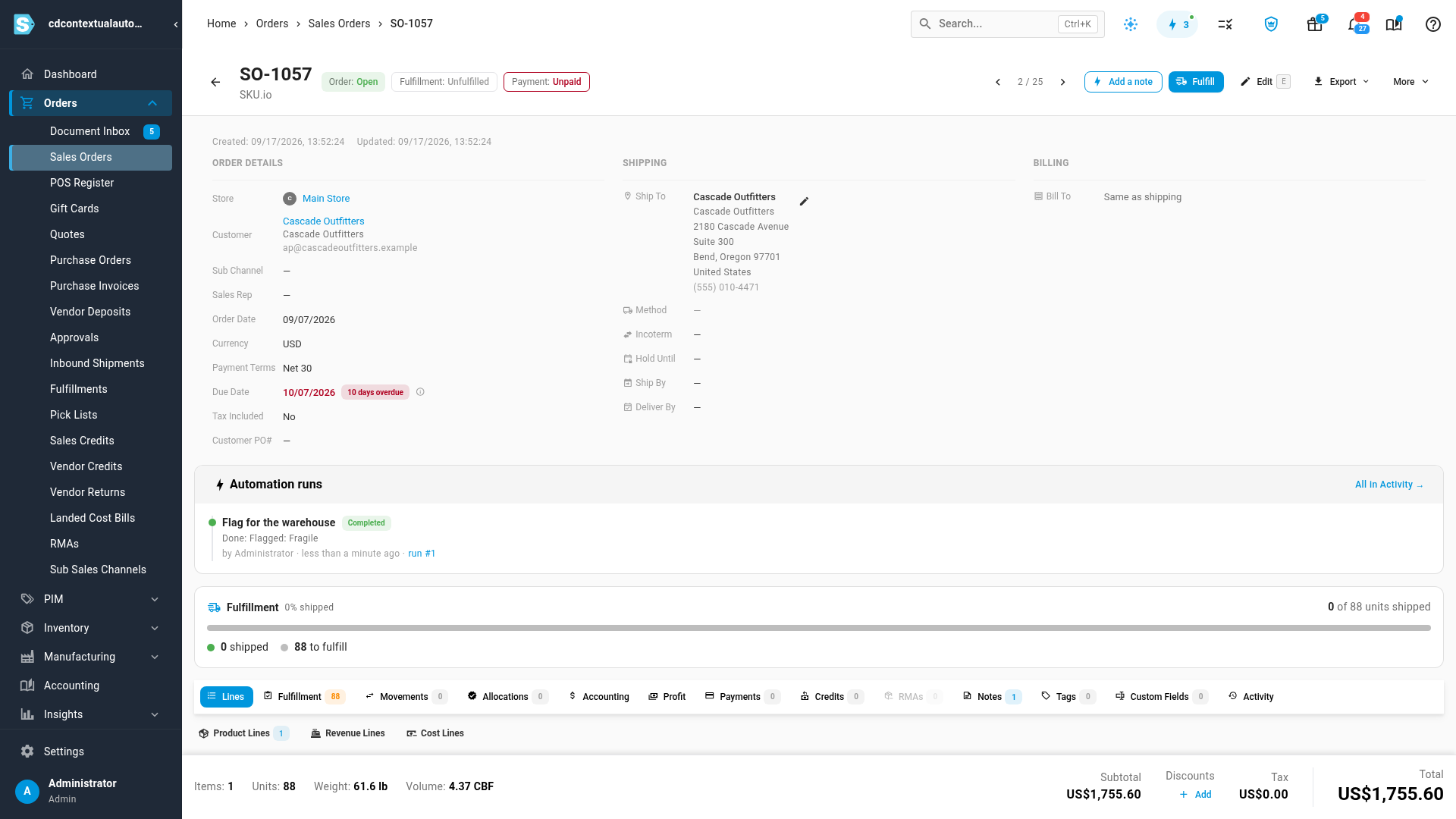
Every run on a record is listed in its Automation runs card, newest first. Each one shows its status, the result line the automation set, and who started it.
| Status | What it means |
|---|---|
| Pending | Queued and about to start |
| Running | Working through its steps |
| Waiting | Paused on a step that waits for something outside SKU.io, such as a runner on your own machine |
| Completed | Finished. The line under it is the automation's result, when it sets one. |
| Failed | Stopped on an error. The line under it says why. |
| Canceled | Stopped by someone before it finished |
- While a run is Pending, Running or Waiting, click Cancel under it to stop it.
- The lightning bolt at the top of the page spins while a run on the record is in progress, and shows a green or red dot when one finishes while you're elsewhere on the page.
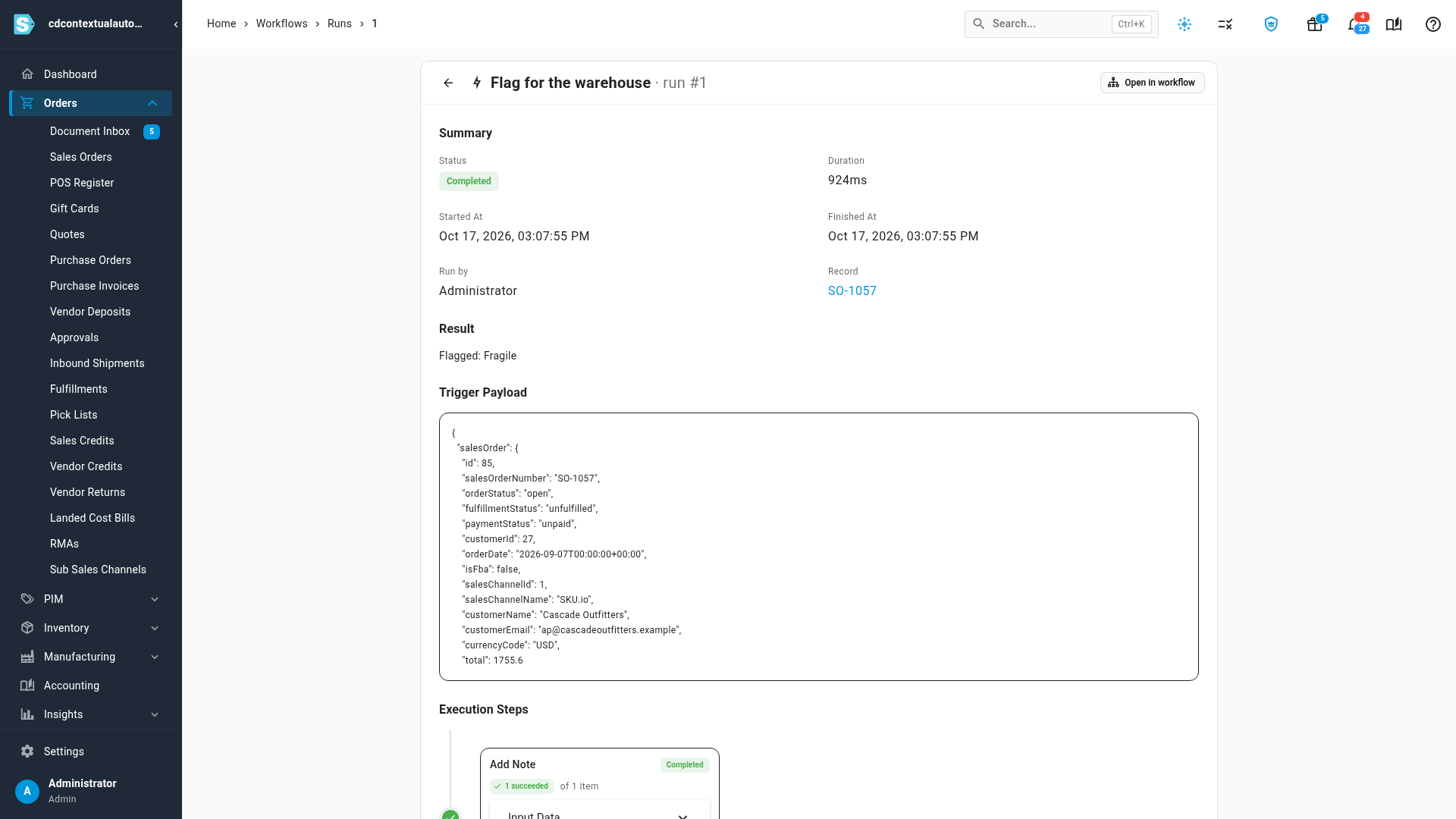
- Click run # to open the run. It shows each step, what it did, and the error if it failed. People who can run automations but can't edit workflows see this page read-only.
- All in Activity lists every run on the record, on its Activity tab.
Run on several records at once
-
Go to the list, such as Orders → Sales Orders, and tick the records you want.
-
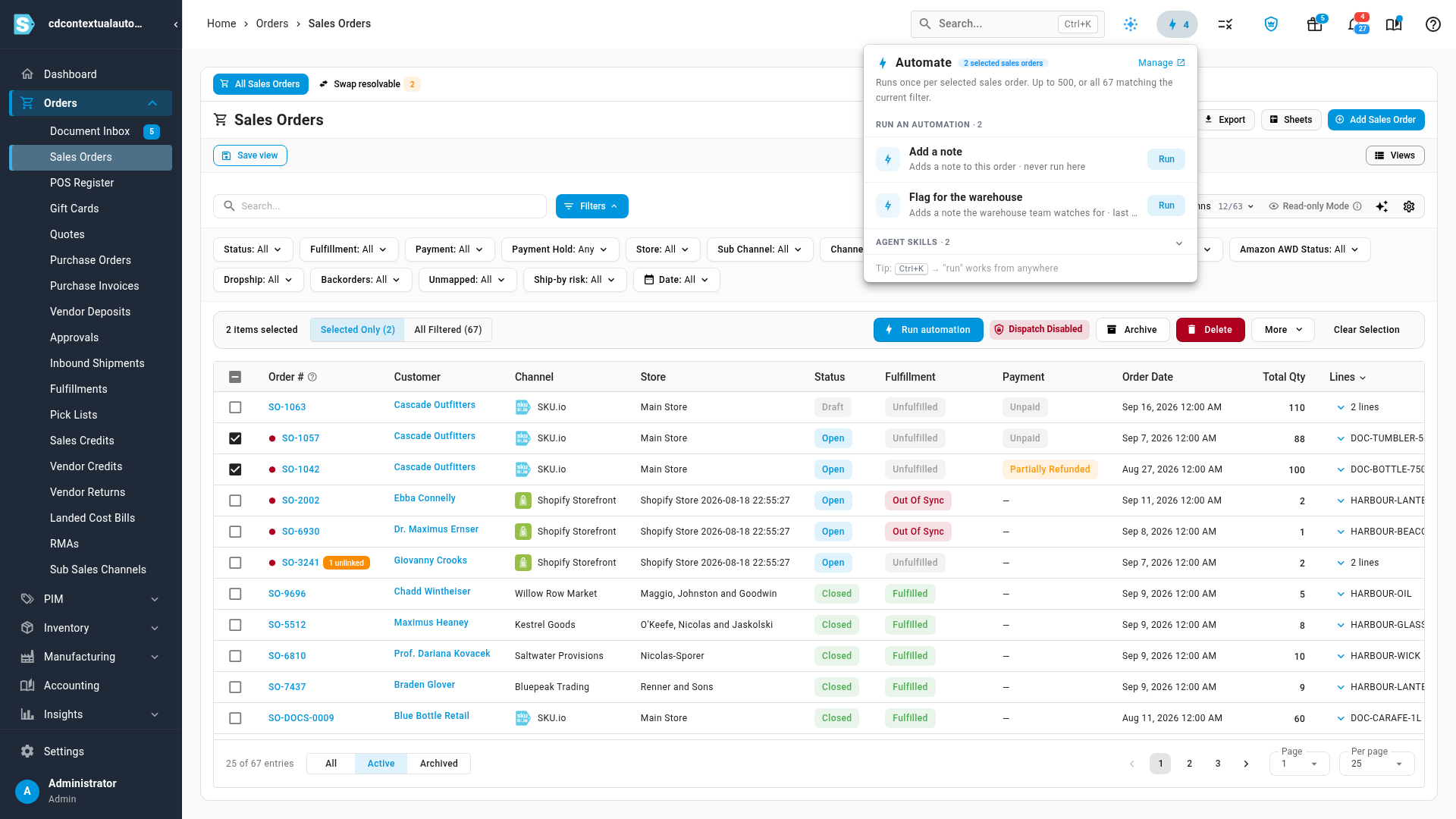
Open Automate, or click Run automation in the bar above the list. The menu now says how many records you selected.
-
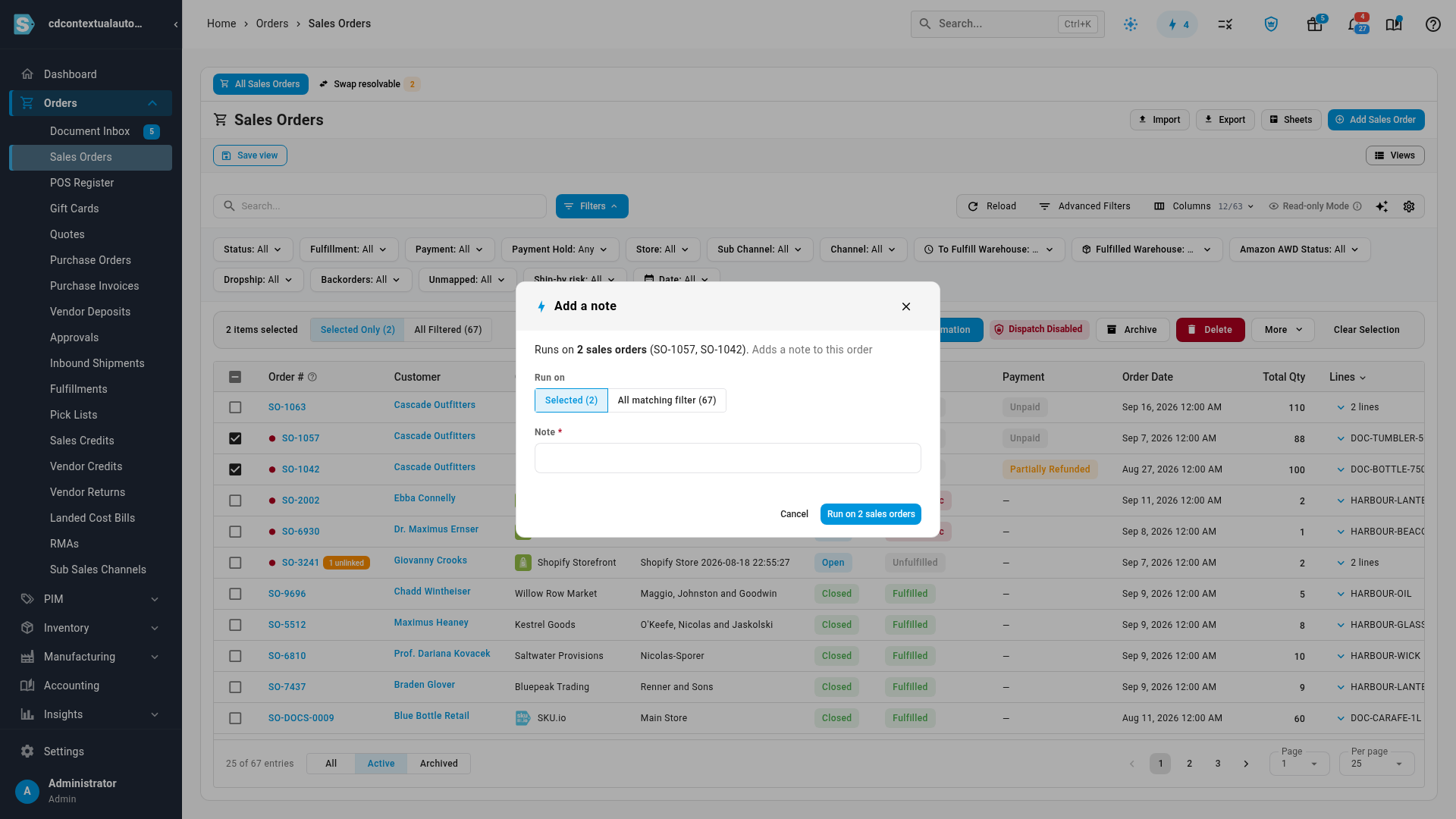
Click Run next to the automation. A run on several records always asks first, and lists the records it will run on.
-
Under Run on, choose Selected to run on the records you ticked, or All matching filter to run on every record that matches the list's current filters.
-
Answer the questions once, and click the Run on button. The automation runs once on each record, with the same answers.
A run on All matching filter happens in a background job you can follow in the job tray, up to 10,000 records. A selection can hold as many records as the automation's limit, 500 at most, and a bigger one runs on the filter instead.
Next steps
- Add an automation to a record: set up your own.
- Run a script or AI agent on your own machine: automations that hand work to a program on your computer.
- Review a workflow's run history: every run of every workflow in one place.
Video transcript
Open the record you want to work on. Here, that means Orders, then Sales Orders, then one order from the list. Then click the lightning bolt at the top of the page. The Automate menu lists the automations you can run on this record. Each automation in the menu has its own Run button. Some automations ask a question first. This one asks for a reason, so pick one from the list. Then click Run on 1 sales order. A message confirms that the run has started. Automations your admin pinned also get their own button in the record header. Every run on this record is listed under Automation runs. Each shows its status, its result, and who started the run. Click the run number to see what each step did, and any error. You can also run an automation on several records at once. Go back to Orders, then Sales Orders. Tick the box next to each record you want. Then click the lightning bolt at the top again. The menu now shows how many records you selected. Each automation runs once on every selected record. Runs on several records always ask first, and list every record in the run.