Store credentials for workflows
Some workflow steps reach outside SKU.io: they watch a partner's FTP folder, call a supplier's API, or write to a Google Sheet. Those steps need a login. You save each login once under Workflows → Credentials, give it a name, and then pick it by name in any workflow. The secret itself is never shown again.
Before you begin
- Have the login details from the other system to hand: a host, username, and password for FTP or SFTP; a key or token for an API; or a Google Cloud OAuth client ID and secret for Google Sheets.
- Credentials belong to your account, not to one workflow, so several workflows can use the same login. Once saved, a secret can be replaced but never read back.
Credential types
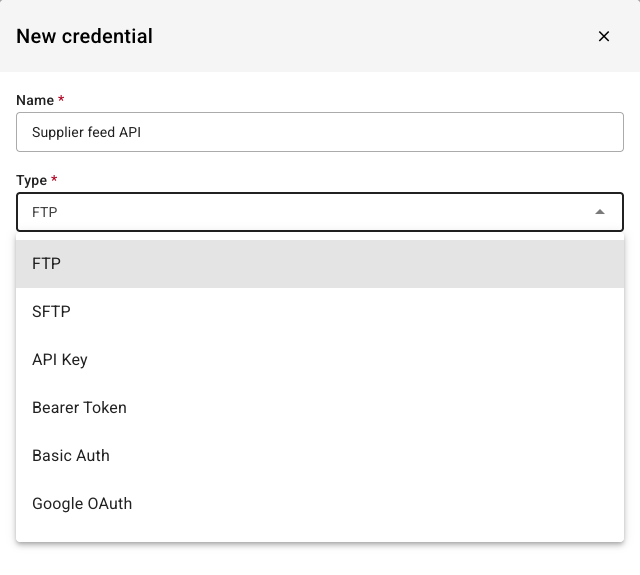
| Type | Use it for | What you enter |
|---|---|---|
| FTP | Watching, downloading from, or uploading to an FTP folder | Host, Port (21 if blank), Username, Password, and the passive-mode options |
| SFTP | The same jobs over SFTP | Host, Port (22 if blank), Username, Password |
| API Key | Calling an API that expects a key in a header | Header name (for example X-API-Key) and the Key |
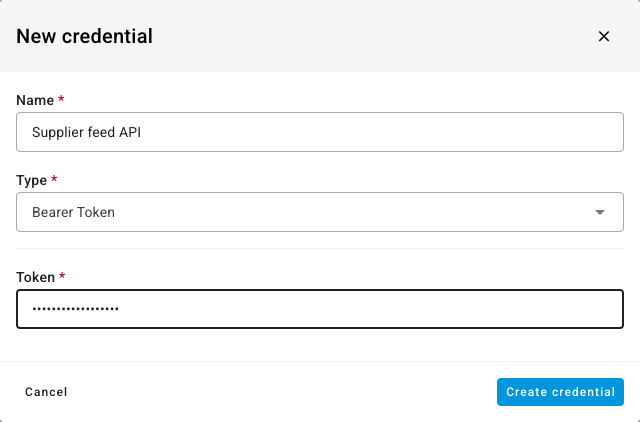
| Bearer Token | Calling an API that expects a bearer token | Token |
| Basic Auth | Calling an API or URL protected by a username and password | Username and Password |
| Google OAuth | Reading or writing Google Sheets | Client ID and Client Secret, then Connect with Google |
FTP and SFTP credentials are used by the FTP / SFTP: File Available trigger and the FTP download and upload steps. API Key, Bearer Token, and Basic Auth are used by the HTTP Request and download-from-URL steps. Google OAuth is used by the Google Sheets trigger and the Google Sheets: Write Rows step.
A Webhook Token credential added before can still be opened and edited, but you can't add a new one: no workflow step uses it.
Add a credential
-
Go to Workflows and click Credentials.
-
Click New Credential.
-
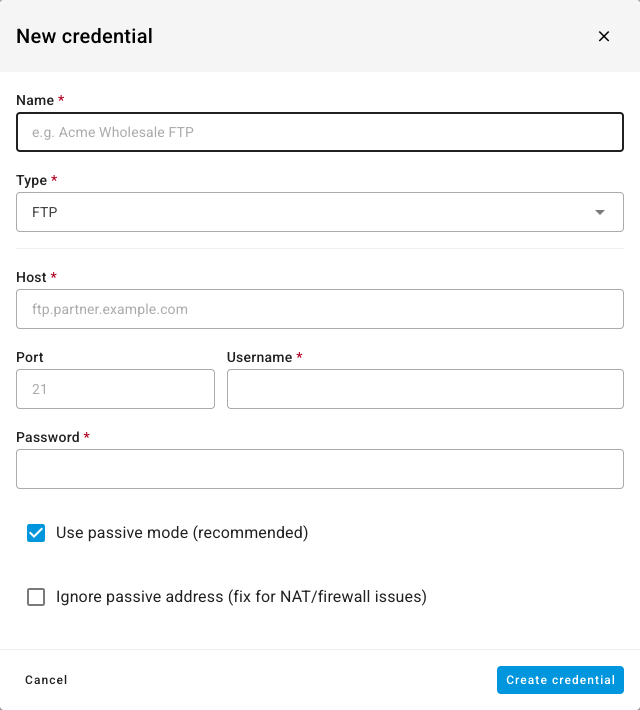
Type a Name your team will recognize, such as Acme Wholesale FTP. This is the name you pick inside a workflow.
-
Choose the Type.
-
Fill in the fields for that type. Secret fields are masked as you type.
-
For Google OAuth, enter the Client ID and Client Secret, then click Connect with Google and approve access in the Google window. If you already have a refresh token, open Or enter refresh token manually (advanced) and paste it instead.
-
Click Create credential.
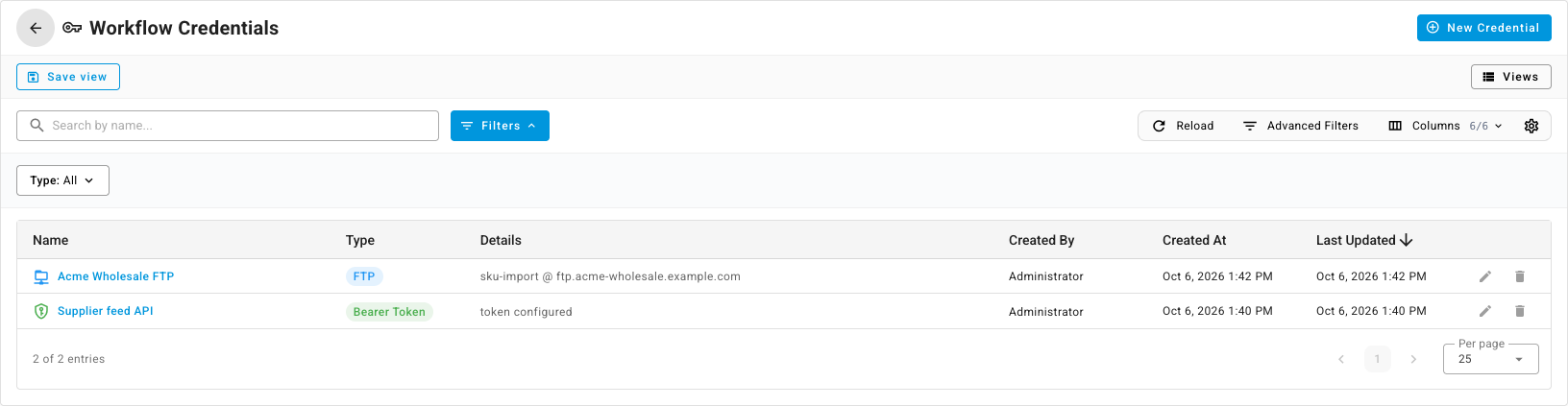
The credential appears in the list with its type and a safe summary, such as the username and host for FTP, or token configured for a token. The secret is encrypted and isn't shown again.
Use a credential in a workflow
-
From a template. When a template needs a login, its set-up page asks for it. Pick the credential by name. If the list says there are none yet — for example, No FTP or SFTP credentials yet — add one first, then come back.
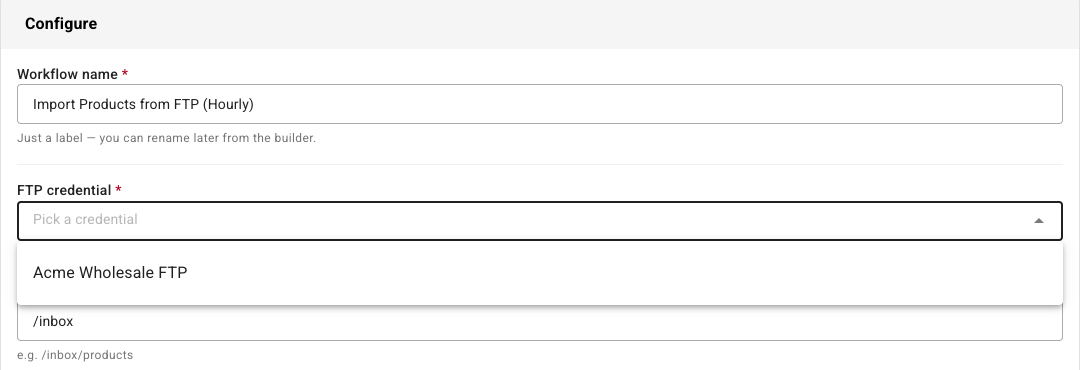
-
In the builder. Open the step that talks to the other system and choose the credential in its Credential field. The field only lists credentials of the types that step accepts — on an HTTP Request step, for example, Basic Auth, API Key, and Bearer Token credentials. Click Add a credential at the bottom of the list if the one you need isn't there yet.

Change or replace a secret
-
Click the credential's name, or its pencil icon.
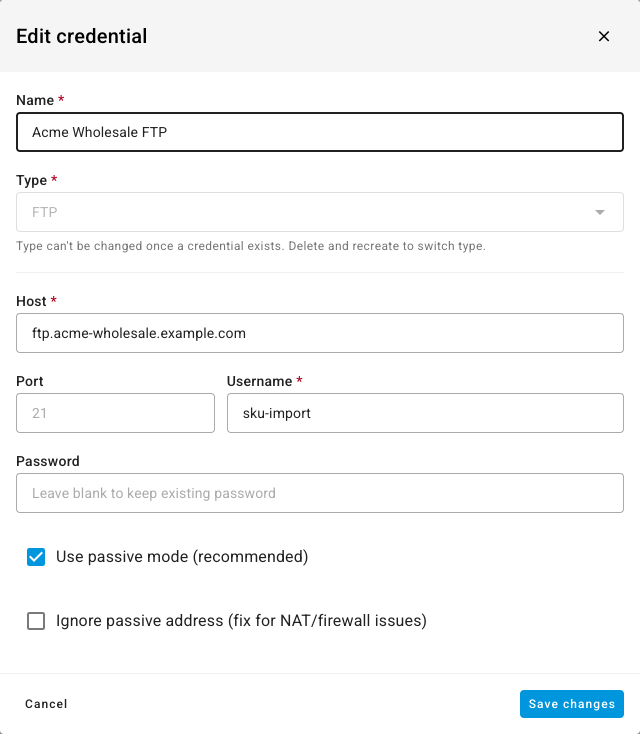
-
Change what you need. Leave a secret field blank to keep the saved value, or type a new one to replace it.
-
Click Save changes.
Workflows pick up the new details on their next run. You can't change a credential's Type once it exists. To switch type, add a new credential and delete the old one.
Delete a credential
-
Click the bin icon on the credential's row.
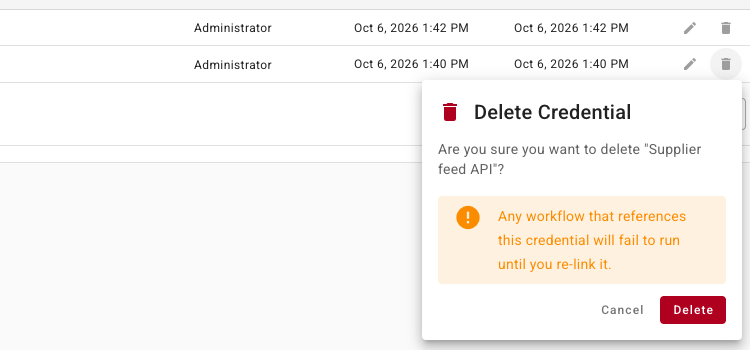
-
Click Delete.
Any workflow that uses the credential fails at that step until you pick another one. Check the workflow's run history after you delete one, see Review a workflow's run history.
Next steps
- Create a workflow from a template — templates ask for the credentials they need.
- Workflow templates reference — which templates need a credential.
- Review a workflow's run history — see a failed login and run it again.